


Overview
The File Search node queries Knowledge bases to retrieve relevant information and context. Connect your workflow to your organization’s knowledge base and search through uploaded documents to enrich AI responses, validate information, or provide context for decisions.Best for: Knowledge retrieval, document search, context enrichment, RAG
(Retrieval Augmented Generation), and accessing organizational knowledge.
When to Use File Search
Perfect for:- Searching company documentation and knowledge bases
- Retrieving relevant context for AI agent responses
- Finding specific information across multiple documents
- Implementing RAG (Retrieval Augmented Generation) patterns
- Validating information against internal knowledge
- Enriching workflows with organizational data
- Real-time web search (use Web Search node)
- Fetching data from external APIs (use HTTP Request node)
- Processing individual files (use direct file attachments)
Configuration
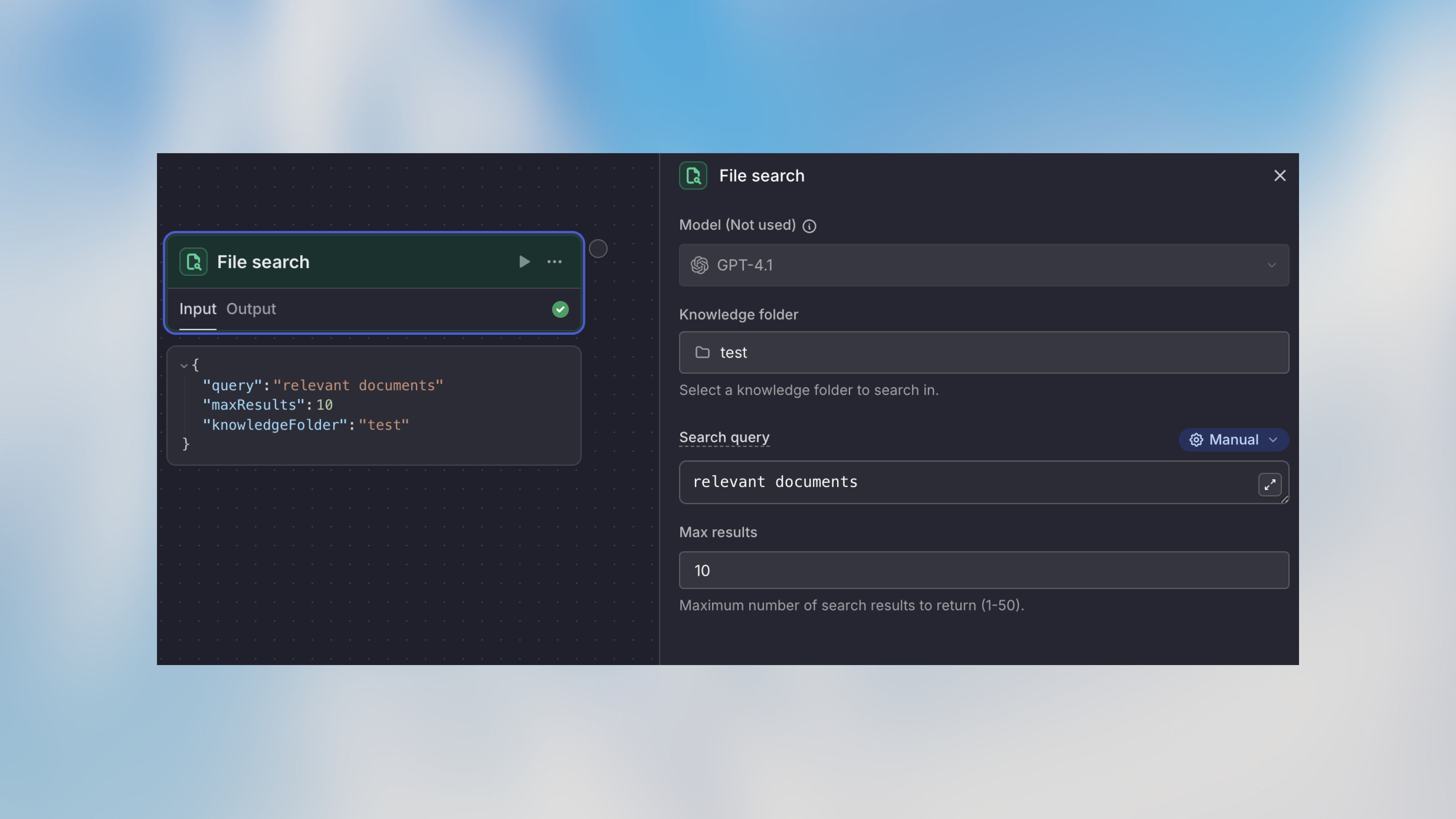
Knowledge base
Select the Knowledge base to search from your workspace’s available Knowledge bases. Options:- Choose from connected Knowledge bases
- Each Knowledge base contains uploaded documents
- Knowledge bases accept supported text based formats such as PDFs, Word docs, Markdown, and presentations. They do not accept tabular files, images, audio, or video.
Search Query
The search query to find relevant information. Supports Manual, Auto, and Prompt AI modes. Manual mode examples:Max Results
The maximum number of relevant results to return (default: 10) Recommendations:- 1-3 results: Focused, specific queries
- 5-10 results: Broader context needed
- 10+ results: Comprehensive searches (may impact performance)
How It Works
- Query is processed against the selected Knowledge base
- Semantic search finds the most relevant document chunks
- Results are ranked by relevance
- Top N results are returned based on max results setting
- Retrieved information is available to subsequent nodes
Example Use Cases
Customer Support with Knowledge Base
Product Information Lookup
Document Validation
Accessing Search Results
Access the retrieved information in subsequent nodes:Result Structure
Each result contains:- text: The relevant text chunk from the document
- fileName: Name of the source file
- fileUrl: URL to access the source file
- mimeType: MIME type of the source file
- subsource: Additional source reference
- subname: Additional name reference
- fileId: Unique identifier for the source file
- externalId: External reference ID from the connected source system
- fileSize: Size of the file in bytes
- connectionId: ID of the integration connection that provided the file
- syncParams: Sync parameters from the source integration
- pageCount: Number of pages in the file
Limitations
- Knowledge base scope: Only searches within the selected Knowledge base
- Result quality: Depends on quality and completeness of uploaded documents
- Chunk size: Large documents are split into chunks; relevant information might span multiple results
- Real-time updates: Document changes require reprocessing before they appear in search results
Important: Ensure your Knowledge bases are regularly updated with current information for accurate search results.
Best Practices
Write Specific Search Queries
Write Specific Search Queries
More specific queries return more relevant results. Include key terms, product names, or topics rather than generic searches.
Adjust Max Results Based on Use Case
Adjust Max Results Based on Use Case
Start with 5 results and adjust based on response quality. Too few might miss important context, too many can dilute relevance.
Keep Knowledge bases organized
Keep Knowledge bases organized
Organize Knowledge bases by topic or domain for more targeted searches. Separate technical docs from marketing content.
Combine with Agent Nodes
Combine with Agent Nodes
File Search is most powerful when combined with Agent nodes. The agent can synthesize and interpret the retrieved information.
Test with Real Queries
Test with Real Queries
Test your file search with actual questions users might ask to ensure Knowledge base content is sufficient and queries return relevant results.
Handle No Results
Handle No Results
Add a condition after file search to handle cases where no relevant results are found. Provide fallback responses or escalation paths.
Next Steps
Agent Node
Process and synthesize search results with AI
Knowledge bases
Learn how to set up and manage Knowledge bases
Web Search
Search the internet for current information
Condition Node
Route based on search result quality