

This webinar on getting started is recorded in German.
Model Selector
Langdock is model-agnostic, integrating the best AI models in a GDPR-compliant EU setting - regardless of provider.
- OpenAI - GPT series and reasoning models
- Anthropic - Claude family (Opus, Sonnet, Haiku)
- Google - Gemini Pro and Flash variants
- Others - Mistral, Meta LLaMA, and more
- Click the model name in the chat input bar
- Pick the model that best fits your task. Your next message uses it automatically
Prompt functionalities
Hover over your prompt to see available actions.Copy prompt
Copy your prompt to the clipboard by clicking the clipboard icon.Edit prompt
If you’re unsatisfied with a response, edit the prompt by clicking the pen icon. Click save when ready. It’s normal to iterate on your instructions when using AI models and add more context where needed.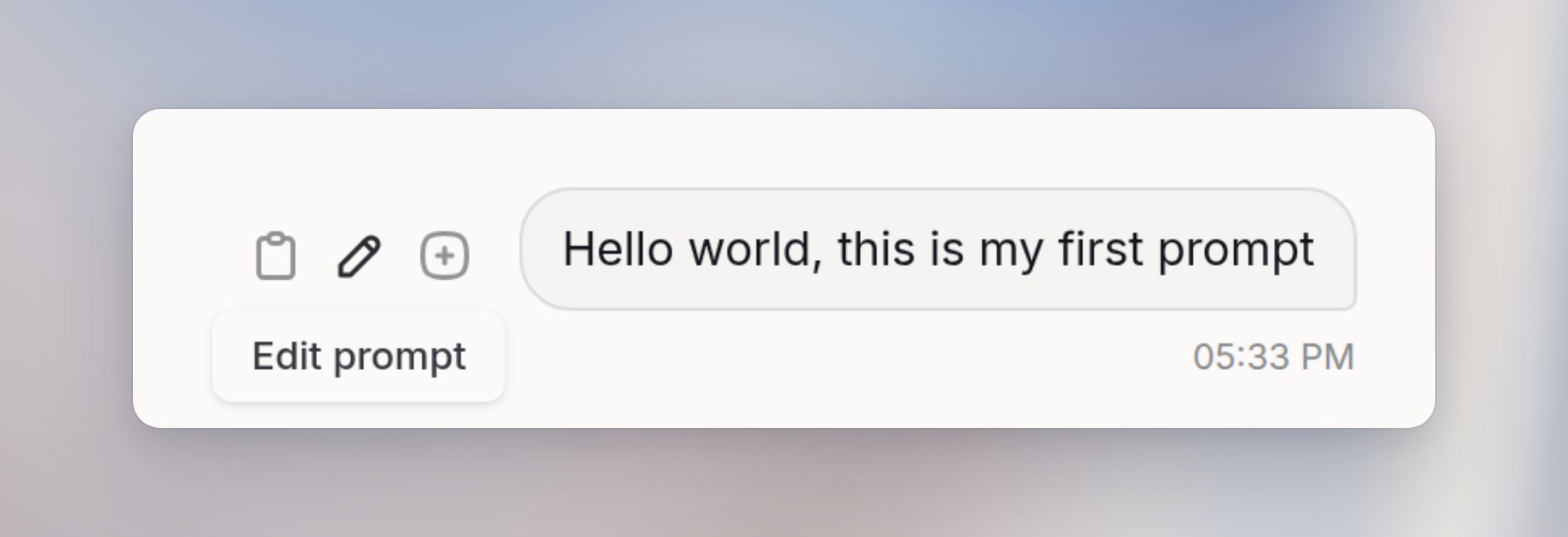
Save prompt
To reuse a prompt, save it by clicking the ”+” icon. Choose a folder in your prompt library and give your prompt a name. Learn more about the prompt library here.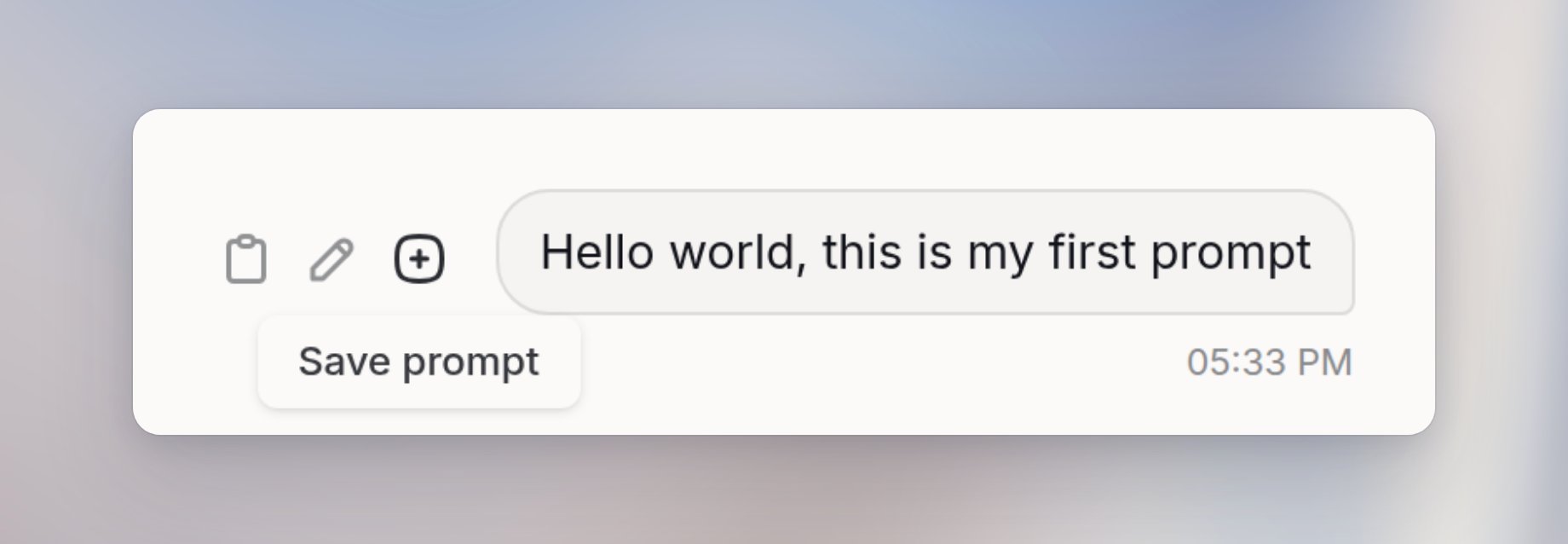
Response functionalities
If you move the cursor of your mouse over the response, you can see the functionalities connected to the response.Copy response
Click Copy under the response. Word and Outlook receive formatted text, so bold text and lists stay intact. A field that only accepts plain text gets the Markdown, including asterisks. Copy last response (Ctrl or Cmd + Shift + C) copies the latest answer.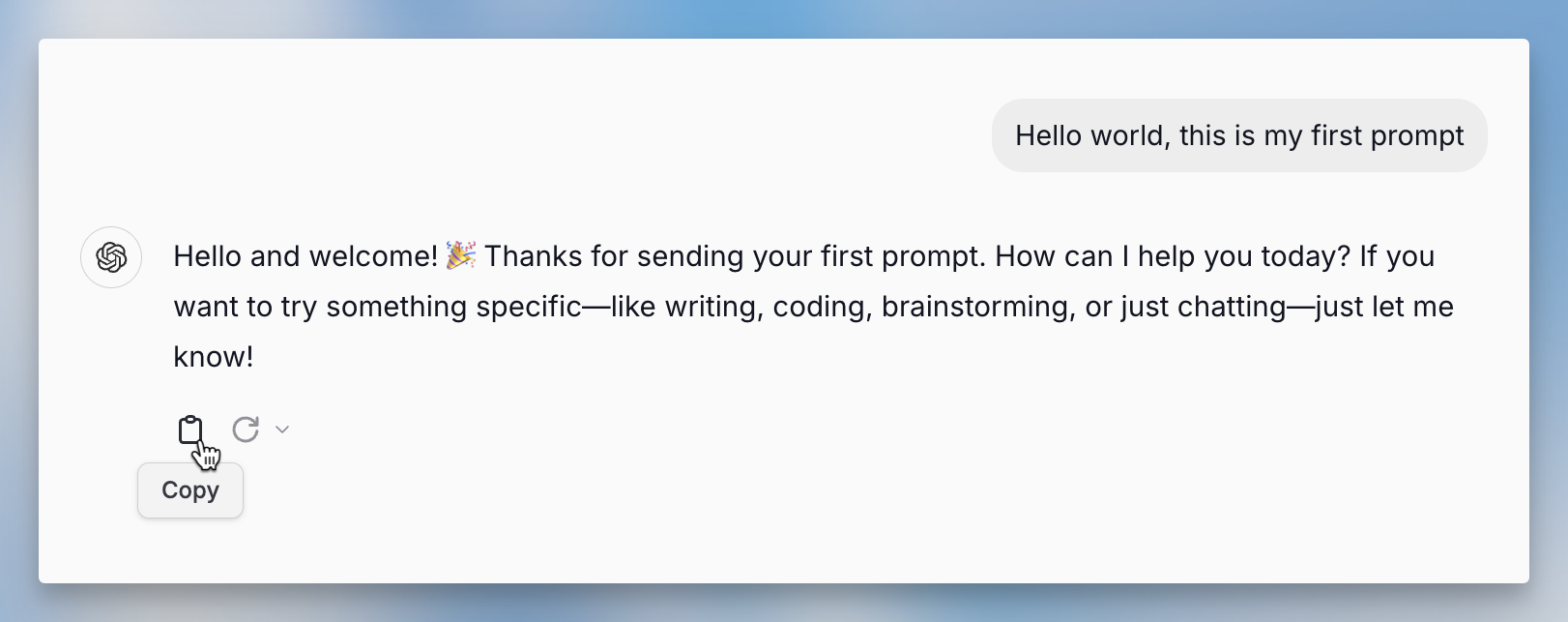
Regenerate response
If you’re unsatisfied with a response, click the circular arrow to regenerate it. This works because AI models are non-deterministic, meaning you’ll get slightly different results for the same prompt. You can compare multiple responses and pick the best one. If responses are still insufficient, try editing your prompt with more specific details.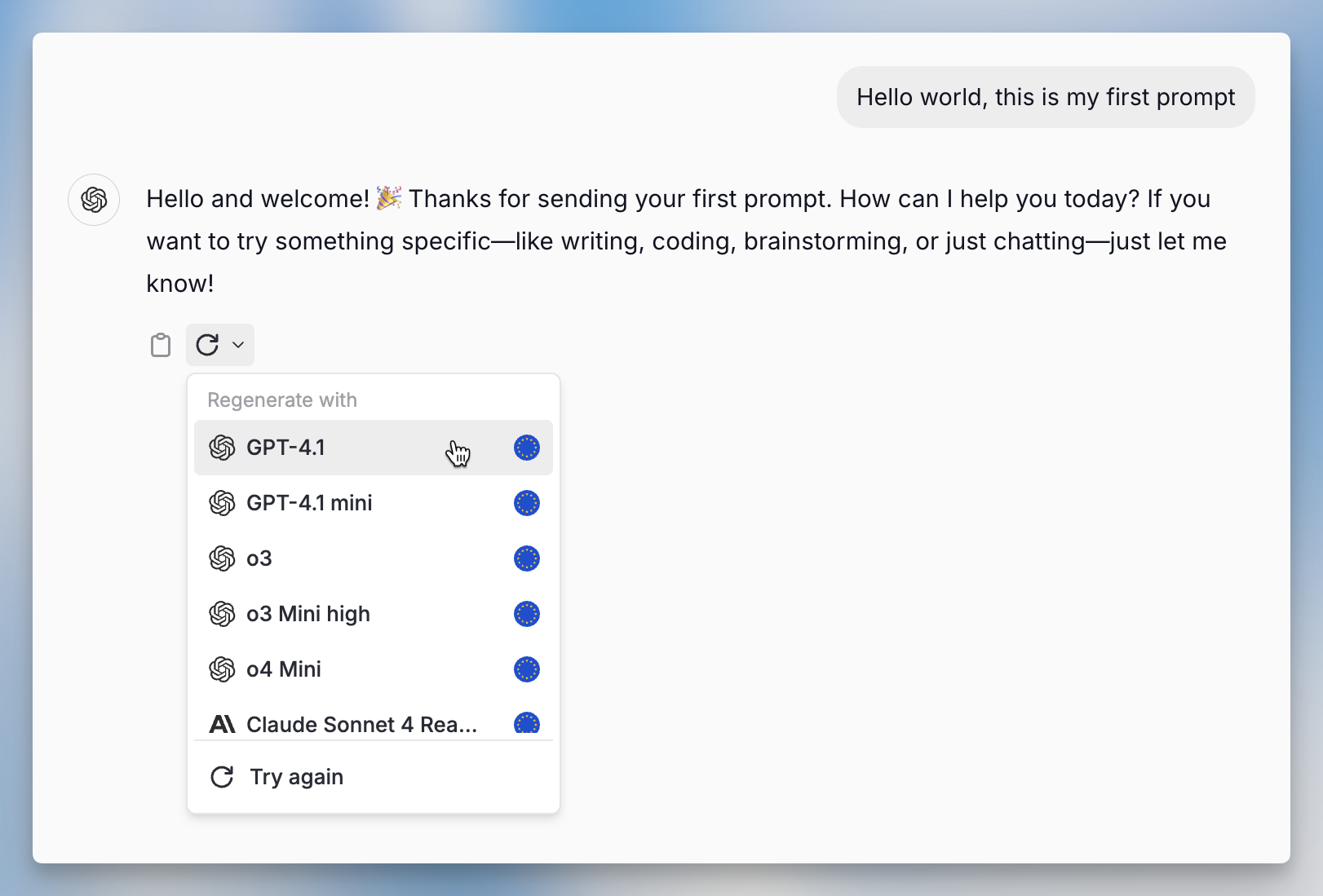
Tool availability
Chat tools like Web search, Image generation, Create & work with files, Deep research, Company knowledge, and Memory are available based on multiple factors working together. Create & work with files powers the Document Editor, which replaces the former Canvas experience.What determines tool availability
Tool availability depends on a combination of settings:- Workspace settings - Your admin can enable or disable tools at the workspace level
- User settings - Your personal preferences for which tools you want active
- Agent settings - When using an agent, the agent’s configuration determines which tools are available
- Model capabilities - Some models don’t support certain tools
Specific tool conditions
FAQ
What should I check first if chat behaves unexpectedly?
What should I check first if chat behaves unexpectedly?
Check the selected model, active tools, attached files, project context, and whether the conversation is long or has changed topics. Starting a fresh chat with a short summary can help isolate context-related issues.
When should I start a new chat?
When should I start a new chat?
Start a new chat when the topic changes. Each reply sends the history so far, so a long chat uses more of your limit. If the chat gets tangled, ask for a summary and start again from that summary, the key decisions, and the files you still need.