

Selecting a Model
- Whenever you start a new chat, you can select which model to use from the model selector in the chat input bar
- You can switch models mid-conversation. For example, start with a fast model for brainstorming, then switch to a more powerful one for the final output
- Set your personal default model in account settings
Auto mode
Auto is Langdock’s intelligent model routing option. Instead of choosing a model for every conversation, Auto analyzes your first message to understand the request and estimate its complexity, and then selects a suitable model for that conversation.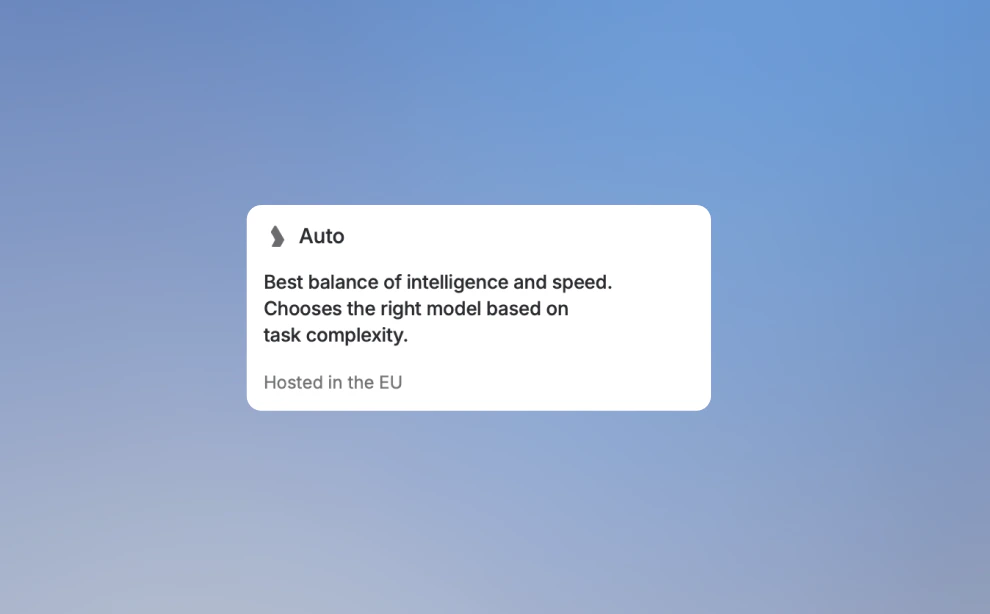
Understanding Model Naming Conventions
AI providers follow consistent naming patterns that help you quickly identify a model’s capabilities. Understanding these patterns lets you choose the right model without memorizing specific versions.Version Numbers = Capability Level
Higher version numbers generally indicate newer, more capable models. When a provider releases a new generation, they increment the major version number.Size Indicators = Speed vs Intelligence Trade-off
Providers offer multiple sizes within each model family. Models without size indicators are the most intelligent but may be slower. Models with size indicators trade some capability for speed and cost efficiency.Pro tip: Start with a faster model for drafts and exploration, then switch to the full model for your final output. This saves time while still getting high-quality results when it matters.
Thinking
In the model selector, models with more than one reasoning level show a Reasoning row under Model. Open it and move the slider to choose how much the model reasons before it answers. The same menu is in meeting chat, the agent editor, the Excel add-in, and the Outlook add-in. The row shows the model’s current level. GPT-6 Sol shows Medium until you move the slider. Moving it saves that level on this conversation. Switching models clears the choice, and the new model shows its own default. The stops depend on the model: None, Minimal, Light, Medium, High, Extra high, and Max. You only see the stops that model offers. None means no extra reasoning. GPT-6.1 Sol has no None. Its lowest stop is Light. Auto has no Reasoning row. Higher reasoning consumes more usage and may take longer. On iPhone, those levels use the same slider. Models without levels use Standard or Thinking. The Android app shows an Enable thinking switch instead of reasoning levels.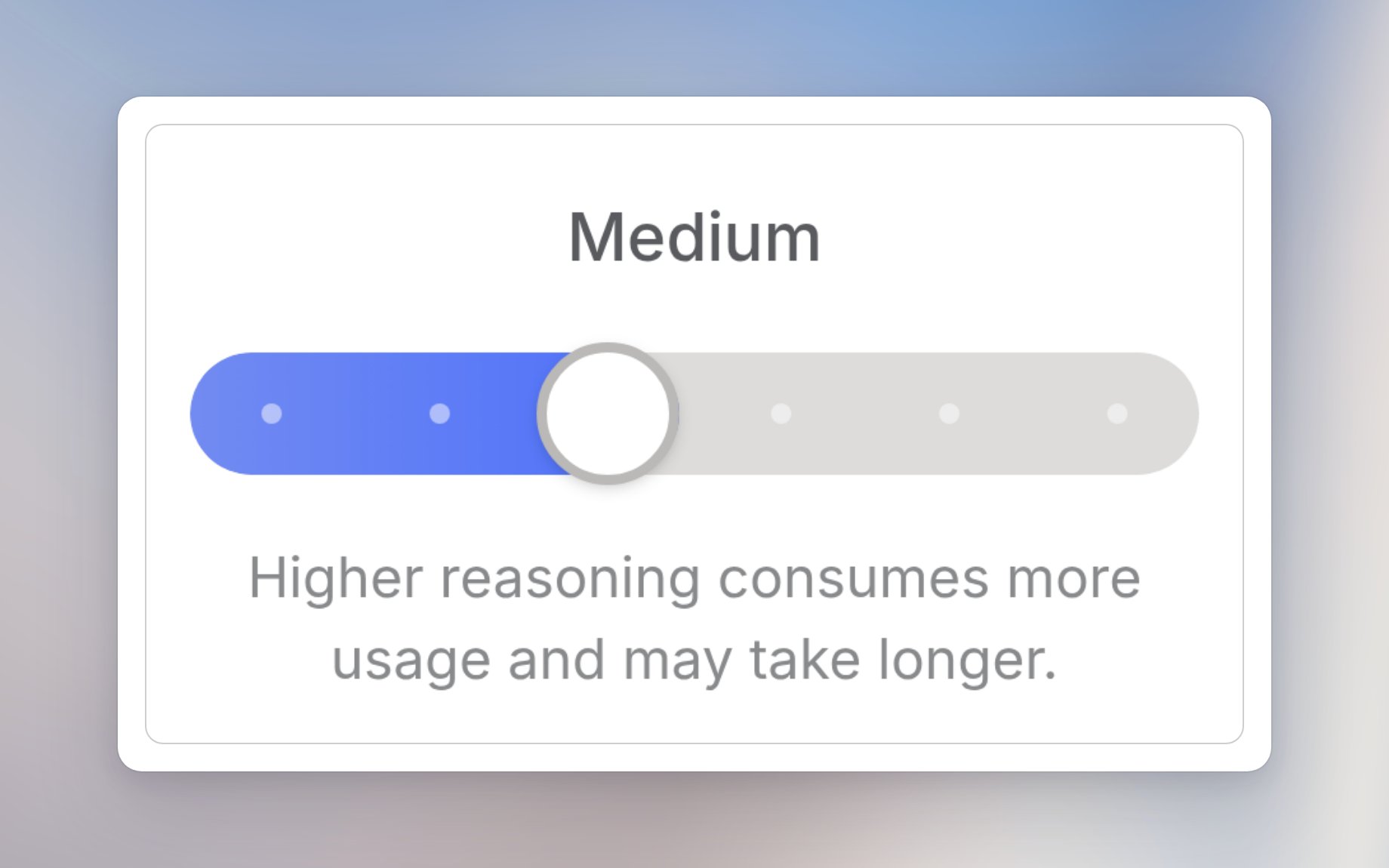
- Complex multi-step problems
- Mathematical and scientific analysis
- Logical deduction and planning
- Code architecture decisions
When a model supports thinking and has no reasoning levels, the menu shows a Thinking row with On and Off. A model with only one level shows no slider.
Context
In the model selector, a supported model shows a Context row under Model when you can use its larger window. Open it and choose one of the two sizes. The same menu is in the agent editor, the Excel add-in, and the Outlook add-in. You see the row on Business Max, or when Extra Usage is unlimited or greater than zero. On BYOK and Dedicated Deployments, that Extra Usage check uses your individual limit. Auto has no Context row. A model without a larger window does not show one either. The row shows the size in use. The two choices are that model’s standard window and its larger window, such as 270K and 1M. Switching models returns the chat, agent, Excel add-in, or Outlook add-in to the standard window. Using the larger window for long prompts can consume more of your usage limit.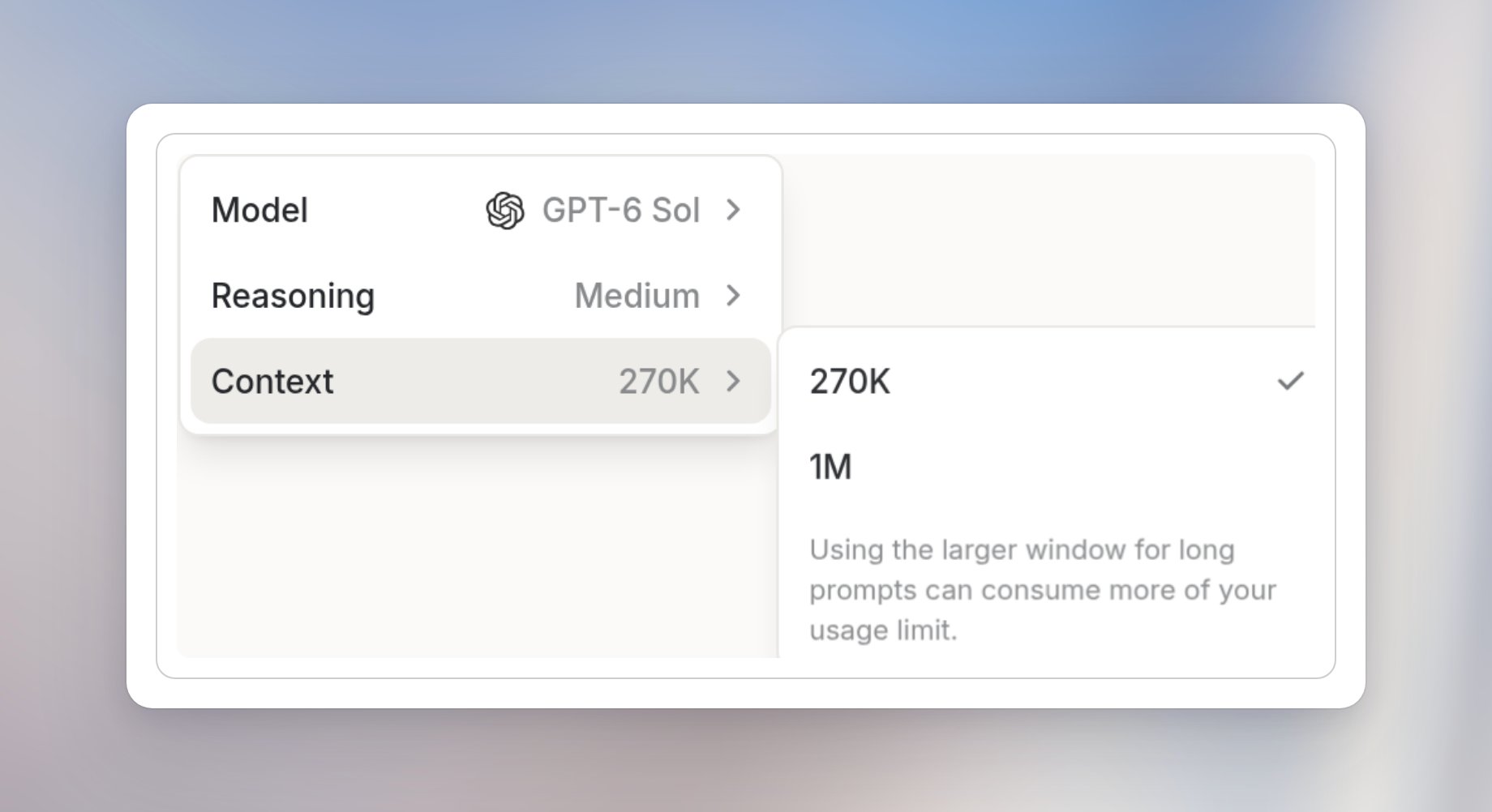
Provider Tiers
Each provider organizes their models into tiers:- OpenAI
- Anthropic
- Google
- Others
Choosing the Right Model
By Task Type
Quick Decision Guide
Our Recommendations
Choose Auto mode
Not sure which model to pick? Select Auto from the model selector. Langdock analyzes your message and routes it to the right model. Fast and efficient for everyday tasks, and more capable when the request demands it.For Everyday Tasks
Use the current flagship model from OpenAI or Anthropic. These provide the best balance of capability and speed for general use. Look for models without size indicators (no “mini”, “fast”, etc.).For Coding and Writing
Anthropic’s Sonnet models are consistently praised for natural-sounding text and strong coding capabilities. They have an authentic tone that works well for professional communication.For Complex Reasoning
Raise Reasoning on a flagship model when you need maximum accuracy on analytical tasks. If the model only offers Thinking, turn it On. This takes longer but reduces errors on complex problems.For Speed-Sensitive Tasks
Flash, mini, or nano variants deliver good results much faster. Perfect for real-time applications, iterating on ideas, or processing high volumes.Your model choice also affects how quickly you use your included usage limits. More powerful models consume more per interaction. See Usage Limits for details.
Image Generation Models
Image models also follow naming patterns:Staying Current
AI models evolve rapidly. To stay current:- Check the model selector - Langdock always shows the latest available models
- Look for version numbers - Higher numbers = newer capabilities
- Try new models - When a new version appears, test it on your typical tasks
- Read release notes - Providers announce major improvements with new releases
Langdock continuously adds new models as they become available. The model selector in your chat always reflects the current options.
FAQ
Which model should I use for long or complex tasks?
Which model should I use for long or complex tasks?
Use stronger models for complex reasoning, long context, coding, analysis, or tasks where quality matters more than speed or cost. Use smaller or faster models for routine writing, summarization, and simpler tasks.
Why do model capabilities and limits differ?
Why do model capabilities and limits differ?
Models come from different providers and deployments. They can differ in context size, output length, supported modalities, speed, availability, cost, and regional deployment. These differences can affect the same prompt’s result.
When are newly released models available in Langdock?
When are newly released models available in Langdock?
Langdock aims to offer new models as soon as they are released by the provider. However, new models may require regional deployment, safety review, pricing setup, and product integration before they appear. Availability can therefore differ from a provider’s public launch date.