

Meetings is in early access and will roll out to more workspaces soon.
Meetings
With Meetings, you can transcribe a conversation and get a summary afterward, without a bot joining your call. Your meetings stay in one place, so you can return to them or ask questions about them later. Use it when you want to:- Keep a transcript of a customer call
- Send a follow-up with decisions and action items right after the meeting
- Find out where and when a topic was discussed across several meetings
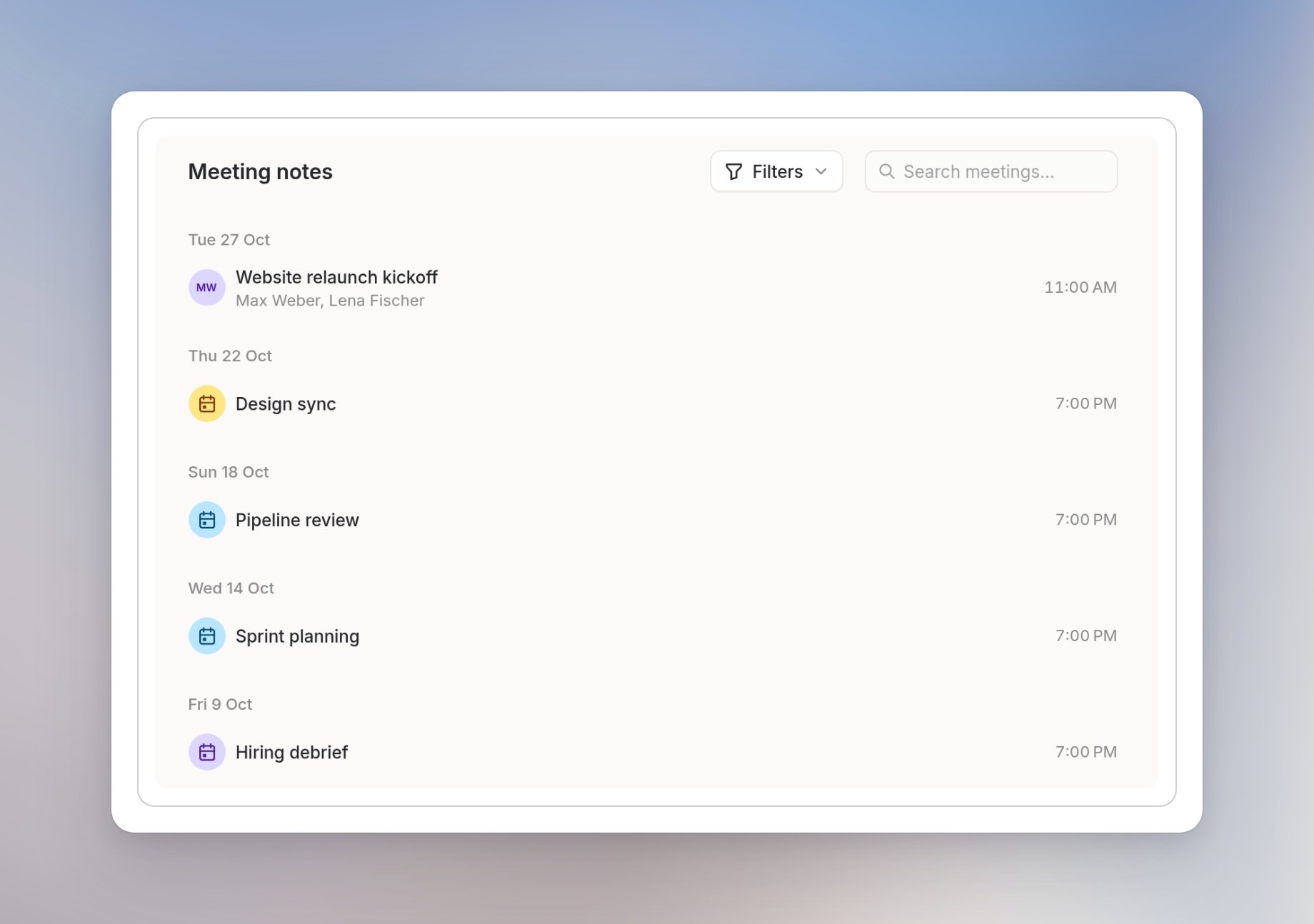
Where to find Meetings
Select Meetings in the sidebar. If you’ve connected a calendar, Coming up shows your upcoming events. Below it, Meeting notes lists your transcribed meetings by date. You can switch between All, My meetings and Shared with me to choose which meetings you see. To start, follow Getting started, then Transcribing meetings.Access and transcription allowance
Your workspace admin decides who can use Meetings. If you don’t see Meetings in the sidebar, it isn’t enabled for you yet. Ask your workspace admin for access. Admins: see Access. How many meetings you can transcribe depends on your workspace plan:
On Langdock Core, the Meetings page shows how many free transcriptions you have left, for example 7/10 free recordings available.
- A transcription counts when it starts. If it fails before any audio is captured, it doesn’t count.
- Resuming a meeting you already transcribed doesn’t use another transcription. You can resume a meeting for up to 24 hours after you last stopped it.
- The allowance resets at the start of each month.