

Create the app
When you have reviewed the preview, click Create in the app panel header. You can also click Create in the latest change summary in the chat.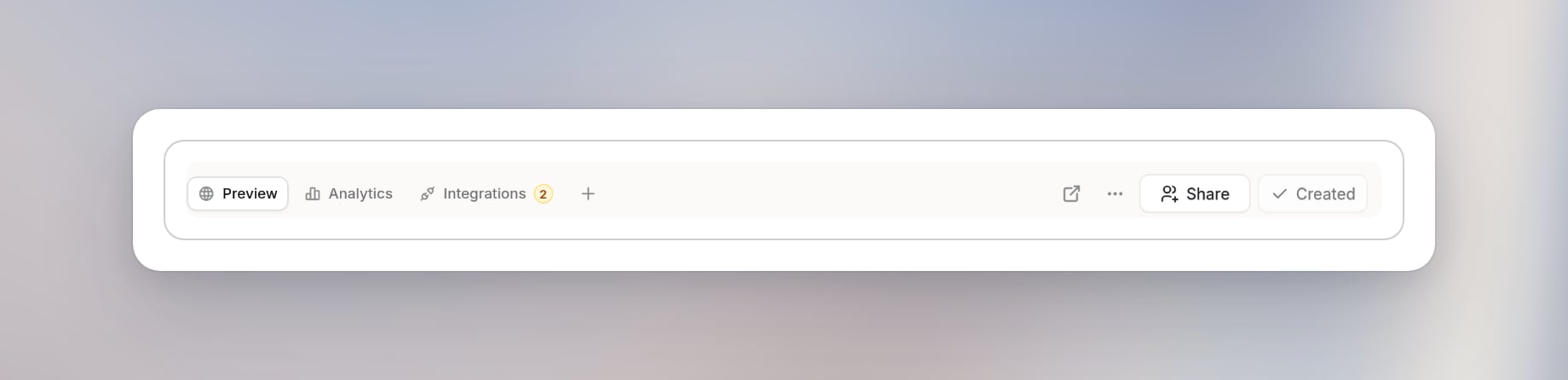
If some of the app’s integration actions are not yet approved, Langdock shows a dialog that asks “Continue without all approvals?” Those actions won’t work for members until they are approved. Click Review to check them, or continue anyway. See Integrations in apps.
Share an app
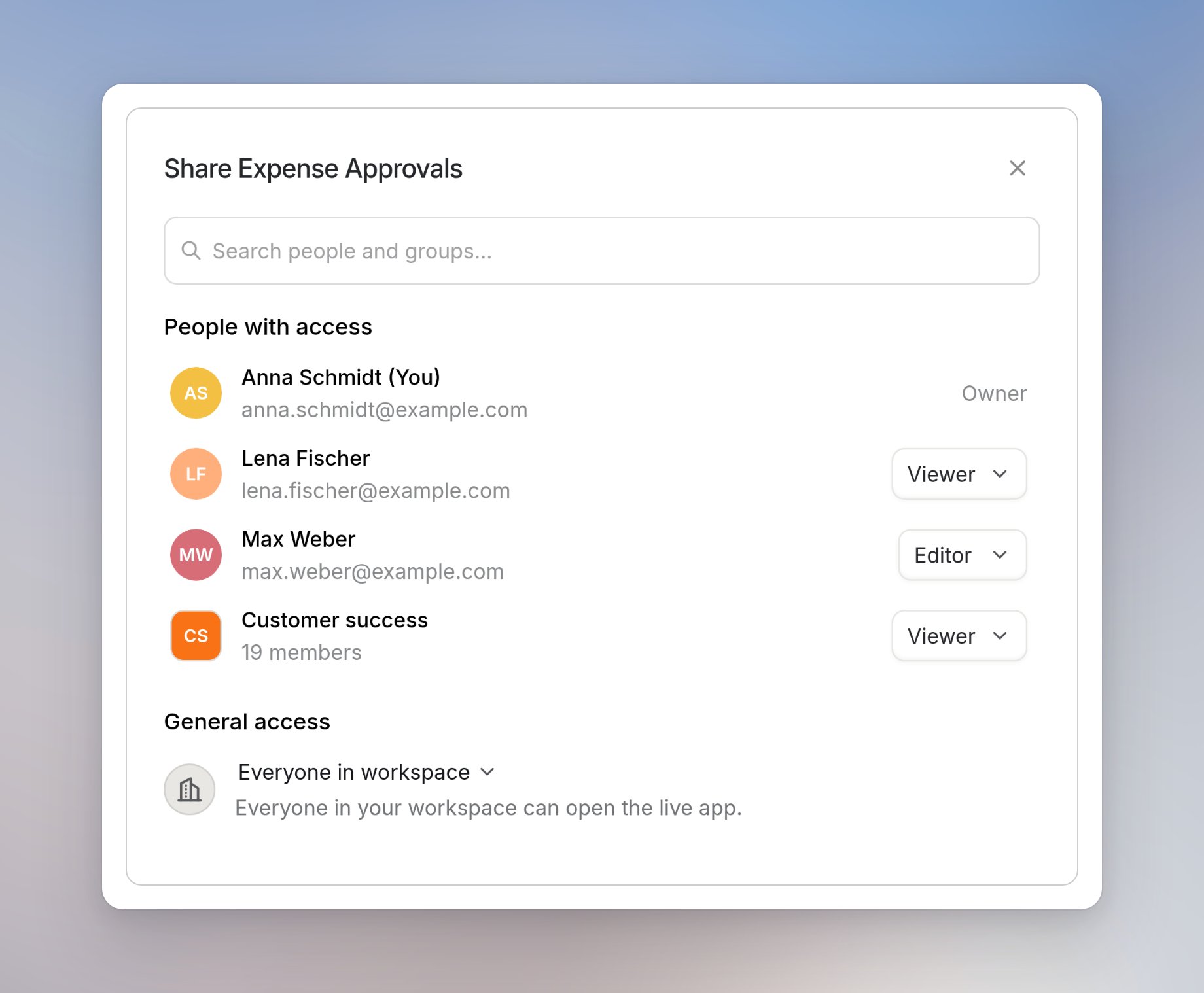
To share an app, you need the Share apps permission and the Owner or Editor role on the app. You can only share an app after you have created it. Before that, the share dialog shows “Create your app first”, with a Create app button.1
Open the share dialog
Click Share at the top right of the app or in the app panel header.
2
Add users or groups
Use Search people and groups… to find the users or groups you want to add.
3
Choose their role
Pick an app role for each user or group in the role menu. See App roles.
4
Set general access
Under General access, choose who else can open the app. See General access.
What your plan allows
On Core, the dialog shows how many of the 5 places are used. If you try to share with groups or the whole workspace, it shows “Sharing with groups or the whole workspace needs the Work plan.” For prices, see the Langdock pricing page.
Your plan sets what is possible. Whether you can share at all still depends on your Share apps permission.
App roles
Each app has its own roles. They are separate from your workspace role.
To take away someone’s access, open the role menu next to their name and click Remove access.
General access
General access decides who can open the app beyond the users and groups listed under People with access:- Restricted: Only users with access can open the app.
- Everyone in workspace: Everyone in your workspace can open the app. Available on Langdock Work. The workspace role is always Viewer.
Find your app after creating it
Go to Apps and click Created by me. Your app appears with its name, category, and when it was last edited. The builder chat stays in your chat history, so you can go back to the conversation and continue editing.See how the app is used
Open the app and click Analytics in the controls above the app. Analytics shows how users use the app.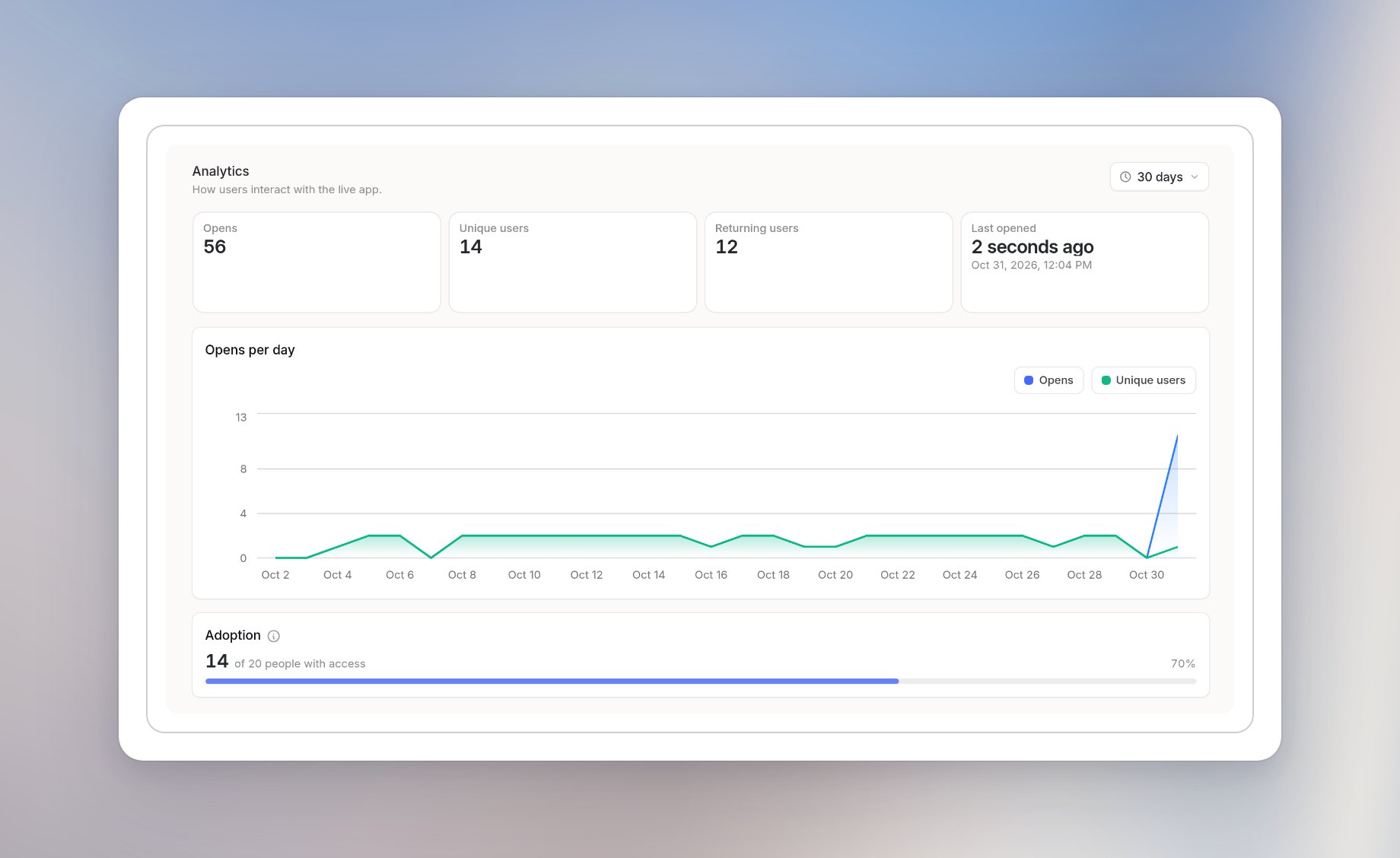
- Opens, Unique users, Returning users, and Last opened for the selected period.
- Opens per day as a chart.
- Adoption: users who opened the app in this period, out of everyone who can open it today.