


Work in a folder from chat
Folders are most useful when the same set of files belongs to an ongoing task. Select a folder in chat, then ask the model to work with the files inside it. For example, you can ask Langdock to:- Prepare a weekly meeting from the agenda, project updates, feedback, and previous notes
- Summarize a spreadsheet and draft follow-up notes
- Create a presentation from files in the folder
- Update a document and save the result back to the folder
1
Open a chat
Start a new chat or open an existing one.
2
Choose a folder
Click Work in a folder and select the folder you want to use.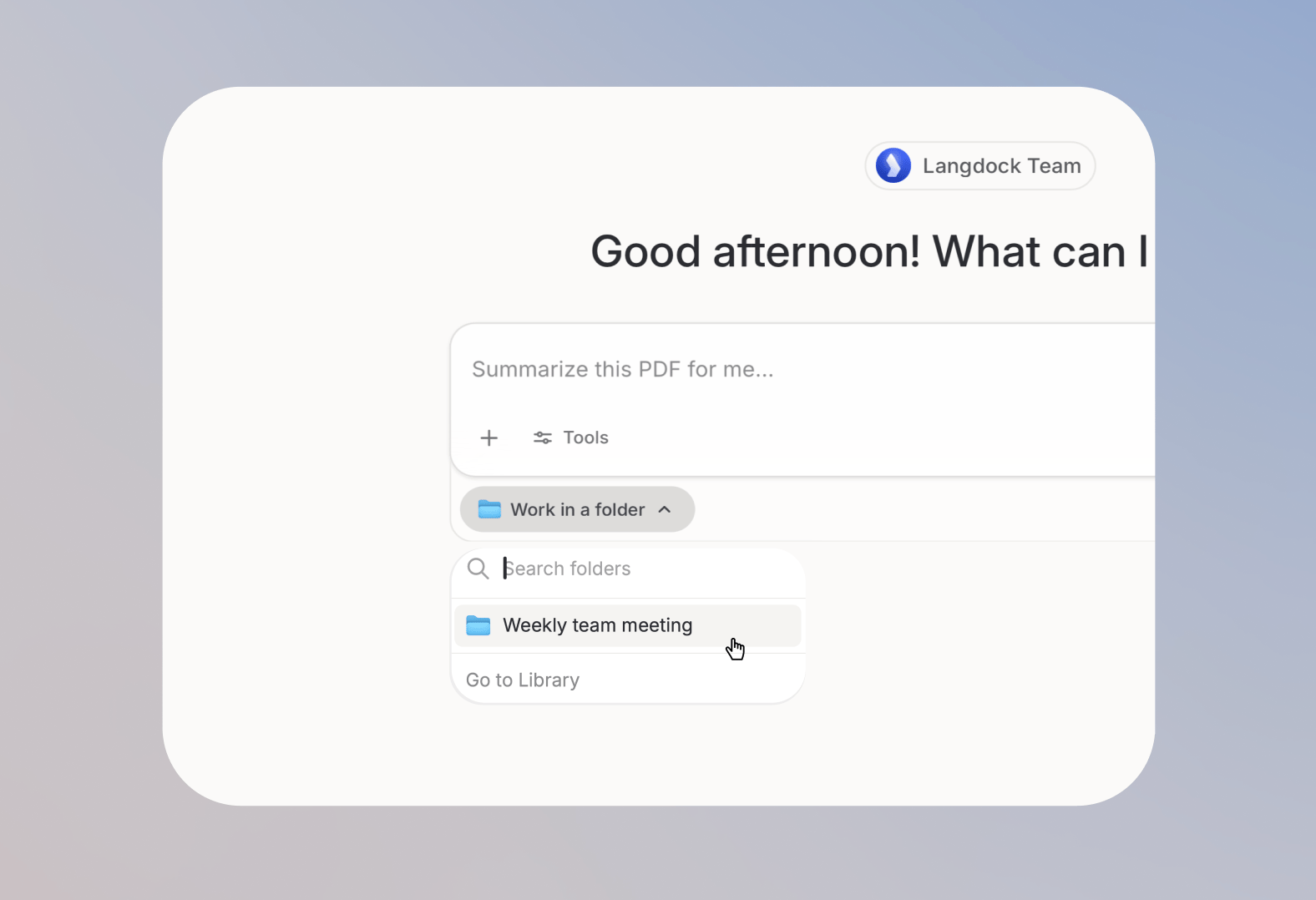
3
Work with the files in the folder
For example, ask the model to use the agenda, project updates, customer feedback, and previous notes to prepare the weekly team meeting. The model can summarize the files, list open questions, and draft follow-up tasks.
Create a folder and add files
You can create Folders from the Library. Open the Library from the left sidebar, find the Folders section, and click Create folder. To find an existing folder, use the search field next to Create folder. It filters the list by name as you type.
- Upload from computer
- Move from Recent Files
- Move from chat
- Open your folder
- Click Upload files or drag files into the folder
- Wait until the files finish uploading
Folders can contain up to 100 files and 250 MB total.
Share work with the right people
You can share folders with individuals, groups, or your entire workspace. Use Viewer access when someone should use files as context, and Editor access when they should also add, remove, or save files to your folder. You need the Share folders and knowledge bases with workspace role permission to share a folder with your entire workspace.
Owners must transfer ownership before they can leave a folder.
Workspace admins can only access Folders that are shared with them, with a group they belong to, or with the entire workspace. When a Folder is linked to a Project, the Project controls who can access the Folder. Such Folders cannot be shared separately.
Choosing the right setup
Folders work best when you are actively working with a set of files. Use the options below when you want to collaborate on those files, give an Agent files to read or edit, or search across a larger document collection.Use a Project to collaborate on files
Use a Project when several people should work with the same folder together. Everyone in the Project can use the project files as shared context in chat, and people with edit access can add files or save generated files back to the project folder. You link a folder from the project itself with Work in a folder, either selecting an existing folder or creating a new one.Removing a folder from a project does not delete the folder or its files. You can still find them in the Library.
You can only attach a Folder to a Project when you are the Owner of both. After the Folder is linked, Project permissions control access to the folder.
Attach a Folder to an Agent
Attach a Library Folder when an Agent should keep using the same files. In the Agent editor, select Add folders in the Folders row, then choose the folder. Attached folders stay read-only until you mark one as a working folder. To let the Agent edit and save files there, open the folder menu and select Work in this folder. The folder shows a Working folder badge. Publish the draft so new chats use it. Working folders are available on workspace Agents, not Project Agents. Start the chat with the Agent. If you only add the Agent with @-mention, the working folder stays read-only. You need edit access to the Agent and the folder to set this up. People chatting with the Agent need Editor or Owner access on the folder to save changes. When the Agent updates an existing file, it overwrites that file and stores a new version.Use a Knowledge base for search
Use a Knowledge base when you need to find specific information across many documents. The model searches the Knowledge base for the most relevant sections and uses them as reference. Use a Folder when you want to work with files directly. Use a Knowledge base when you want to search a larger collection for the right answer.FAQ
I cannot save generated files to a folder
I cannot save generated files to a folder
Check that you have Editor or Owner access. Viewers can use folder files as context, but cannot save generated files there.
I cannot edit a file in a folder
I cannot edit a file in a folder
Files open as read-only documents when you have Viewer access. Ask the folder Owner or an Editor for edit access.
I cannot add more files
I cannot add more files
Folders can contain up to 100 files and 250 MB total. Remove files or choose another folder before adding more.
I cannot find my folder when choosing Work in a folder
I cannot find my folder when choosing Work in a folder
Check that you have at least Viewer access to the folder. If the folder still does not appear, check the folder name and confirm that it still exists in the Library.
I cannot upload a file
I cannot upload a file
Check whether the file type is supported and whether the folder has reached the 100 files or 250 MB limit. Your workspace role also needs the Upload documents permission. If your uploads from the last 24 hours already exceed the default 2 GB cap, the next upload is blocked. Your deployment can use a higher configured cap. See Supported file types for the full list.
I need to search across many documents
I need to search across many documents
Use a Knowledge base instead. Knowledge bases are built for semantic search across larger document collections.
When should I use a folder?
When should I use a folder?
Use folders to organize files you want to work with in Langdock, especially when several files belong to the same project or team workflow. Use Knowledge bases when the files should become a reusable searchable source for AI answers.
Are folders the same as Knowledge bases?
Are folders the same as Knowledge bases?
No. Folders help organize files in the Library. Knowledge bases are designed for retrieval, so Langdock can search relevant content and use it in chats, agents, workflows, or API usage.