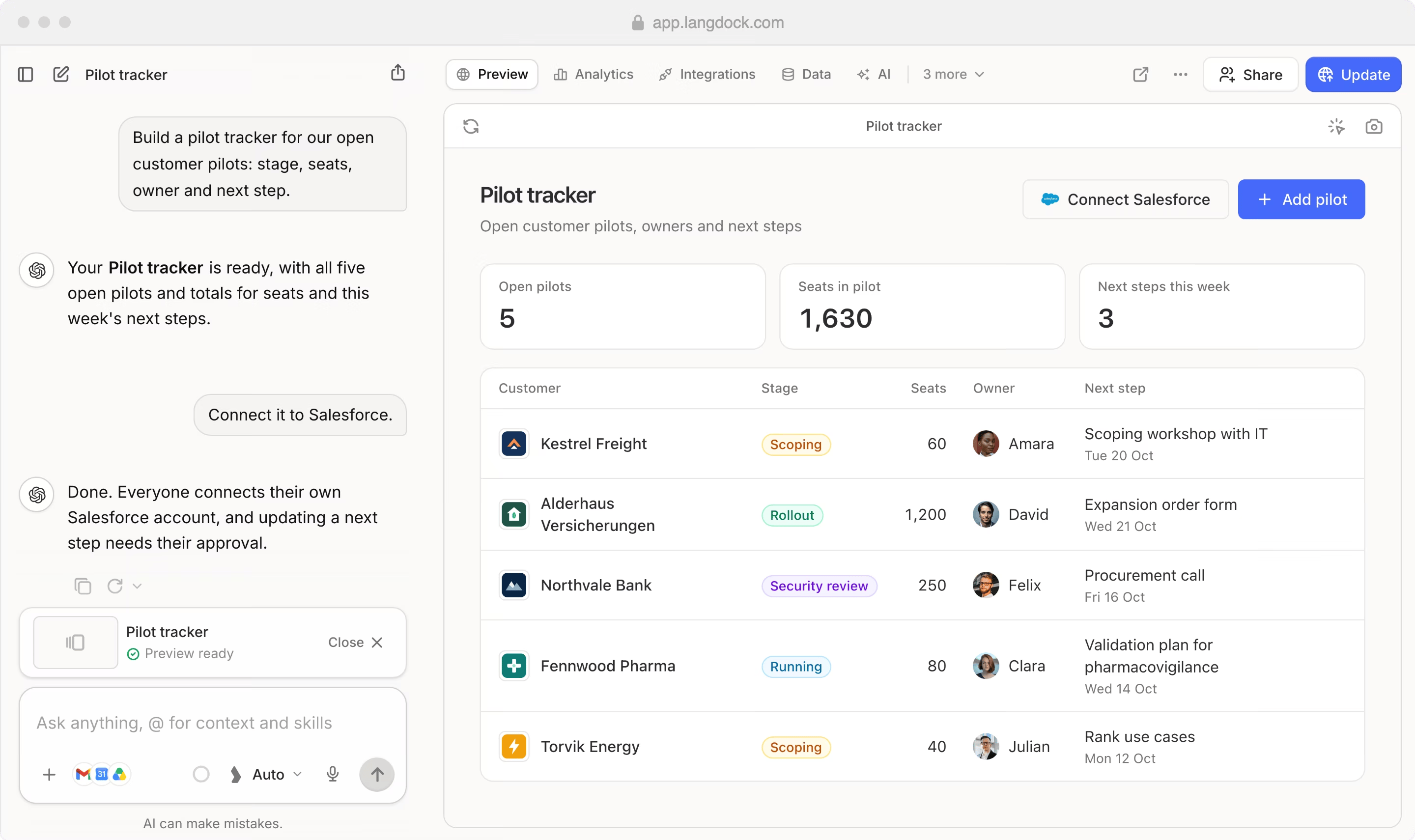
Three separate steps
Review an app’s integrations
Open the app and click Integrations in the controls above the app. The page lists the connections and actions the app can use and whether they are available to you.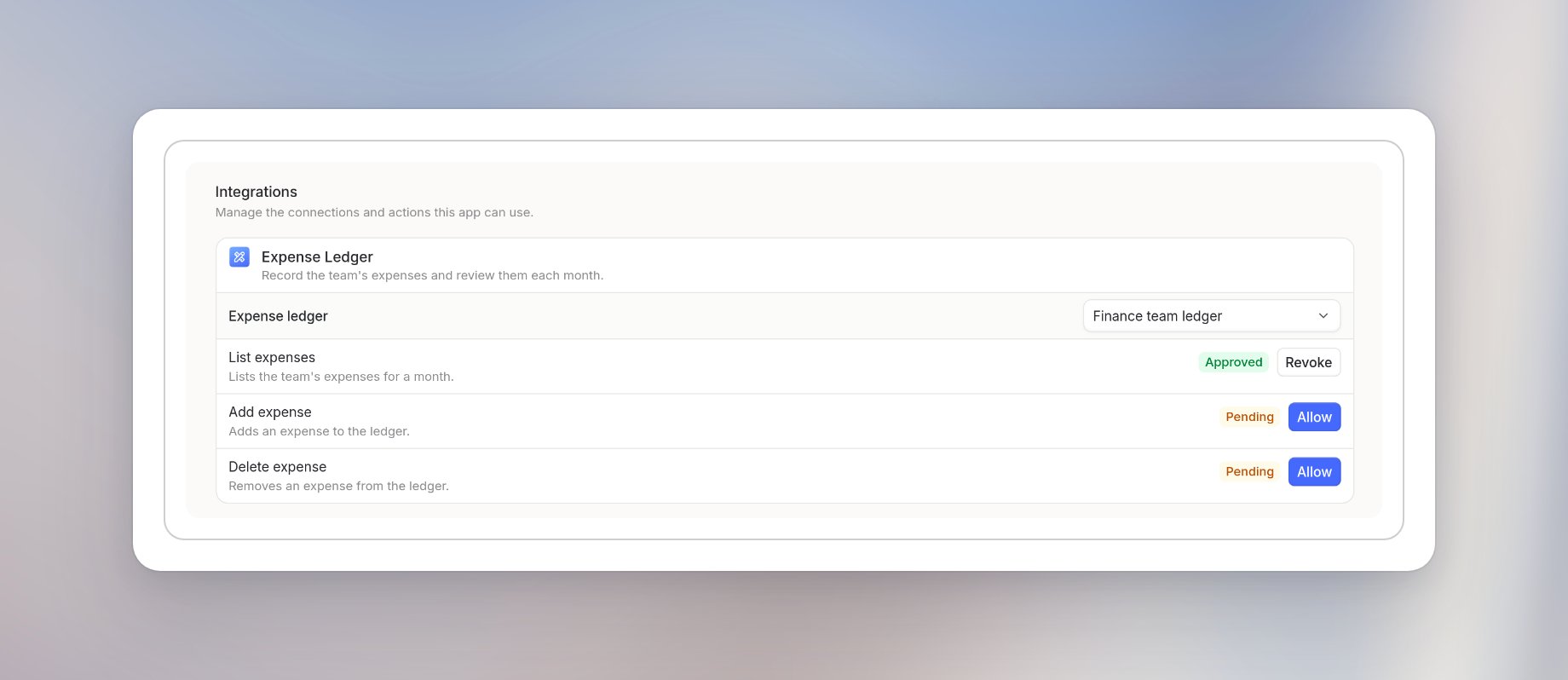
Choose your connection
1
Find the integration
On the Integrations tab, find the integration you want to use.
2
Open the connection menu
Click Select connection next to the account name.
3
Select an account
Choose an account under Your connections.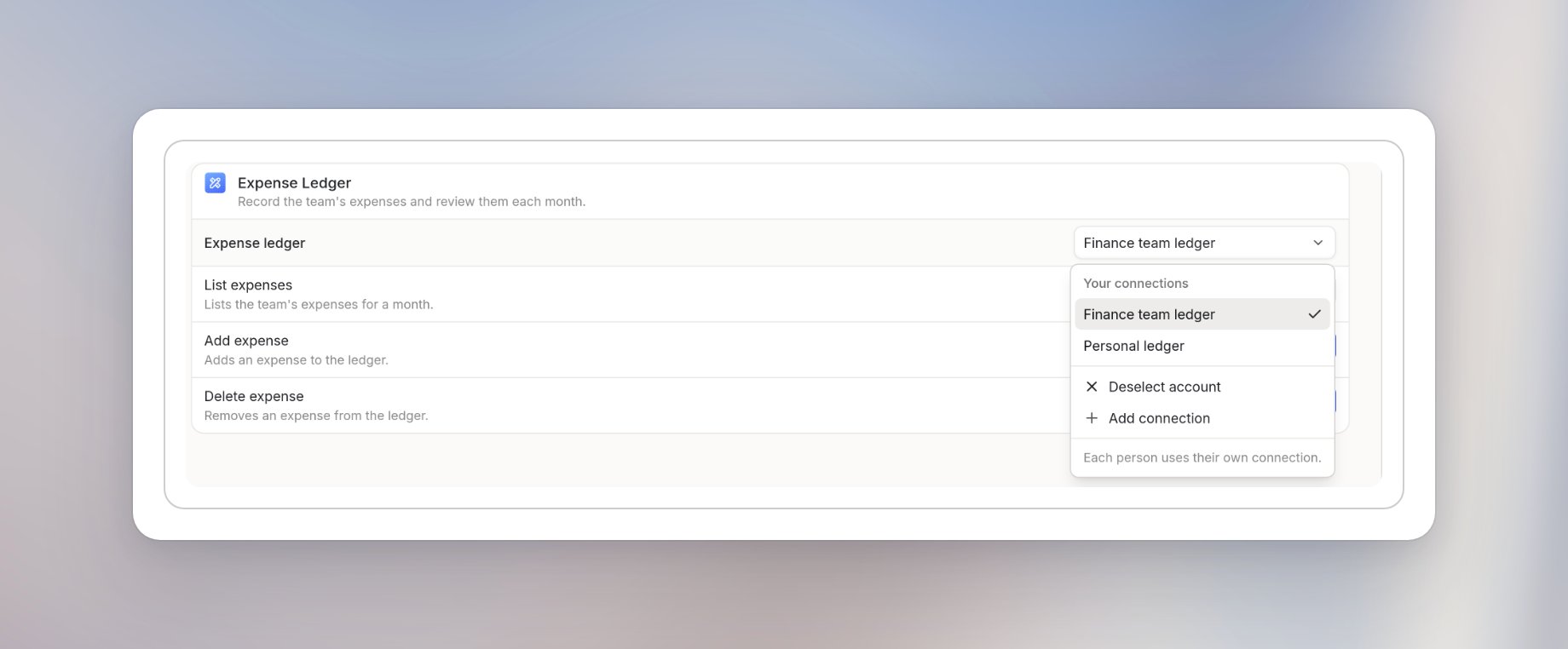
Allow actions
After you choose a connection, review the action permissions. An action that needs your permission shows Pending and an Allow button. The Integrations tab shows how many action permissions are pending.1
Read the action
Check the name and description of the action.
2
Click Allow
Click Allow for each action you want the app to run through your connection.
3
Check the status
The status changes to Approved.
Revoke an action
Go back to Integrations to review the permissions you granted. Click Revoke next to an approved action to withdraw your permission for that action, then confirm. The action stops working for you in this app. Other actions stay available, and you can allow the action again on the same tab.Owner approval and your consent
When you create an app while some of its integration actions are not approved, Langdock warns that those actions won’t work for members yet. When a new version changes the integrations or actions an app uses, Langdock shows what changes for users with access. Creating the app does not allow access to anyone’s accounts. Each user still allows the actions for their own connection. Your permission is also separate from your access to the app.Add an integration to an app
If the app doesn’t use integrations, the tab shows “No integrations” and “This app doesn’t use any integrations. Ask in the chat to connect one.” In the builder chat, describe the integration and what the app should do with it. See Create and edit an app.Chat plugins and app integrations
The builder chat has its own Plugins menu with tools and integrations for the chat. These are not the integrations the running app uses. To see what the app uses, open the app’s Integrations tab.Controls inside an app
Some apps have their own buttons for connections, such as a Sources button. These are part of that app’s content, not a standard Langdock control.