

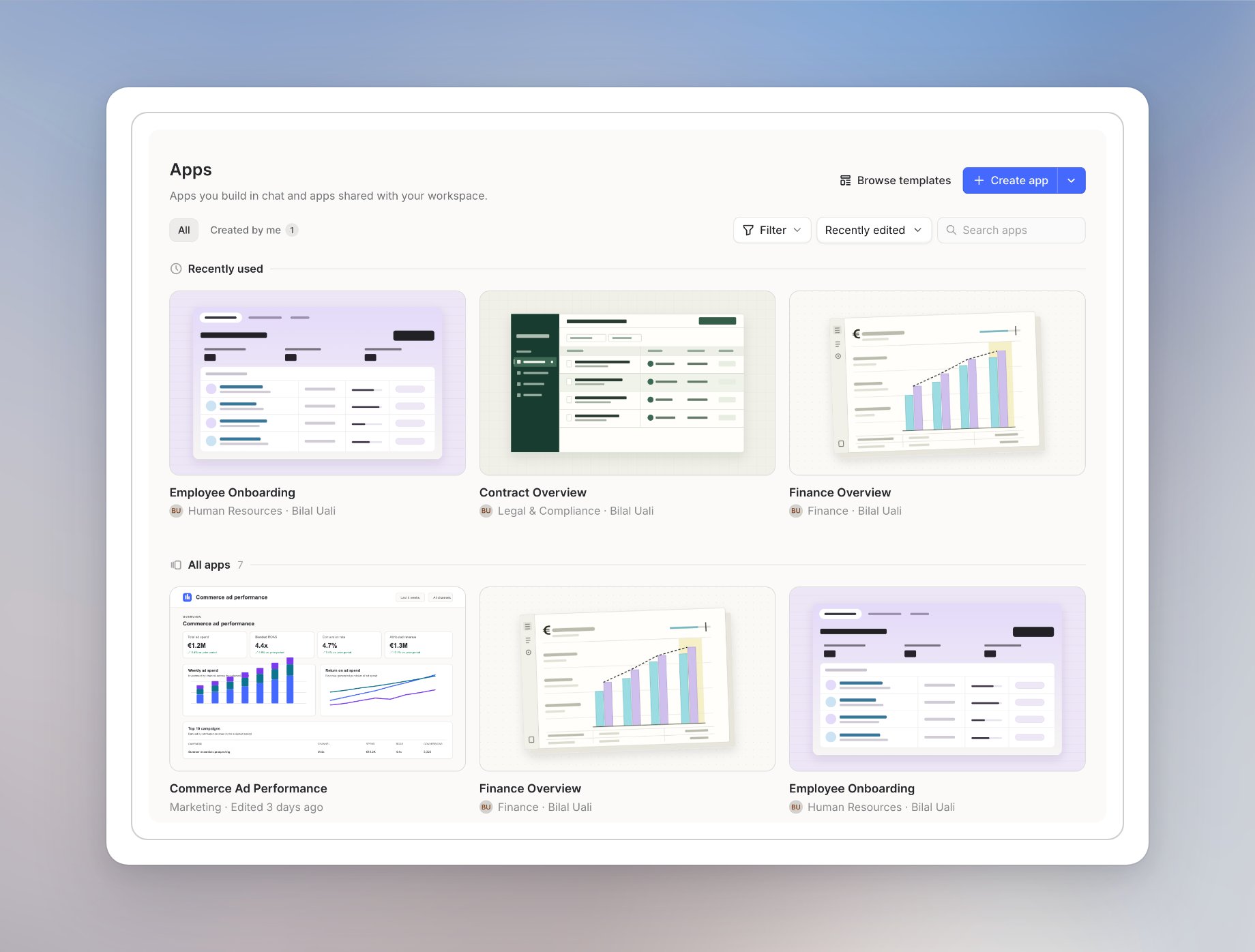
Browse the list
Use the tabs above the list:- All shows the apps available to you.
- Created by me shows the apps you created. If you haven’t created one yet, it shows “No apps here yet.”
Search, filter, and sort
- Search apps finds an app by name.
- Filter has two options: Shared with and Category. To browse by category, click Filter, open Category, and choose a category. The categories depend on your workspace.
- The sort menu next to Filter sorts by Recently edited, Alphabetical, Popular, or Recently used.
Read an app’s description
Move the pointer over an app card to see its description. The card also shows the app’s name, category, and creator.Use the app menu
Each card has a three-dot menu. Which entries you see depends on your role on the app. With the Owner or Editor role, the card also has an Edit button.- Open in new tab opens the app in a separate browser tab.
- Share opens the share dialog. See Publish and share an app.
- Copy link copies the link to the app.
- Pin to sidebar pins the app to your sidebar for quick access.
- Details shows the app’s details.
- Rename changes the app’s name.
- Delete removes the app for you and everyone it’s shared with. Its chats stay in your history.
Open an app
Click an app card to open the app inside Langdock.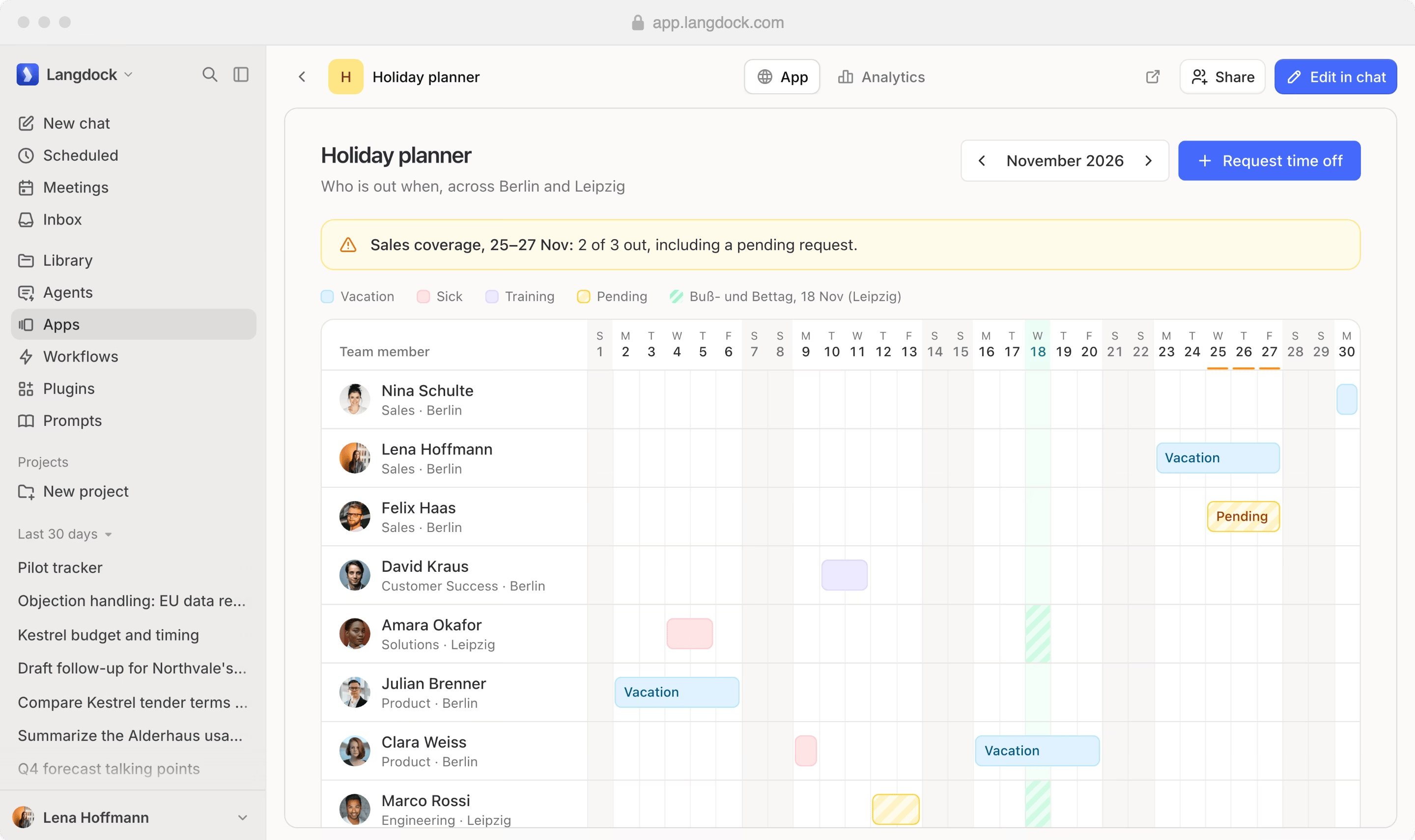
- Langdock sidebar: Move between Langdock products, such as Chat, Apps, and Workflows.
- Controls above the app: Langdock’s own tabs and buttons, such as App, Analytics, Integrations, Share, and Edit in chat. They are the same in every app. Which ones you see depends on your role on the app.
- App content: The interface the builder created. Each app has its own pages, buttons, and navigation.