

Open a completed meeting
1
Open Meetings
Select Meetings in the sidebar.
2
Find the meeting
Completed meetings are listed under Meeting notes, grouped by date, with the meeting time next to each entry. To search or filter the list, see Find and organize meetings.
3
Open it
Select the meeting title.
Read the summary
A completed meeting opens with the generated summary selected. The tab shows Summary or the name of the summary template in use. The meeting title is at the top, followed by the template and My notes controls, the meeting date and time, and the number of attendees.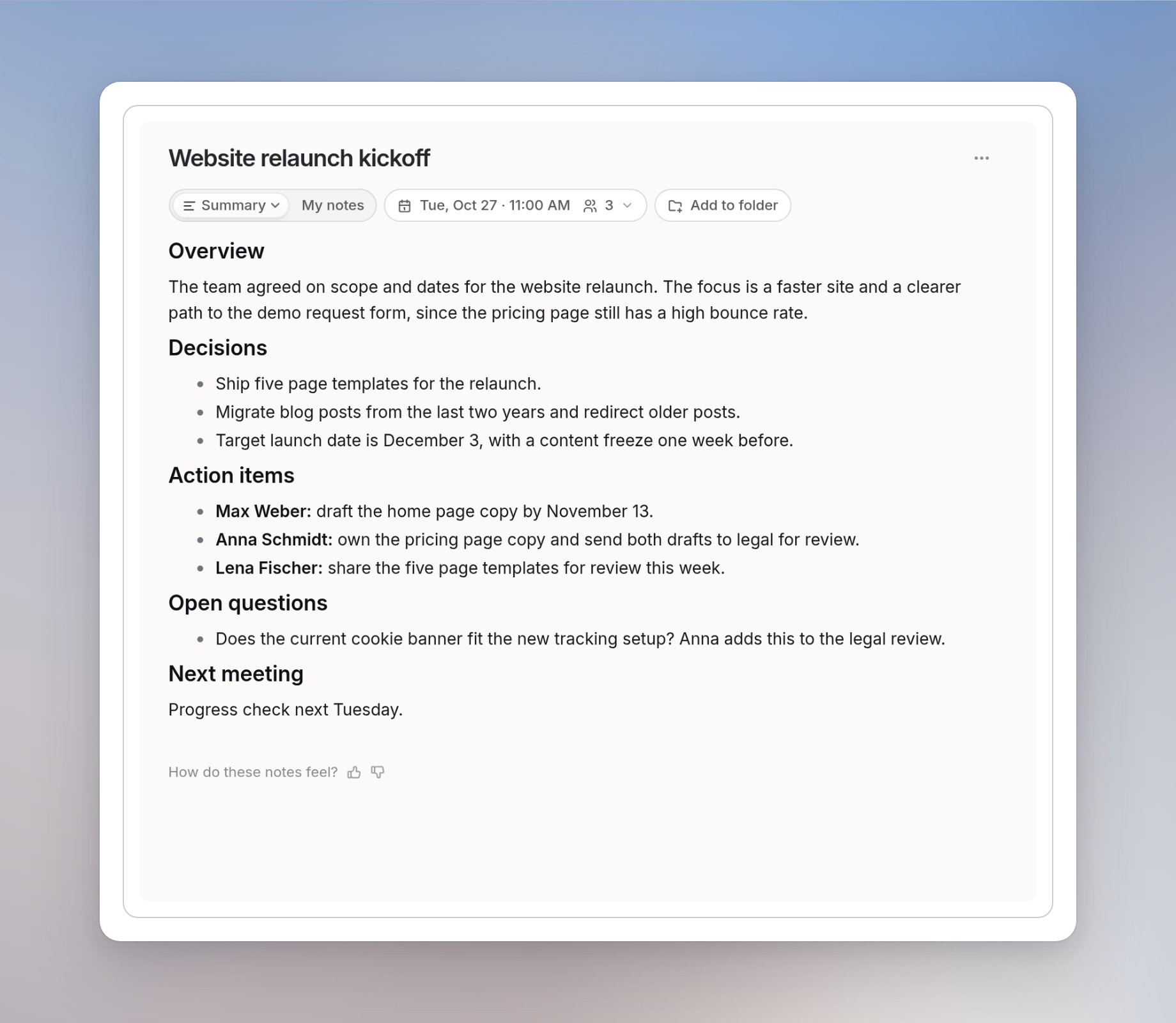
Meeting details
Open the date and attendee dropdown to see who attended. For calendar-linked meetings, it includes Open in Google Calendar to jump to the original event, and Add attendees… to add people.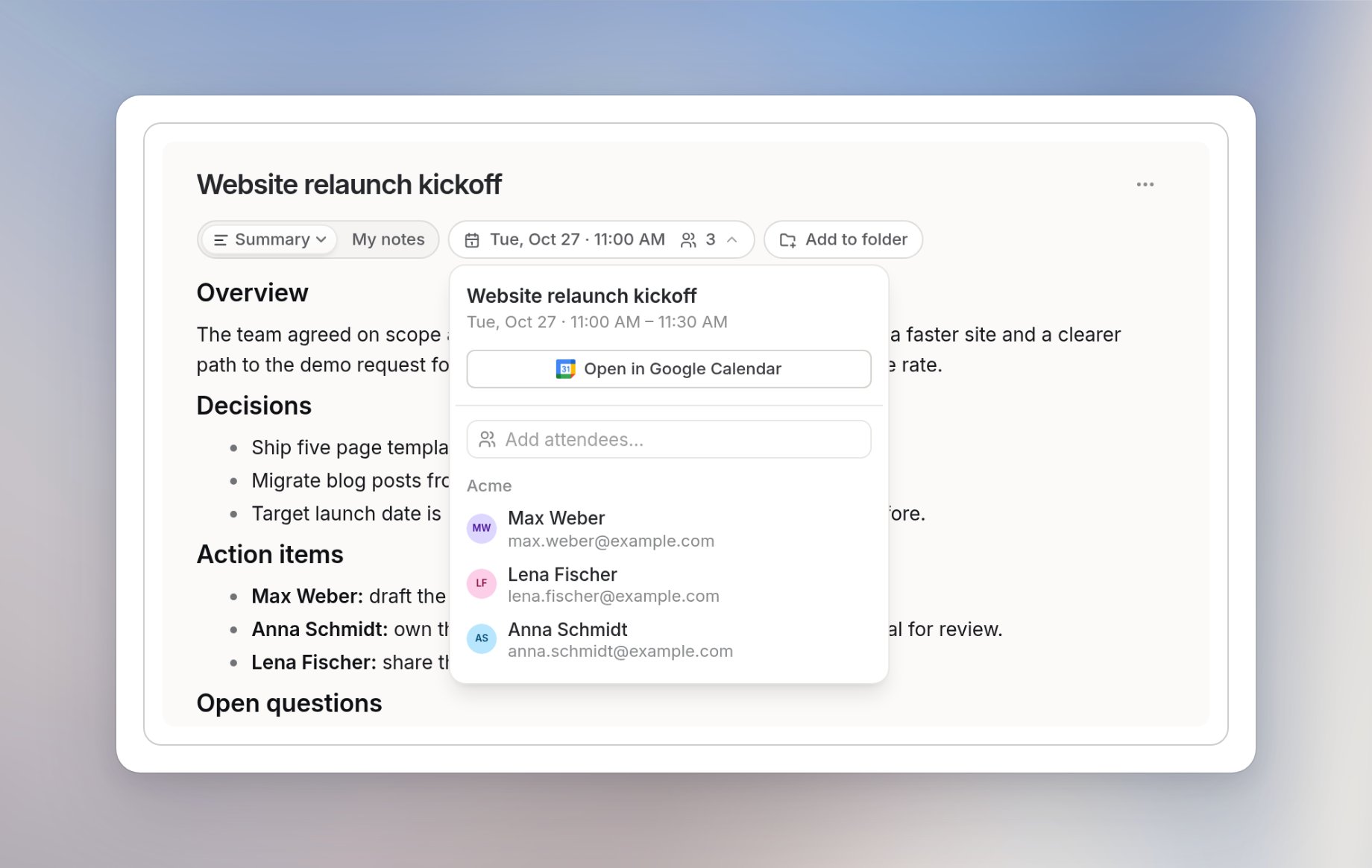
Choose a summary template
Templates give the summary a structure that suits the conversation. Open the arrow next to Summary, or next to the name of the selected template, to open the template menu. It includes Summary, 1:1 and Stand-up, a search field, All templates and New template.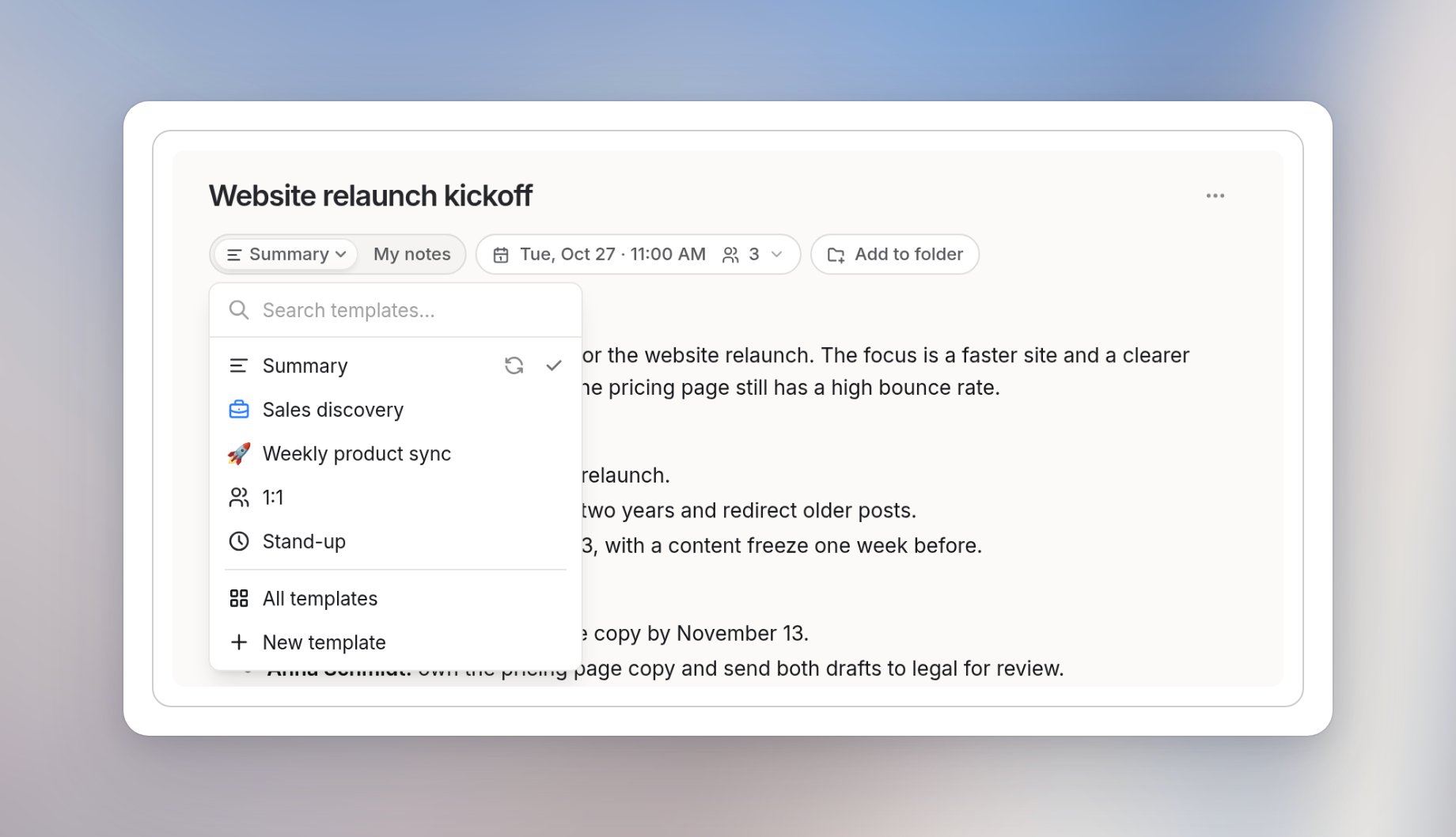
Check the transcript
Select Show transcript at the bottom of the meeting page to read the transcribed conversation. Use it when you need the exact wording behind the summary or want to check a detail. The panel includes Copy transcript. If your workspace has turned on Hide transcripts, the transcript is hidden from everyone, including the meeting owner and admins. The summary remains available. See Privacy and data.Copy, download or delete a meeting
Open the three-dot menu at the top right of the meeting page.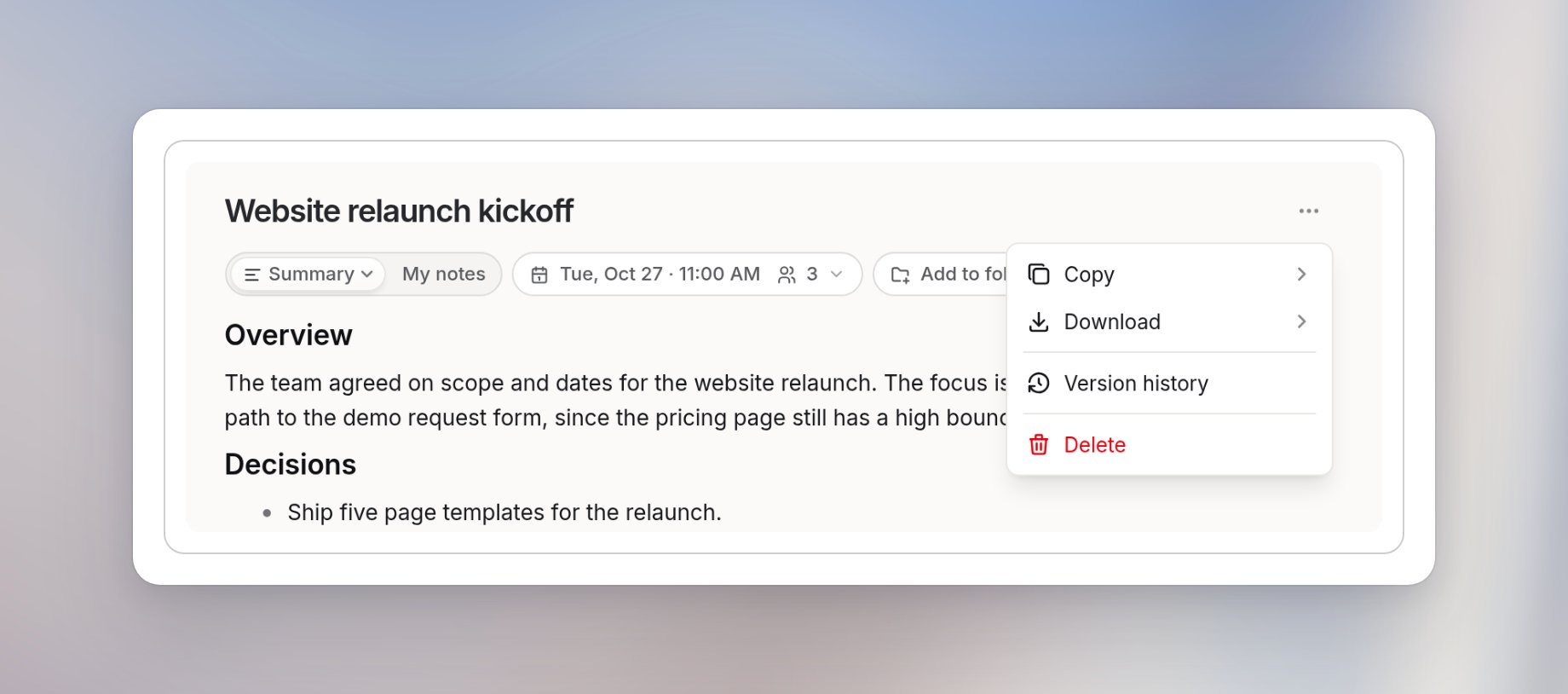
- Copy: copy the summary or the transcript.
- Download: download the summary, your personal notes or the transcript.
- Version history
- Delete: delete the meeting and its associated content.