

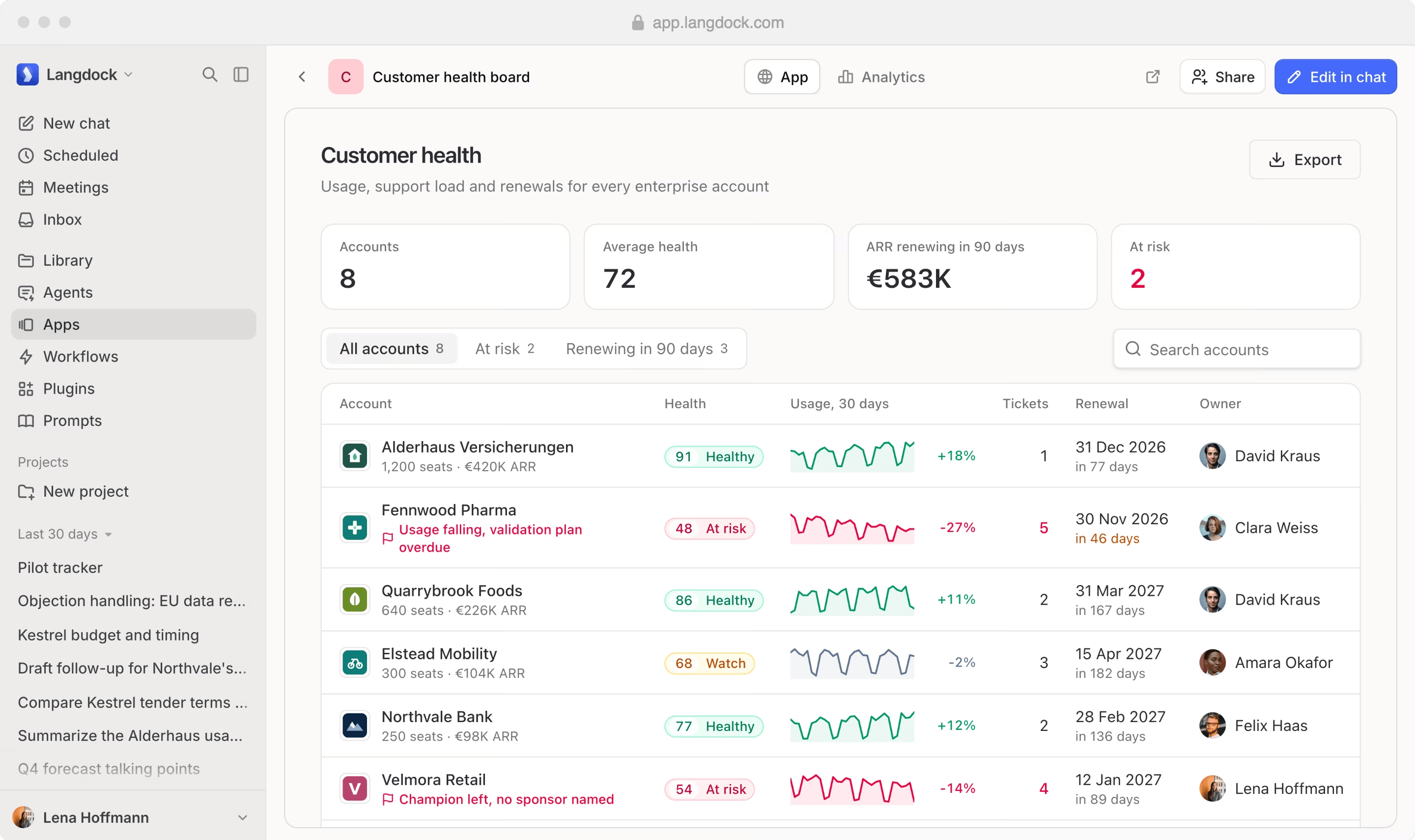
Apps is in early access and is rolling out gradually to more workspaces.
Why use Apps
Teams often run their processes in spreadsheets and email threads. With Apps, the users who know the process can build a tool for it. Several users work with the same data through one interface, and builders change the app in chat as the team’s needs change. Admins decide who can use Apps and who can create and share apps. In Governance, they review the workspace’s apps, their integrations, sharing settings, and usage.What you can build
For example:- An onboarding checklist that helps an HR team track tasks for new hires.
- A shift planner that helps an operations team organize work.
- A shared view of documents and lists stored in SharePoint.
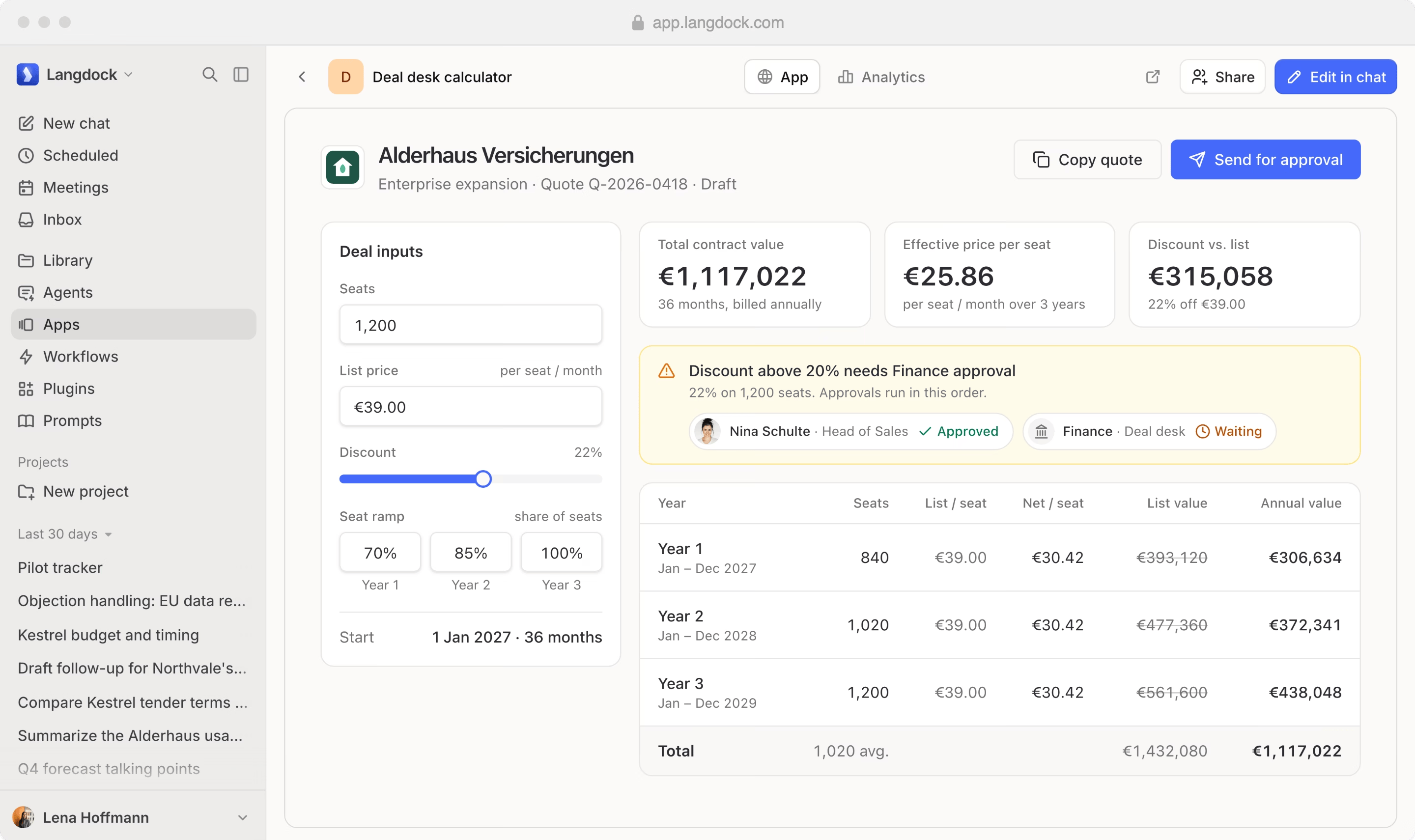
- A deal desk calculator that helps a sales team price a deal and send it for approval.
How Apps works
1
Describe the app in chat
Explain the task, the data, and the controls you need. See Create and edit an app.
2
Review the app preview
Check the layout and behavior of the app before anyone else uses it.
3
Make changes
Request changes in chat, or select an element in the preview and add a comment to it.
4
Create the app
Click Create when the first version is ready. The new app is private to you, its creator.
5
Share the app
Share it with specific users or groups as Viewer or Editor, or with the whole workspace as Viewer. See Publish and share an app.
Access requirements
Three separate settings decide what you can do with Apps:- Product access: Your admin decides who can use Apps. If Apps is missing from your sidebar, ask your admin for access.
- Workspace permissions: Your workspace role decides whether you can create apps and share them.
- App roles: Each app has its own sharing settings. Its Owner and Editor can change it. A Viewer can use the app.
Plans and sharing limits
Your workspace plan decides how widely you can share an app.
A plan feature does not grant permissions by itself. Your admin still has to give you access to Apps and the permissions to create or share apps. Each app also keeps its own sharing settings.
For prices and billing details, see the Langdock pricing page.
Next steps
Create your first app
Describe an app in chat and review the preview.
Find and use apps
Open apps that are shared with you.
Enable Apps as an admin
Give users access and set permissions.