

What are scheduled tasks?
Scheduled tasks run a saved prompt for you on a recurring schedule, such as daily briefings, weekday recaps, and weekly summaries, or as one-off manual runs you can trigger any time. Each run can produce a new chat you can open, read, and continue like any other conversation. Skipped runs don’t create a chat. Typical use cases:- A daily briefing that reviews your calendar and unread emails
- A weekly summary across selected agents or Knowledge bases
- A manual task you keep ready in your Scheduled list and trigger on demand
Creating a scheduled task
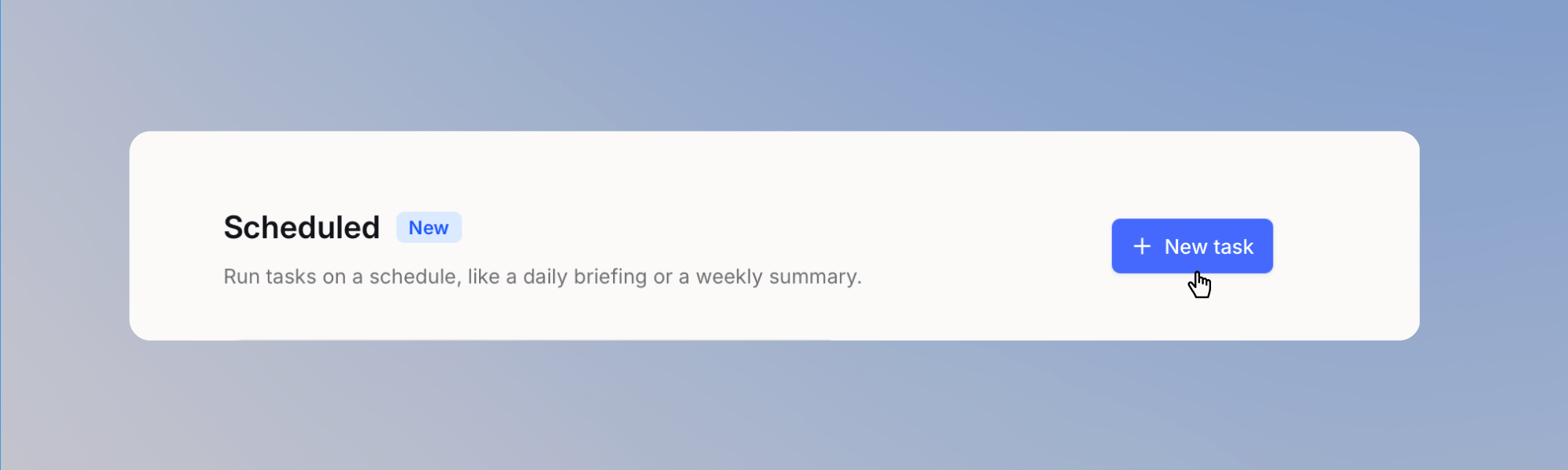
Open Scheduled from the sidebar.
- Name: for example, Daily briefing.
- Select agent (optional): choose an agent to use its instructions, tools, or knowledge. Otherwise, choose a model.
- Instructions: write the prompt that runs on every execution. Use
@to reference Integrations, Agents, Knowledge bases, Prompts, Workflows, or Skills. Use the+button to add files when your model and workspace permissions allow it. - When to run: choose a frequency (see below).
Workflows and Skills are available when the corresponding products are enabled for you. When you select an Agent, the Agent decides which Skills it uses, so Skill mentions in the
@ menu are disabled.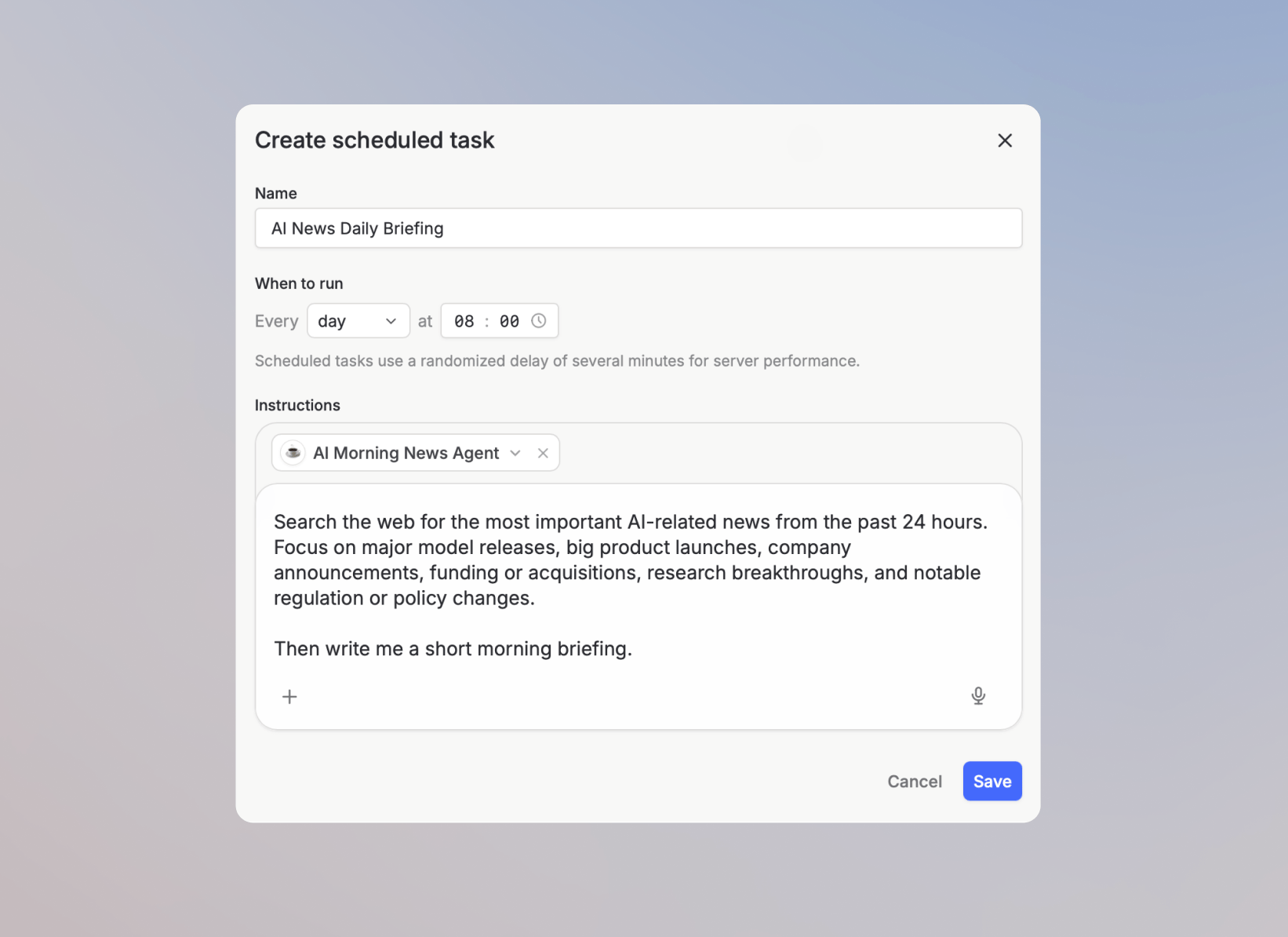
Creating a scheduled task from chat
You can also ask an agent in a normal chat to set up a scheduled task for you. Describe what you want to run and when, for example:- Every weekday at 8am, summarize my unread emails and flag anything urgent.
- Send me a weekly Monday recap of last week’s calendar.
- Remind me to review open pull requests every day at 5pm.
Tasks created from chat use your browser’s timezone. They start without a selected agent and use Auto Mode when available, or your personal default model if Auto Mode is unavailable and you set one. Edit the task from the Scheduled list to select an agent, add files, or add
@ references.Choosing a frequency
For monthly schedules, if a month has fewer days than the day you picked (for example, day 31 in February), the task runs on the last day of that month.
Scheduled runs can start up to 15 minutes later to spread dispatches. The delay adapts to the number of runs starting at the same time.
Working with runs
From the task detail view you can: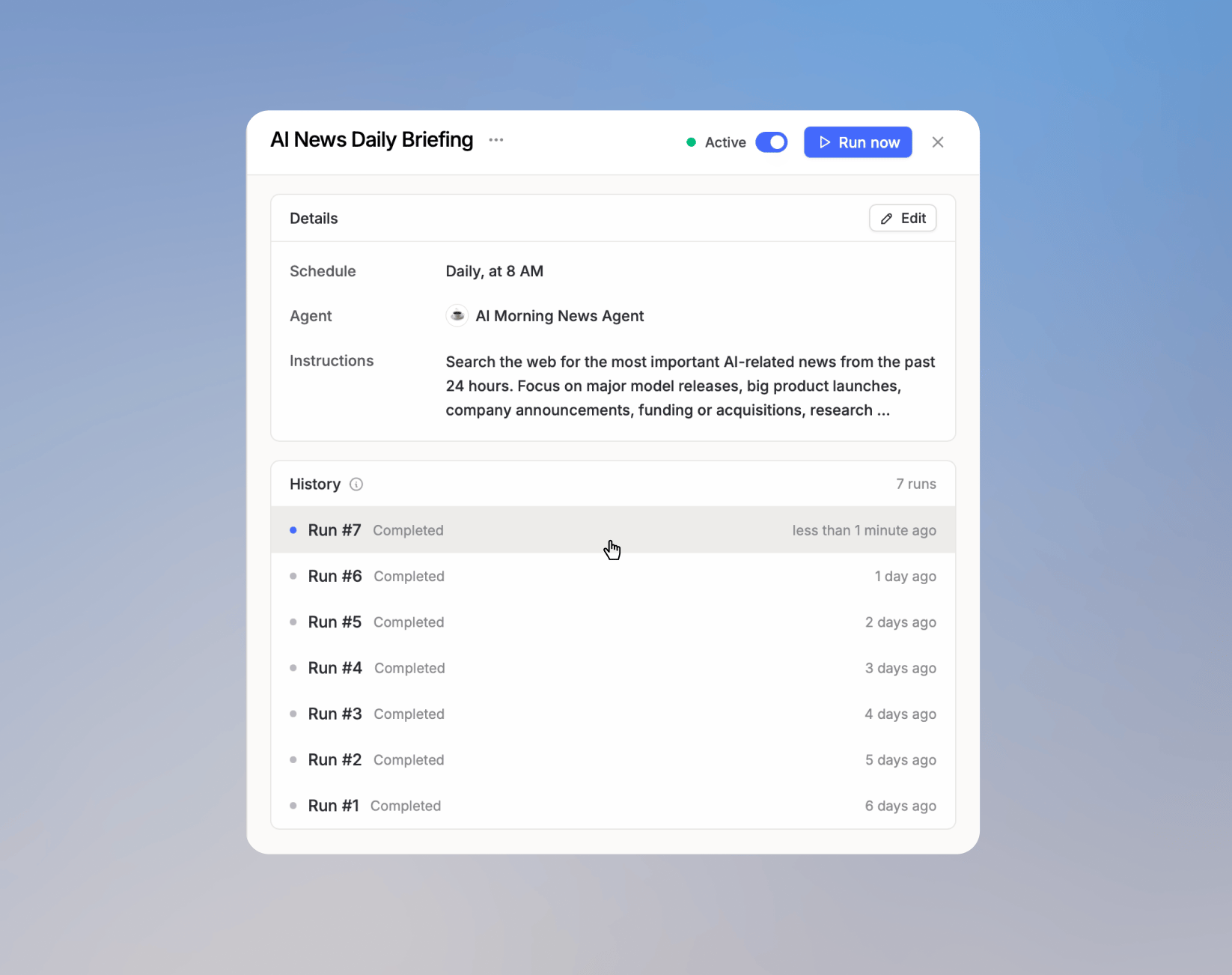
- Open the chat a run produced and continue the conversation
- See whether a run completed, was skipped, or failed
- Trigger a manual run at any time, regardless of the schedule
- Pause or resume a recurring schedule without losing the task
Allowing actions to run without confirmation
When the schedule starts a run and it stops while an action is still waiting for you to confirm it, select a connection, or approve an agent’s action, the run is marked Failed, you’re notified, and the task stays Active. The run stays Failed in the run history after you allow the action. A run you start yourself stays Completed. Open the chat for that run and respond to the approval prompt, which stays in the chat:- Select Allow for future runs to approve this run and let the same action run automatically in this task from now on.
- Select the arrow next to it, then select Allow once to approve only this run. The next run asks for confirmation again.
- Select Deny to stop the action.
Tips
- Keep the instructions specific. “Summarize my unread emails and highlight urgent items” produces a more useful chat than “Give me an update.”
- Select an agent when you want that agent’s instructions and configured tools or knowledge. Otherwise, add files and
@references directly in the task’s Instructions field. - Use Manual for tasks you want one click away in your Scheduled list but don’t want to run on a schedule.
FAQ
When should I use scheduled tasks?
When should I use scheduled tasks?
Use scheduled tasks when you want a saved prompt to run on a recurring schedule from chat. They are useful for simple recurring summaries, reminders, briefings, or checks that do not need a full workflow.
How are scheduled tasks different from workflows?
How are scheduled tasks different from workflows?
Scheduled tasks run a prompt on a schedule. Workflows are better when the process needs multiple steps, structured logic, integrations, approvals, or outputs passed between nodes.