Start a new app
1
Open Apps
Click Apps in the sidebar.
2
Click Create app
Click Create app at the top right. A new chat opens. The message field already contains Help me create the following app:. Add your description after this text.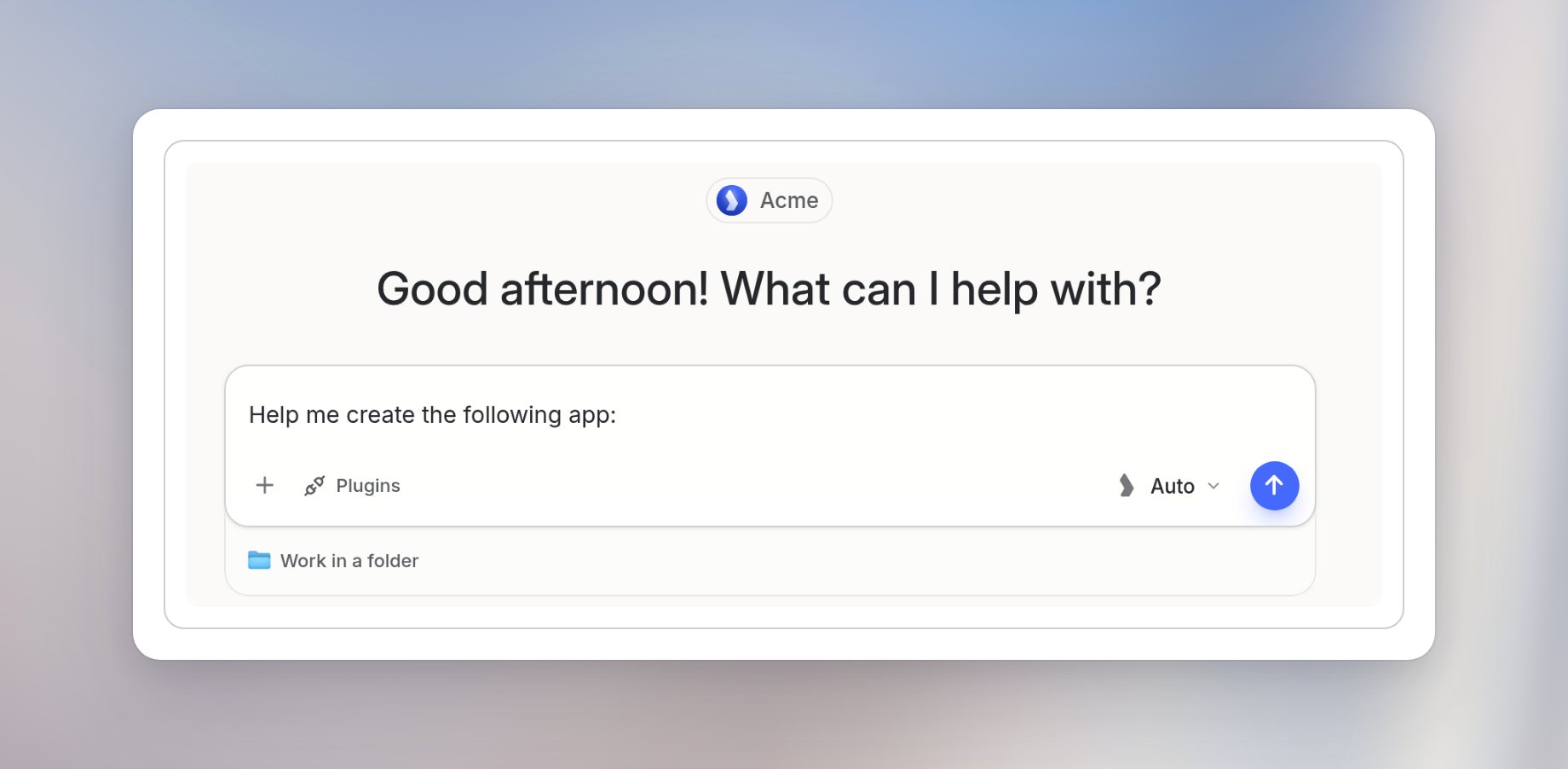
Describe the first version
Say what the app should do, which information it shows, and what can wait until later. You can start with sample data and add a database in a later request. For example:Build a marketing performance dashboard for an e-commerce brand showing weekly ad spend, return on ad spend, and conversion rate by channel as charts, with a table of the top 10 campaigns. Use realistic sample data. No login or database yet.Click the send button. The builder starts working and opens the app panel next to the chat.
Follow the build progress
The chat shows what the builder is doing. The app panel shows the stages Plan, Build, and Finish. The status text changes from Planning the app… to Building the app… and Finishing up…. Wait for Preview ready. If the builder needs more information, it asks you a question in the chat and the status shows “Waiting for your answer”. If a build stops with Build failed, see Limits and troubleshooting.Review the preview
When the preview is ready, review the app on the right. The builder chat stays on the left, so you can ask for changes while you check the result.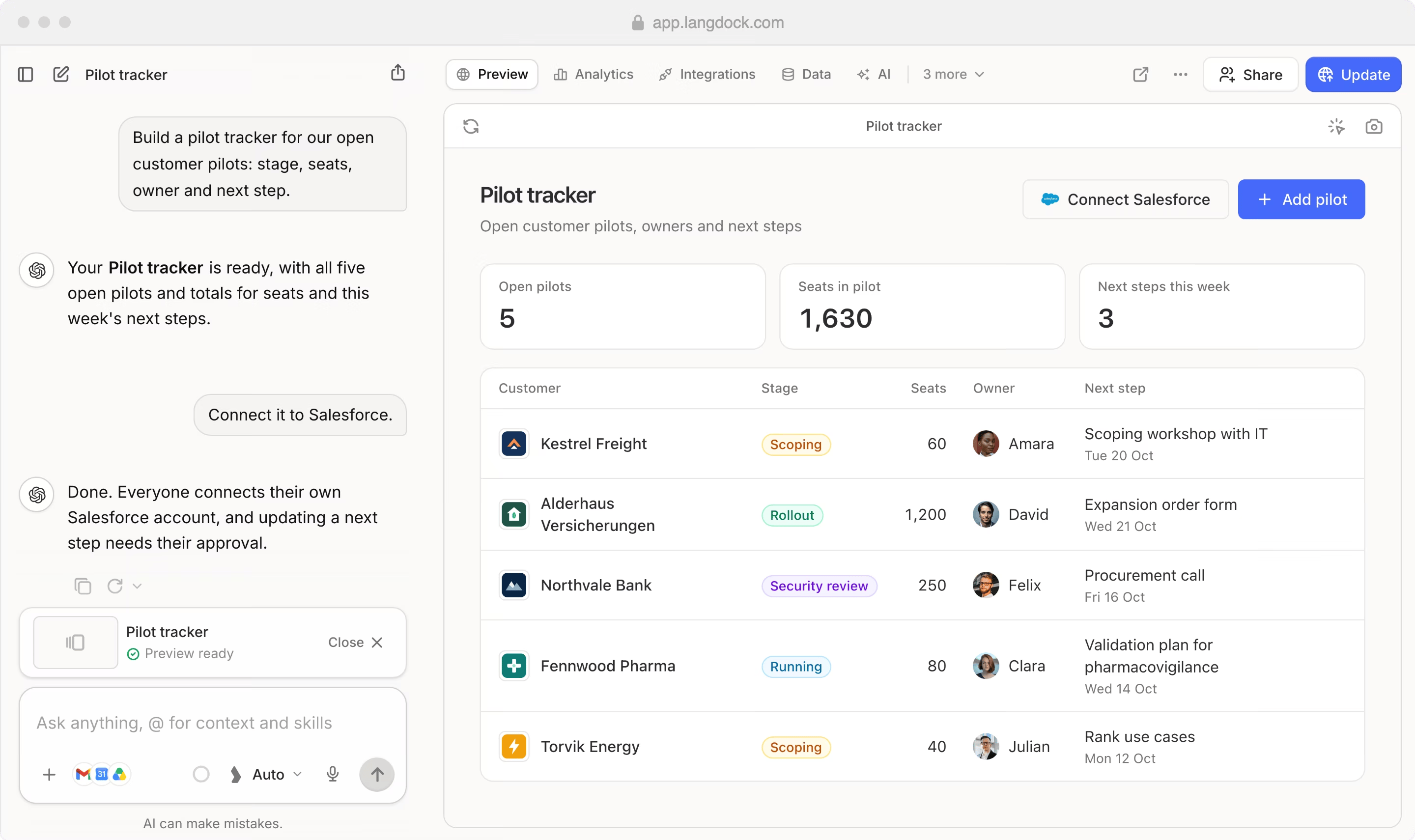
Request changes in chat
Describe what you want to change in the message field. Name the part of the app and the result you want. For example:Rename Team progress to Checklist progress. Keep the three team progress bars.Send the request and review the preview once the builder has made the change. When the build is ready, the chat shows a summary of the changes. You can send more requests in the same chat. Smaller, specific requests are easier to review than one large request.
Example: add a database
The first version of the dashboard above uses sample data. A follow-up request adds a way for users to enter and save data:Now add a database for users to add new data on channel spend.While the builder updates the app, Building the app… appears on the app card and in the preview toolbar. The previous version stays visible in the preview until the update is ready. In this example, the builder adds a form for new entries and a table with the saved records. This form is part of the generated app. It is separate from the Data tab, where editors inspect the app’s tables. Test the form’s inputs and save behavior before you click Create.
Request a change to a specific element
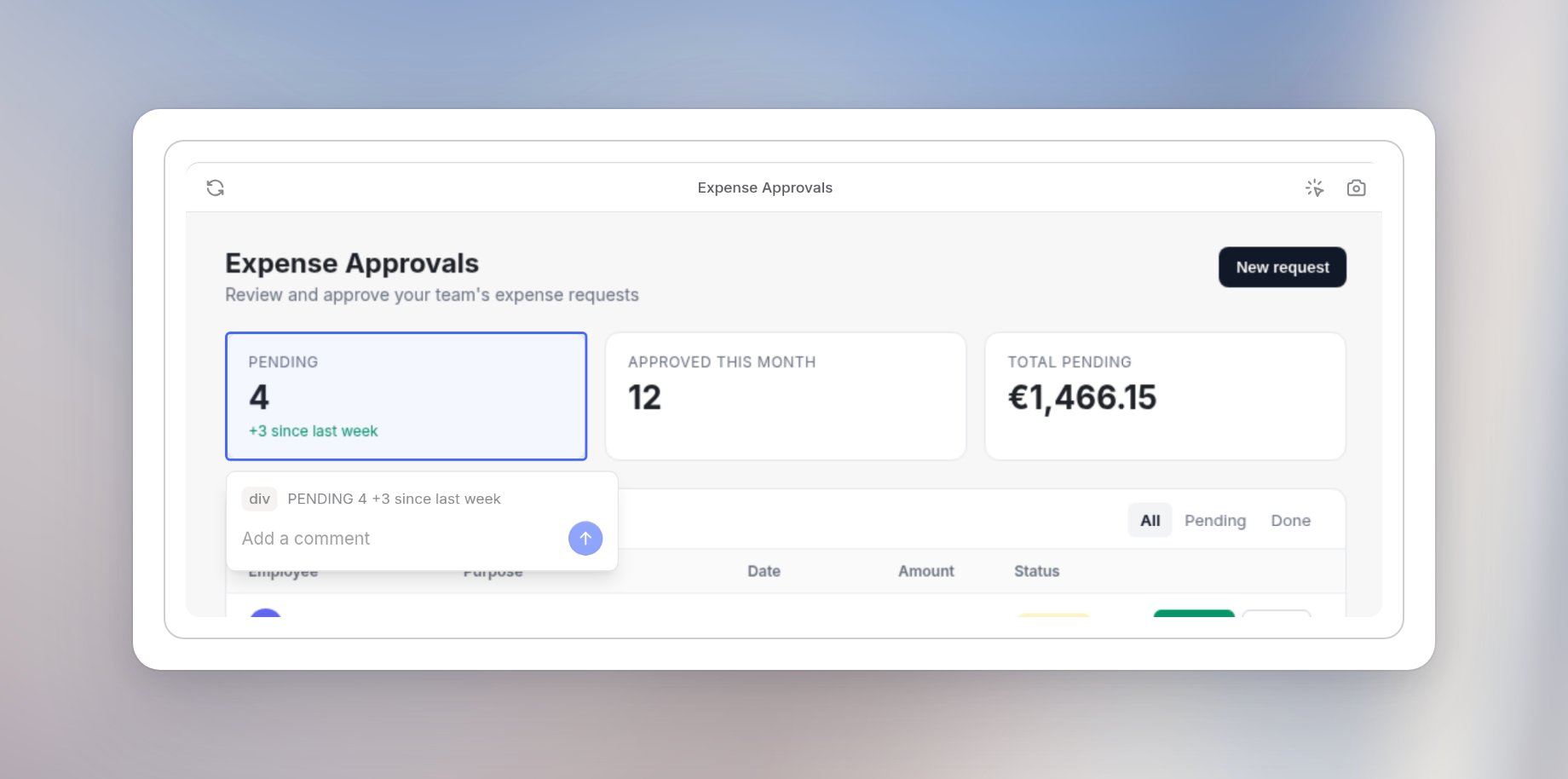
Select an element in the preview to attach your instructions to that part of the app.1
Turn on element selection
In the preview toolbar, click Select an element. The banner shows “Click an element to ask for changes to it”.
2
Choose the element
Move the pointer over the app. A blue outline shows which element you are about to select. Click the element.
3
Add your comment
Enter your instructions in Add a comment, then click the arrow button, Add to chat.