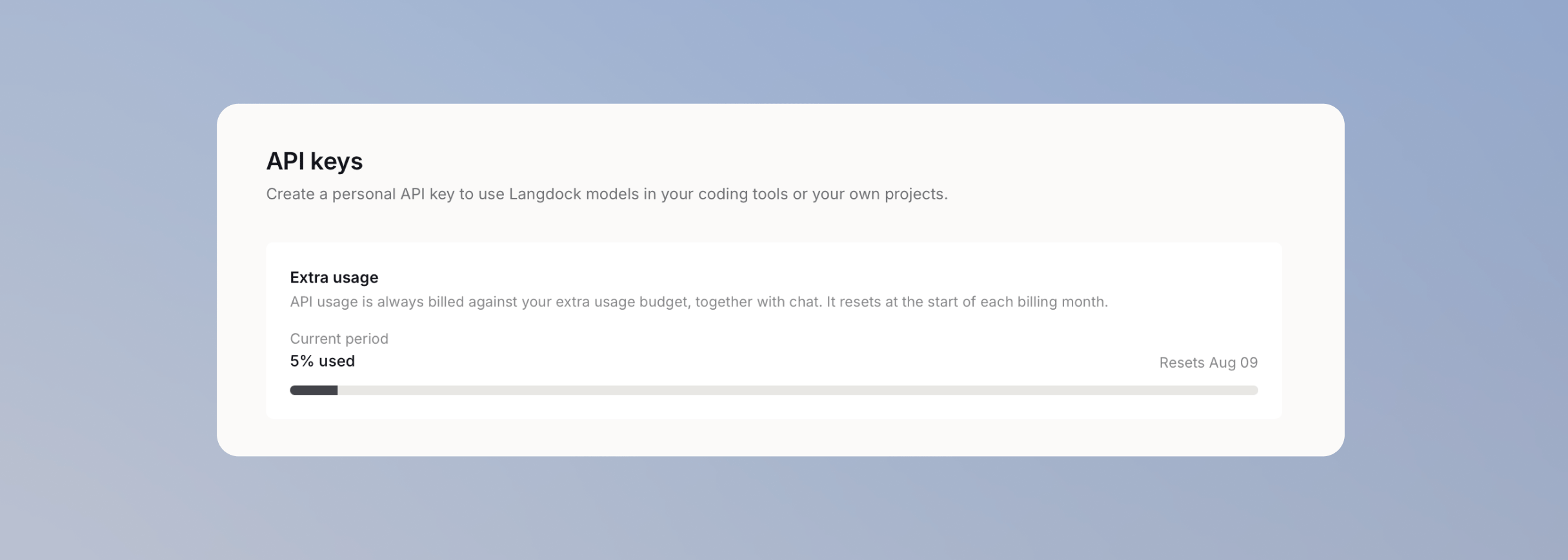
A personal API key lets you reach your workspace’s models from outside Langdock, so you can use them in coding tools like Claude Code, GitHub Copilot, or Codex, or in a project of your own. The key authenticates as you and counts towards your usage budget. Your admin can also allow Workflow Write API on personal keys.
Your admin has to give you access before API keys appears in your account settings. This access controls whether the page appears. Personal API usage counts against your effective personal budget and the workspace spend limit. If your effective personal budget is exhausted, personal API requests return an error instead of using a fallback model. If the workspace spend limit is reached, personal API requests return an error instead of using a fallback model. Your workspace admin must raise the limit or set it to Unlimited, or you must wait for the current billing period to reset.
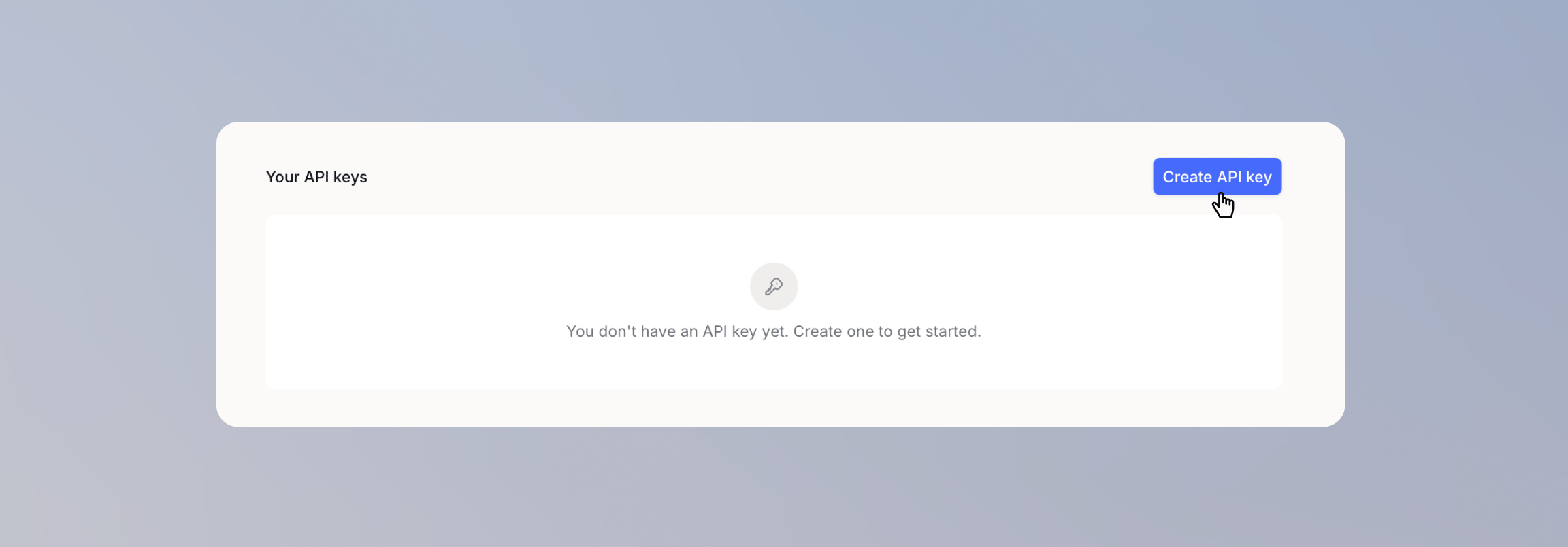
Create a personal API key
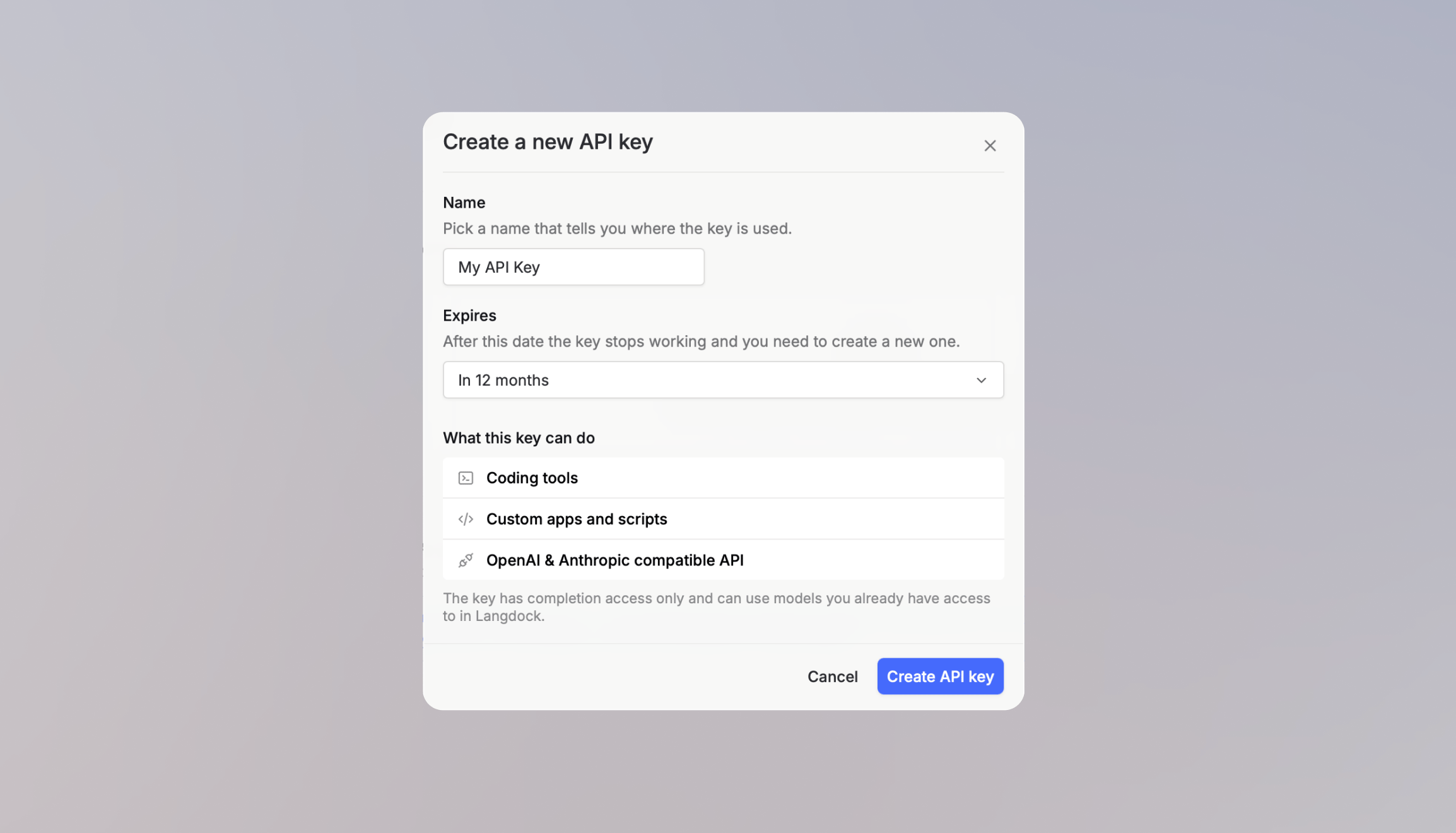
Enter the key details
Click Create API key. Give the key a name that tells you where it’s used, so you know which tool to update later, and choose when it expires. Create and copy the key
Click Create API key, then copy the key and store it somewhere safe. Langdock shows it once and never again. Never share a personal API key. It authenticates as you and spends your budget, so anyone who has it is working as you. Use a workspace API key for shared applications and automations, and see API key best practices for storing keys safely. YOUR_API_KEY with your key and your-model-id with an ID from Available models. Use eu or us to match your workspace’s model region. For an OpenAI compatible model in the global region, use /openai/global/v1 and list models at /openai/global/v1/models. On dedicated deployments the base URL starts with your deployment origin instead of https://api.langdock.com.
Claude Code
Claude Desktop
Cursor
Codex
GitHub Copilot
OpenCode
API / cURL
Claude Code uses the Anthropic Messages API through Langdock.Check available Claude models
Add your settings
Add this to ~/.claude/settings.json (on Windows: %USERPROFILE%\.claude\settings.json), and create the file if it does not exist. Replace the model IDs with ones from the previous step, and make sure ANTHROPIC_API_KEY is not set: Start Claude Code
Claude Code speaks the Anthropic Messages API, which Langdock serves at the base URL above. All requests are now routed through your workspace. Claude Desktop can run chats on Langdock models through third-party inference.Enable Developer Mode
In Claude Desktop, open Help → Troubleshooting → Enable Developer Mode.
Configure the gateway
Open Developer → Configure third-party inference. Set Inference provider to Gateway. Under Gateway credentials, enter: Test and apply
Keep Model discovery enabled, then click Test connection and Test model discovery. Claude discovers the Anthropic models available in your workspace. Click Save Changes, then Apply Changes. Claude relaunches; select Continue with Gateway if prompted.
Cursor has no built-in card under Connect your tools yet. Point its OpenAI provider at Langdock:Open model settings
In Cursor, open Cursor Settings > Models.
Add your key and base URL
Paste your personal API key into the OpenAI provider field and click Save. Turn on Override OpenAI Base URL and enter this URL with /v1 and no trailing slash: Add a workspace model
Enter the exact ID of a model from Available models, then click Add Custom Model. Select that model for chat.
function. For agentic coding, use Claude Code, Codex, GitHub Copilot, or OpenCode instead. Codex uses Langdock’s OpenAI Responses endpoint (wire_api = "responses").Add your config
Add this to ~/.codex/config.toml (on Windows: %USERPROFILE%\.codex\config.toml), and create the file if it does not exist: Start Codex
Or open the Codex / ChatGPT desktop app. This file stores your key on this computer. If you share the machine, revoke the key in Langdock and create a new one. GitHub Copilot uses Langdock’s OpenAI Chat Completions endpoint. Copilot Chat in VS Code, agent mode, and Copilot CLI need an OpenAI-compatible model that supports tools.Add a custom endpoint in VS Code
In VS Code, open the Command Palette and run Chat: Manage Language Models. Choose Add Models → Custom Endpoint. Use Langdock as the group name, paste your API key, and select Chat Completions.
Add the provider
VS Code opens chatLanguageModels.json. Add this provider, or merge it with providers you already have, save, then pick the model in the Chat picker: Or use Copilot CLI
Run this in your terminal. Add the exports to your shell profile if you want them to persist. On Windows, set the same values with $env:: What this connection covers
This routes Copilot Chat, agent mode, and Copilot CLI through your workspace. Inline ghost-text completions still use GitHub. Copilot Business or Enterprise organizations may need an admin to enable the Bring Your Own Language Model Key policy.
OpenCode uses the Anthropic-compatible endpoint through Langdock.Add your config
Add this to opencode.json in your project, or to ~/.config/opencode/opencode.json (on Windows: %USERPROFILE%\.config\opencode\opencode.json). You can list more workspace models under models: Start OpenCode and connect
Run /connect, select Other, enter workspace as the provider ID, then paste your API key. Choose the model
Choose the model with /models, or start OpenCode with it directly: Call the completion APIs directly from your own projects.Send a Chat Completions request
Or use the Anthropic-compatible API
Rotate or revoke a key
Open the menu next to a key under Your API keys:
- Rotate key replaces the secret and shows the new one once. The old one stops working immediately, so update every connected tool right away.
- Revoke key switches the key off for good.
Your workspace admin can revoke your keys as well. They also stop working if your admin takes away your access to personal API keys or deactivates your workspace membership.