

Meeting chat
With meeting chat, you can recall a decision, find next steps or bring together information from several conversations, without reading every transcript yourself. It uses the same tools as Chat: you can add a local file or Google Drive content, choose available plugins or a model, and dictate your message.Ask about one meeting
1
Open the chat
Open a completed meeting and select Ask anything at the bottom of the page. The chat panel expands over the summary.
2
Ask a question
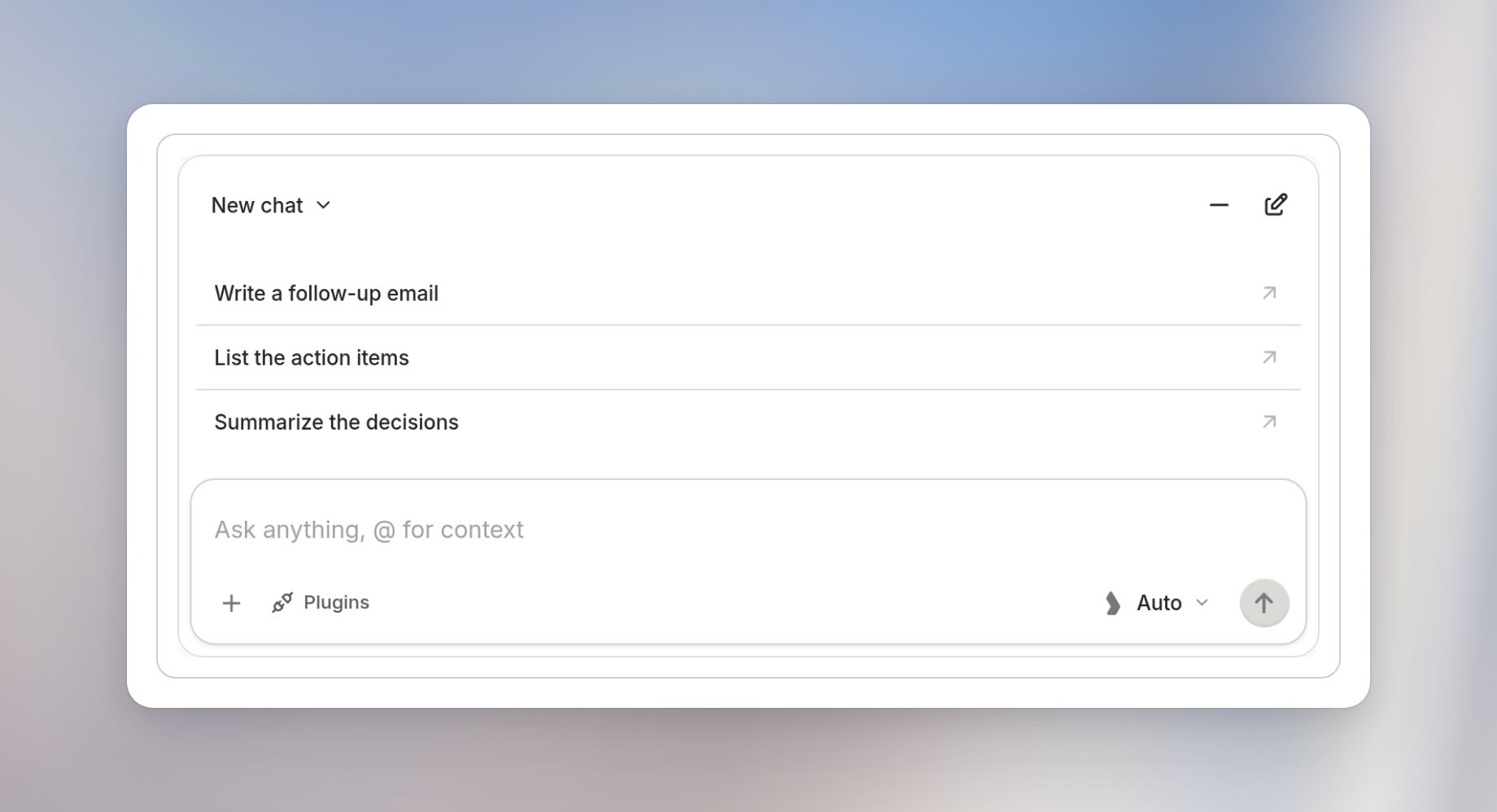
Type your own question or start with a suggestion: Write a follow-up email, List the action items or Summarize the decisions. For example: “What are the next steps, and who is responsible for each one?”
3
Send it
Select the send arrow. The answer appears in the same panel, and you can continue the conversation below it.
Ask across meetings
Use the chat on the Meetings page when your question spans several conversations.1
Open Meetings
Select Meetings in the sidebar.
2
Open the chat
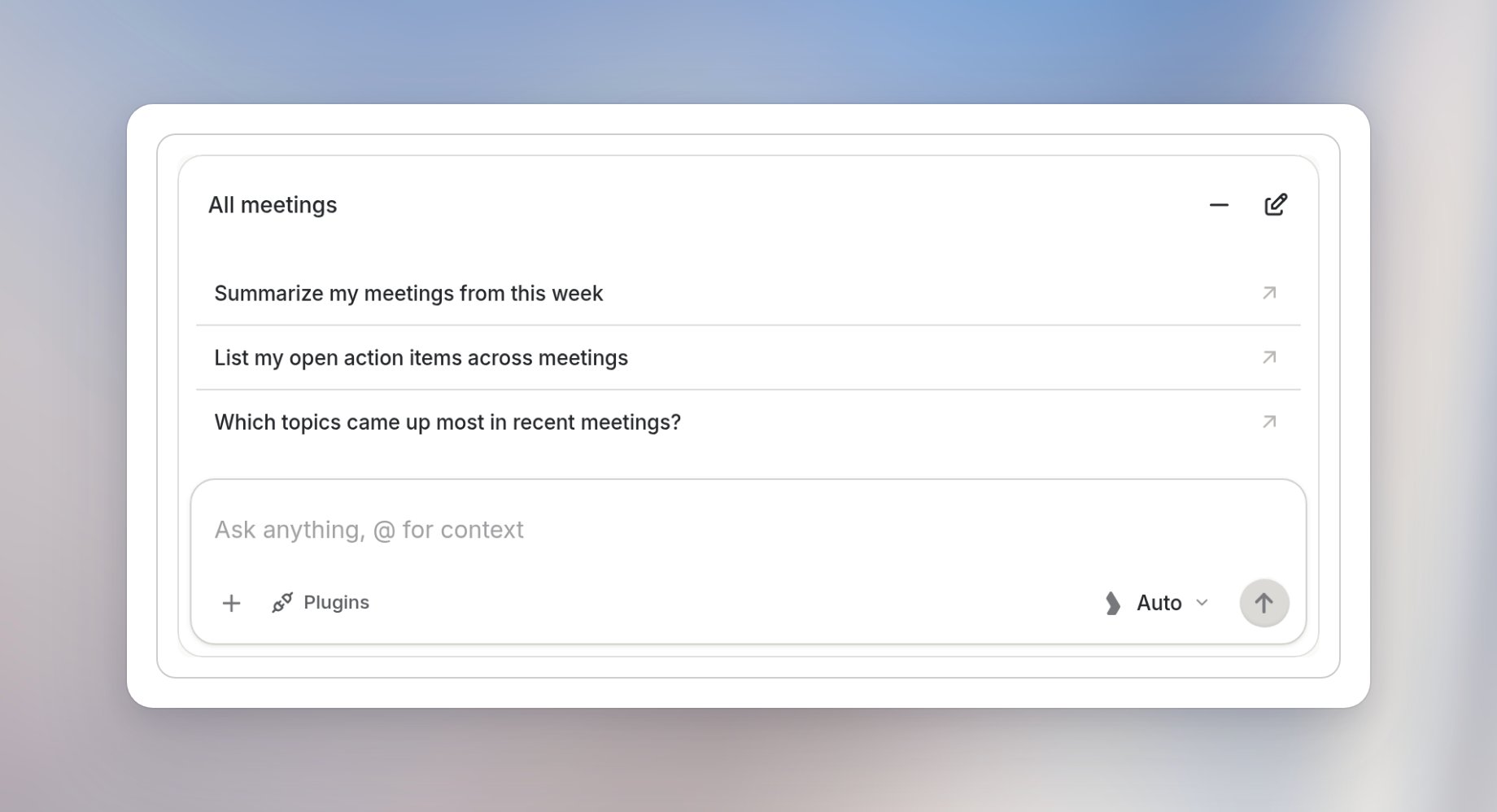
Select Ask anything at the bottom of the page. The panel opens as All meetings and offers suggestions for a weekly summary, open action items and recurring topics.
3
Ask a question
Enter your question and select the send arrow. For example: “What decisions are still open from last week’s meetings?”
Continue in Chat
Select Open in Chat, the icon at the top right of a meeting chat conversation, to continue it in the full Chat view. Your questions and answers carry over, including the citations. The chat header has these controls:
Inside a meeting, select the conversation title to open Chat history.