Before you start
- Check that your workspace admin has enabled Meetings for you. See Introduction to Meetings.
- Use the Langdock desktop app to transcribe online calls. In the browser, only your microphone is transcribed. See Getting started.
- Set your Transcription language in Personal settings. You can’t change it during a transcription.
- Tell everyone in the meeting that you’re transcribing it, and make sure they agree before you start. See Watermark and transcription notices.
Start a transcription
How you start depends on whether the meeting is in your calendar. Online meeting from your calendar: Select Meetings in the sidebar. With your calendar connected, Coming up shows your upcoming events. Use the arrows to browse days, or expand a day to see more events. Select Record next to the event. The meeting page opens and transcription starts. Transcribing from a calendar event is available in the desktop app. In-person conversation: Select New recording at the top of the Meetings page. Allow microphone access if prompted. You can transcribe in-person conversations in the desktop app or in a desktop browser. When transcription starts, Meetings shows Transcription started. with a reminder to make sure everyone knows and agrees to being transcribed. If your workspace hides transcripts, the reminder says Recording started. instead.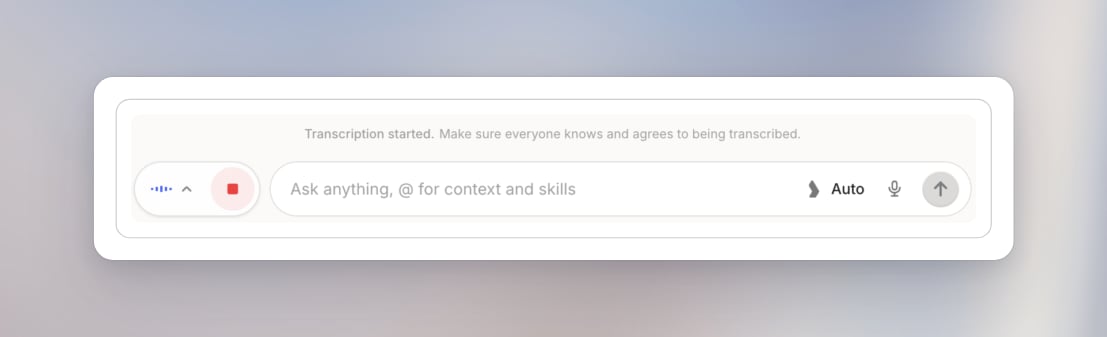
Follow the live transcript
Select Show transcript next to the transcription controls to see speech appear as text. The panel includes Copy transcript, Minimize transcript and Hide transcript. You can minimize the panel when you want more room for your notes.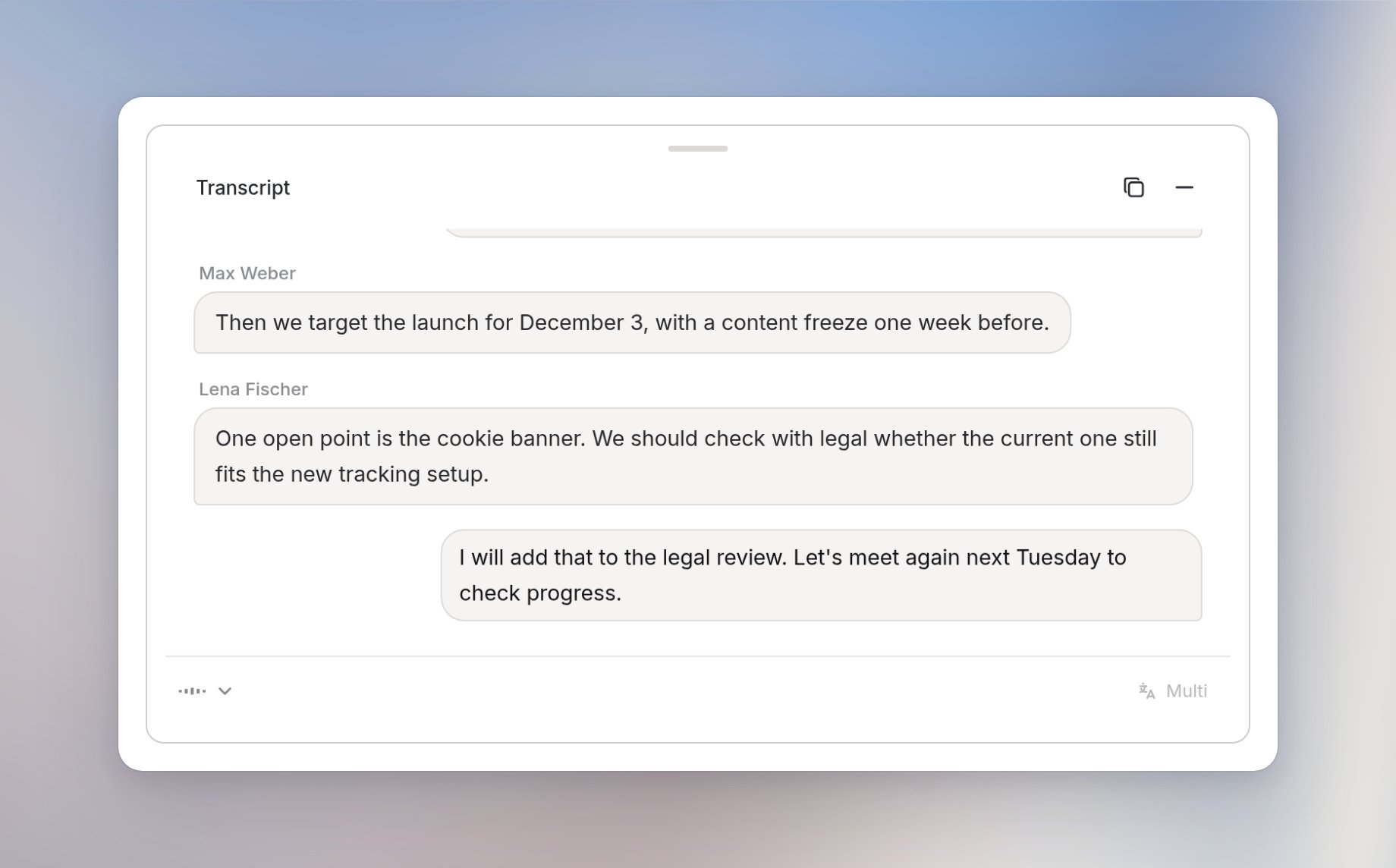
- Microphone: lists the available microphones. Pick a different one if the wrong input is in use.
- Language: shows the transcription language, for example Multi for multi-language meetings. The menu also lists Deutsch, English, Español, Français and Italiano.
Your workspace admin can hide transcripts from everyone, including meeting owners and admins. The summary remains available. See Privacy and data.
Take your own notes
Select My notes to write down points you want to remember while transcription continues. You can use headings and bullet lists to organize them.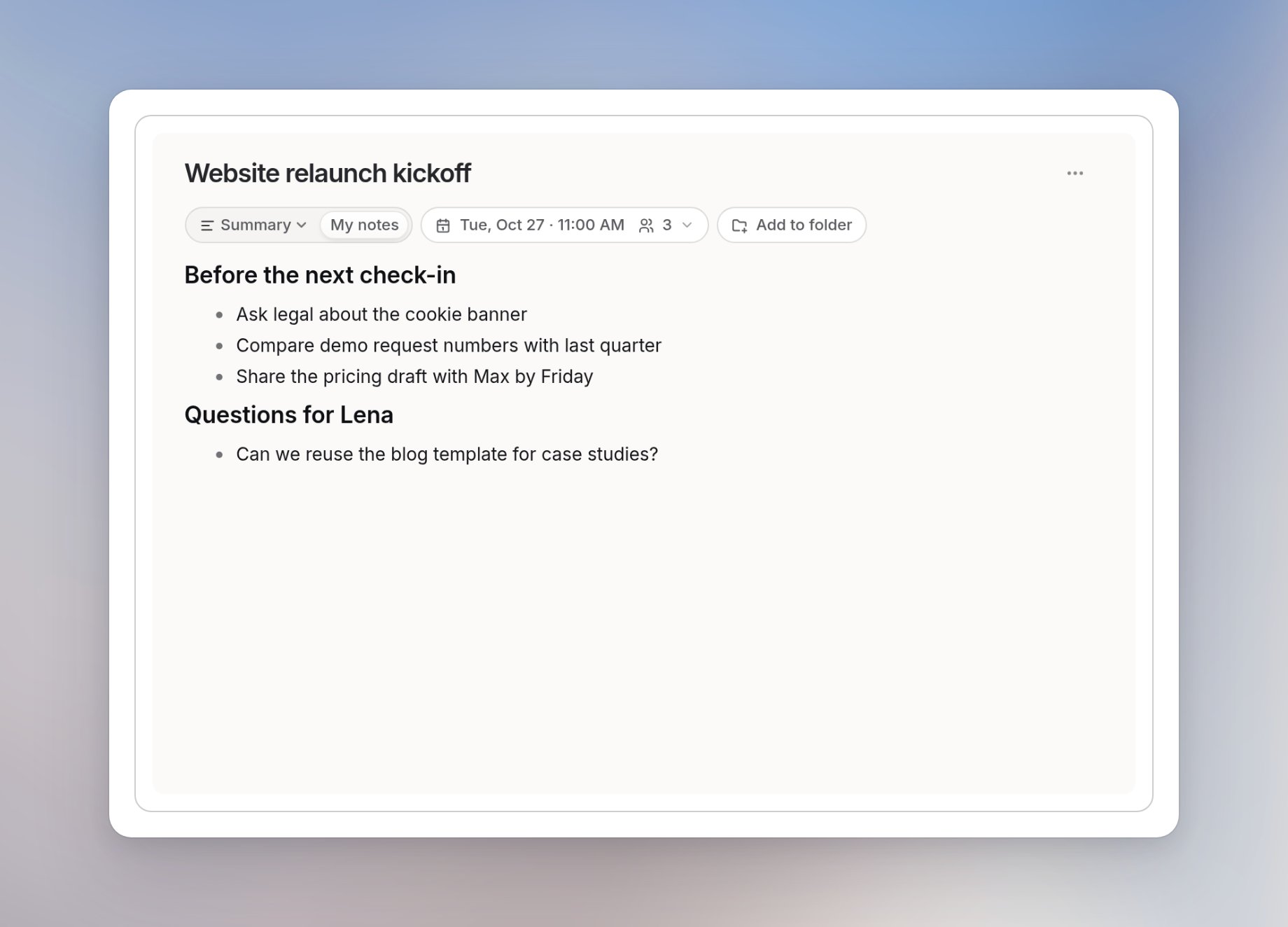
Stop and resume
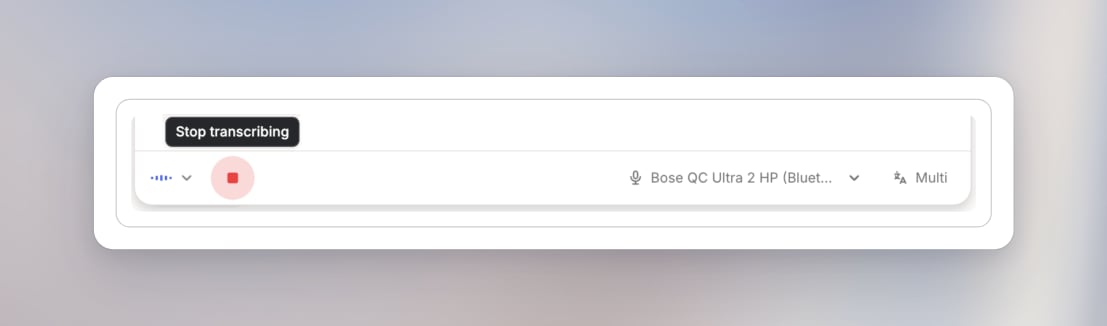
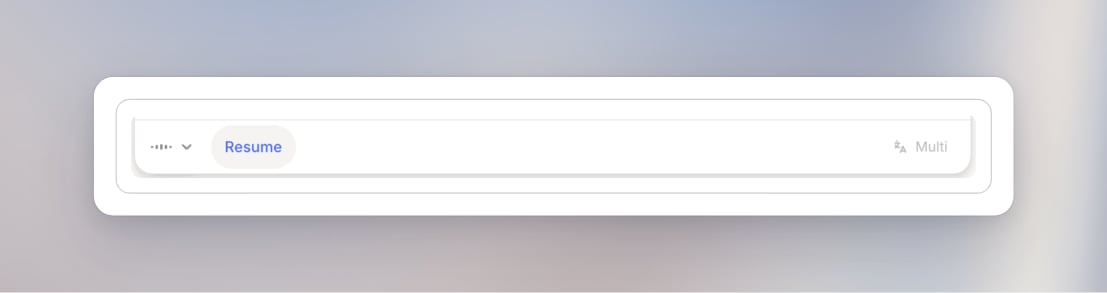
Select Stop transcribing when you want to stop capturing the conversation. Meetings generates a summary and shows it under Summary. To read it and choose a template, see Meeting notes and transcripts.