


Knowledge bases were previously called Knowledge Folders. The Knowledge Folder API keeps its existing endpoint names.
Search a Knowledge base from chat
Knowledge bases are most useful when you need an answer from a large set of reference documents. Select a Knowledge base in chat, then ask the model to find the information you need. For example, you can ask Langdock to:- Find the parental leave policy in an employee handbook
- Compare onboarding guidance across several internal documents
- Answer a support question from product documentation
- Find the right security policy for a customer questionnaire
1
Open a chat
Start a new chat or open an existing one.
2
Choose a Knowledge base
Type 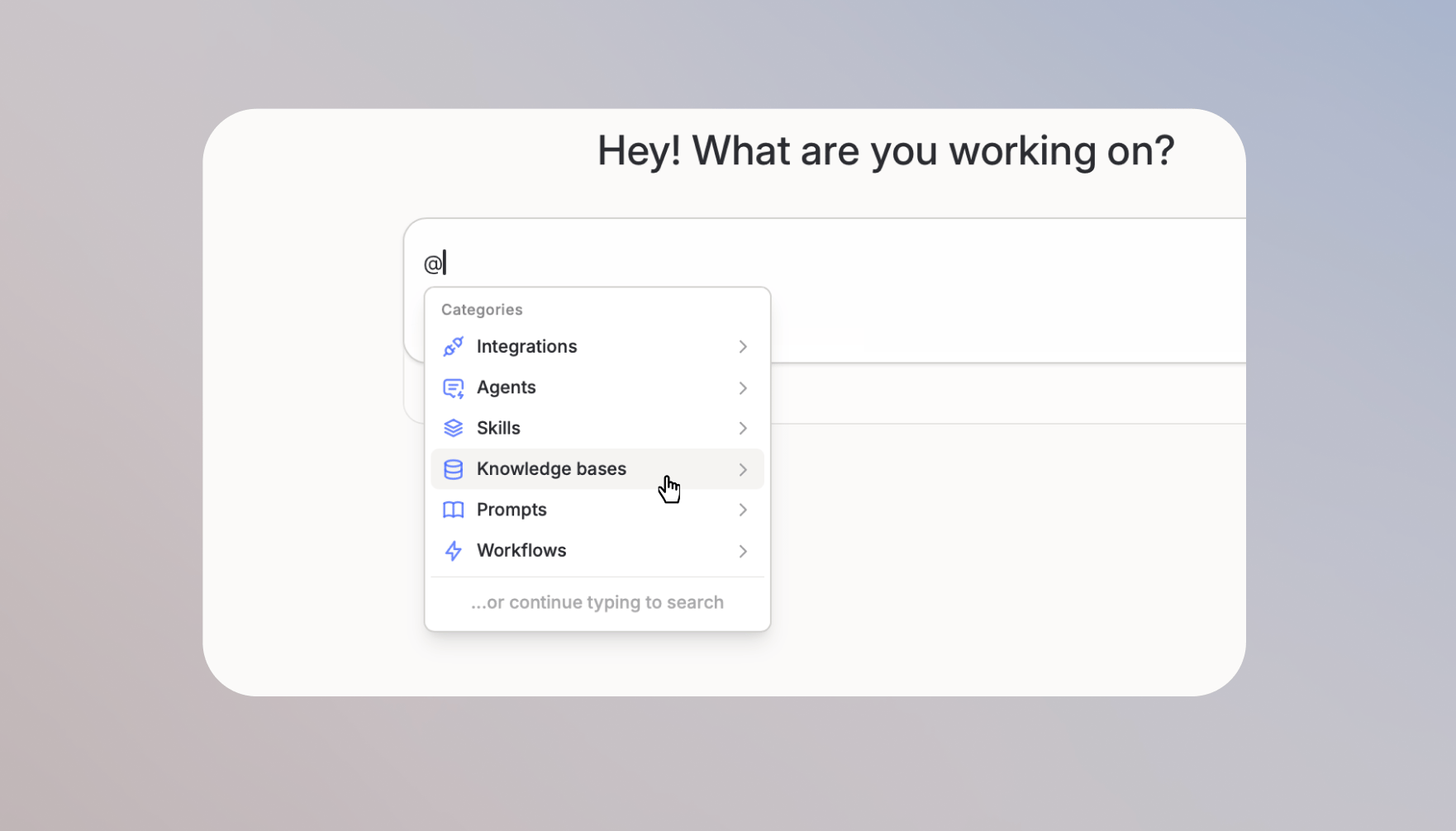
@, search for the Knowledge base, and select it from the list.3
Ask a question
For example, ask the model to find the parental leave policy in the employee handbook. The model searches the Knowledge base for relevant sections and answers from those sources.
Create a Knowledge base and add documents
You can create Knowledge bases from the Library. Open the Library from the left sidebar, find the Folders section, click the arrow next to Create folder, and select Create knowledge base.
- Upload from computer
- API upload
- Open your Knowledge base
- Click Upload files or drag documents into the Knowledge base
- Wait until the files finish processing
Knowledge bases can contain up to 1,000 files. Each file can contain up to 8 million characters.
Share search access with the right people
You can share Knowledge bases with individuals, groups, or your entire workspace. Use Viewer access when someone should search documents, and Editor access when they should also add, remove, or manage documents. You need the Share folders and knowledge bases with workspace role permission to share a Knowledge base with your entire workspace.
The person who creates a Knowledge base is its owner. Workspace admins have full control over all Knowledge bases, including changing the owner.
Convert a Knowledge base to a folder
If you started with a Knowledge base but want to work with the files directly instead of searching them, you can convert it to a regular folder. Files and sharing access move to the new folder, and the original Knowledge base is removed. Convert a Knowledge base when you want to:- Open files in chat, compare them, or edit them
- Save generated files back to the same location
- Add spreadsheets, images, or other file types that Knowledge bases don’t accept
1
Open the Knowledge base
In the Library, open the Knowledge base you want to convert. You need Editor or Owner access.
2
Select Convert to folder
Open the more actions menu and select Convert to folder.
3
Confirm the conversion
Review the confirmation dialog, then confirm. The files and existing sharing access move to a new folder, and the Knowledge base is removed.
Folders have lower limits than Knowledge bases: up to 100 files and 250 MB total. If your Knowledge base has more files, remove some before converting.
Choosing the right setup
Knowledge bases work best when you need to search across many documents. Use the options below when you want to work directly with files or give an Agent access to the same reference material.Use a Folder to work with files
Use a Folder when you want to open files in chat, compare them, update them, or save generated files back. Folders are better for active work with a smaller set of files. Use a Knowledge base when you want to search a larger collection for the right answer.Add a Knowledge base to an Agent for search
Add a Knowledge base to an Agent when the Agent should search the same reference material while answering. In the Agent editor, select Add folders in the Folders row, then choose the Knowledge base. Use the Files row for files from your computer or individual files from integrations. Use the Folders row for Library Folders, Knowledge bases, and synced folders.FAQ
My Knowledge base is not appearing in @mentions
My Knowledge base is not appearing in @mentions
Check that you have at least Viewer access, then type more of the Knowledge base name to narrow the results.
The model is not finding relevant information
The model is not finding relevant information
Check that your documents finished processing, then rephrase your question with more specific terms. Verify that the information exists in the uploaded documents.
I cannot upload certain file types
I cannot upload certain file types
Knowledge bases accept supported text-based formats such as PDF, DOCX, TXT, Markdown, and presentations. Use a Folder when you need to work with spreadsheets, images, audio, or generated files.
What should go into a Knowledge base instead of a direct attachment?
What should go into a Knowledge base instead of a direct attachment?
Use a Knowledge base for information that should be reused across chats, agents, workflows, or API usage. It is best for larger or longer-lived document collections where Langdock should search relevant sections instead of sending every file in full each time.
How fresh is Knowledge base content?
How fresh is Knowledge base content?
Uploaded Knowledge base content is available after processing. If recent content is missing, check the processing status before assuming the model ignored the file. For automatically updated content, use Folder Sync.
Why are some files not searchable in a Knowledge base?
Why are some files not searchable in a Knowledge base?
Files may not be searchable if the format is unsupported, the file failed processing, the content cannot be extracted reliably, or the source permissions prevent access. Spreadsheets and tabular data are not supported by Knowledge bases and should be used directly in chat instead.