

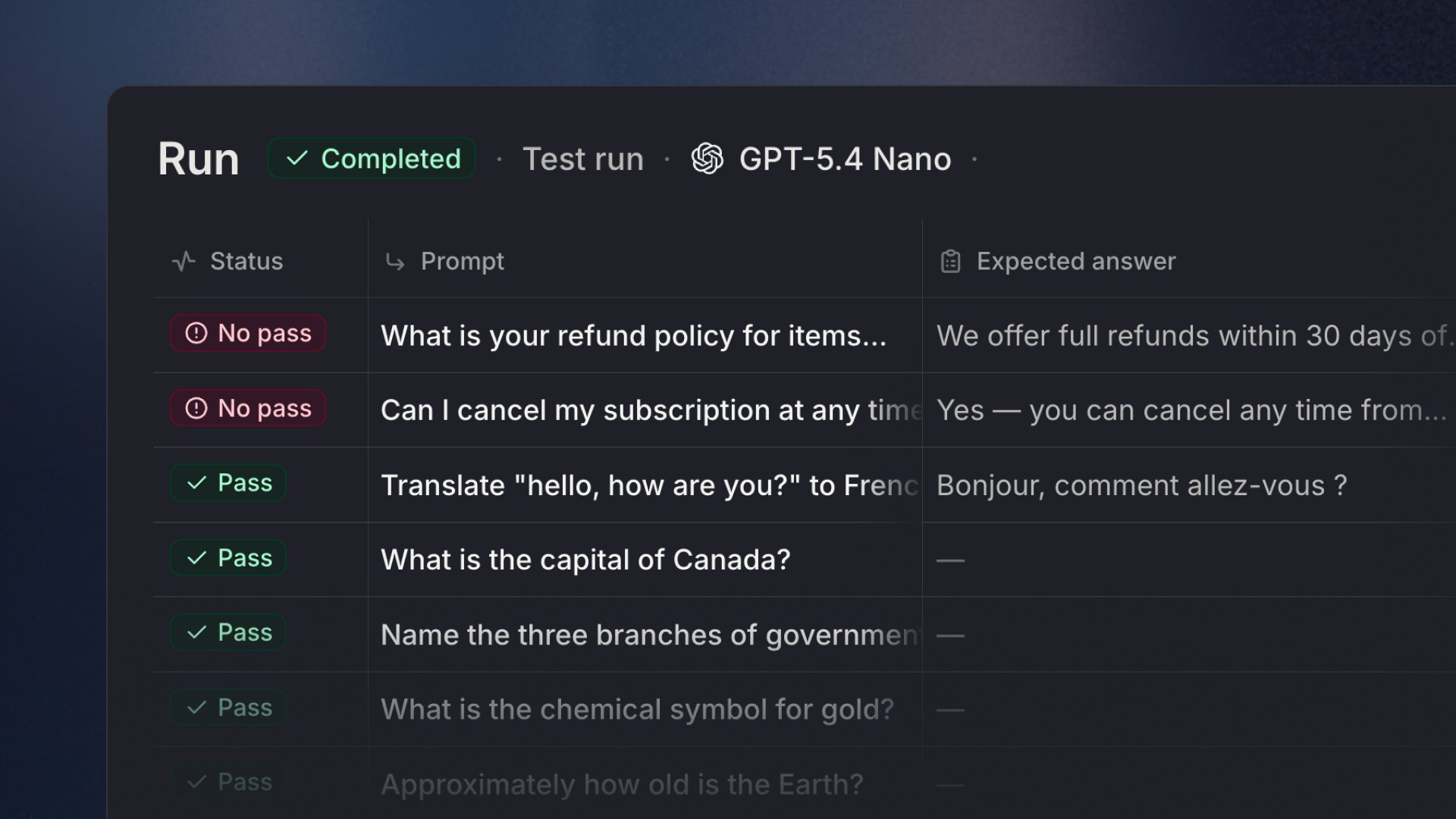
Test sets
A test set is a collection of test cases with shared configuration. Each test set defines the conversation shape, which checks to apply, and how tools should behave during the evaluation.Creating a test set
- Click New test set in the Evals tab.
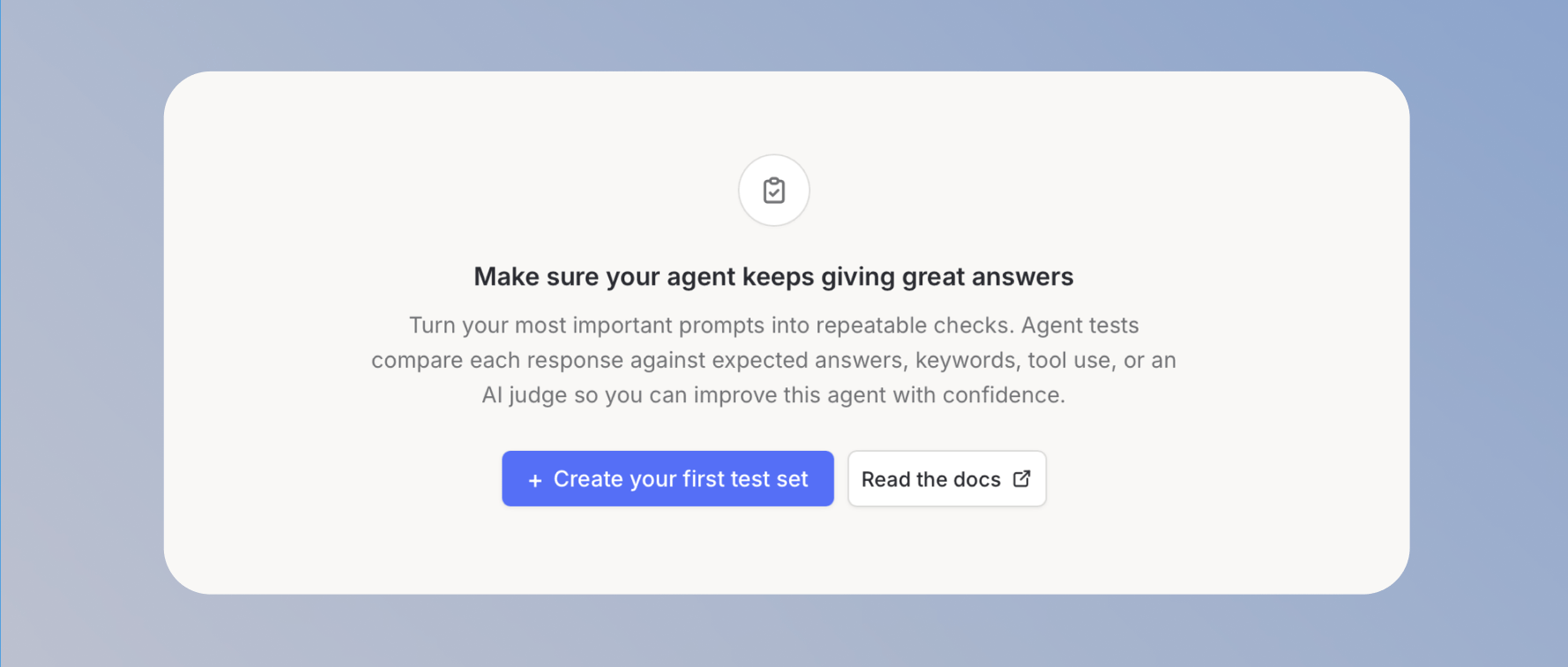
- Enter a name for the test set and select a conversation shape. Currently, only Single turn is available.
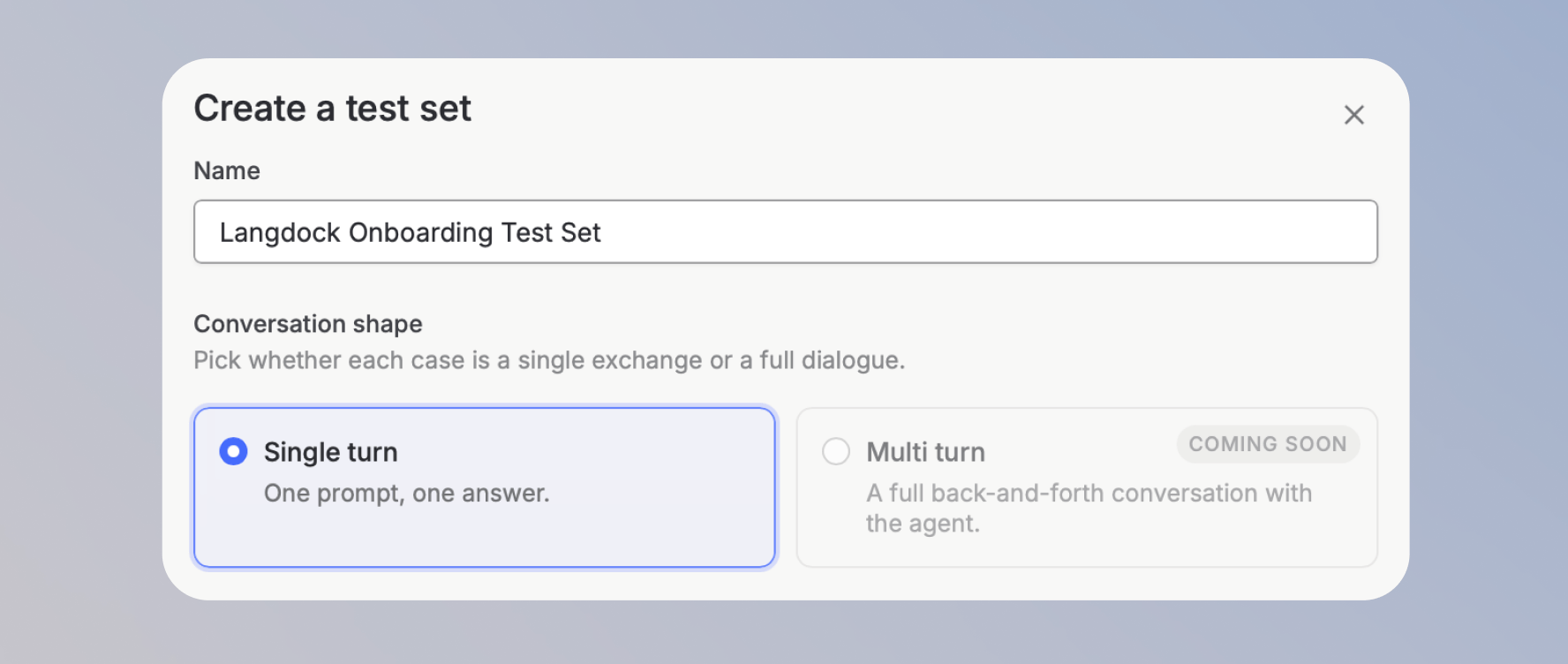
- Optionally, select one or more checks to grade your test cases: AI judge, Tool check, or Keyword check.
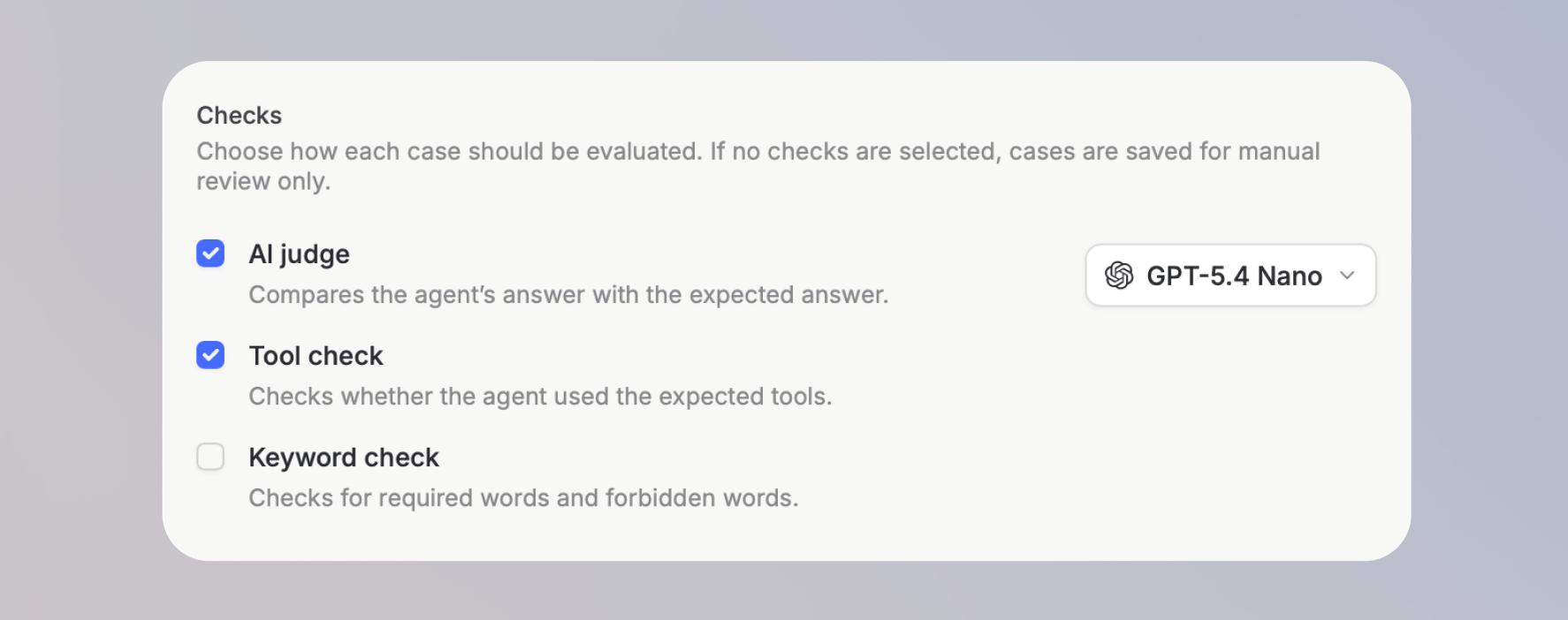
- If you selected AI judge, choose which model to use as the judge.

- Click Create test set.
Check types
Checks define how each test case is graded. You select them when creating a test set, and they apply to every case in that set.AI judge
AI judge compares your agent’s actual response to an expected answer you define for each test case. It uses a language model to evaluate whether the response meets the intent and content of the expected answer, even if the wording differs. You choose which model serves as the judge when creating the test set.Tool check
Tool check verifies whether your agent called the expected tools for a given prompt. Define the tools you expect to be used, and the check confirms whether the agent called them during the evaluation. This is useful for agents with integration actions where calling the correct tool matters as much as the response itself.Keyword check
Keyword check verifies whether the agent’s response contains required text or avoids forbidden text. Matching is case-insensitive substring matching, not whole-word matching. Unlike AI judge, it does not involve a model and produces a deterministic pass or fail result. Each test case has two fields for this check: Must mention and Must not mention. Use it for compliance requirements, brand guidelines, or any case where certain terms must appear or must be avoided in the response.Test cases
After creating a test set, you add the individual test cases that will be evaluated.Adding cases manually
Click Add case on the test set page to create a single test case. For an agent with input type Prompt, enter a prompt and the expected outputs that your selected checks will grade against. For an agent with input type Form, complete the agent’s configured form fields and submit the values for the case.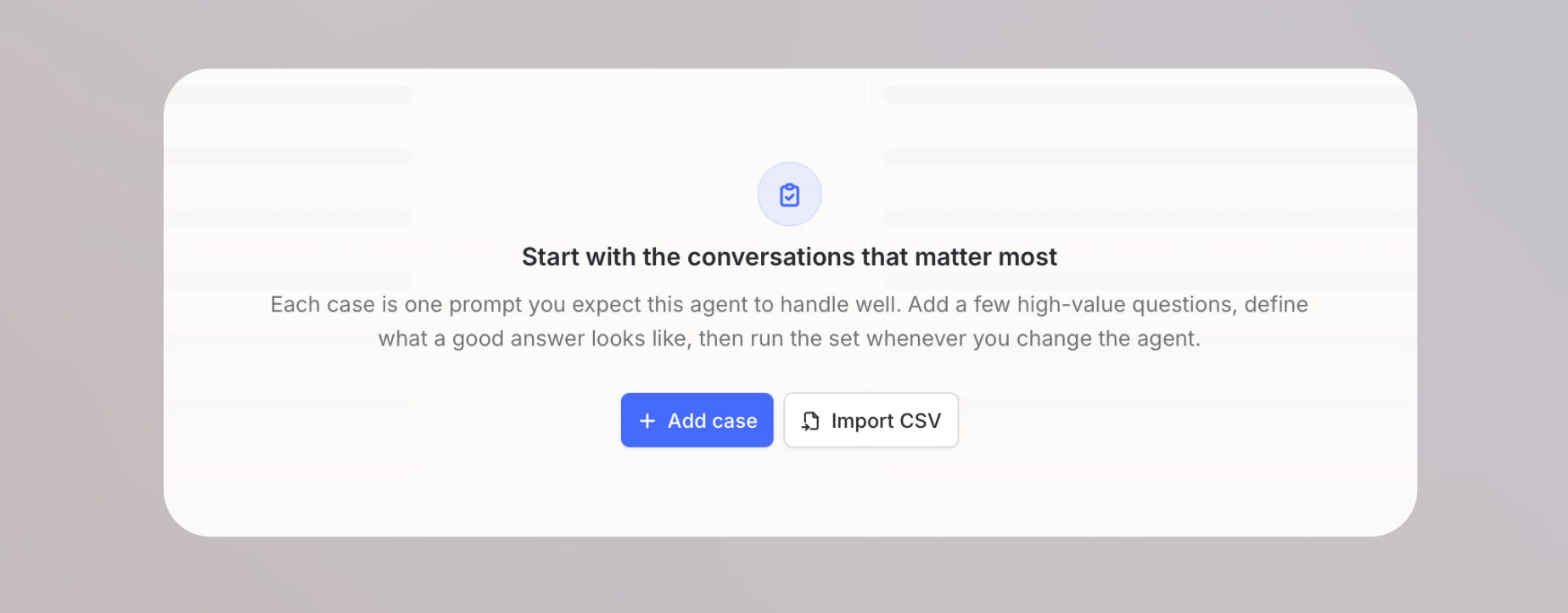
Importing from CSV
For agents with input type Prompt, click Import CSV to load multiple cases at once. The CSV requires aprompt column. It can also include must_contain, must_not_contain, reference_answer, and expected_tools columns.
Import CSV and Export CSV for test cases are available only for agents with input type Prompt. This restriction does not apply to Download CSV for completed run results.
Running evals
Click Run in the top right of the test set page to start the evaluation. Select one or more cases and choose Run selected to run only that subset. Use the arrow next to Run to override the test set default with Run dry or Run live. Results appear live as each case completes, showing the status, prompt, output, grader results, and duration for each case.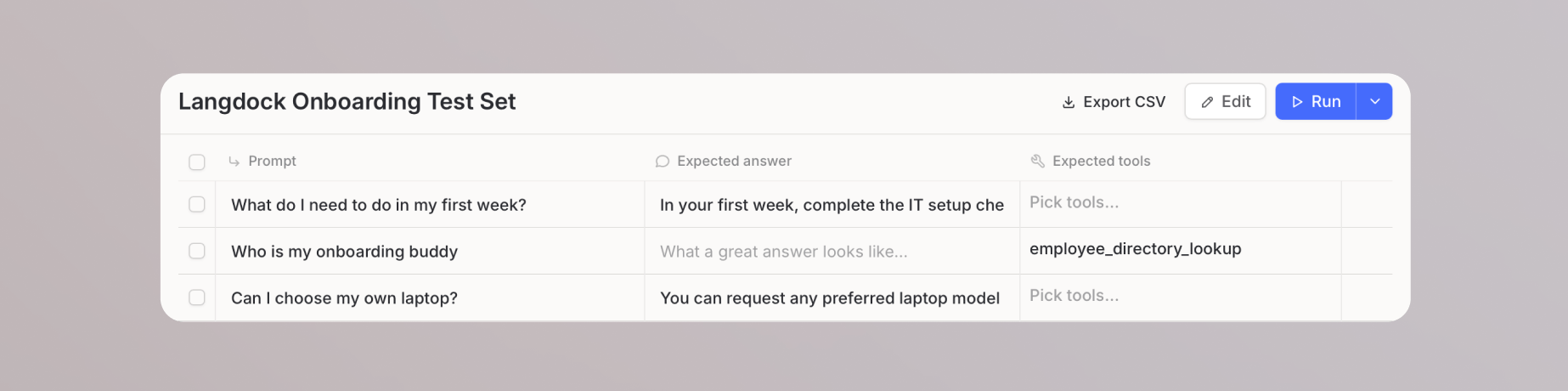
Each test case consumes usage in the same way as a regular agent conversation. When AI judge is enabled, a case with an expected answer also adds a separate judge model call. A test set can only have one active run at a time, and each workspace can have up to three active runs.
Reviewing results
Once a case finishes, click on it to open the detail view. You can review: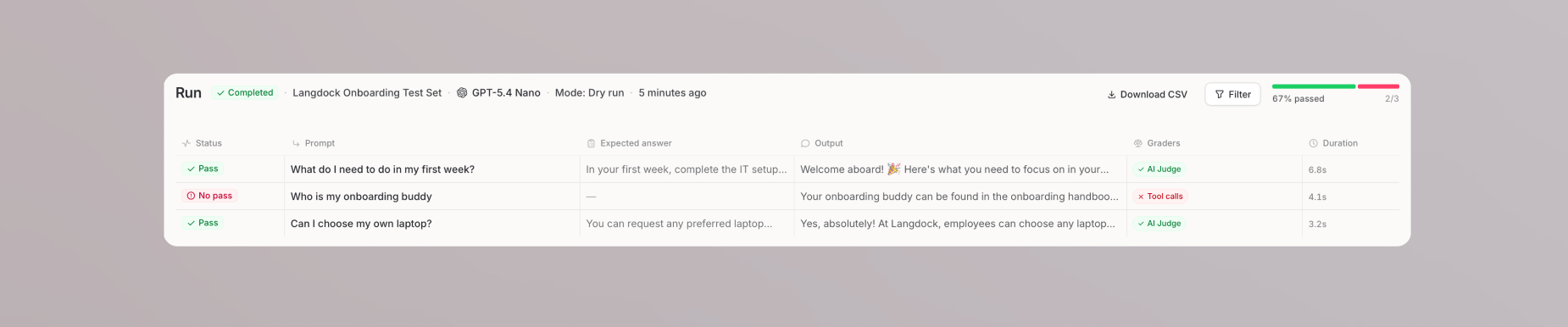
- The full conversation between the prompt and the agent
- The agent’s response
- Token usage and duration
- The result of each grader, such as pass, no pass, or unsure
Tool execution modes
The tool execution mode determines whether your agent’s tools actually run during an evaluation. You configure this in the Advanced section when creating a test set.
If an action is still missing a connection, a Live mode case fails before the agent starts.