

Using the desktop app
The desktop app is Langdock on your Mac or Windows PC. You get the same workspace as in the browser: chat, agents, knowledge, and the rest of your tools, in a native window that lives in the dock or taskbar instead of a browser tab. Use it when you want Langdock next to your other apps, more than one Langdock view open at once, or to stay signed in in the browser and on the desktop at the same time. The desktop app replaces the older browser-installed Langdock App (PWA). If you still use the PWA, switch to the desktop app.You work in the same workspace as in the browser. The window, menus, and a small set of computer-connected features can differ. If something is missing or looks different in the desktop app, that is expected.
Installation
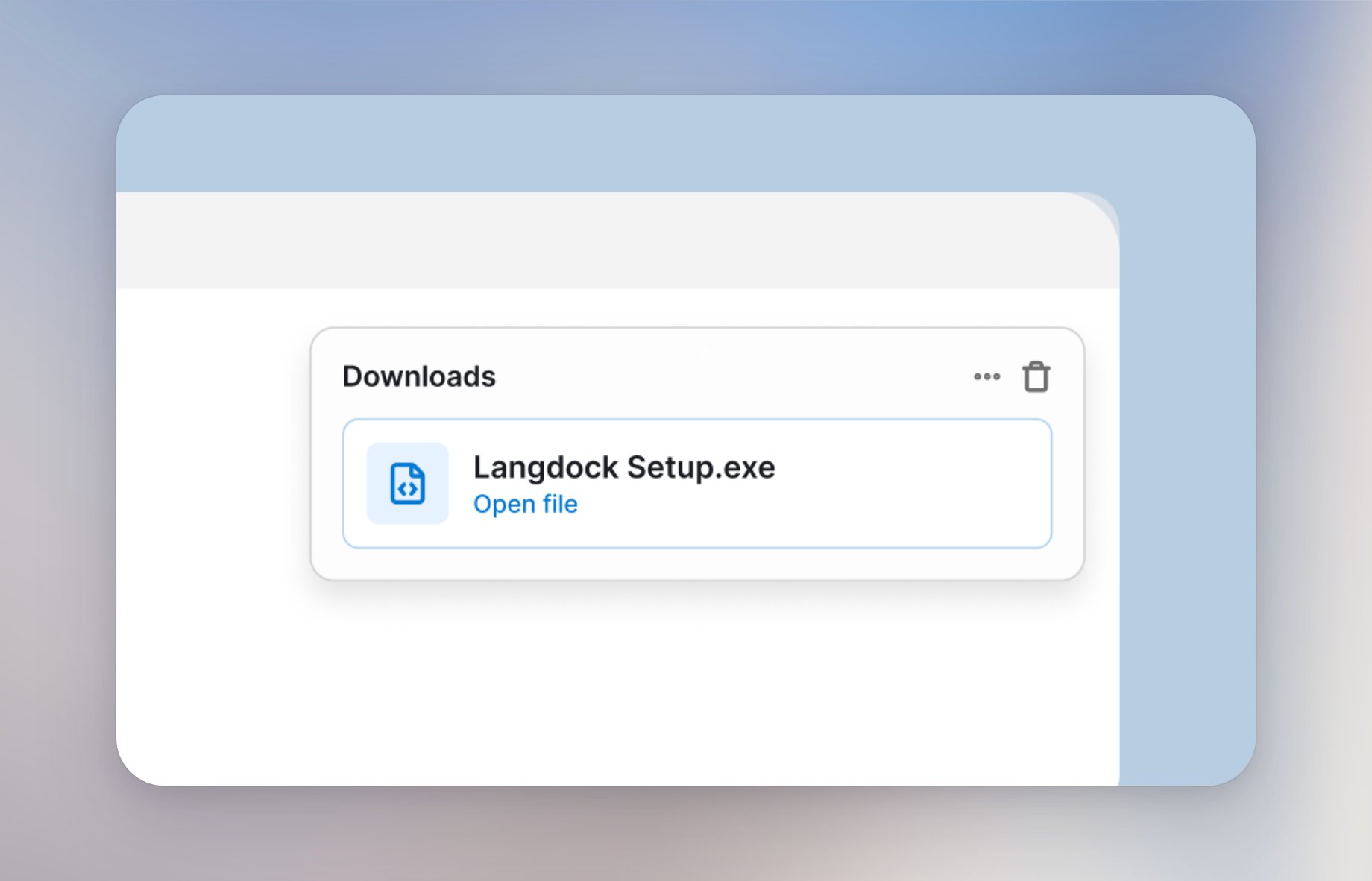
Open langdock.com. On that page, use the download button for Mac or Windows. The file lands in your Downloads folder.Want to deploy Langdock Desktop for your whole organization with Intune, Configuration Manager (SCCM), Jamf, or another MDM? Check out the Enterprise Guide for Langdock Desktop.
- Mac
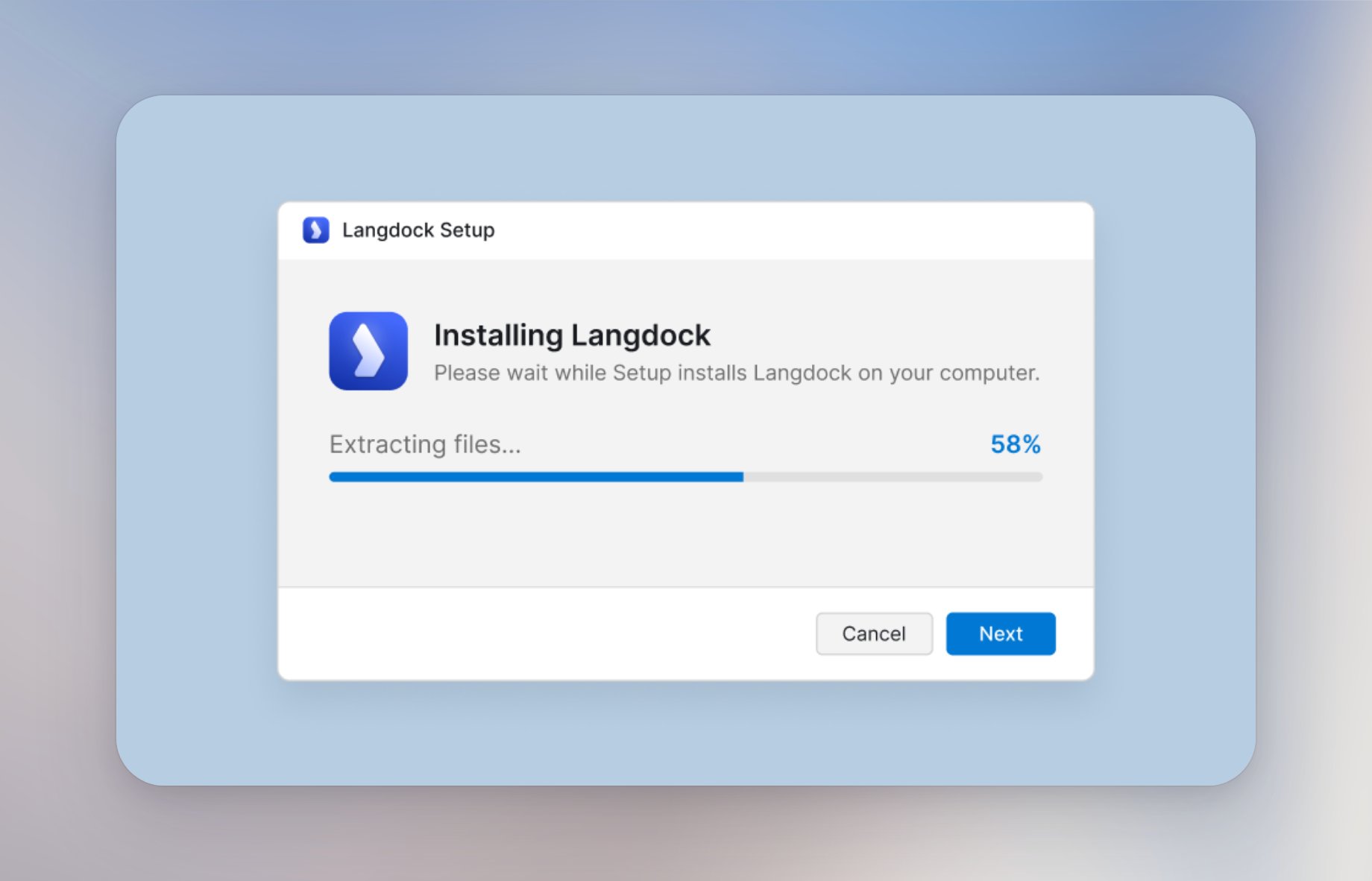
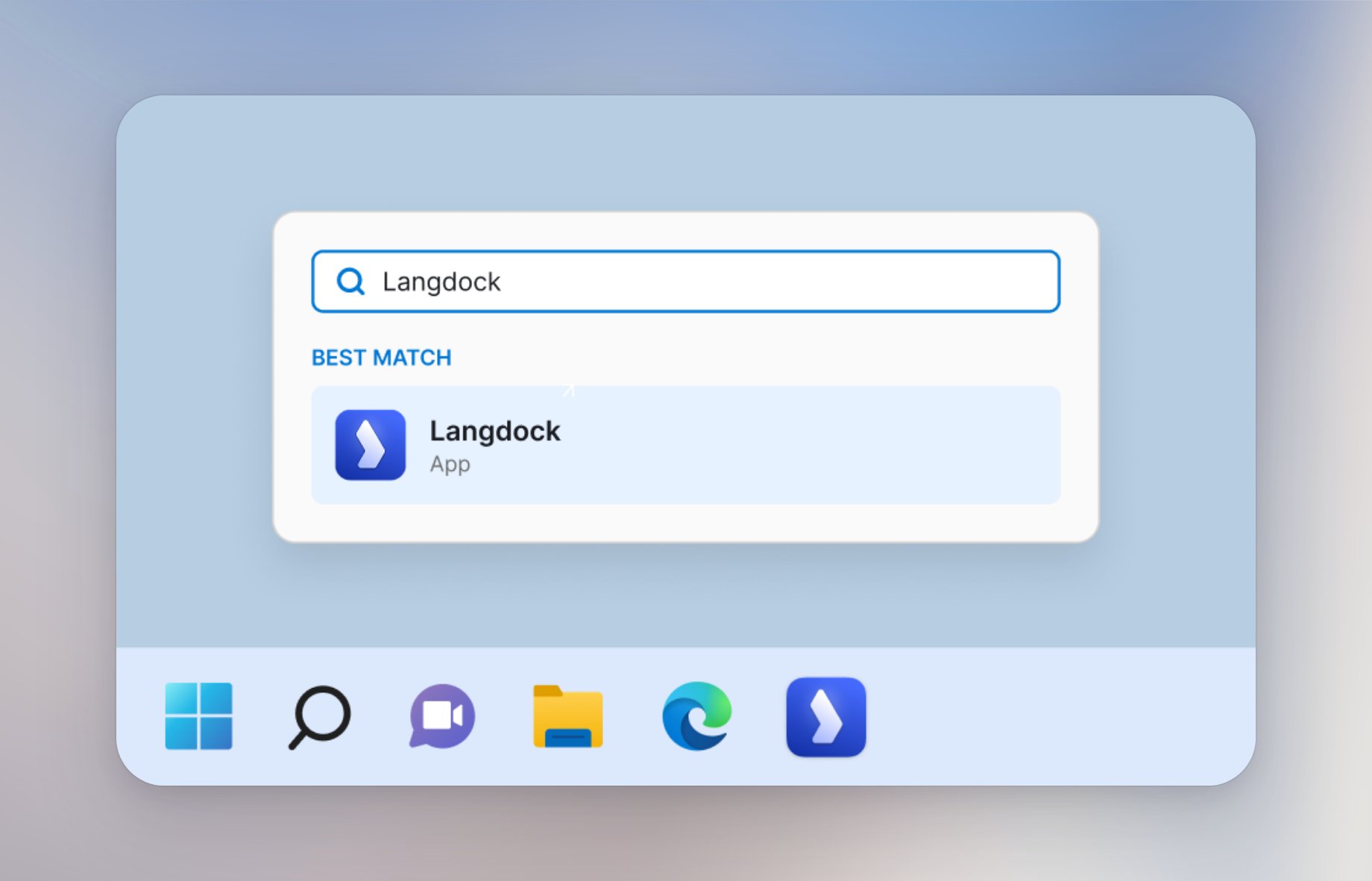
- Windows
1
Open
Open Langdock.dmg from your Downloads folder.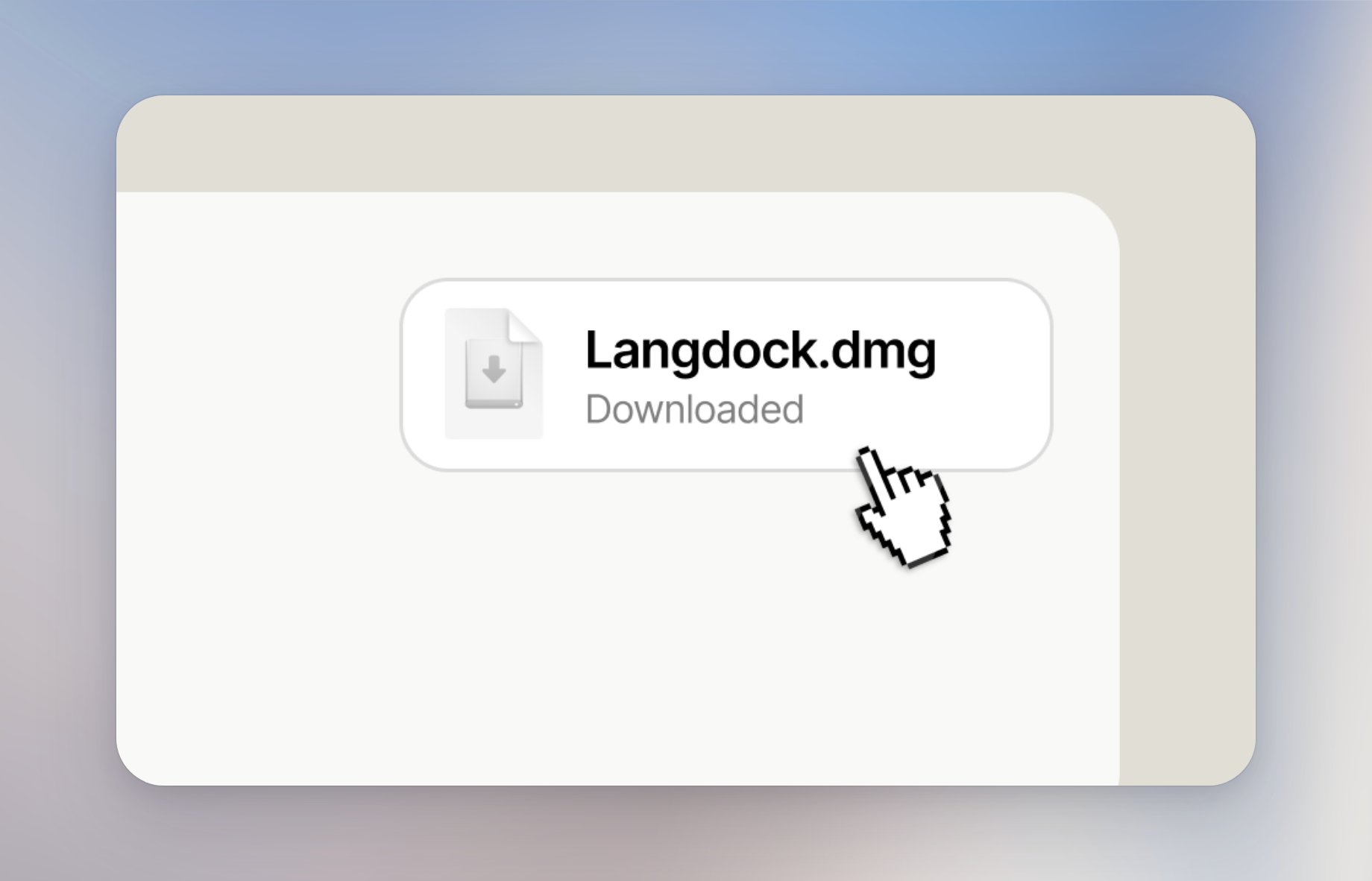
2
Install
Drag the Langdock app into your Applications folder.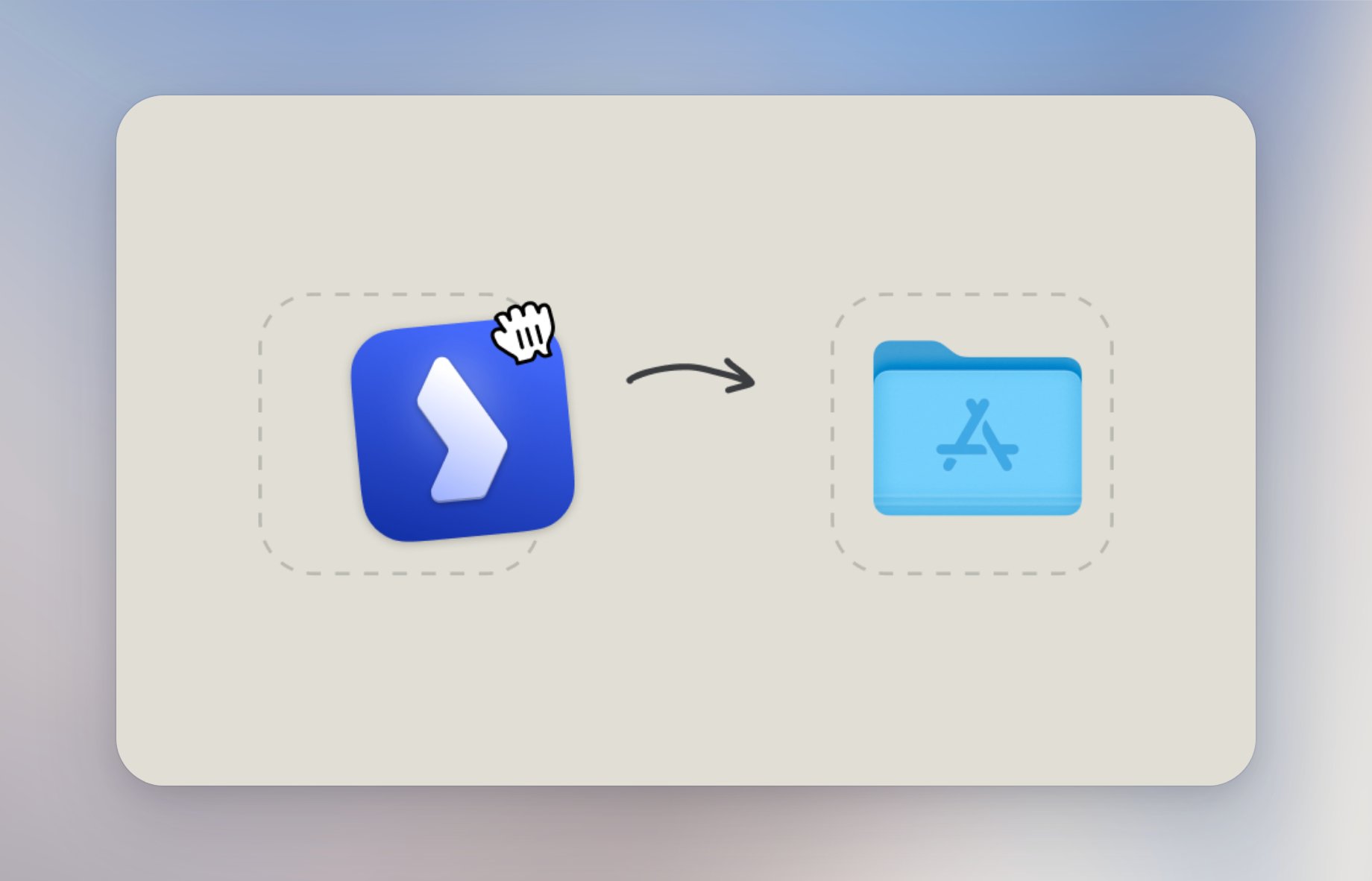
3
Launch
Open Langdock from Applications or Launchpad.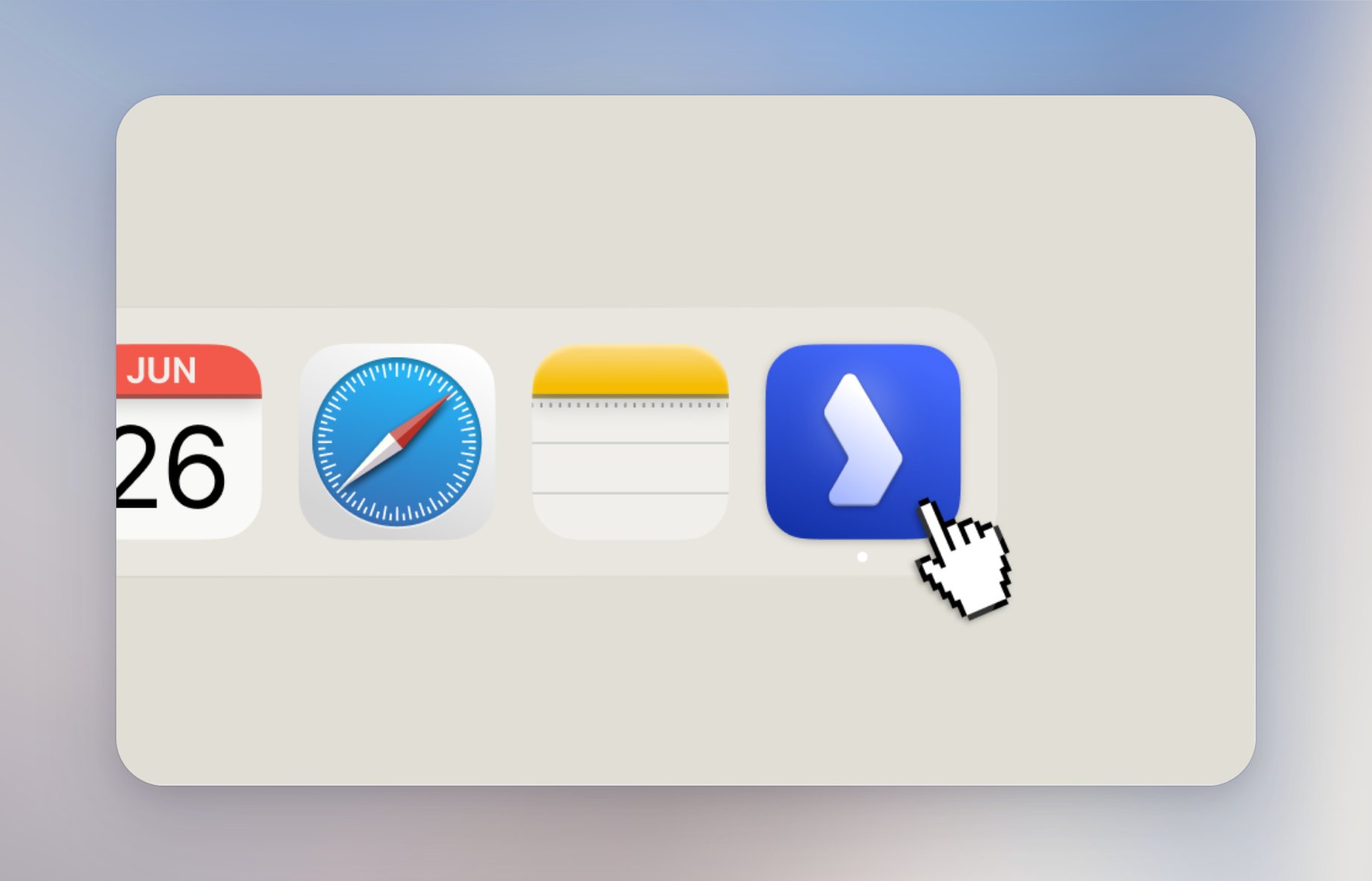
Sign in
The first launch shows Welcome to Langdock because the desktop app is not signed in yet. Click Sign in to Langdock. Your browser opens Sign in to Langdock Desktop? Continue only if you just opened Langdock Desktop on this device.- If you already have a Langdock session in that browser, click Sign in.
- If you do not, sign in with the browser first, then click Sign in.