

The Excel add-in brings Langdock into Microsoft Excel, so your spreadsheets and AI assistance stay side by side. Use it to understand workbooks faster, create formulas, clean up data, and turn spreadsheet findings into clear summaries without switching tools. You can ask questions while looking at your workbook, iterate on outputs directly in Excel, and keep your analysis in the place where the work is happening.
How to install Langdock for Excel
Install the Langdock Add-in from the Microsoft Marketplace and connect it to your Langdock account. The add-in runs in Excel on the web, Excel for Windows, and Excel for Mac. Excel for Windows needs Microsoft 365 Apps, Version 2501 or later, so Excel 2021 and Excel 2024 LTSC can’t install it from the Marketplace. On dedicated deployments, your admin deploys the add-in for you, so it also runs in Excel 2021 and Excel 2024. Excel 2016 and 2019 aren’t supported. Signing in only takes your Langdock account, no Microsoft 365 mailbox is needed.Before you can use the Excel add-in, an admin needs to enable it in the workspace integration settings. If it is not enabled yet, point your admin to the Add-in Setup Guide.
1
Open the Microsoft Marketplace
Navigate to the Langdock for Excel page on the Microsoft Marketplace.
2
Get the Add-in
Click Get it now and confirm your details in the dialog that appears.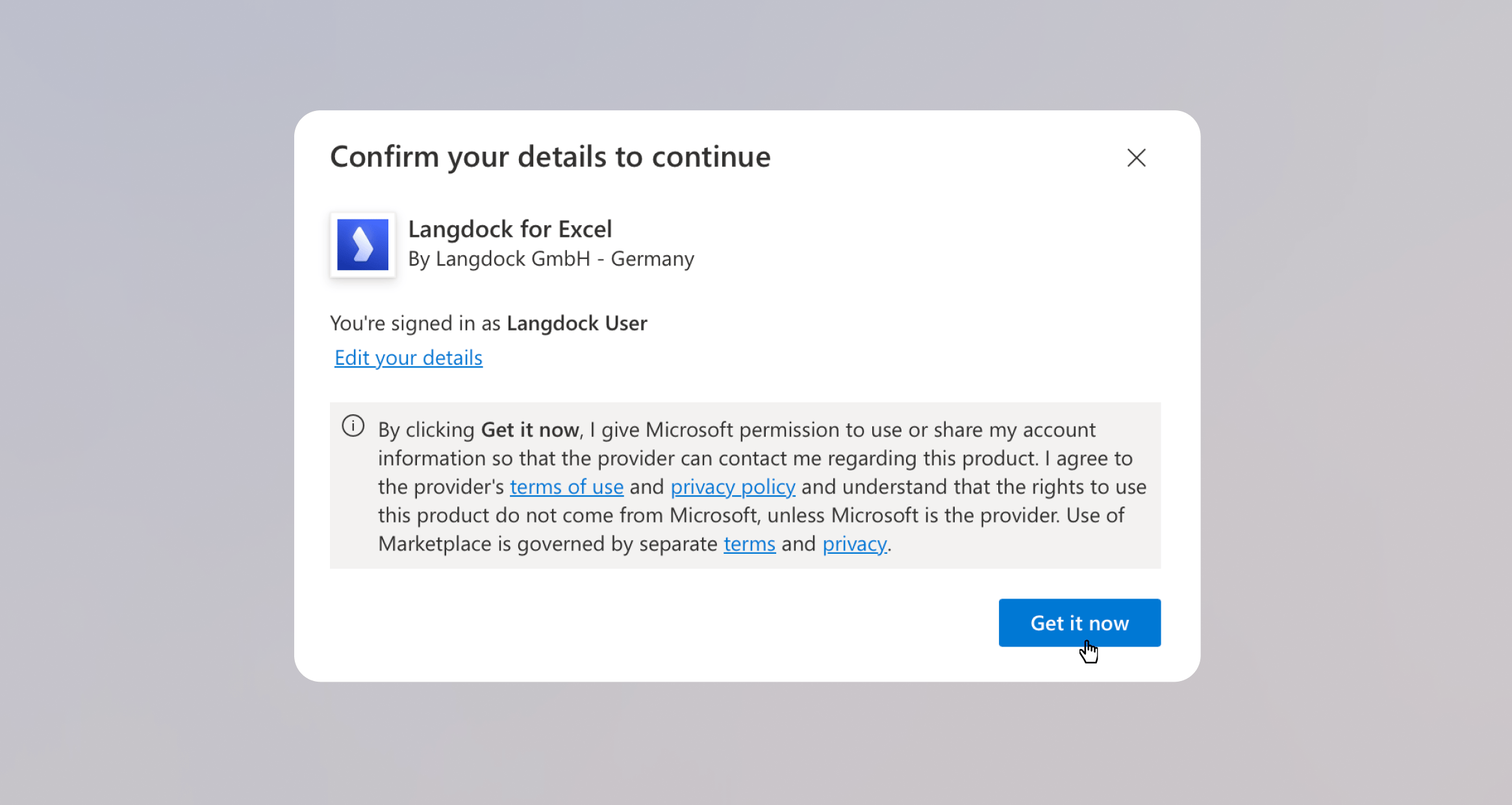
3
Open in Excel
Click Open in Excel to launch the Add-in directly in your workbook.
4
Sign in to Langdock
Follow the sign-in flow to connect the Add-in to your Langdock account. Click Continue to log in.
Working with Langdock in Excel
The Excel add-in is useful whenever the work starts in a spreadsheet. Instead of copying data into a separate chat, you can keep Excel open and use Langdock alongside it.
Common use cases
- Build tables and plans: Ask Langdock to create budget plans, project trackers, comparison tables, reporting templates, or charts directly in your workbook.
- Create calculations: Describe the calculation you need and let Langdock add formulas, totals, percentages, or growth rates.
- Clean and structure data: Standardize names, dates, categories, currencies, or messy rows before you analyze them.
- Analyze spreadsheet results: Ask Langdock to find trends, outliers, changes, and key takeaways in your data.
- Research and enrichment: Use Langdock to research companies, markets, or topics and add useful context to your spreadsheet.
- Prepare summaries: Turn spreadsheet findings into updates for reports, emails, presentations, or team meetings.
Example: Build a quarterly budget plan
Say you need to create a quarterly budget plan with department-level cost breakdowns. Open the Langdock Add-in next to your workbook and describe what you want to build.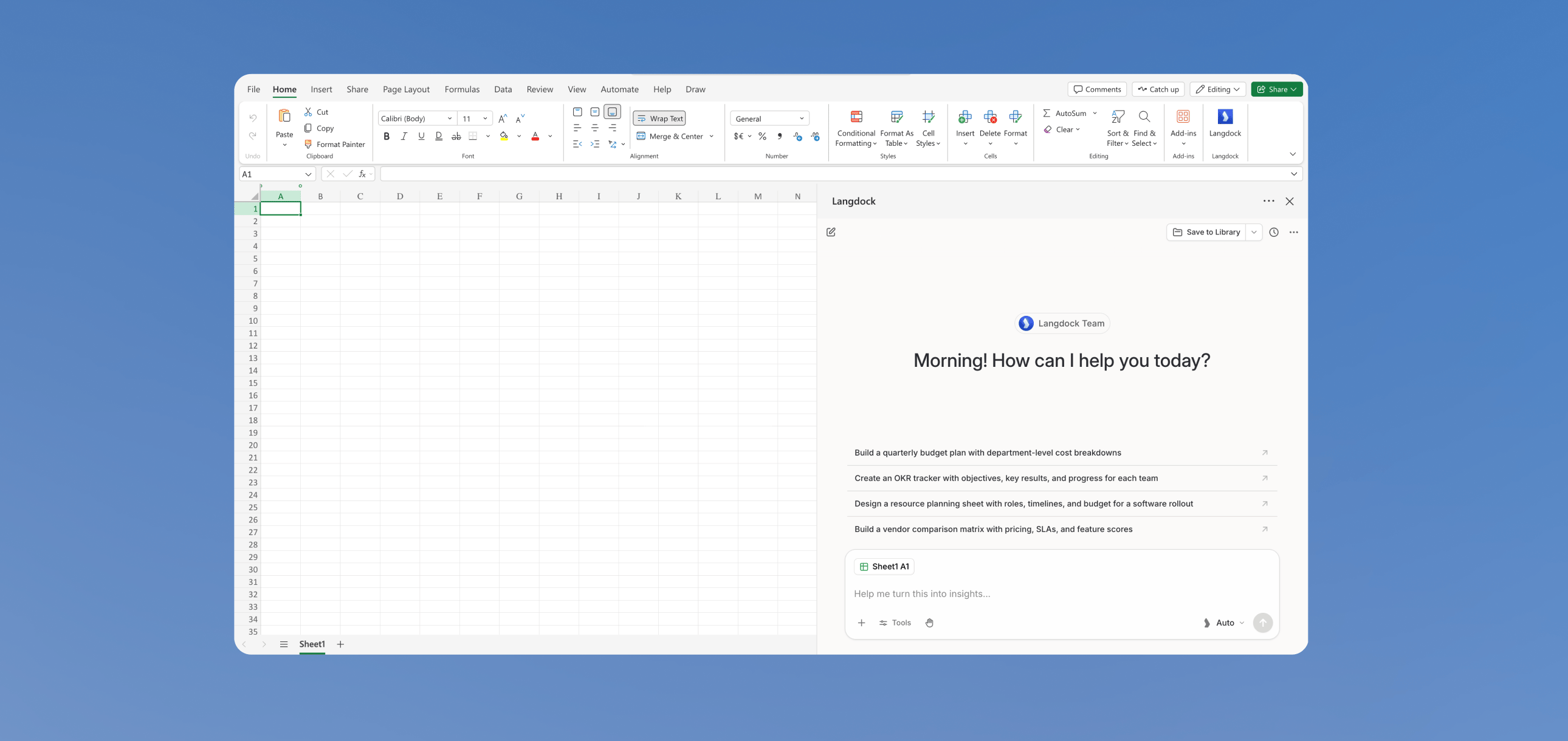
Build a quarterly budget plan with department-level cost breakdowns
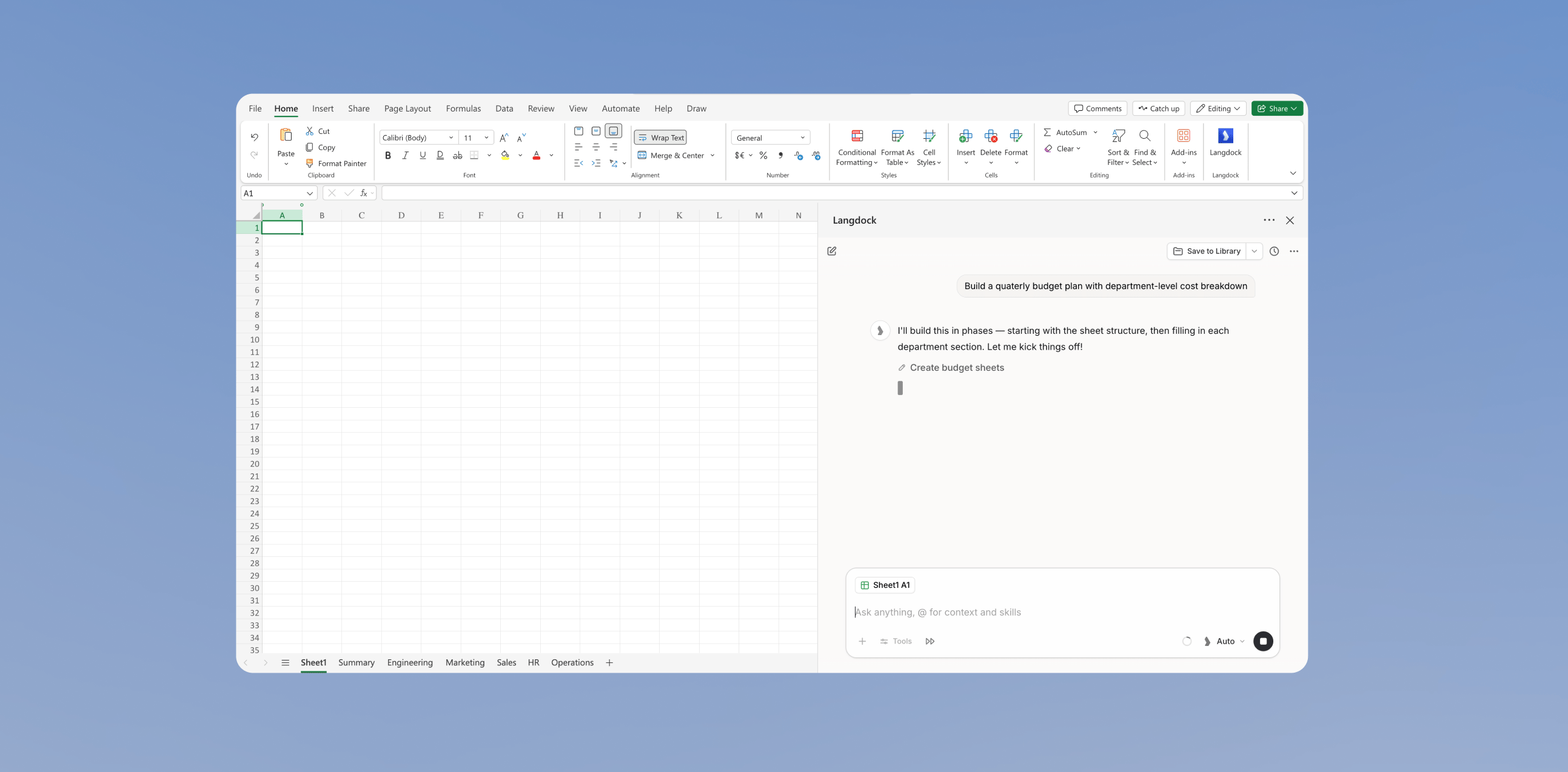
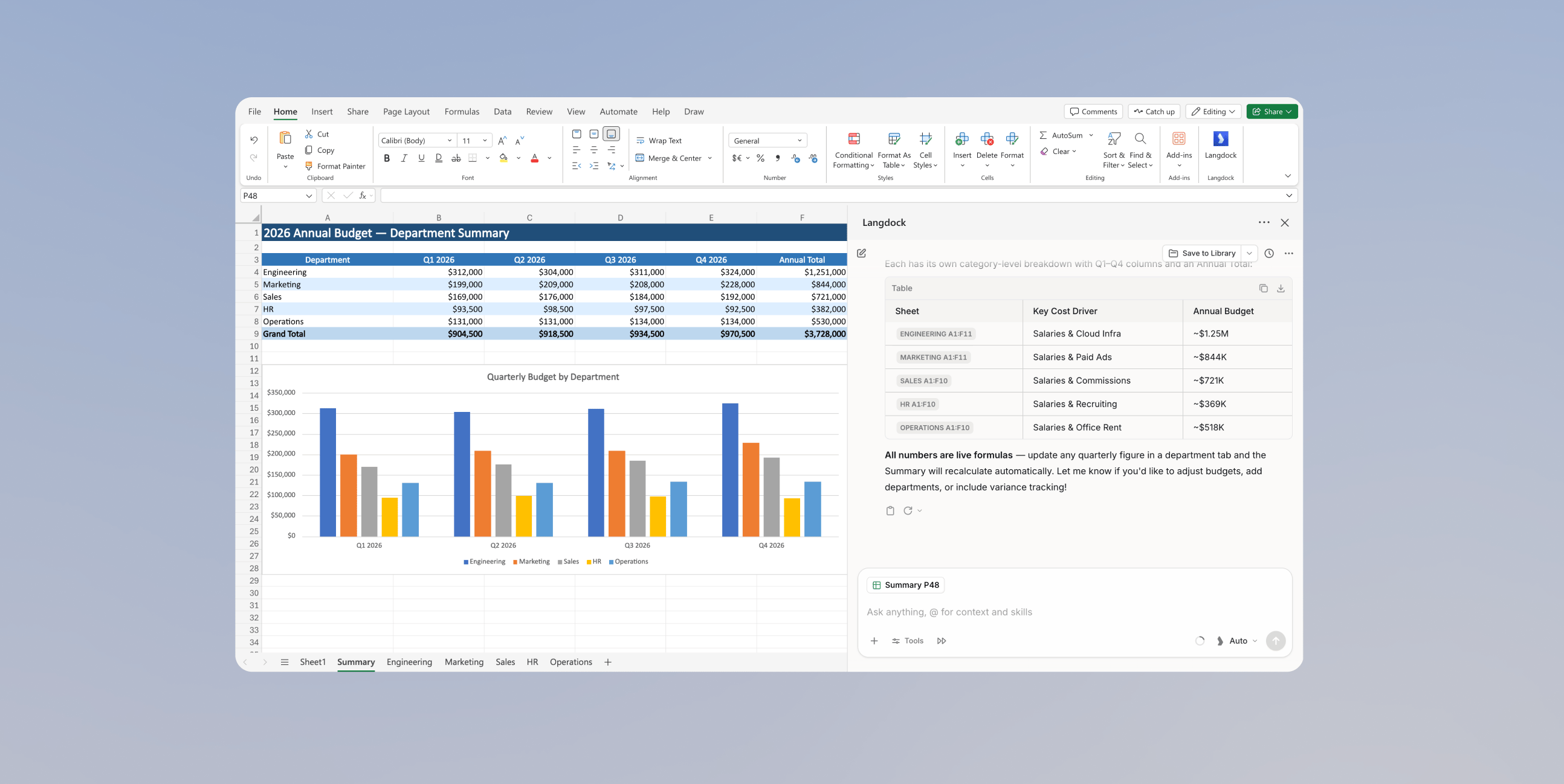
Jump to cited cells
When Langdock references cells in a reply, the reference appears as a clickable pill, for example Sheet1 B3:B8. Click the pill to open the referenced sheet and select the range in your workbook. If the sheet has since been renamed or removed, Langdock shows a short notice instead.Import an uploaded spreadsheet
Attach a spreadsheet to the chat and ask Langdock to open, import, insert, or edit it in Excel, for exampleImport this spreadsheet into my workbook. Langdock copies the attached workbook’s sheets into the workbook you have open so you can review and edit them in place. Without an explicit request, the attachment stays a read-only data source and your workbook stays unchanged. Importing never modifies the uploaded file or its source in OneDrive, SharePoint, or Google Drive.
Next steps
After Langdock creates the first output, you can keep working from the same panel:- Ask follow-up questions about the sheet
- Add calculations, totals, or comparisons
- Enrich the spreadsheet with results from a Web Search
- Draft an email by using Actions in Chat and selecting your email provider from your connected integrations
Edit permissions
Langdock asks before changing your workbook by default. Switch modes from the Edit permissions menu in the chat input:- Ask before edits: Langdock shows a confirmation with the action and, when available, the target range before each write. Choose Allow once, Always allow for the current chat, or Deny.
- Accept all edits: Langdock applies edits without asking.
Save to Library
You can save the open workbook directly to your Langdock Library. Choose a Folder you can edit. Other people can access the saved workbook when that Folder is shared with them. Saving to the Library root does not add the file to Recent Files.
Preferences
Open the add-in menu in the top bar and select Preferences to customize the add-in. Two settings shape how your add-in chats behave:- Instructions: Add custom instructions that apply only to chats in the Excel add-in, for example
Round decimals to two places. - Default model: New add-in chats start on Auto mode. After you pick another model, Reset takes you back to Auto mode.