

Governance is included in Langdock Work. It is not part of Langdock Core. You also need the View governance permission. See the Governance overview.
Open the app list
Open Governance and click Apps under Resources.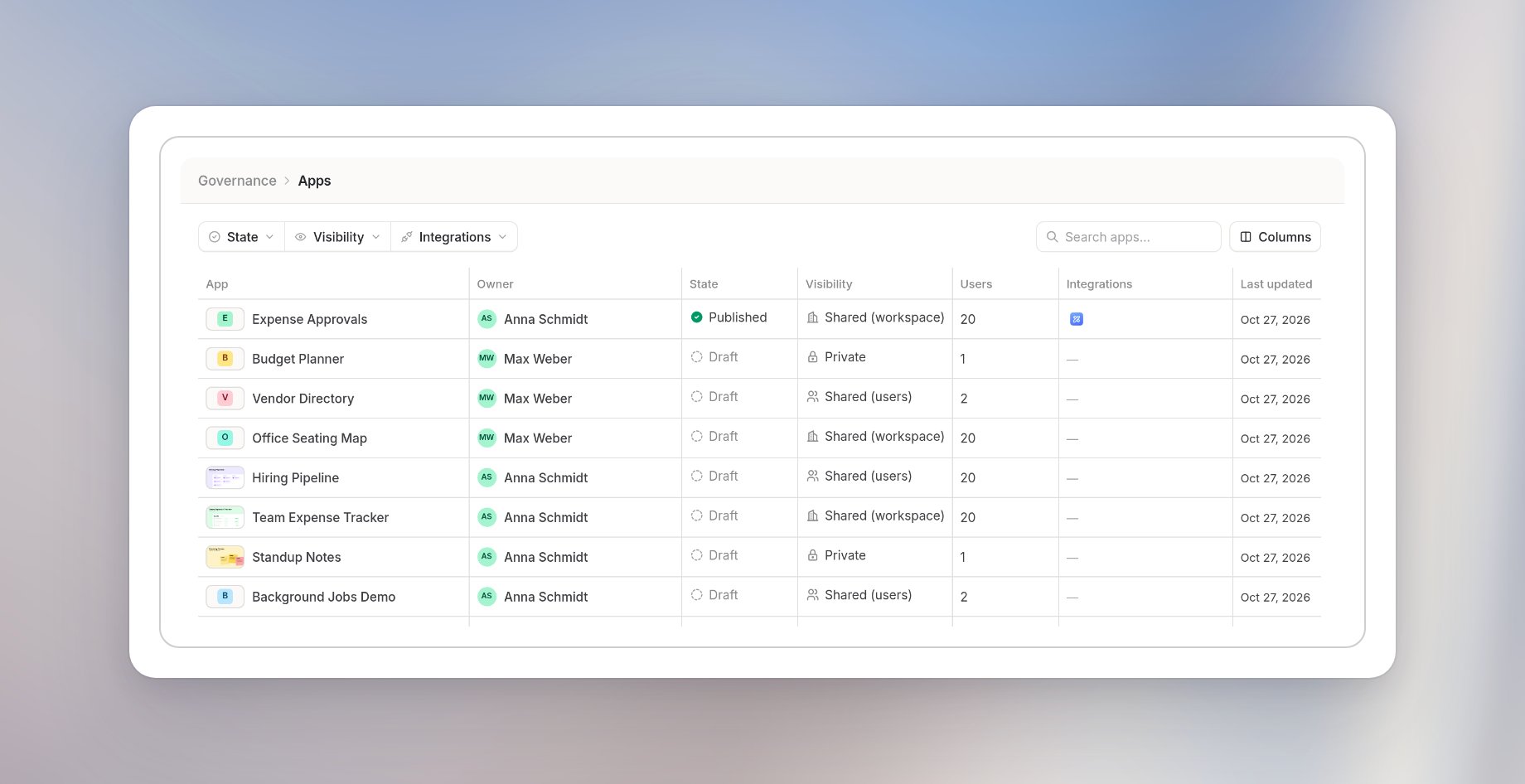
- State: Draft or Published.
- Visibility: Private, Shared (users), or Shared (workspace). A published app can still be private.
Find apps
- Search apps… finds an app by name.
- State, Visibility, and Integrations narrow the list.
Inspect an app
Click an app in the list. Its details open on the right with the tabs Summary, Sharing, and Analytics.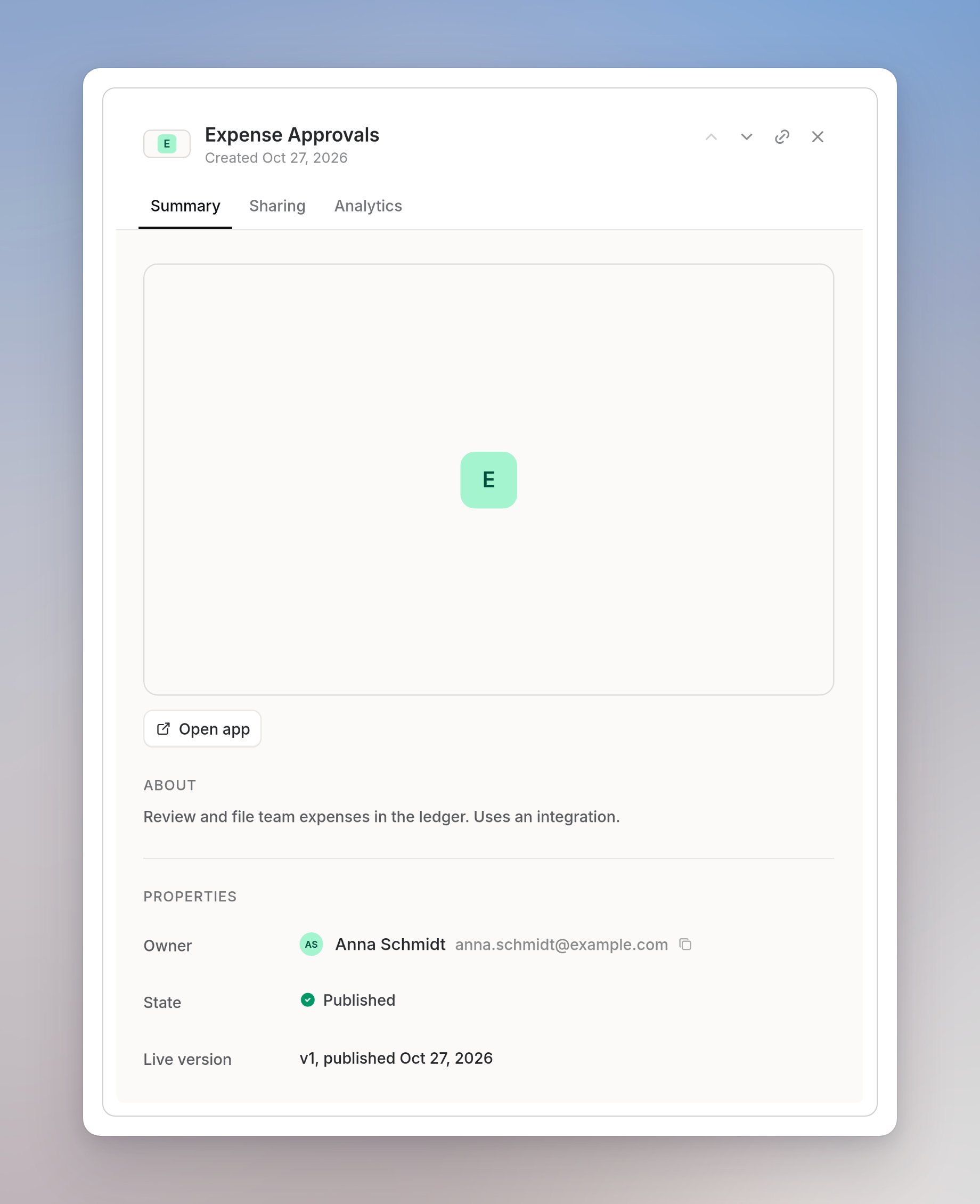
- The app image and Open app, which opens the app.
- About, the app’s description.
- Under Properties: Owner, State, Live version with its publication date, Visibility, Category, Integrations, and Last updated.
Manage access to an app
Click the Sharing tab. It lists People with access and the app’s General access setting.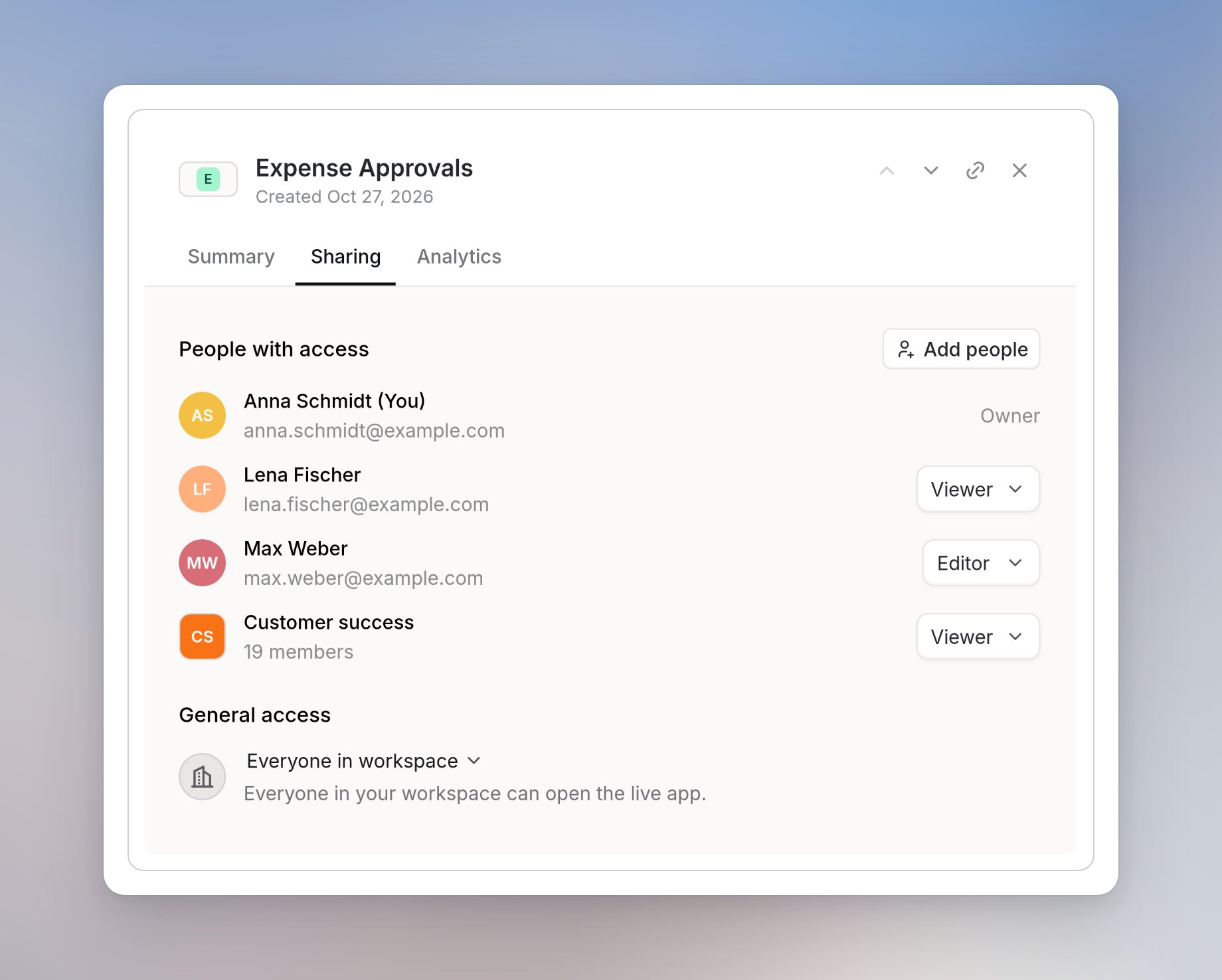
Add people or groups
Click Add people to give users or groups access to the app. Sharing with groups is available on Langdock Work.Change someone’s app role
Open the role menu next to a user or group:- Viewer: Can use the app.
- Editor: Can edit the app, view its code and database, apply updates, and manage sharing.
- Remove access: Removes this access grant.
Restrict an app
Set General access to Restricted when the app should no longer be open to the whole workspace. Only users with access can open the app. Restricted doesn’t mean only the owner. Users and groups under People with access keep their access.Restricting an app changes who can open it. It does not change Published to Draft, and it doesn’t turn off Apps for your workspace.
Review usage and adoption
Click the Analytics tab to see how users use the app. Choose the period with the date range control.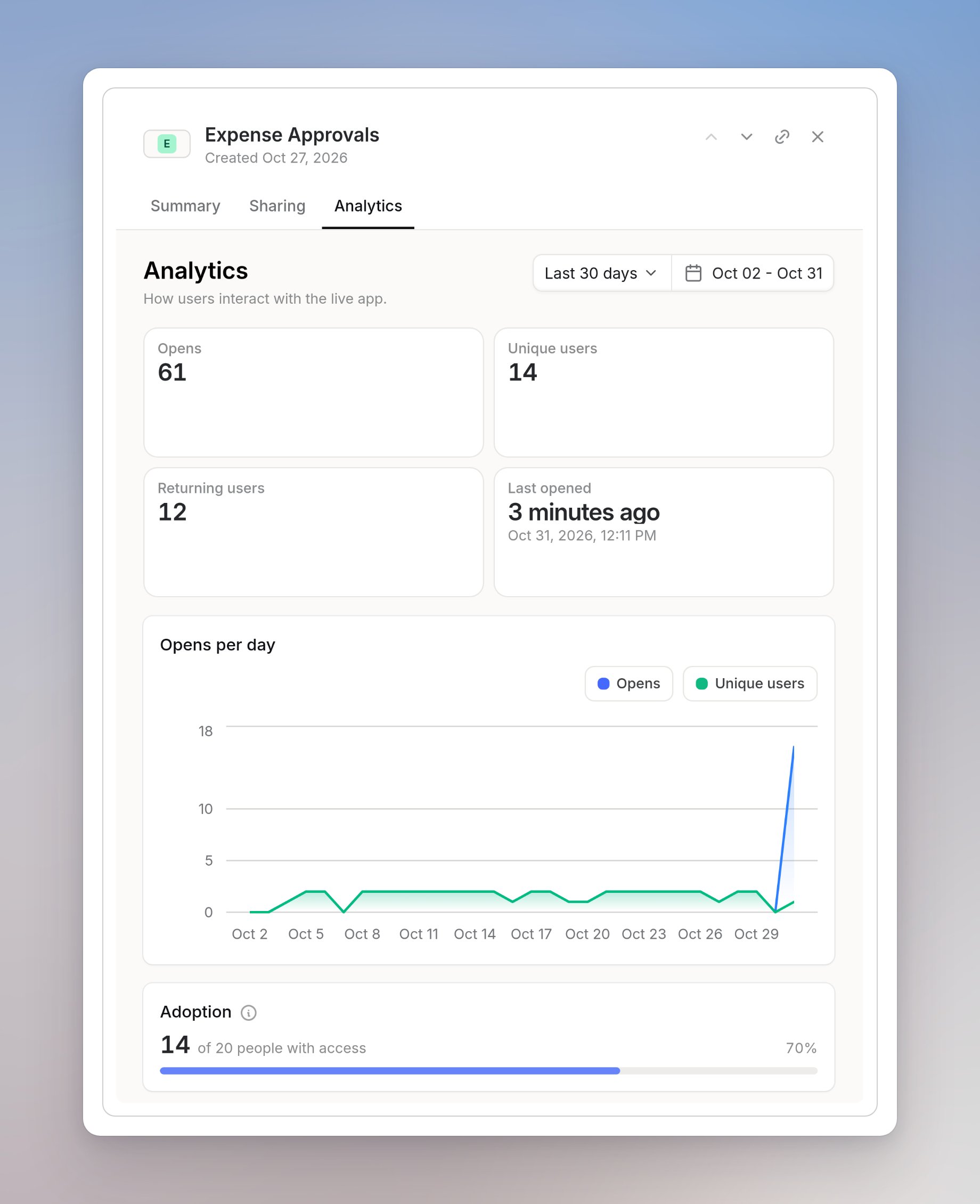
- Opens, Unique users, Returning users, and Last opened.
- Opens per day, a chart with opens and unique users.
- Adoption: users who opened the app in this period, out of everyone who can open it today.