

Overview
Pause a run so a person can review, decide, or provide information before it continues. Add a User input node when they should Approve, Reject, or fill in a Form. On an Action node, turn on Human in the loop to confirm before that action runs.How It Works
When a workflow reaches a User input node:- The run pauses
- People listed under Notifications Recipients in workflow Settings get an inbox notification. Test runs skip this.
- Someone with editor access reviews the step and responds
- Approval continues on Approve or Reject. Form continues on Continue after they submit. Form cannot use Reject.
- The workflow resumes on the matching branch
Anyone with editor access to the workflow can respond to paused User input steps. Share editor access with team members who need to respond. Inbox notifications go only to Notifications Recipients, not to every editor.
Confirm an Action
On an Action node, turn on Human in the loop. The run pauses until someone with editor access confirms. This is confirmation on that action, not a User input node.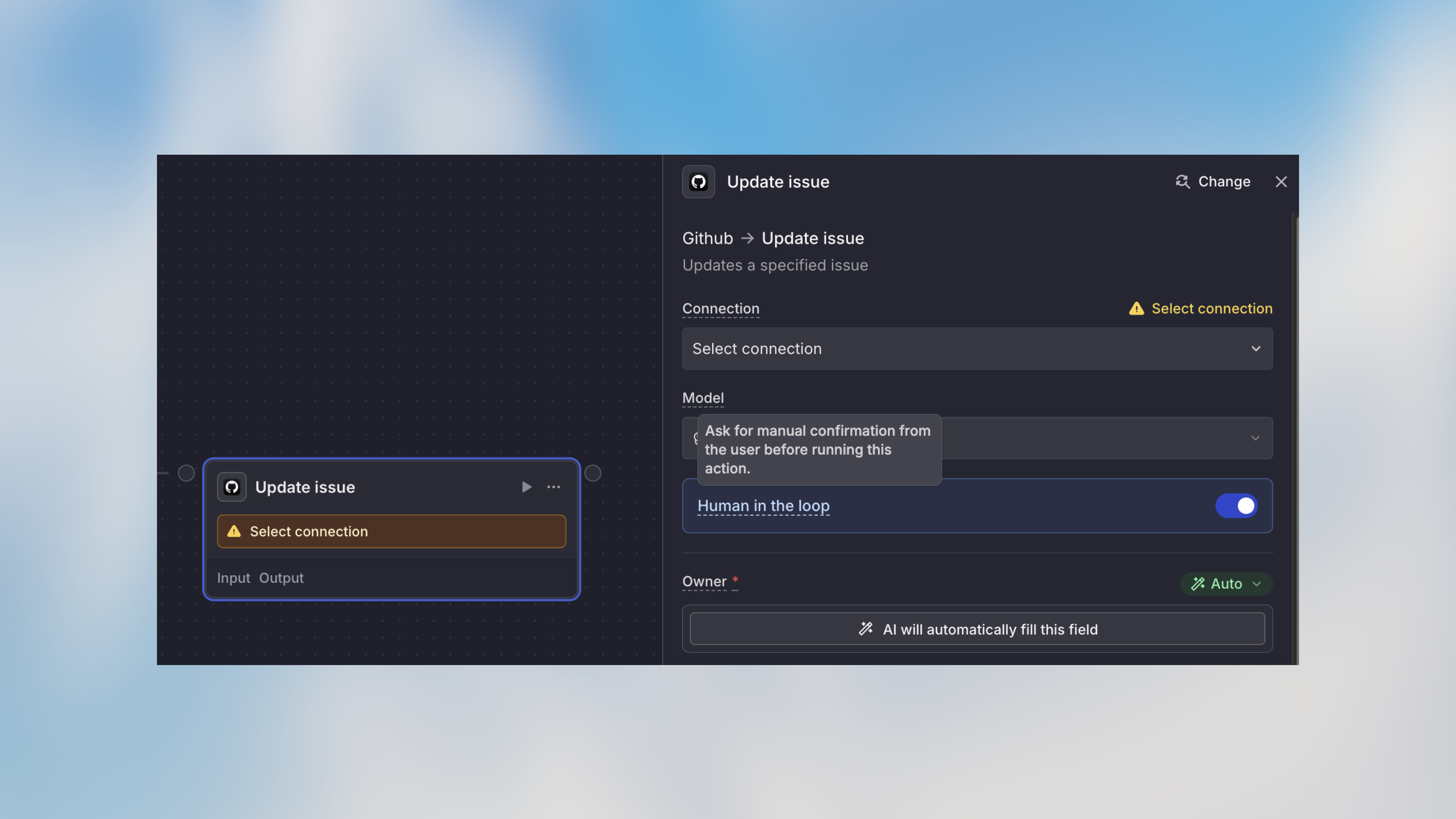
Example Use Cases
These examples use User input with Type Approval. Use Form when the run should collect information instead of a decision.Financial Transactions
Data Deletion
Customer Communications
Production Changes
When to Use Human in the Loop
✅ Good use cases:- Financial transactions over a threshold
- Data deletions or irreversible operations
- Customer communications requiring review
- Production system changes
- Compliance-sensitive actions
- High-value decisions
- Collecting missing details mid-run with Form
- Routine, low-risk actions
- Steps that need to run immediately
- Actions that happen frequently throughout the day
- Workflows where waiting on a person becomes a bottleneck
Combining with Conditions
Use a Condition with User input Approval when only some runs need a person:- Automation for routine cases
- Oversight for exceptional cases
- Efficient use of your time
Best Practices
Use for Truly Sensitive Actions
Use for Truly Sensitive Actions
Don’t require approval for every step—focus on actions with real risk or significant impact. Too many approvals slow down automation benefits.
Provide Clear Context
Provide Clear Context
Ensure the workflow provides enough information at the paused step. Include relevant details like amounts, recipients, or data previews so you can make informed decisions.
Plan for Approval Availability
Plan for Approval Availability
Consider who has editor access and can respond. For time-sensitive workflows, ensure someone on the team can respond promptly.
Test the Approval Flow
Test the Approval Flow
Run a published workflow to check inbox notifications. Test runs skip them. Confirm the paused step shows the details you need to Approve, Reject, or Submit.
Next Steps
Send Notification
Get notified when approval is needed
Condition Node
Add conditional logic to your workflows
Getting Started
Build your first workflow
Core Concepts
Understand workflow fundamentals
FAQ
When should I use Human in the Loop?
When should I use Human in the Loop?
Use Human in the Loop when a workflow should pause for review, approval, or manual input before continuing. It is useful for sensitive actions, quality checks, approvals, and workflows where users must make a decision.
What should I check if a Human in the Loop step does not continue?
What should I check if a Human in the Loop step does not continue?
Check who needs to Approve, Reject, or Submit the User input step, whether they received the request, and whether the workflow is waiting for required fields. Editors can also Review waiting steps under Action required on Monitor. Also confirm that downstream nodes have access to the data produced by the step.