

Master basics
Set these once in the slide master. Every generated slide keeps them.Recommended Template Structure
A general company template needs about 40 to 60 slides. That covers most stories and keeps each slide distinct, so the AI picks reliably. The set below is a starting point, not a rule. Shape it around the presentations your company actually makes. Offer common slide types in the item counts people need. Langdock uses up to as many items as a slide shows.Opening and structure
Title
Title
Title with image
Title with image

Agenda
Agenda
Section divider
Section divider
Closing
Closing

Text
One column
One column
Two columns
Two columns
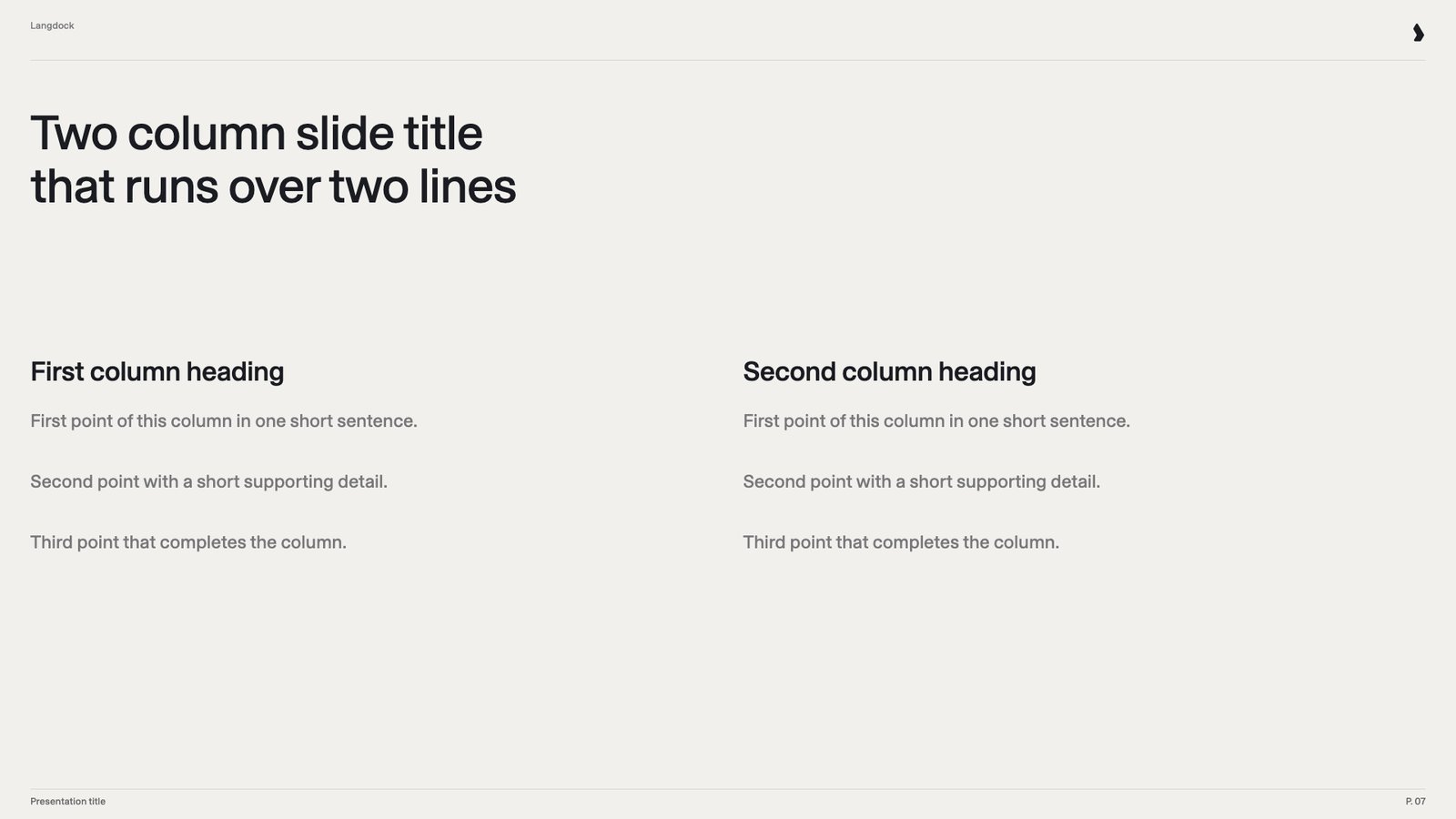
Three columns
Three columns
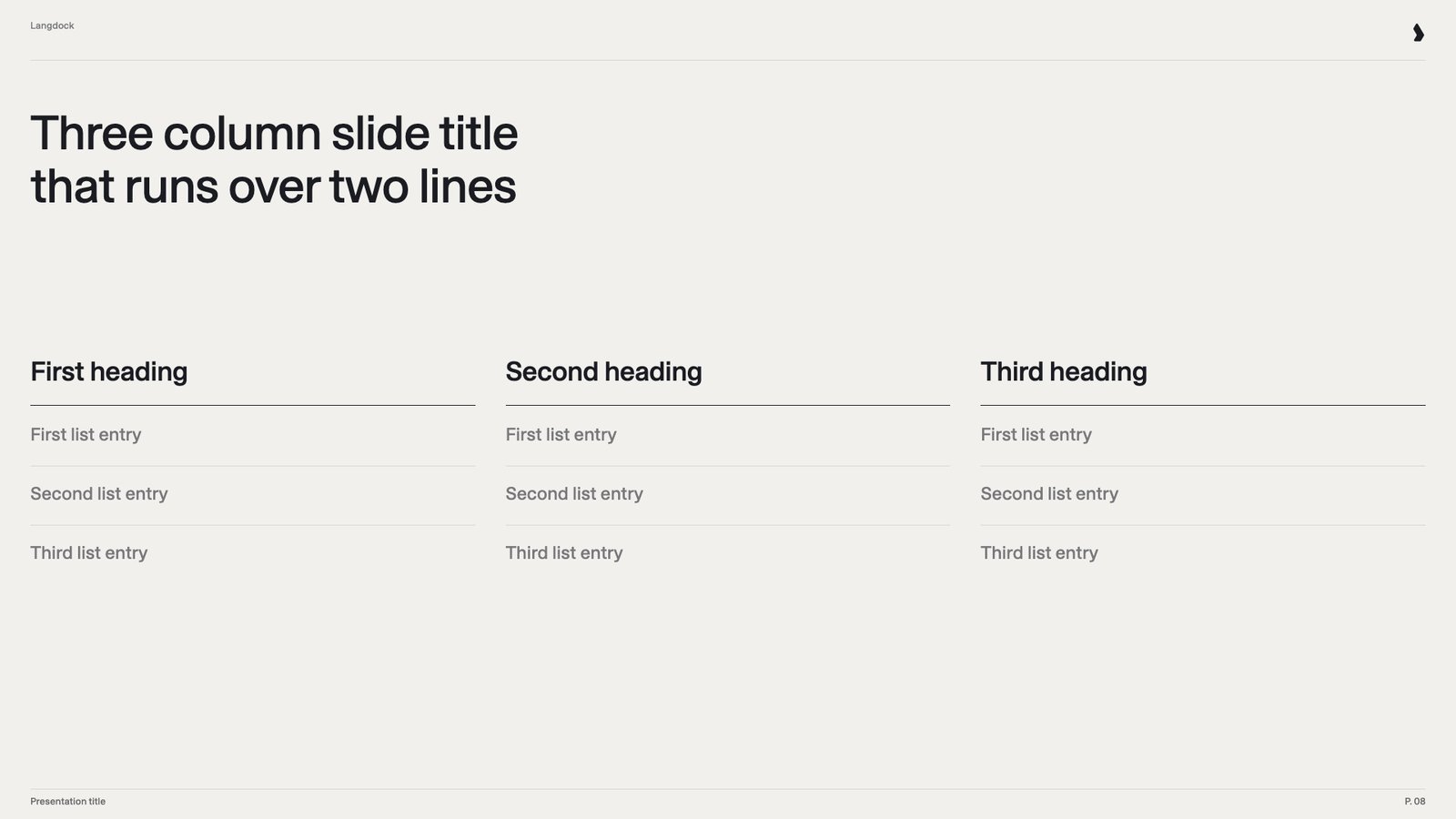
Key statement
Key statement
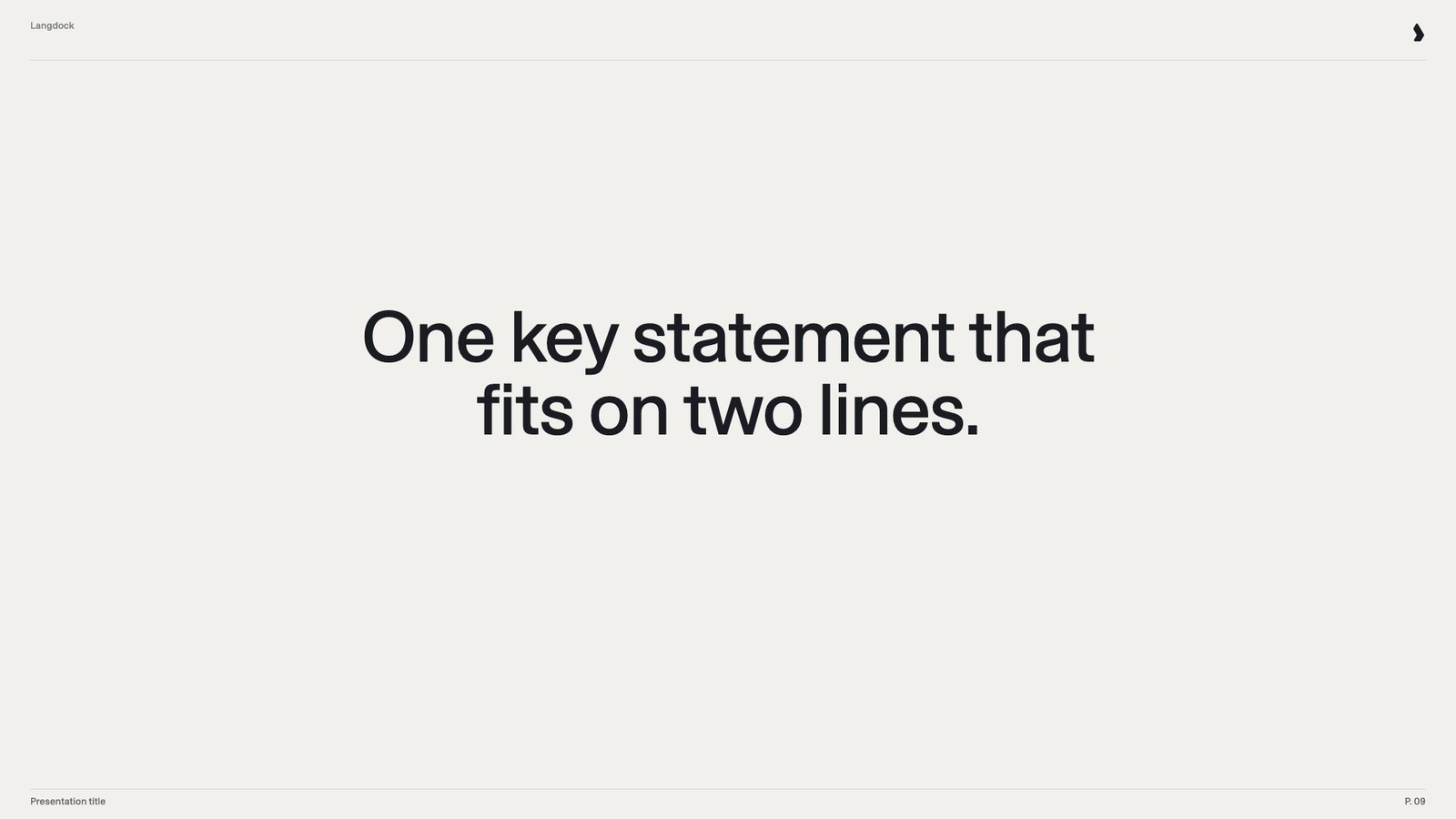
Quote
Quote

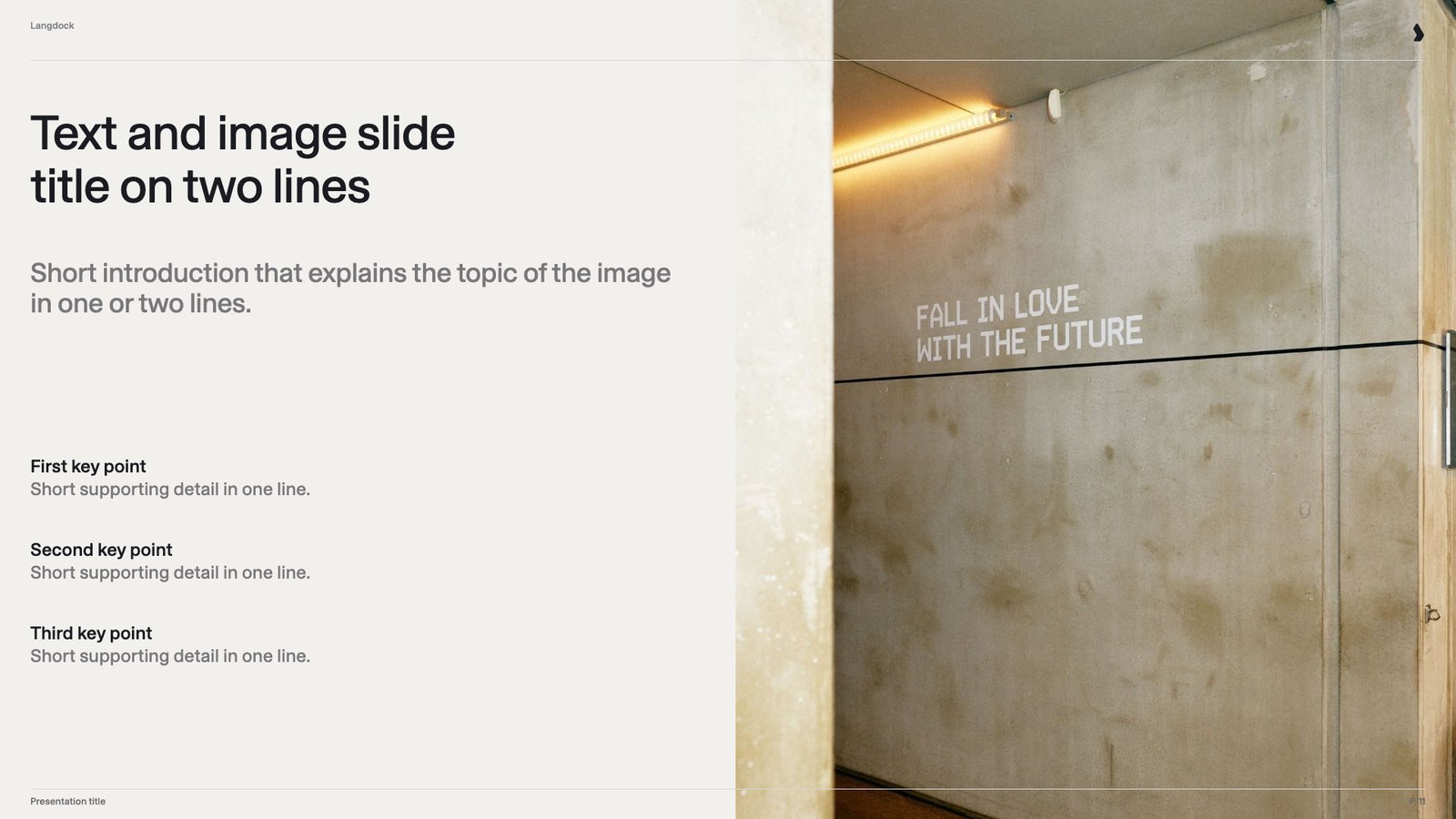
Text with image
Text with image
Processes and timelines
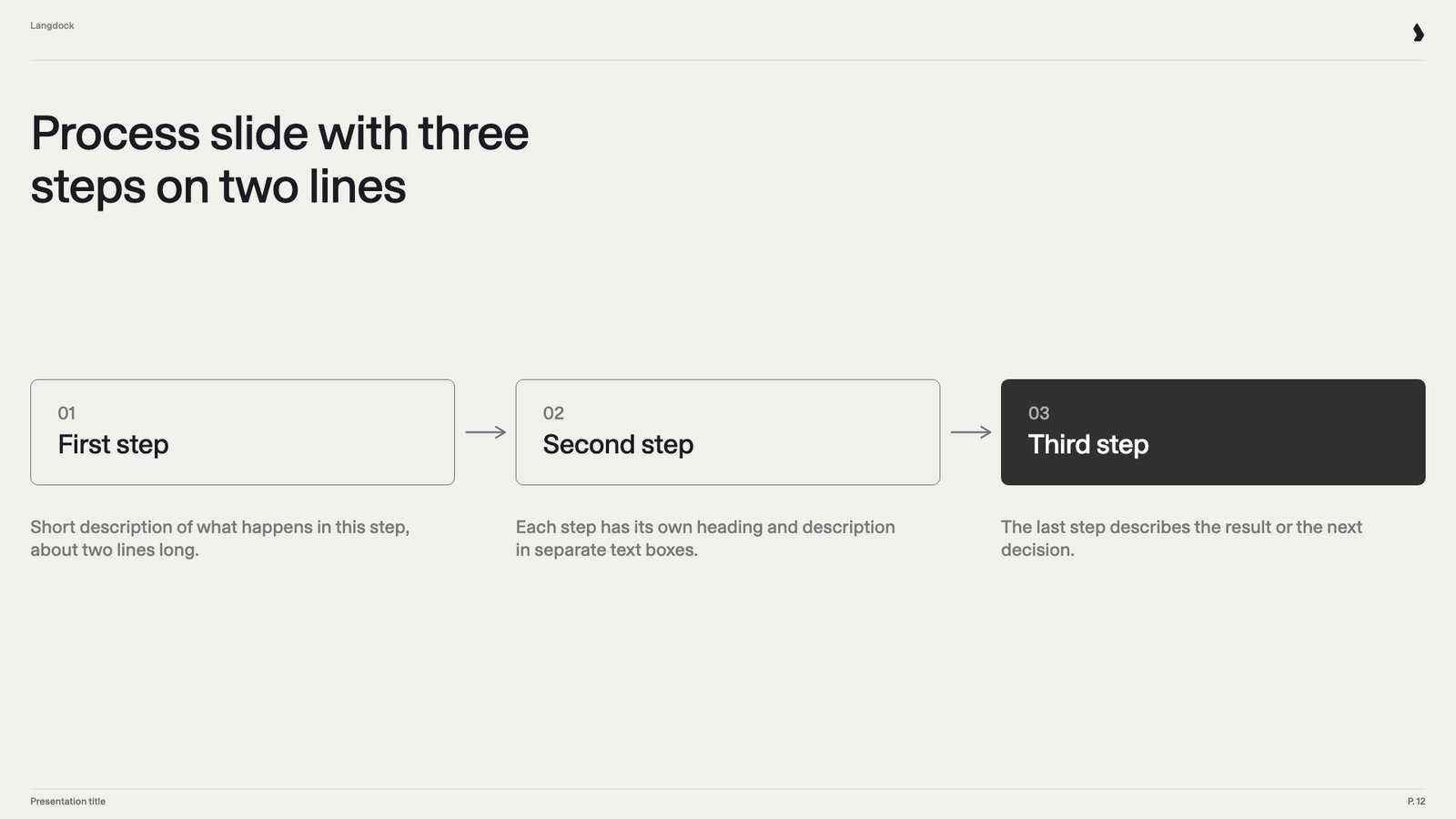
Process with 3 steps
Process with 3 steps
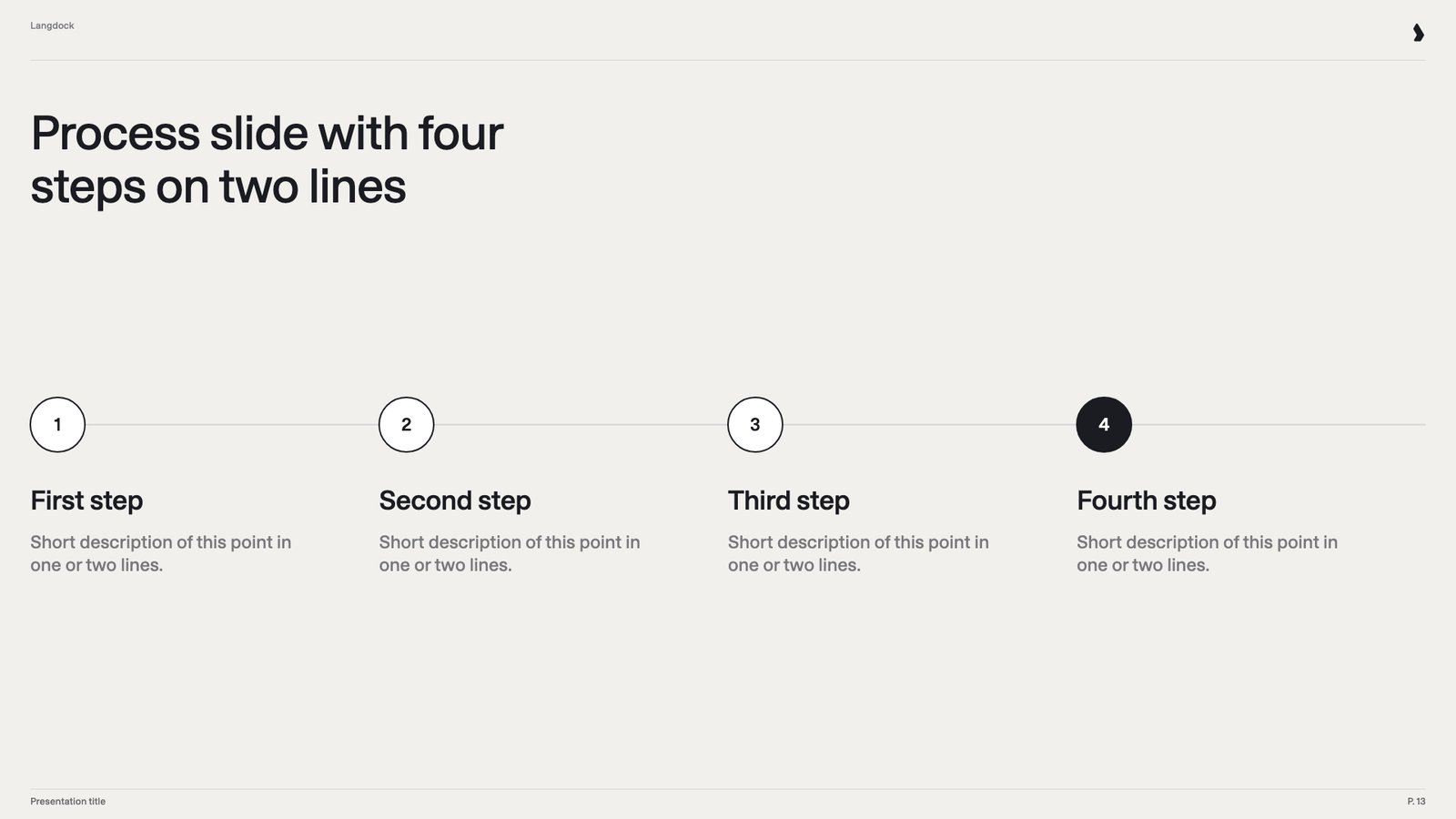
Process with 4 steps
Process with 4 steps
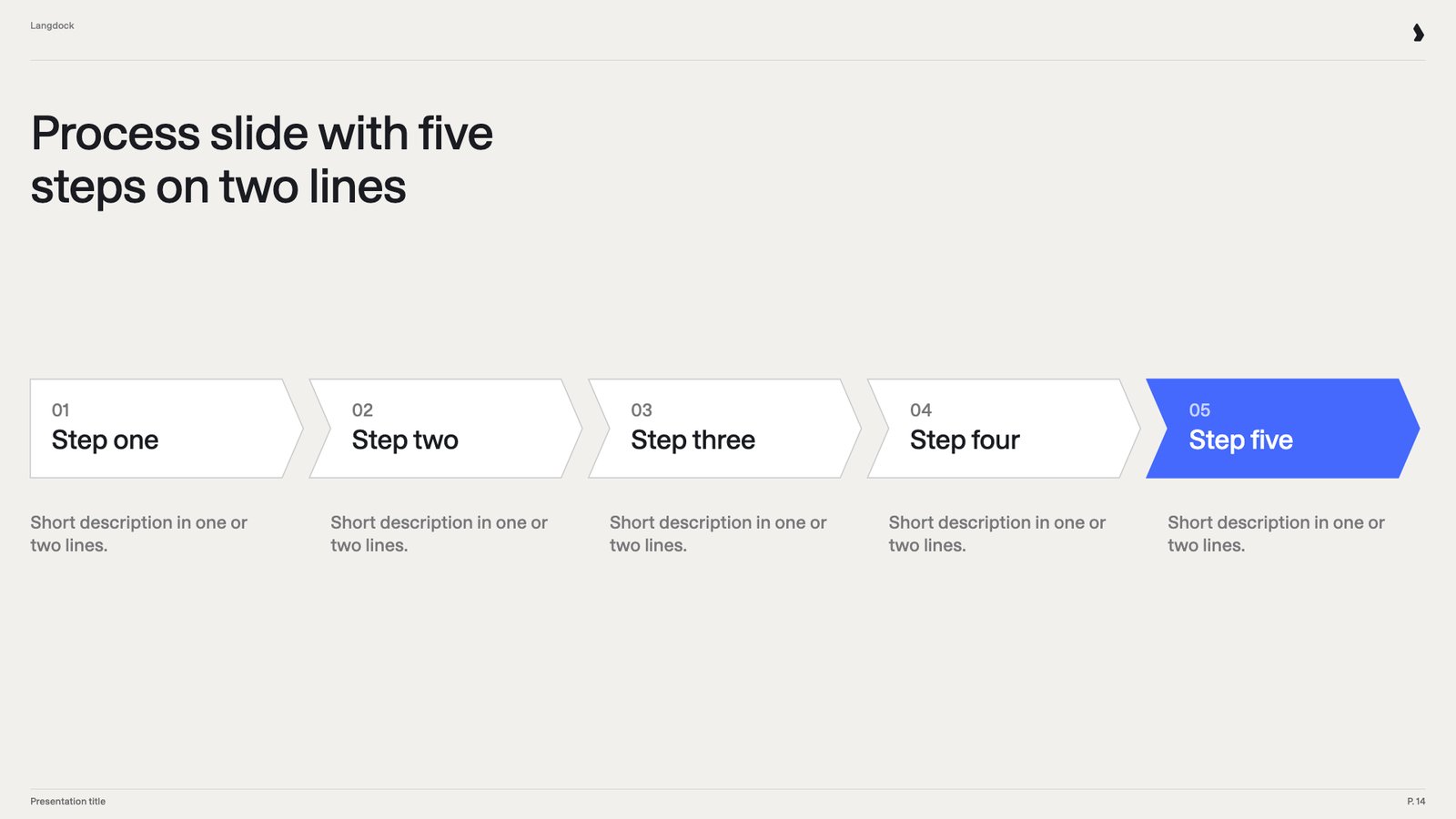
Process with 5 steps
Process with 5 steps
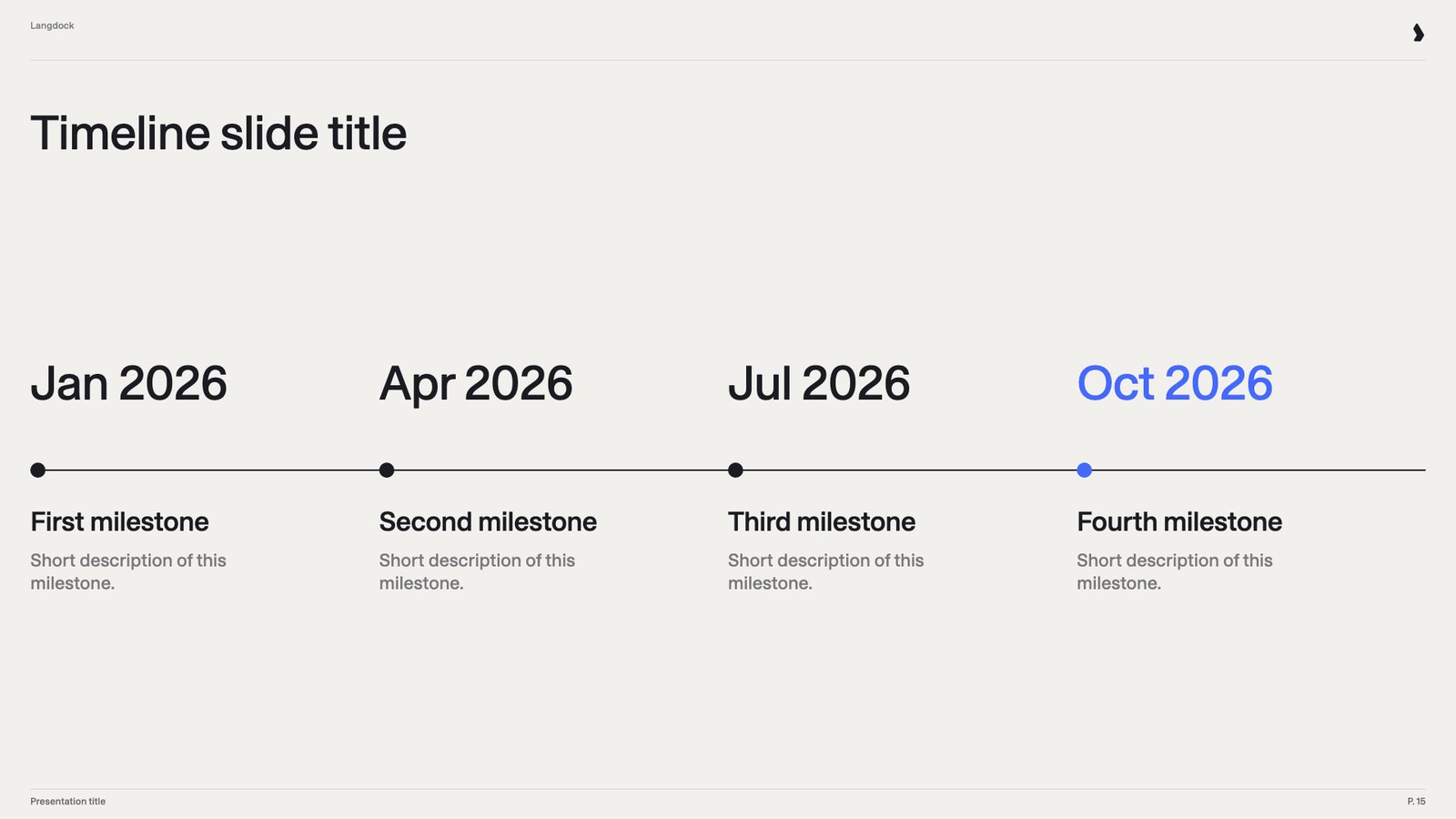
Timeline with 4 milestones
Timeline with 4 milestones
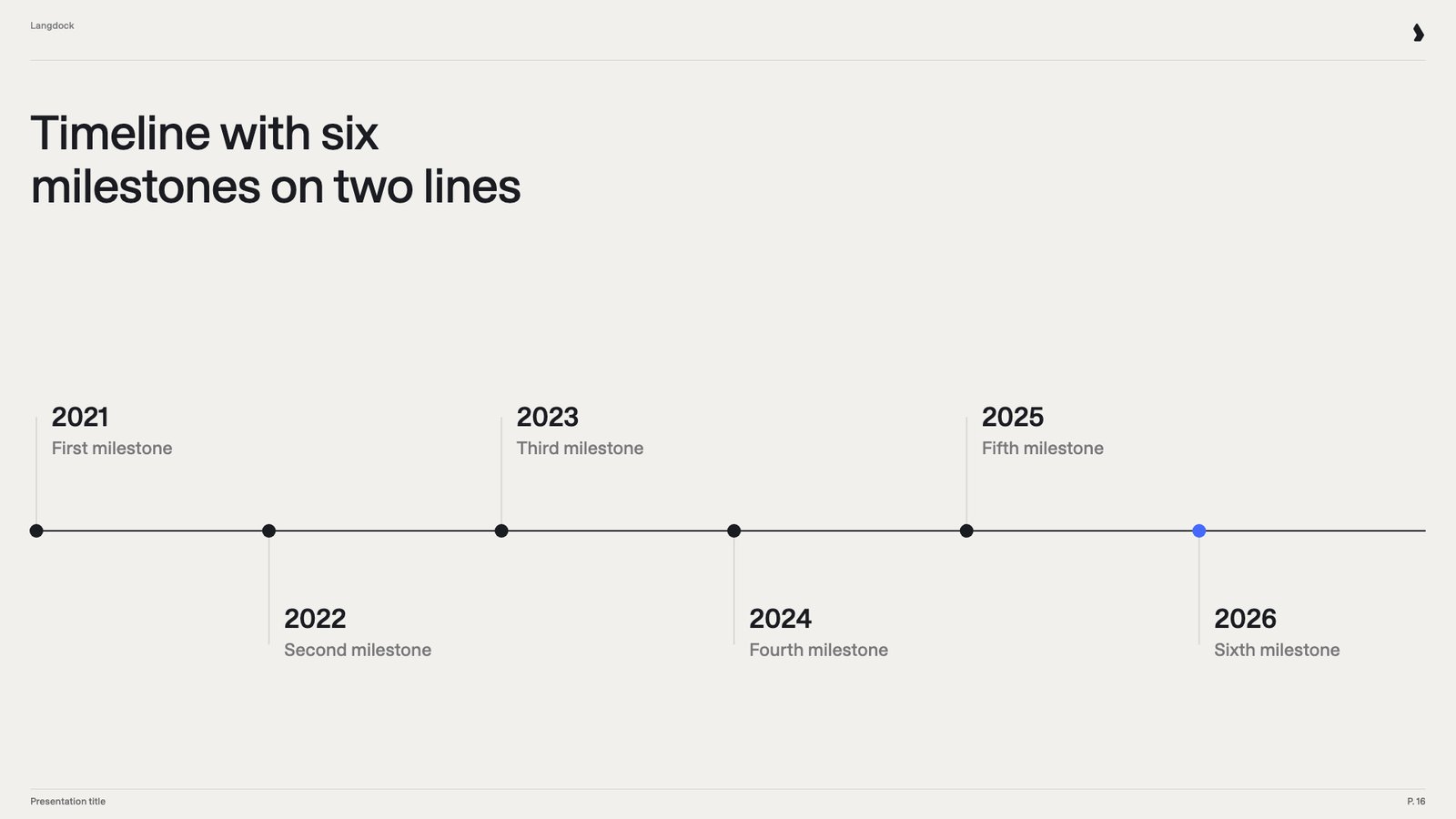
Timeline with 6 milestones
Timeline with 6 milestones
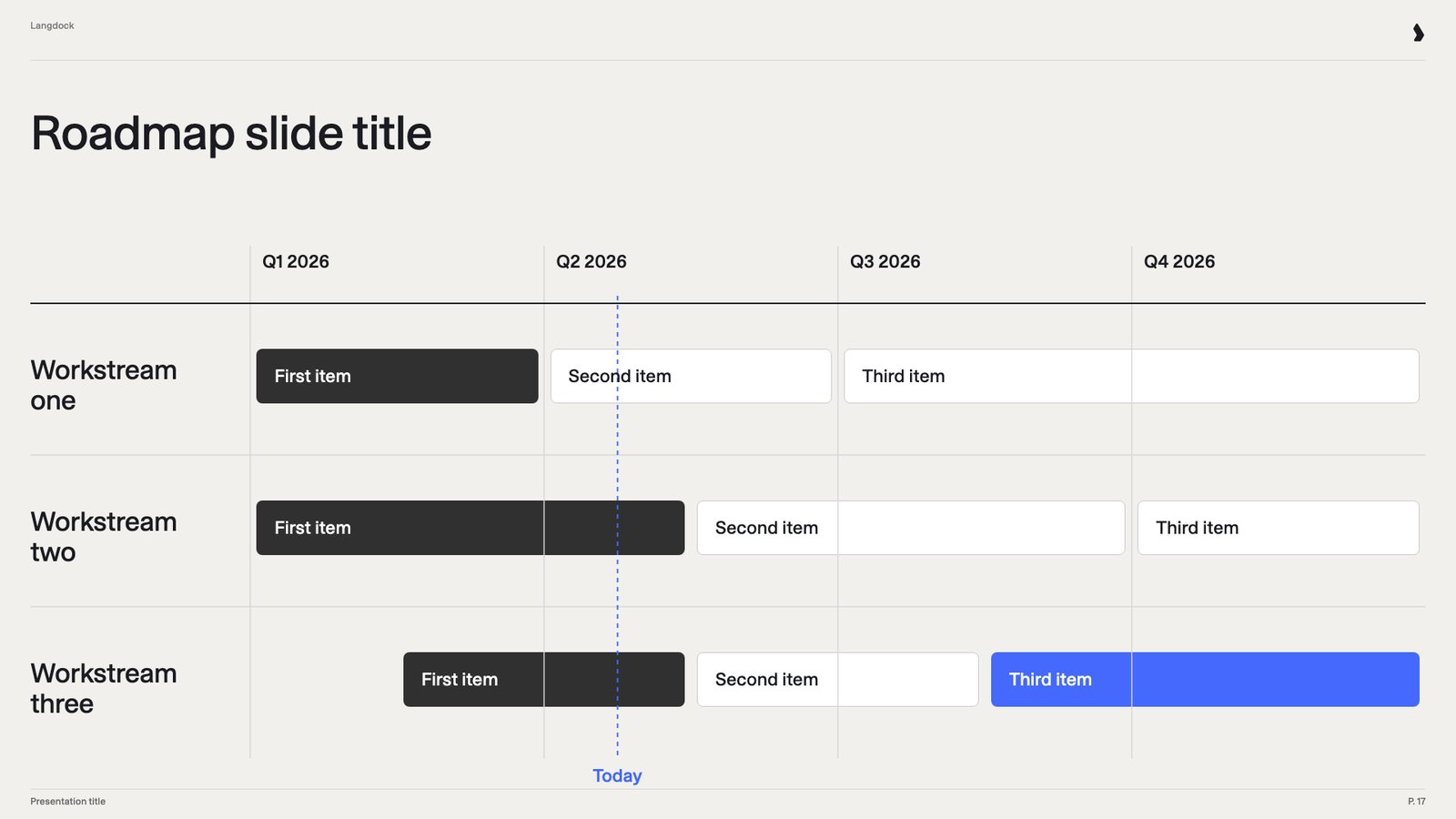
Roadmap
Roadmap
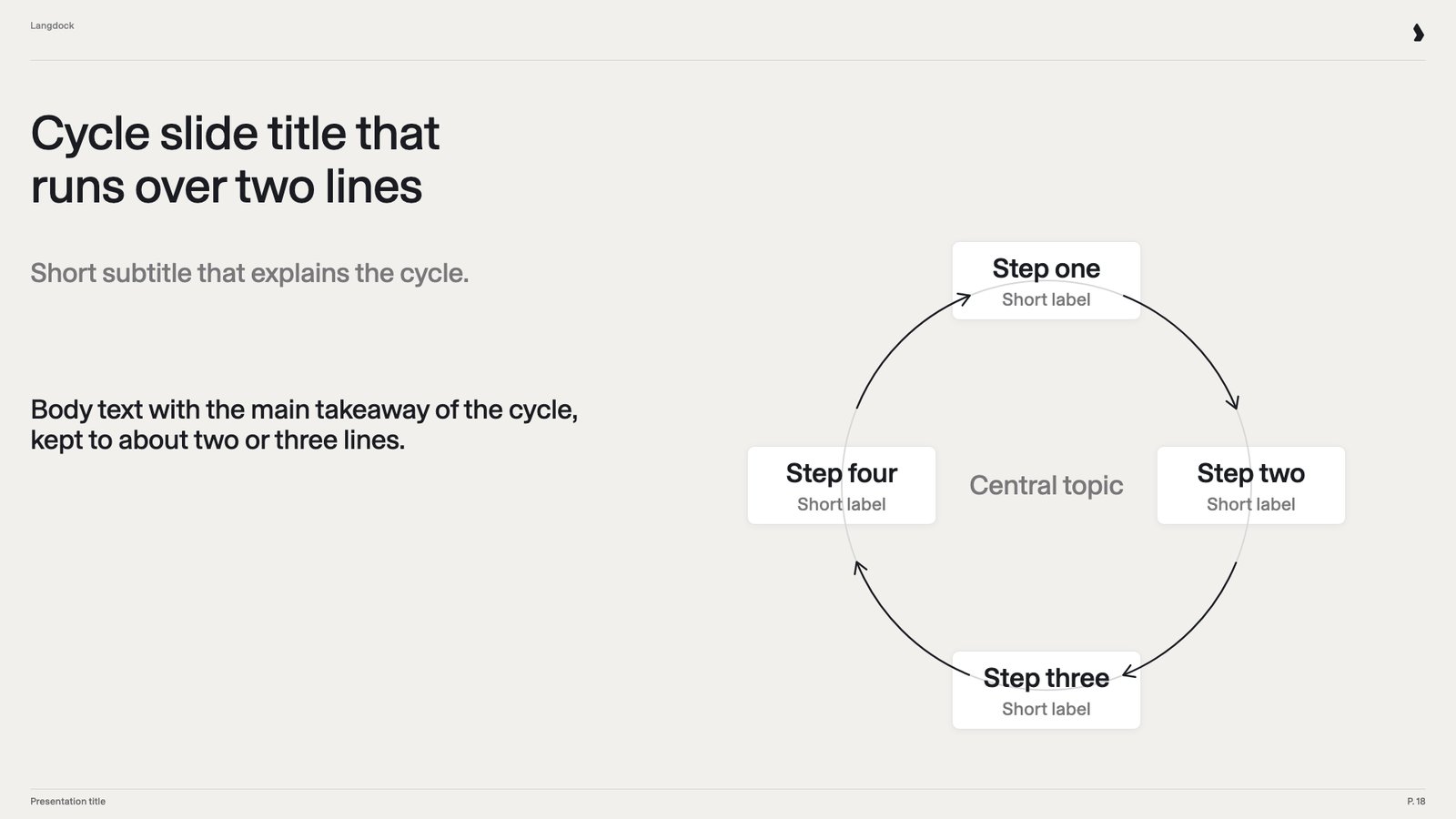
Cycle
Cycle
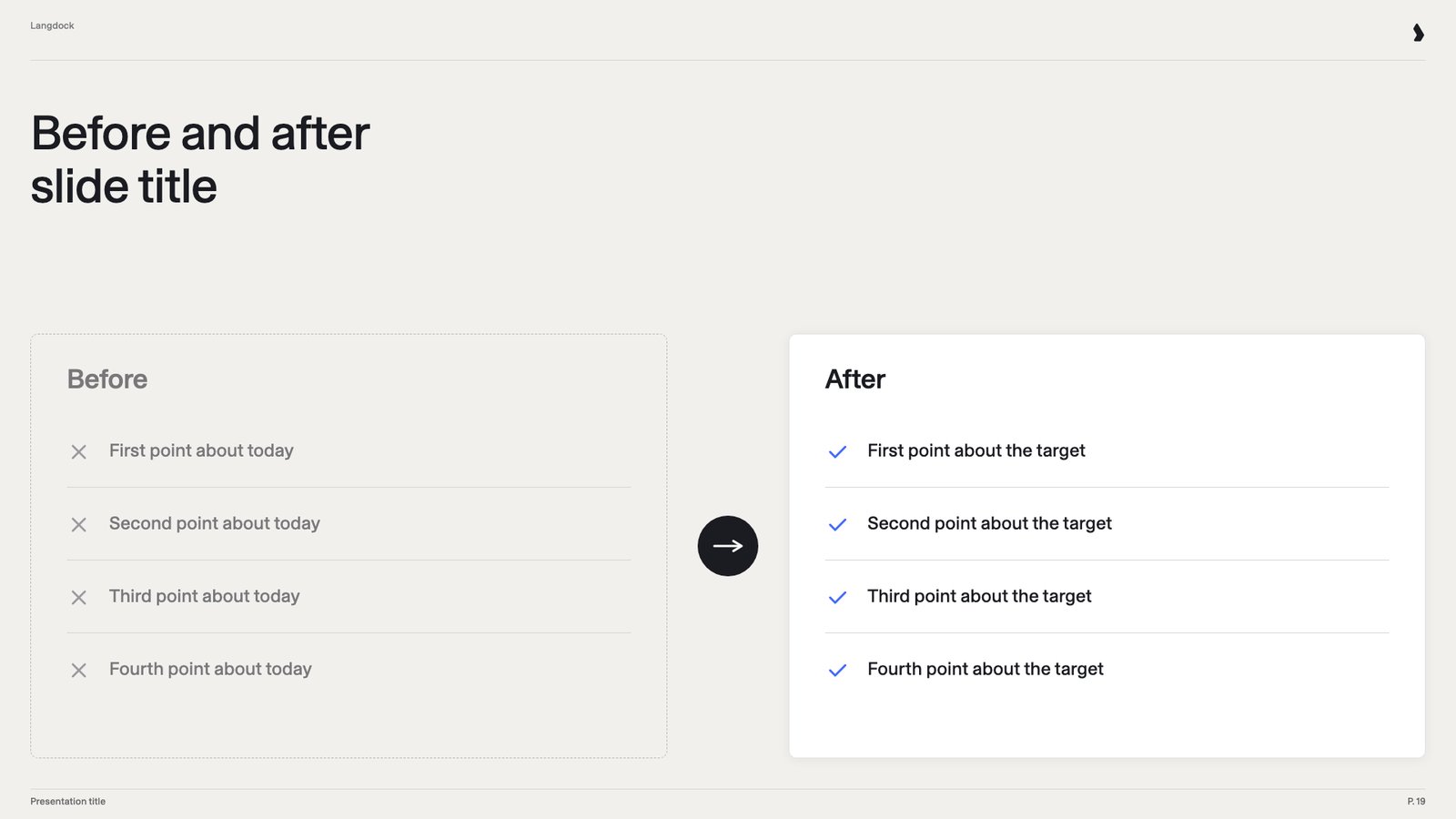
Before and after
Before and after
Numbers and data
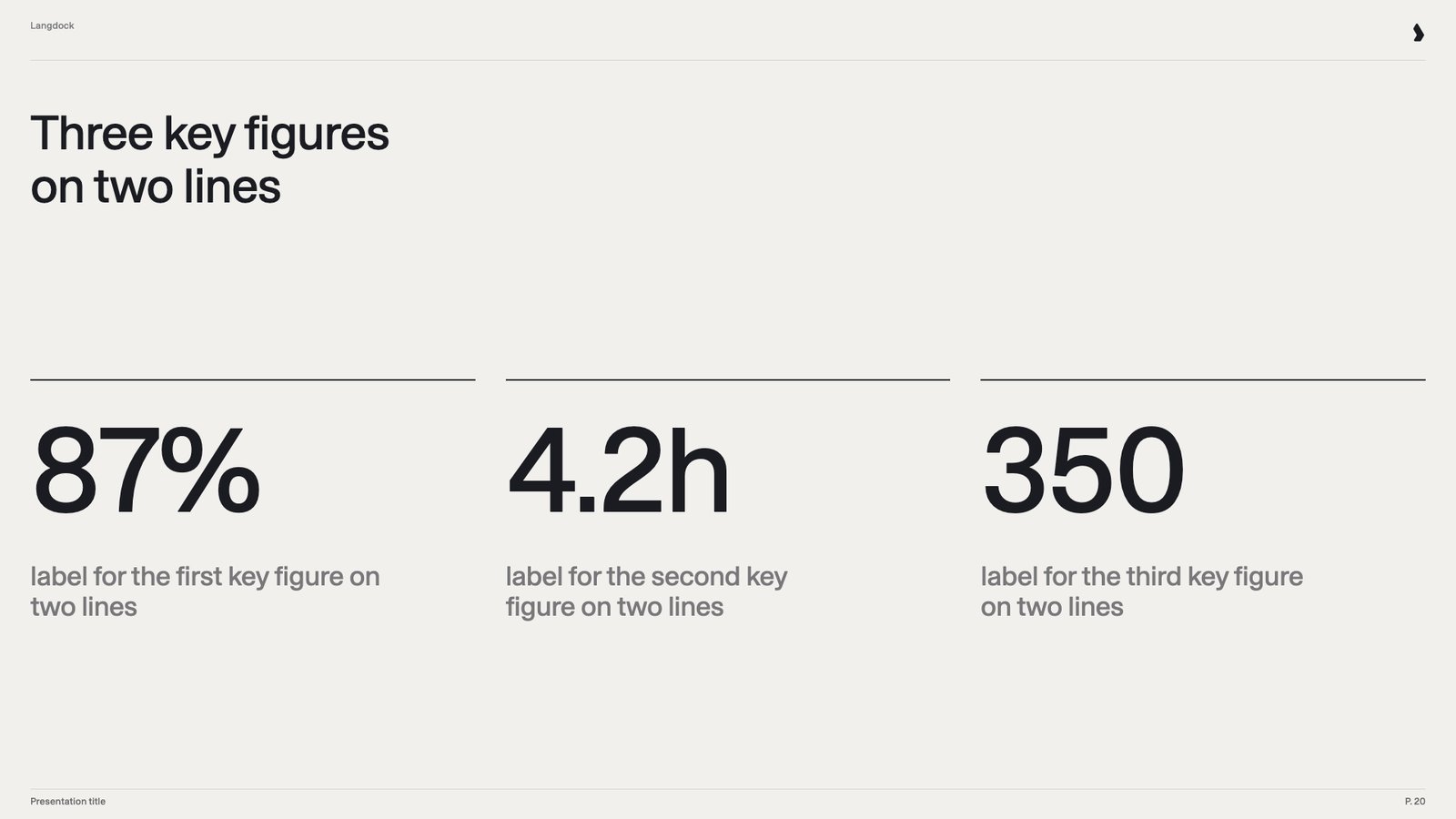
3 key figures
3 key figures
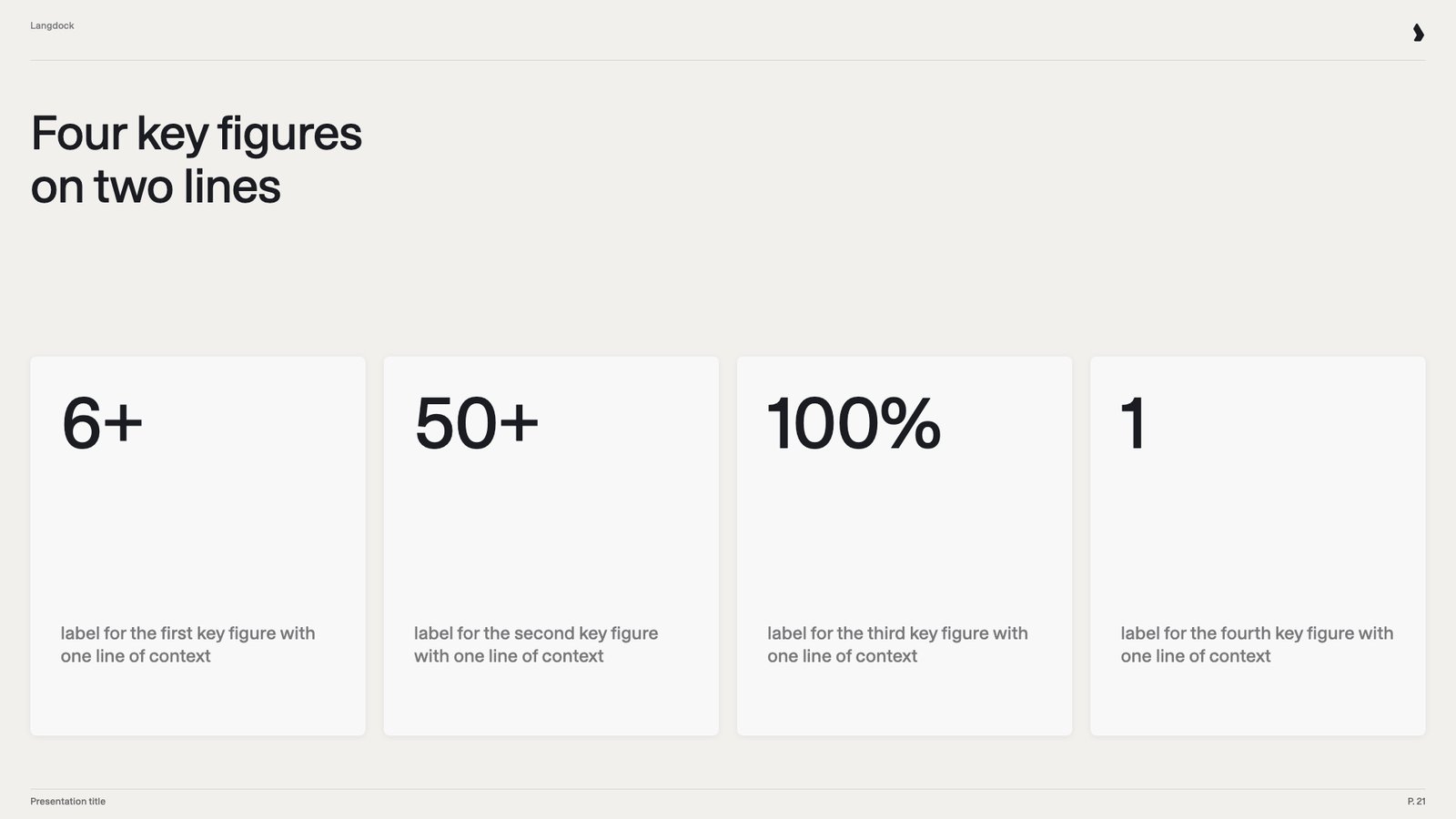
4 key figures
4 key figures
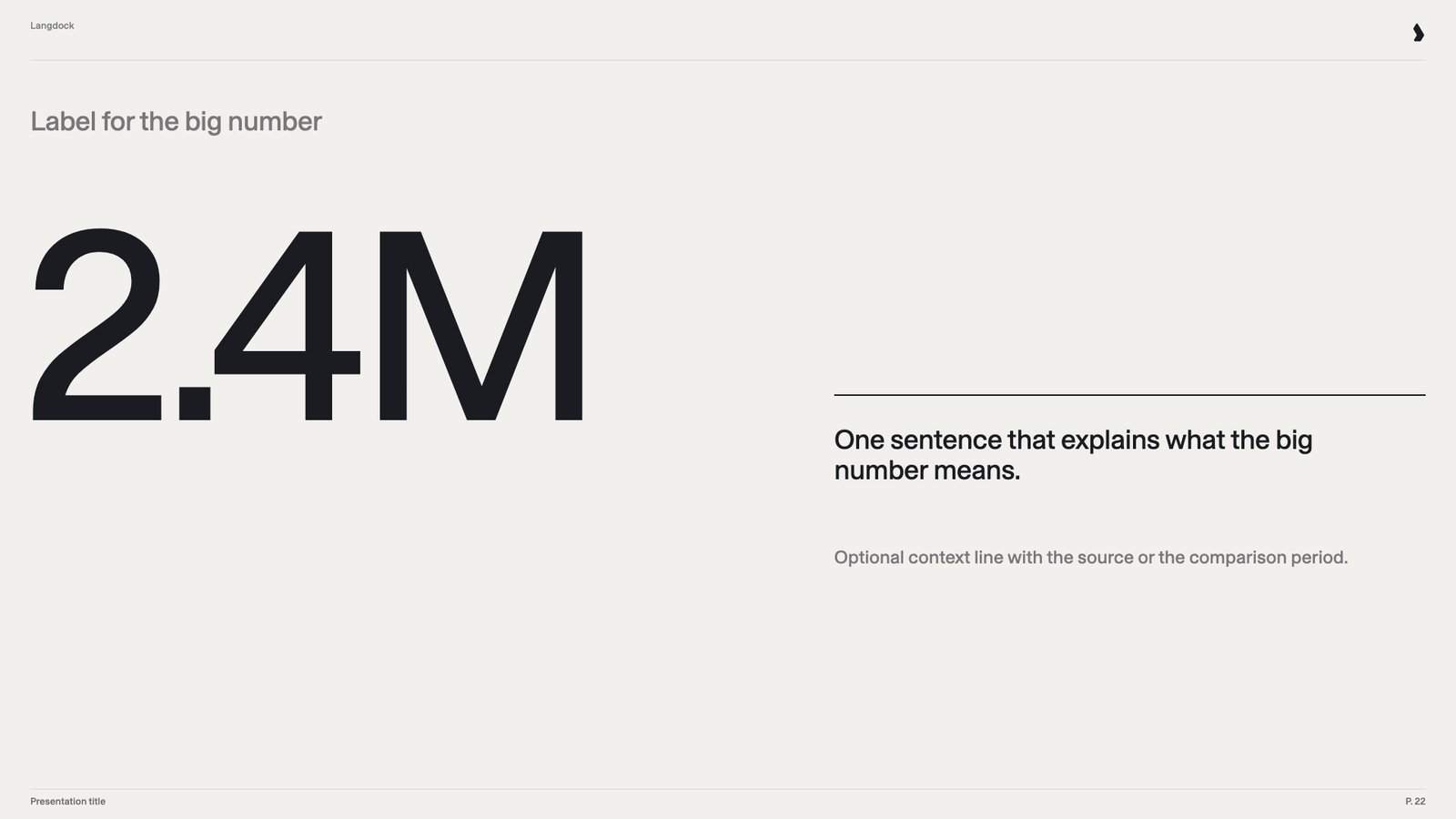
One big number
One big number
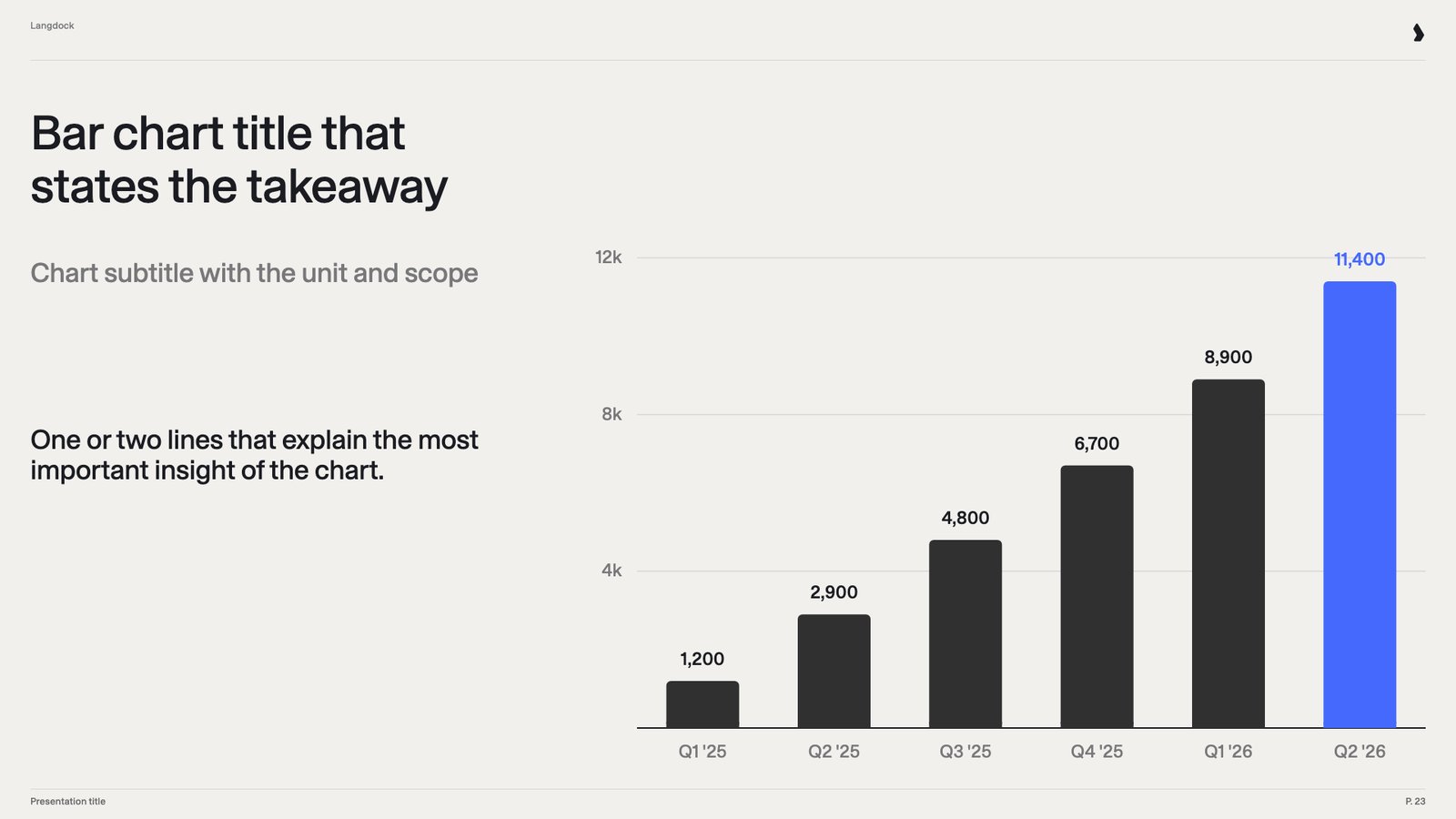
Bar chart
Bar chart
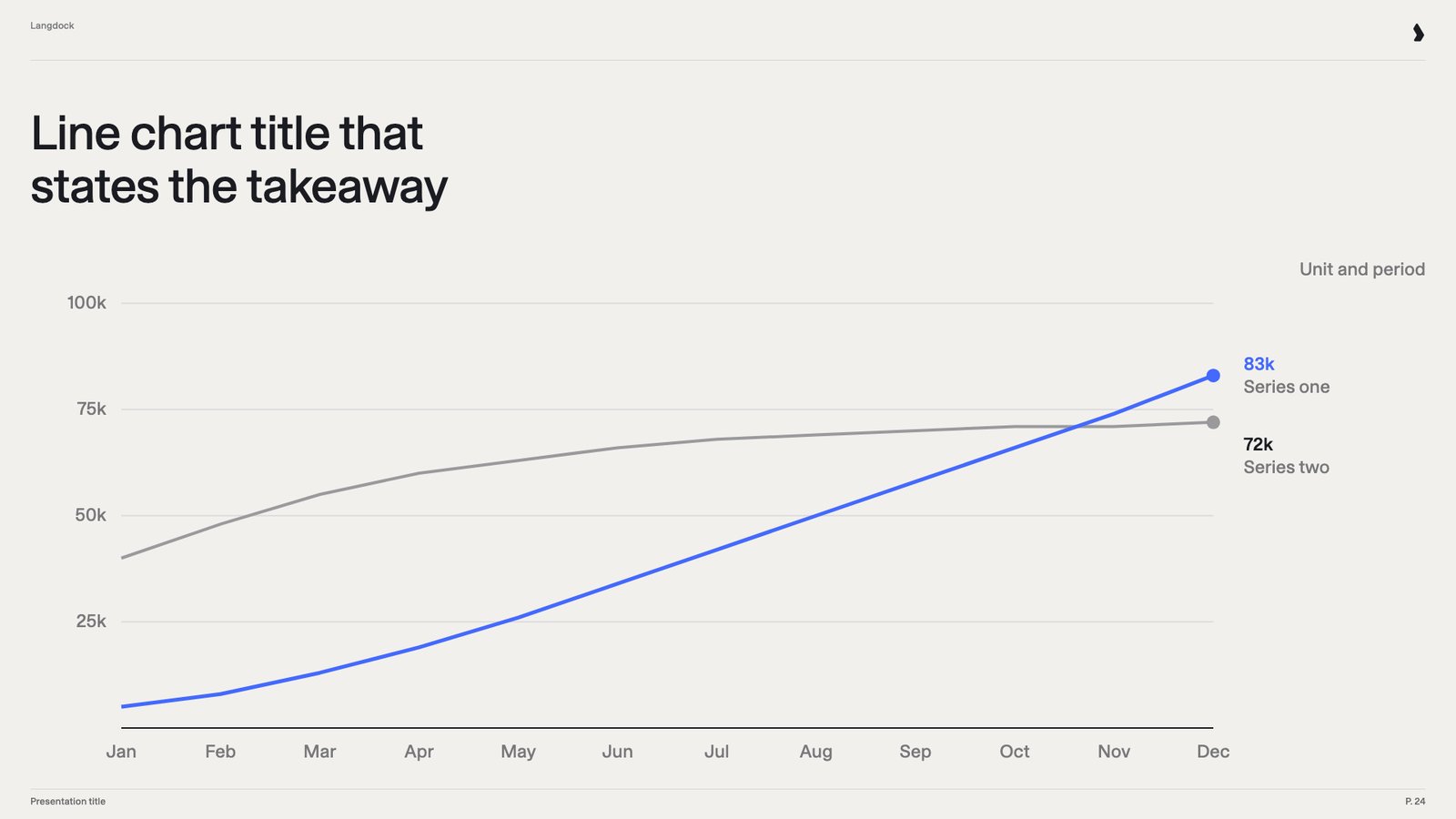
Line chart
Line chart
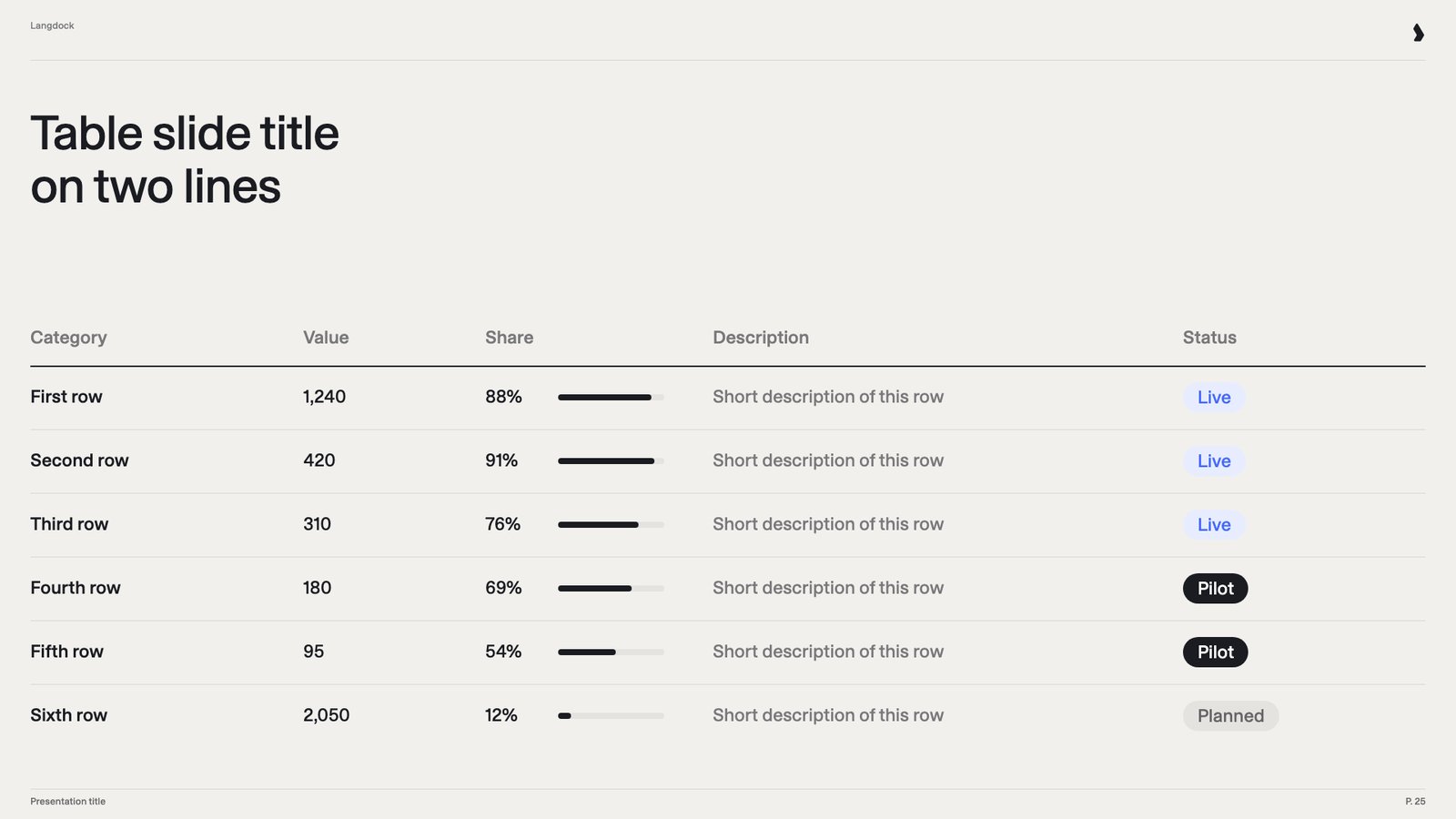
Table
Table
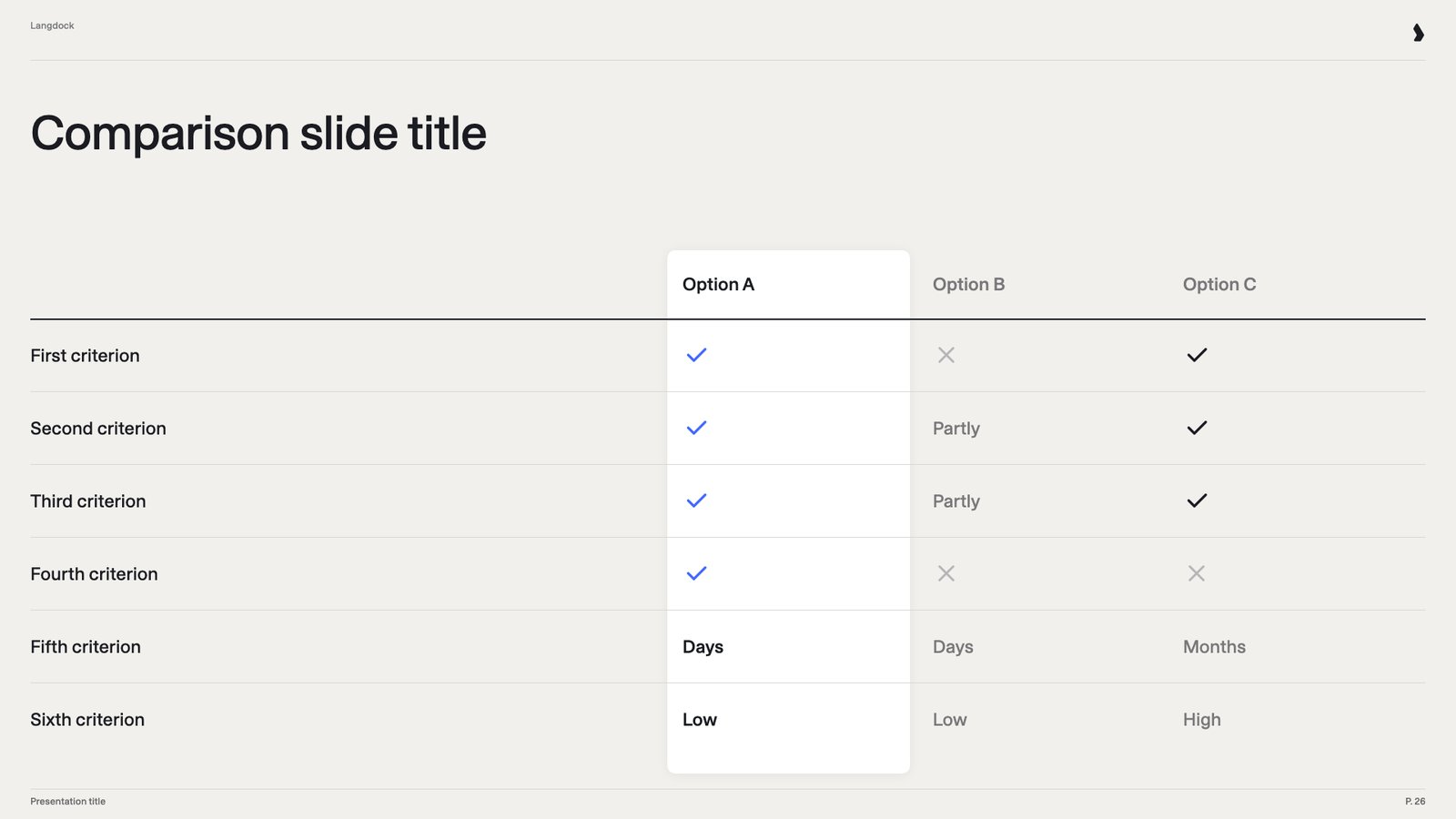
Comparison
Comparison
Diagrams
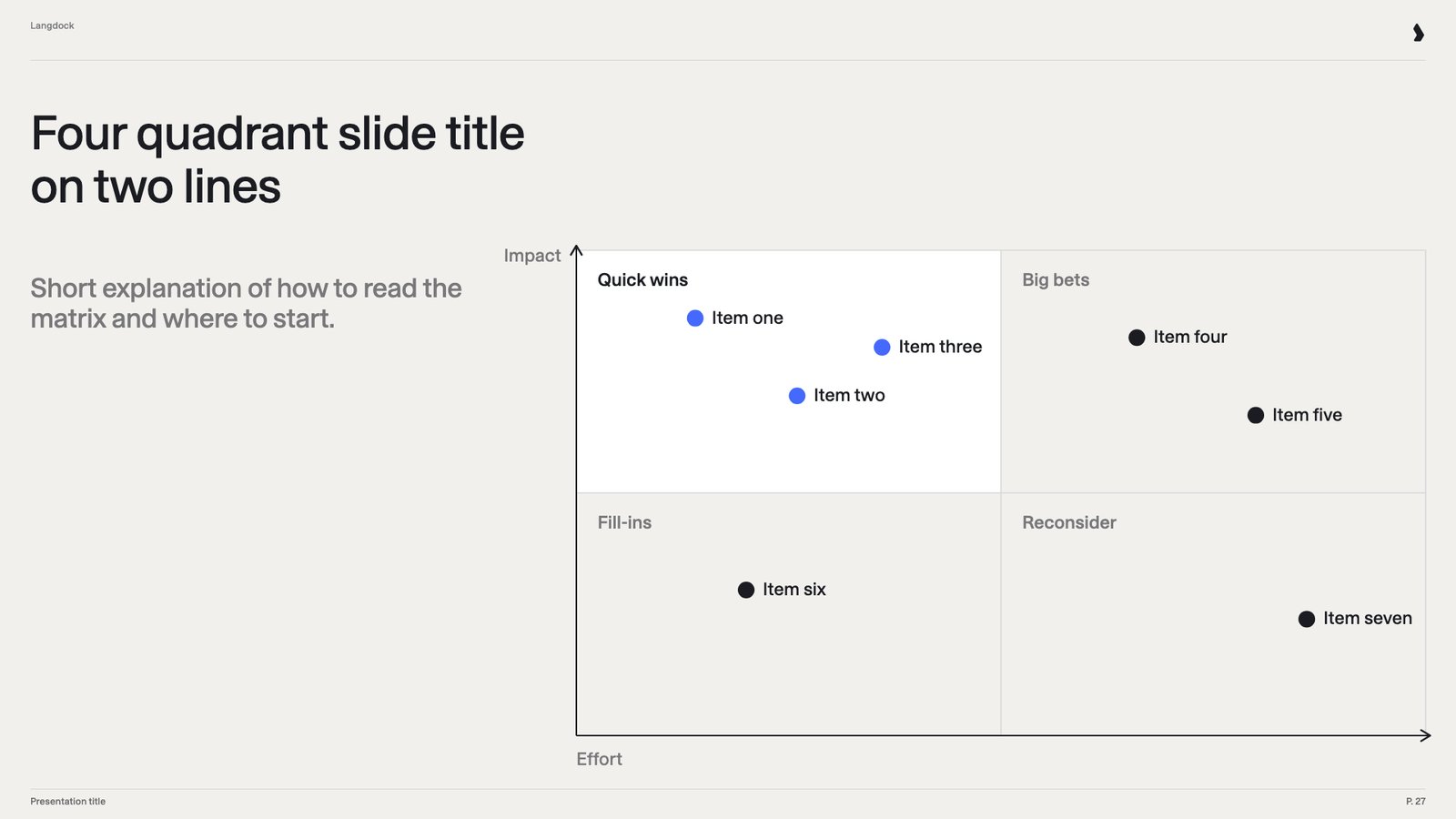
Four quadrants
Four quadrants
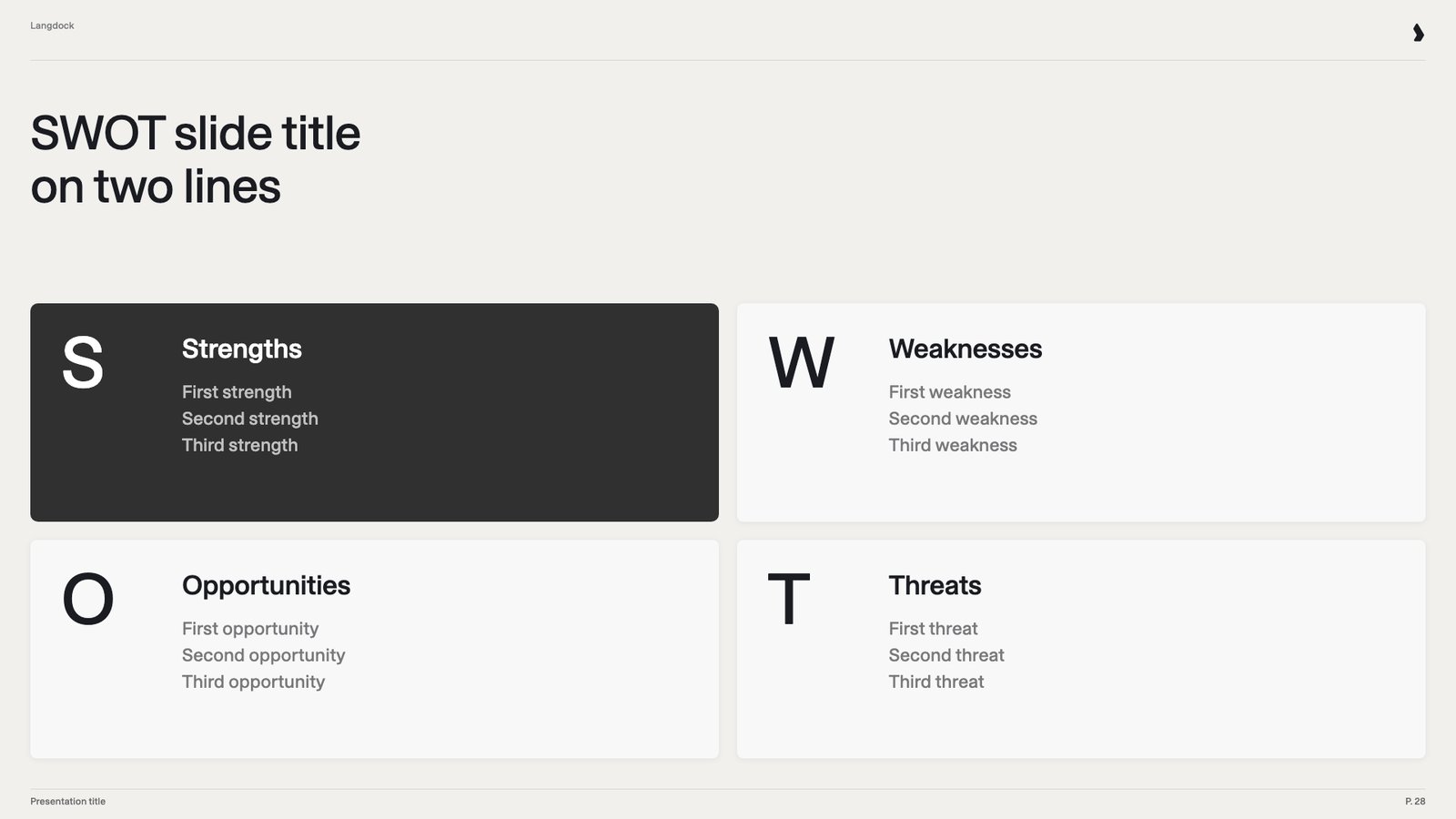
SWOT analysis
SWOT analysis
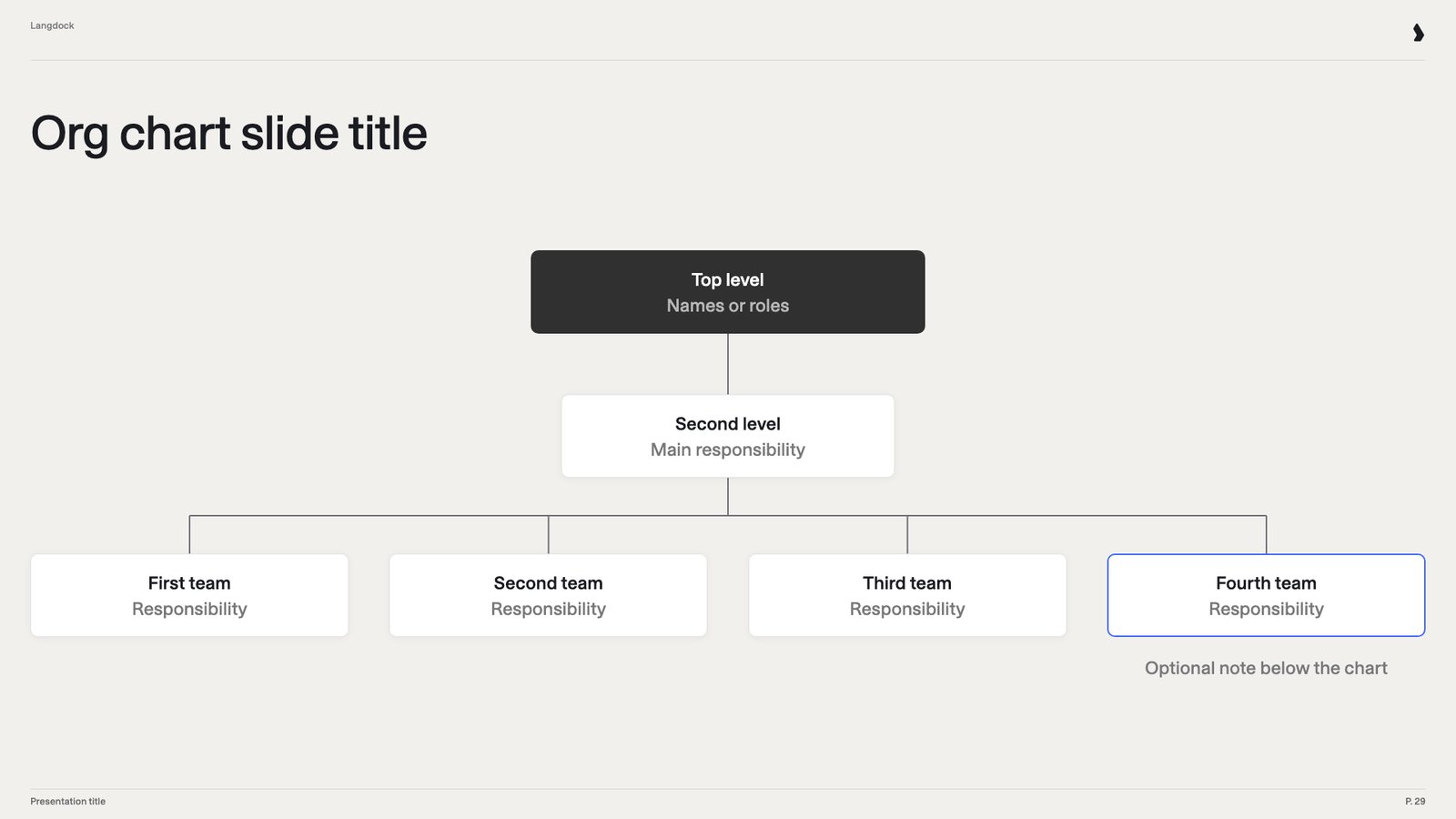
Org chart
Org chart
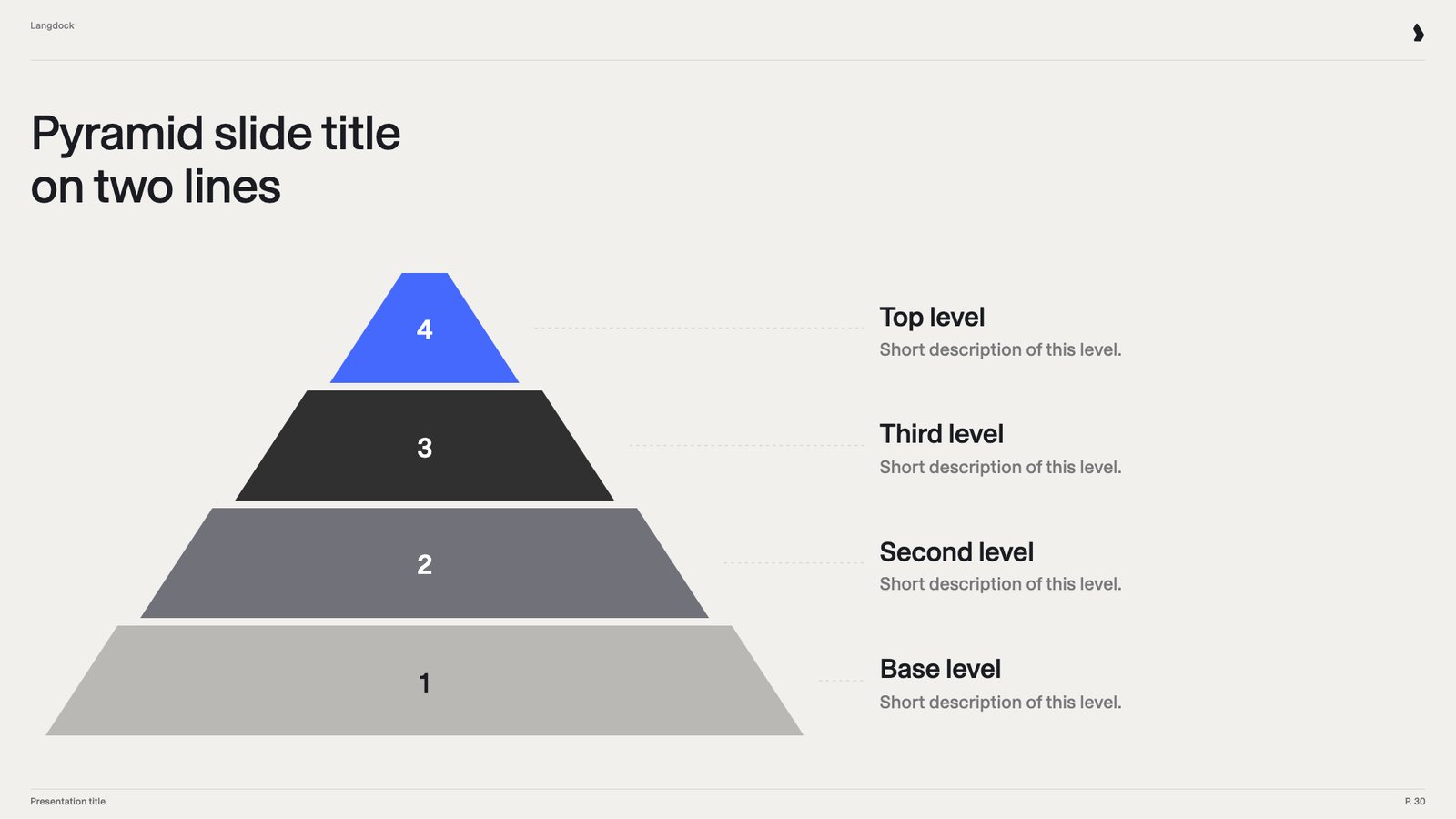
Pyramid
Pyramid
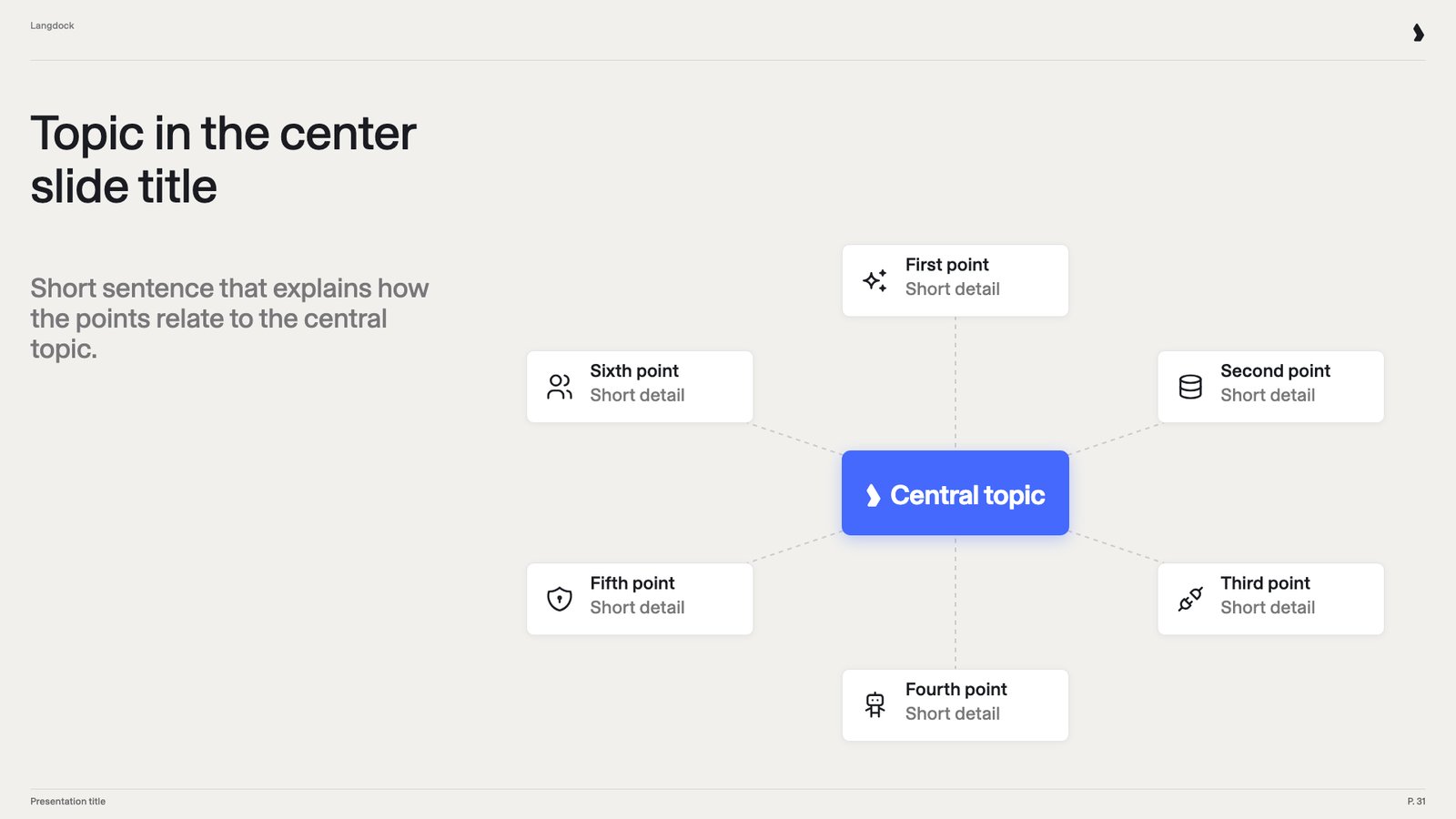
Topic in the center
Topic in the center
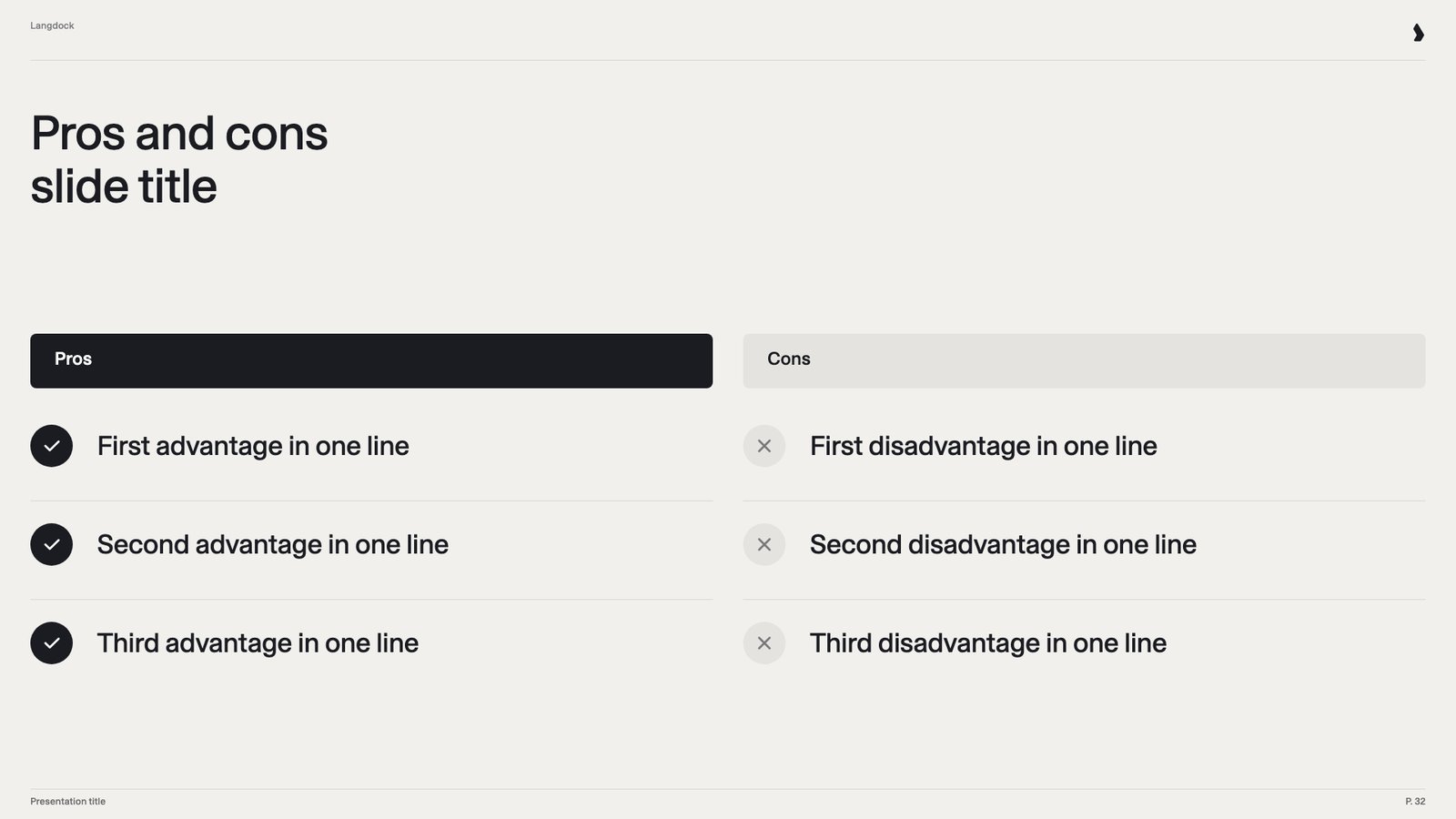
Pros and cons
Pros and cons
Cards
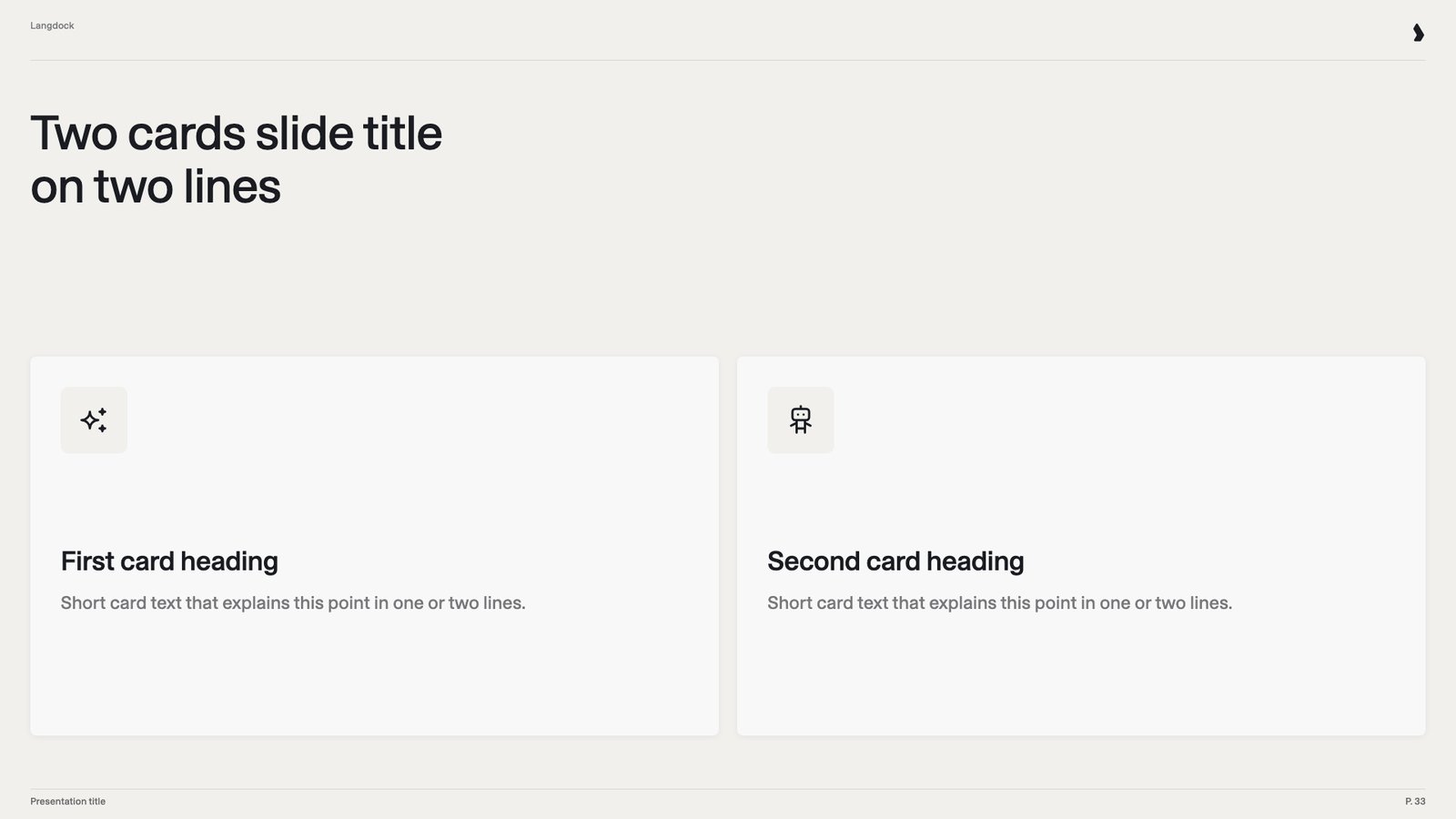
2 icon cards
2 icon cards
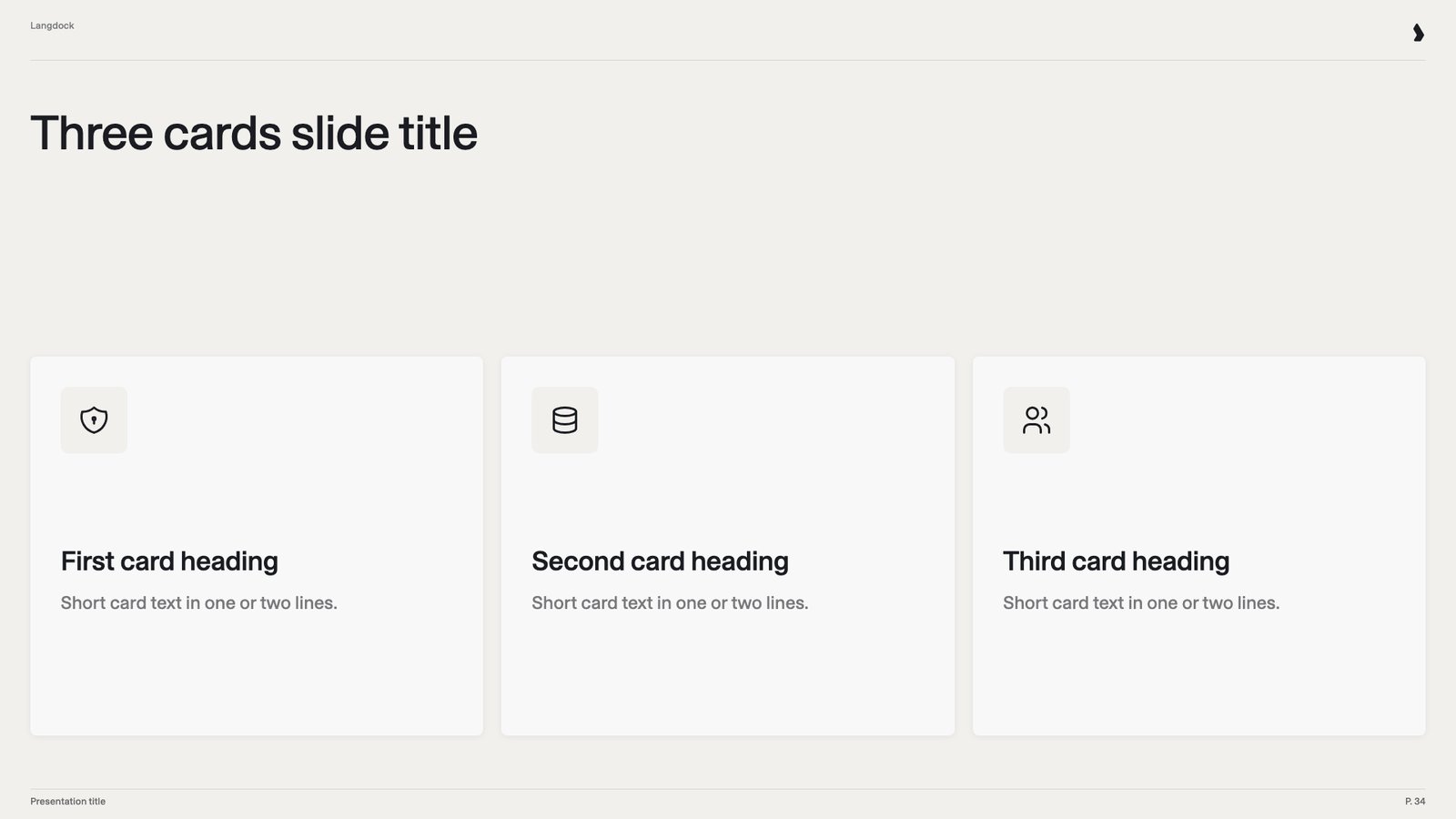
3 icon cards
3 icon cards
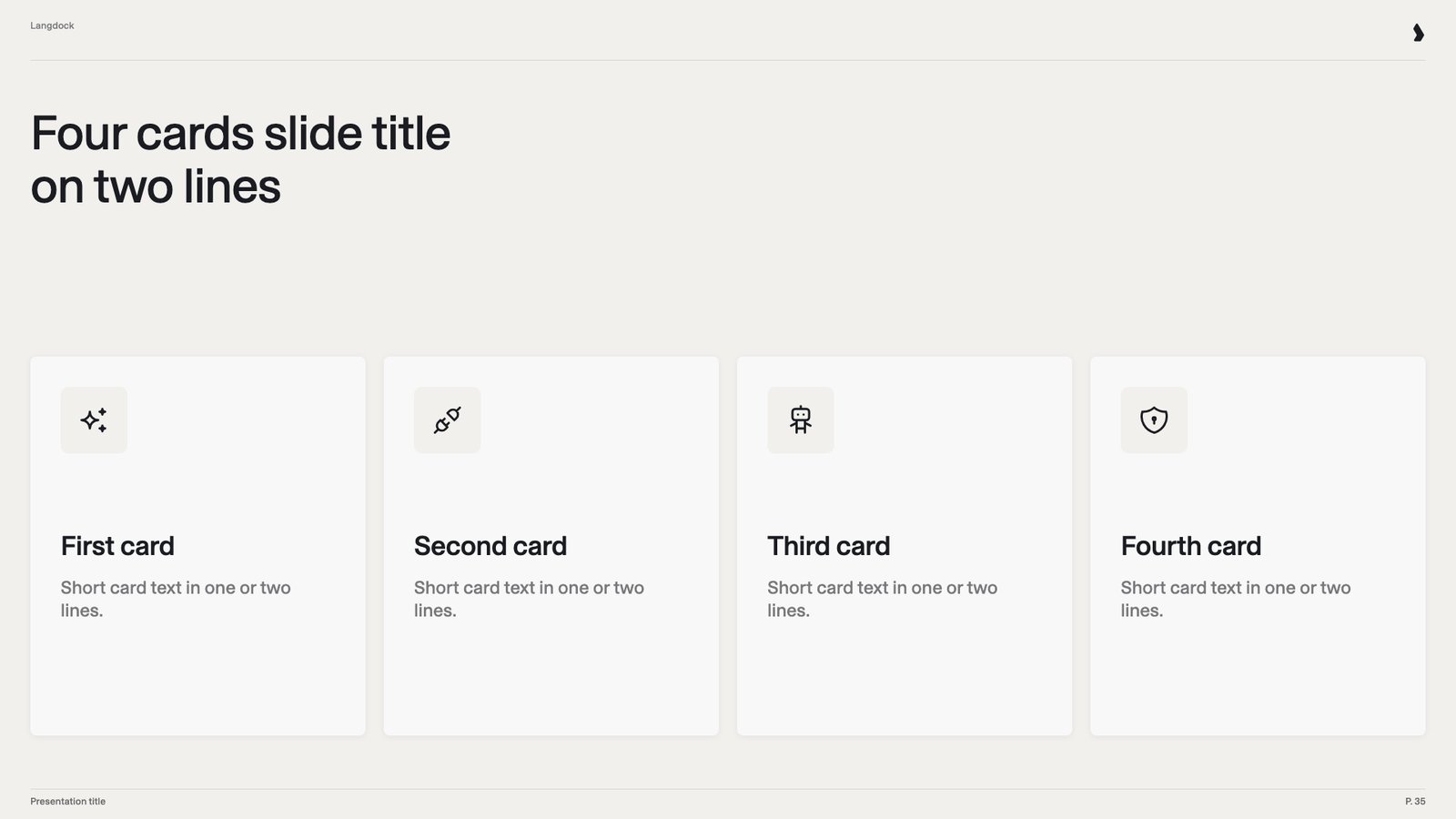
4 icon cards
4 icon cards
Images
Large image with title
Large image with title

Image with bullet points
Image with bullet points
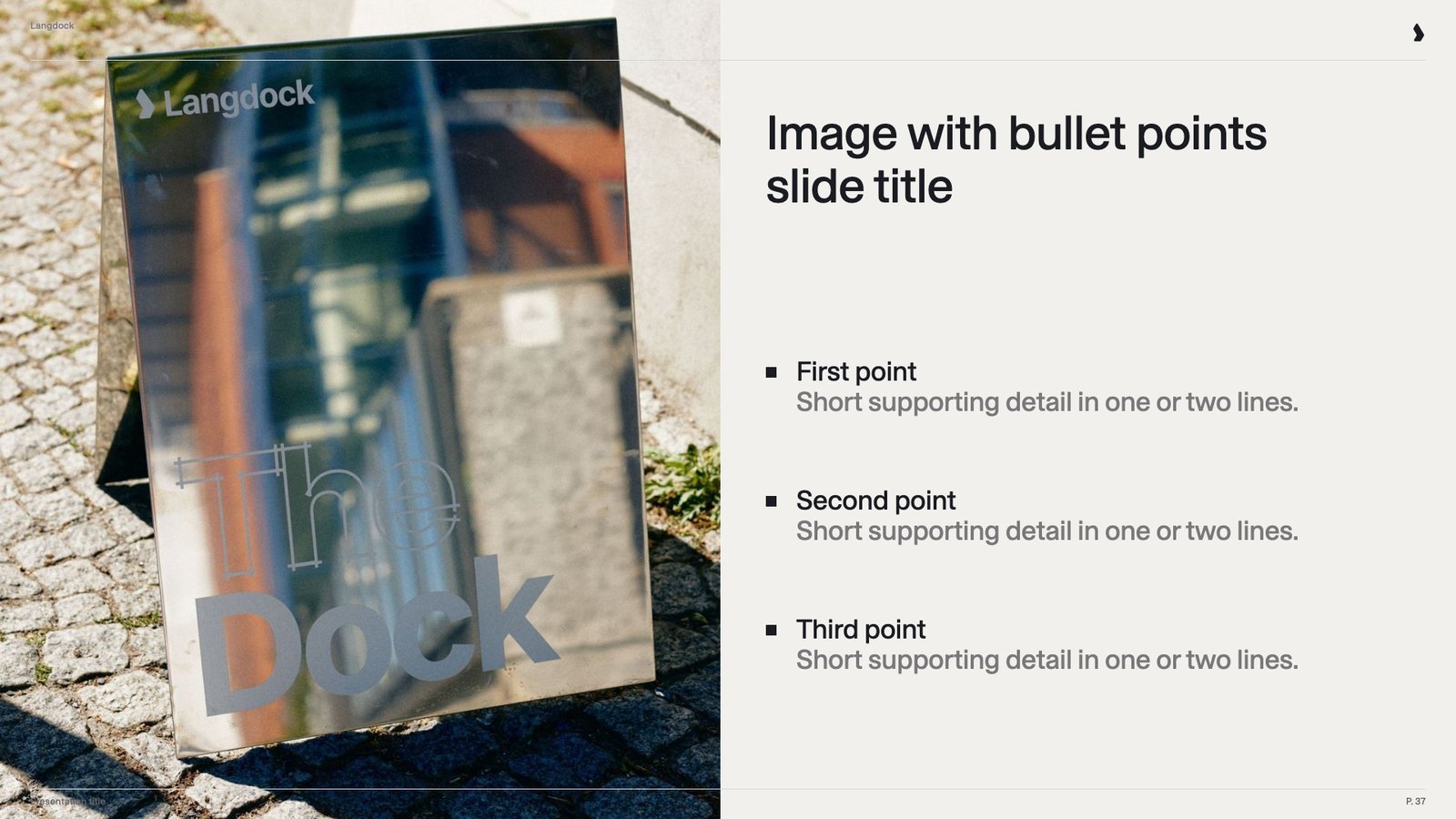
Image grid
Image grid

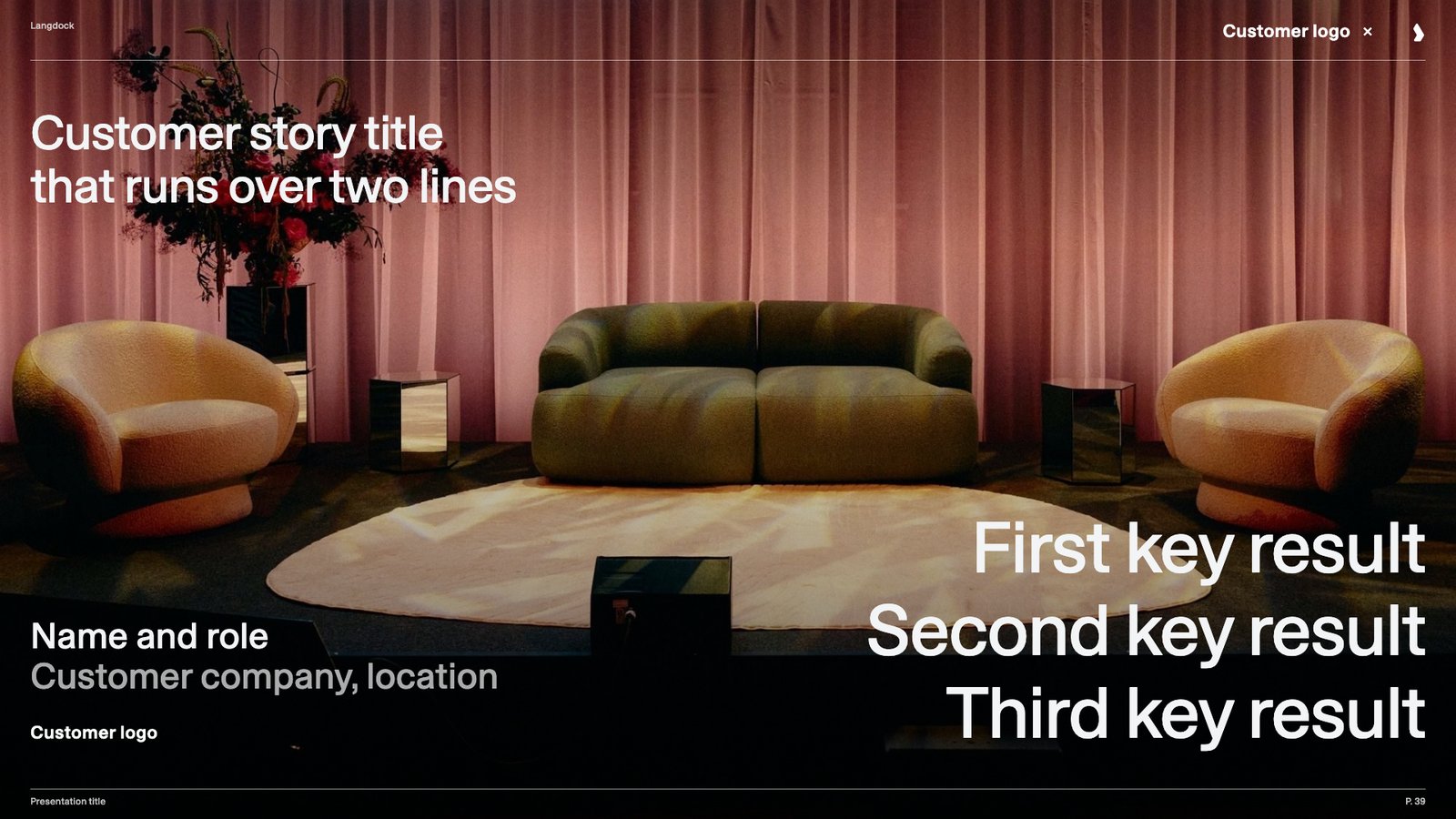
Customer story
Customer story
Team and contact
Person
Person

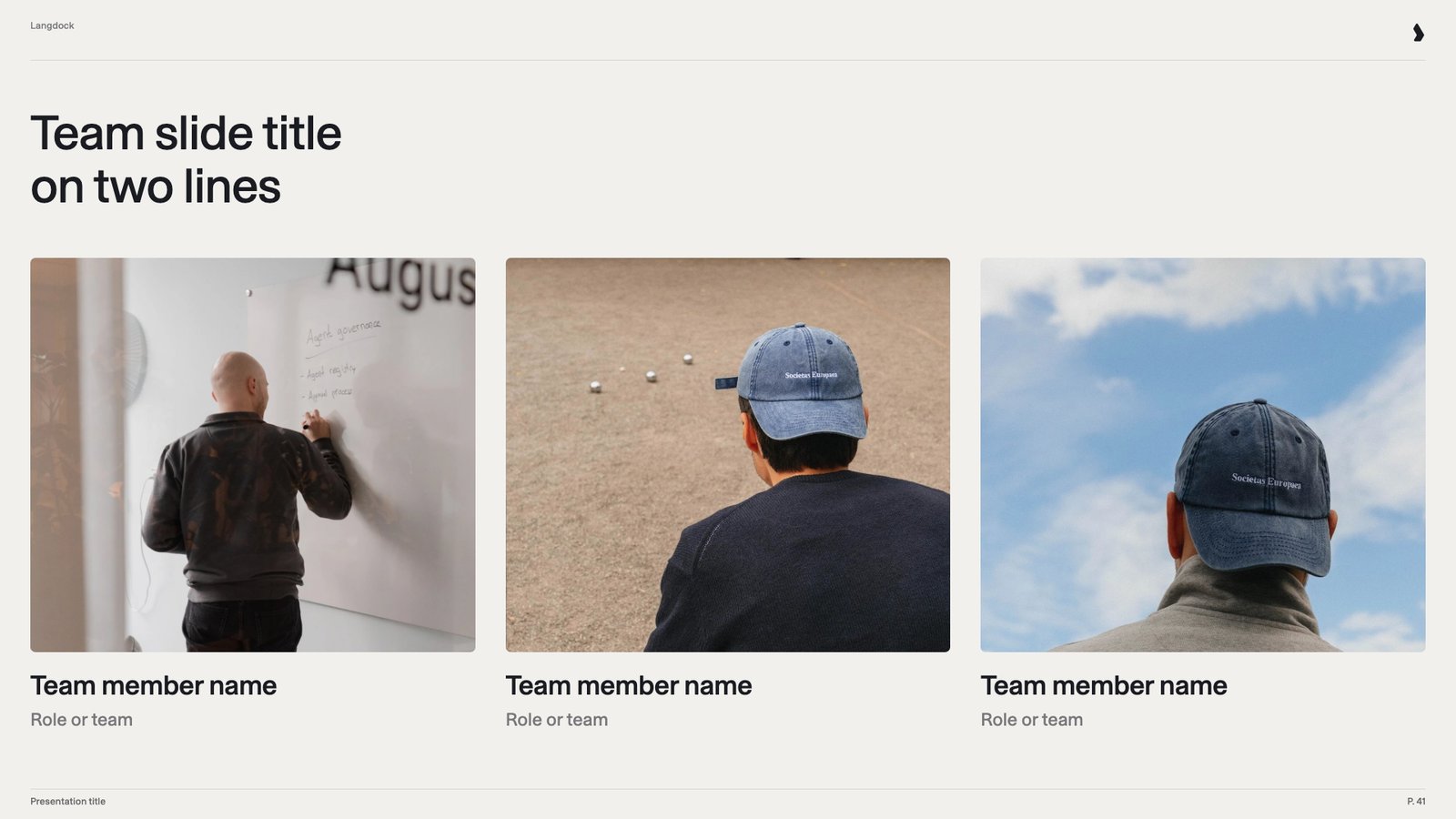
Team
Team
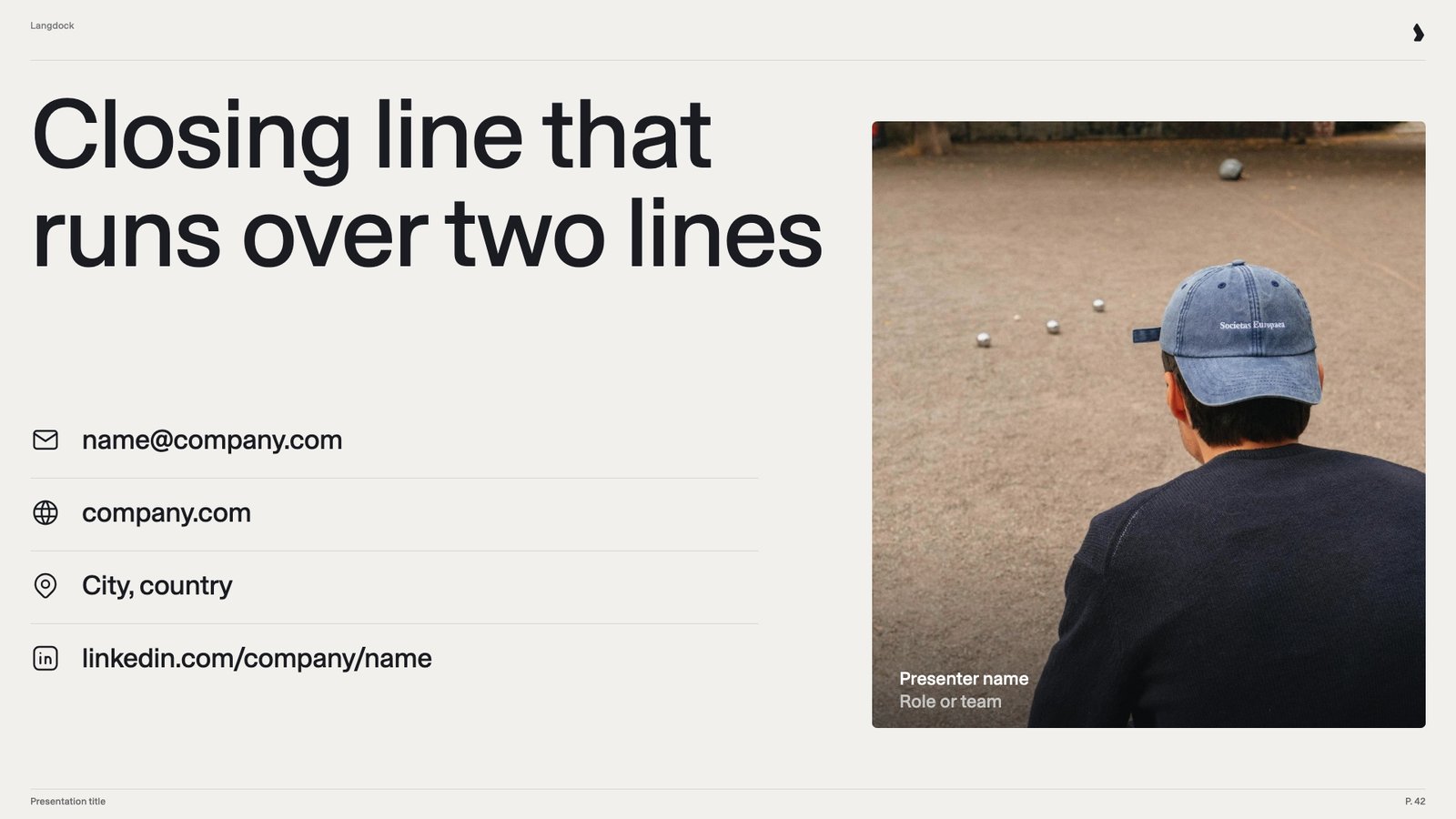
Contact
Contact
Slide examples: good vs. bad
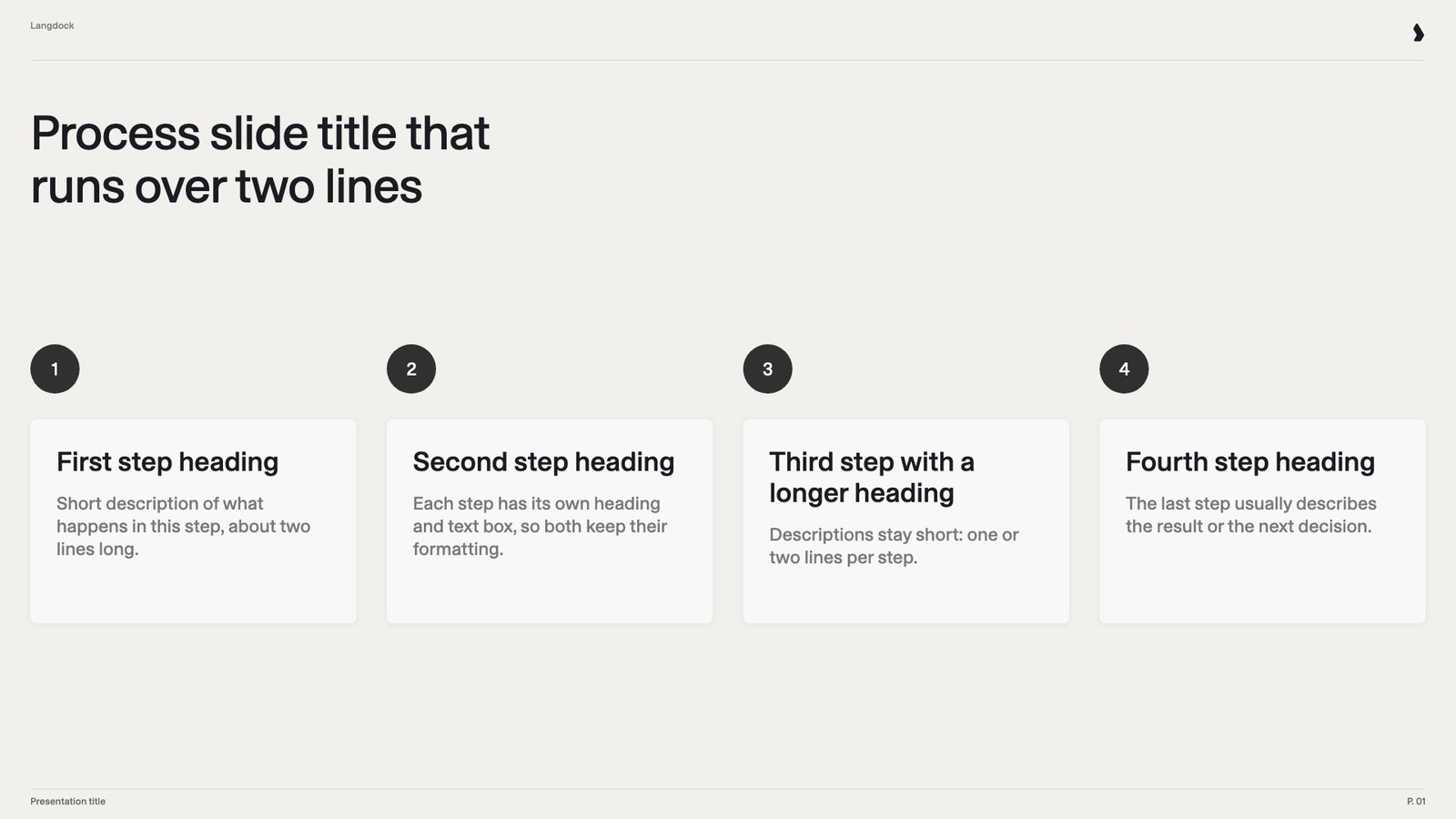
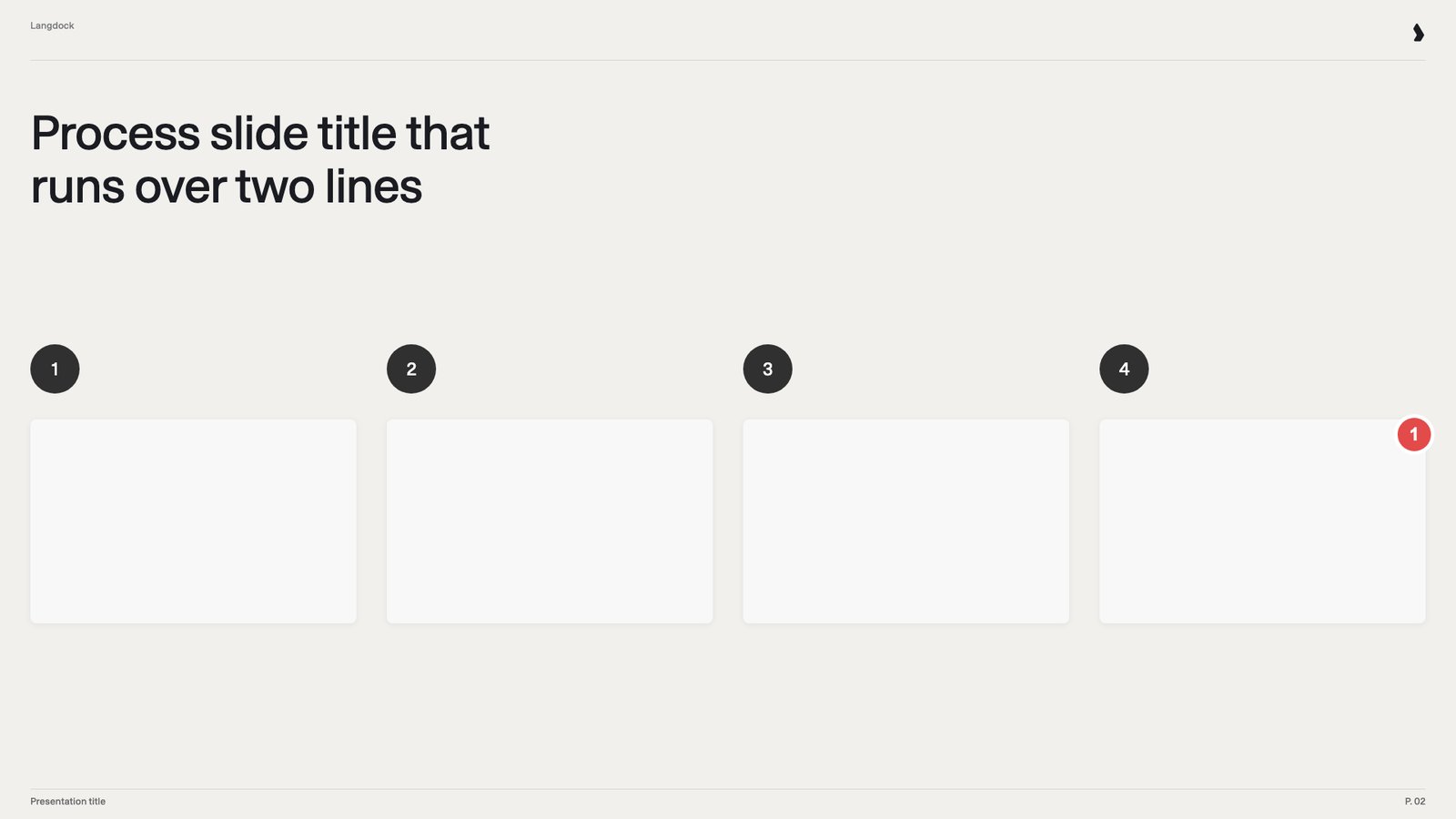
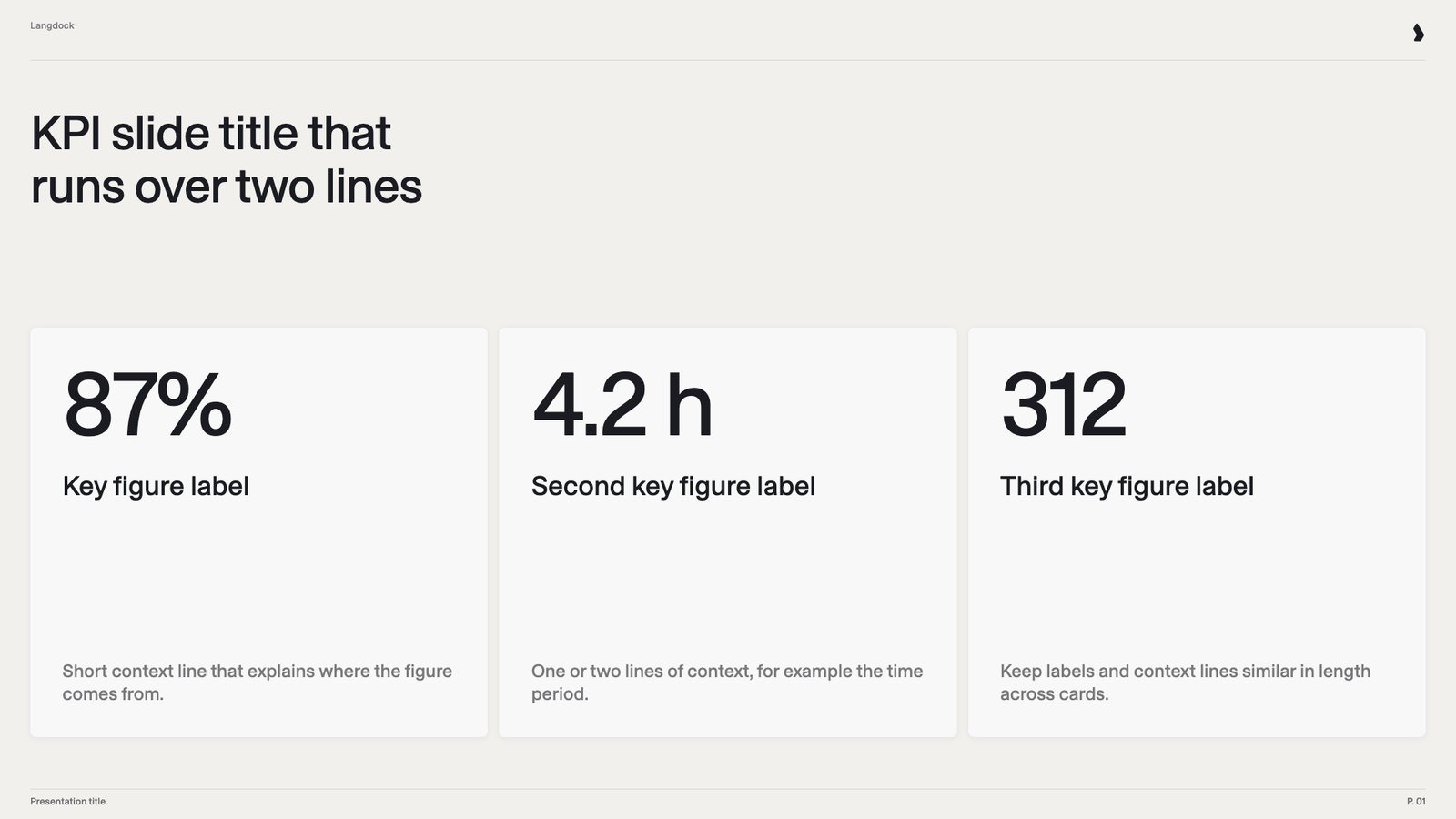
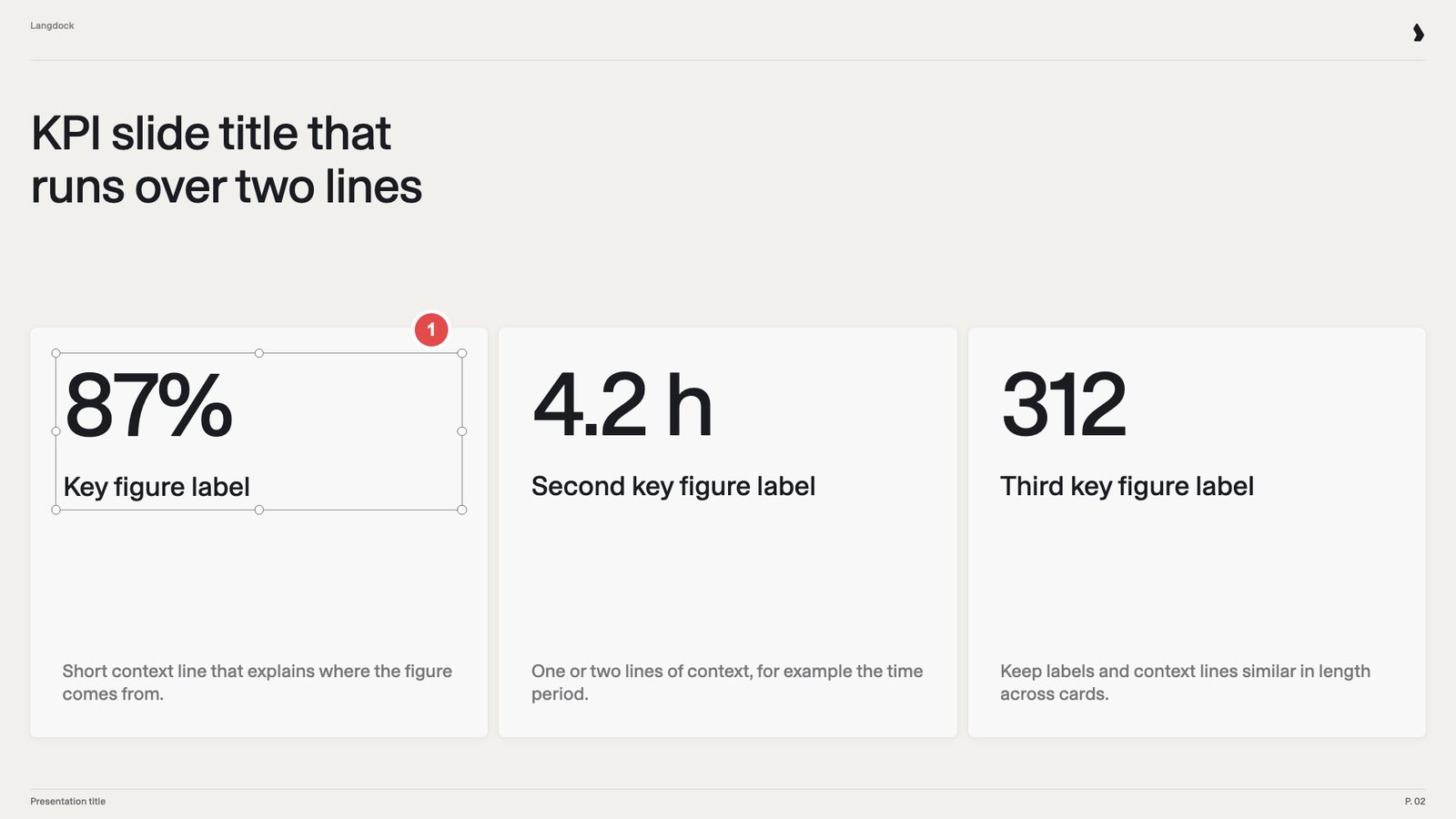
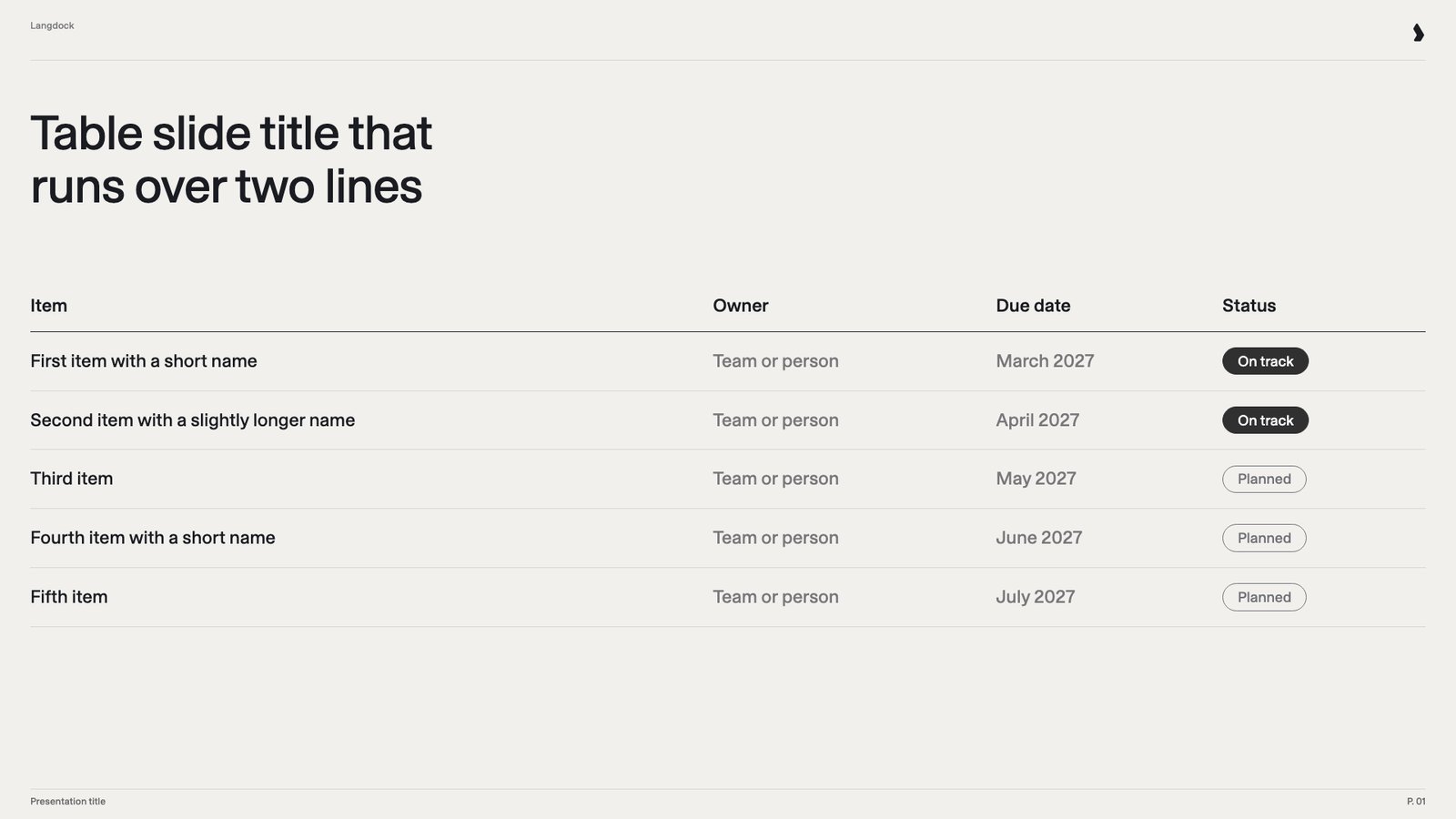
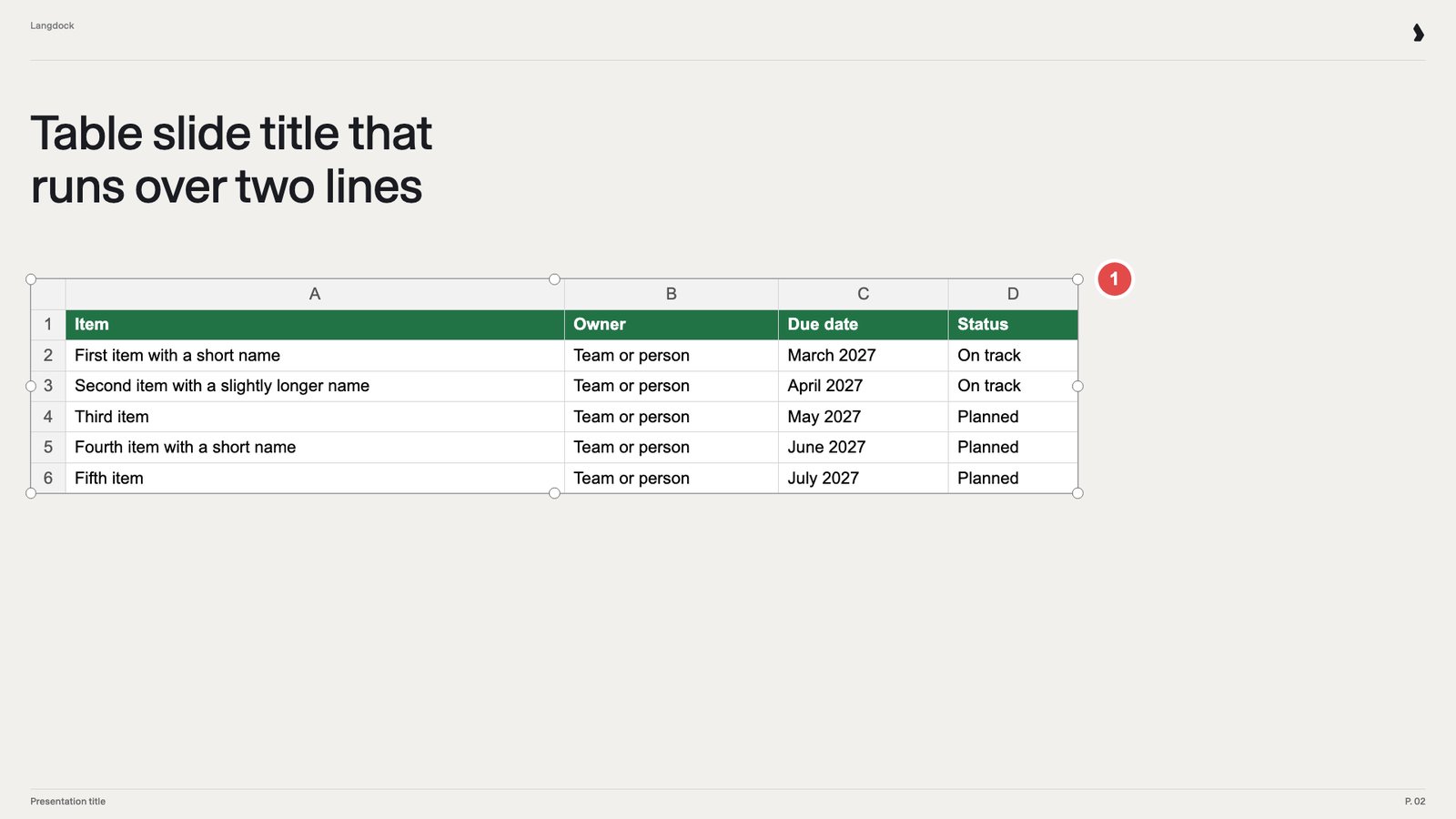
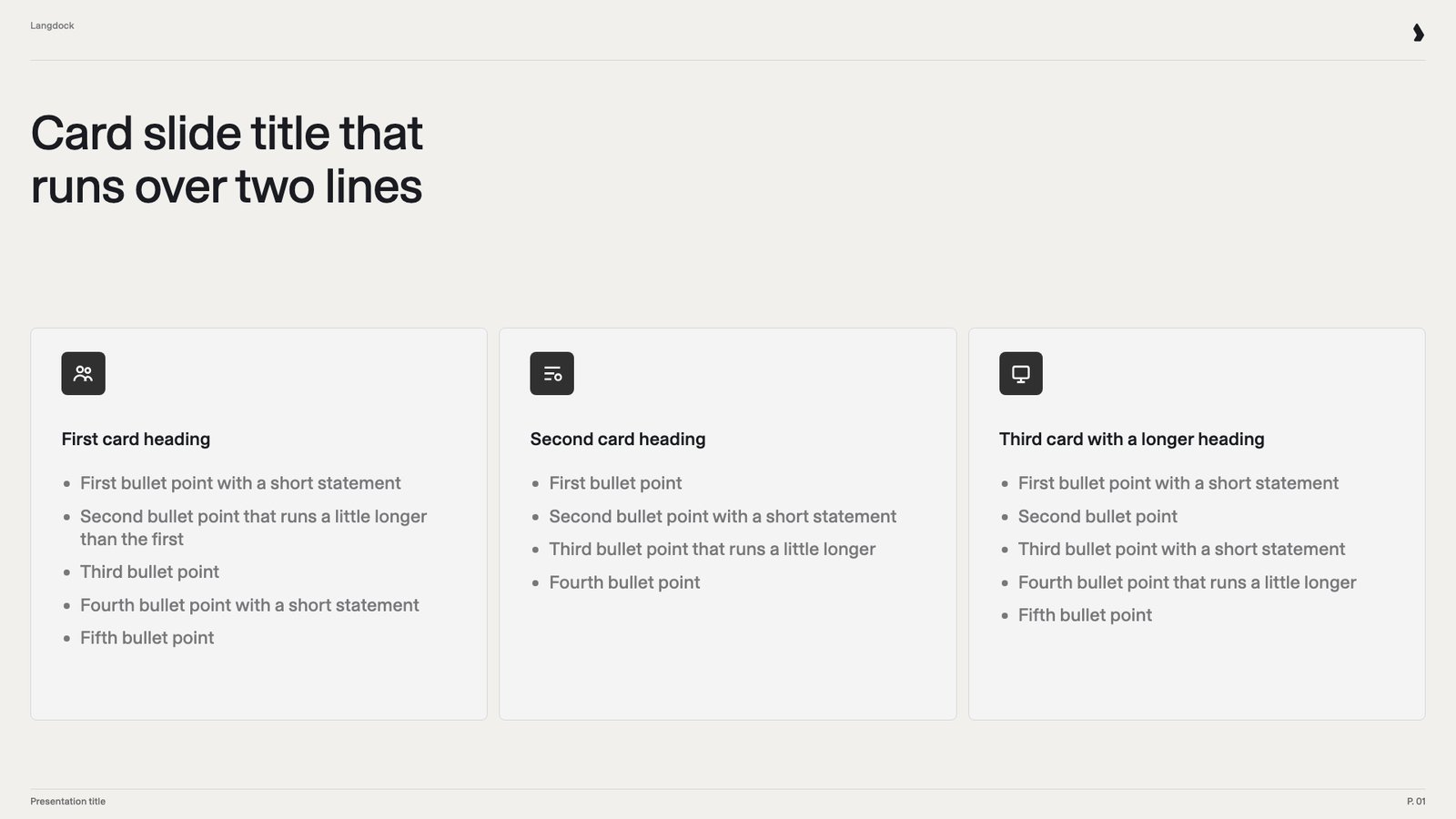
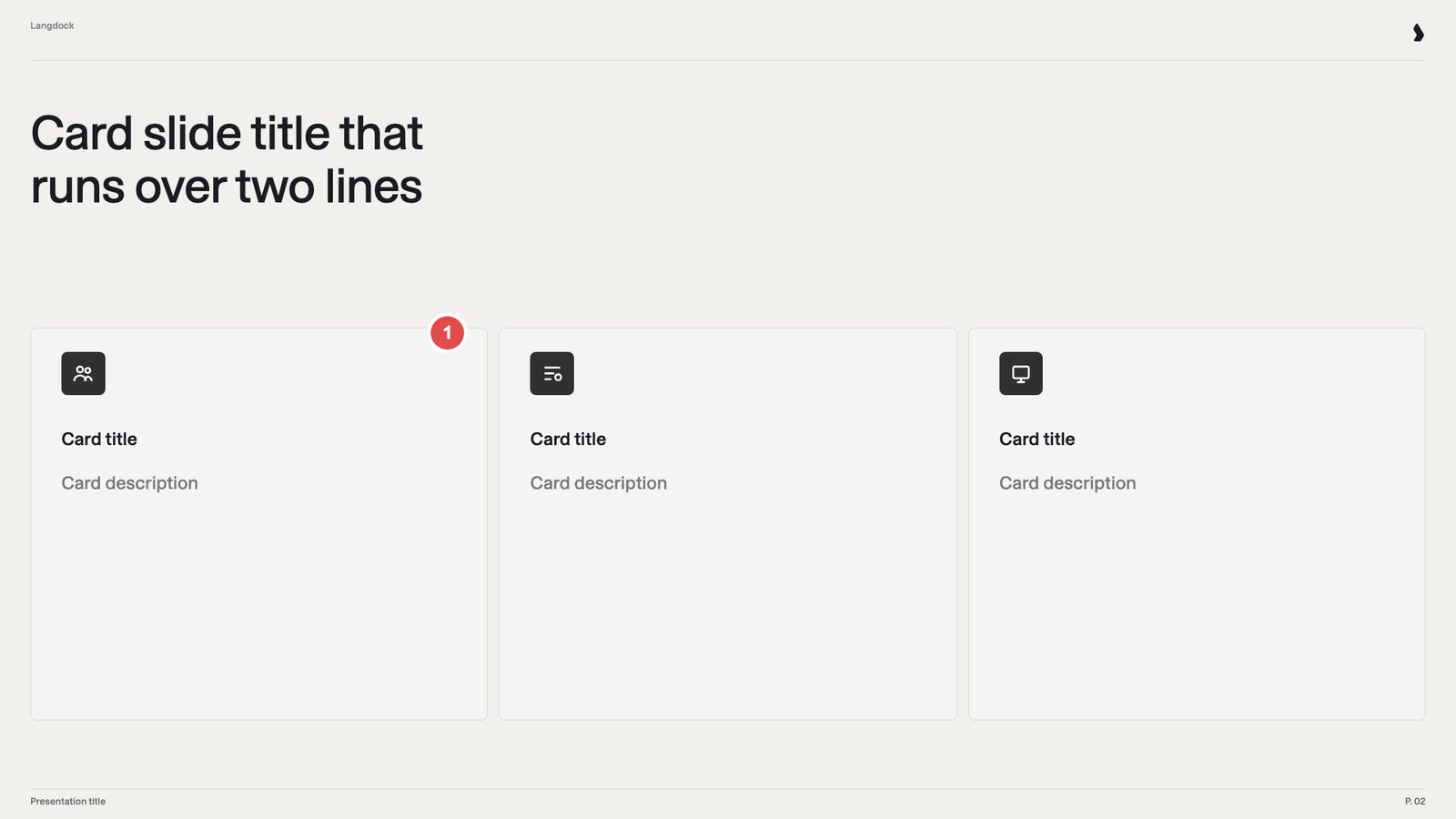
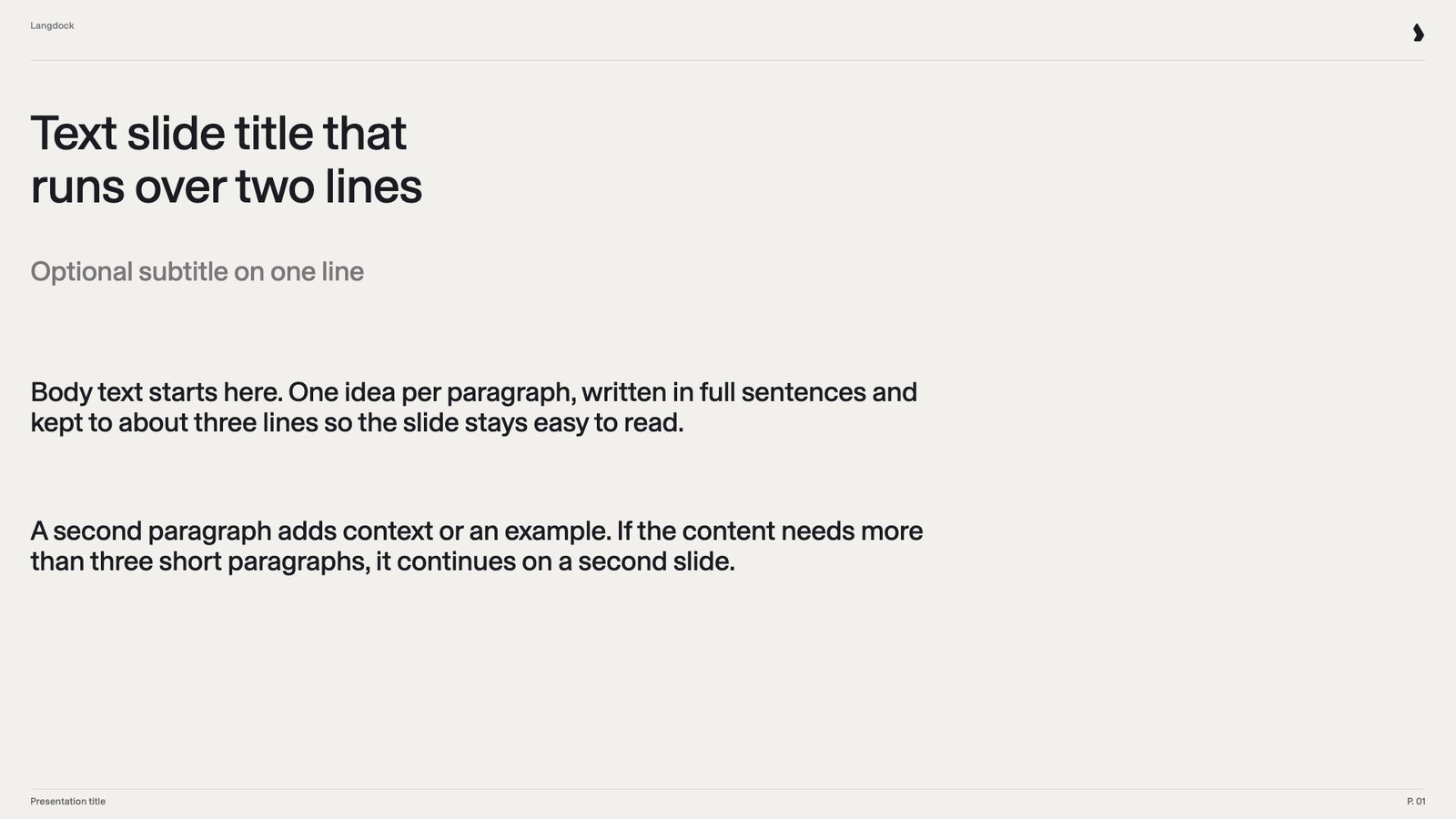
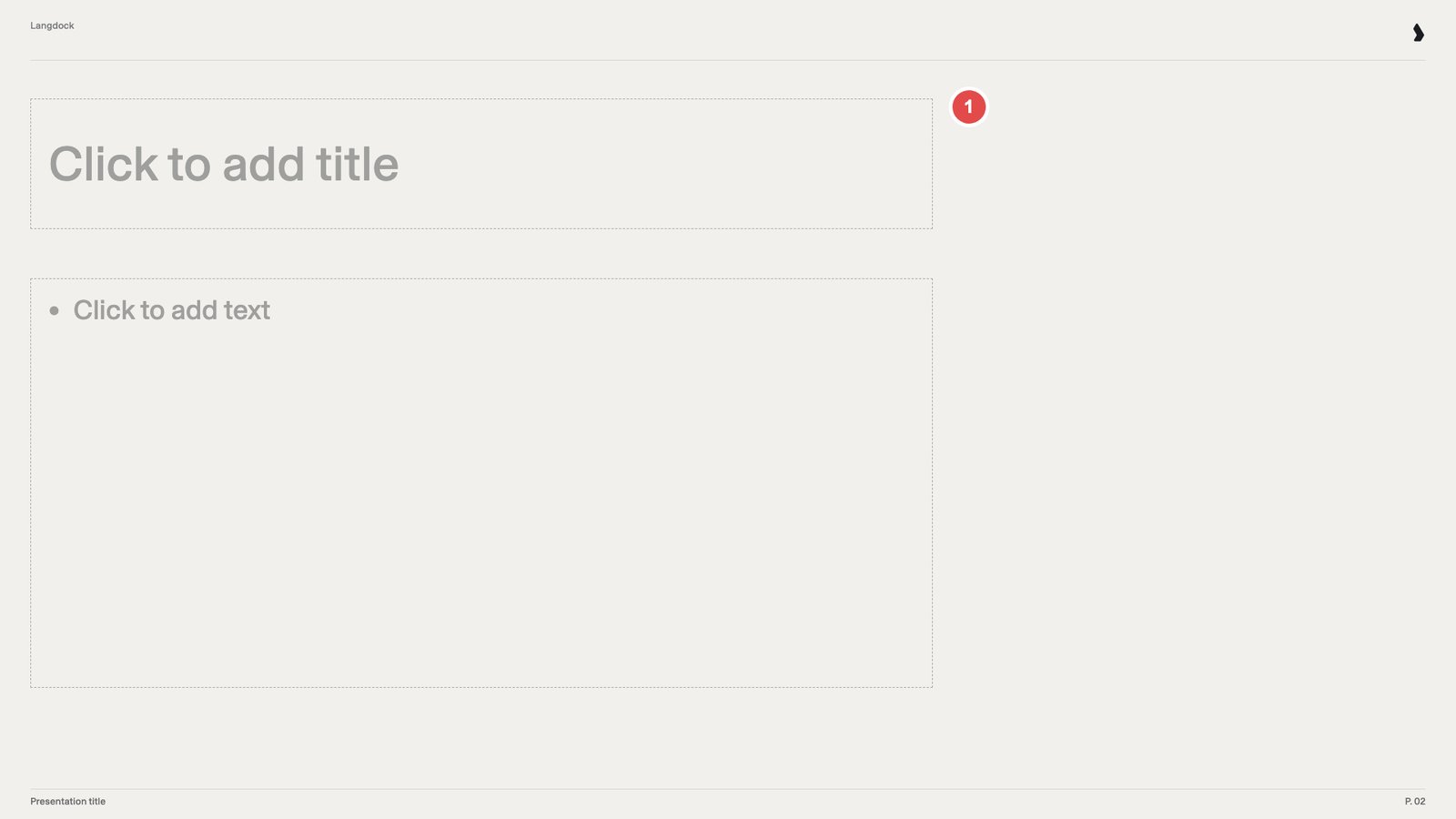
The test for a good example slide: filled with new content, it becomes a finished slide without manual touch-up. Size each box for realistic text, and show every bullet level you want. Pick a slide type in the tabs below. Each tab shows a good slide first, then a bad one. The bad slides are built the way many real templates are, for a person to finish by hand. New content alone can’t fix them. Where a bad slide has several problems, its numbers match the points below it.- Title
- Agenda
- Process
- KPI
- Table
- Cards
- Text
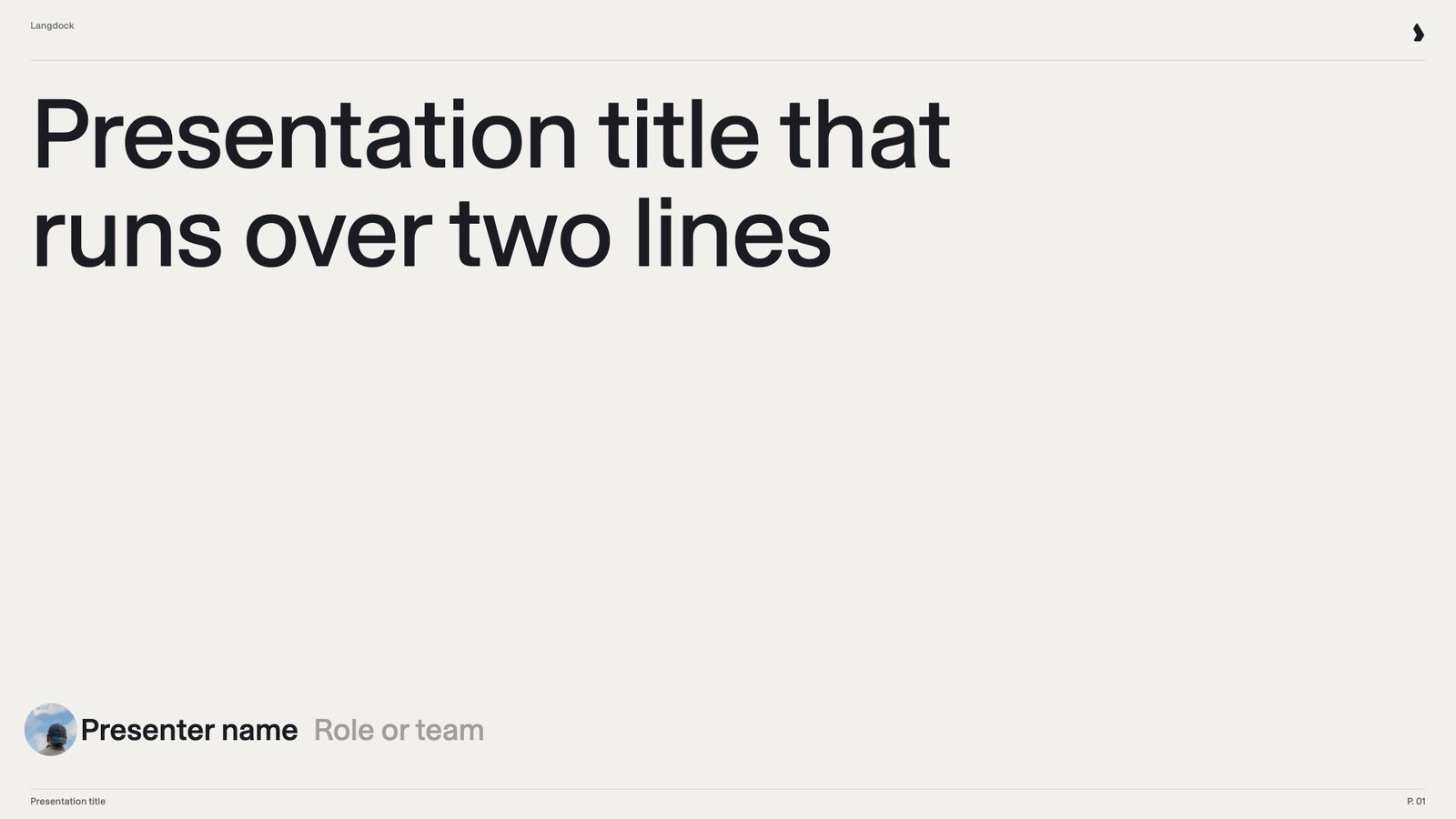
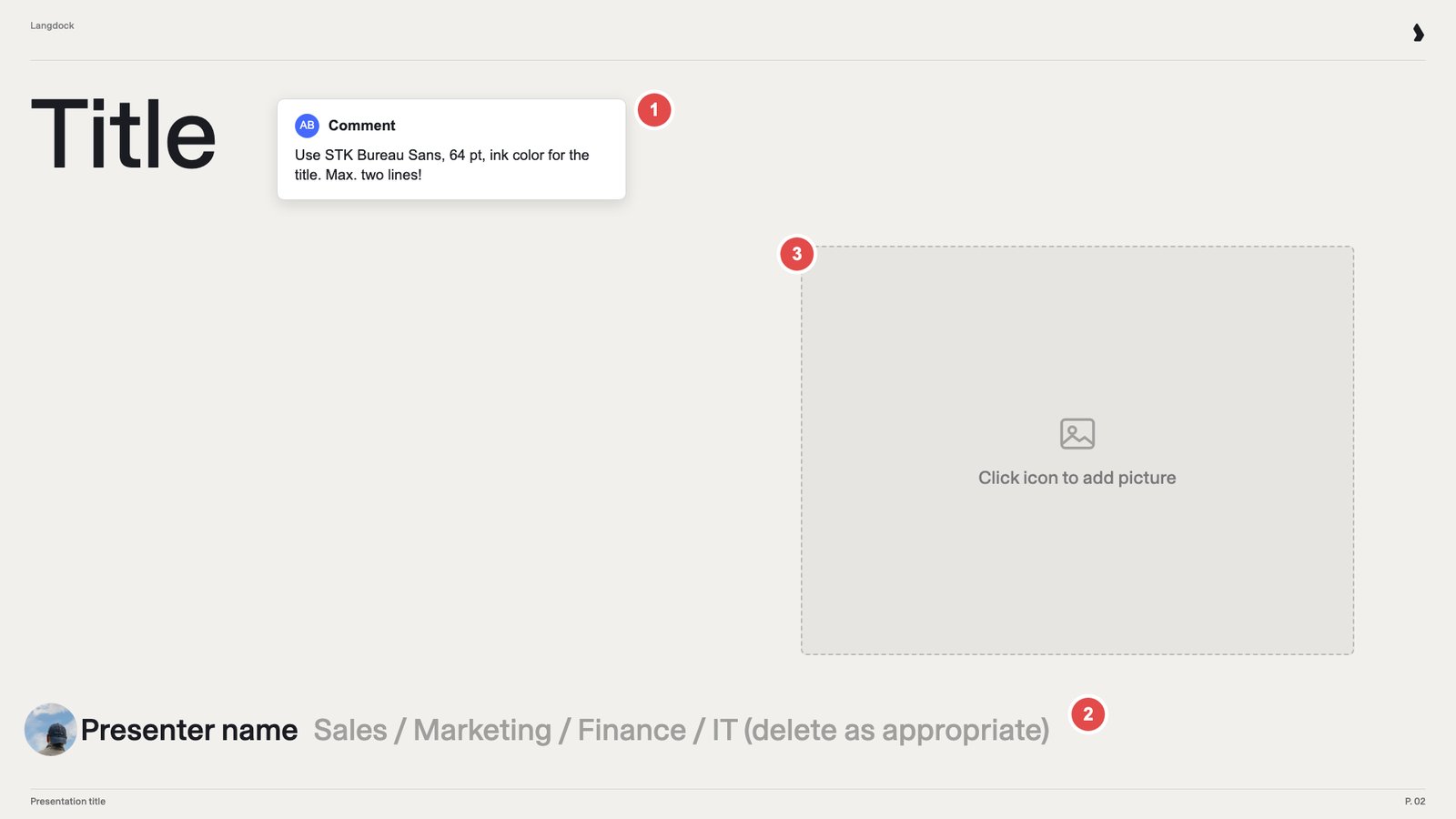
- Font comment. Put formatting rules in the theme, not on the slide.
- Team picker. “Delete as appropriate” asks a person to choose. Show one realistic example instead.
- Empty picture placeholder. Use a fixed image, or leave the placeholder out.
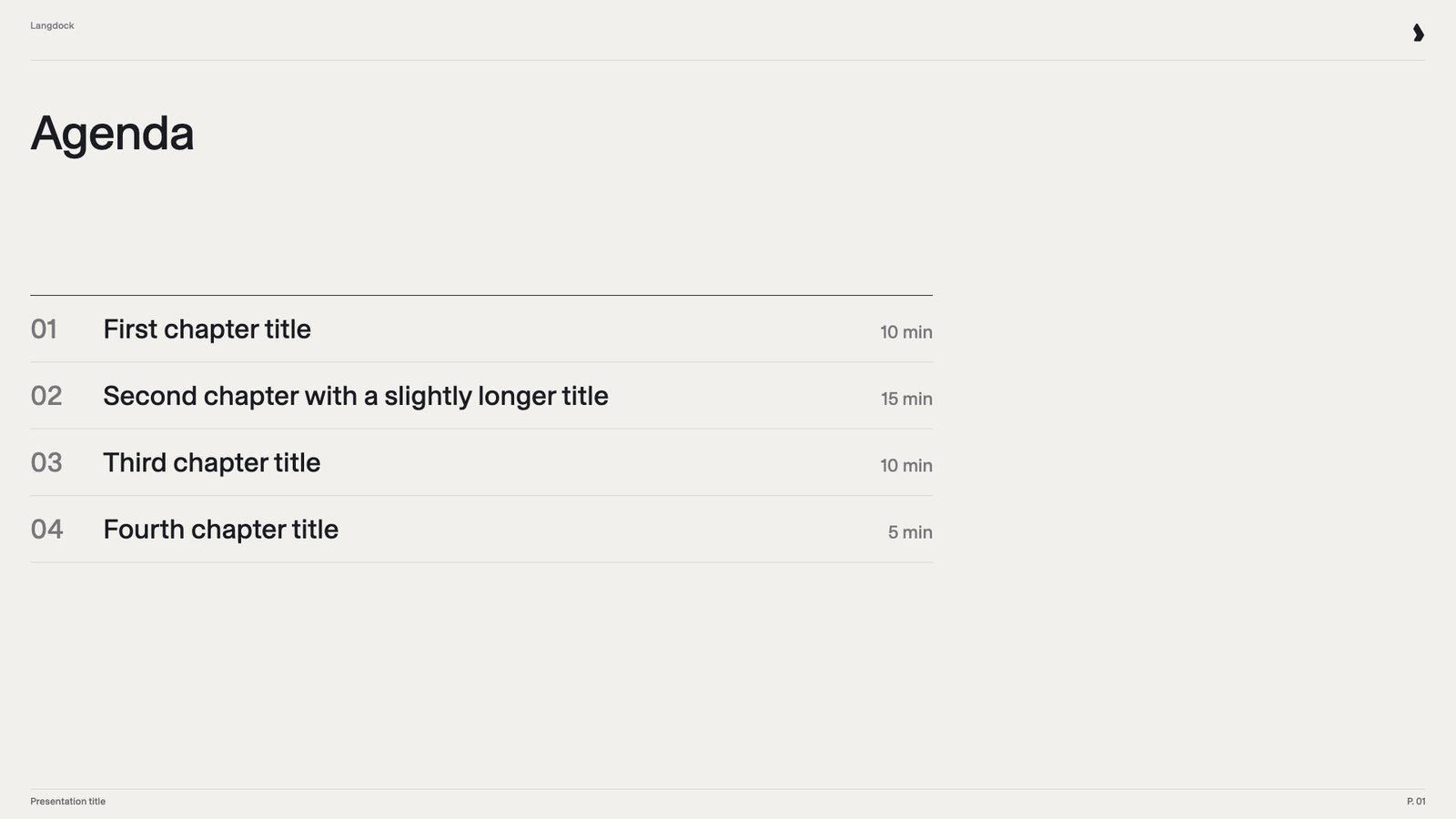
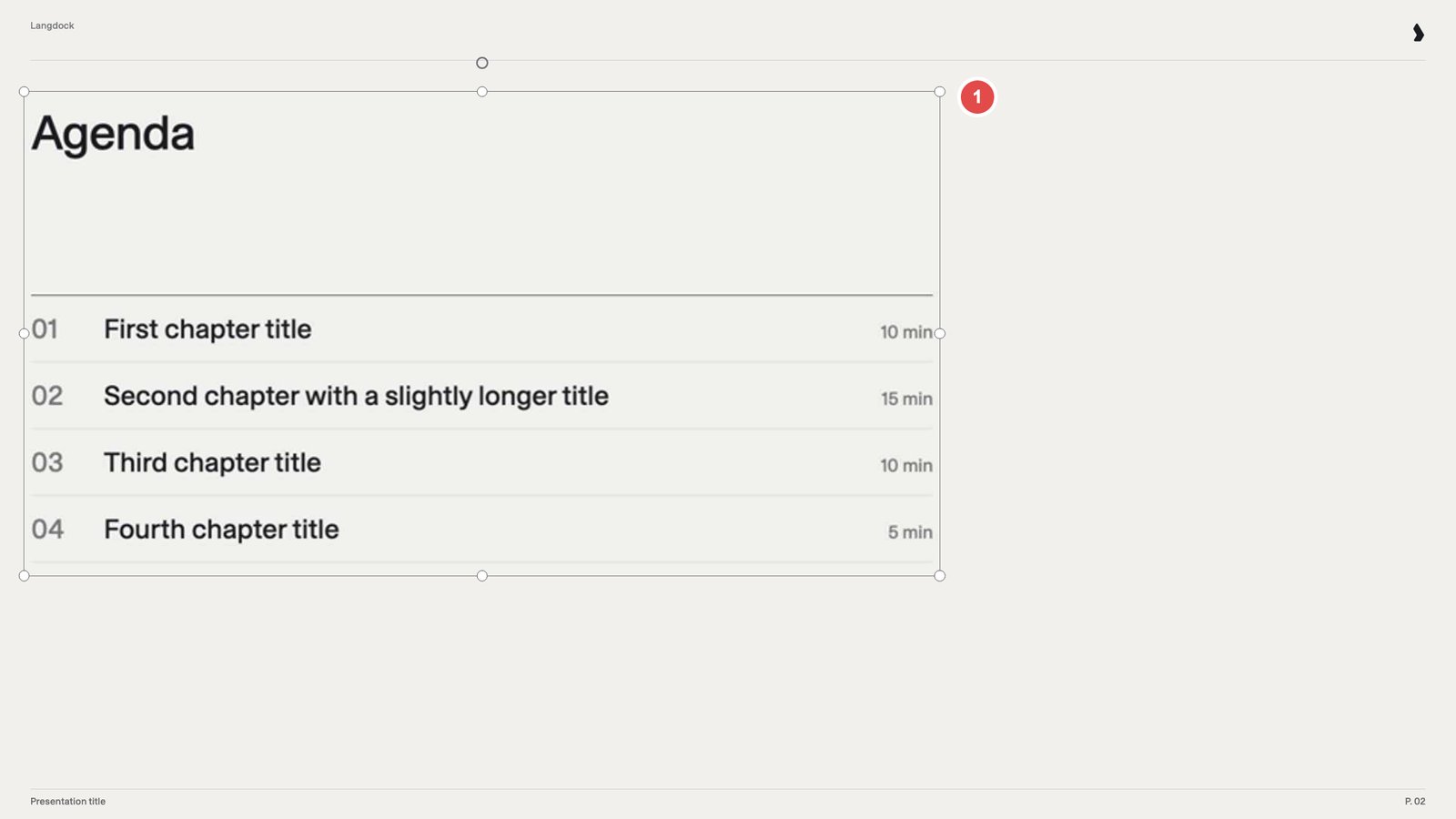
Name your shapes
Name every text box and placeholder by what it holds. Langdock reads shape names to decide which content goes where. “Text Placeholder 4” says nothing. “KPI value” says it all.
Open the example slide in normal view, go to Home → Arrange → Selection Pane, then double-click a name and type the new one. Rename shapes on each example slide. Renaming in Slide Master view only affects new slides.
Fonts
Generated files keep your fonts. Langdock’s previews and visual checks, though, use the fonts installed in Langdock. Missing fonts are replaced by similar ones, so preview line breaks can differ from PowerPoint.
An unlisted house font still works. Check the line breaks in one generated deck.
Improve the slide catalog
At upload, Langdock writes a slide catalog: one entry per slide, saying what it’s for. Langdock uses the catalog to pick slides, so it’s your main lever for better results. You can edit it any time in the template’s instructions, and the next presentation uses the new version. If Langdock picks the wrong slide or ignores a convention, fix the catalog, not the file.- Correct descriptions that misread a slide.
- Add rules below the catalog, such as “Always end with the closing slide”. Text above the first catalog heading still works, but the editor hides it when you reopen the template.
- Connect other skills, such as a storyline skill that asks about audience and goal before building. Share the skill with the template’s users and name it exactly.
- Keep the slide markers such as
<!-- slide:slide7.xml -->unchanged. - Click Save, not Done. In the upload dialog, Done closes without saving your edits.
Set up and share
Upload a.pptx or .potx file under 200 MB with at least one slide. An admin approves one company template, or a small set such as general and sales, and shares it with the whole workspace. Everyone uses the same slides, without duplicates. See File Templates for uploading and sharing.