

Overview
Langdock ships two separate UiPath integrations because they use different APIs and authentication:
A workspace admin configures an OAuth client for UiPath and an Open API token for Automation Hub. You then connect each integration independently.
Supported deployment: UiPath Automation Cloud only. Automation Suite and other self-hosted hosts are not supported.
Why Langdock does not ship a shared UiPath OAuth client
UiPath registers external OAuth applications inside each organization (Admin → External applications → OAuth apps). A client created in one organization cannot serve every Langdock customer’s organization. Because of that, Langdock cannot provide a central UiPath client the way it does for Microsoft or Google. A UiPath admin in your organization must create the confidential application, then a Langdock workspace admin pastes the Application ID and app secret into Bring Your Own OAuth Client.UiPath (Orchestrator)
Connect Orchestrator so agents can run and monitor automations on behalf of each signed-in user.Authentication: OAuth (your organization’s confidential application)
Availability: All workspace plans
Availability: All workspace plans
Prerequisites
- A UiPath Automation Cloud organization with Orchestrator
- UiPath admin access to create an external OAuth application
- Langdock workspace admin access to configure the OAuth client
- The Redirect URL and scope list from Langdock’s UiPath integration settings
Set up the OAuth client
Complete these steps once per Langdock workspace (or once per group client if you use group-scoped clients).1
Copy the Redirect URL and scopes from Langdock
Go to Workspace settings → Integrations, select UiPath, then click Configure your OAuth client to use this integration.Copy the Redirect URL. Leave Sync scopes with enabled actions on, then copy the Scopes list. Keep this dialog open or paste the values somewhere safe before you switch to UiPath.
2
Create a confidential OAuth app in UiPath
In UiPath Automation Cloud, open organization Admin → External applications → OAuth apps, then click Add application.Configure the app as follows:
Open this from organization Admin → External applications → OAuth apps. Some UiPath pages also describe an Orchestrator Manage Access route, which may not appear in every tenant.
- Enter an application name (for example,
Langdock). - Select Confidential application.
- Click Add scopes, choose the Orchestrator resource, and grant the scopes from Langdock under User Scope(s). Leave Application Scope(s) empty for this connection flow.
- Paste the Langdock Redirect URL into the redirect URL field.
- Save the application.
3
Save the client in Langdock
Back in the Langdock OAuth client dialog: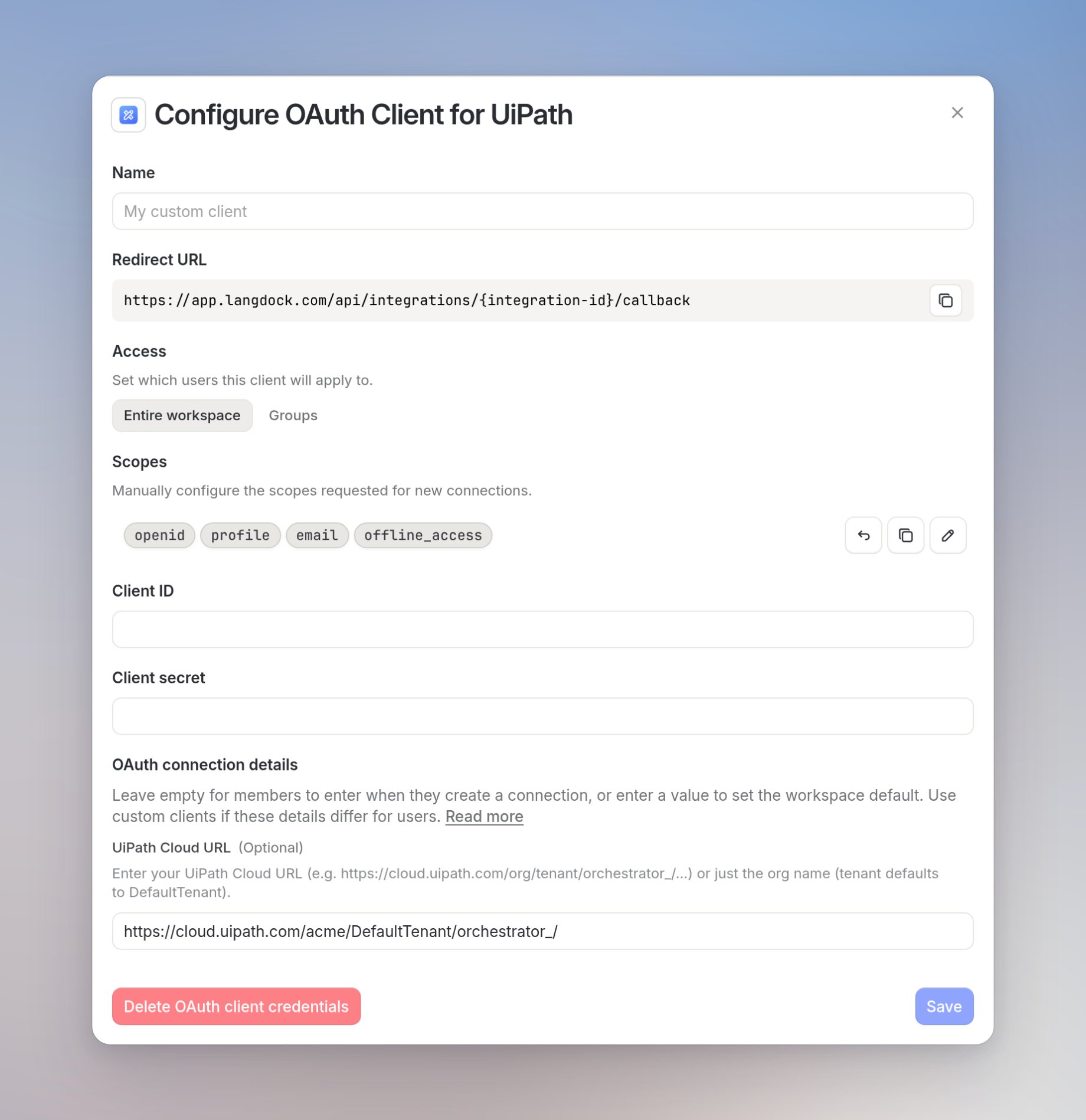
- Optionally set a Name and choose Entire workspace, User choice, or Groups.
- Paste the UiPath Application ID into Client ID.
- Paste the UiPath app secret into Client secret with no extra spaces or line breaks.
- If the dialog shows OAuth connection details, you can save a UiPath Cloud URL as the default for that client, for example
https://cloud.uipath.com/acme/DefaultTenant/orchestrator_/. - Click Save, confirm, then activate the client from the client list.
4
Connect a UiPath account
Open Integrations, select UiPath, and add a connection.Members paste a UiPath Cloud URL that includes your organization and tenant, for example
https://cloud.uipath.com/acme/DefaultTenant/orchestrator_/, unless you already set a default under OAuth connection details. You can also enter just the org name (tenant defaults to DefaultTenant) or org/tenant.Complete the OAuth consent screen. Langdock acts with that user’s Orchestrator permissions.5
Start using UiPath in Langdock
Tag the integration with
@ in any agent to list folders and processes, trigger jobs, queue work items, or inspect job history and audit logs.Common use cases
Run automations
Trigger Orchestrator jobs and add queue items from chat or workflows
Discover processes
List folders and processes, including personal workspaces and Solution folders
Troubleshoot runs
Check job status, pull job details and execution logs, and review faulted jobs
Audit activity
Read Orchestrator audit logs for who changed jobs, queues, or other components
Troubleshooting
UiPath Automation Hub
Connect Automation Hub so agents can discover automation ideas and pipeline context. Visibility follows the Open API token user’s Automation Hub roles and category access.Authentication: API Key (personal or user-assigned Open API token)
Category: Knowledge Base
Availability: All workspace plans
Category: Knowledge Base
Availability: All workspace plans
Prerequisites
- A UiPath Automation Cloud organization with Automation Hub enabled
- Access to Admin Console → Platform Setup → Open API to create or copy a token
- A personal or user-assigned Open API token (tenant-level tokens cannot search automations)
Setup
1
Copy your Automation Hub Cloud URL
Open Automation Hub in the browser and copy the URL. A typical shape is
https://cloud.uipath.com/mycompany/DefaultTenant/automationhub_/.... Langdock extracts the organization and tenant from this URL. You can also enter just the org name (tenant defaults to DefaultTenant) or org/tenant.Only UiPath Automation Cloud URLs are accepted. Automation Suite and other self-hosted hosts are rejected.
2
Generate a personal Open API token
In Automation Hub go to Admin Console → Platform Setup → Open API, then create or select a personal or user-assigned token. Use Copy to Clipboard next to the token so you get the combined
Tenant ID/Token value.Follow UiPath’s token guide for the exact UI steps. If you set an App key when creating the token, copy that as well.3
Navigate to Integrations in Langdock
Go to Integrations and find UiPath Automation Hub.
4
Enter your credentials
Paste the UiPath Cloud URL, the Open API credential (
Tenant ID/Token), and the App key if you created one. Leave App key empty otherwise.5
Start using Automation Hub in Langdock
Tag the integration with
@ in any agent to search ideas, look up pipeline context, or browse categories and applications.Permissions and token management
Unlike Microsoft or Google integrations, Automation Hub does not support delegated per-user OAuth. Use this section to understand what that means and how to manage tokens safely.Understanding permission types
Langdock uses the token user’s Automation Hub rights. Every request runs as the user assigned to the Open API token (category access plus role permissions). Langdock does not add its own privacy layer, and it does not strip privileged fields.
Recommended setup
Create separate connections for regular catalog access and for privileged CoE work. Do not reuse a high-privilege CoE token as the default connection for everyone.Regular-user catalog connection
- Create an Automation Hub user whose roles and category access match what regular Langdock users should be allowed to see.
- Grant only the permissions needed for search and basic idea detail. Skip CBA, collaborator, and detailed assessment permissions unless they are deliberately in scope.
- Generate a personal or user-assigned Open API token for that user (not a tenant-level token).
- Connect it in Langdock, then either:
- Share the connection with the people or groups who should use the catalog (Sharing Non-OAuth Connections Directly), or
- Preselect it on an agent as a fixed connection (Using shared connections in agent actions).
CoE connection
Separately, the Center of Excellence (or another privileged team) can create their own Open API token for a user with broader Automation Hub permissions. Keep that connection on CoE-only agents or workflows.What a limited token can see
What each action can return
Polling triggers (New automation idea, Updated automation idea) inherit the same visibility: they only see ideas the token user can already access.
For a regular-user catalog connection, enable the catalog actions you need and leave privileged options off unless required: Get cost-benefit analysis, Include collaborators, and Include advanced assessment.
Common use cases
Idea discovery
Search automation ideas by text, phase, status, category, or application
Pipeline context
Look up an idea’s current phase and status, plus categories and apps it touches
Taxonomy browsing
List categories and applications to understand how ideas are organized
Change signals
Trigger workflows when ideas are created or updated within the token user’s visibility