

Set up your models in Langdock
Completion models
These are the models your users select in chat. Add the models you want to make available from the providers you have keys for. We support models hosted by Microsoft Azure, AWS Bedrock, Gemini Enterprise Agent Platform, Google AI Studio, OpenAI, Anthropic, Mistral, DeepSeek, Perplexity, Black Forest Labs, Replicate, the Vercel AI Gateway, and any OpenAI-compatible endpoint. For quotas, between 200k and 500k TPM (tokens per minute) covers around 200 users. For your most-used model, you may need 500k–1M TPM.Use How to add fallback models to add multiple deployments for the same model.
Image generation models
Add at least one image generation model so users can generate images from chat. See the Image tab in the adding models guide for setup instructions.Embedding model
Embedding models power document search and Knowledge bases. The platform requires a model with 1536 dimensions. Any OpenAI or Azure-compatible embedding model with 1536 dimensions will work. Set the model as the workspace default with the Embedding model selector on the Models settings page.Decision model
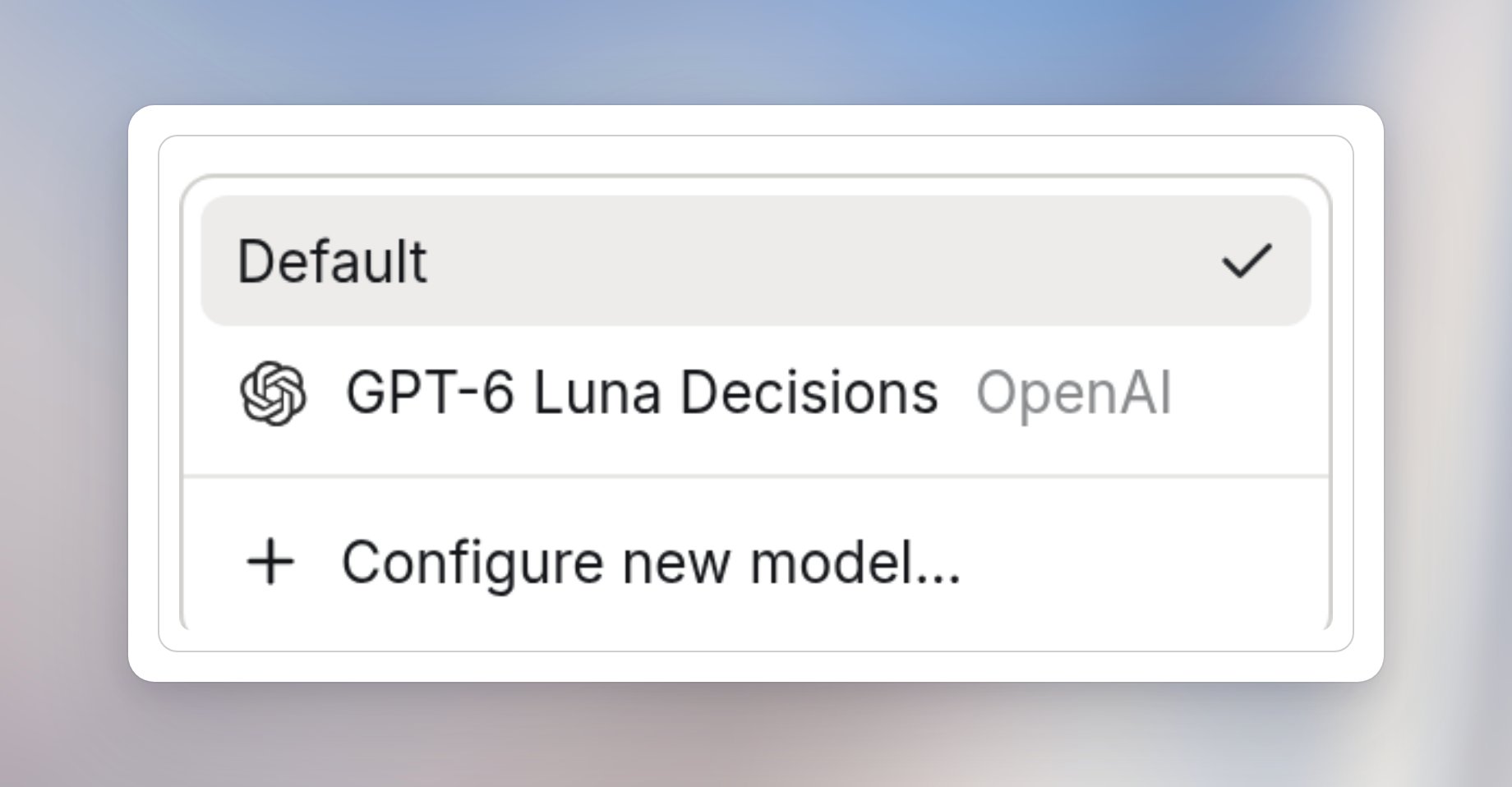
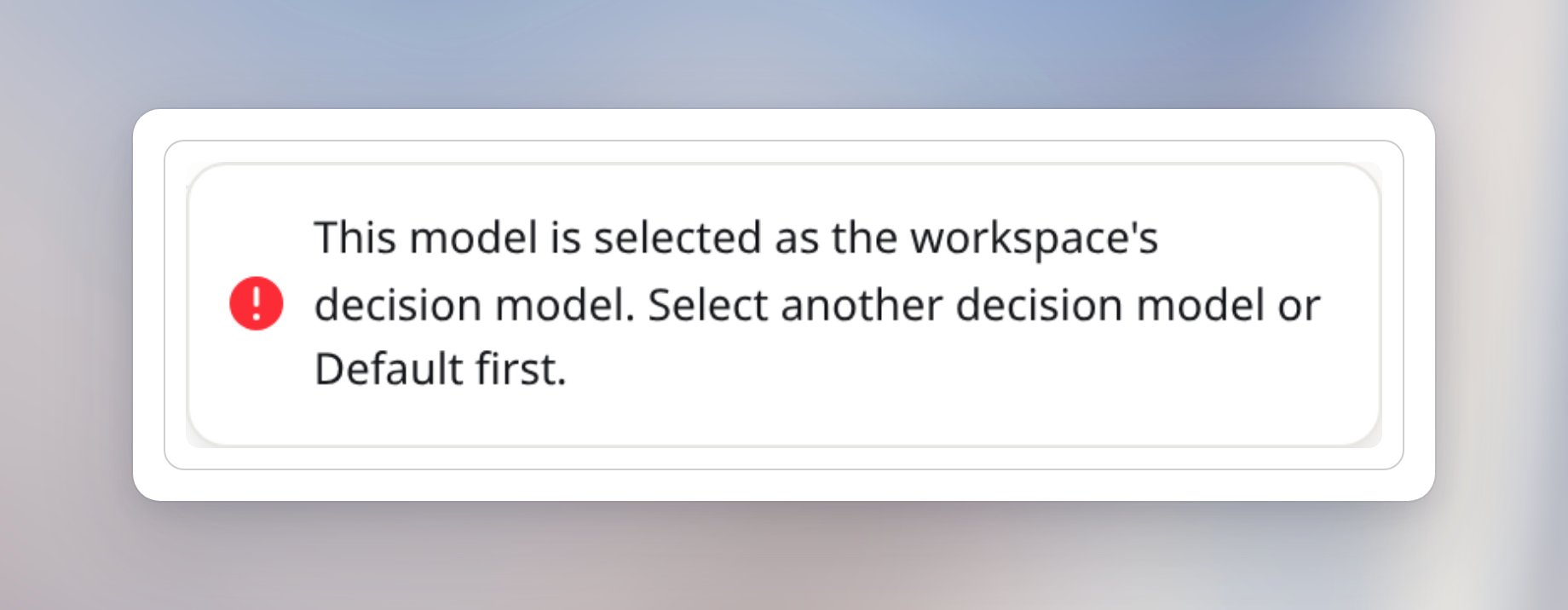
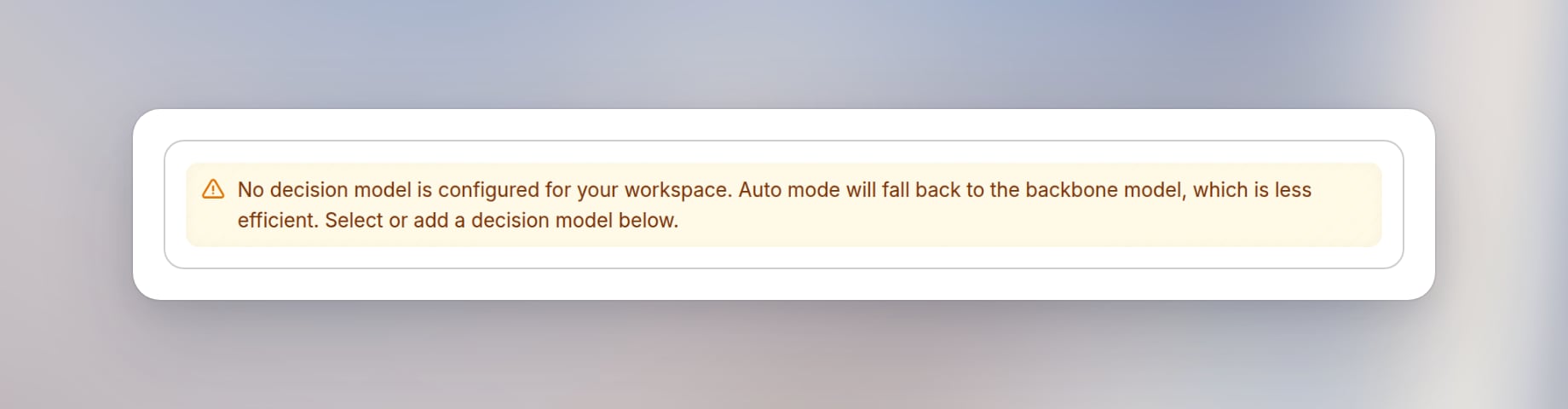
When your workspace uses its own keys, Decision model appears under Backbone model on the Models settings page. Auto mode uses it to choose a fast or a powerful model for a new chat. Leave Default to use the first model in the Decision tab that can run. A model you select is used only while it can run. If that model cannot run, Langdock does not switch to another model in the tab.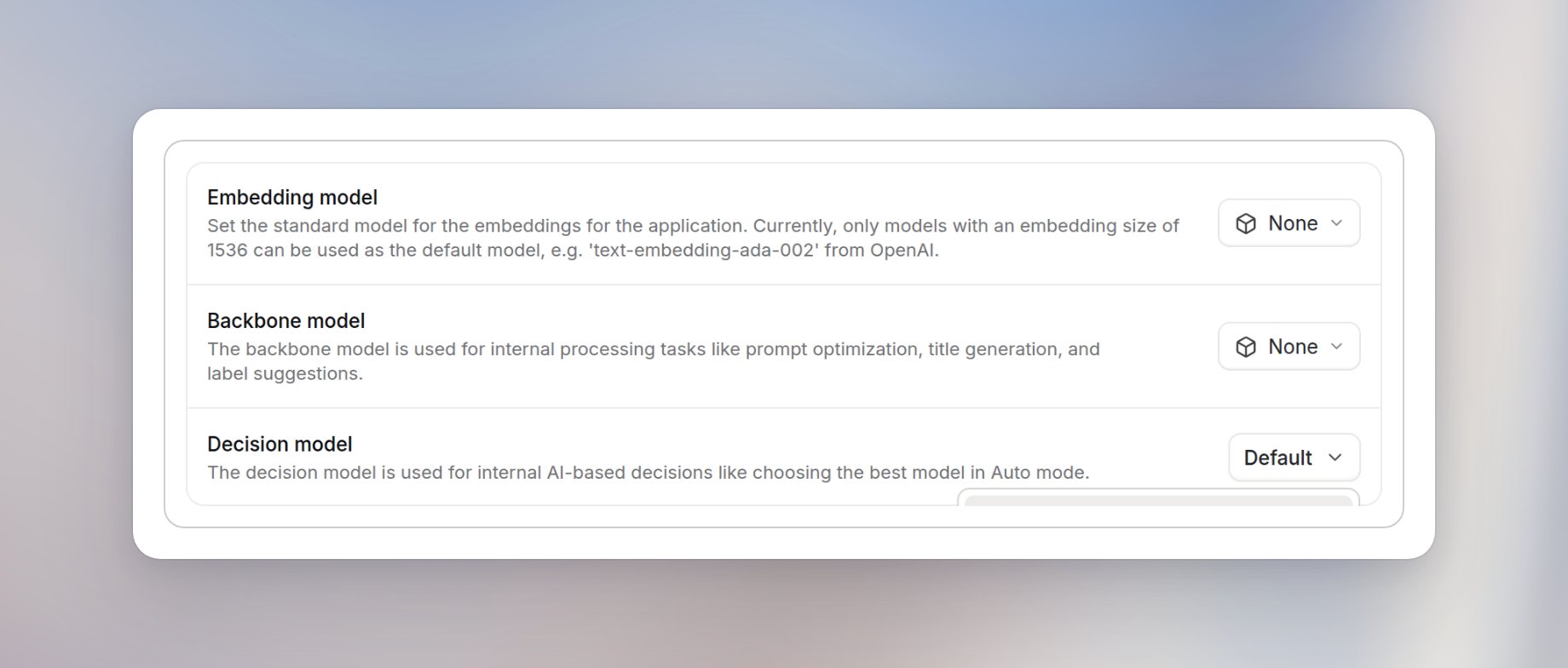
Deep Research models
Cloud BYOK workspaces need a Reasoning model and a Fast Reasoning model. They also need a Backbone model. Deep Research uses the dedicated Deep Research Backbone model when one is configured, and automatically falls back to the workspace Backbone model otherwise. Go to Settings > Products > Deep Research and configure the required models:Recommended settings: Reasoning and Fast Reasoning models
Recommended settings: Reasoning and Fast Reasoning models
Recommended settings: Backbone model
Recommended settings: Backbone model
- Completion models from the providers you want to offer
- 1 or more image generation models
- 1x Embedding model (1536 dimensions)
- Reasoning and Fast Reasoning models configured with the correct settings above
- A Backbone model configured for the workspace or Deep Research
2. Reach out to the Langdock team
Once your models are set up, contact the Langdock team, and we will activate BYOK for your workspace on our side.3. Test your models
Once BYOK is active, verify each model type works:- Completion models: send a prompt to each model in the interface (e.g. “write a story about dogs”).
- Image model: ask any model to generate an image.
- Embedding model: create a Knowledge base in the Library, upload a file, then @mention the Knowledge base in a chat and ask a question about the file. You should get an answer based on the file content.
- Deep Research: run a Deep Research query and check that the report is detailed and well-structured. If it’s shallow, recheck the model configuration settings above.