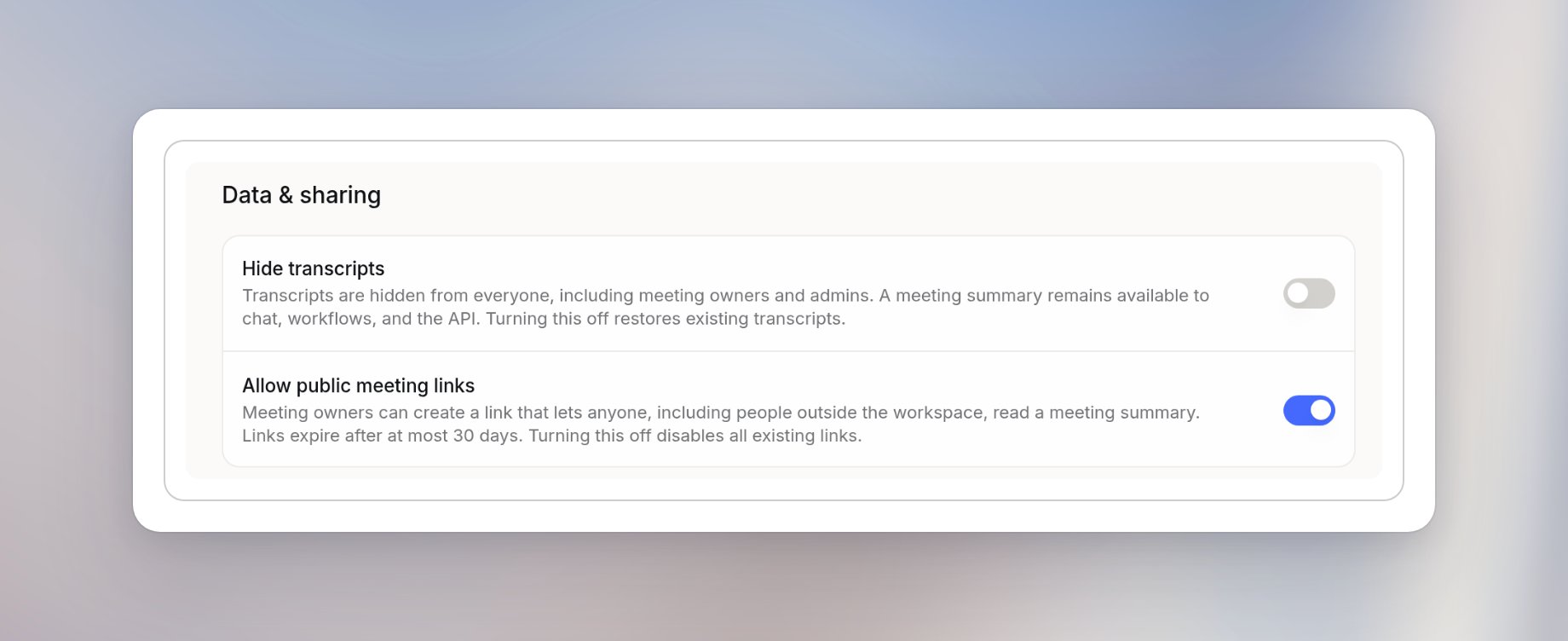
Turn on Hide transcripts to hide transcripts from everyone, including meeting owners and admins. The meeting summary remains available to chat, workflows and the API. Turning the setting off again restores existing transcripts.
Hide transcripts only controls visibility. It doesn’t delete meeting data or set a retention period. Meetings are kept until the owner deletes them, and workspace data retention settings don’t apply to meetings. See Privacy and data.
Turn on Allow public meeting links to let meeting owners create links that anyone, including people outside your workspace, can use to read a meeting summary. Public links don’t show the transcript or personal notes. Links expire after at most 30 days, and the share dialog offers 7 days by default.Turning this setting off disables all existing public meeting links. For the member side, see Sharing and access.
Was this page helpful?
{"docsConfig":{"theme":"mint","$schema":"https://mintlify.com/docs.json","name":"Docs","colors":{"primary":"#4469FC","light":"#ECF0FF","dark":"#0D001D"},"logo":{"light":"https://mintcdn.com/langdock-34/URgvNwU7CYGZq8R7/logo/light.svg?fit=max\u0026auto=format\u0026n=URgvNwU7CYGZq8R7\u0026q=85\u0026s=594b4bd597e2629fb1a7dccfae6aa1c4","dark":"https://mintcdn.com/langdock-34/URgvNwU7CYGZq8R7/logo/dark.svg?fit=max\u0026auto=format\u0026n=URgvNwU7CYGZq8R7\u0026q=85\u0026s=d063d52fb4d331afb82adad972214673"},"favicon":"https://mintcdn.com/langdock-34/KbxhVmfYOcTup72x/favicon.png?fit=max\u0026auto=format\u0026n=KbxhVmfYOcTup72x\u0026q=85\u0026s=e12cd6cccfe5c94bf4ae6ea4fba7959c","background":{"color":{"dark":"#090014"}},"navbar":{"primary":{"type":"button","label":"Back to app","href":"https://app.langdock.com"}},"footer":{"socials":{"linkedin":"https://www.linkedin.com/company/langdock"}},"errors":{"404":{"redirect":true}},"contextual":{"options":["copy","view","mcp","cursor","vscode",{"title":"Ask Langdock","description":"Ask Langdock about the current page","icon":"/favicon.png","href":{"base":"https://app.langdock.com/chat","query":[{"key":"q","value":"Read from https://docs.langdock.com$path.md so I can ask questions about it."},{"key":"sendPrompt","value":"true"}]}}],"display":"header"},"styling":{"latex":true},"navigation":{"global":{"anchors":[{"anchor":"Changelog","icon":"newspaper","href":"https://www.langdock.com/changelog"},{"anchor":"Status","icon":"signal-bars","href":"https://status.langdock.com/"},{"anchor":"Support","icon":"messages-question","href":"https://www.langdock.com/contact-us"}]},"languages":[{"language":"en","default":true,"href":"en/using-langdock/get-started/introduction"},{"language":"de","href":"de/using-langdock/get-started/introduction"}]}},"deployment":{"deploymentMetadataValue":{"subdomain":"langdock-34","hasAudioNarration":false,"actualSubdomain":"langdock-34","customDomains":["docs.langdock.com"],"gitSource":{"type":"github","owner":"langdock","repo":"docs","deployBranch":"main","contentDirectory":"","isPrivate":true,"mountPath":"","label":""},"chroma":{"liveDeploymentHistoryId":"6ae9edf84867c64450fca0de","collectionId":"637a746e-3ad4-4c30-a0fc-ef6023cf77db","schemaVersion":"v3","latestBuiltDeploymentHistoryId":"6ae9edf84867c64450fca0de"},"feedback":{"thumbs":true,"agentFeedback":false},"entitlements":{"AI_CHAT":{"status":"ENABLED"},"REMOVE_BRANDING":{"status":"DISABLED"},"CONTEXTUAL_FEEDBACK":{"status":"DISABLED"},"CODE_SNIPPET_FEEDBACK":{"status":"DISABLED"},"WEB_MCP":{"status":"ENABLED"},"NARRATION":{"status":"ENABLED"}},"buildId":"6ae9eef875120cb36f291041","clientVersion":"0.0.4045","searchFilterCounts":[{"language":"en","tag":"Using Langdock","count":151},{"language":"de","tag":"Langdock nutzen","count":151},{"language":"en","tag":"Developer","count":141},{"language":"de","tag":"Entwickler","count":141},{"language":"en","tag":"Admin","count":111},{"language":"de","tag":"Admin","count":111},{"language":"en","tag":"Manage Integrations","count":43},{"language":"de","tag":"Integrationen verwalten","count":43},{"language":"en","tag":"Guides","count":40},{"language":"de","tag":"Anleitungen","count":40},{"language":"en","tag":"Billing API","count":36},{"language":"de","tag":"Billing API","count":36},{"language":"en","tag":"Workflows","count":28},{"language":"de","tag":"Workflows","count":28},{"language":"en","tag":"Integrations","count":19},{"language":"de","tag":"Integrationen","count":19},{"language":"en","tag":"Node Types","count":18},{"language":"de","tag":"Node Types","count":18},{"language":"en","tag":"Integration Setup Guides","count":17},{"language":"de","tag":"Integrations-Setup-Anleitungen","count":17}]},"assistantConfig":{"deflection":{"enabled":false}},"basePath":"","hasChatPermissions":true,"hasWebMcpPermissions":true,"toggles":[{"name":"kill-isr","enabled":true,"variant":{"name":"disabled","enabled":false,"feature_enabled":true},"impressionData":false},{"name":"agent-mintlify-slack","enabled":true,"variant":{"name":"disabled","enabled":false,"feature_enabled":true},"impressionData":false},{"name":"agent-integrations-settings","enabled":true,"variant":{"name":"disabled","enabled":false,"feature_enabled":true},"impressionData":false},{"name":"automations-pr-grouping","enabled":true,"variant":{"name":"disabled","enabled":false,"feature_enabled":true},"impressionData":false},{"name":"custom-prefix","enabled":true,"variant":{"name":"disabled","enabled":false,"feature_enabled":true},"impressionData":false},{"name":"analytics-v7","enabled":true,"variant":{"name":"disabled","enabled":false,"feature_enabled":true},"impressionData":false},{"name":"user-flows-analytics","enabled":true,"variant":{"name":"disabled","enabled":false,"feature_enabled":true},"impressionData":false},{"name":"no-publish-flow","enabled":true,"variant":{"name":"disabled","enabled":false,"feature_enabled":true},"impressionData":false},{"name":"workos-onboarding","enabled":true,"variant":{"name":"disabled","enabled":false,"feature_enabled":true},"impressionData":false},{"name":"llms-txt-v2","enabled":true,"variant":{"name":"disabled","enabled":false,"feature_enabled":true},"impressionData":false},{"name":"snapshot-serving-live","enabled":true,"variant":{"name":"disabled","enabled":false,"feature_enabled":true},"impressionData":false},{"name":"stripTemperatureMiddleware","enabled":true,"variant":{"name":"disabled","enabled":false,"feature_enabled":true},"impressionData":false},{"name":"support-platform-pylon-zendesk","enabled":true,"variant":{"name":"disabled","enabled":false,"feature_enabled":true},"impressionData":false},{"name":"snapshot-serving","enabled":true,"variant":{"name":"disabled","enabled":false,"feature_enabled":true},"impressionData":false},{"name":"instant-rollback","enabled":true,"variant":{"name":"disabled","enabled":false,"feature_enabled":true},"impressionData":false},{"name":"granular-notifications-server","enabled":true,"variant":{"name":"disabled","enabled":false,"feature_enabled":true},"impressionData":false},{"name":"granular-notifications","enabled":true,"variant":{"name":"disabled","enabled":false,"feature_enabled":true},"impressionData":false},{"name":"automations-fable","enabled":true,"variant":{"name":"disabled","enabled":false,"feature_enabled":true},"impressionData":false},{"name":"fixed-ai-action-pricing","enabled":true,"variant":{"name":"disabled","enabled":false,"feature_enabled":true},"impressionData":false},{"name":"automation-resolve-merge-conflict","enabled":true,"variant":{"name":"disabled","enabled":false,"feature_enabled":true},"impressionData":false},{"name":"scoped-publishing","enabled":true,"variant":{"name":"disabled","enabled":false,"feature_enabled":true},"impressionData":false},{"name":"mintql","enabled":true,"variant":{"name":"disabled","enabled":false,"feature_enabled":true},"impressionData":false},{"name":"page-level-analytics","enabled":true,"variant":{"name":"disabled","enabled":false,"feature_enabled":true},"impressionData":false},{"name":"editor-version-history-v2","enabled":true,"variant":{"name":"disabled","enabled":false,"feature_enabled":true},"impressionData":false},{"name":"billing-page-v2","enabled":true,"variant":{"name":"disabled","enabled":false,"feature_enabled":true},"impressionData":false},{"name":"full-page-search","enabled":true,"variant":{"name":"disabled","enabled":false,"feature_enabled":true},"impressionData":false},{"name":"workspace-projects","enabled":true,"variant":{"name":"disabled","enabled":false,"feature_enabled":true},"impressionData":false},{"name":"assistant-v5","enabled":true,"variant":{"name":"disabled","enabled":false,"feature_enabled":true},"impressionData":false},{"name":"byok-sep-25","enabled":true,"variant":{"name":"disabled","enabled":false,"feature_enabled":true},"impressionData":false},{"name":"fork-pr-previews","enabled":true,"variant":{"name":"disabled","enabled":false,"feature_enabled":true},"impressionData":false},{"name":"revalidation-jwt","enabled":true,"variant":{"name":"disabled","enabled":false,"feature_enabled":true},"impressionData":false},{"name":"vite-origin","enabled":true,"variant":{"name":"disabled","enabled":false,"feature_enabled":true},"impressionData":false},{"name":"billing-updated-9-15","enabled":true,"variant":{"name":"disabled","enabled":false,"feature_enabled":true},"impressionData":false},{"name":"workos-sso-scim","enabled":true,"variant":{"name":"disabled","enabled":false,"feature_enabled":true},"impressionData":false},{"name":"hobby-abuse-scan","enabled":true,"variant":{"name":"disabled","enabled":false,"feature_enabled":true},"impressionData":false},{"name":"dashboard-inbox","enabled":true,"variant":{"name":"disabled","enabled":false,"feature_enabled":true},"impressionData":false},{"name":"workos-signup","enabled":true,"variant":{"name":"disabled","enabled":false,"feature_enabled":true},"impressionData":false},{"name":"turbopuffer-dual-write","enabled":true,"variant":{"name":"disabled","enabled":false,"feature_enabled":true},"impressionData":false},{"name":"workos-enabled","enabled":true,"variant":{"name":"disabled","enabled":false,"feature_enabled":true},"impressionData":false},{"name":"approve-review-flow","enabled":true,"variant":{"name":"disabled","enabled":false,"feature_enabled":true},"impressionData":false},{"name":"sso-setup-deadline-banner","enabled":true,"variant":{"name":"disabled","enabled":false,"feature_enabled":true},"impressionData":false}],"googleFontsInlined":false},"customCss":[],"page":{"pagePath":"en/admin/manage-meetings/data-sharing","slug":"/en/admin/manage-meetings/data-sharing","pageMetadata":{"title":"Data \u0026 sharing","description":"Control transcript visibility and public meeting links.","keywords":["meetings","admin","hide transcripts","public links"],"href":"/en/admin/manage-meetings/data-sharing"},"description":{"compiledSource":"\"use strict\";\nconst {jsx: _jsx} = arguments[0];\nconst {useMDXComponents: _provideComponents} = arguments[0];\nfunction _createMdxContent(props) {\n const _components = {\n p: \"p\",\n ..._provideComponents(),\n ...props.components\n };\n return _jsx(_components.p, {\n children: \"Control transcript visibility and public meeting links.\"\n });\n}\nfunction MDXContent(props = {}) {\n const {wrapper: MDXLayout} = {\n ..._provideComponents(),\n ...props.components\n };\n return MDXLayout ? _jsx(MDXLayout, {\n ...props,\n children: _jsx(_createMdxContent, {\n ...props\n })\n }) : _createMdxContent(props);\n}\nreturn {\n default: MDXContent\n};\n","frontmatter":{},"scope":{}},"pageType":"default","mdx":{"mdxSource":{"compiledSource":"\"use strict\";const{Fragment:_Fragment,jsx:_jsx,jsxs:_jsxs}=arguments[0];const{useMDXComponents:_provideComponents}=arguments[0];function _createMdxContent(props){const _components={a:`a`,p:`p`,strong:`strong`,..._provideComponents(),...props.components},{Frame,Heading,OptimizedImage,Warning}=_components;if(!Frame)_missingMdxReference(`Frame`,true);if(!Heading)_missingMdxReference(`Heading`,true);if(!OptimizedImage)_missingMdxReference(`OptimizedImage`,true);if(!Warning)_missingMdxReference(`Warning`,true);return _jsxs(_Fragment,{children:[_jsxs(_components.p,{children:[`Go to `,_jsx(_components.a,{href:`https://app.langdock.com/settings/workspace/products/meetings`,children:`Settings > Workspace > Products > Meetings > Data \u0026 sharing`}),`.`]}),`\n`,_jsx(Frame,{children:_jsx(OptimizedImage,{src:`https://mintcdn.com/langdock-34/9AYeYQfWKDMjFQBi/images/meetings/meetings-data-sharing.png?fit=max\u0026auto=format\u0026n=9AYeYQfWKDMjFQBi\u0026q=85\u0026s=718058cf6a6494d66a054b634177cbce`,alt:`Data and sharing section with Hide transcripts turned off and Allow public meeting links turned on`,style:{borderRadius:`6px`},\"data-og-width\":`1840`,width:`1840`,\"data-og-height\":`752`,height:`752`,\"data-path\":`images/meetings/meetings-data-sharing.png`,\"data-optimize\":`true`,\"data-opv\":`3`,srcset:`https://mintcdn.com/langdock-34/9AYeYQfWKDMjFQBi/images/meetings/meetings-data-sharing.png?w=280\u0026fit=max\u0026auto=format\u0026n=9AYeYQfWKDMjFQBi\u0026q=85\u0026s=7ed76cde2bacc61c433fccf85b32e1d7 280w, https://mintcdn.com/langdock-34/9AYeYQfWKDMjFQBi/images/meetings/meetings-data-sharing.png?w=560\u0026fit=max\u0026auto=format\u0026n=9AYeYQfWKDMjFQBi\u0026q=85\u0026s=e688270801c9dc8c96aa8902e3f9ffda 560w, https://mintcdn.com/langdock-34/9AYeYQfWKDMjFQBi/images/meetings/meetings-data-sharing.png?w=840\u0026fit=max\u0026auto=format\u0026n=9AYeYQfWKDMjFQBi\u0026q=85\u0026s=95ddf990266bf34d832fb5fd975e16cc 840w, https://mintcdn.com/langdock-34/9AYeYQfWKDMjFQBi/images/meetings/meetings-data-sharing.png?w=1100\u0026fit=max\u0026auto=format\u0026n=9AYeYQfWKDMjFQBi\u0026q=85\u0026s=ee2f61ad2935451518fff8400c750238 1100w, https://mintcdn.com/langdock-34/9AYeYQfWKDMjFQBi/images/meetings/meetings-data-sharing.png?w=1650\u0026fit=max\u0026auto=format\u0026n=9AYeYQfWKDMjFQBi\u0026q=85\u0026s=c71f9fe52564d2ad402ec4212bbd1bd8 1650w, https://mintcdn.com/langdock-34/9AYeYQfWKDMjFQBi/images/meetings/meetings-data-sharing.png?w=2500\u0026fit=max\u0026auto=format\u0026n=9AYeYQfWKDMjFQBi\u0026q=85\u0026s=5989d086441ac4deb9032aaf90997ee4 2500w`})}),`\n`,_jsx(Heading,{level:`2`,id:`hide-transcripts`,children:`Hide transcripts`}),`\n`,_jsxs(_components.p,{children:[`Turn on `,_jsx(_components.strong,{children:`Hide transcripts`}),` to hide transcripts from everyone, including meeting owners and admins. The meeting summary remains available to chat, workflows and the API. Turning the setting off again restores existing transcripts.`]}),`\n`,_jsx(Warning,{children:_jsxs(_components.p,{children:[`Hide transcripts only controls visibility. It doesn’t delete meeting data or set a retention period. Meetings are kept until the owner deletes them, and workspace data retention settings don’t apply to meetings. See `,_jsx(_components.a,{href:`/en/using-langdock/meetings/privacy`,children:`Privacy and data`}),`.`]})}),`\n`,_jsx(Heading,{level:`2`,id:`allow-public-meeting-links`,children:`Allow public meeting links`}),`\n`,_jsxs(_components.p,{children:[`Turn on `,_jsx(_components.strong,{children:`Allow public meeting links`}),` to let meeting owners create links that anyone, including people outside your workspace, can use to read a meeting summary. Public links don’t show the transcript or personal notes. Links expire after at most 30 days, and the share dialog offers 7 days by default.`]}),`\n`,_jsxs(_components.p,{children:[`Turning this setting off disables all existing public meeting links. For the member side, see `,_jsx(_components.a,{href:`/en/using-langdock/meetings/sharing#public-meeting-links`,children:`Sharing and access`}),`.`]})]})}function MDXContent(props={}){const{wrapper:MDXLayout}={..._provideComponents(),...props.components};return MDXLayout?_jsx(MDXLayout,{...props,children:_jsx(_createMdxContent,{...props})}):_createMdxContent(props)}return{default:MDXContent};function _missingMdxReference(id,component){throw new Error(`Expected `+(component?`component`:`object`)+\" `\"+id+\"` to be defined: you likely forgot to import, pass, or provide it.\")}","frontmatter":{},"scope":{"config":{},"pageMetadata":{"title":"Data \u0026 sharing","description":"Control transcript visibility and public meeting links.","keywords":["meetings","admin","hide transcripts","public links"],"href":"/en/admin/manage-meetings/data-sharing"}}},"mdxSourceWithNoJs":null},"mdxExtracts":{"tableOfContents":[{"title":"Hide transcripts","slug":"hide-transcripts","depth":2,"children":[]},{"title":"Allow public meeting links","slug":"allow-public-meeting-links","depth":2,"children":[]}],"codeExamples":{}},"jsLinks":[],"subdomain":"langdock-34","siteName":"Docs","title":"Data \u0026 sharing - Docs","navMaps":{"firstHrefInVersion":{},"firstHrefInLanguage":{"en":{"href":"/en/admin/manage-meetings/data-sharing","matchLevel":0},"de":{"href":"/de/admin/manage-meetings/data-sharing","matchLevel":1}}},"lastModified":"2026-11-03T14:26:45.391Z","originalFileLocation":"en/admin/manage-meetings/data-sharing.mdx","locale":"en"},"headHtml":"\u003cscript data-mint-head>(function(){var d=document.documentElement,p=null;if(!p){try{p=localStorage.getItem(\"isDarkMode\")}catch(e){}if(p==='true')p='dark';else if(p==='false')p='light';if(p!=='light'\u0026\u0026p!=='dark'\u0026\u0026p!=='system')p=\"system\"}var r=p==='system'?(matchMedia(\"(prefers-color-scheme: dark)\").matches?'dark':'light'):p;d.classList.remove(r==='dark'?'light':'dark');d.classList.add(r);d.setAttribute(\"data-theme-preference\",p)})();\u003c/script>\u003cmeta data-mint-head name=\"description\" content=\"Control transcript visibility and public meeting links.\">\u003cmeta data-mint-head name=\"application-name\" content=\"Docs\">\u003cmeta data-mint-head name=\"generator\" content=\"Mintlify\">\u003clink data-mint-head rel=\"icon\" type=\"image/png\" sizes=\"192x192\" href=\"/mintlify-assets/_mintlify/favicons/langdock-34/8EMNQyrrZlRONhj1/_generated/favicon/android-chrome-192x192.png\" media=\"(prefers-color-scheme: light)\">\u003clink data-mint-head rel=\"apple-touch-icon\" type=\"image/png\" sizes=\"180x180\" href=\"/mintlify-assets/_mintlify/favicons/langdock-34/8EMNQyrrZlRONhj1/_generated/favicon/apple-touch-icon.png\">\u003clink data-mint-head rel=\"icon\" type=\"image/png\" sizes=\"16x16\" href=\"/mintlify-assets/_mintlify/favicons/langdock-34/8EMNQyrrZlRONhj1/_generated/favicon/favicon-16x16.png\" media=\"(prefers-color-scheme: light)\">\u003clink data-mint-head rel=\"icon\" type=\"image/png\" sizes=\"32x32\" href=\"/mintlify-assets/_mintlify/favicons/langdock-34/8EMNQyrrZlRONhj1/_generated/favicon/favicon-32x32.png\" media=\"(prefers-color-scheme: light)\">\u003clink data-mint-head rel=\"shortcut icon\" type=\"image/x-icon\" href=\"/mintlify-assets/_mintlify/favicons/langdock-34/8EMNQyrrZlRONhj1/_generated/favicon/favicon.ico\" media=\"(prefers-color-scheme: light)\">\u003clink data-mint-head rel=\"icon\" type=\"image/png\" sizes=\"192x192\" href=\"/mintlify-assets/_mintlify/favicons/langdock-34/8EMNQyrrZlRONhj1/_generated/favicon-dark/android-chrome-192x192.png\" media=\"(prefers-color-scheme: dark)\">\u003clink data-mint-head rel=\"icon\" type=\"image/png\" sizes=\"16x16\" href=\"/mintlify-assets/_mintlify/favicons/langdock-34/8EMNQyrrZlRONhj1/_generated/favicon-dark/favicon-16x16.png\" media=\"(prefers-color-scheme: dark)\">\u003clink data-mint-head rel=\"icon\" type=\"image/png\" sizes=\"32x32\" href=\"/mintlify-assets/_mintlify/favicons/langdock-34/8EMNQyrrZlRONhj1/_generated/favicon-dark/favicon-32x32.png\" media=\"(prefers-color-scheme: dark)\">\u003clink data-mint-head rel=\"shortcut icon\" type=\"image/x-icon\" href=\"/mintlify-assets/_mintlify/favicons/langdock-34/8EMNQyrrZlRONhj1/_generated/favicon-dark/favicon.ico\" media=\"(prefers-color-scheme: dark)\">\u003cmeta data-mint-head property=\"og:title\" content=\"Data \u0026amp; sharing - Docs\">\u003cmeta data-mint-head property=\"og:description\" content=\"Control transcript visibility and public meeting links.\">\u003cmeta data-mint-head property=\"og:site_name\" content=\"Docs\">\u003cmeta data-mint-head property=\"og:url\" content=\"https://docs.langdock.com/en/admin/manage-meetings/data-sharing\">\u003cmeta data-mint-head property=\"og:type\" content=\"website\">\u003cmeta data-mint-head property=\"og:image\" content=\"https://langdock-34.mintlify.app/_mintlify/api/og/v2?division=Manage+Meetings\u0026amp;title=Data+%26+sharing\u0026amp;description=Control+transcript+visibility+and+public+meeting+links.\u0026amp;theme=af251cb8027ba7e8fe3cc77e\u0026amp;signature=174ea48d7e520a076a8ff2bd3d2956a3a30cc26d6026ae084f5b32ba85035c9e\">\u003cmeta data-mint-head property=\"og:image:width\" content=\"1200\">\u003cmeta data-mint-head property=\"og:image:height\" content=\"630\">\u003cmeta data-mint-head name=\"twitter:card\" content=\"summary_large_image\">\u003cmeta data-mint-head name=\"twitter:title\" content=\"Data \u0026amp; sharing - Docs\">\u003cmeta data-mint-head name=\"twitter:description\" content=\"Control transcript visibility and public meeting links.\">\u003cmeta data-mint-head name=\"twitter:image\" content=\"https://langdock-34.mintlify.app/_mintlify/api/og/v2?division=Manage+Meetings\u0026amp;title=Data+%26+sharing\u0026amp;description=Control+transcript+visibility+and+public+meeting+links.\u0026amp;theme=af251cb8027ba7e8fe3cc77e\u0026amp;signature=174ea48d7e520a076a8ff2bd3d2956a3a30cc26d6026ae084f5b32ba85035c9e\">\u003cmeta data-mint-head name=\"twitter:image:width\" content=\"1200\">\u003cmeta data-mint-head name=\"twitter:image:height\" content=\"630\">\u003cmeta data-mint-head name=\"msapplication-config\" content=\"/mintlify-assets/_mintlify/favicons/langdock-34/8EMNQyrrZlRONhj1/_generated/favicon/browserconfig.xml\">\u003cmeta data-mint-head name=\"apple-mobile-web-app-title\" content=\"Docs\">\u003cmeta data-mint-head name=\"msapplication-TileColor\" content=\"#4469FC\">\u003clink data-mint-head rel=\"canonical\" href=\"https://docs.langdock.com/en/admin/manage-meetings/data-sharing\">\u003clink data-mint-head rel=\"alternate\" type=\"application/xml\" href=\"/sitemap.xml\">\u003clink data-mint-head rel=\"alternate\" type=\"text/markdown\" href=\"/en/admin/manage-meetings/data-sharing.md\">\u003clink data-mint-head rel=\"alternate\" hreflang=\"en\" href=\"https://docs.langdock.com/en/admin/manage-meetings/data-sharing\">\u003clink data-mint-head rel=\"alternate\" hreflang=\"de\" href=\"https://docs.langdock.com/de/admin/manage-meetings/data-sharing\">\u003clink data-mint-head rel=\"alternate\" hreflang=\"x-default\" href=\"https://docs.langdock.com/en/admin/manage-meetings/data-sharing\">\u003cscript data-mint-head type=\"application/ld+json\">{\"@context\":\"https://schema.org\",\"@graph\":[{\"@type\":\"Organization\",\"@id\":\"https://docs.langdock.com/#organization\",\"name\":\"Docs\",\"url\":\"https://docs.langdock.com\",\"logo\":{\"@type\":\"ImageObject\",\"url\":\"https://mintcdn.com/langdock-34/URgvNwU7CYGZq8R7/logo/light.svg?fit=max\u0026auto=format\u0026n=URgvNwU7CYGZq8R7\u0026q=85\u0026s=594b4bd597e2629fb1a7dccfae6aa1c4\"}},{\"@type\":\"WebSite\",\"@id\":\"https://docs.langdock.com#website\",\"name\":\"Docs\",\"url\":\"https://docs.langdock.com\",\"publisher\":{\"@id\":\"https://docs.langdock.com/#organization\"}},{\"@type\":\"WebPage\",\"@id\":\"https://docs.langdock.com/en/admin/manage-meetings/data-sharing#webpage\",\"url\":\"https://docs.langdock.com/en/admin/manage-meetings/data-sharing\",\"name\":\"Data \u0026 sharing\",\"description\":\"Control transcript visibility and public meeting links.\",\"dateModified\":\"2026-11-03T14:26:45.391Z\",\"isPartOf\":{\"@id\":\"https://docs.langdock.com#website\"},\"breadcrumb\":{\"@id\":\"https://docs.langdock.com/en/admin/manage-meetings/data-sharing#breadcrumb\"}},{\"@type\":\"BreadcrumbList\",\"@id\":\"https://docs.langdock.com/en/admin/manage-meetings/data-sharing#breadcrumb\",\"itemListElement\":[{\"@type\":\"ListItem\",\"position\":1,\"name\":\"Manage Meetings\",\"item\":\"https://docs.langdock.com/en/admin/manage-meetings/access\"},{\"@type\":\"ListItem\",\"position\":2,\"name\":\"Data \u0026 sharing\",\"item\":\"https://docs.langdock.com/en/admin/manage-meetings/data-sharing\"}]},{\"@type\":[\"Article\",\"TechArticle\"],\"@id\":\"https://docs.langdock.com/en/admin/manage-meetings/data-sharing#article\",\"headline\":\"Data \u0026 sharing\",\"name\":\"Data \u0026 sharing\",\"description\":\"Control transcript visibility and public meeting links.\",\"url\":\"https://docs.langdock.com/en/admin/manage-meetings/data-sharing\",\"mainEntityOfPage\":{\"@id\":\"https://docs.langdock.com/en/admin/manage-meetings/data-sharing#webpage\"},\"dateModified\":\"2026-11-03T14:26:45.391Z\",\"keywords\":\"meetings, admin, hide transcripts, public links\",\"publisher\":{\"@id\":\"https://docs.langdock.com/#organization\"},\"isPartOf\":{\"@id\":\"https://docs.langdock.com#website\"}}]}\u003c/script>\u003cscript data-mint-head type=\"application/ld+json\">{\"@context\":\"https://schema.org\",\"@type\":\"WebSite\",\"name\":\"Docs\",\"creator\":{\"@type\":\"Organization\",\"name\":\"Mintlify\",\"url\":\"https://mintlify.com\"}}\u003c/script>","siteName":"Docs","nav":{"global":{"anchors":[{"anchor":"Changelog","icon":"newspaper","href":"https://www.langdock.com/changelog"},{"anchor":"Status","icon":"signal-bars","href":"https://status.langdock.com/"},{"anchor":"Support","icon":"messages-question","href":"https://www.langdock.com/contact-us"}]},"languages":[{"language":"en","default":true,"tabs":[{"tab":"Using Langdock","pages":[{"title":"Using Langdock","href":"/en/using-langdock/get-started/introduction"}]},{"tab":"Developer","pages":[{"title":"Developer","href":"/en/developer/overview/api-introduction"}]},{"tab":"Admin","groups":[{"group":"Workspace","pages":[{"title":"Workspace Settings","href":"/en/admin/workspace/workspace"},{"title":"Workspace Setup","href":"/en/admin/workspace/workspace-setup"},{"title":"Roles and extra permissions","href":"/en/admin/workspace/roles"},{"title":"Permission Recommendations","href":"/en/admin/workspace/permissions"},{"title":"Manage scheduled tasks","href":"/en/admin/workspace/scheduled-tasks"}]},{"group":"Manage Agents","pages":[{"title":"Allowed usage","href":"/en/admin/manage-agents/allowed-usage"},{"title":"Verify Agents","href":"/en/admin/manage-agents/verify-agents"},{"title":"Highlight Agents","href":"/en/admin/manage-agents/highlight-agents"},{"title":"Disable Agents","href":"/en/admin/manage-agents/disable-agents"},{"title":"Archive Agents","href":"/en/admin/manage-agents/archive-agents"},{"title":"Unassign Agents","href":"/en/admin/manage-agents/unassign-agents"},{"title":"Admin-managed sharing","href":"/en/admin/manage-agents/admin-managed-sharing"},{"title":"Agent limits","href":"/en/admin/manage-agents/agent-limits"}]},{"group":"Manage Workflows","pages":[{"title":"Best Practices","href":"/en/admin/manage-workflows/best-practices"},{"title":"Workflow limits","href":"/en/admin/manage-workflows/spend-limits"},{"title":"Security Controls","href":"/en/admin/manage-workflows/security-controls"}]},{"group":"Manage Meetings","pages":[{"title":"Access","href":"/en/admin/manage-meetings/access"},{"title":"Transparency","description":"Require the watermark camera and control the Teams chat notice.","href":"/en/admin/manage-meetings/transparency"},{"title":"Data \u0026 sharing","href":"/en/admin/manage-meetings/data-sharing"}]},{"group":"Manage Apps","pages":[{"title":"Enable Apps","description":"Decide who can use Apps in your workspace, for everyone or for specific members.","href":"/en/admin/manage-apps/enable-apps"},{"title":"Set Apps permissions","href":"/en/admin/manage-apps/permissions"},{"title":"Manage apps in Governance","href":"/en/admin/manage-apps/governance"},{"title":"Apps security and data access","sidebarTitle":"Security and data access","href":"/en/admin/manage-apps/security"}]},{"group":"Desktop app","pages":[{"title":"Enterprise Guide for Langdock Desktop","sidebarTitle":"Enterprise Guide for Langdock Desktop","href":"/en/admin/desktop-app/deploy"},{"title":"Upgrade an existing deployment","sidebarTitle":"Upgrade an existing deployment","href":"/en/admin/desktop-app/upgrade"},{"title":"Manage desktop app updates","sidebarTitle":"Manage updates","href":"/en/admin/desktop-app/updates"}]},{"group":"Manage Integrations","pages":[{"title":"Integrations Guide","href":"/en/admin/manage-integrations/integrations-guide"},{"group":"Hidden","hidden":true,"pages":[{"title":"Integration Details","href":"/en/admin/manage-integrations/integrations-details"}]},{"group":"Integration Setup Guides","pages":[{"title":"Ashby","href":"/en/admin/manage-integrations/integration-setup-guides/ashby"},{"title":"Azure AI Search","href":"/en/admin/manage-integrations/integration-setup-guides/azure-search"},{"title":"Databricks","href":"/en/admin/manage-integrations/integration-setup-guides/databricks"},{"title":"Google Maps","href":"/en/admin/manage-integrations/integration-setup-guides/google-maps"},{"title":"Looker","href":"/en/admin/manage-integrations/integration-setup-guides/looker"},{"title":"Luma","href":"/en/admin/manage-integrations/integration-setup-guides/luma"},{"title":"Metabase","href":"/en/admin/manage-integrations/integration-setup-guides/metabase"},{"group":"Microsoft Fabric","pages":[{"title":"Microsoft Fabric","sidebarTitle":"Overview","href":"/en/admin/manage-integrations/integration-setup-guides/microsoft-fabric"},{"title":"Configure Microsoft Fabric for Langdock","sidebarTitle":"Admin configuration","href":"/en/admin/manage-integrations/integration-setup-guides/microsoft-fabric/setup"},{"title":"Control access and mutations","sidebarTitle":"Access and mutations","href":"/en/admin/manage-integrations/integration-setup-guides/microsoft-fabric/permissions-and-mutations"},{"title":"Troubleshoot Microsoft Fabric","sidebarTitle":"Troubleshooting","href":"/en/admin/manage-integrations/integration-setup-guides/microsoft-fabric/troubleshooting"}]},{"title":"Microsoft Integrations: Permissions \u0026 Admin Approval","sidebarTitle":"Microsoft","href":"/en/admin/manage-integrations/integration-setup-guides/microsoft"},{"title":"Microsoft Entra","href":"/en/admin/manage-integrations/integration-setup-guides/microsoft-entra"},{"title":"ServiceNow","href":"/en/admin/manage-integrations/integration-setup-guides/service-now"},{"title":"Shopify Admin","href":"/en/admin/manage-integrations/integration-setup-guides/shopify"},{"title":"UiPath","href":"/en/admin/manage-integrations/integration-setup-guides/uipath"},{"title":"Zoom","href":"/en/admin/manage-integrations/integration-setup-guides/zoom"}]},{"title":"Bring Your Own OAuth Client","sidebarTitle":"Bring Your Own OAuth Client","href":"/en/admin/manage-integrations/bring-your-own-oauth"},{"title":"Sensitivity Label Policy","href":"/en/admin/manage-integrations/sensitivity-label-policy"},{"title":"Default tool stack","href":"/en/admin/manage-integrations/default-tool-stack"},{"title":"Manage Action Access","href":"/en/admin/manage-integrations/manage-action-access"},{"title":"Manage Action-Level Scopes","href":"/en/admin/manage-integrations/manage-action-level-scopes"},{"group":"Microsoft Integration Scopes","pages":[{"title":"Microsoft Integration Scopes","sidebarTitle":"Overview","href":"/en/admin/manage-integrations/microsoft-integration-scopes"},{"title":"Azure DevOps","href":"/en/admin/manage-integrations/microsoft-integration-scopes/azure-devops"},{"title":"Azure Resource Manager","href":"/en/admin/manage-integrations/microsoft-integration-scopes/azure-resource-manager"},{"title":"Microsoft Dynamics 365","href":"/en/admin/manage-integrations/microsoft-integration-scopes/dynamics-365"},{"title":"Microsoft Entra","href":"/en/admin/manage-integrations/microsoft-integration-scopes/entra"},{"title":"Microsoft Excel","href":"/en/admin/manage-integrations/microsoft-integration-scopes/excel"},{"title":"Microsoft Fabric","href":"/en/admin/manage-integrations/microsoft-integration-scopes/fabric"},{"title":"Microsoft OneDrive","href":"/en/admin/manage-integrations/microsoft-integration-scopes/onedrive"},{"title":"Microsoft Planner","href":"/en/admin/manage-integrations/microsoft-integration-scopes/planner"},{"title":"Microsoft Power BI","href":"/en/admin/manage-integrations/microsoft-integration-scopes/power-bi"},{"title":"Microsoft Teams","href":"/en/admin/manage-integrations/microsoft-integration-scopes/teams"},{"title":"Microsoft To Do","href":"/en/admin/manage-integrations/microsoft-integration-scopes/todo"},{"title":"Microsoft Viva Engage","href":"/en/admin/manage-integrations/microsoft-integration-scopes/viva-engage"},{"title":"Outlook Calendar","href":"/en/admin/manage-integrations/microsoft-integration-scopes/outlook-calendar"},{"title":"Outlook Email","href":"/en/admin/manage-integrations/microsoft-integration-scopes/outlook-email"},{"title":"SharePoint","href":"/en/admin/manage-integrations/microsoft-integration-scopes/sharepoint"}]},{"group":"Chatbot Setup Guides","pages":[{"title":"Slack Bot (Setup)","href":"/en/admin/manage-integrations/chatbot-setup-guides/slack"},{"title":"Teams Bot (Setup)","href":"/en/admin/manage-integrations/chatbot-setup-guides/teams-bot"}]},{"group":"Add-in Setup Guides","pages":[{"title":"Excel Add-in (Setup)","sidebarTitle":"Excel","href":"/en/admin/manage-integrations/add-in-setup-guides/excel"},{"title":"Outlook Add-in (Setup)","sidebarTitle":"Outlook","href":"/en/admin/manage-integrations/add-in-setup-guides/outlook"}]}]},{"group":"Manage Usage","pages":[{"title":"Business plans","href":"/en/admin/manage-usage/plans"},{"title":"Extra Usage","href":"/en/admin/manage-usage/extra-usage"},{"title":"Usage credits","href":"/en/admin/manage-usage/usage-credits"},{"title":"Personal API keys","href":"/en/admin/manage-usage/personal-api-keys"}]},{"group":"Bring your own Keys (BYOK)","pages":[{"title":"Overview","href":"/en/admin/byok/byok"},{"title":"Getting started","href":"/en/admin/byok/byok-setup"},{"title":"How to add your own models","href":"/en/admin/byok/adding-models"},{"title":"How to add fallback models","href":"/en/admin/byok/fallback-models"},{"title":"Recommended Models","href":"/en/admin/byok/recommended-models"},{"title":"Setup Guides","href":"/en/admin/byok/setup-guides"},{"title":"Attribute LiteLLM spend per user","href":"/en/admin/byok/litellm-user-attribution"},{"group":"Usage limits","pages":[{"title":"Usage and spend limits","href":"/en/admin/manage-usage/byok/usage-limits"},{"title":"How to migrate to cost-based limits","href":"/en/admin/manage-usage/byok/migration"}]}]},{"group":"Governance","pages":[{"title":"Overview","href":"/en/admin/governance/overview"},{"title":"Agents","href":"/en/admin/governance/agents"},{"title":"Skills","href":"/en/admin/governance/skills"},{"title":"Compliance Rules","href":"/en/admin/governance/compliance-rules"},{"title":"Share requests","href":"/en/admin/governance/share-requests"}]},{"group":"Compliance \u0026 Governance","pages":[{"title":"Usage Exports","href":"/en/admin/compliance-and-governance/usage-exports"},{"title":"API Usage Export","href":"/en/admin/compliance-and-governance/api-usage-export"},{"title":"Useful Links","href":"/en/admin/compliance-and-governance/legal-compliance"}]},{"group":"AI Adoption \u0026 Rollout","pages":[{"group":"Getting Started","pages":[{"title":"Get Started","href":"/en/admin/ai-adoption-and-rollout/getting-started/onboarding-guide"},{"title":"Rollout Setup","href":"/en/admin/ai-adoption-and-rollout/getting-started/rollout-setup"},{"title":"Rollout Playbook","href":"/en/admin/ai-adoption-and-rollout/getting-started/rollout-playbook"},{"title":"Identifying Use Cases","href":"/en/admin/ai-adoption-and-rollout/getting-started/identify-use-cases"}]},{"group":"Best Practices","pages":[{"title":"Tips and tricks for your internal channels","href":"/en/admin/ai-adoption-and-rollout/best-practices/tips-and-tricks-internal"},{"title":"API Key Best Practices","href":"/en/admin/ai-adoption-and-rollout/best-practices/api-key-best-practices"}]},{"group":"Technical Setup","pages":[{"title":"Shared Slack Channel","href":"/en/admin/ai-adoption-and-rollout/technical-setup/slack-channel"},{"title":"Shared Teams Channel","href":"/en/admin/ai-adoption-and-rollout/technical-setup/teams-channel"}]}]},{"group":"Security","pages":[{"title":"Static IP Configuration","href":"/en/admin/security/static-ip-configuration"},{"title":"IP Restrictions","href":"/en/admin/security/ip-restrictions"},{"title":"Session Management","href":"/en/admin/security/session-management"},{"title":"Mobile App and Microsoft Intune","href":"/en/admin/security/mobile-app-intune"},{"group":"SAML (SSO)","pages":[{"title":"Getting Started","href":"/en/admin/security/saml/saml"},{"title":"Microsoft Entra ID SAML Setup","href":"/en/admin/security/saml/entra"},{"title":"Google SAML Setup","href":"/en/admin/security/saml/google"},{"title":"Okta SAML Setup","href":"/en/admin/security/saml/okta"}]},{"group":"SCIM","pages":[{"title":"Getting Started","href":"/en/admin/security/scim/scim"},{"title":"Microsoft Entra ID Setup","href":"/en/admin/security/scim/entra"}]}]},{"group":"Billing","pages":[{"title":"Pricing","href":"/en/admin/billing/pricing"},{"title":"Subscription","href":"/en/admin/billing/subscription"},{"title":"Invoices","href":"/en/admin/billing/invoices"}]},{"group":"Product Updates","hidden":true,"pages":[{"title":"Release Notes","mode":"center","href":"/en/admin/release-notes"}]}]}]},{"language":"de","pages":[{"title":"de","href":"/de/admin/manage-meetings/data-sharing"}]}]},"basePath":"","title":"Data \u0026 sharing - Docs","buildId":"dpl_36EDyZCDfRuoUD9af5CH4M1bqY2h","deploymentId":"dpl_36EDyZCDfRuoUD9af5CH4M1bqY2h","dynamics":["07c022d89b","a74be98ba7"],"chunks":["Frame-DW6UFrUy.js","DynamicMarkdown-B62XqCSI.js","zoom-image-lightbox-eHyQ0tlO.js","lightbox-handle-r17bVUz3.js"]}