

A user needs product access and the matching permission to create or share apps. See Set Apps permissions. For example, you can give someone access to Apps so they can use the apps shared with them, without letting them create or share apps.
Giving everyone product access does not share every app with everyone. Private apps stay private.
Your plan decides how widely apps can be shared. Both Langdock Core and Langdock Work include unlimited apps. Core allows sharing an app with up to 5 users. Work adds sharing with groups and the whole workspace, and includes Governance. A plan feature doesn’t grant permissions by itself. See Plans and sharing limits and the Langdock pricing page.
Open the Apps settings
In workspace settings, click Apps under Products. The page says “Manage who can use Apps in your workspace.” It contains the access controls and the list of workspace apps.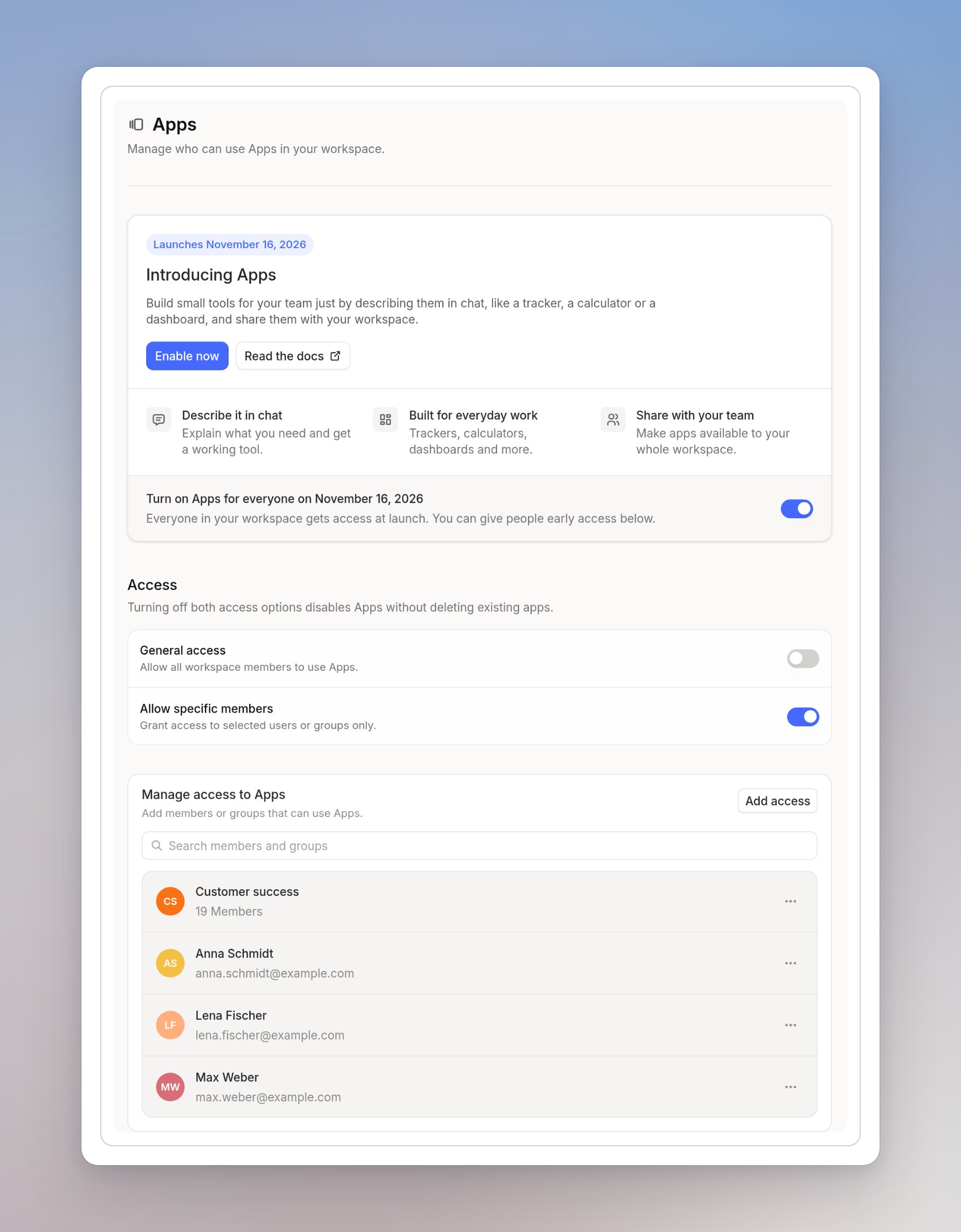
Give access to specific members or groups
Use this when only some members should use Apps. Everyone else stays without access.1
Open the access list
Leave General access off and turn on Allow specific members. The list Manage access to Apps appears.
2
Add members or groups
Click Add access. In Search members and groups, find the members or groups you want to add.
3
Choose whether to notify them
Keep Notify people by email selected to send them an email. You can add an optional message.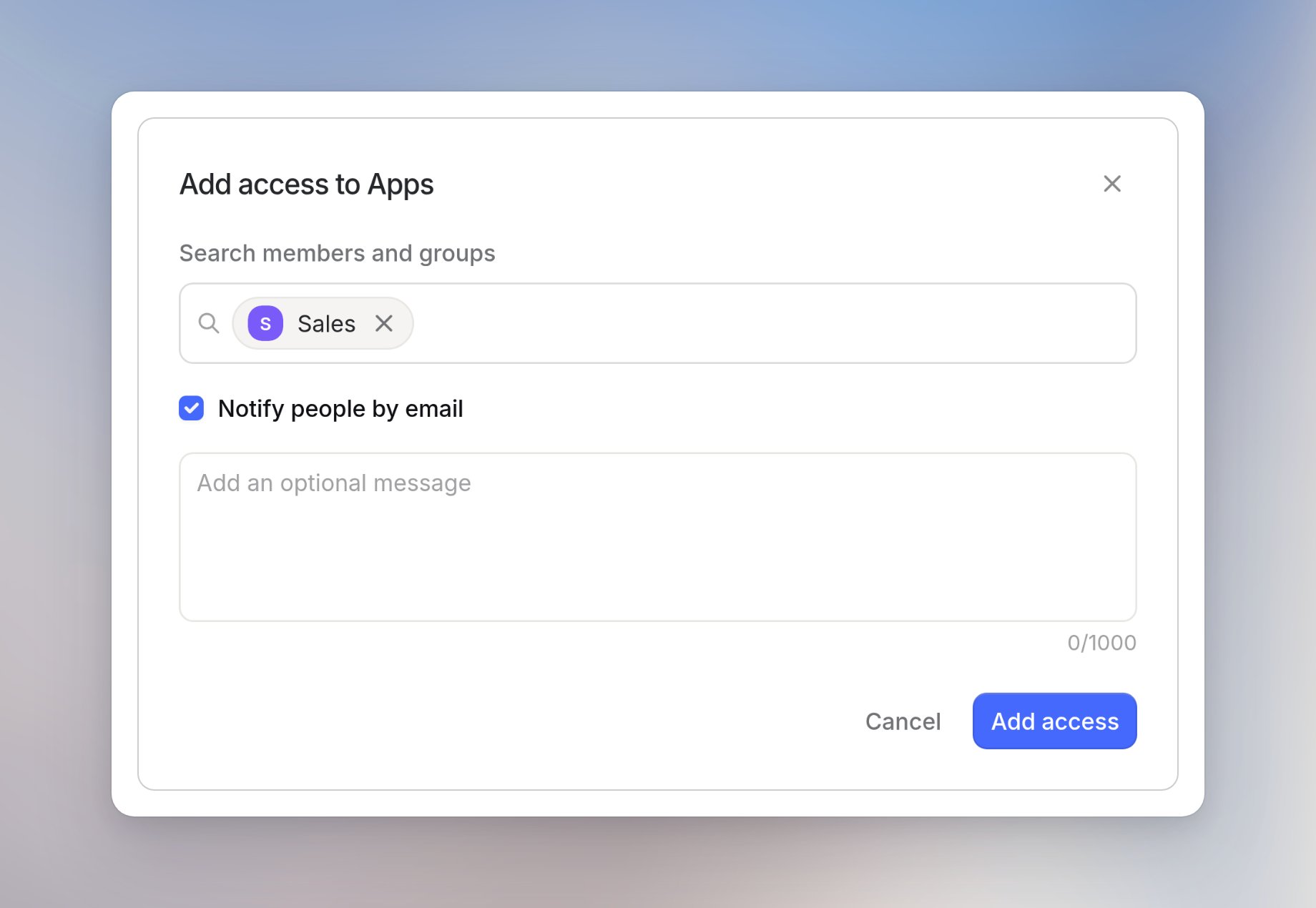
4
Confirm
Click Add access. The members and groups appear under Manage access to Apps.
Admins need product access too. If General access is off and you aren’t on the list, Apps disappears from your own sidebar. Add yourself to the list.