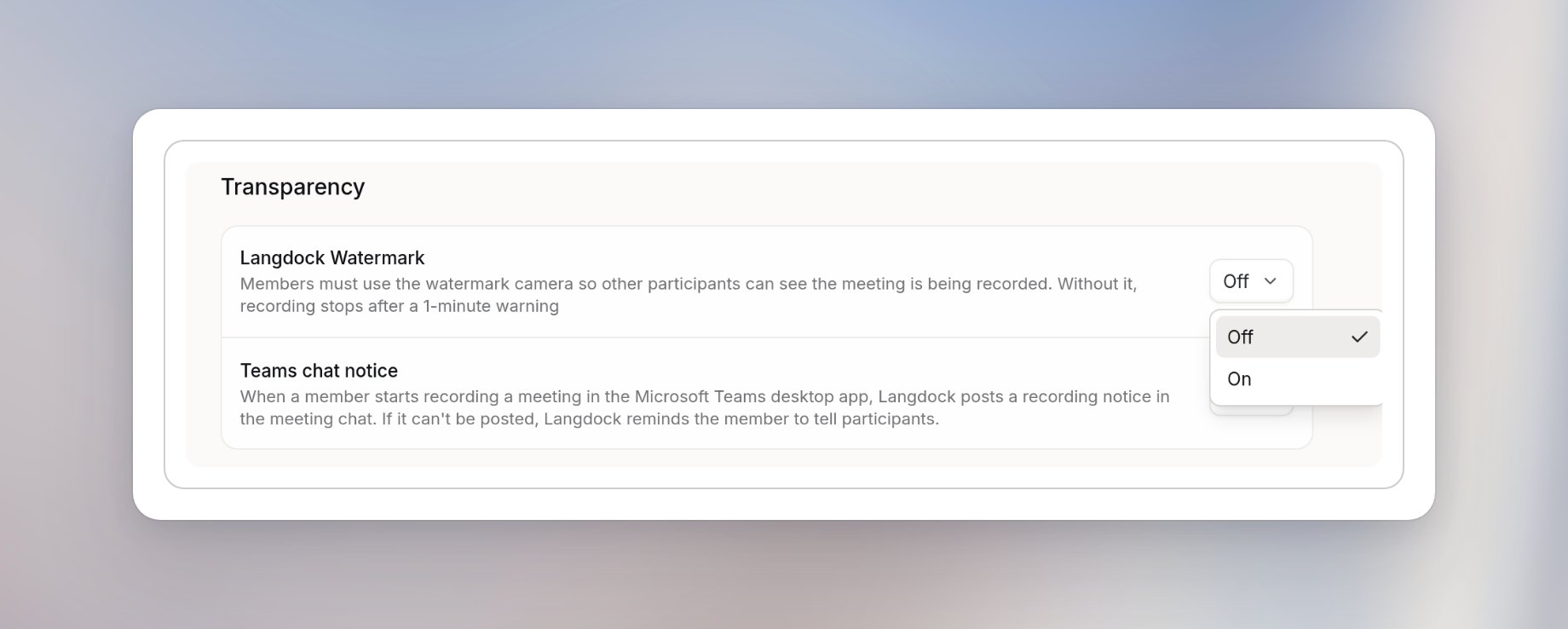
Set Langdock Watermark to On to require the watermark camera. Members must then use the camera ending in Langdock Watermark, so other participants can see that the meeting is being transcribed. The camera requires macOS 14 or later, or Windows 11.If a member switches to another camera or turns their camera off, transcription stops after a one-minute warning. They can select the watermark camera to keep transcribing, or select it and resume after transcription stops. In-person transcriptions with no meeting app running aren’t affected.
On Windows, the camera extension installs machine-wide and needs an admin (UAC) prompt. On managed Windows computers, your IT team needs to deploy or approve it. A later camera update may ask again.
Use Teams chat notice to control the transcription notice in Microsoft Teams. When it’s on, Langdock posts a transcription notice in the meeting chat when a member starts transcribing in the new Microsoft Teams desktop app. If Langdock can’t post the notice, it reminds the member to tell participants.The notice works with the new Teams desktop app on macOS and Windows, not with classic Teams or Teams in a browser. The meeting chat must be open in the call window, with no unsent text in the chat box. On macOS, Langdock needs Accessibility access.
Was this page helpful?
{"docsConfig":{"theme":"mint","$schema":"https://mintlify.com/docs.json","name":"Docs","colors":{"primary":"#4469FC","light":"#ECF0FF","dark":"#0D001D"},"logo":{"light":"https://mintcdn.com/langdock-34/URgvNwU7CYGZq8R7/logo/light.svg?fit=max\u0026auto=format\u0026n=URgvNwU7CYGZq8R7\u0026q=85\u0026s=594b4bd597e2629fb1a7dccfae6aa1c4","dark":"https://mintcdn.com/langdock-34/URgvNwU7CYGZq8R7/logo/dark.svg?fit=max\u0026auto=format\u0026n=URgvNwU7CYGZq8R7\u0026q=85\u0026s=d063d52fb4d331afb82adad972214673"},"favicon":"https://mintcdn.com/langdock-34/KbxhVmfYOcTup72x/favicon.png?fit=max\u0026auto=format\u0026n=KbxhVmfYOcTup72x\u0026q=85\u0026s=e12cd6cccfe5c94bf4ae6ea4fba7959c","background":{"color":{"dark":"#090014"}},"navbar":{"primary":{"type":"button","label":"Back to app","href":"https://app.langdock.com"}},"footer":{"socials":{"linkedin":"https://www.linkedin.com/company/langdock"}},"errors":{"404":{"redirect":true}},"contextual":{"options":["copy","view","mcp","cursor","vscode",{"title":"Ask Langdock","description":"Ask Langdock about the current page","icon":"/favicon.png","href":{"base":"https://app.langdock.com/chat","query":[{"key":"q","value":"Read from https://docs.langdock.com$path.md so I can ask questions about it."},{"key":"sendPrompt","value":"true"}]}}],"display":"header"},"styling":{"latex":true},"navigation":{"global":{"anchors":[{"anchor":"Changelog","icon":"newspaper","href":"https://www.langdock.com/changelog"},{"anchor":"Status","icon":"signal-bars","href":"https://status.langdock.com/"},{"anchor":"Support","icon":"messages-question","href":"https://www.langdock.com/contact-us"}]},"languages":[{"language":"en","default":true,"href":"en/using-langdock/get-started/introduction"},{"language":"de","href":"de/using-langdock/get-started/introduction"}]}},"deployment":{"deploymentMetadataValue":{"subdomain":"langdock-34","hasAudioNarration":false,"actualSubdomain":"langdock-34","customDomains":["docs.langdock.com"],"gitSource":{"type":"github","owner":"langdock","repo":"docs","deployBranch":"main","contentDirectory":"","isPrivate":true,"mountPath":"","label":""},"chroma":{"liveDeploymentHistoryId":"6ae9edf84867c64450fca0de","collectionId":"637a746e-3ad4-4c30-a0fc-ef6023cf77db","schemaVersion":"v3","latestBuiltDeploymentHistoryId":"6ae9edf84867c64450fca0de"},"feedback":{"thumbs":true,"agentFeedback":false},"entitlements":{"AI_CHAT":{"status":"ENABLED"},"REMOVE_BRANDING":{"status":"DISABLED"},"CONTEXTUAL_FEEDBACK":{"status":"DISABLED"},"CODE_SNIPPET_FEEDBACK":{"status":"DISABLED"},"WEB_MCP":{"status":"ENABLED"},"NARRATION":{"status":"ENABLED"}},"buildId":"6ae9eef875120cb36f291041","clientVersion":"0.0.4045","searchFilterCounts":[{"language":"en","tag":"Using Langdock","count":151},{"language":"de","tag":"Langdock nutzen","count":151},{"language":"en","tag":"Developer","count":141},{"language":"de","tag":"Entwickler","count":141},{"language":"en","tag":"Admin","count":111},{"language":"de","tag":"Admin","count":111},{"language":"en","tag":"Manage Integrations","count":43},{"language":"de","tag":"Integrationen verwalten","count":43},{"language":"en","tag":"Guides","count":40},{"language":"de","tag":"Anleitungen","count":40},{"language":"en","tag":"Billing API","count":36},{"language":"de","tag":"Billing API","count":36},{"language":"en","tag":"Workflows","count":28},{"language":"de","tag":"Workflows","count":28},{"language":"en","tag":"Integrations","count":19},{"language":"de","tag":"Integrationen","count":19},{"language":"en","tag":"Node Types","count":18},{"language":"de","tag":"Node Types","count":18},{"language":"en","tag":"Integration Setup Guides","count":17},{"language":"de","tag":"Integrations-Setup-Anleitungen","count":17}]},"assistantConfig":{"deflection":{"enabled":false}},"basePath":"","hasChatPermissions":true,"hasWebMcpPermissions":true,"toggles":[{"name":"kill-isr","enabled":true,"variant":{"name":"disabled","enabled":false,"feature_enabled":true},"impressionData":false},{"name":"agent-mintlify-slack","enabled":true,"variant":{"name":"disabled","enabled":false,"feature_enabled":true},"impressionData":false},{"name":"agent-integrations-settings","enabled":true,"variant":{"name":"disabled","enabled":false,"feature_enabled":true},"impressionData":false},{"name":"automations-pr-grouping","enabled":true,"variant":{"name":"disabled","enabled":false,"feature_enabled":true},"impressionData":false},{"name":"custom-prefix","enabled":true,"variant":{"name":"disabled","enabled":false,"feature_enabled":true},"impressionData":false},{"name":"analytics-v7","enabled":true,"variant":{"name":"disabled","enabled":false,"feature_enabled":true},"impressionData":false},{"name":"user-flows-analytics","enabled":true,"variant":{"name":"disabled","enabled":false,"feature_enabled":true},"impressionData":false},{"name":"no-publish-flow","enabled":true,"variant":{"name":"disabled","enabled":false,"feature_enabled":true},"impressionData":false},{"name":"workos-onboarding","enabled":true,"variant":{"name":"disabled","enabled":false,"feature_enabled":true},"impressionData":false},{"name":"llms-txt-v2","enabled":true,"variant":{"name":"disabled","enabled":false,"feature_enabled":true},"impressionData":false},{"name":"snapshot-serving-live","enabled":true,"variant":{"name":"disabled","enabled":false,"feature_enabled":true},"impressionData":false},{"name":"stripTemperatureMiddleware","enabled":true,"variant":{"name":"disabled","enabled":false,"feature_enabled":true},"impressionData":false},{"name":"support-platform-pylon-zendesk","enabled":true,"variant":{"name":"disabled","enabled":false,"feature_enabled":true},"impressionData":false},{"name":"snapshot-serving","enabled":true,"variant":{"name":"disabled","enabled":false,"feature_enabled":true},"impressionData":false},{"name":"instant-rollback","enabled":true,"variant":{"name":"disabled","enabled":false,"feature_enabled":true},"impressionData":false},{"name":"granular-notifications-server","enabled":true,"variant":{"name":"disabled","enabled":false,"feature_enabled":true},"impressionData":false},{"name":"granular-notifications","enabled":true,"variant":{"name":"disabled","enabled":false,"feature_enabled":true},"impressionData":false},{"name":"automations-fable","enabled":true,"variant":{"name":"disabled","enabled":false,"feature_enabled":true},"impressionData":false},{"name":"fixed-ai-action-pricing","enabled":true,"variant":{"name":"disabled","enabled":false,"feature_enabled":true},"impressionData":false},{"name":"automation-resolve-merge-conflict","enabled":true,"variant":{"name":"disabled","enabled":false,"feature_enabled":true},"impressionData":false},{"name":"scoped-publishing","enabled":true,"variant":{"name":"disabled","enabled":false,"feature_enabled":true},"impressionData":false},{"name":"mintql","enabled":true,"variant":{"name":"disabled","enabled":false,"feature_enabled":true},"impressionData":false},{"name":"page-level-analytics","enabled":true,"variant":{"name":"disabled","enabled":false,"feature_enabled":true},"impressionData":false},{"name":"editor-version-history-v2","enabled":true,"variant":{"name":"disabled","enabled":false,"feature_enabled":true},"impressionData":false},{"name":"billing-page-v2","enabled":true,"variant":{"name":"disabled","enabled":false,"feature_enabled":true},"impressionData":false},{"name":"full-page-search","enabled":true,"variant":{"name":"disabled","enabled":false,"feature_enabled":true},"impressionData":false},{"name":"workspace-projects","enabled":true,"variant":{"name":"disabled","enabled":false,"feature_enabled":true},"impressionData":false},{"name":"assistant-v5","enabled":true,"variant":{"name":"disabled","enabled":false,"feature_enabled":true},"impressionData":false},{"name":"byok-sep-25","enabled":true,"variant":{"name":"disabled","enabled":false,"feature_enabled":true},"impressionData":false},{"name":"fork-pr-previews","enabled":true,"variant":{"name":"disabled","enabled":false,"feature_enabled":true},"impressionData":false},{"name":"revalidation-jwt","enabled":true,"variant":{"name":"disabled","enabled":false,"feature_enabled":true},"impressionData":false},{"name":"vite-origin","enabled":true,"variant":{"name":"disabled","enabled":false,"feature_enabled":true},"impressionData":false},{"name":"billing-updated-9-15","enabled":true,"variant":{"name":"disabled","enabled":false,"feature_enabled":true},"impressionData":false},{"name":"workos-sso-scim","enabled":true,"variant":{"name":"disabled","enabled":false,"feature_enabled":true},"impressionData":false},{"name":"hobby-abuse-scan","enabled":true,"variant":{"name":"disabled","enabled":false,"feature_enabled":true},"impressionData":false},{"name":"dashboard-inbox","enabled":true,"variant":{"name":"disabled","enabled":false,"feature_enabled":true},"impressionData":false},{"name":"workos-signup","enabled":true,"variant":{"name":"disabled","enabled":false,"feature_enabled":true},"impressionData":false},{"name":"turbopuffer-dual-write","enabled":true,"variant":{"name":"disabled","enabled":false,"feature_enabled":true},"impressionData":false},{"name":"workos-enabled","enabled":true,"variant":{"name":"disabled","enabled":false,"feature_enabled":true},"impressionData":false},{"name":"approve-review-flow","enabled":true,"variant":{"name":"disabled","enabled":false,"feature_enabled":true},"impressionData":false},{"name":"sso-setup-deadline-banner","enabled":true,"variant":{"name":"disabled","enabled":false,"feature_enabled":true},"impressionData":false}],"googleFontsInlined":false},"customCss":[],"page":{"pagePath":"en/admin/manage-meetings/transparency","slug":"/en/admin/manage-meetings/transparency","pageMetadata":{"title":"Transparency","description":"Require the watermark camera and control the Teams chat notice.","keywords":["meetings","admin","watermark","teams chat notice"],"href":"/en/admin/manage-meetings/transparency"},"description":{"compiledSource":"\"use strict\";\nconst {jsx: _jsx} = arguments[0];\nconst {useMDXComponents: _provideComponents} = arguments[0];\nfunction _createMdxContent(props) {\n const _components = {\n p: \"p\",\n ..._provideComponents(),\n ...props.components\n };\n return _jsx(_components.p, {\n children: \"Require the watermark camera and control the Teams chat notice.\"\n });\n}\nfunction MDXContent(props = {}) {\n const {wrapper: MDXLayout} = {\n ..._provideComponents(),\n ...props.components\n };\n return MDXLayout ? _jsx(MDXLayout, {\n ...props,\n children: _jsx(_createMdxContent, {\n ...props\n })\n }) : _createMdxContent(props);\n}\nreturn {\n default: MDXContent\n};\n","frontmatter":{},"scope":{}},"pageType":"default","mdx":{"mdxSource":{"compiledSource":"\"use strict\";const{Fragment:_Fragment,jsx:_jsx,jsxs:_jsxs}=arguments[0];const{useMDXComponents:_provideComponents}=arguments[0];function _createMdxContent(props){const _components={a:`a`,p:`p`,strong:`strong`,..._provideComponents(),...props.components},{Frame,Heading,OptimizedImage,Warning}=_components;if(!Frame)_missingMdxReference(`Frame`,true);if(!Heading)_missingMdxReference(`Heading`,true);if(!OptimizedImage)_missingMdxReference(`OptimizedImage`,true);if(!Warning)_missingMdxReference(`Warning`,true);return _jsxs(_Fragment,{children:[_jsxs(_components.p,{children:[`Go to `,_jsx(_components.a,{href:`https://app.langdock.com/settings/workspace/products/meetings`,children:`Settings > Workspace > Products > Meetings > Transparency`}),`.`]}),`\n`,_jsxs(_components.p,{children:[`Use these settings to make transcriptions visible to other meeting participants. For what members see, see `,_jsx(_components.a,{href:`/en/using-langdock/meetings/watermark`,children:`Watermark and transcription notices`}),`.`]}),`\n`,_jsx(Frame,{children:_jsx(OptimizedImage,{src:`https://mintcdn.com/langdock-34/9AYeYQfWKDMjFQBi/images/meetings/meetings-transparency.png?fit=max\u0026auto=format\u0026n=9AYeYQfWKDMjFQBi\u0026q=85\u0026s=2b72435a17296d29e6b8bd2007d00c33`,alt:`Transparency section with the Langdock Watermark setting open showing Off and On, and the Teams chat notice setting`,style:{borderRadius:`6px`},\"data-og-width\":`1840`,width:`1840`,\"data-og-height\":`738`,height:`738`,\"data-path\":`images/meetings/meetings-transparency.png`,\"data-optimize\":`true`,\"data-opv\":`3`,srcset:`https://mintcdn.com/langdock-34/9AYeYQfWKDMjFQBi/images/meetings/meetings-transparency.png?w=280\u0026fit=max\u0026auto=format\u0026n=9AYeYQfWKDMjFQBi\u0026q=85\u0026s=958c6b154928e4e6cc7e866b71d54c1f 280w, https://mintcdn.com/langdock-34/9AYeYQfWKDMjFQBi/images/meetings/meetings-transparency.png?w=560\u0026fit=max\u0026auto=format\u0026n=9AYeYQfWKDMjFQBi\u0026q=85\u0026s=5da7c79395edad010141d5268b389d29 560w, https://mintcdn.com/langdock-34/9AYeYQfWKDMjFQBi/images/meetings/meetings-transparency.png?w=840\u0026fit=max\u0026auto=format\u0026n=9AYeYQfWKDMjFQBi\u0026q=85\u0026s=1446ba6b91a639fa6fcc9e67341dc5bf 840w, https://mintcdn.com/langdock-34/9AYeYQfWKDMjFQBi/images/meetings/meetings-transparency.png?w=1100\u0026fit=max\u0026auto=format\u0026n=9AYeYQfWKDMjFQBi\u0026q=85\u0026s=eb6ae7ce69172c1a44aa79790e21fc11 1100w, https://mintcdn.com/langdock-34/9AYeYQfWKDMjFQBi/images/meetings/meetings-transparency.png?w=1650\u0026fit=max\u0026auto=format\u0026n=9AYeYQfWKDMjFQBi\u0026q=85\u0026s=ef4bc68ecca2f0227533fb0aaa6439ac 1650w, https://mintcdn.com/langdock-34/9AYeYQfWKDMjFQBi/images/meetings/meetings-transparency.png?w=2500\u0026fit=max\u0026auto=format\u0026n=9AYeYQfWKDMjFQBi\u0026q=85\u0026s=d26db64728bea2de5b56914de23a1bed 2500w`})}),`\n`,_jsx(Heading,{level:`2`,id:`langdock-watermark`,children:`Langdock Watermark`}),`\n`,_jsxs(_components.p,{children:[`Set `,_jsx(_components.strong,{children:`Langdock Watermark`}),` to `,_jsx(_components.strong,{children:`On`}),` to require the watermark camera. Members must then use the camera ending in `,_jsx(_components.strong,{children:`Langdock Watermark`}),`, so other participants can see that the meeting is being transcribed. The camera requires macOS 14 or later, or Windows 11.`]}),`\n`,_jsx(_components.p,{children:`If a member switches to another camera or turns their camera off, transcription stops after a one-minute warning. They can select the watermark camera to keep transcribing, or select it and resume after transcription stops. In-person transcriptions with no meeting app running aren’t affected.`}),`\n`,_jsx(Warning,{children:_jsx(_components.p,{children:`On Windows, the camera extension installs machine-wide and needs an admin (UAC) prompt. On managed Windows computers, your IT team needs to deploy or approve it. A later camera update may ask again.`})}),`\n`,_jsx(Heading,{level:`2`,id:`teams-chat-notice`,children:`Teams chat notice`}),`\n`,_jsxs(_components.p,{children:[`Use `,_jsx(_components.strong,{children:`Teams chat notice`}),` to control the transcription notice in Microsoft Teams. When it’s on, Langdock posts a transcription notice in the meeting chat when a member starts transcribing in the new Microsoft Teams desktop app. If Langdock can’t post the notice, it reminds the member to tell participants.`]}),`\n`,_jsx(_components.p,{children:`The notice works with the new Teams desktop app on macOS and Windows, not with classic Teams or Teams in a browser. The meeting chat must be open in the call window, with no unsent text in the chat box. On macOS, Langdock needs Accessibility access.`})]})}function MDXContent(props={}){const{wrapper:MDXLayout}={..._provideComponents(),...props.components};return MDXLayout?_jsx(MDXLayout,{...props,children:_jsx(_createMdxContent,{...props})}):_createMdxContent(props)}return{default:MDXContent};function _missingMdxReference(id,component){throw new Error(`Expected `+(component?`component`:`object`)+\" `\"+id+\"` to be defined: you likely forgot to import, pass, or provide it.\")}","frontmatter":{},"scope":{"config":{},"pageMetadata":{"title":"Transparency","description":"Require the watermark camera and control the Teams chat notice.","keywords":["meetings","admin","watermark","teams chat notice"],"href":"/en/admin/manage-meetings/transparency"}}},"mdxSourceWithNoJs":null},"mdxExtracts":{"tableOfContents":[{"title":"Langdock Watermark","slug":"langdock-watermark","depth":2,"children":[]},{"title":"Teams chat notice","slug":"teams-chat-notice","depth":2,"children":[]}],"codeExamples":{}},"jsLinks":[],"subdomain":"langdock-34","siteName":"Docs","title":"Transparency - Docs","navMaps":{"firstHrefInVersion":{},"firstHrefInLanguage":{"en":{"href":"/en/admin/manage-meetings/transparency","matchLevel":0},"de":{"href":"/de/admin/manage-meetings/transparency","matchLevel":1}}},"lastModified":"2026-11-03T14:26:45.397Z","originalFileLocation":"en/admin/manage-meetings/transparency.mdx","locale":"en"},"headHtml":"\u003cscript data-mint-head>(function(){var d=document.documentElement,p=null;if(!p){try{p=localStorage.getItem(\"isDarkMode\")}catch(e){}if(p==='true')p='dark';else if(p==='false')p='light';if(p!=='light'\u0026\u0026p!=='dark'\u0026\u0026p!=='system')p=\"system\"}var r=p==='system'?(matchMedia(\"(prefers-color-scheme: dark)\").matches?'dark':'light'):p;d.classList.remove(r==='dark'?'light':'dark');d.classList.add(r);d.setAttribute(\"data-theme-preference\",p)})();\u003c/script>\u003cmeta data-mint-head name=\"description\" content=\"Require the watermark camera and control the Teams chat notice.\">\u003cmeta data-mint-head name=\"application-name\" content=\"Docs\">\u003cmeta data-mint-head name=\"generator\" content=\"Mintlify\">\u003clink data-mint-head rel=\"icon\" type=\"image/png\" sizes=\"192x192\" href=\"/mintlify-assets/_mintlify/favicons/langdock-34/8EMNQyrrZlRONhj1/_generated/favicon/android-chrome-192x192.png\" media=\"(prefers-color-scheme: light)\">\u003clink data-mint-head rel=\"apple-touch-icon\" type=\"image/png\" sizes=\"180x180\" href=\"/mintlify-assets/_mintlify/favicons/langdock-34/8EMNQyrrZlRONhj1/_generated/favicon/apple-touch-icon.png\">\u003clink data-mint-head rel=\"icon\" type=\"image/png\" sizes=\"16x16\" href=\"/mintlify-assets/_mintlify/favicons/langdock-34/8EMNQyrrZlRONhj1/_generated/favicon/favicon-16x16.png\" media=\"(prefers-color-scheme: light)\">\u003clink data-mint-head rel=\"icon\" type=\"image/png\" sizes=\"32x32\" href=\"/mintlify-assets/_mintlify/favicons/langdock-34/8EMNQyrrZlRONhj1/_generated/favicon/favicon-32x32.png\" media=\"(prefers-color-scheme: light)\">\u003clink data-mint-head rel=\"shortcut icon\" type=\"image/x-icon\" href=\"/mintlify-assets/_mintlify/favicons/langdock-34/8EMNQyrrZlRONhj1/_generated/favicon/favicon.ico\" media=\"(prefers-color-scheme: light)\">\u003clink data-mint-head rel=\"icon\" type=\"image/png\" sizes=\"192x192\" href=\"/mintlify-assets/_mintlify/favicons/langdock-34/8EMNQyrrZlRONhj1/_generated/favicon-dark/android-chrome-192x192.png\" media=\"(prefers-color-scheme: dark)\">\u003clink data-mint-head rel=\"icon\" type=\"image/png\" sizes=\"16x16\" href=\"/mintlify-assets/_mintlify/favicons/langdock-34/8EMNQyrrZlRONhj1/_generated/favicon-dark/favicon-16x16.png\" media=\"(prefers-color-scheme: dark)\">\u003clink data-mint-head rel=\"icon\" type=\"image/png\" sizes=\"32x32\" href=\"/mintlify-assets/_mintlify/favicons/langdock-34/8EMNQyrrZlRONhj1/_generated/favicon-dark/favicon-32x32.png\" media=\"(prefers-color-scheme: dark)\">\u003clink data-mint-head rel=\"shortcut icon\" type=\"image/x-icon\" href=\"/mintlify-assets/_mintlify/favicons/langdock-34/8EMNQyrrZlRONhj1/_generated/favicon-dark/favicon.ico\" media=\"(prefers-color-scheme: dark)\">\u003cmeta data-mint-head property=\"og:title\" content=\"Transparency - Docs\">\u003cmeta data-mint-head property=\"og:description\" content=\"Require the watermark camera and control the Teams chat notice.\">\u003cmeta data-mint-head property=\"og:site_name\" content=\"Docs\">\u003cmeta data-mint-head property=\"og:url\" content=\"https://docs.langdock.com/en/admin/manage-meetings/transparency\">\u003cmeta data-mint-head property=\"og:type\" content=\"website\">\u003cmeta data-mint-head property=\"og:image\" content=\"https://langdock-34.mintlify.app/_mintlify/api/og/v2?division=Manage+Meetings\u0026amp;title=Transparency\u0026amp;description=Require+the+watermark+camera+and+control+the+Teams+chat+notice.\u0026amp;theme=af251cb8027ba7e8fe3cc77e\u0026amp;signature=e22fdc580c605084365938fe576822bbe017ef7095f0dfa992016e0d894468d5\">\u003cmeta data-mint-head property=\"og:image:width\" content=\"1200\">\u003cmeta data-mint-head property=\"og:image:height\" content=\"630\">\u003cmeta data-mint-head name=\"twitter:card\" content=\"summary_large_image\">\u003cmeta data-mint-head name=\"twitter:title\" content=\"Transparency - Docs\">\u003cmeta data-mint-head name=\"twitter:description\" content=\"Require the watermark camera and control the Teams chat notice.\">\u003cmeta data-mint-head name=\"twitter:image\" content=\"https://langdock-34.mintlify.app/_mintlify/api/og/v2?division=Manage+Meetings\u0026amp;title=Transparency\u0026amp;description=Require+the+watermark+camera+and+control+the+Teams+chat+notice.\u0026amp;theme=af251cb8027ba7e8fe3cc77e\u0026amp;signature=e22fdc580c605084365938fe576822bbe017ef7095f0dfa992016e0d894468d5\">\u003cmeta data-mint-head name=\"twitter:image:width\" content=\"1200\">\u003cmeta data-mint-head name=\"twitter:image:height\" content=\"630\">\u003cmeta data-mint-head name=\"msapplication-config\" content=\"/mintlify-assets/_mintlify/favicons/langdock-34/8EMNQyrrZlRONhj1/_generated/favicon/browserconfig.xml\">\u003cmeta data-mint-head name=\"apple-mobile-web-app-title\" content=\"Docs\">\u003cmeta data-mint-head name=\"msapplication-TileColor\" content=\"#4469FC\">\u003clink data-mint-head rel=\"canonical\" href=\"https://docs.langdock.com/en/admin/manage-meetings/transparency\">\u003clink data-mint-head rel=\"alternate\" type=\"application/xml\" href=\"/sitemap.xml\">\u003clink data-mint-head rel=\"alternate\" type=\"text/markdown\" href=\"/en/admin/manage-meetings/transparency.md\">\u003clink data-mint-head rel=\"alternate\" hreflang=\"en\" href=\"https://docs.langdock.com/en/admin/manage-meetings/transparency\">\u003clink data-mint-head rel=\"alternate\" hreflang=\"de\" href=\"https://docs.langdock.com/de/admin/manage-meetings/transparency\">\u003clink data-mint-head rel=\"alternate\" hreflang=\"x-default\" href=\"https://docs.langdock.com/en/admin/manage-meetings/transparency\">\u003cscript data-mint-head type=\"application/ld+json\">{\"@context\":\"https://schema.org\",\"@graph\":[{\"@type\":\"Organization\",\"@id\":\"https://docs.langdock.com/#organization\",\"name\":\"Docs\",\"url\":\"https://docs.langdock.com\",\"logo\":{\"@type\":\"ImageObject\",\"url\":\"https://mintcdn.com/langdock-34/URgvNwU7CYGZq8R7/logo/light.svg?fit=max\u0026auto=format\u0026n=URgvNwU7CYGZq8R7\u0026q=85\u0026s=594b4bd597e2629fb1a7dccfae6aa1c4\"}},{\"@type\":\"WebSite\",\"@id\":\"https://docs.langdock.com#website\",\"name\":\"Docs\",\"url\":\"https://docs.langdock.com\",\"publisher\":{\"@id\":\"https://docs.langdock.com/#organization\"}},{\"@type\":\"WebPage\",\"@id\":\"https://docs.langdock.com/en/admin/manage-meetings/transparency#webpage\",\"url\":\"https://docs.langdock.com/en/admin/manage-meetings/transparency\",\"name\":\"Transparency\",\"description\":\"Require the watermark camera and control the Teams chat notice.\",\"dateModified\":\"2026-11-03T14:26:45.397Z\",\"isPartOf\":{\"@id\":\"https://docs.langdock.com#website\"},\"breadcrumb\":{\"@id\":\"https://docs.langdock.com/en/admin/manage-meetings/transparency#breadcrumb\"}},{\"@type\":\"BreadcrumbList\",\"@id\":\"https://docs.langdock.com/en/admin/manage-meetings/transparency#breadcrumb\",\"itemListElement\":[{\"@type\":\"ListItem\",\"position\":1,\"name\":\"Manage Meetings\",\"item\":\"https://docs.langdock.com/en/admin/manage-meetings/access\"},{\"@type\":\"ListItem\",\"position\":2,\"name\":\"Transparency\",\"item\":\"https://docs.langdock.com/en/admin/manage-meetings/transparency\"}]},{\"@type\":[\"Article\",\"TechArticle\"],\"@id\":\"https://docs.langdock.com/en/admin/manage-meetings/transparency#article\",\"headline\":\"Transparency\",\"name\":\"Transparency\",\"description\":\"Require the watermark camera and control the Teams chat notice.\",\"url\":\"https://docs.langdock.com/en/admin/manage-meetings/transparency\",\"mainEntityOfPage\":{\"@id\":\"https://docs.langdock.com/en/admin/manage-meetings/transparency#webpage\"},\"dateModified\":\"2026-11-03T14:26:45.397Z\",\"keywords\":\"meetings, admin, watermark, teams chat notice\",\"publisher\":{\"@id\":\"https://docs.langdock.com/#organization\"},\"isPartOf\":{\"@id\":\"https://docs.langdock.com#website\"}}]}\u003c/script>\u003cscript data-mint-head type=\"application/ld+json\">{\"@context\":\"https://schema.org\",\"@type\":\"WebSite\",\"name\":\"Docs\",\"creator\":{\"@type\":\"Organization\",\"name\":\"Mintlify\",\"url\":\"https://mintlify.com\"}}\u003c/script>","siteName":"Docs","nav":{"global":{"anchors":[{"anchor":"Changelog","icon":"newspaper","href":"https://www.langdock.com/changelog"},{"anchor":"Status","icon":"signal-bars","href":"https://status.langdock.com/"},{"anchor":"Support","icon":"messages-question","href":"https://www.langdock.com/contact-us"}]},"languages":[{"language":"en","default":true,"tabs":[{"tab":"Using Langdock","pages":[{"title":"Using Langdock","href":"/en/using-langdock/get-started/introduction"}]},{"tab":"Developer","pages":[{"title":"Developer","href":"/en/developer/overview/api-introduction"}]},{"tab":"Admin","groups":[{"group":"Workspace","pages":[{"title":"Workspace Settings","href":"/en/admin/workspace/workspace"},{"title":"Workspace Setup","href":"/en/admin/workspace/workspace-setup"},{"title":"Roles and extra permissions","href":"/en/admin/workspace/roles"},{"title":"Permission Recommendations","href":"/en/admin/workspace/permissions"},{"title":"Manage scheduled tasks","href":"/en/admin/workspace/scheduled-tasks"}]},{"group":"Manage Agents","pages":[{"title":"Allowed usage","href":"/en/admin/manage-agents/allowed-usage"},{"title":"Verify Agents","href":"/en/admin/manage-agents/verify-agents"},{"title":"Highlight Agents","href":"/en/admin/manage-agents/highlight-agents"},{"title":"Disable Agents","href":"/en/admin/manage-agents/disable-agents"},{"title":"Archive Agents","href":"/en/admin/manage-agents/archive-agents"},{"title":"Unassign Agents","href":"/en/admin/manage-agents/unassign-agents"},{"title":"Admin-managed sharing","href":"/en/admin/manage-agents/admin-managed-sharing"},{"title":"Agent limits","href":"/en/admin/manage-agents/agent-limits"}]},{"group":"Manage Workflows","pages":[{"title":"Best Practices","href":"/en/admin/manage-workflows/best-practices"},{"title":"Workflow limits","href":"/en/admin/manage-workflows/spend-limits"},{"title":"Security Controls","href":"/en/admin/manage-workflows/security-controls"}]},{"group":"Manage Meetings","pages":[{"title":"Access","description":"Choose who in your workspace can use Meetings.","href":"/en/admin/manage-meetings/access"},{"title":"Transparency","href":"/en/admin/manage-meetings/transparency"},{"title":"Data \u0026 sharing","description":"Control transcript visibility and public meeting links.","href":"/en/admin/manage-meetings/data-sharing"}]},{"group":"Manage Apps","pages":[{"title":"Enable Apps","href":"/en/admin/manage-apps/enable-apps"},{"title":"Set Apps permissions","href":"/en/admin/manage-apps/permissions"},{"title":"Manage apps in Governance","href":"/en/admin/manage-apps/governance"},{"title":"Apps security and data access","sidebarTitle":"Security and data access","href":"/en/admin/manage-apps/security"}]},{"group":"Desktop app","pages":[{"title":"Enterprise Guide for Langdock Desktop","sidebarTitle":"Enterprise Guide for Langdock Desktop","href":"/en/admin/desktop-app/deploy"},{"title":"Upgrade an existing deployment","sidebarTitle":"Upgrade an existing deployment","href":"/en/admin/desktop-app/upgrade"},{"title":"Manage desktop app updates","sidebarTitle":"Manage updates","href":"/en/admin/desktop-app/updates"}]},{"group":"Manage Integrations","pages":[{"title":"Integrations Guide","href":"/en/admin/manage-integrations/integrations-guide"},{"group":"Hidden","hidden":true,"pages":[{"title":"Integration Details","href":"/en/admin/manage-integrations/integrations-details"}]},{"group":"Integration Setup Guides","pages":[{"title":"Ashby","href":"/en/admin/manage-integrations/integration-setup-guides/ashby"},{"title":"Azure AI Search","href":"/en/admin/manage-integrations/integration-setup-guides/azure-search"},{"title":"Databricks","href":"/en/admin/manage-integrations/integration-setup-guides/databricks"},{"title":"Google Maps","href":"/en/admin/manage-integrations/integration-setup-guides/google-maps"},{"title":"Looker","href":"/en/admin/manage-integrations/integration-setup-guides/looker"},{"title":"Luma","href":"/en/admin/manage-integrations/integration-setup-guides/luma"},{"title":"Metabase","href":"/en/admin/manage-integrations/integration-setup-guides/metabase"},{"group":"Microsoft Fabric","pages":[{"title":"Microsoft Fabric","sidebarTitle":"Overview","href":"/en/admin/manage-integrations/integration-setup-guides/microsoft-fabric"},{"title":"Configure Microsoft Fabric for Langdock","sidebarTitle":"Admin configuration","href":"/en/admin/manage-integrations/integration-setup-guides/microsoft-fabric/setup"},{"title":"Control access and mutations","sidebarTitle":"Access and mutations","href":"/en/admin/manage-integrations/integration-setup-guides/microsoft-fabric/permissions-and-mutations"},{"title":"Troubleshoot Microsoft Fabric","sidebarTitle":"Troubleshooting","href":"/en/admin/manage-integrations/integration-setup-guides/microsoft-fabric/troubleshooting"}]},{"title":"Microsoft Integrations: Permissions \u0026 Admin Approval","sidebarTitle":"Microsoft","href":"/en/admin/manage-integrations/integration-setup-guides/microsoft"},{"title":"Microsoft Entra","href":"/en/admin/manage-integrations/integration-setup-guides/microsoft-entra"},{"title":"ServiceNow","href":"/en/admin/manage-integrations/integration-setup-guides/service-now"},{"title":"Shopify Admin","href":"/en/admin/manage-integrations/integration-setup-guides/shopify"},{"title":"UiPath","href":"/en/admin/manage-integrations/integration-setup-guides/uipath"},{"title":"Zoom","href":"/en/admin/manage-integrations/integration-setup-guides/zoom"}]},{"title":"Bring Your Own OAuth Client","sidebarTitle":"Bring Your Own OAuth Client","href":"/en/admin/manage-integrations/bring-your-own-oauth"},{"title":"Sensitivity Label Policy","href":"/en/admin/manage-integrations/sensitivity-label-policy"},{"title":"Default tool stack","href":"/en/admin/manage-integrations/default-tool-stack"},{"title":"Manage Action Access","href":"/en/admin/manage-integrations/manage-action-access"},{"title":"Manage Action-Level Scopes","href":"/en/admin/manage-integrations/manage-action-level-scopes"},{"group":"Microsoft Integration Scopes","pages":[{"title":"Microsoft Integration Scopes","sidebarTitle":"Overview","href":"/en/admin/manage-integrations/microsoft-integration-scopes"},{"title":"Azure DevOps","href":"/en/admin/manage-integrations/microsoft-integration-scopes/azure-devops"},{"title":"Azure Resource Manager","href":"/en/admin/manage-integrations/microsoft-integration-scopes/azure-resource-manager"},{"title":"Microsoft Dynamics 365","href":"/en/admin/manage-integrations/microsoft-integration-scopes/dynamics-365"},{"title":"Microsoft Entra","href":"/en/admin/manage-integrations/microsoft-integration-scopes/entra"},{"title":"Microsoft Excel","href":"/en/admin/manage-integrations/microsoft-integration-scopes/excel"},{"title":"Microsoft Fabric","href":"/en/admin/manage-integrations/microsoft-integration-scopes/fabric"},{"title":"Microsoft OneDrive","href":"/en/admin/manage-integrations/microsoft-integration-scopes/onedrive"},{"title":"Microsoft Planner","href":"/en/admin/manage-integrations/microsoft-integration-scopes/planner"},{"title":"Microsoft Power BI","href":"/en/admin/manage-integrations/microsoft-integration-scopes/power-bi"},{"title":"Microsoft Teams","href":"/en/admin/manage-integrations/microsoft-integration-scopes/teams"},{"title":"Microsoft To Do","href":"/en/admin/manage-integrations/microsoft-integration-scopes/todo"},{"title":"Microsoft Viva Engage","href":"/en/admin/manage-integrations/microsoft-integration-scopes/viva-engage"},{"title":"Outlook Calendar","href":"/en/admin/manage-integrations/microsoft-integration-scopes/outlook-calendar"},{"title":"Outlook Email","href":"/en/admin/manage-integrations/microsoft-integration-scopes/outlook-email"},{"title":"SharePoint","href":"/en/admin/manage-integrations/microsoft-integration-scopes/sharepoint"}]},{"group":"Chatbot Setup Guides","pages":[{"title":"Slack Bot (Setup)","href":"/en/admin/manage-integrations/chatbot-setup-guides/slack"},{"title":"Teams Bot (Setup)","href":"/en/admin/manage-integrations/chatbot-setup-guides/teams-bot"}]},{"group":"Add-in Setup Guides","pages":[{"title":"Excel Add-in (Setup)","sidebarTitle":"Excel","href":"/en/admin/manage-integrations/add-in-setup-guides/excel"},{"title":"Outlook Add-in (Setup)","sidebarTitle":"Outlook","href":"/en/admin/manage-integrations/add-in-setup-guides/outlook"}]}]},{"group":"Manage Usage","pages":[{"title":"Business plans","href":"/en/admin/manage-usage/plans"},{"title":"Extra Usage","href":"/en/admin/manage-usage/extra-usage"},{"title":"Usage credits","href":"/en/admin/manage-usage/usage-credits"},{"title":"Personal API keys","href":"/en/admin/manage-usage/personal-api-keys"}]},{"group":"Bring your own Keys (BYOK)","pages":[{"title":"Overview","href":"/en/admin/byok/byok"},{"title":"Getting started","href":"/en/admin/byok/byok-setup"},{"title":"How to add your own models","href":"/en/admin/byok/adding-models"},{"title":"How to add fallback models","href":"/en/admin/byok/fallback-models"},{"title":"Recommended Models","href":"/en/admin/byok/recommended-models"},{"title":"Setup Guides","href":"/en/admin/byok/setup-guides"},{"title":"Attribute LiteLLM spend per user","href":"/en/admin/byok/litellm-user-attribution"},{"group":"Usage limits","pages":[{"title":"Usage and spend limits","href":"/en/admin/manage-usage/byok/usage-limits"},{"title":"How to migrate to cost-based limits","href":"/en/admin/manage-usage/byok/migration"}]}]},{"group":"Governance","pages":[{"title":"Overview","href":"/en/admin/governance/overview"},{"title":"Agents","href":"/en/admin/governance/agents"},{"title":"Skills","href":"/en/admin/governance/skills"},{"title":"Compliance Rules","href":"/en/admin/governance/compliance-rules"},{"title":"Share requests","href":"/en/admin/governance/share-requests"}]},{"group":"Compliance \u0026 Governance","pages":[{"title":"Usage Exports","href":"/en/admin/compliance-and-governance/usage-exports"},{"title":"API Usage Export","href":"/en/admin/compliance-and-governance/api-usage-export"},{"title":"Useful Links","href":"/en/admin/compliance-and-governance/legal-compliance"}]},{"group":"AI Adoption \u0026 Rollout","pages":[{"group":"Getting Started","pages":[{"title":"Get Started","href":"/en/admin/ai-adoption-and-rollout/getting-started/onboarding-guide"},{"title":"Rollout Setup","href":"/en/admin/ai-adoption-and-rollout/getting-started/rollout-setup"},{"title":"Rollout Playbook","href":"/en/admin/ai-adoption-and-rollout/getting-started/rollout-playbook"},{"title":"Identifying Use Cases","href":"/en/admin/ai-adoption-and-rollout/getting-started/identify-use-cases"}]},{"group":"Best Practices","pages":[{"title":"Tips and tricks for your internal channels","href":"/en/admin/ai-adoption-and-rollout/best-practices/tips-and-tricks-internal"},{"title":"API Key Best Practices","href":"/en/admin/ai-adoption-and-rollout/best-practices/api-key-best-practices"}]},{"group":"Technical Setup","pages":[{"title":"Shared Slack Channel","href":"/en/admin/ai-adoption-and-rollout/technical-setup/slack-channel"},{"title":"Shared Teams Channel","href":"/en/admin/ai-adoption-and-rollout/technical-setup/teams-channel"}]}]},{"group":"Security","pages":[{"title":"Static IP Configuration","href":"/en/admin/security/static-ip-configuration"},{"title":"IP Restrictions","href":"/en/admin/security/ip-restrictions"},{"title":"Session Management","href":"/en/admin/security/session-management"},{"title":"Mobile App and Microsoft Intune","href":"/en/admin/security/mobile-app-intune"},{"group":"SAML (SSO)","pages":[{"title":"Getting Started","href":"/en/admin/security/saml/saml"},{"title":"Microsoft Entra ID SAML Setup","href":"/en/admin/security/saml/entra"},{"title":"Google SAML Setup","href":"/en/admin/security/saml/google"},{"title":"Okta SAML Setup","href":"/en/admin/security/saml/okta"}]},{"group":"SCIM","pages":[{"title":"Getting Started","href":"/en/admin/security/scim/scim"},{"title":"Microsoft Entra ID Setup","href":"/en/admin/security/scim/entra"}]}]},{"group":"Billing","pages":[{"title":"Pricing","href":"/en/admin/billing/pricing"},{"title":"Subscription","href":"/en/admin/billing/subscription"},{"title":"Invoices","href":"/en/admin/billing/invoices"}]},{"group":"Product Updates","hidden":true,"pages":[{"title":"Release Notes","mode":"center","href":"/en/admin/release-notes"}]}]}]},{"language":"de","pages":[{"title":"de","href":"/de/admin/manage-meetings/transparency"}]}]},"basePath":"","title":"Transparency - Docs","buildId":"dpl_36EDyZCDfRuoUD9af5CH4M1bqY2h","deploymentId":"dpl_36EDyZCDfRuoUD9af5CH4M1bqY2h","dynamics":["07c022d89b","a74be98ba7"],"chunks":["Frame-DW6UFrUy.js","DynamicMarkdown-B62XqCSI.js","zoom-image-lightbox-eHyQ0tlO.js","lightbox-handle-r17bVUz3.js"]}