Who can use Apps is set on Enable Apps. Workspace roles decide who can create and share apps. There are three system roles, Member, Editor, and Admin, and you can add custom roles. For how roles work in general, see Roles and extra permissions. The Apps section of a role has two permissions:
  • Create apps: Create new apps.
  • Share apps: Share apps with users, groups, or the workspace, within the limits of your plan.
You can turn on either permission or both.

Create a role for app builders

If several users need the same access, create a custom role. This example creates App builder from the Member role.
1

Open Roles

In workspace settings, go to User management → Roles. Under Custom roles, click Create role.
2

Name the role

Enter a Name, such as App builder, and a Description, such as Role to build and share apps.
3

Choose a starting role

Under Start from, choose the role whose permissions the new role copies. Click Create role.
4

Set the Apps permissions

On the role page, find Apps. Turn on Create apps, Share apps, or both. Click Save.
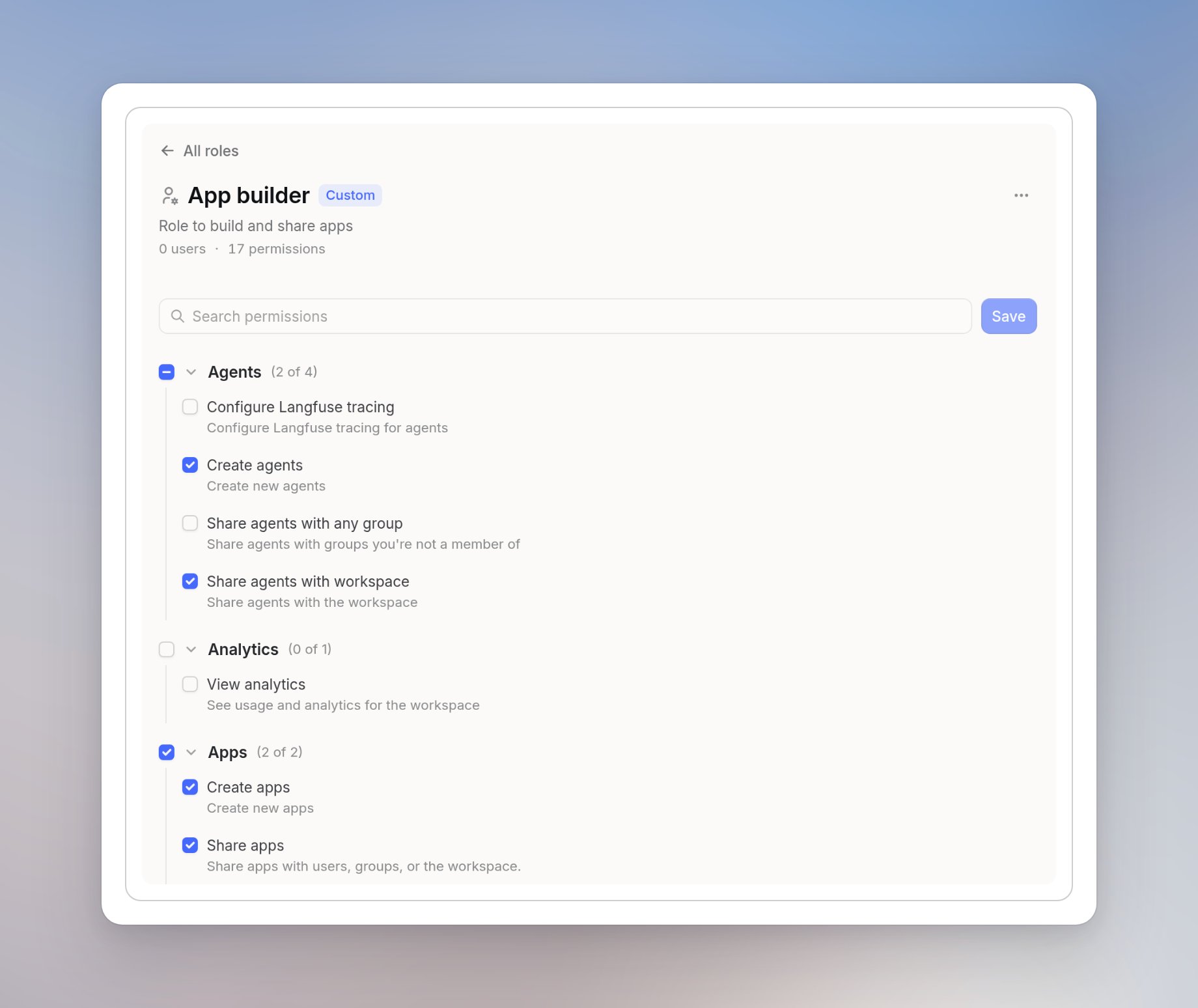
App builder role page with Create apps and Share apps turned on in the Apps section
The new role copies all permissions of its starting role, including permissions for other products. Naming a role App builder doesn’t limit it to Apps. Review its other permissions before you assign it. For the full steps, see Creating custom roles.

Assign the role

Assign the role in User management → Members, as described in Assigning a user a role or extra permissions. Make sure these members also have product access under Products → Apps. For recommendations on which roles should get which permissions, see Permission recommendations. Workspace roles are separate from the Owner, Editor, and Viewer roles on an individual app. Who can open a specific app is set in its share dialog, or on its Sharing tab in Governance.