Determine whether your workspace has usage credits
Not all workspaces have usage credits. To find out whether your workspace has usage credits, go to Settings > Workspace > Usage & spend.- If you see a “Usage credits” section: Your workspace consumes usage credits to pay for extra usage, API usage, and workflow model usage. See Buy usage credits below to learn how to purchase usage credits.
- If there is no “Usage credits” section: Your workspace does not use usage credits. Extra usage, API usage, and workflow model usage are accrued and billed at the end of the monthly period shown in Settings > Workspace > Billing.
Buy usage credits
A workspace admin needs to purchase usage credits before extra usage, API usage, and workflow model usage can be enabled. Follow these steps to buy usage credits:2
Under Usage credits, click Buy credits.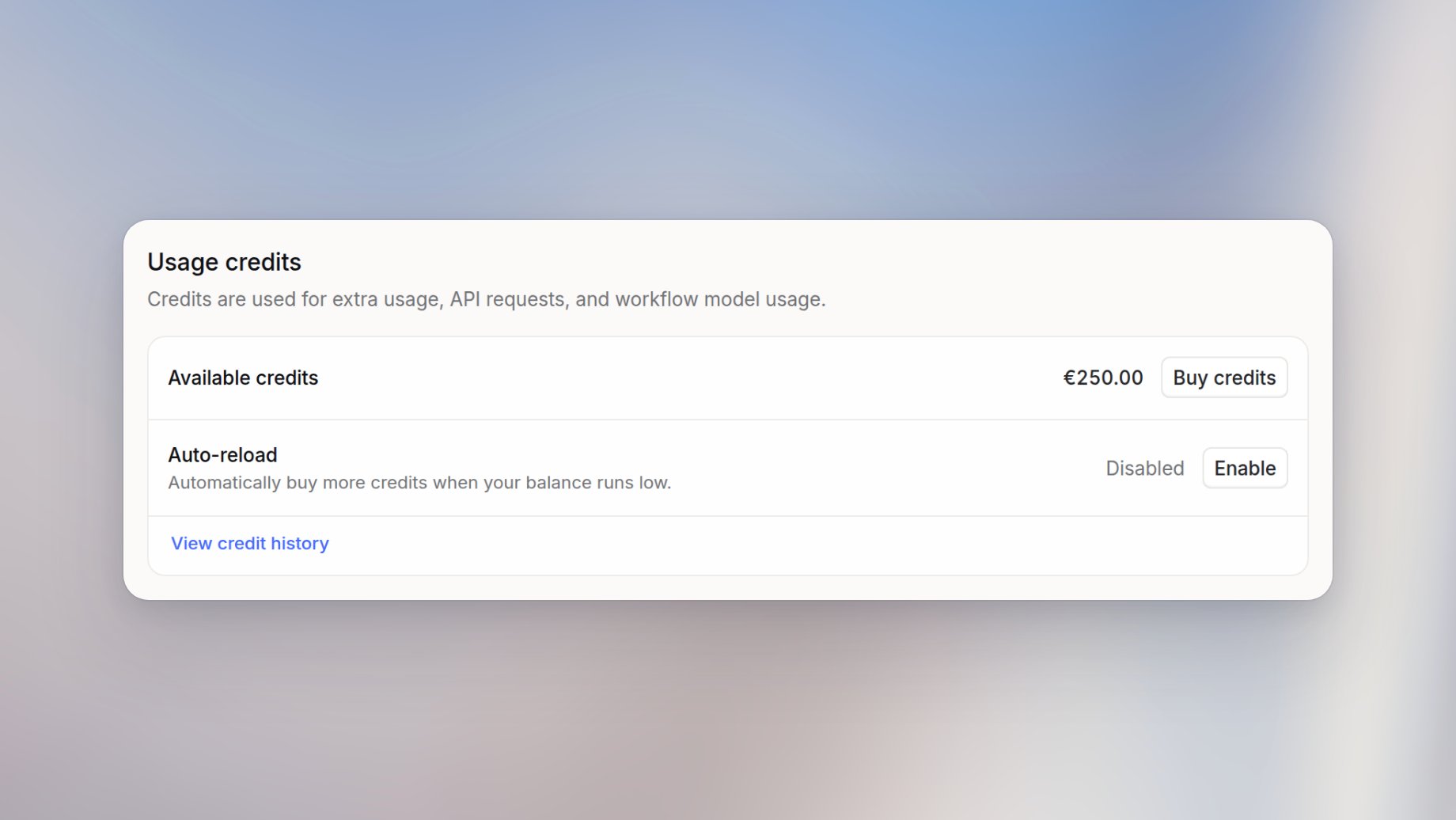
3
Choose a predefined amount or enter a custom amount.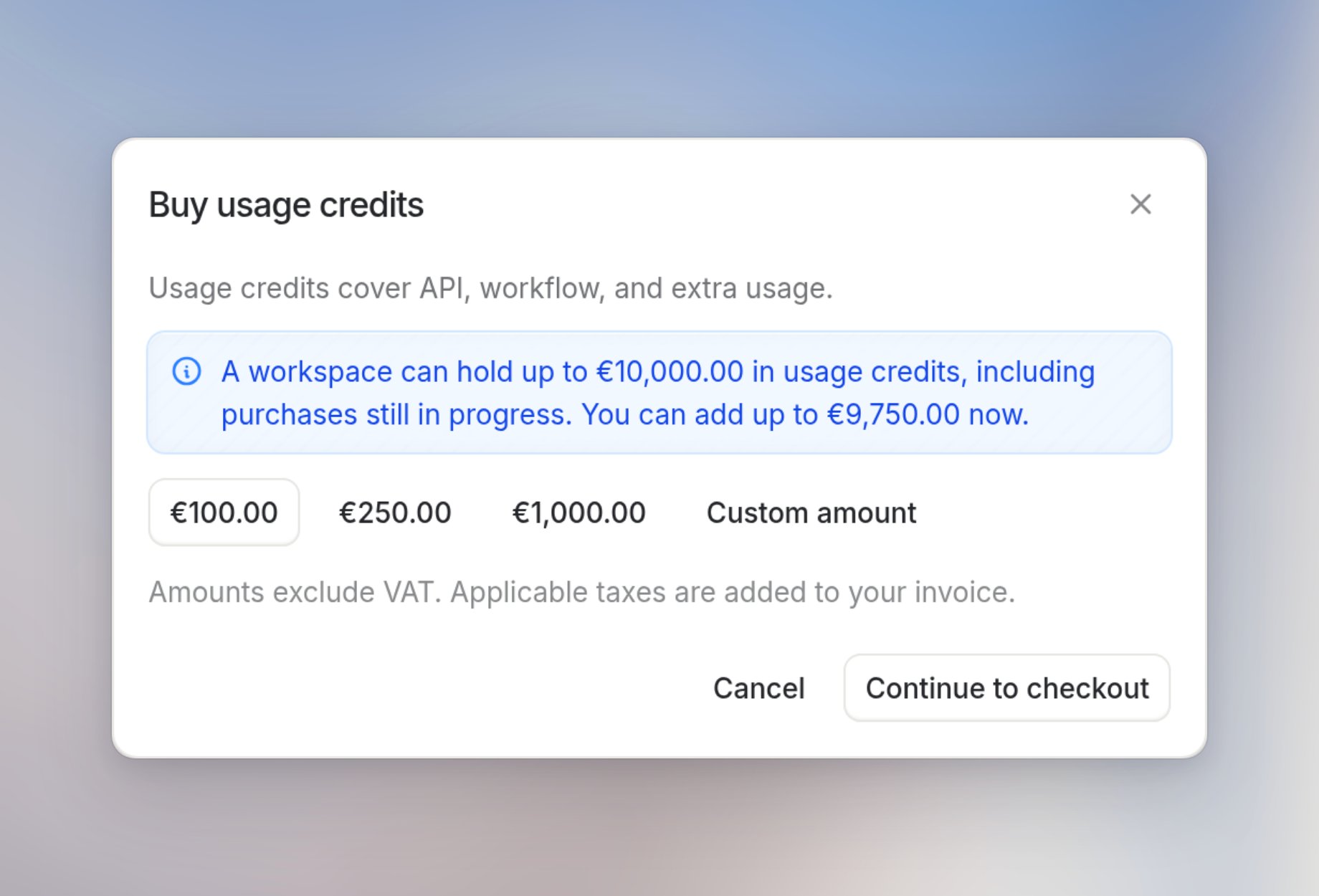
4
Click Continue to checkout and complete the purchase.
5
(Optional) After the purchase, click Configure auto-reload to have your workspace buy more credits automatically before the balance runs out. See Turn on auto-reload.
Turn on auto-reload
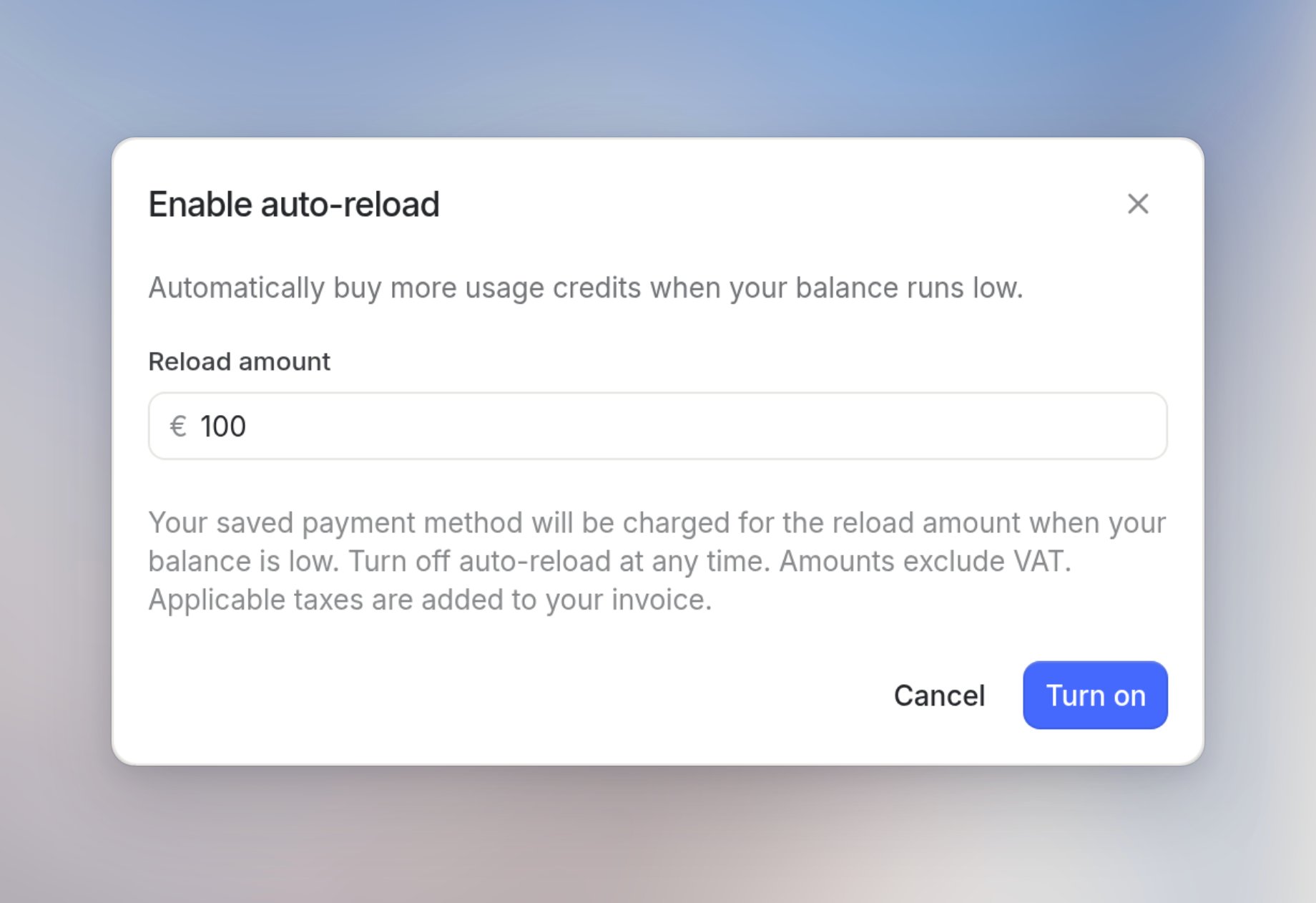
Auto-reload buys credits for you so your workspace doesn’t run out. When your balance runs low, Langdock automatically charges the reload amount to your saved payment method.2
Under Usage credits, next to Auto-reload, click Enable.
3
Set a reload amount and click Turn on.