Microsoft Purview and Sensitivity Label Policy appear when Langdock has enabled them for your workspace. Saving the policy sets which labels to block. SharePoint, OneDrive, Outlook Email, Microsoft Teams, and Microsoft Excel withhold blocked content only after those integrations apply the saved policy.
Open the policy
- Go to Integrations in your workspace settings.
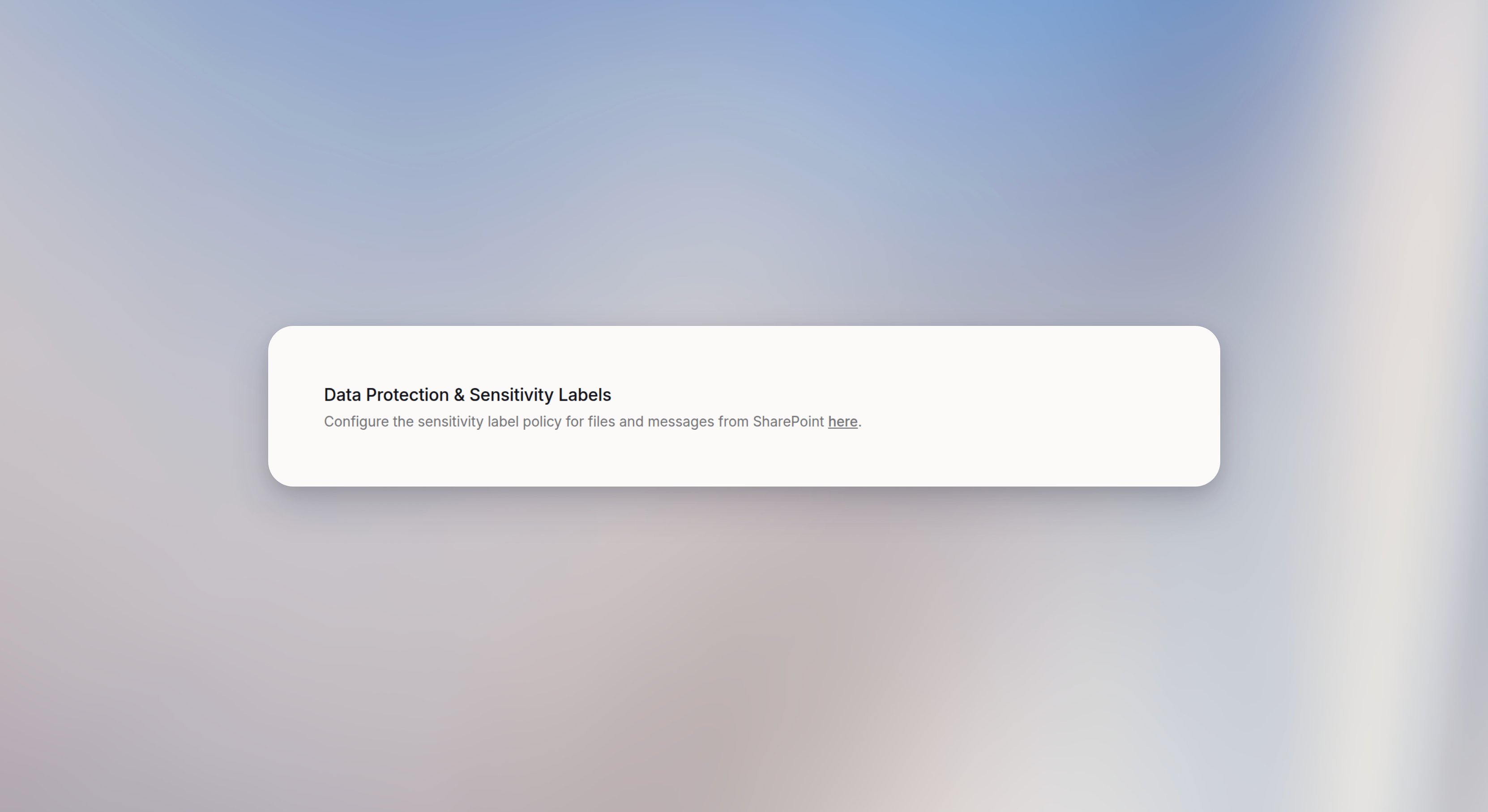
- Open Microsoft Purview, or open SharePoint, OneDrive, Outlook Email, Microsoft Teams, or Microsoft Excel and follow Data Protection & Sensitivity Labels.
- Connect Microsoft Purview if no connection exists. The connection needs
SensitivityLabel.Read,User.Read,openid, andoffline_access.
Load labels
Open the menu beside Load labels and choose a connection. The selected connection is checked. Then click Load labels. Until a tenant is loaded, the line reads “Select a Purview connection and load labels for that Microsoft tenant.” After a successful load, the table replaces that line.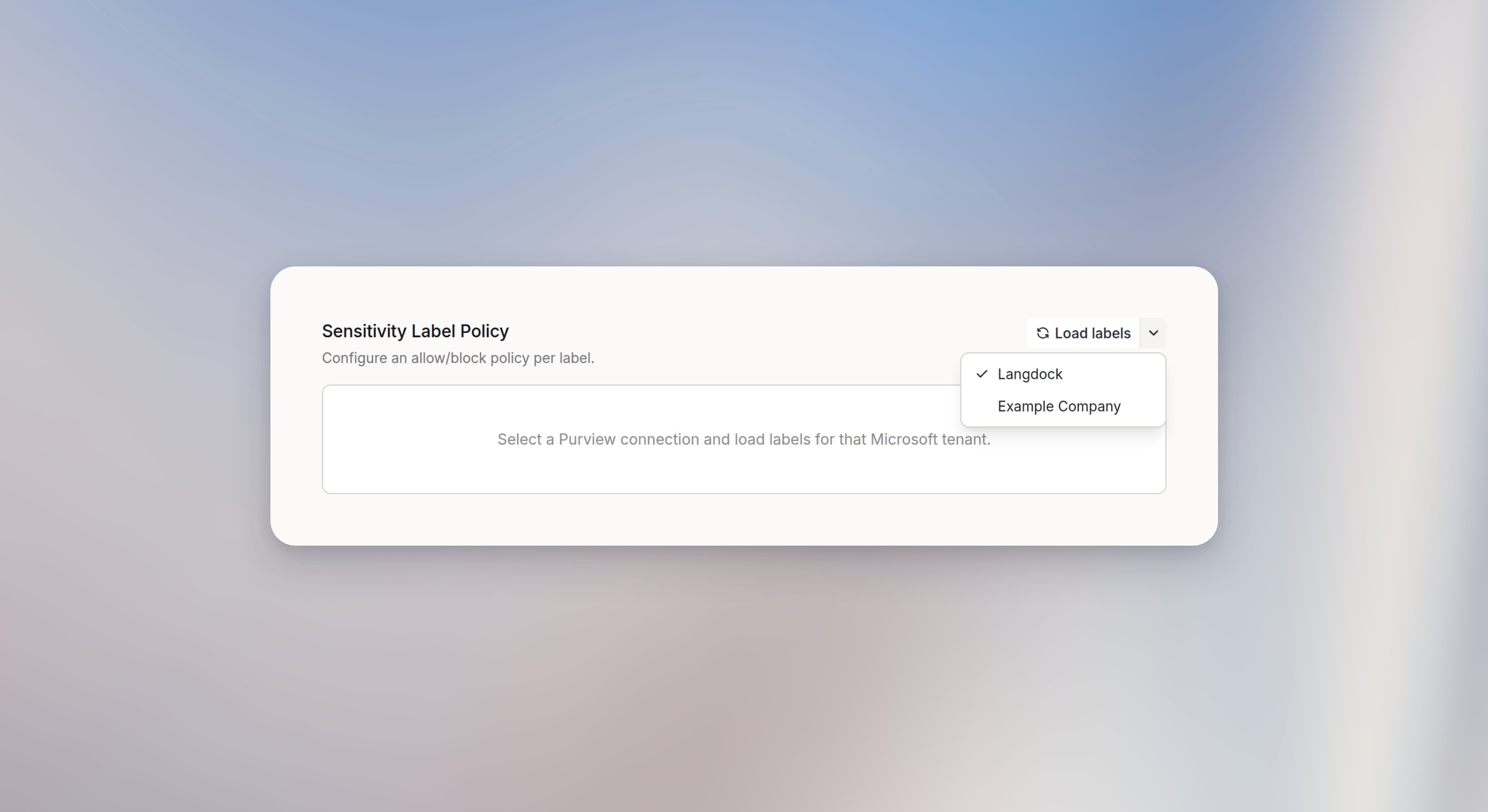
Allow or block labels
The table columns are Label, Applicable to, and Allowed. Applicable to is Email, Files, or Email (Outlook) and files (SharePoint & OneDrive).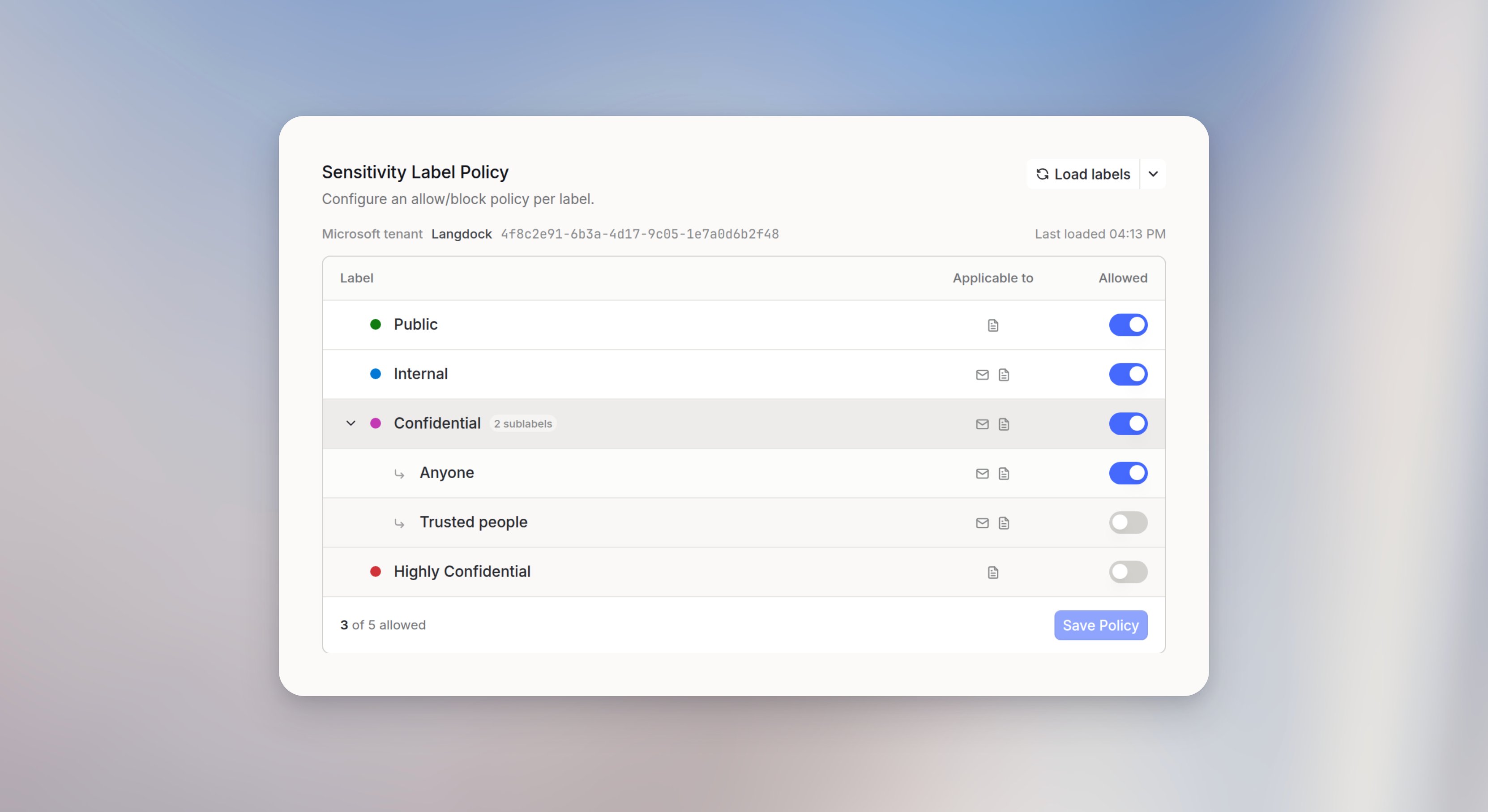
Where the policy applies
When the integrations apply the saved policy:- SharePoint and OneDrive. File reads, metadata, downloads, copy sources, uploads to an existing path, search, and folder listings classify the file before content is returned or replaced. A new path can be created. A shortcut is judged by its target. Document-library rows are classified as files. Ordinary list rows are not. Editing fields on a document-library row is allowed even when the file is blocked. Sites, folders, drives, and site pages are not classified as documents.
- Outlook Email. Reads, search, drafts lists, moves, flags, categories, and polling triggers classify the message before the body is returned. Blocked messages are left out of polls.
- Microsoft Teams. Message text is not classified. A downloadable SharePoint or OneDrive attachment is classified before download. A blocked attachment is omitted. The message and its other attachments are still returned.
- Microsoft Excel. The workbook is classified before cells, sheets, tables, or charts are read, and again before an edit. Editing a blocked workbook is refused.
What Langdock requests from Microsoft
The label check runs in Langdock’s integration code, before anything is passed to the AI. The integration code decides for each file and email what to request from Microsoft. The AI only receives what the check allows, so a request the integration code makes is not the same as the AI accessing that data. For every file and email, the integration code first requests only its ID and reads its sensitivity label. It requests the content only when the label is allowed. A blocked file’s content and a blocked email’s body and preview are never requested. In two cases, the integration code receives more than the ID before the label check. For blocked items, the integration code uses this data only to run the check. It isn’t passed to the AI or shown to the member.- SharePoint search and Excel file search. Microsoft’s search API returns a short text preview with every result and has no option to leave it out. The integration code reads the label of each result and removes blocked results with their title, link, and preview before it returns the results.
- SharePoint and OneDrive folder listings. The integration code requests each file’s name, link, and type together with its ID. Folder sync needs these details to keep a file whose label can’t be checked right now, for example when Microsoft throttles the request, instead of deleting it. The integration code removes blocked files from the listing before it returns it.
Exceptions
Three cases stay allowed even when a matching file or message would otherwise be blocked:- Draft, send, reply, and forward in Outlook are not checked, including the reads those actions make to build the message.
- A file attached to an allowed email as a copy is returned without its own label check. A file shared as a SharePoint or OneDrive link, in the body or as a cloud attachment, is classified as that file before download. The attachment’s file name reaches the AI either way. To keep a restricted document out of Langdock, share it as a link instead of attaching a copy.
- A label created in Purview since your last save stays allowed until you reload and save the policy.
Where the policy doesn’t apply
The policy covers the five integrations above. It doesn’t apply to:- Connections to a Microsoft tenant you haven’t loaded and saved
- Other Microsoft integrations, such as Outlook Calendar, OneNote, Planner, To Do, and Power BI
- Custom integrations and MCP servers, even when they call Microsoft Graph
- Files uploaded from a computer
Folder Sync
Source permission and the workspace Purview policy are separate checks. A file you can open in SharePoint or OneDrive can still be withheld when its sensitivity label is blocked. Files without source permission stay hidden from listings and search. Files blocked by Purview follow this policy. During folder sync, each file is classified before its content is fetched. Blocked files are left out of the synced copy, and a file that was synced earlier is removed. A file whose label couldn’t be checked keeps its synced copy and is marked as failed. The next sync checks it again, and members can’t use it until the check succeeds. When you save a policy that changes which labels are blocked, the next sync of every synced SharePoint and OneDrive folder re-checks every file. That sync takes longer than a regular one. Relabeling a file in Microsoft 365 changes the file, so the next sync picks up the new label on its own. See Folder Sync for source-permission rules.Speed and request limits
Checking labels adds requests to Microsoft. Each file or email needs one to three extra Microsoft Graph requests before its content is fetched. The checks run once you save a policy for a tenant, even when every label is allowed.- Folder listings, searches, and email triggers take longer.
- Large tenants can hit Microsoft throttling. A throttled check withholds the affected items, and a later request usually returns them.
- A large folder or document library can return only part of its items in one request. The AI is told the list is partial and can narrow the request, for example to one subfolder.
What members see
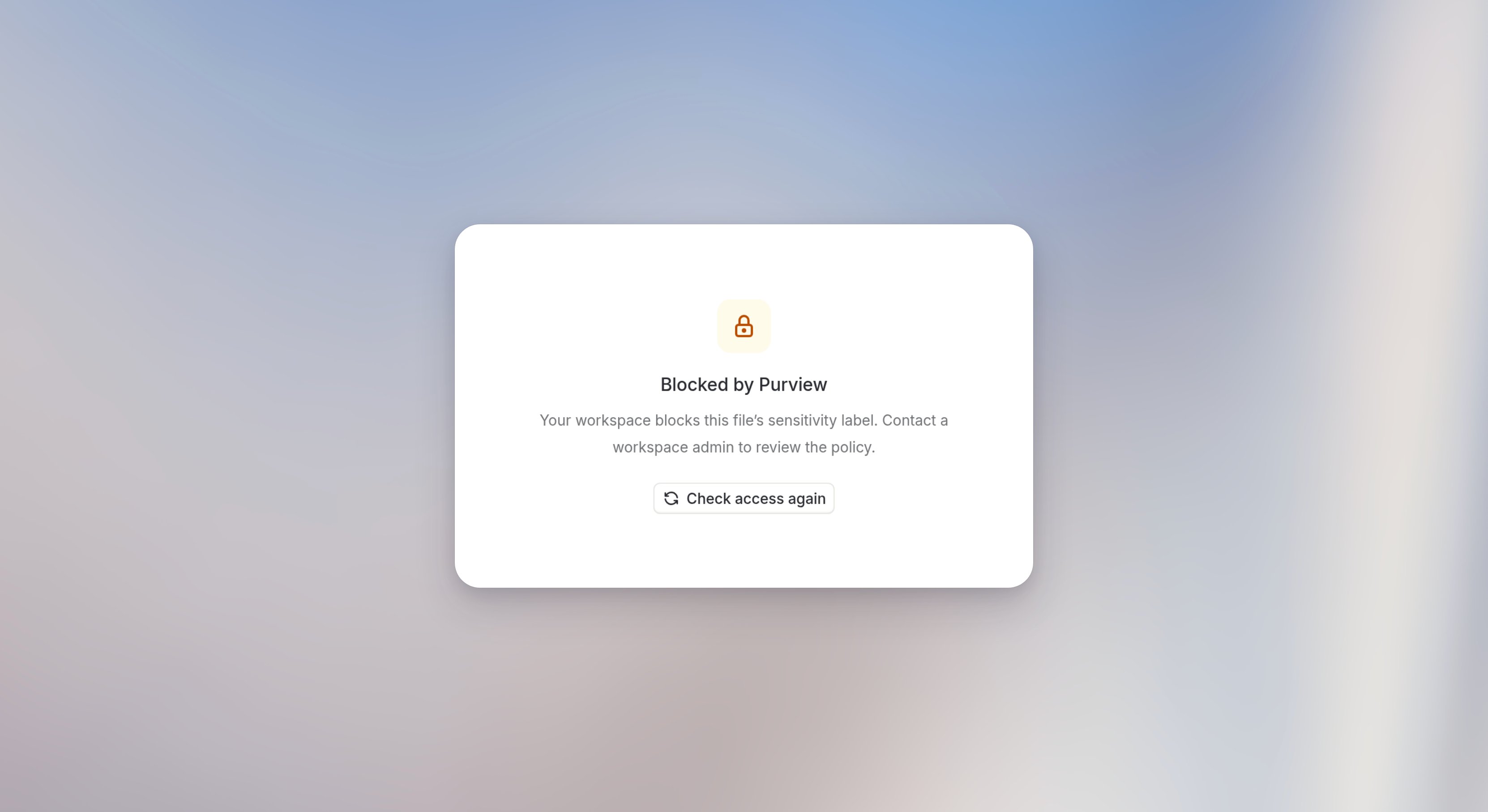
When a file is withheld, members see one of two notices:- Blocked by Purview: “Your workspace blocks this file’s sensitivity label. Contact a workspace admin to review the policy.”
- Could not verify access: “This file is unavailable until access can be verified. Try again in a moment.” This usually clears on its own, for example after Microsoft throttling.