

Enabling extra usage
1
Open usage settings
Go to Settings > Workspace > Usage.
2
Enable the toggle
Turn on Enable extra usage. Users with available extra usage can now continue using premium models after exceeding their included limits.
Extra usage is billed at API rates and appears as a separate line item on your monthly invoice, alongside the regular seat-based subscription. If your workspace uses usage credits, extra usage is deducted from that balance instead.
- All users can use extra usage.
- A monthly workspace limit of €1,000 is applied.
- No per-user limits are configured.
Spend limits
You can combine limits at the workspace, plan, and user level. Workspace and plan limits give you broad coverage, while custom per-user limits let you fine-tune for individuals. When a user reaches their extra usage spend limit, chat and agent messages use the fallback model until one of their included limits resets. In Langdock Cloud workspaces without BYOK, that fallback model is GPT-6 Luna. In BYOK and Dedicated Deployments, it is the configured workspace fallback model. These messages are not billed as extra usage. Personal API requests return an error instead of switching models when their effective personal budget or the workspace spend limit is reached.When the limit is reached mid-response, the model is allowed to finish its current response before the limit is enforced. This avoids confusing behavior where the model would switch mid-response, but it also means the final billed amount can slightly exceed the configured limit.
How different limits interact
Session, weekly, and extra usage limits all operate on different clocks. The following example walks through how they play out across a week for a single user. Example. A user on Business Max has an extra usage spend limit configured.- Monday afternoon: While working on a set of client documents, the user hits their session limit. Extra usage covers the overflow and they keep going with Claude Sonnet to finish the task.
- Tuesday morning: The session window has reset. The user is back on included usage at no extra cost and continues their work with Claude Sonnet.
- Friday afternoon: Later in the week, the user hits their weekly limit. Extra usage covers them again so they can keep going with Claude Sonnet.
- Friday evening: The user reaches their extra usage spend limit. The spend limit caps the cost for the rest of the period, and the user is routed to GPT-6 Luna, the fallback model for Langdock Cloud workspaces without BYOK, until the weekly window resets.
Workspace spend limit
Set a maximum monthly extra usage spend limit across the entire workspace.1
Open usage settings
Go to Settings > Workspace > Usage.
2
Adjust the limit
Click Adjust limit under the workspace spend limit section. Choose Unlimited or set a Custom amount.
Default spend limits per plan
You can set a different default spend limit for each plan. Click the edit button on either card to choose Unlimited or a Custom amount.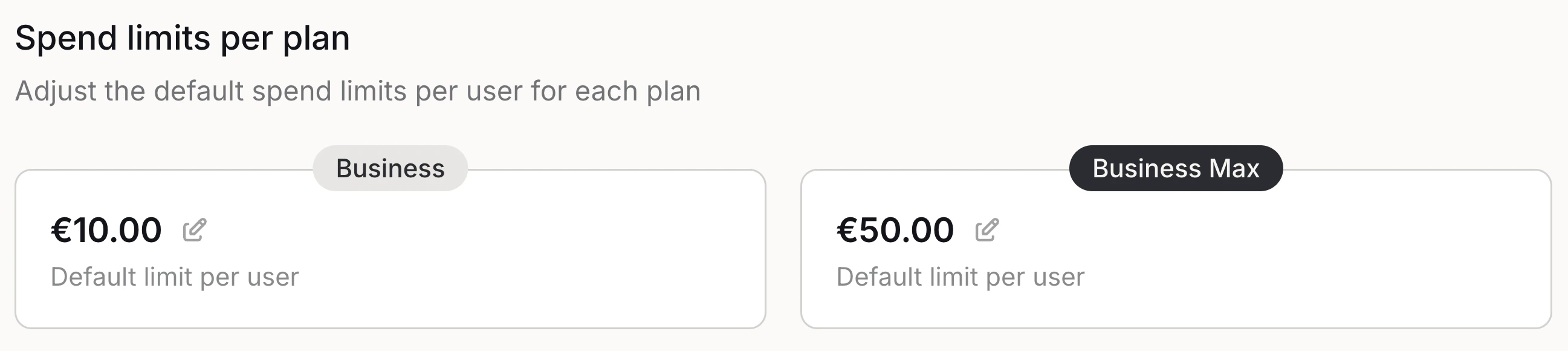
Custom limits
To override the default per-user limit for individual users, use the Custom limits table:- Use plan or group limit: Uses the highest applicable plan or group limit.
- Unlimited: No spending cap for this user.
- Custom: A specific amount for this user.
Usage requests
Usage requests let users ask their admin for higher limits when they hit a limit.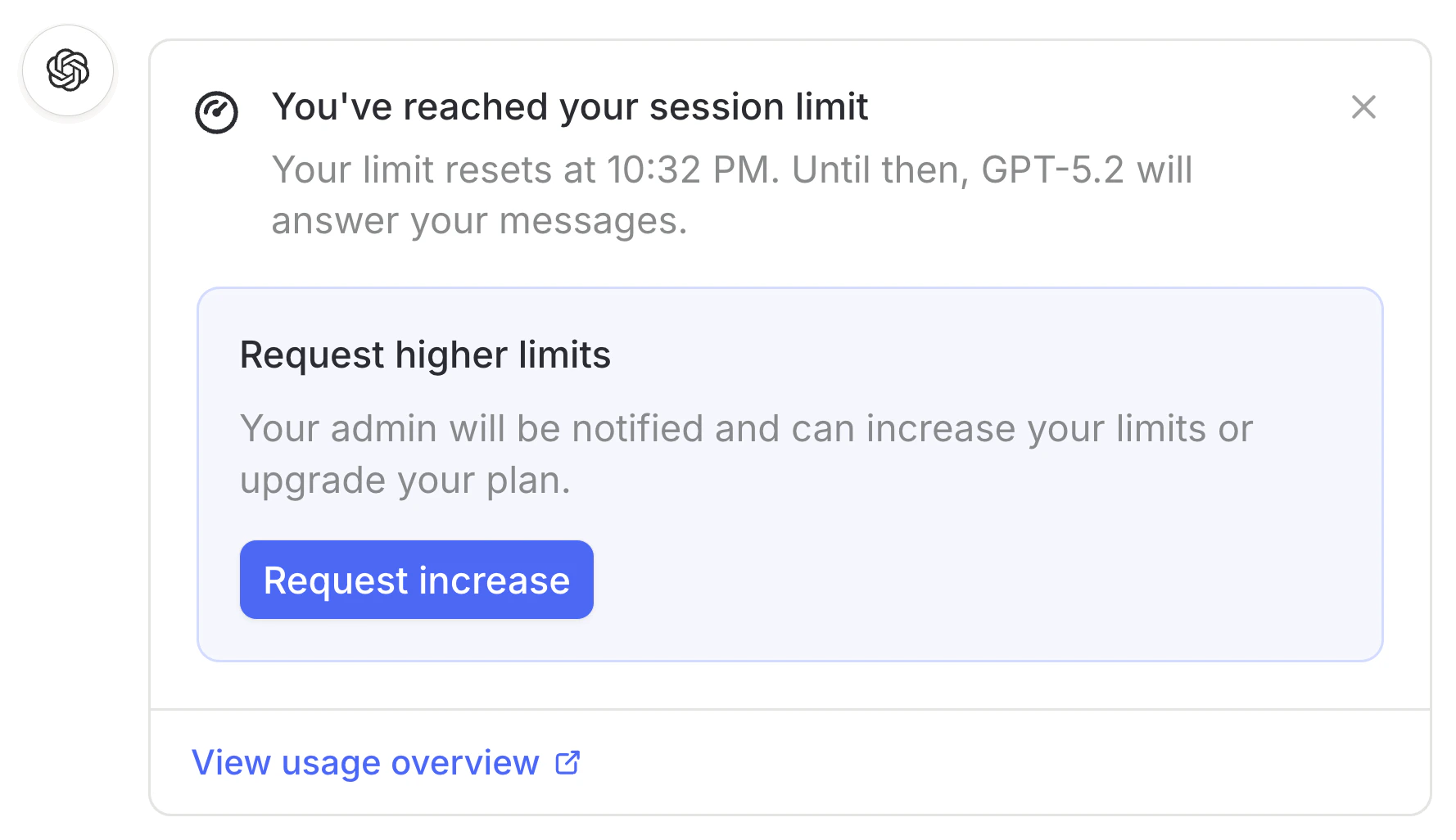
Users can request higher limits directly from the chat once they hit a limit.
- Upgrade the user to Business Max
- Set a custom spend limit for the user
- Dismiss the request
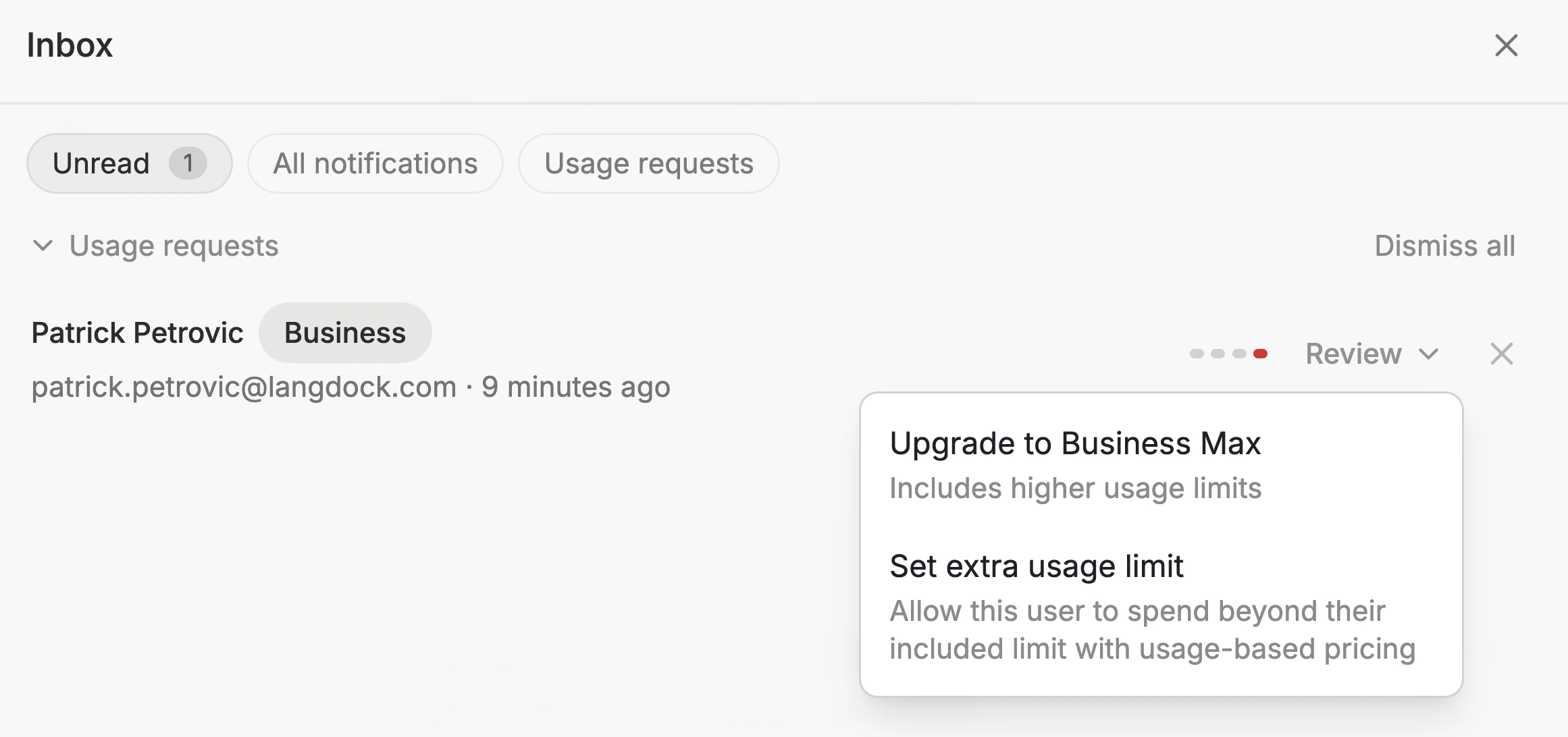
Usage requests can be used independently of extra usage. If extra usage is disabled, users can still request higher limits, and you can then decide whether to upgrade their plan.
Last updated: April 2026