

Canvas is now the Document Editor. Any Canvas files you created before are still accessible in their original chats.
Document Editor
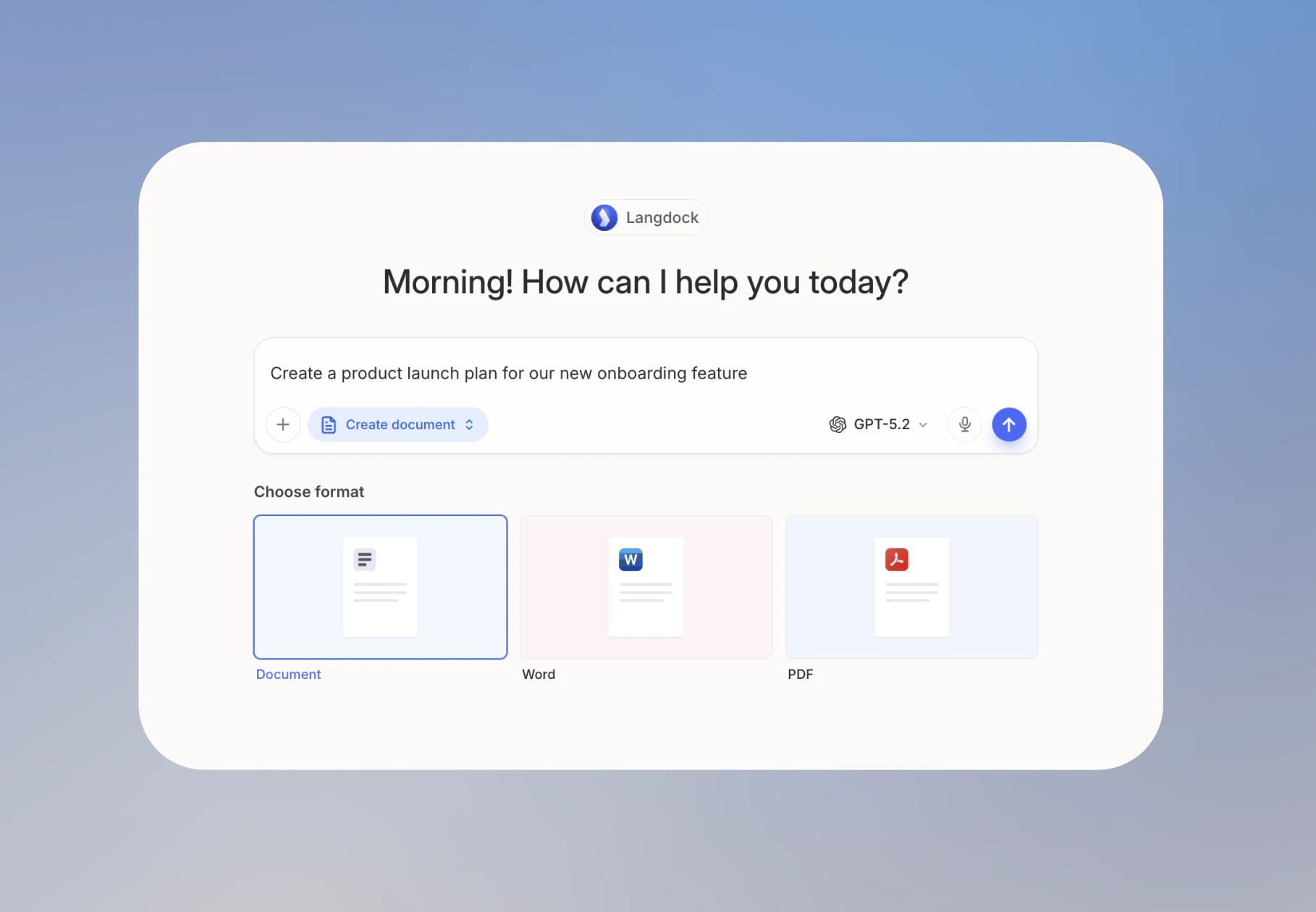
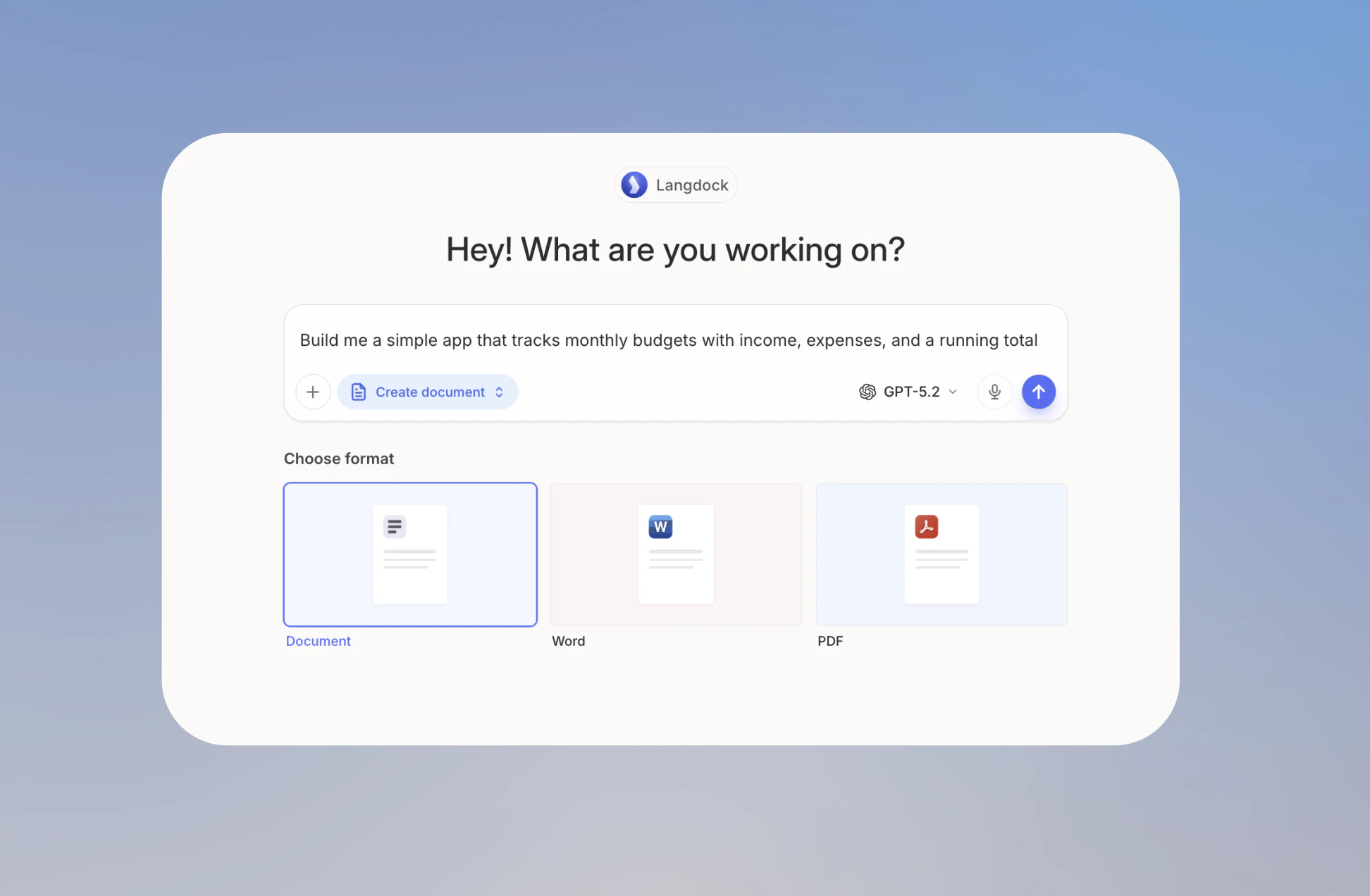
The Document Editor opens as a panel alongside your chat, so you can write and iterate on documents without switching context. Use it when you want to draft a proposal, write a report, put together a project plan, or work on any longer piece you’ll refine and share. Documents are saved to your Library automatically, so they’re accessible across all your chats. You can open the Document Editor in three ways:- Type a prompt like “draft a proposal” or “create a report”. The editor opens automatically.
- Click Create document in the input bar and choose your format: Document, Word, or PDF.
- Open the Tools menu and select Create document.
Formatting
Edit your document directly in Langdock. Click anywhere to start typing, deleting, or rearranging content. To add structure to your document, type:/ anywhere to open the formatting menu. It’s organized into three groups: headings and text styles under Format, Lists, and insertable elements under Insert including tables, code blocks, and an auto-generated table of contents.
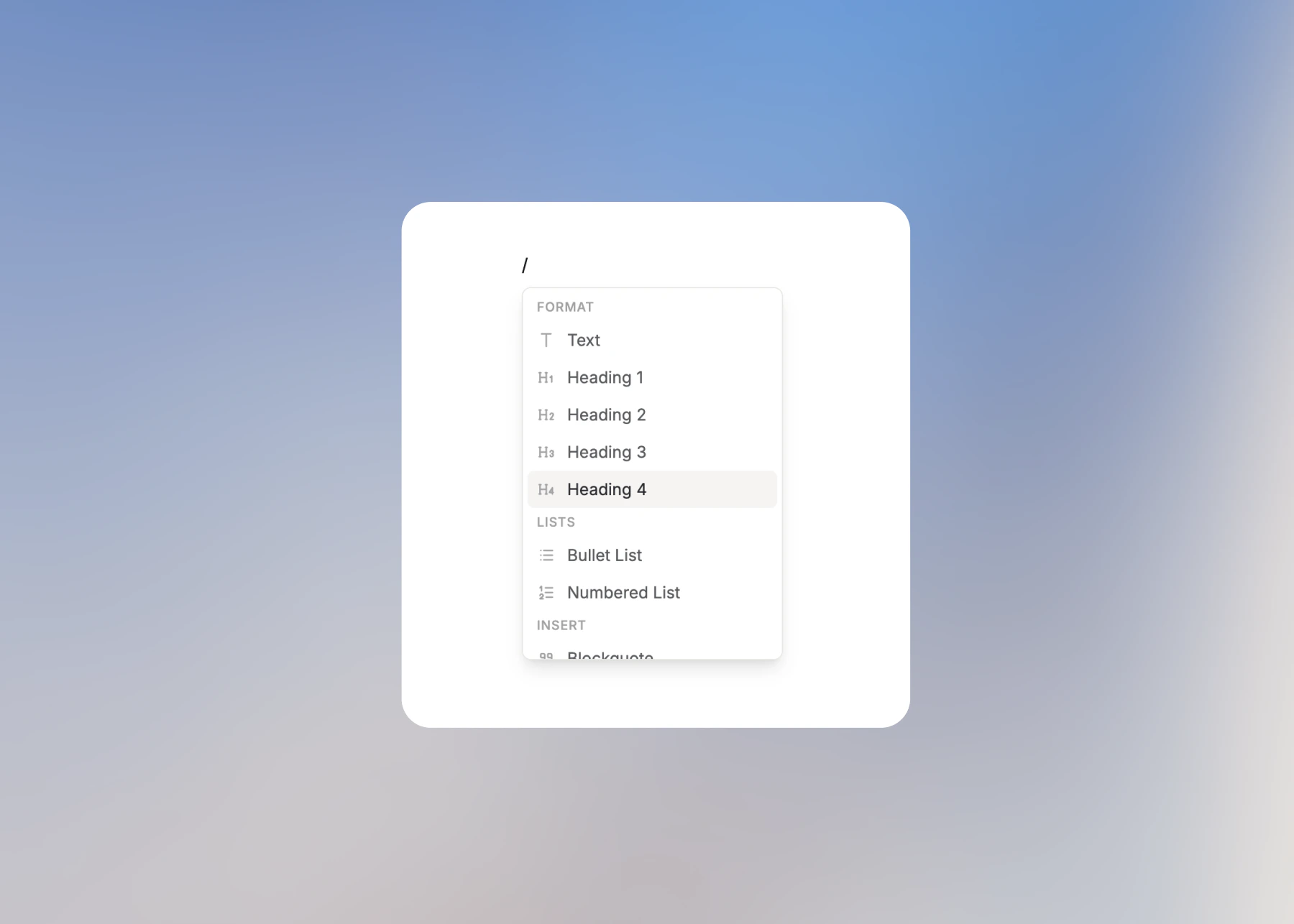
- Heading 1, Heading 2, Heading 3, Heading 4
- Bullet List and Numbered List
- Blockquote and Code Block
- Tables
- Table of contents
- Divider
\(x^2 + y^2 = z^2\). Describe the formulas in chat. The AI model generates the formula in LaTeX format and inserts it. If you want to write formulas yourself, see Overleaf’s LaTeX introduction and math formulas guide.
Edit with AI
The Document Editor lets you collaborate with the AI in two distinct ways: You can make edits on specific text, or broader changes across the whole document. Select any text you would like to edit, and click the Edit with AI button that appears. This quotes your selection into the chat where you can type your instructions. The AI applies the change directly in the document.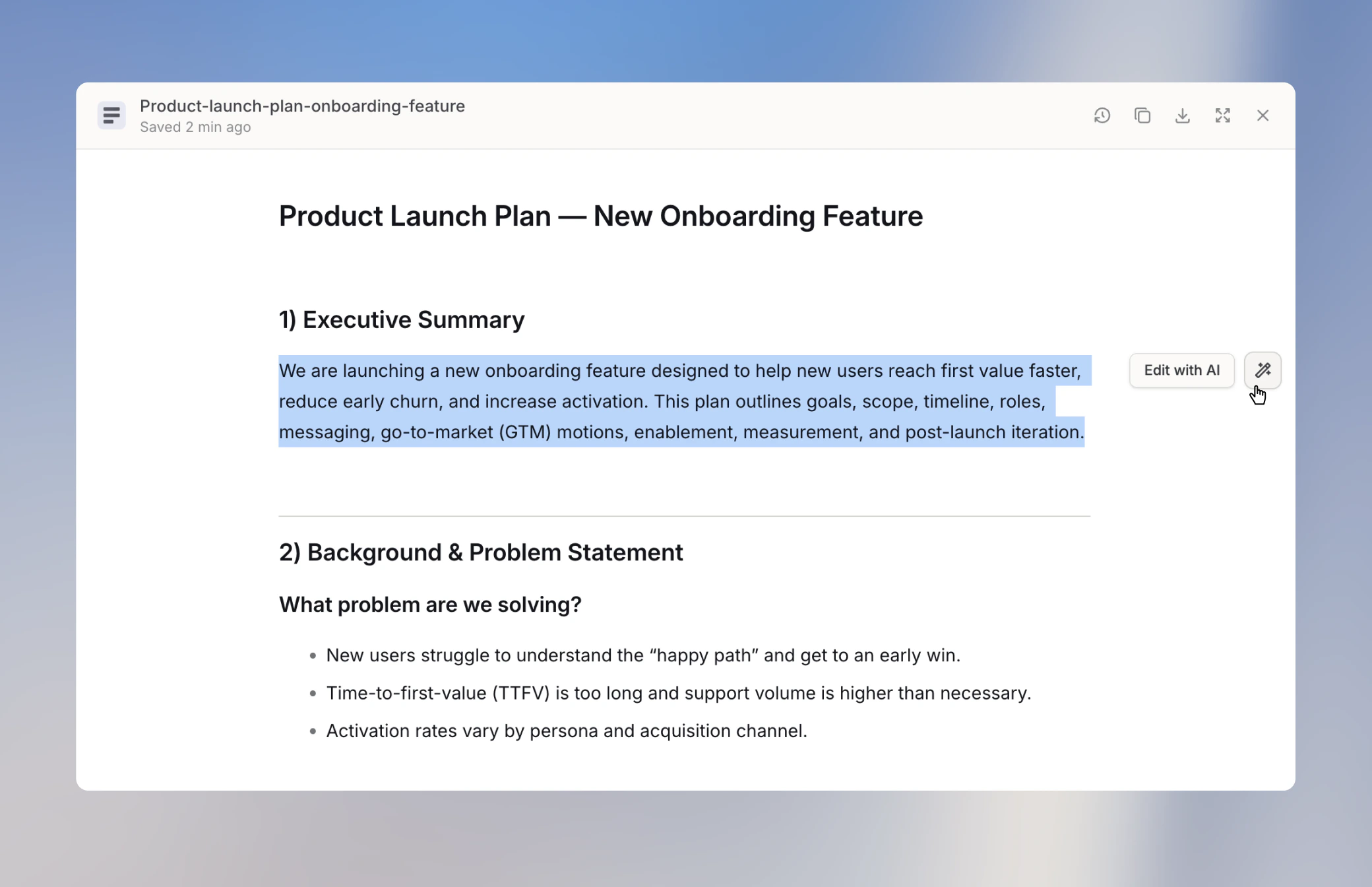
Export your Document
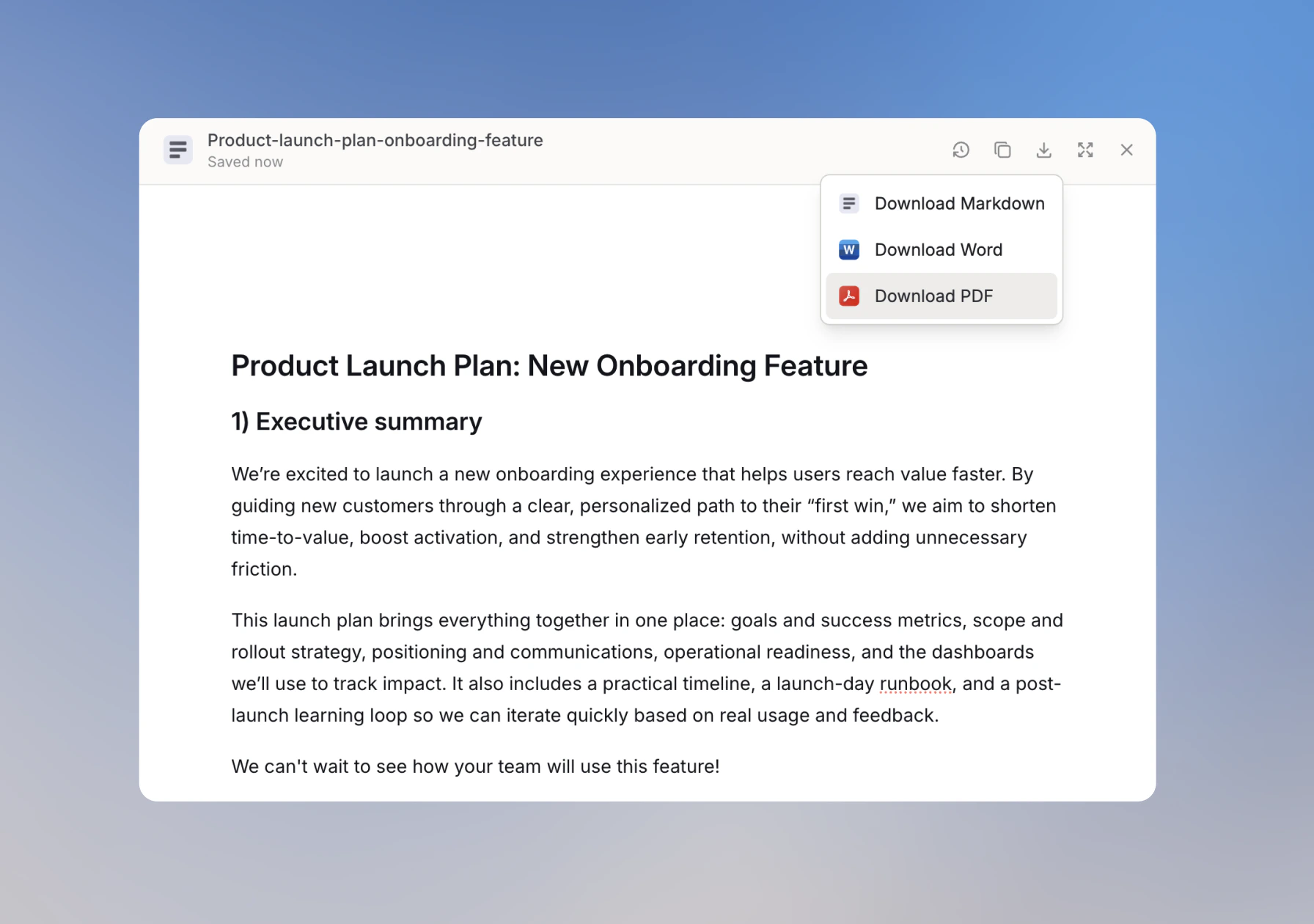
When you’re ready to use your document outside Langdock, export it directly from the editor. Click the download icon in the top bar and choose your format:- Download Markdown
- Download Word
- Download PDF
Working with Code
You can also work with code directly from within the Document Editor, so you can build interactive tools without leaving Langdock. Use it to build interactive outputs like data dashboards, charts, visualizations, and small tools for your team. All of your generated code is automatically saved to your Library, so it’s accessible across all your chats. You can open the Document Editor in three ways:- Type a prompt like “build me a budget tracker” or “create a bar chart from this data”. Langdock automatically opens the editor for you.
- Click Create document in the input bar and describe what you want to build in your prompt.
- Open the Tools menu and select Create document.
Code and Preview
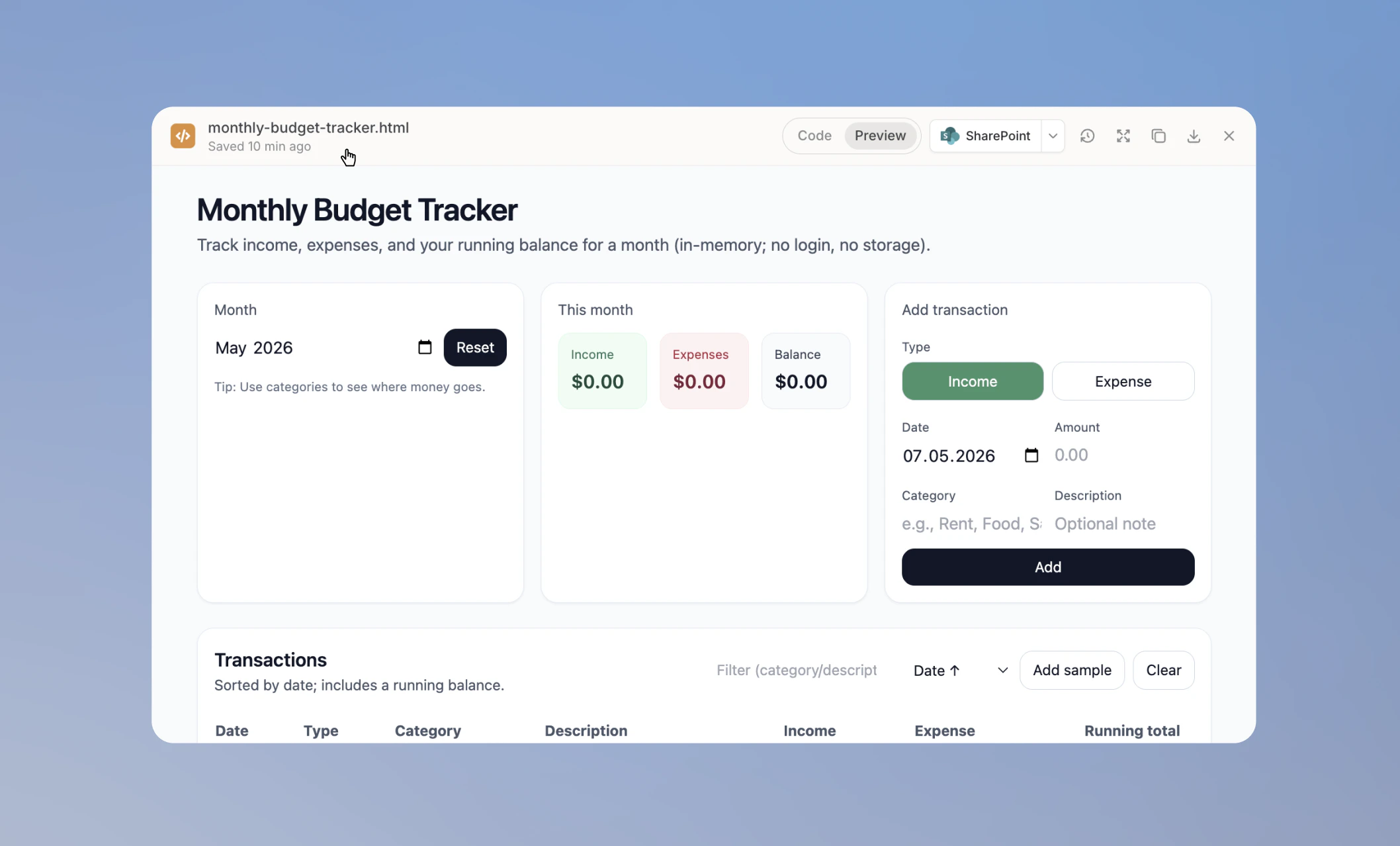
Once your code is generated, you work with it in two views. Toggle between them at the top of the panel. Code shows the full source file. You can read through it, edit it directly by clicking anywhere and typing, or ask the AI to make changes. Everything saves automatically.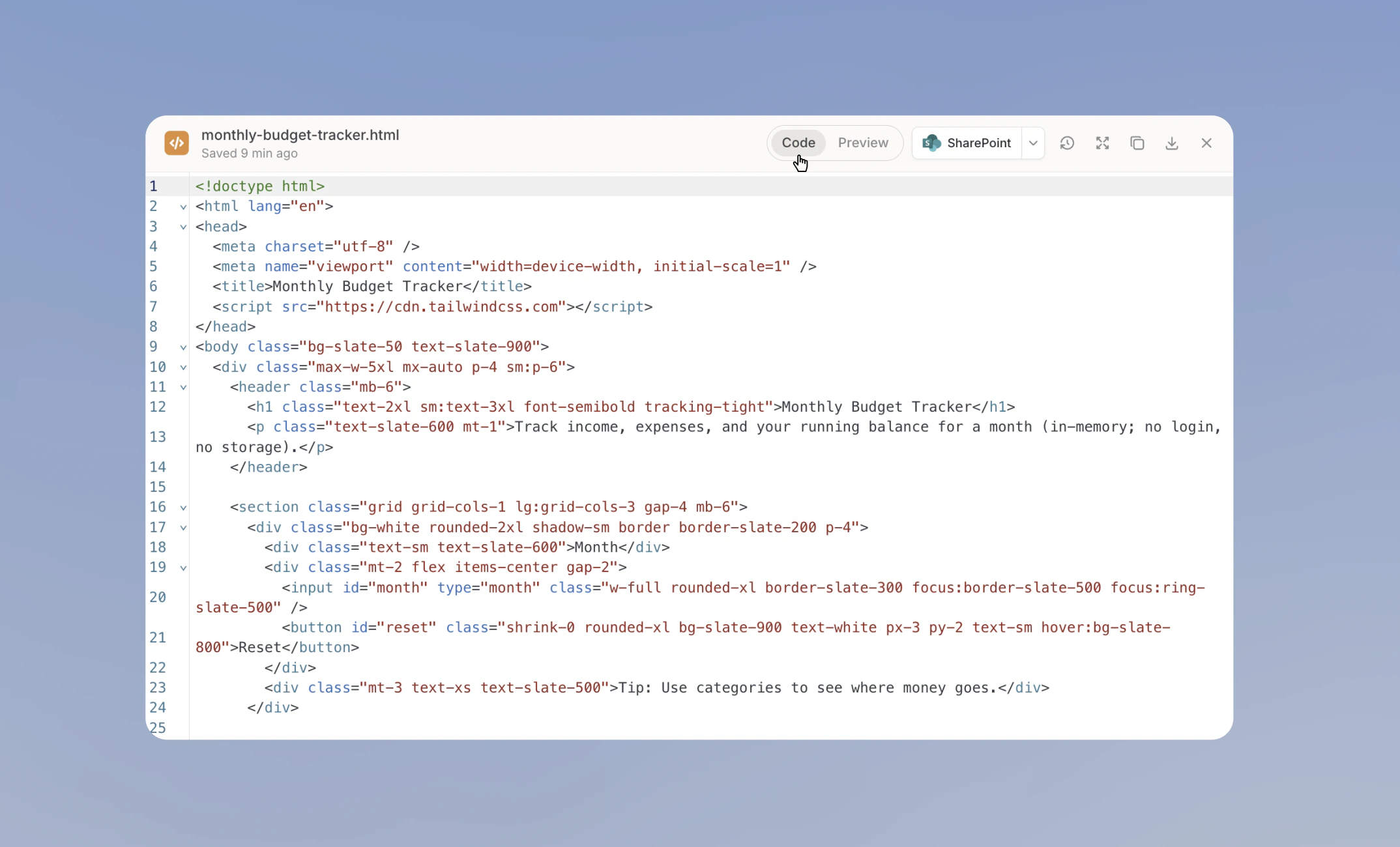
Debugging with AI
The Document Editor lets you iterate on your code with the AI directly from the chat. Type your instructions in the chat to add a feature, change the styling, fix a bug, or rework the layout, and the AI applies the change directly to the file and saves a new version automatically.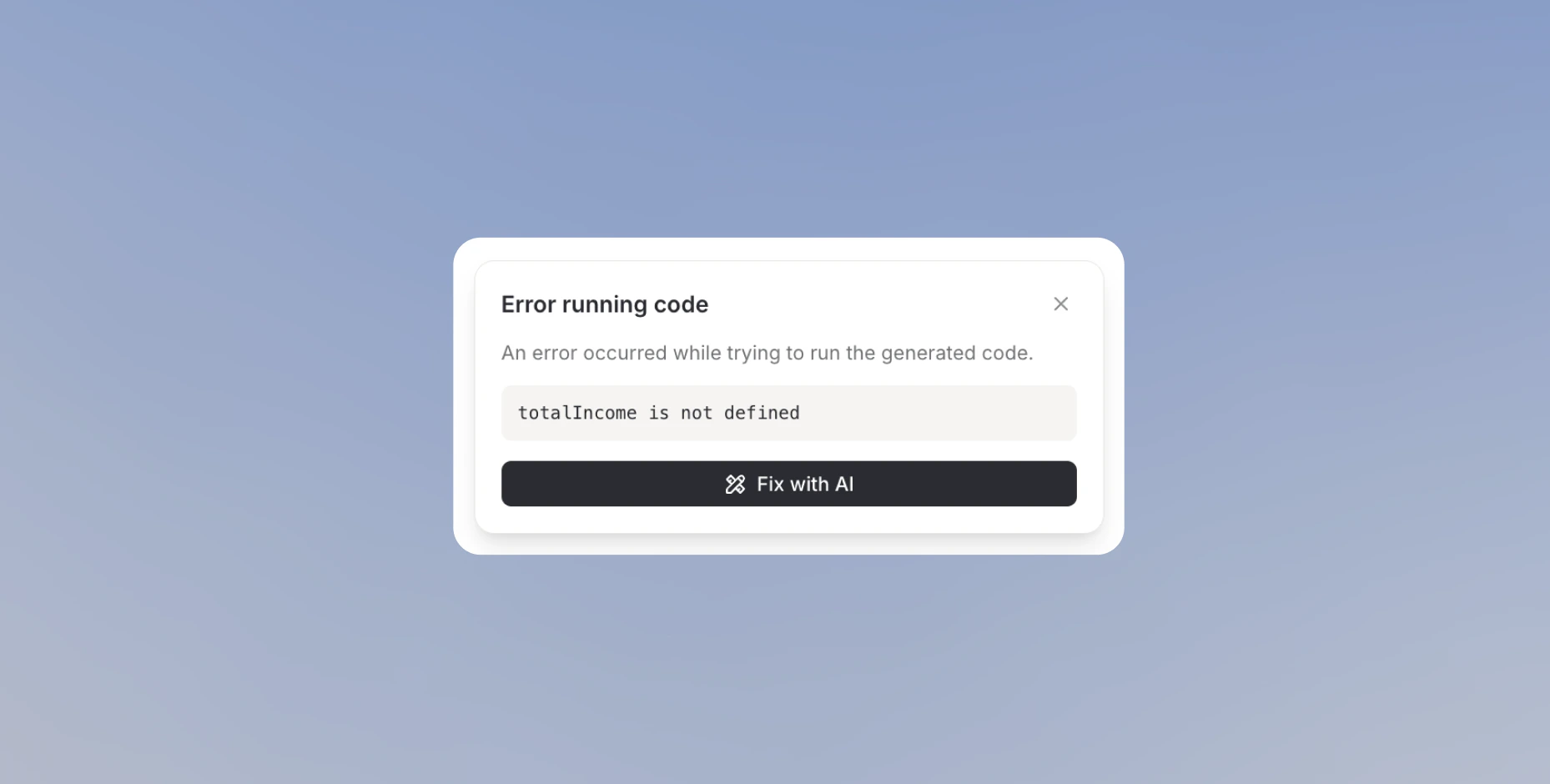
Export your Code
When you’re ready to use your file outside Langdock, download it directly from the editor. Click the download icon in the top bar. The file downloads in its native format:.html, .jsx, or .tsx.
Version history
Every change is tracked automatically, for both documents and code files. Version history gives you a full record of every edit made to your file, whether by you or the AI, so nothing is ever lost. Click Version history in the top bar to open the version panel. Each version is timestamped and attributed to either you or the AI. Select any version to see exactly what changed. Click Restore version to make it the current document or file.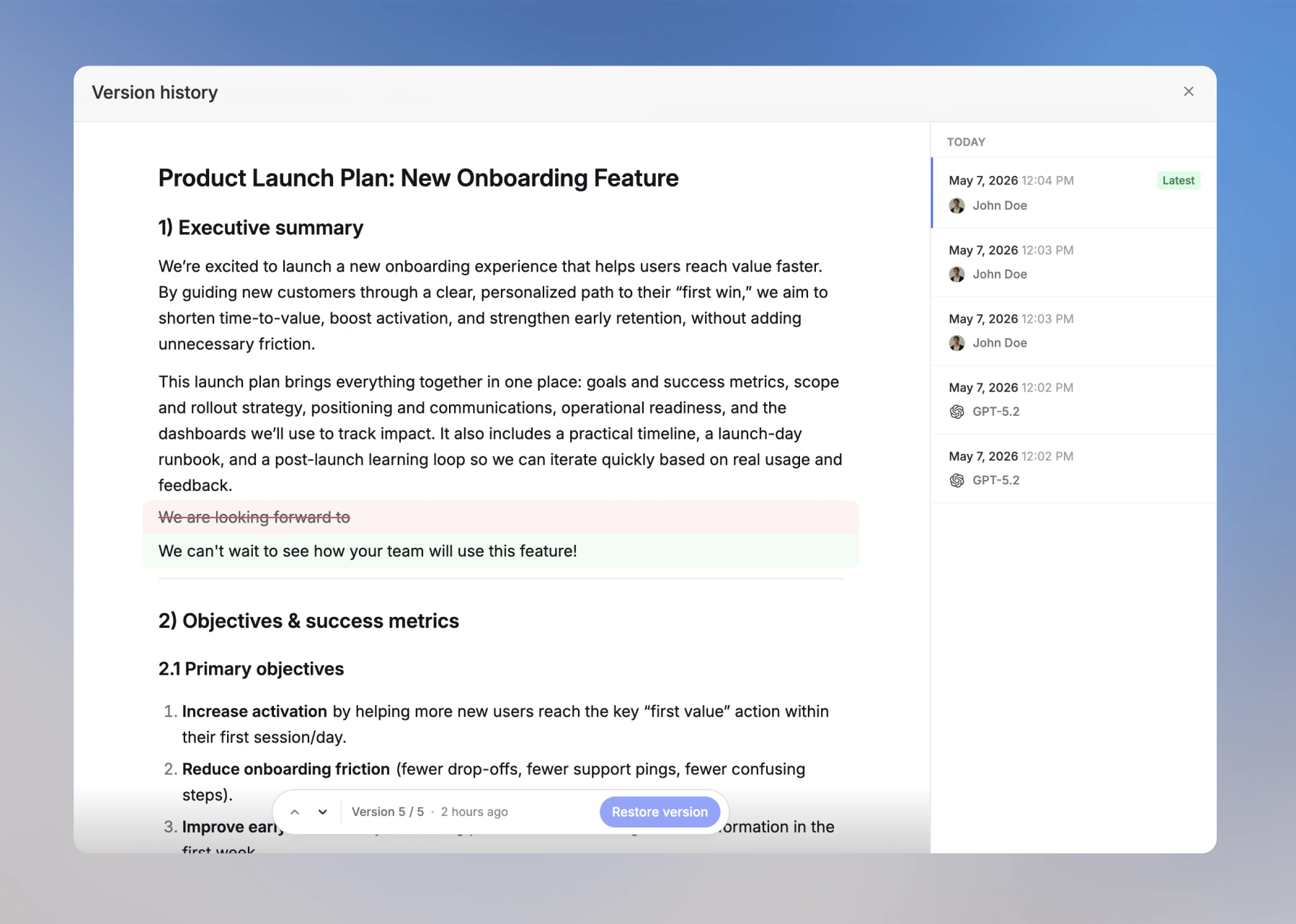
Save to external storage
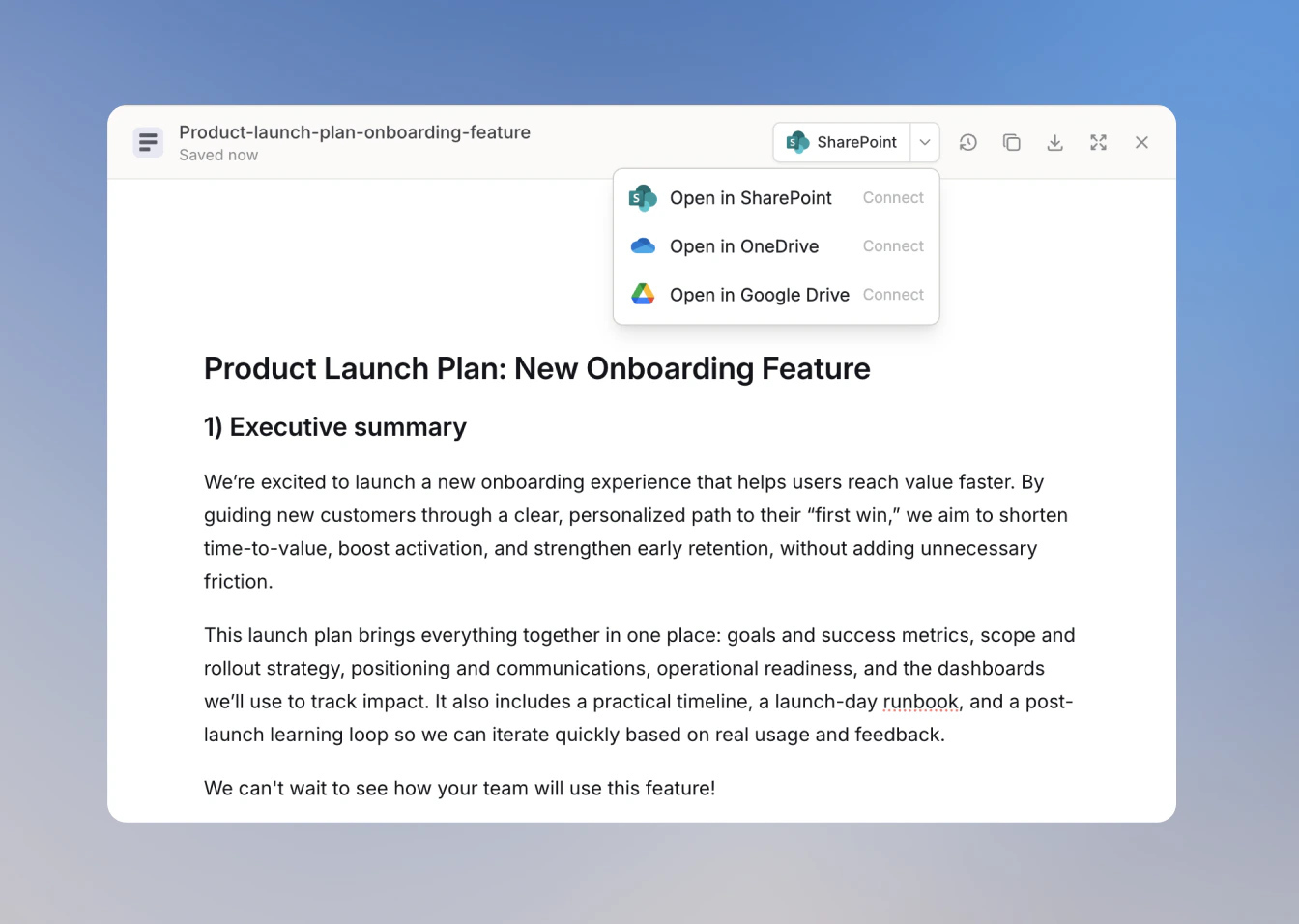
Both documents and code files can be sent directly to your team’s storage without downloading and re-uploading them. Click the external storage button in the top bar. All three options are always visible. Click Connect next to any integration that isn’t set up yet:- Open in SharePoint
- Open in OneDrive
- Open in Google Drive
Library
Whether you are working with documents or with code, everything you create is saved to your Library automatically. Your Library is the central home for all your files across Langdock, so you can always find and continue working on them across different chats.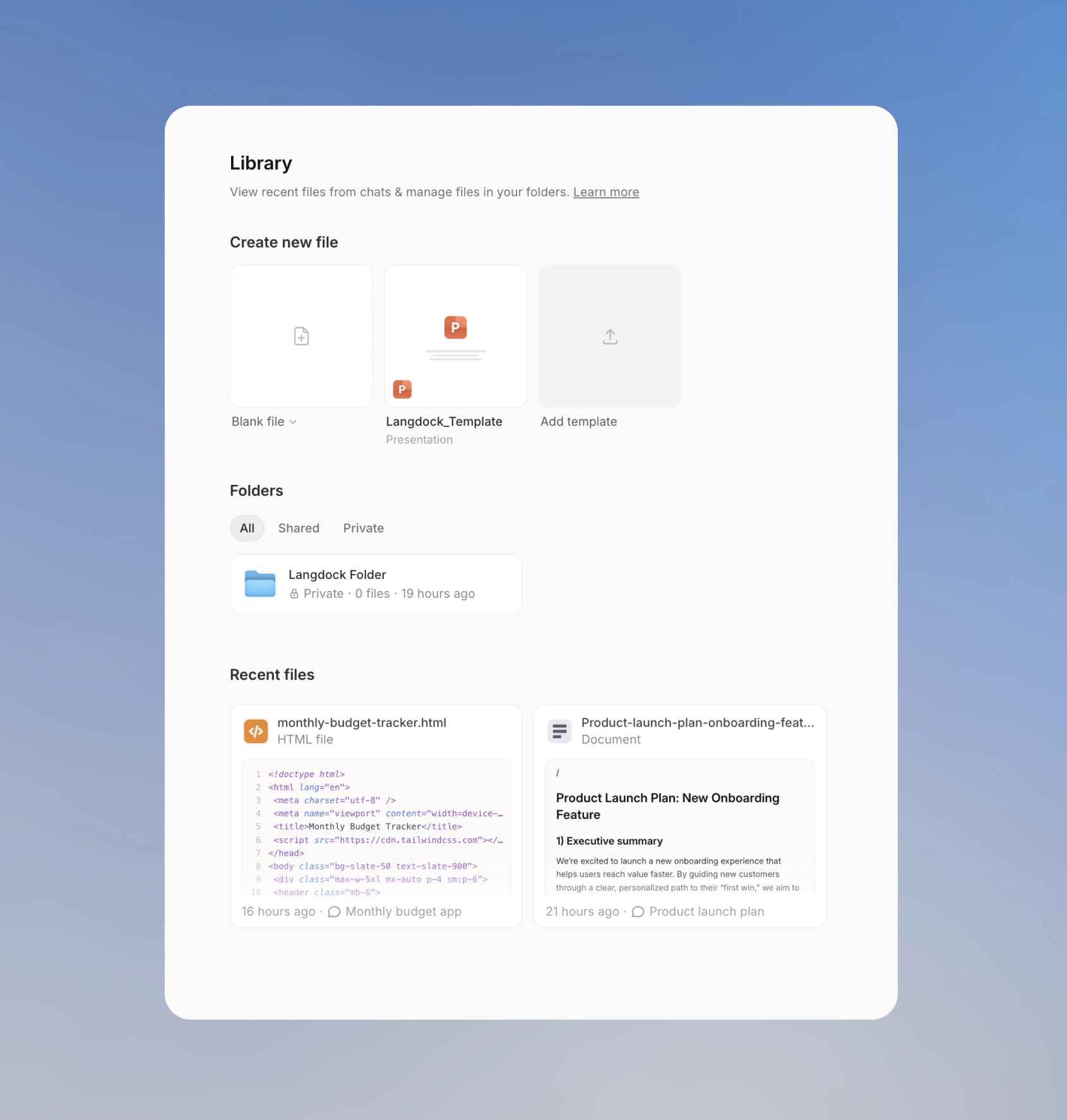
What happened to Canvas?
Canvas is now the Document Editor. Any documents or files you created in Canvas are still accessible in the original chats where they were created. The Document Editor is built on what Canvas started, with version history, direct export to Google Drive, OneDrive, and SharePoint, and a Library where all your files are always accessible. They will be the foundation for new features coming to Langdock over time. Prompts that include the word “Canvas” still open the relevant editor, so your team can continue using that language without any disruption.FAQ
When should I use Document Editor?
When should I use Document Editor?
Use Document Editor when you want to draft, revise, or format longer content in a dedicated panel while staying in the chat. It is useful for documents that need multiple edits, structure, or review before export.
What should I check if Document Editor does not behave as expected?
What should I check if Document Editor does not behave as expected?
Check whether the content is open in the editor, whether the prompt refers to the right document, and whether the requested change is about content or formatting. For large documents, work in smaller sections and review changes before continuing.
Why doesn't the editor open automatically when I'm chatting with an agent?
Why doesn't the editor open automatically when I'm chatting with an agent?
If an agent’s instructions tell it to respond directly in the chat or not to create files, the editor won’t open automatically. You can still open it from the Create document button or the Tools menu.
Why don't charts or interactive elements render in exported code files?
Why don't charts or interactive elements render in exported code files?
Exported files are not fully self-contained: when opened, they load the libraries they use, such as React, Tailwind, or charting libraries, from public CDNs (
cdn.jsdelivr.net, esm.sh, unpkg.com, cdnjs.cloudflare.com, cdn.tailwindcss.com). On networks that block these domains, or without an internet connection, charts and interactive elements will not render.