The Outlook add-in brings Langdock directly into Microsoft Outlook, allowing users to summarize threads, triage inboxes, draft replies, and schedule meetings without leaving Outlook. This section covers how to enable the add-in for your workspace.
Enabling the add-in
Open integration settings
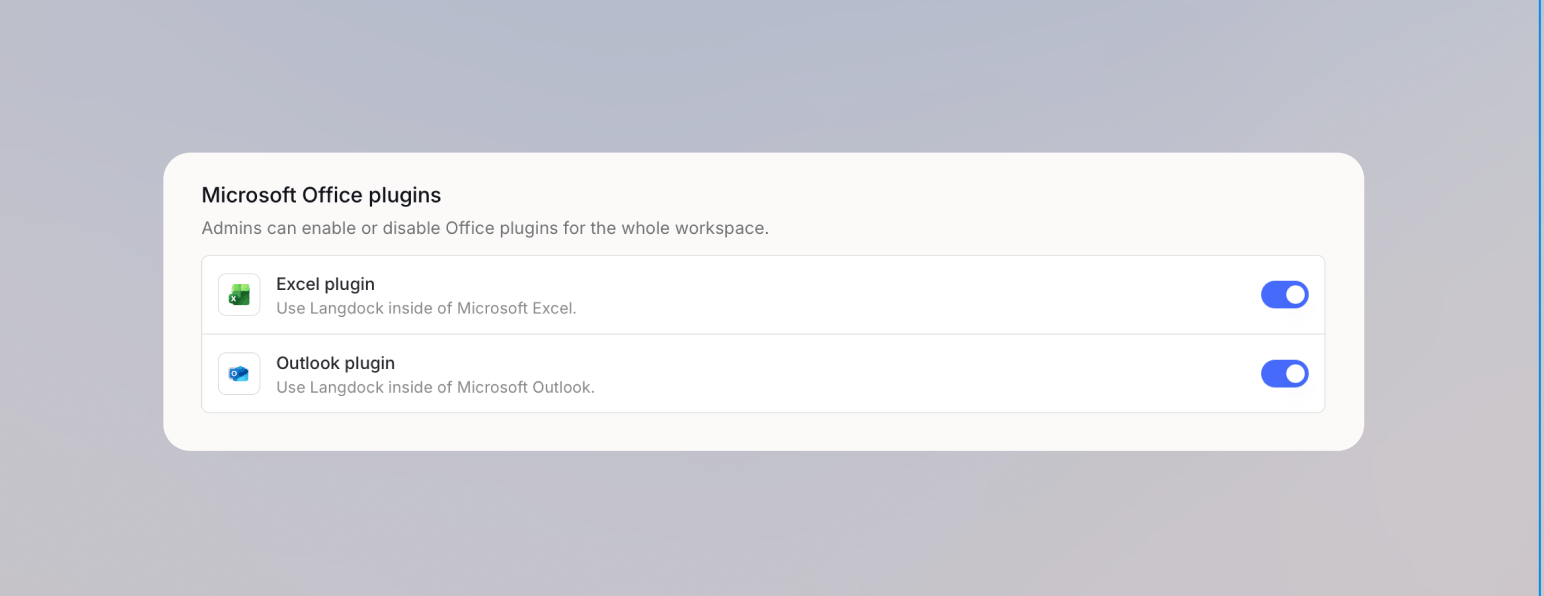
Enable the add-in
Find the Outlook add-in and toggle it on. The add-in uses the Outlook Email and Outlook Calendar integrations to read messages, search mailboxes, and work with calendars. Make sure both are enabled in your workspace, since users are asked to connect them when they first open the add-in.