

Manage plans in Settings > Workspace > User Management > Members.
Assigning a plan
1
Open the members page
2
Find the user
Search or scroll to find the user you want to change.
3
Change the plan
Click the dropdown under Plan and select Business or Business Max.
Seats
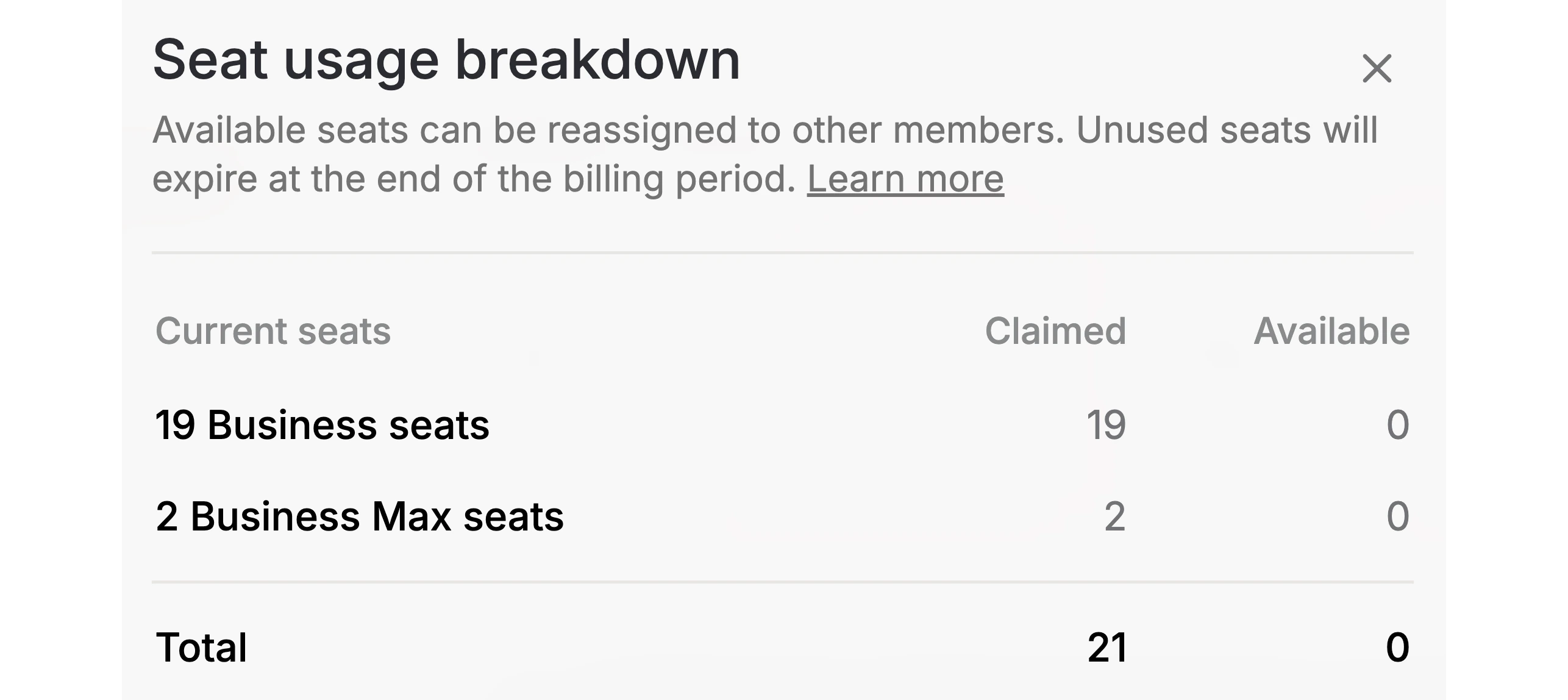
Each workspace member takes up a claimed Business or Business Max seat, billed at a monthly or annual rate depending on your subscription. When you remove a member or downgrade them, their previous seat becomes available. You can reassign it at no extra cost until the billing period ends. Unused available seats are then removed from your subscription. When you upgrade a member to Business Max, you receive a credit for the remaining time on their Business seat. If no Business Max seat is available, a new one is added and charged only for the remaining time.Example. Your workspace has 20 Business members and your billing cycle runs April 1 – April 30.This example focuses on seat counts. For a calculation with amounts, see the example invoice.
- April 10: You upgrade two members to Business Max. You now have 18 claimed Business seats, 2 claimed Business Max seats, and no available seats. Your next invoice includes charges for the remaining time on the two Business Max seats and credits for the remaining time on the two Business seats they replace.
- April 20: You remove one Business member. You now have 17 claimed Business seats and 1 available Business seat. The seat remains billed and reusable, so the removal does not create a credit.
- April 25: You invite a new Business user. They take the available Business seat at no extra charge. You now have 18 claimed Business seats and no available seats.
- April 30: Starting May 1, you are billed for 18 Business seats and 2 Business Max seats.
Monitoring seats
The Members overview at the top of the members page shows how many seats you have and how many are still available.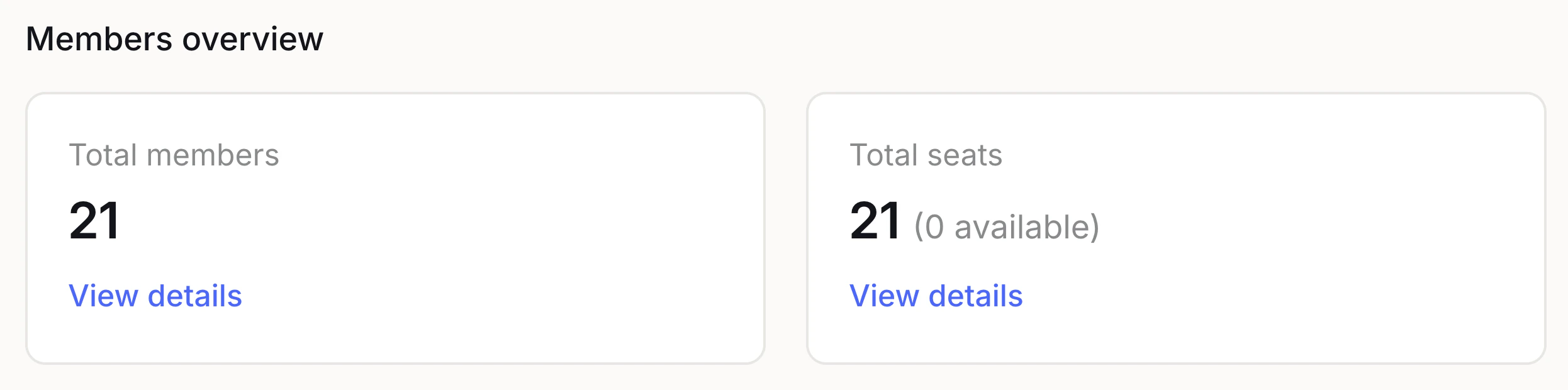
Upgrading vs. downgrading
Both directions work the same way: select the new plan from the dropdown.- Upgrading to Business Max gives the user 5x the limits immediately. If no Business Max seat is available, you will be prompted to purchase one.
- Downgrading to Business reduces the user’s limits immediately. The Business Max seat becomes available for another user.
Usage history
The members page shows a 4-week usage history for each user as a row of usage indicators. Each indicator represents one week and shows how close the user came to their limits. This helps you identify who is hitting their limits and who might benefit from an upgrade. Hover over an indicator to see the exact percentages. The tooltip shows whichever was higher (session or weekly usage).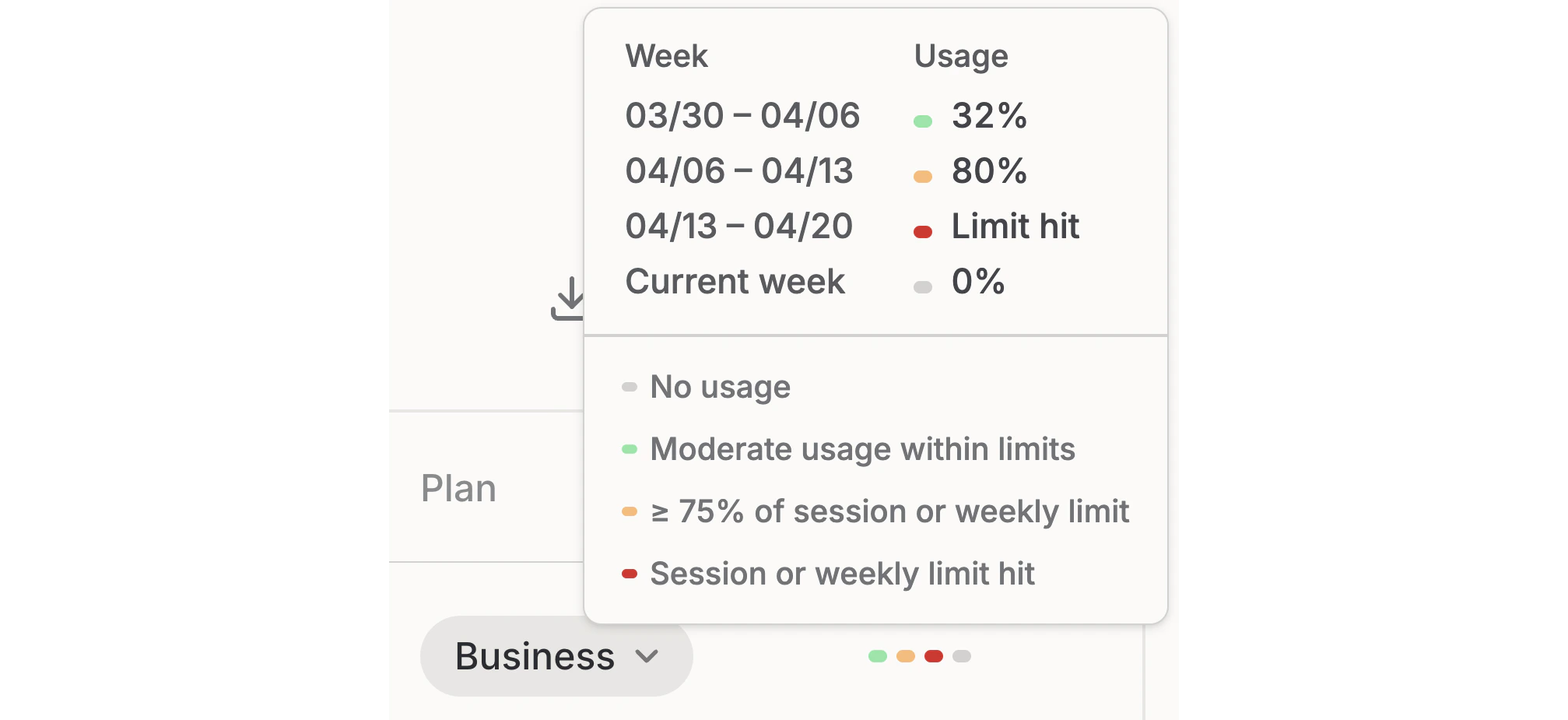
Business Max comparison view
For users on Business Max, the members page shows two sets of indicators side by side:- Left: What their usage would look like on the standard Business plan.
- Right: Their actual usage against Business Max limits.
When to upgrade a user
Consider upgrading a user to Business Max when:- They frequently hit session or weekly limits
- They submit usage requests asking for higher limits (requires usage requests to be enabled)
Last updated: April 2026