

Documentation Index
Fetch the complete documentation index at: https://docs.langdock.com/llms.txt
Use this file to discover all available pages before exploring further.
This page covers cost controls for BYOK workspaces (bring your own keys). If your workspace uses Langdock’s included AI models, see Extra Usage and Plans instead.
How cost controls work
Langdock tracks the cost of every chat and agent interaction based on the token prices you configure for your models. See Adding Models for how to set up model pricing. You can apply spend limits at three levels:- Workspace spend limit applies to all chat and agent usage across the workspace.
- Default spend limits per plan let you set default per-user limits.
- Custom limits override the default per-user limit for individual users.
What these controls are for
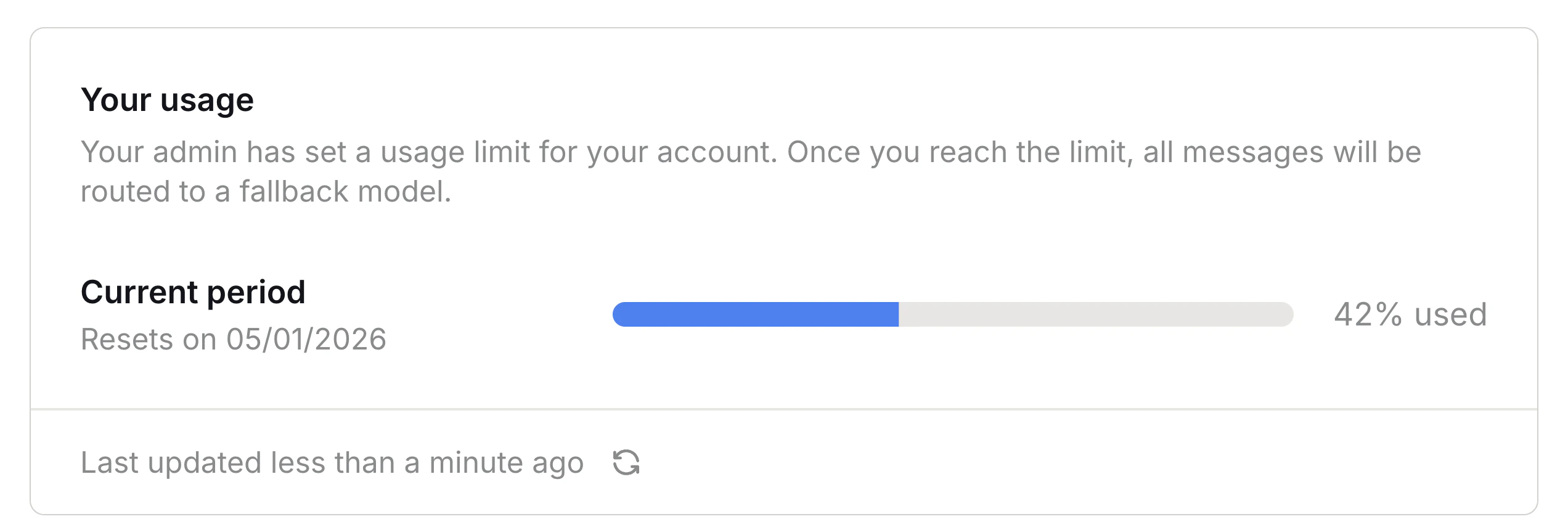
Cost controls are designed to help you:- Give users visibility. Each user sees a progress bar on their personal usage page (Settings > Account > Usage) showing how much of their limit is left. This makes users aware of cost and encourages them to use models efficiently.
- Cap individual users. Prevent one heavy user from consuming a disproportionate share of your budget.
- Keep the platform working. When a user hits a limit, they keep working on the backbone model instead of seeing errors.
What these controls are not
Cost controls are not hard spend caps. A few things to keep in mind:- When a user reaches their limit mid-response, the model is allowed to finish its current response before the limit is enforced. The next message will use the backbone model.
- Users still accumulate cost after reaching their limit because they continue using the backbone model.
- If you need a strict dollar ceiling on what you pay your provider, configure that at your LLM provider. Note that provider-enforced caps apply to the whole workspace and cannot be broken down per user. When they are hit, the platform starts returning errors to users.
Configuring limits
You can combine limits at the workspace, plan, and user level. Workspace and plan limits give you broad coverage, while custom per-user limits let you fine-tune for individuals.Workspace spend limit
Set a maximum monthly spend across the entire workspace.Open usage settings
Go to Settings > Workspace > Usage.
Default spend limits per plan
BYOK workspaces have plans that admins can assign to users. They do not affect billing: BYOK seat pricing is the same for all plans, and assigning a user to a different plan only changes which default spend limit applies to them. The following plans are available:| Plan | What it means |
|---|---|
| Standard | Standard spend limits for average users. |
| Power user | Increased spend limits for users who need more capacity. |
Custom limits
To override the default per-user limit for individual users, use the Custom limits table:- Use default: Inherits the limit from their plan.
- Unlimited: No spending cap for this user.
- Custom: A specific amount for this user.
Per-model message limits
In addition to spend limits, BYOK workspaces can have per-model message limits configured by your organization. These limit how many messages a user can send with a specific model within a time window. When a user hits a per-model message limit, they can switch to a different model or wait for the limit to reset.Usage requests
Usage requests let users ask their admin for higher limits when they hit a spend limit. To enable this, turn on Allow usage requests in the usage settings. When a user submits a request, all workspace admins see it in their inbox. From there you can:- Set a custom spend limit for the user
- Promote the user to Power user
- Dismiss the request
Monitoring usage
Each user’s current spend is visible in the Custom limits table on the usage settings page. The table shows spend in the current period alongside each user’s limit. For detailed usage data, see Usage Exports.Last updated: April 2026