

Documentation Index
Fetch the complete documentation index at: https://docs.langdock.com/llms.txt
Use this file to discover all available pages before exploring further.
Folders were previously called “Knowledge Folders”. The functionality is the same. The name has changed as part of moving this feature into the Library.
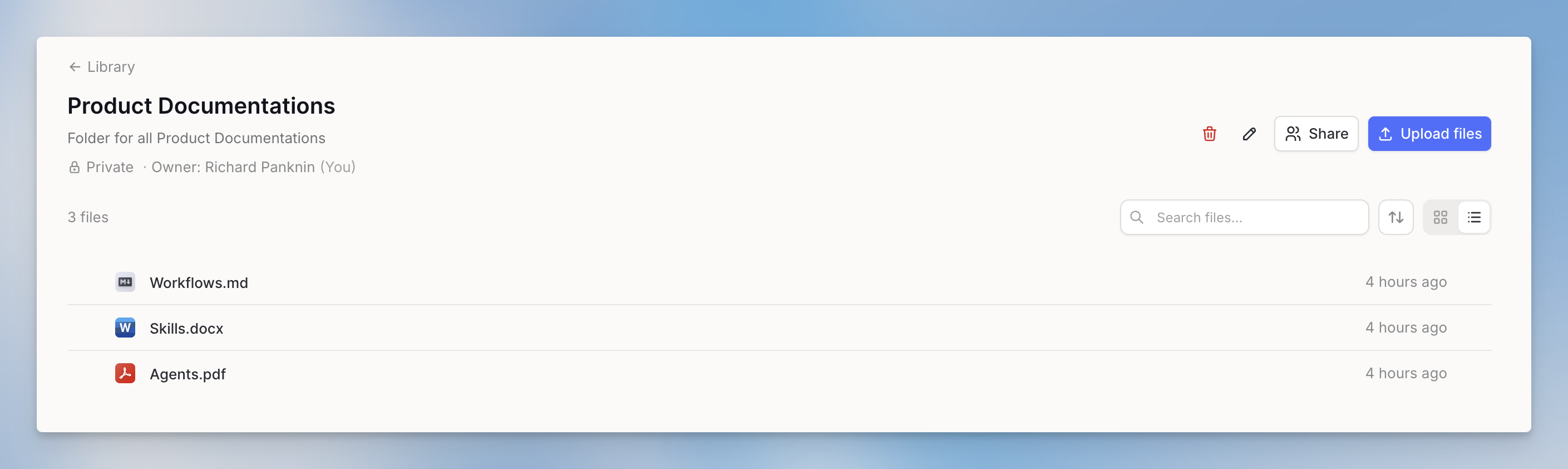
- Can be shared with individuals, groups, or your entire workspace
- Works in chat via @mentions and in Agents as actions
Where to find Folders
Folders are part of the Library. You can access and manage them in two places: Open the Library from the left sidebar and find the Folders section. You can filter between All, Shared, and Private folders using the view tabs at the top of the section.
Creating a Folder
Create a new folder
In the Folders section, click New Folder and give your folder a descriptive name. You can also add an optional description to help others understand what documents it contains.
Adding Documents
Folders support multiple ways to add documents:- Upload from Computer
- API Upload
The simplest method is to upload files directly:
- Open your folder
- Click Add Files or drag and drop files into the folder
- Wait for the files to be processed (embedding takes a few moments)
File Limits
| Limit | Value |
|---|---|
| Files per folder | 1,000 |
| File size | ~8 million characters (based on LLM token limits) |
Using Folders in Chat
Once your folder has documents, you can reference it in any chat using the @mention feature.Search for your folder
Start typing the name of your folder. You’ll see it appear in the search results alongside integrations, Agents, and saved prompts.
When you @mention a folder, the AI uses embedding search to find the most relevant sections from your documents. It doesn’t send all documents to the model, just the parts most likely to answer your question.
Example Usage
Let’s say you have a folder called “Product Documentation” with your company’s user guides:Sharing Folders
Folders support flexible sharing options, making them ideal for team knowledge bases.Sharing Options
- Individual Users
- Groups
- Workspace
Share with specific people in your workspace. Great for department-specific knowledge or project collaborations.
Permission Levels
| Permission | Editor | User |
|---|---|---|
| View folder and contents | Yes | Yes |
| Search documents in chat | Yes | Yes |
| Add files | Yes | No |
| Remove files | Yes | No |
| Share with others | Yes | No |
- Editor: Can add and remove documents, and share with others.
- User: Can search the folder in chat and Agents.
The person who created the folder is the Owner and has full control, including the ability to delete it and transfer ownership to another user. Workspace admins also have full control over all folders.
How to Share
- Open your folder
- Click the Share button
- Search for users or groups
- Select the permission level (Editor or User)
- Optionally send a notification with a custom message
Workspace admins can configure which roles are allowed to share folders with the entire workspace. Check User Management > Roles for these settings.
Folders vs Direct Attachments
Choosing between Folders and direct file attachments depends on your use case:Use Folders When
- You have more than 20 documents
- You need to share documents across multiple chats
- You’re building a team knowledge base
- You only need relevant sections, not entire documents
- Documents are reference material (manuals, policies, FAQs)
Use Direct Attachments When
- You have 20 or fewer documents
- You need the AI to consider the entire document content
- Documents are specific to one conversation
- You’re working with spreadsheets (XLSX, CSV)
- You need maximum accuracy for that specific document
Technical Differences
| Feature | Direct Attachments | Folders |
|---|---|---|
| File limit | 20 files | 1,000 files |
| Processing | Full document to context | Embedding search for relevant sections |
| Spreadsheet support | Yes | No |
| Sharing | Per chat/agent | Standalone sharing |
| Best for | Complete document analysis | Large knowledge bases |
Using Folders with Agents
Folders integrate seamlessly with Agents as actions:- Open your Agent configuration
- Navigate to the Knowledge section
- Click Add Action
- Search for your folder name
- Add the
"Search in [folder name]"action
Best Practices
- Organize by topic: Create separate folders for different subjects (HR Policies, Product Docs, Technical Guides)
- Use descriptive names: Help users understand what each folder contains at a glance
- Keep folders updated: Remove outdated documents and add new ones regularly
- Set appropriate permissions: Use the principle of least privilege when sharing
- Combine with direct attachments: Use both methods together when needed
Troubleshooting
My folder isn't appearing in @mentions
My folder isn't appearing in @mentions
- Verify you have at least User access to the folder
- Check that you’re spelling the folder name correctly
- Try typing more of the name to narrow down search results
The AI isn't finding relevant information
The AI isn't finding relevant information
- Ensure your documents are properly processed (check for processing status)
- Try rephrasing your question with more specific keywords
- Verify the information exists in the uploaded documents
- Consider if direct attachments might work better for this use case
I can't upload certain file types
I can't upload certain file types
Check our supported file types for the complete list. Note that spreadsheets (XLSX, CSV) require direct attachments or the Data Analyst tool instead.
Related Resources
- Library - The Library and all its sections
- Document Search - Working with direct file attachments
- Actions in Chat - Using @mentions for all tools
- Types of Knowledge - Comparison of all knowledge options
- Folder API - Programmatic access