

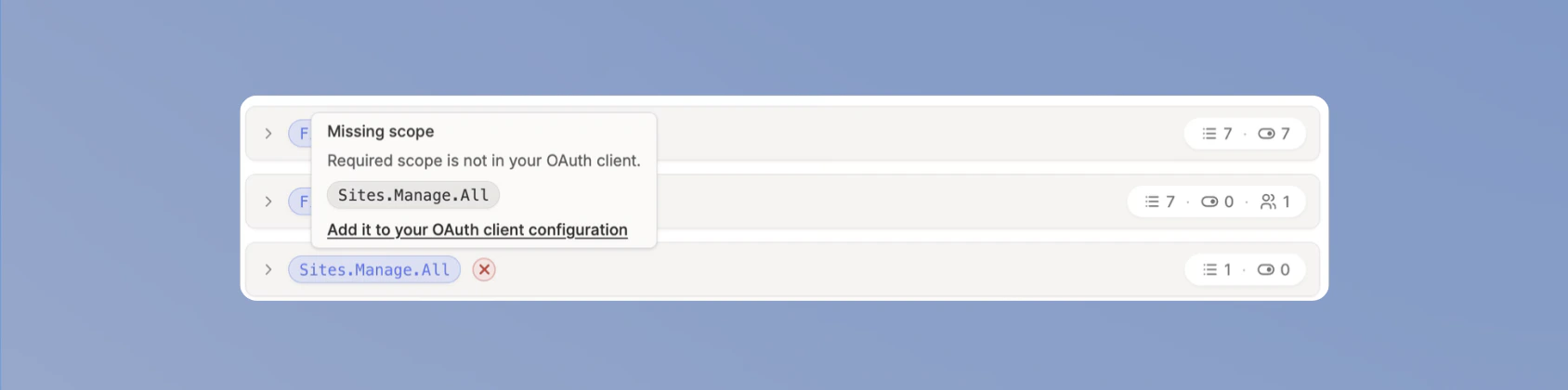
Control which integration actions are enabled in your workspace and which OAuth scopes Langdock can request when users connect. Use this page when you want to review action access, prepare a custom OAuth client, or understand why an action shows Missing scope.Documentation Index
Fetch the complete documentation index at: https://docs.langdock.com/llms.txt
Use this file to discover all available pages before exploring further.
Scopes and Action Access currently applies to SharePoint integrations. Other Microsoft integrations will follow in the next few weeks. After that, support will roll out to other integrations.
How scopes control actions
Every integration action needs one or more OAuth scopes from the connected provider. For example, an Outlook Calendar action may needCalendars.ReadWrite before it can create or update calendar events.
Langdock groups actions by the scopes they need. When you enable or disable an action, you may also change which scopes Langdock requests from the OAuth provider. The active OAuth client defined in Langdock determines how these requested scopes are managed.
Use the table below to compare how different OAuth Clients can manage the available scopes of your integration.
| Mode | Scope behavior |
|---|---|
| Langdock Client | Langdock keeps requested scopes in sync with enabled or shared actions. |
| Scope sync on | Your custom OAuth client uses the same automatic scope sync behavior. |
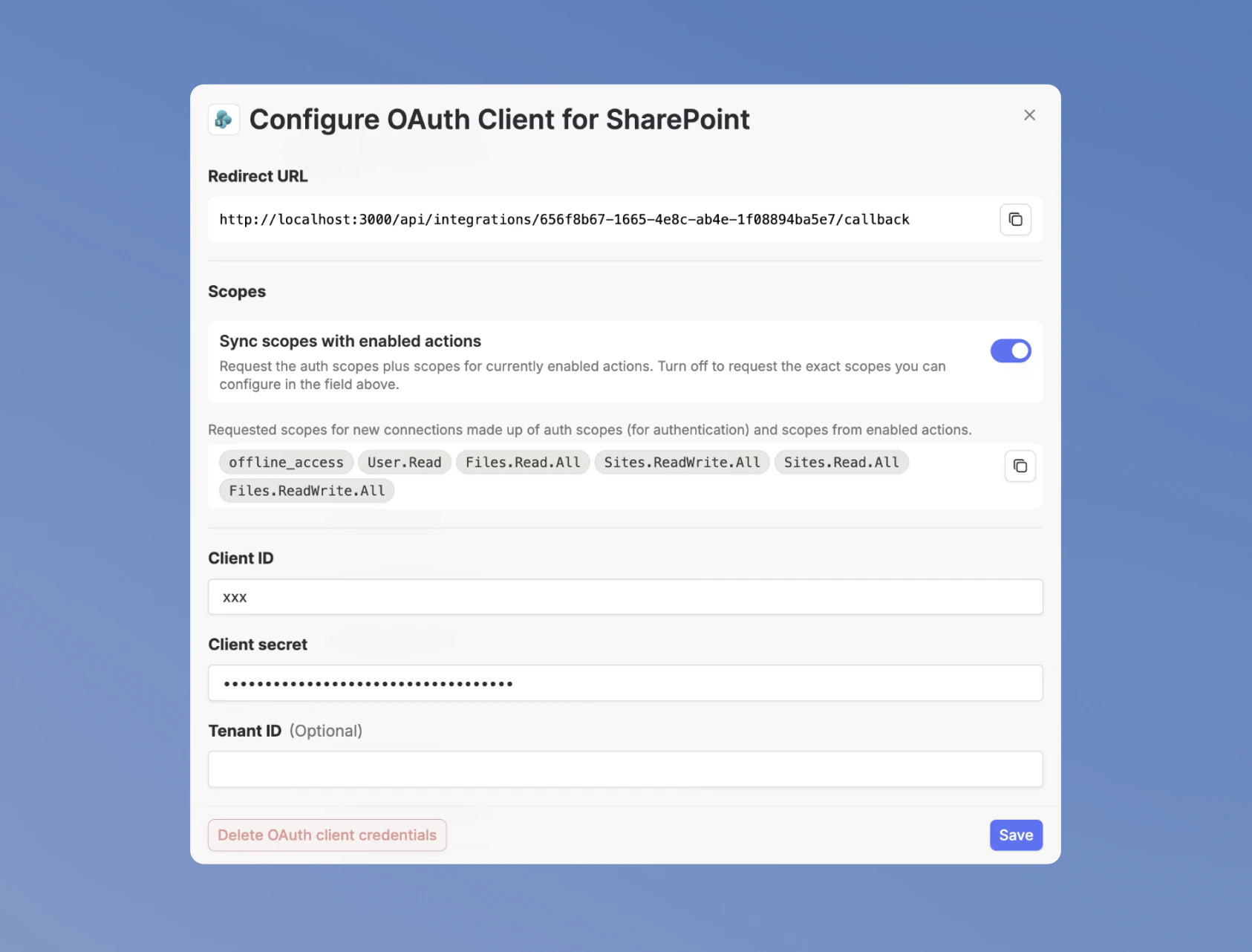
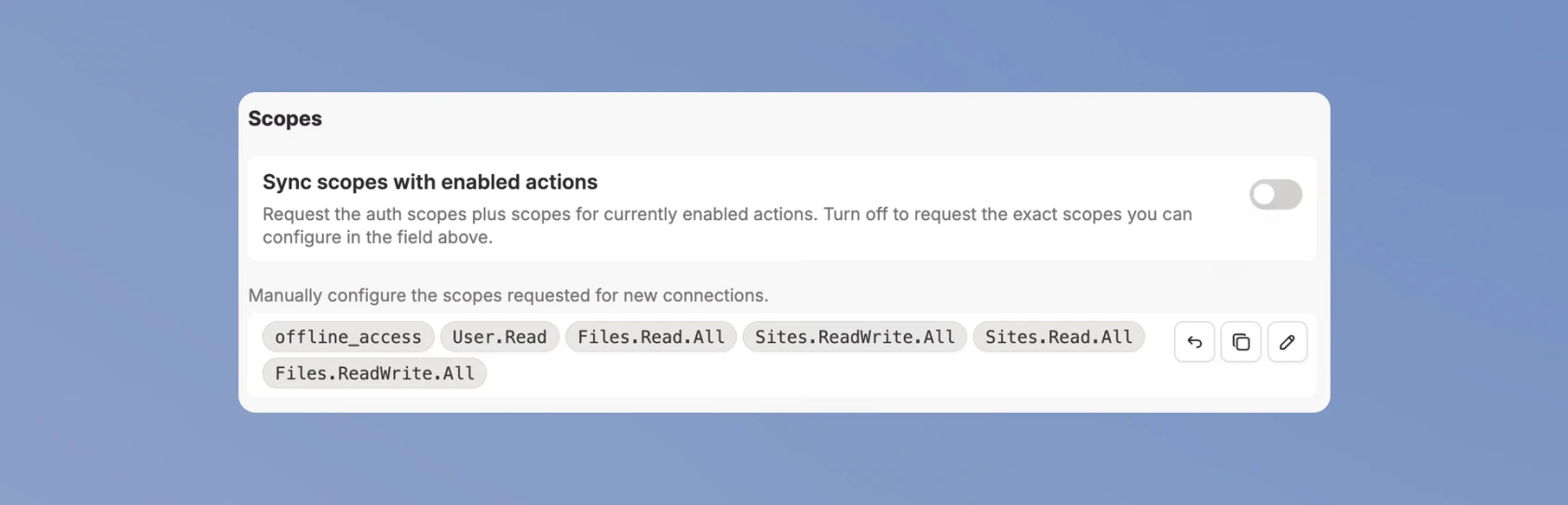
| Scope sync off | Your custom OAuth client uses Fixed scopes that you manage manually. |
Control new actions
In your Integrations settings, you can find the New actions enabled by default setting, which controls what happens when Langdock adds an action to an existing integration.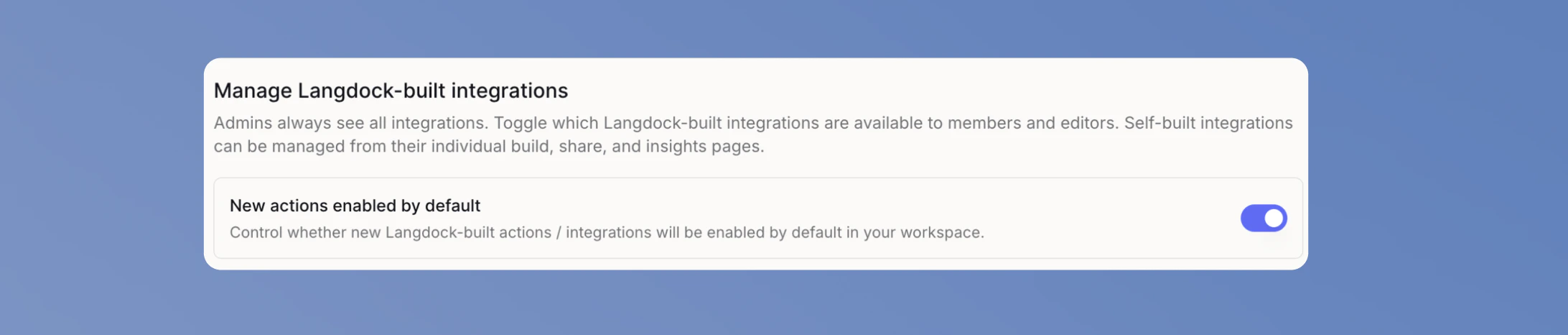
- On
- Off
Langdock checks whether the active OAuth client already covers the action’s required scopes.
- Actions whose required scopes are covered are enabled automatically.
- Actions with missing scopes stay disabled until you add or sync the required scopes.
Choose an OAuth client mode
When using integrations, you can either choose to use the Langdock Client or to Bring Your Own OAuth Client. In your Integrations settings, select an integration built by Langdock and scroll to Scopes and Action Access to configure the OAuth client mode for that integration.- Langdock Client
- Custom OAuth client
Use the Langdock Client when you want Langdock to manage OAuth scopes for you. This is the default on Multi-Tenant Cloud for integrations where Langdock provides a managed OAuth client.Langdock requests the auth scopes needed to identify the user, such as 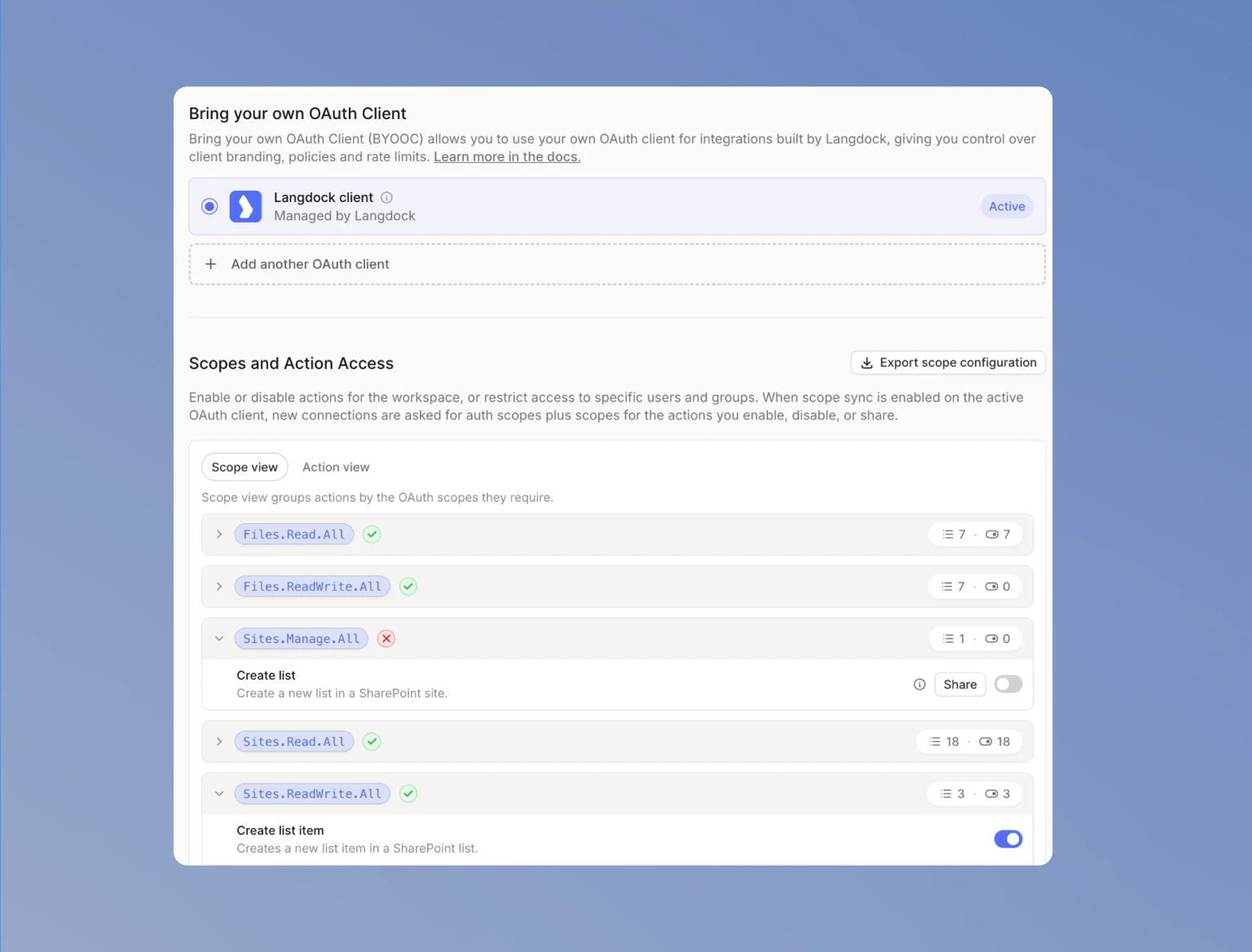
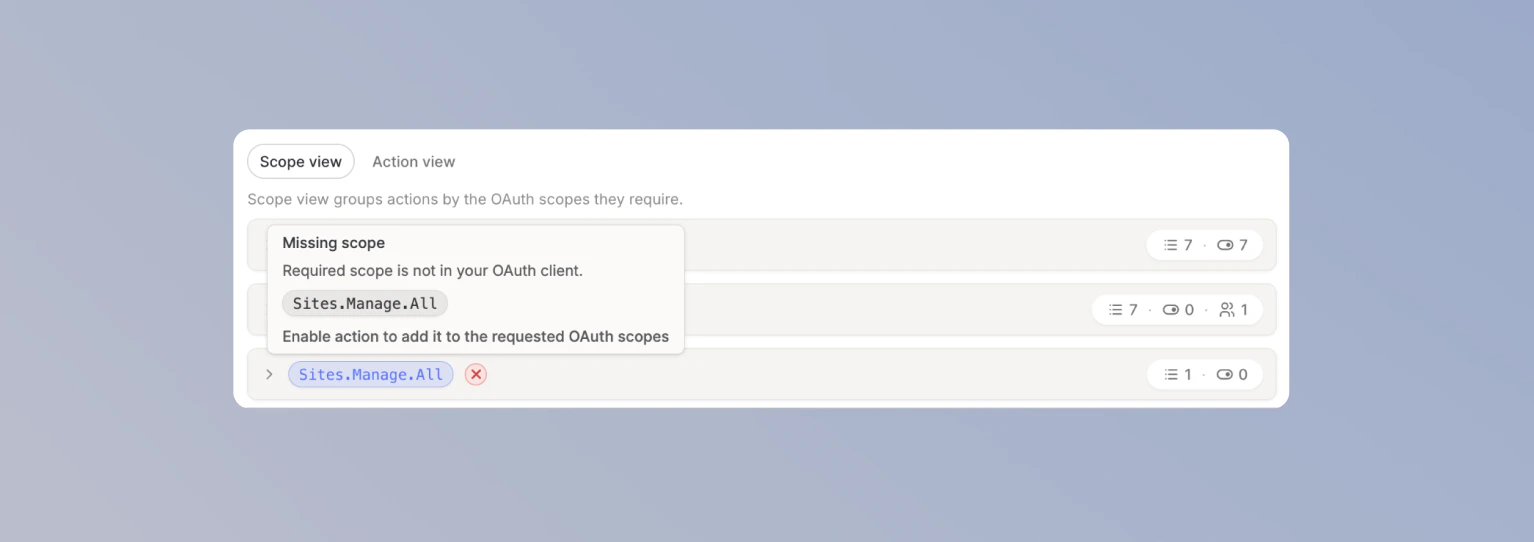
openid, email, and offline_access. It also requests the scopes required by actions that are enabled for everyone or shared with specific users and groups.You do not edit scopes manually. To change the requested scopes, enable, disable, or share actions.Review scope status
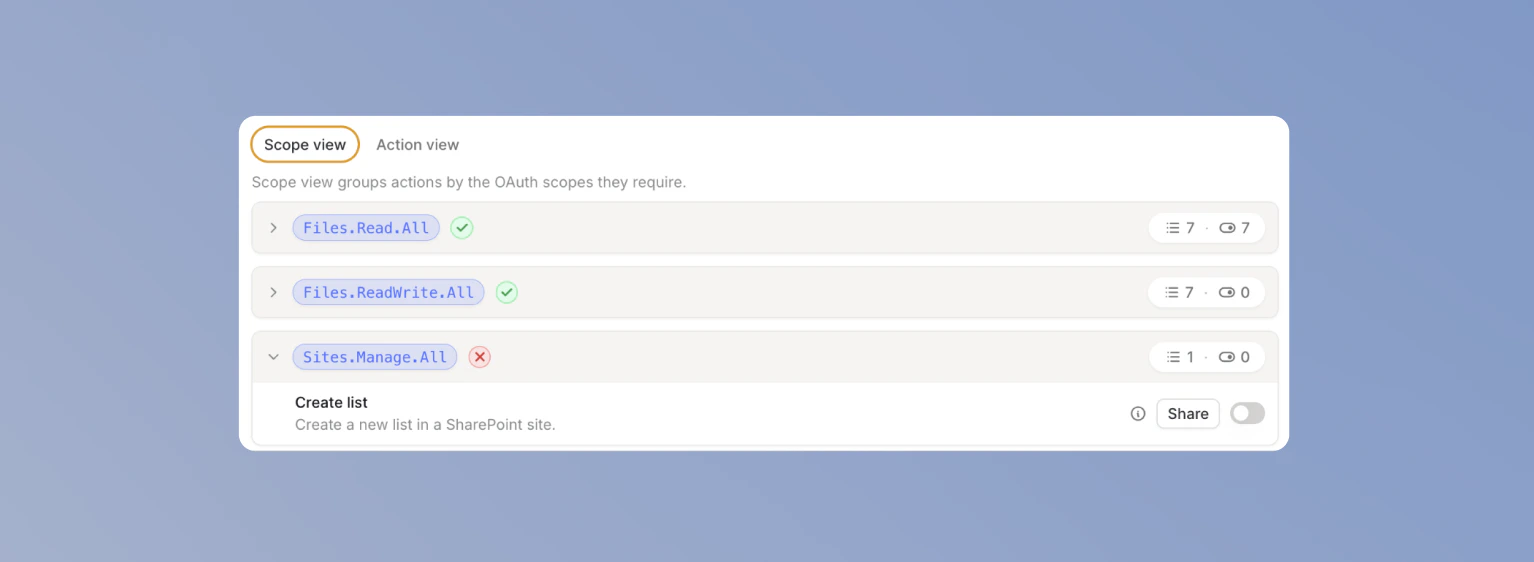
Use Scope view to see which scopes are part of the active requested set. Scope groups with a green check are requested. Scope groups with a red X are not requested.Confirm scope updates
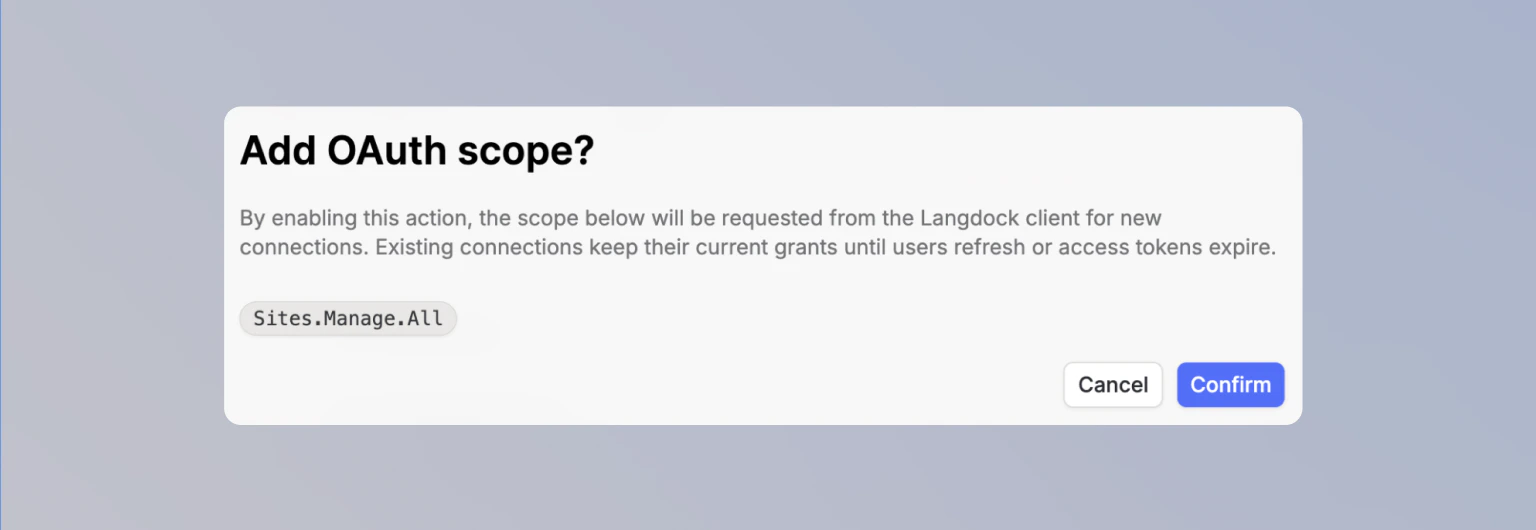
When your change adds or removes a scope, Langdock shows a confirmation dialog before updating the requested scopes. After you confirm, users need to refresh their connection before the newly granted scope is available.Existing connections keep their granted scopes until users refresh the connection or their access token expires.
Manage action access
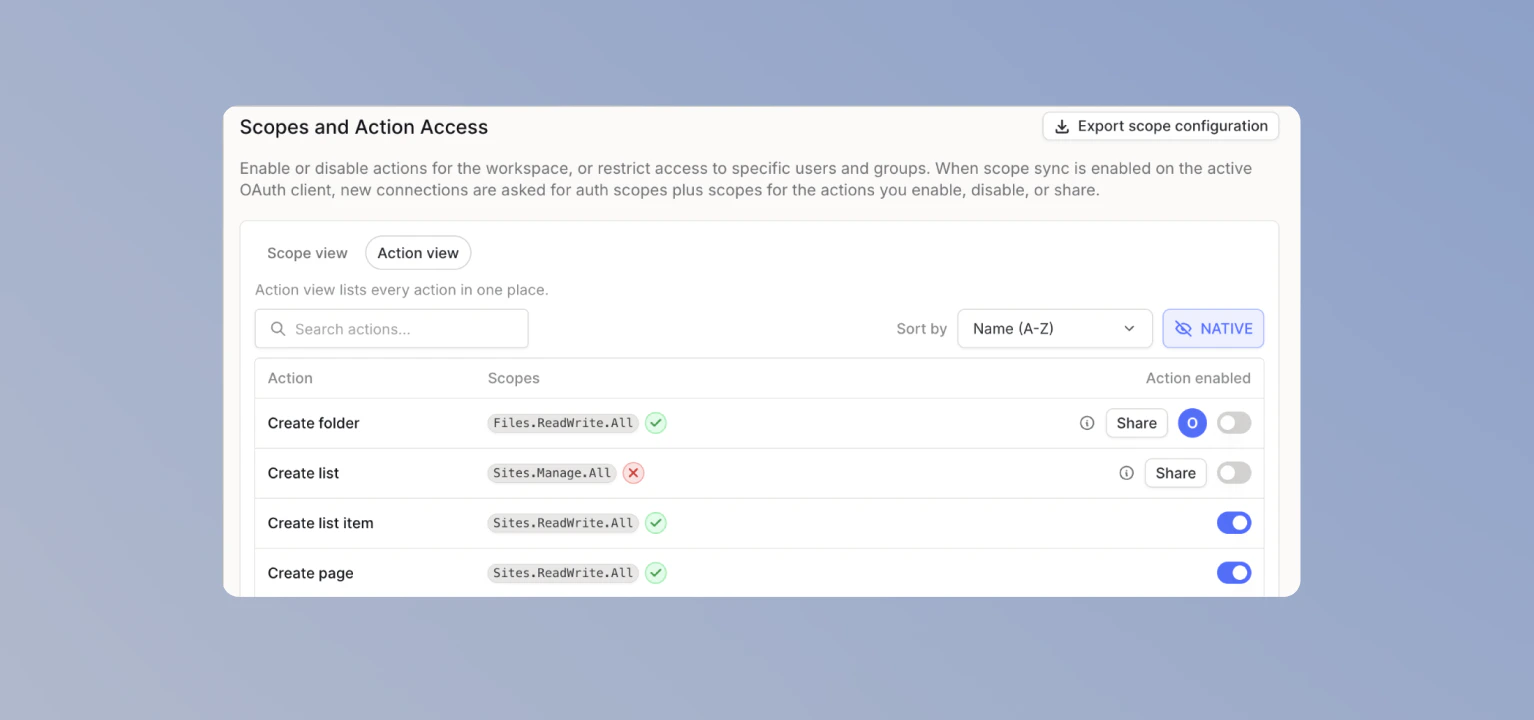
Each action has two access controls:- Toggle Available to all users to enable or disable it for the whole workspace.
- Click Share to share it with specific users or groups.
What changes in this mode
| Change | Result |
|---|---|
| Enable an action | The action is enabled. Missing scopes are added after you confirm. |
| Disable an action | The action is disabled. Scopes are removed if no other enabled or shared action needs them. |
| Langdock adds an action whose required scopes are covered | The action follows New actions enabled by default. |
| Langdock adds an action with missing scopes | The action stays disabled until you enable it and confirm the scope change. |
| Langdock adds a scope to an existing action | The action keeps its current state. The scope is requested only if an enabled or shared action needs it. |
Native actions
Native actions power core Langdock features and are always enabled.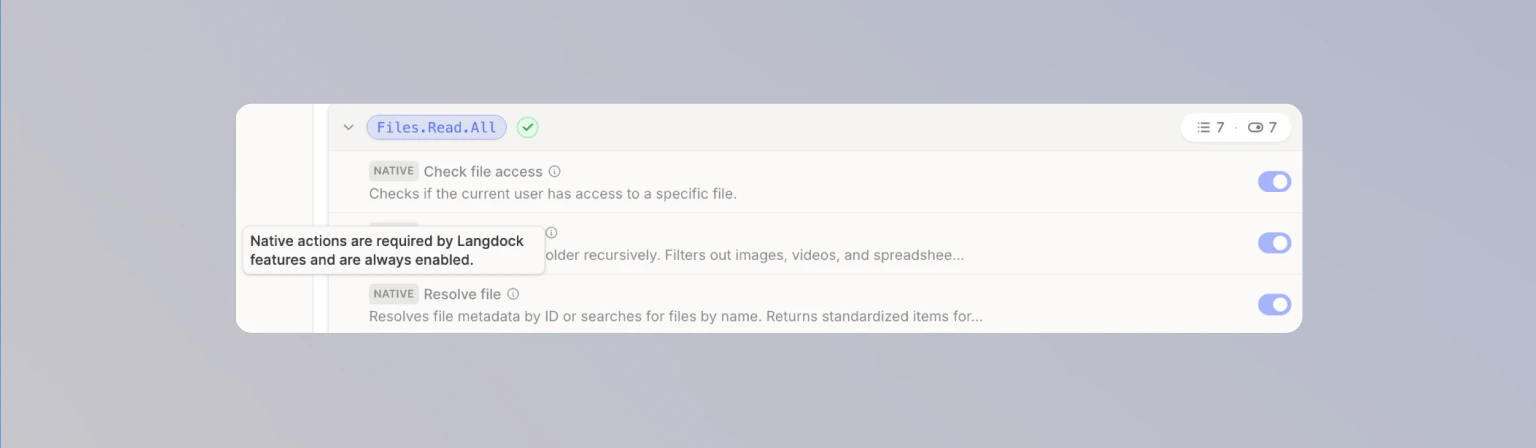
- File attachments from integrations in chat and Agents.
- Folder syncing.
- Company Knowledge.
- Access checks for synchronized attachments from integrations.
- Resolving IDs to resource names in action calls and Workflows.
Export scope configuration
Click Export scope configuration to download a CSV of the current action and scope configuration.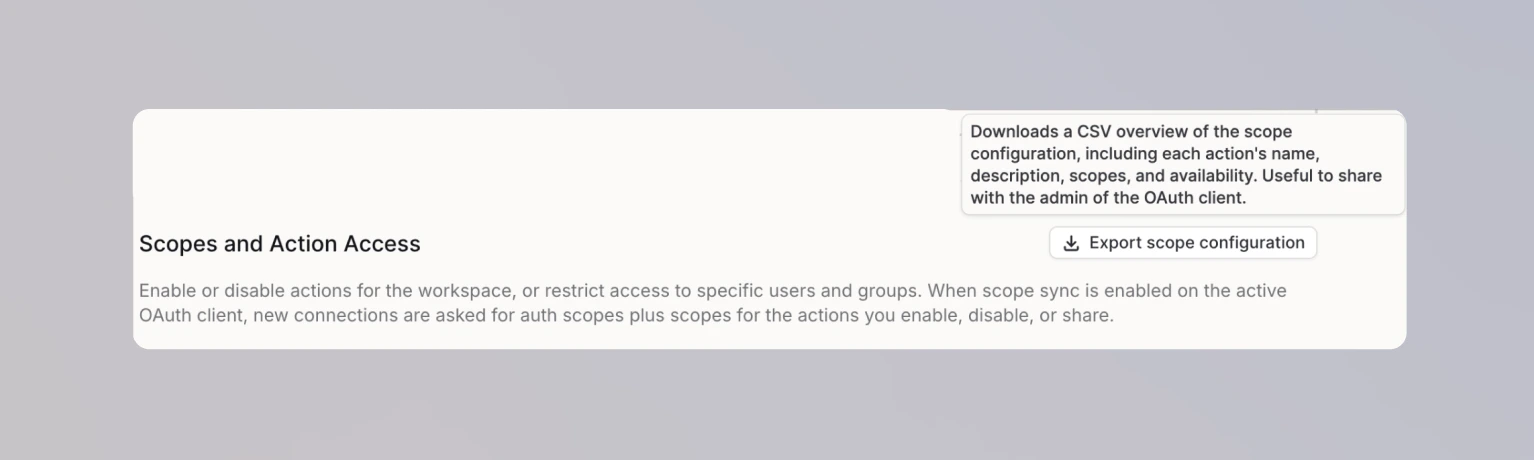
FAQ
A new action is disabled. What happened?
A new action is disabled. What happened?
The action is disabled when New actions enabled by default is off in the integration settings, or when the active OAuth client for this integration does not request all scopes required by the action.You can manually enable the action based on your OAuth setup. This may add permissions to the requested scopes. If you use Fixed scopes, add the missing scopes to your OAuth client first.To enable future actions automatically when all required scopes are already part of the OAuth client, turn New actions enabled by default on.
Why don't I see Sync scopes with enabled actions?
Why don't I see Sync scopes with enabled actions?
The toggle only appears for custom OAuth clients. The Langdock Client always syncs scopes with enabled and shared actions.
I enabled an action but users still see an error. Why?
I enabled an action but users still see an error. Why?
Existing connections keep the scopes granted at connection time. After you add a scope, users need to refresh their connection before the new scope is granted.
An action shows Missing scope, but I added it in Azure.
An action shows Missing scope, but I added it in Azure.
Confirm that the scope is listed in the Langdock OAuth client configuration and as an API permission in your Azure app registration. If admin consent is required, confirm that it has been granted.
Can I keep current actions enabled but block future ones?
Can I keep current actions enabled but block future ones?
Yes. Turn New actions enabled by default off. Existing actions keep their current state. Future actions are disabled until you review them.
Can each workspace use a different OAuth client?
Can each workspace use a different OAuth client?
Yes. Each workspace configures its own OAuth client per integration.
Why are scopes still requested after I disabled an action?
Why are scopes still requested after I disabled an action?
With the Langdock Client or a custom OAuth client with Sync scopes with enabled actions turned on, Langdock removes a scope only when no enabled or shared action needs it. Auth scopes such as
offline_access and openid are always requested.With Fixed scopes, Langdock never changes the requested scopes automatically.Related pages
Bring Your Own OAuth Client
Set up a custom OAuth application for an integration.
Integrations settings
Review action access in your workspace.
Microsoft Admin Approval
Grant tenant-wide admin consent for Microsoft integrations.
Integrations Guide
Learn how integrations work in Langdock.