Documentation Index
Fetch the complete documentation index at: https://docs.langdock.com/llms.txt
Use this file to discover all available pages before exploring further.
Canvas for development is now the Code Editor. Any Canvas code files you created before are still accessible in their original chats.
Getting started
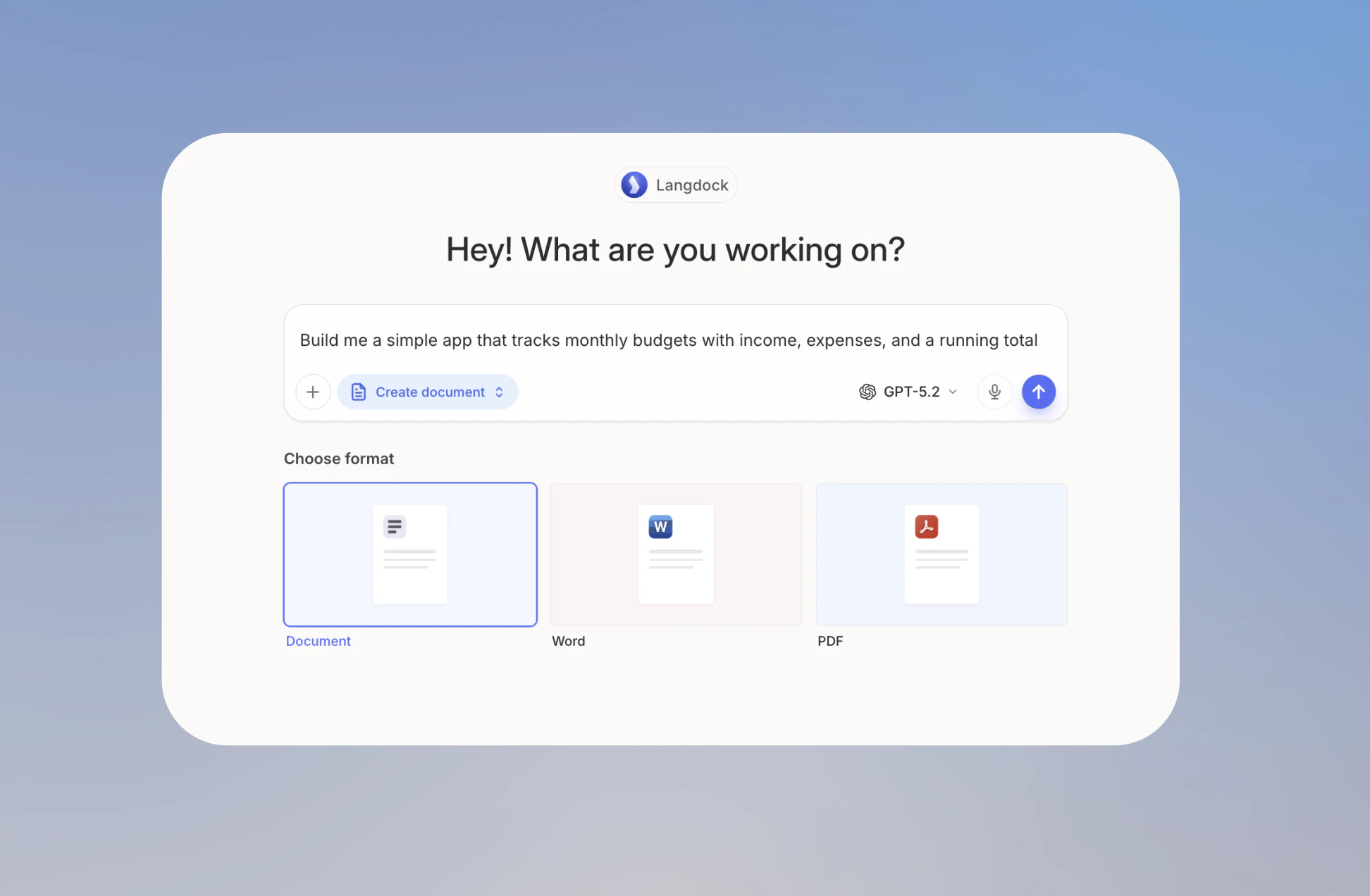
The Code Editor opens directly in your chat as a panel, so you can build interactive tools without leaving Langdock. Use it to build interactive outputs like data dashboards, charts, visualizations, and small tools for your team. All of your generated code is automatically saved to your Library, so it’s accessible across all your chats. You can open the Code Editor in three ways:- Type a prompt like “build me a budget tracker” or “create a bar chart from this data”. Langdock automatically opens the editor for you.
- Click Create document in the input bar and describe what you want to build in your prompt.
- Open the Tools menu and select Create document.
Code and Preview
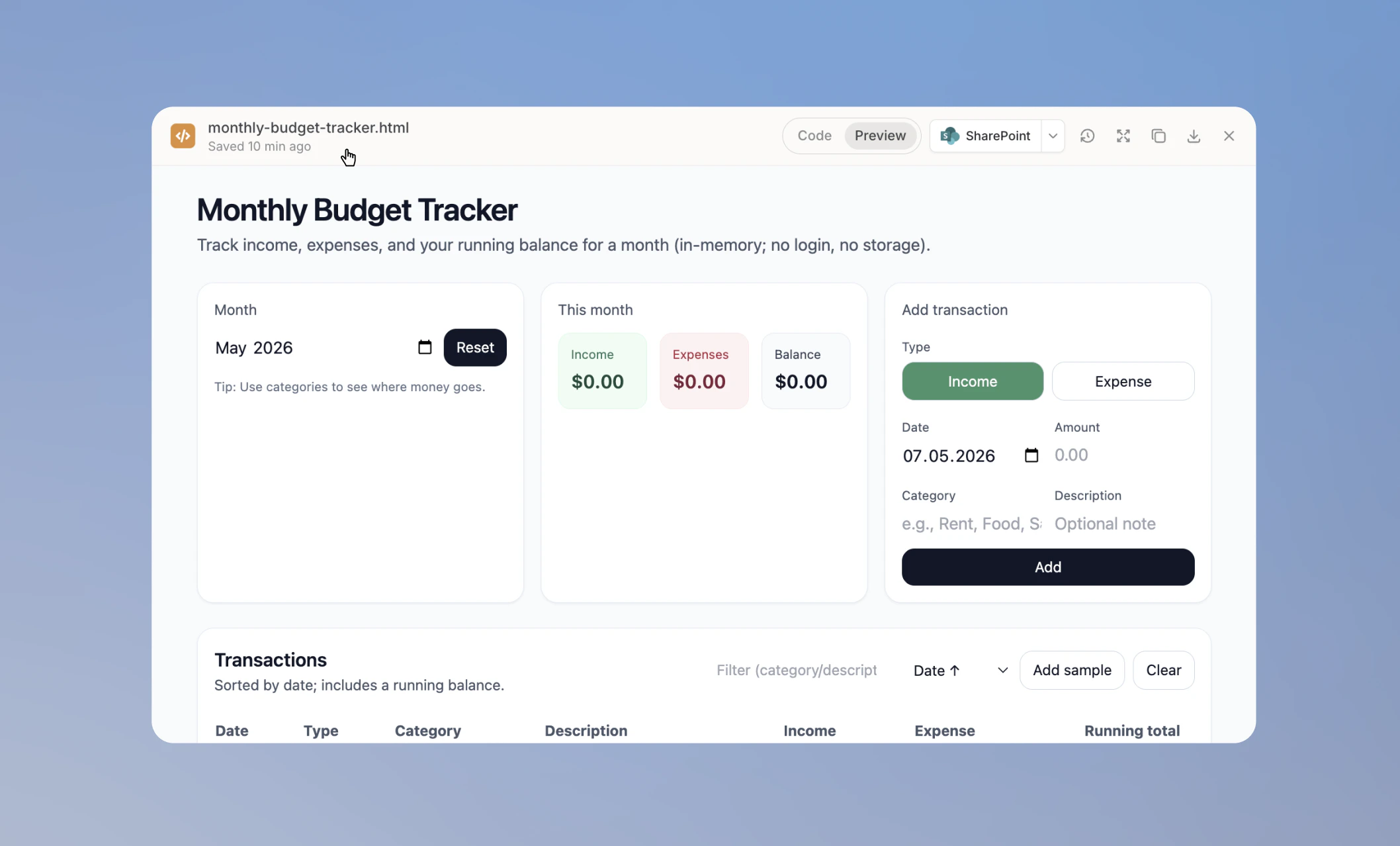
Once your code is generated, you work with it in two views. Toggle between them at the top of the panel. Code shows the full source file. You can read through it, edit it directly by clicking anywhere and typing, or ask the AI to make changes. Everything saves automatically.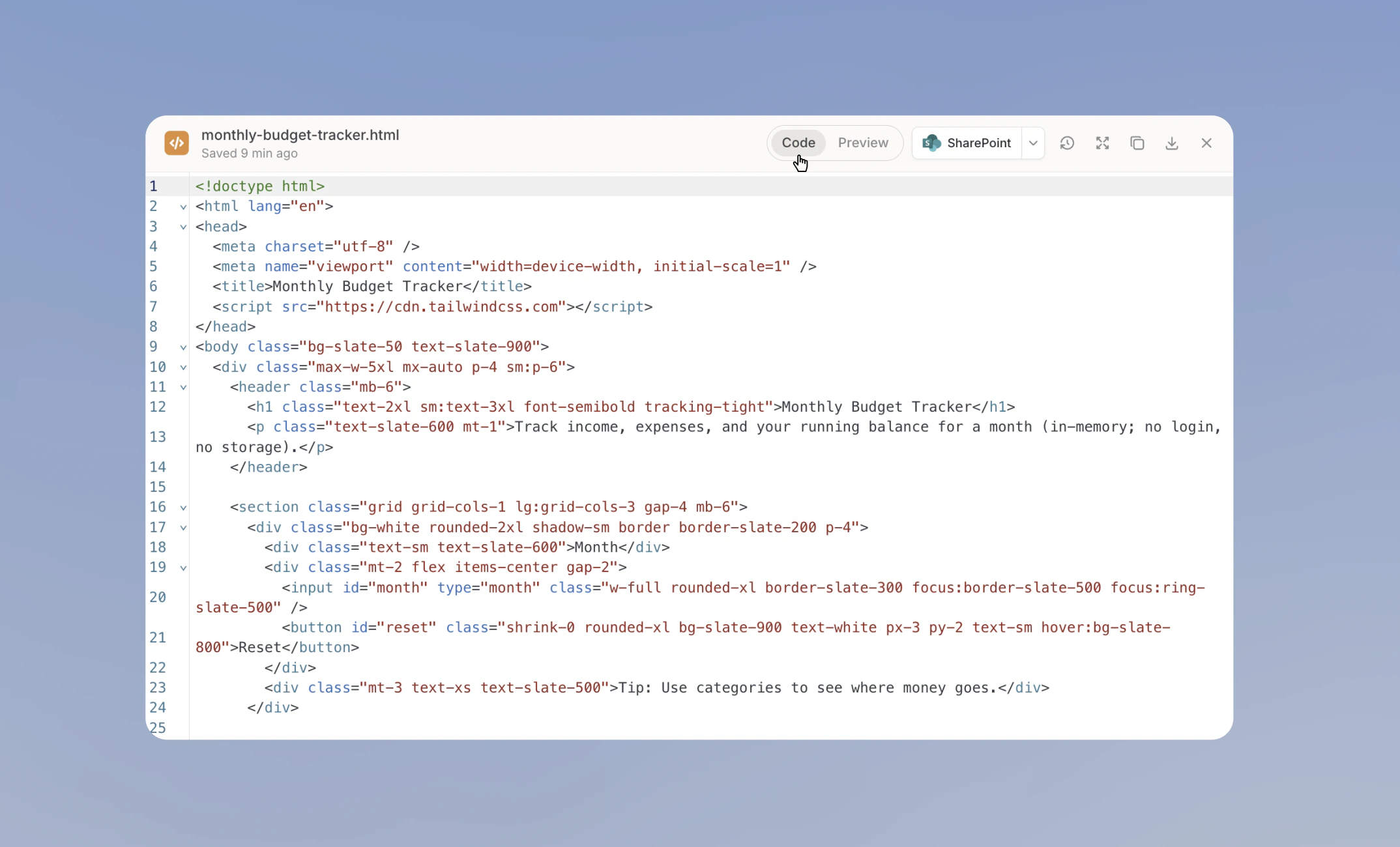
Debugging with AI
The Code Editor lets you iterate on your code with the AI directly from the chat. Type your instructions in the chat to add a feature, change the styling, fix a bug, or rework the layout, and the AI applies the change directly to the file and saves a new version automatically.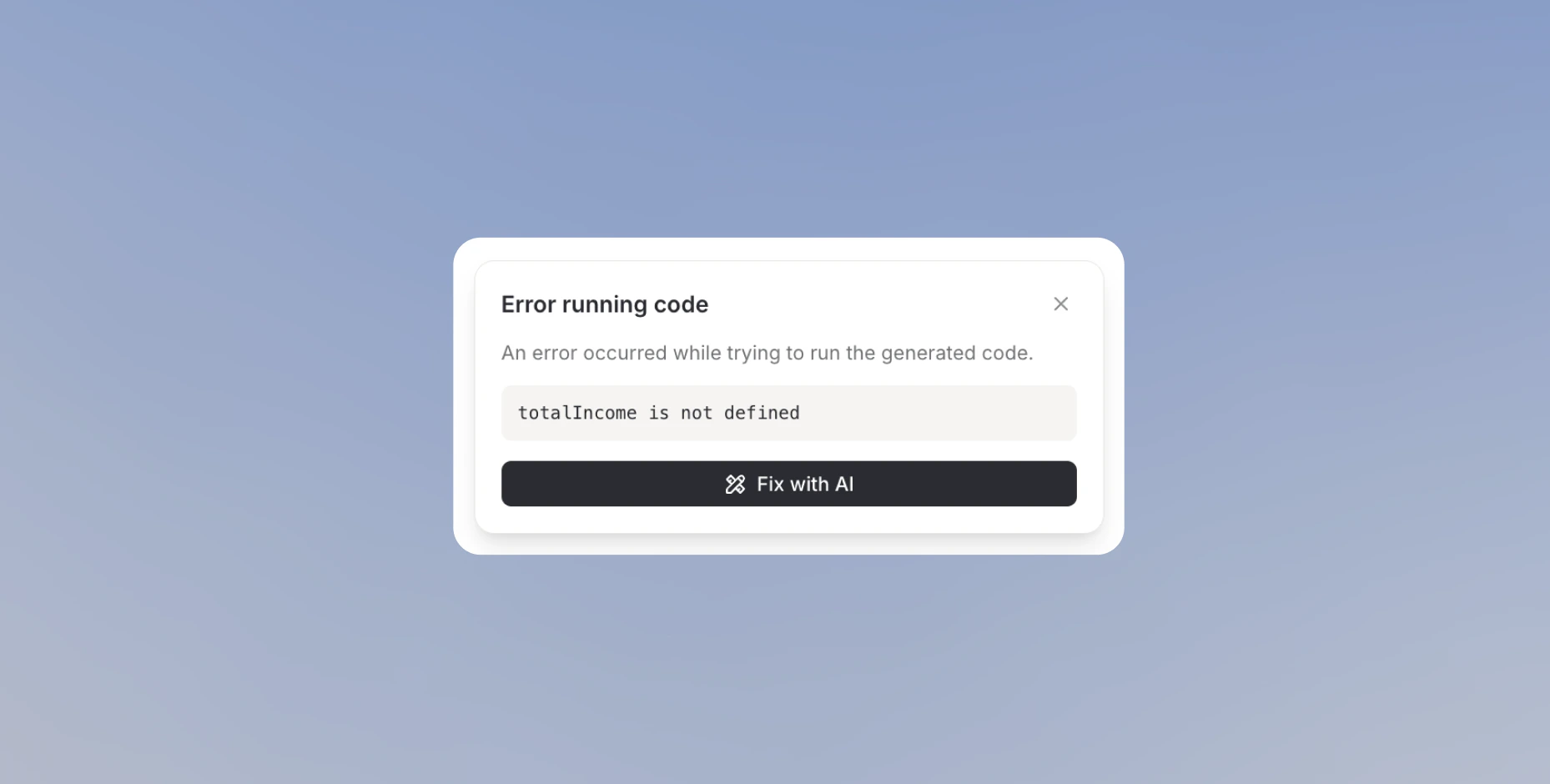
Version history
Version history gives you a full record of every change made to your file, whether by you or the AI. Every edit is saved automatically, so nothing is ever lost. Click Version history in the top bar to open the version panel. Each version is timestamped and attributed to either you or the AI. Select any version to see exactly what changed. Click Restore version to make it the current file.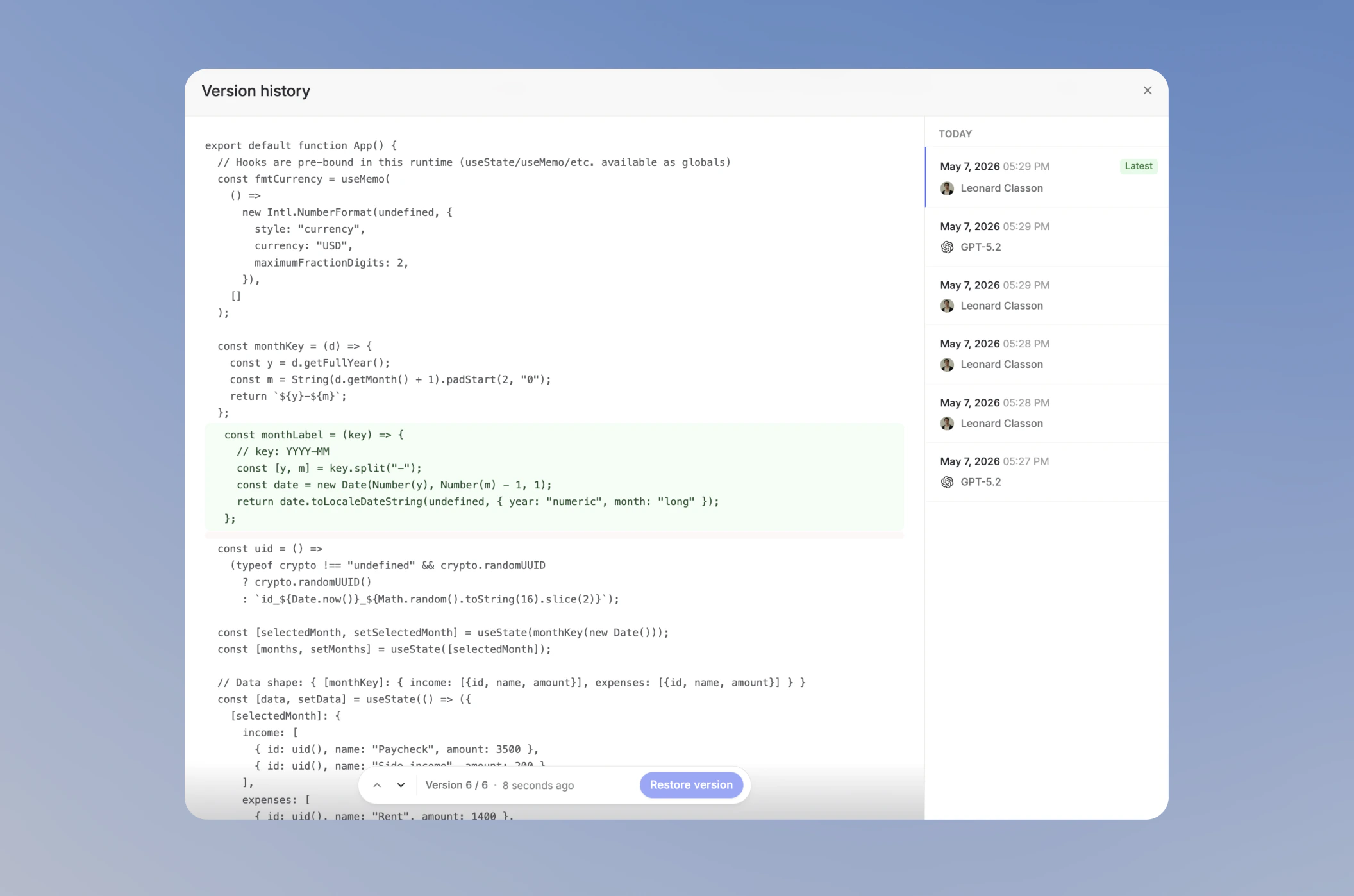
Export
When you’re ready to use your file outside Langdock, download it directly from the editor. Click the download icon in the top bar. The file downloads in its native format:.html, .jsx, or .tsx.
Save to external storage
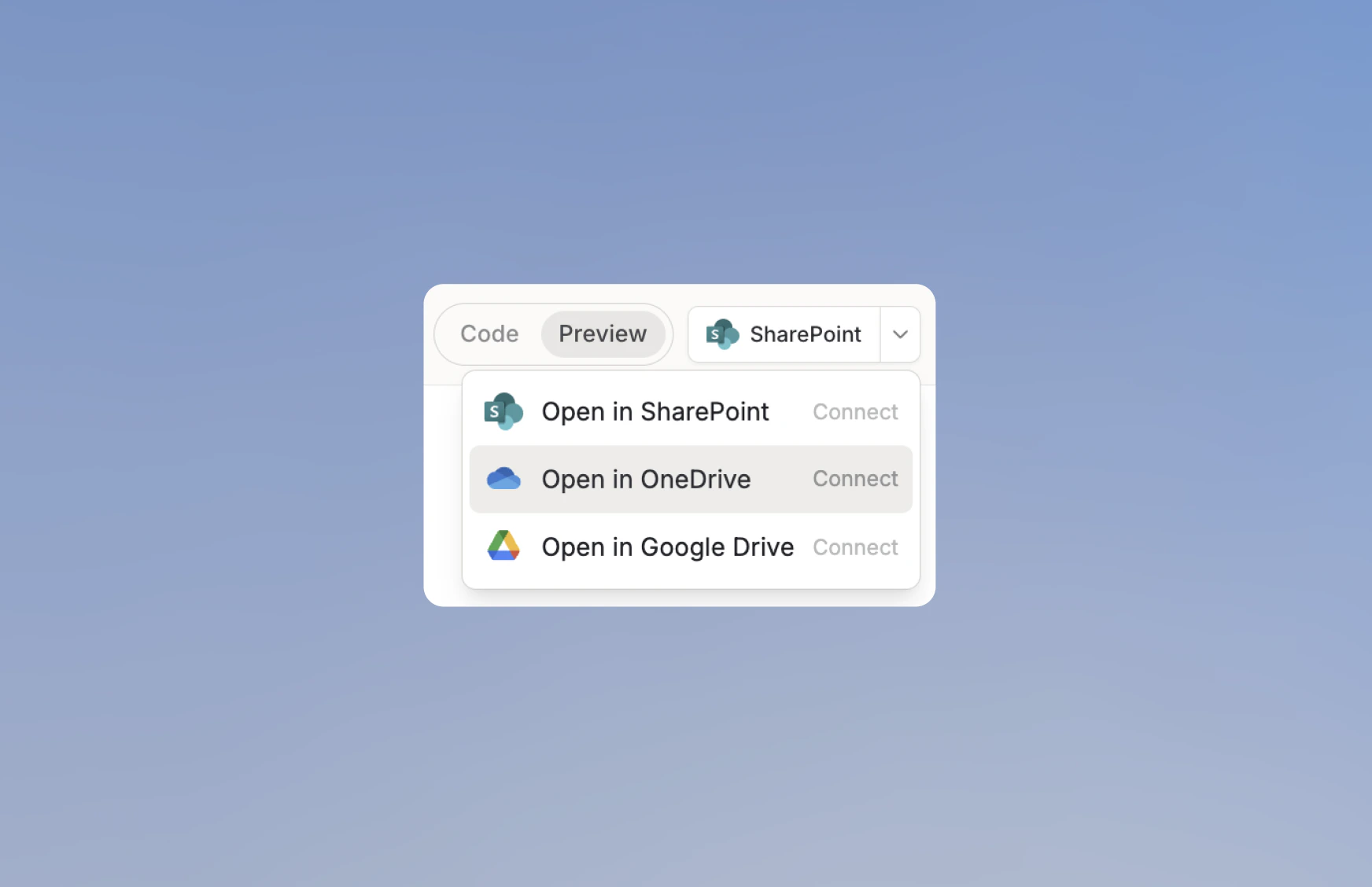
If your team works in SharePoint, OneDrive, or Google Drive, you can send your file there directly from the editor without downloading and re-uploading it. Click the external storage button in the top bar. All three options are always visible. Click Connect next to any integration that isn’t set up yet:- Open in SharePoint
- Open in OneDrive
- Open in Google Drive
Library
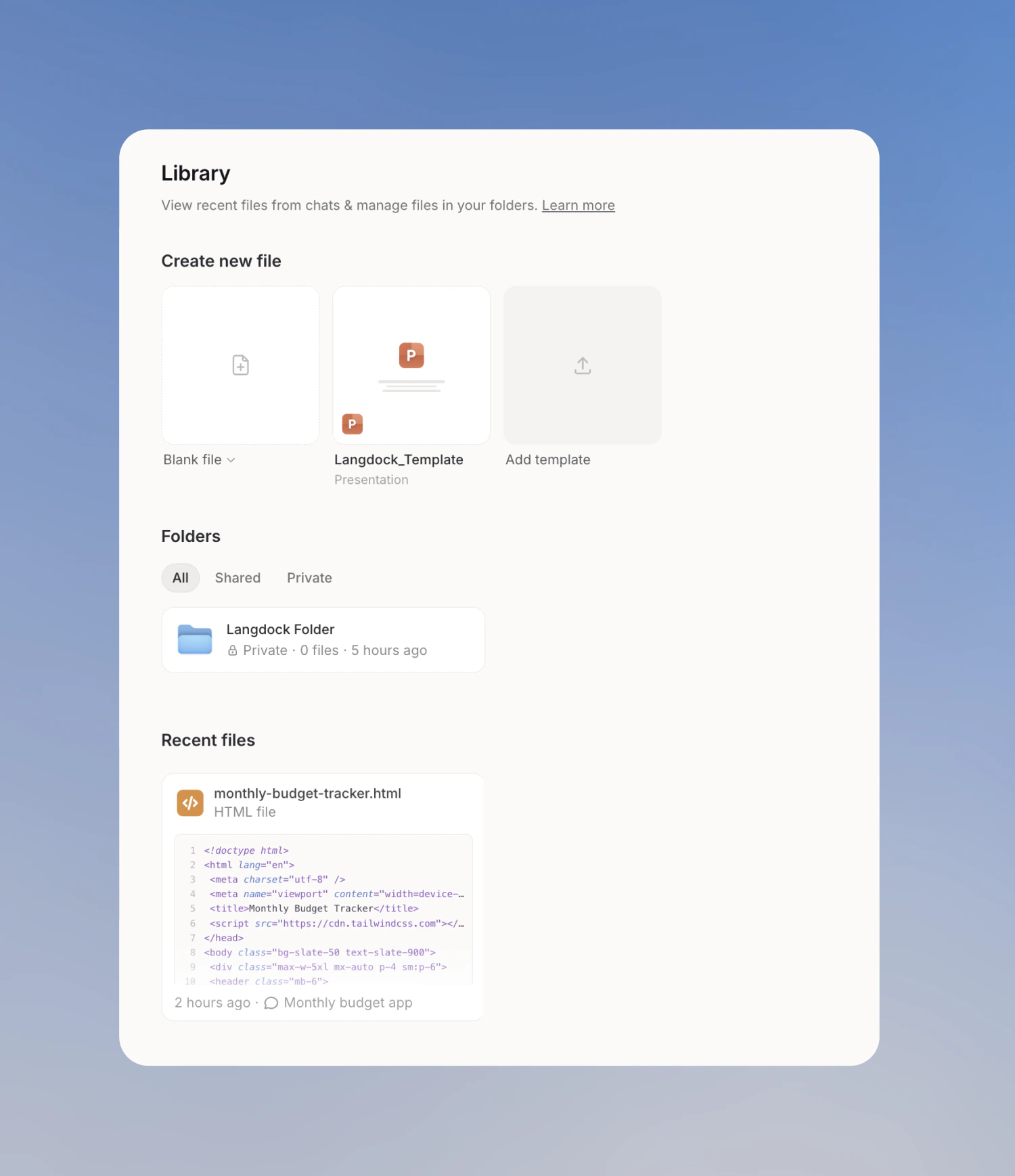
Your Library is the central home for all files you create in Langdock. Every file is saved there automatically, so you can always find and continue working on them across different chats.