

Documentation Index
Fetch the complete documentation index at: https://docs.langdock.com/llms.txt
Use this file to discover all available pages before exploring further.
Company Knowledge
Company Knowledge is a powerful search tool that finds information across all your connected integrations. Instead of searching each tool separately, ask a question and Langdock searches Google Drive, SharePoint, Confluence, Slack, email, and more simultaneously.Best for: Finding documents, searching emails, locating files across multiple platforms, researching company information, and getting answers from your organization’s knowledge base.
Supported Integrations
Company Knowledge can search across the following connected integrations:| Integration | What It Searches |
|---|---|
| Google Drive | Documents, spreadsheets, presentations, PDFs |
| SharePoint | Documents, sites, libraries |
| OneDrive | Files and folders |
| Confluence | Pages, spaces, attachments |
| Gmail | Email threads and messages |
| Outlook | Emails and calendar events |
| Slack | Channel messages, conversations |
| Microsoft Teams | Chat messages, channel discussions |
| Linear | Issues, projects, team information |
| Google Calendar | Events and meeting details |
You need to connect these integrations in your workspace settings before they appear in Company Knowledge. Only integrations you have access to will be searchable.
How to Use Company Knowledge
Activate Company Knowledge
To use Company Knowledge, click the Company knowledge button in the chat input bar.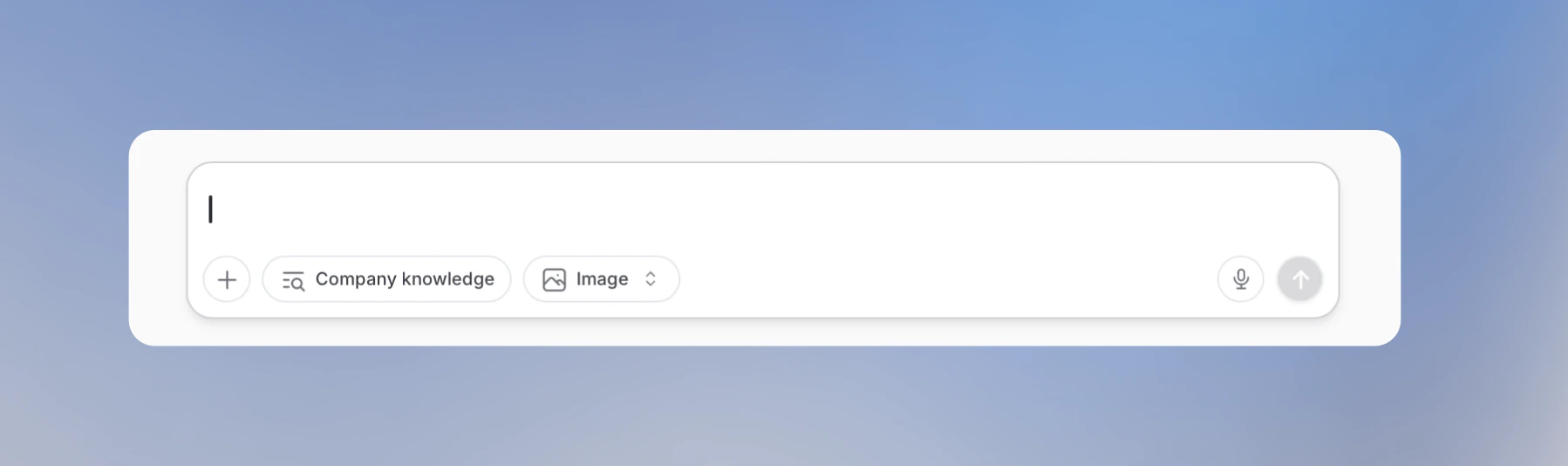
Select your sources
The integration selector shows all your connected work tools. Use the toggles to choose which platforms you want to include in your search.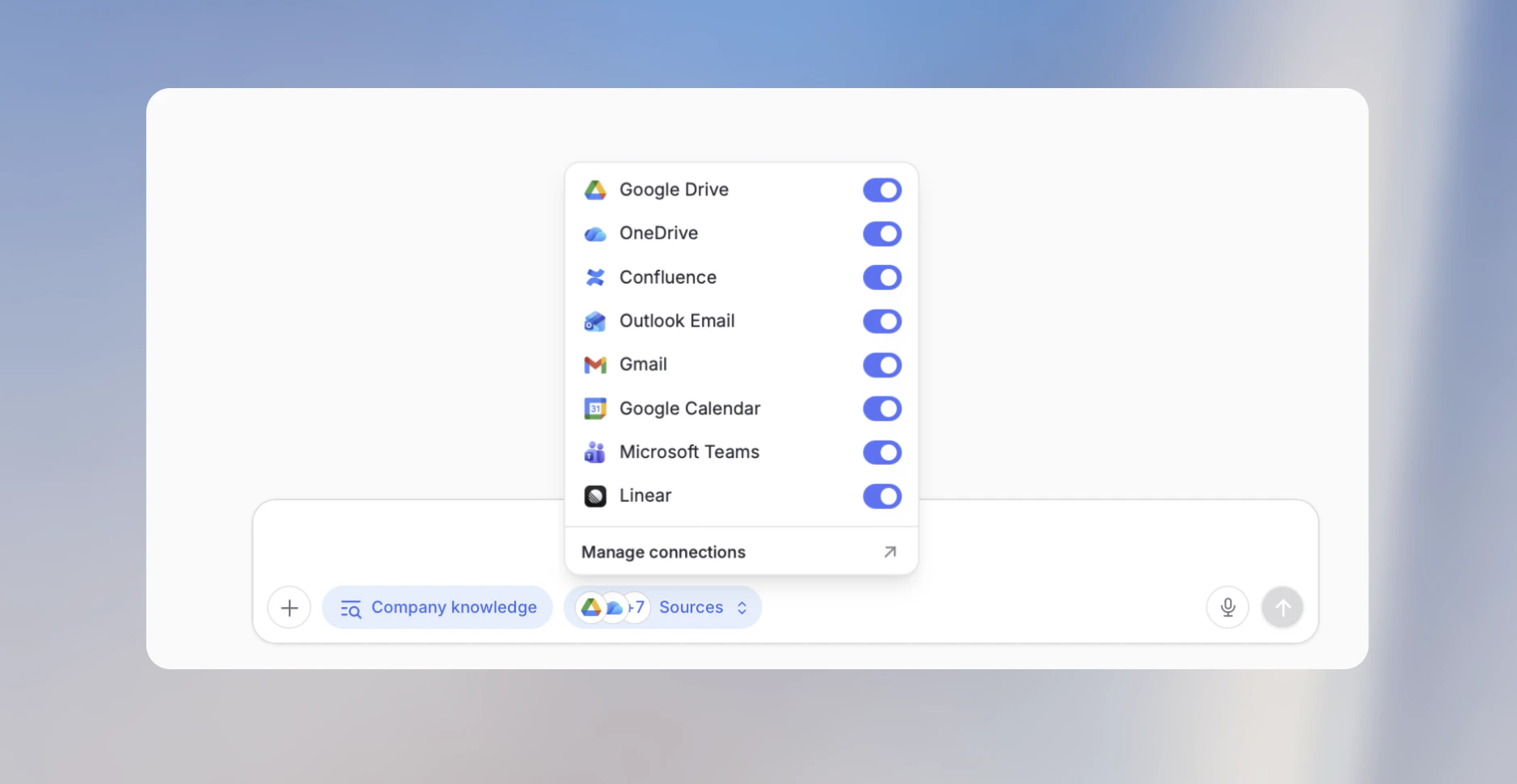
- Toggle integrations on/off: Only selected sources will be searched.
- Manage Connections: If you have multiple accounts (e.g., two Google accounts), choose which one to use.
- Save preferences: Your selections are remembered for next time.
You need at least one integration selected to use Company Knowledge.
Ask Your Question
Write your question naturally - the AI will search your connected sources and synthesize an answer:Understand the results
When you send a message with Company Knowledge active, a timeline panel opens on the side showing the search progress in real-time.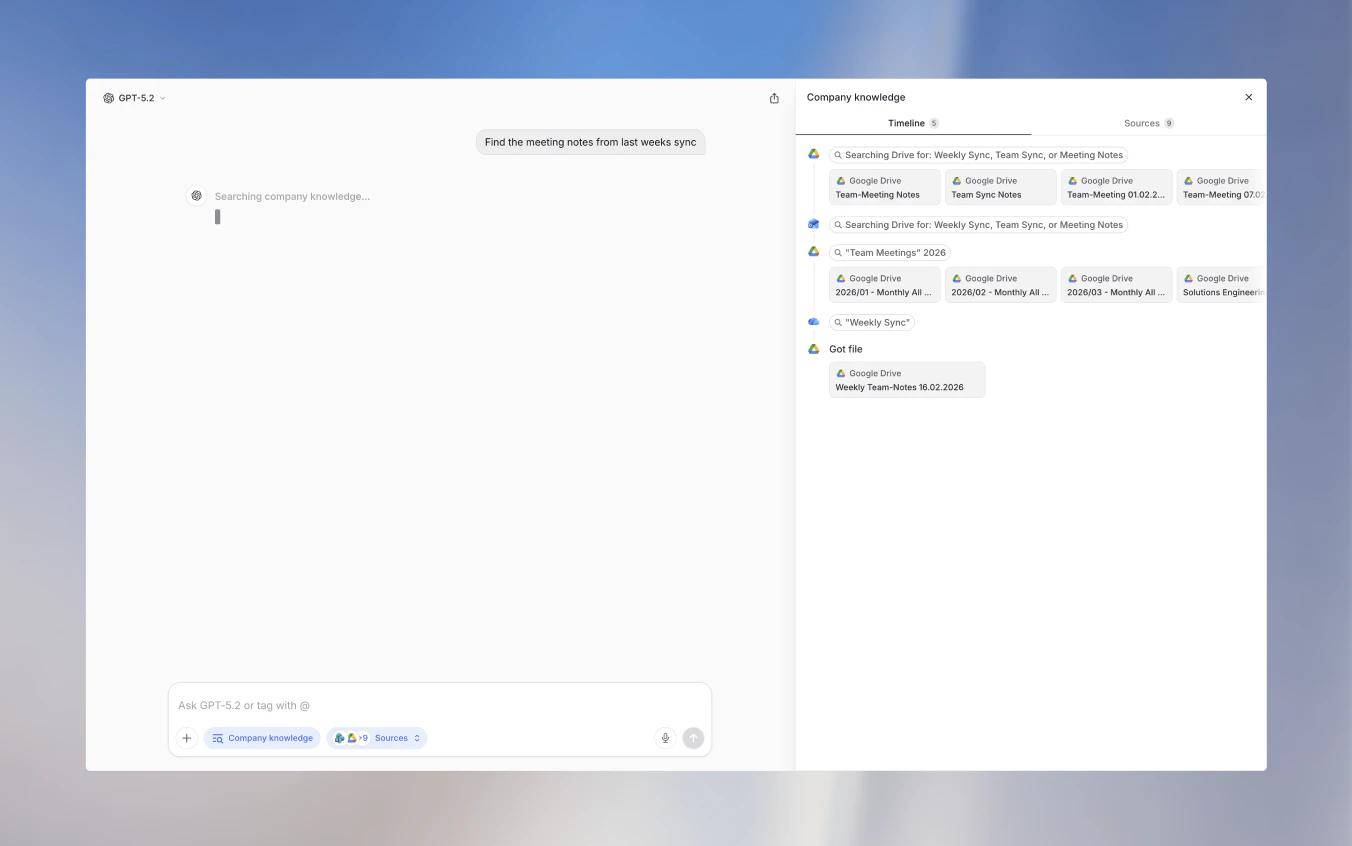
- Timeline: Shows each search step, which platforms are being queried, what documents are being read, and how the answer is being formed.
- Sources: Lists all the documents and messages that were found, with direct links to open them in their original apps.
Select Specific Sources
By default, Company Knowledge searches all your connected integrations. To search specific sources:- Click the integration selector next to the Company Knowledge tool
- Select only the integrations you want to search
- Your search will be limited to those sources
How It Works
When you ask a question with Company Knowledge enabled:- Query Analysis: The AI determines what you’re looking for
- Multi-Source Search: Searches are executed across selected integrations in parallel
- Result Ranking: Results are ranked by relevance to your question
- Content Retrieval: Relevant documents are fetched and analyzed
- Answer Synthesis: The AI generates a comprehensive answer with citations
Best Practices
Be Specific with Your Questions
Be Specific with Your Questions
Include details like dates, people’s names, or project names to get more accurate results.❌ “Find the document”
✅ “Find the product roadmap document from March 2024”
Narrow Down Sources When Possible
Narrow Down Sources When Possible
If you know where the information is likely to be, select only those integrations. This speeds up the search and improves relevance.
Use Natural Language
Use Natural Language
You don’t need to use special search syntax. Ask questions the way you’d ask a colleague.
Follow Up for More Details
Follow Up for More Details
After getting initial results, ask follow-up questions to dig deeper into specific documents or topics.
Privacy and Permissions
- Your Permissions Apply: Company Knowledge only searches content you have access to
- No Extra Access: The tool uses your existing integration connections
- Workspace Scoped: Results are limited to your workspace’s connected integrations
Setup Requirements
To use Company Knowledge:- Workspace Admin: Must enable Company Knowledge in workspace settings
- Integration Connections: Connect the integrations you want to search
- User Permissions: Your integration connections determine what you can search
Connect Integrations
Learn how to connect integrations to enable Company Knowledge
Limitations
- Search results depend on what’s accessible via each integration’s API
- Some integrations may have rate limits affecting search speed
- Large file downloads may take additional time
- Company Knowledge sessions count against your plan’s included usage limits
Next Steps
Integrations
Connect more integrations
Web Search
Search the public internet
Document Search
Search uploaded documents
Folders
Create searchable document collections