

Shared Teams channels give your team direct access to Langdock for questions, feedback, and use case discussions. We also use these channels to share product updates and announcements.Documentation Index
Fetch the complete documentation index at: https://docs.langdock.com/llms.txt
Use this file to discover all available pages before exploring further.
Shared channels are available for enterprise customers. Contact your Langdock account manager to get started.
Step 1: Enable Required Permissions in Teams
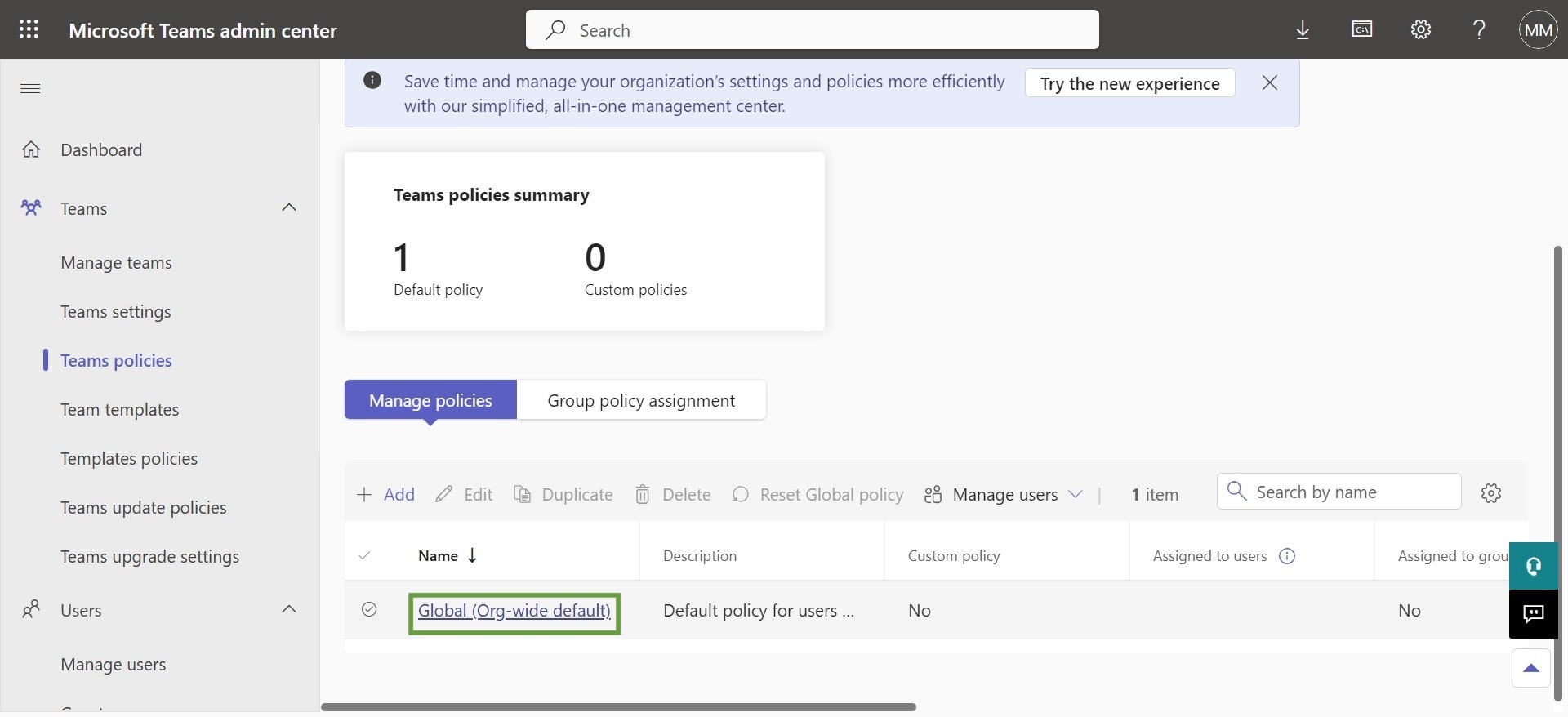
- Navigate to the Microsoft Teams Admin Center.
-
Click Global (Org-wide default)
-
Ensure that Join external shared channels is activated. If you changed your settings, click Apply
 Please verify that the langdock.com organization is not blocked. If you use a whitelist, langdock.com should be on the whitelist. If you use a blacklist, it should not be on the blacklist.
Step 2: Configure B2B Direct Connect in Microsoft Entra
We follow the Microsoft B2B direct connect guide. You only need to add the Langdock organization and configure outbound settings—inbound settings are not needed since we’ll invite you to the channel.Add Langdock as an organization
-
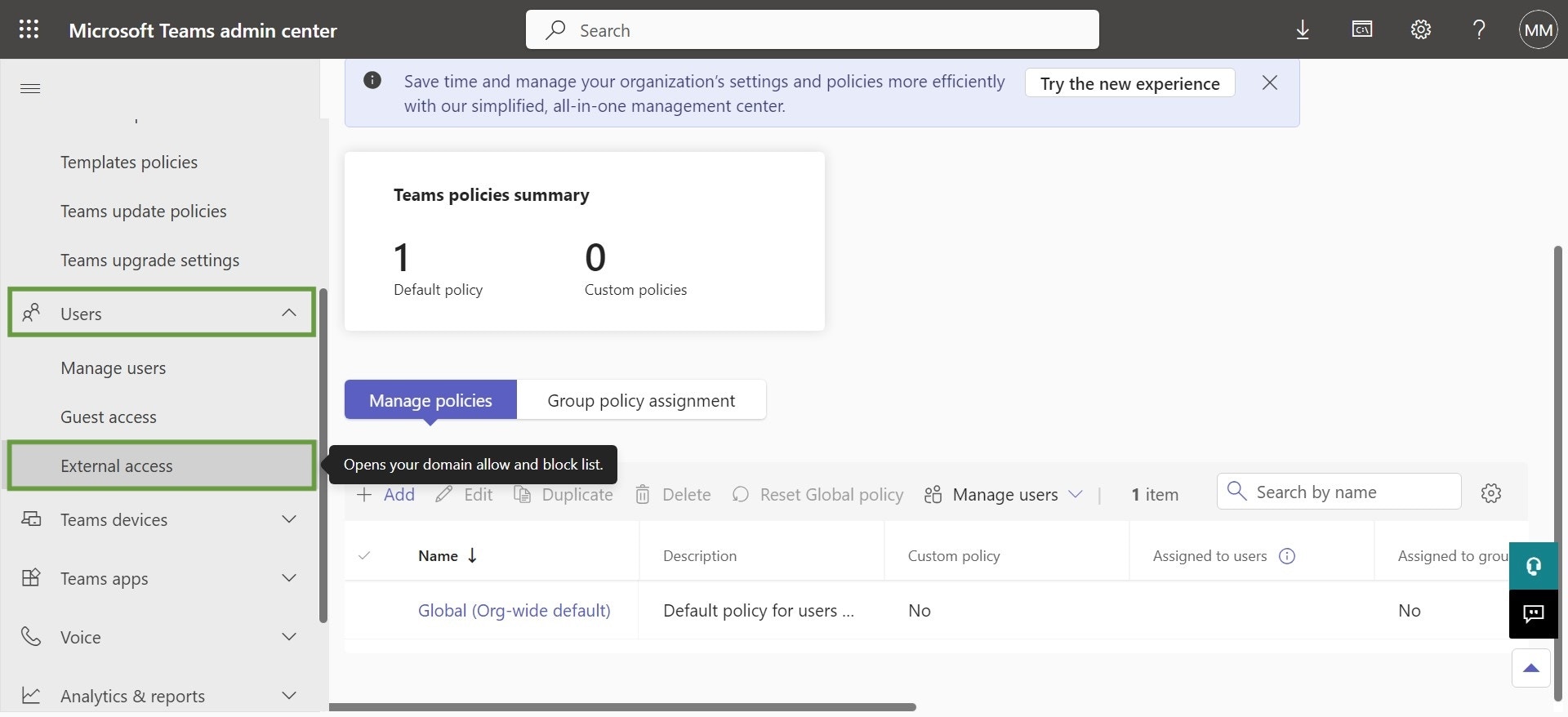
Go to Users and then to External access
-
Ensure that Teams and Skype for Business users in external organizations is either set to Allow all external domains or Allow only specific external domains
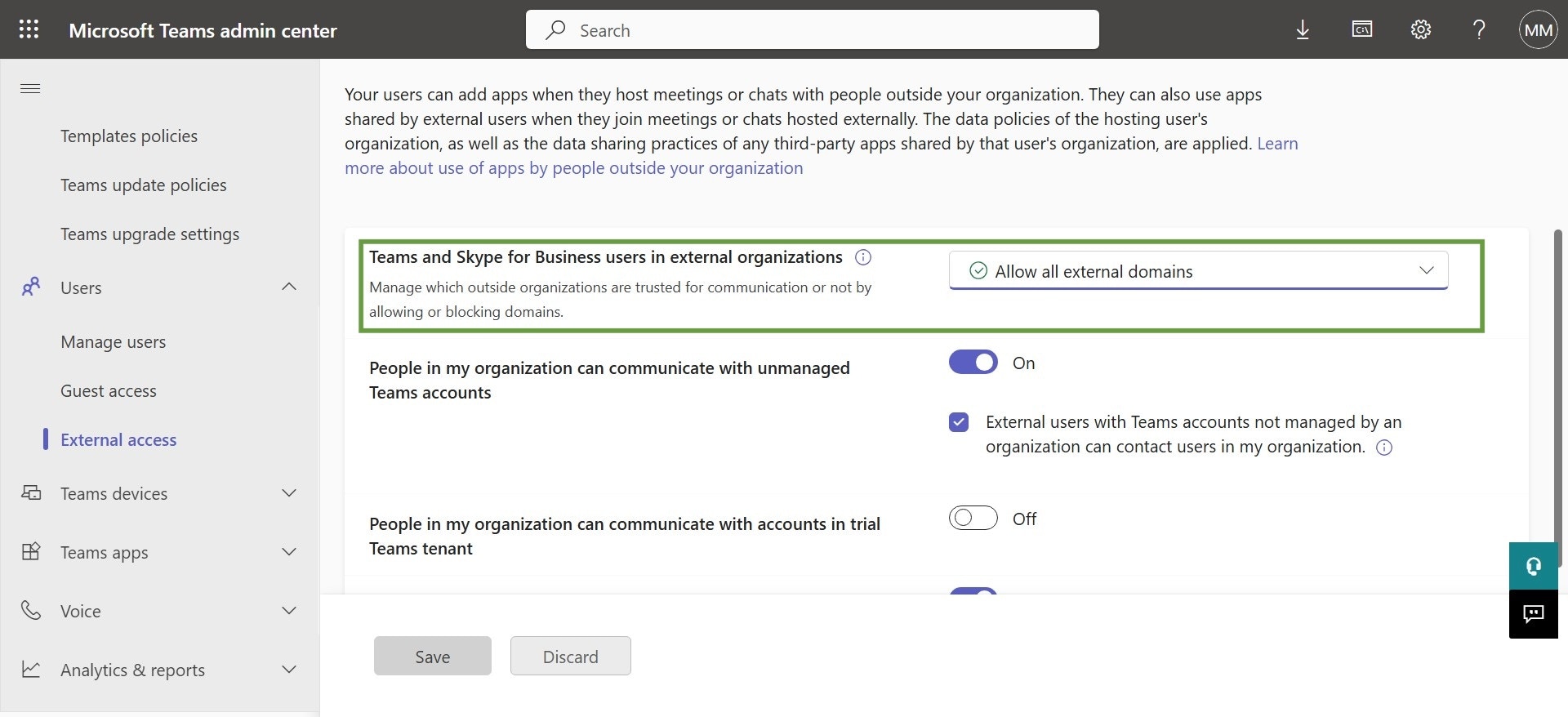
- If you only want to allow specific domains, click Create a list of external domains that are allowed. Only the specified external organizations are trusted. All other domains will be blocked.
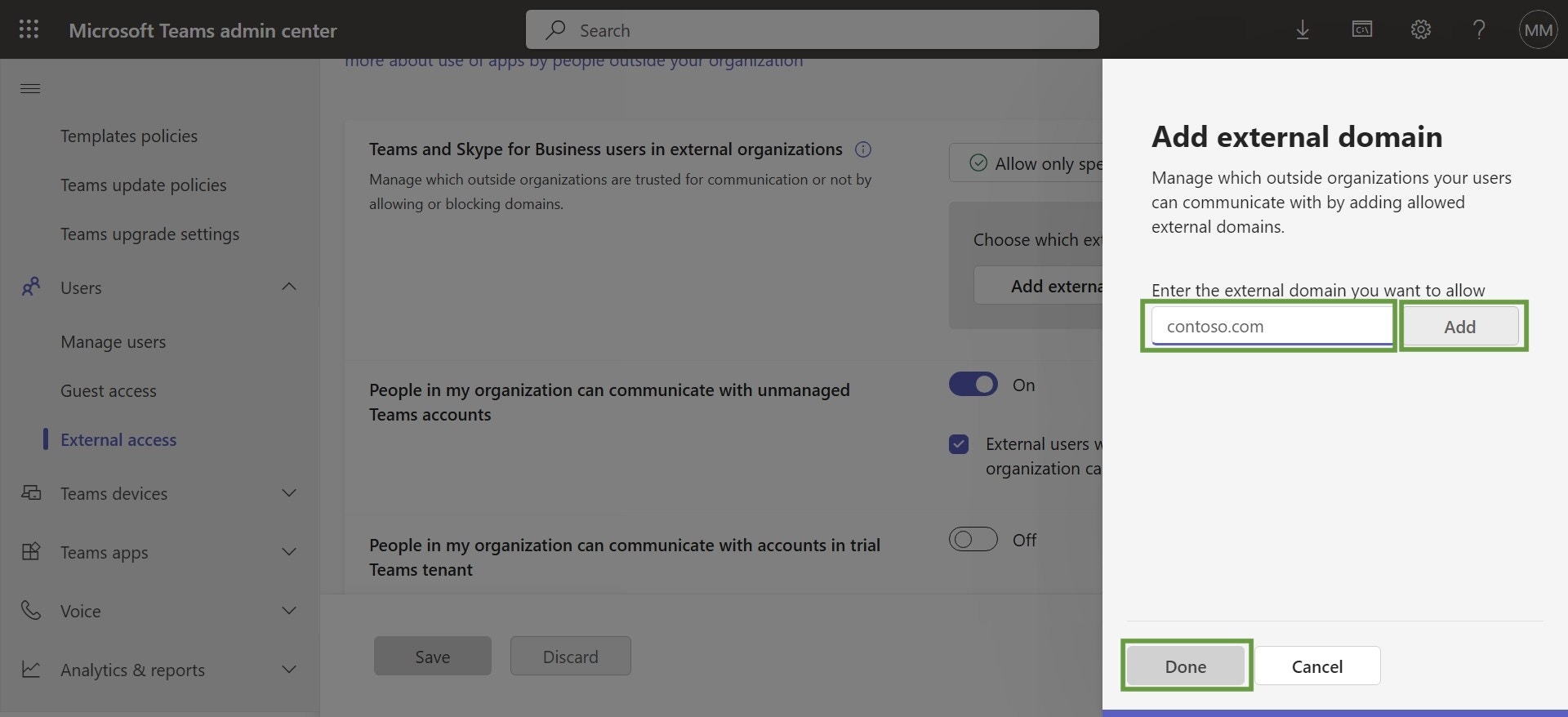
- Click Add external domains
-
Enter langdock.com and click Add. Then click Done to close the sidebar.
-
Click Save
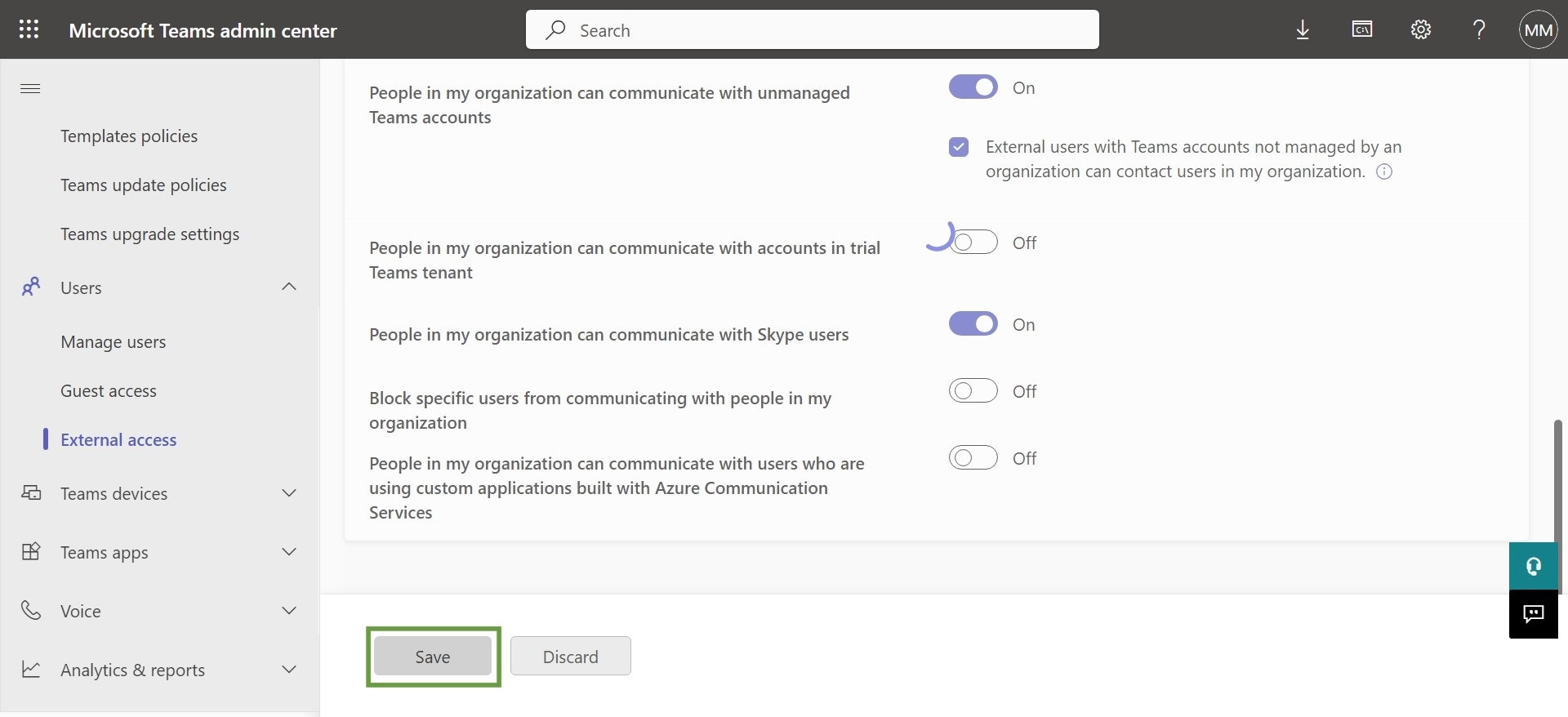
Configure outbound settings
- In a new tab, navigate to the Microsoft Entra Admin Center
-
In the sidebar on the left, click External Identities
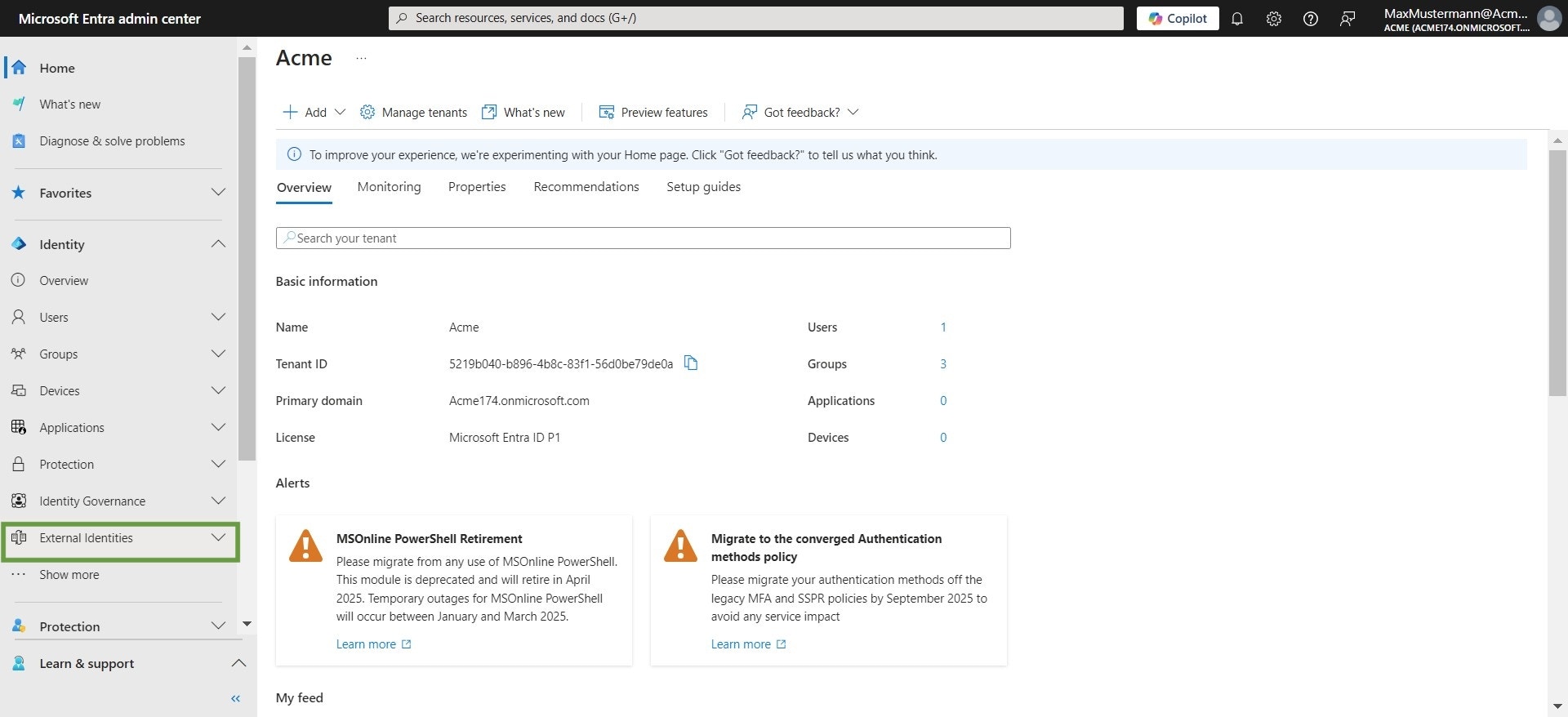
-
Select Cross-tenant synchronization
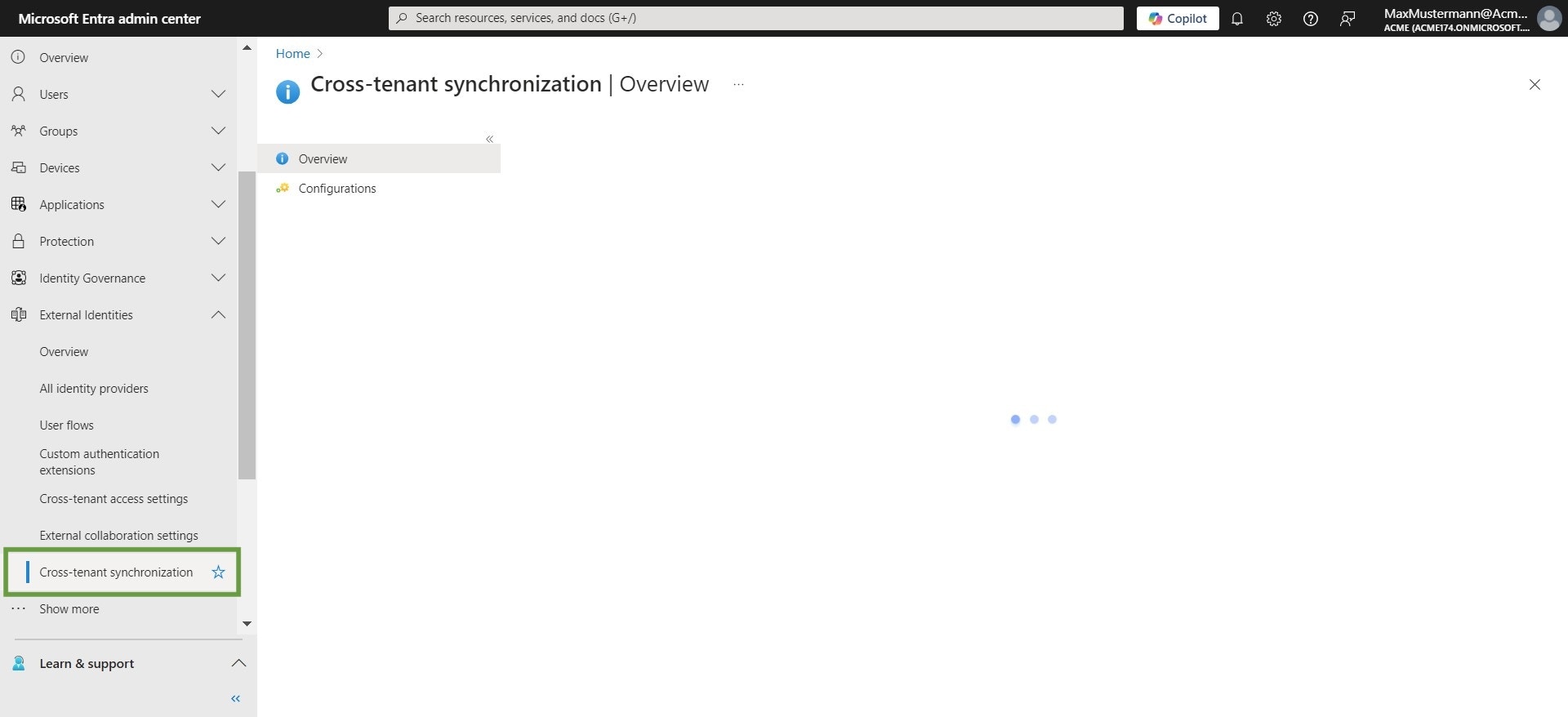
-
Switch to the Organizational settings tab. Then, click Add organization
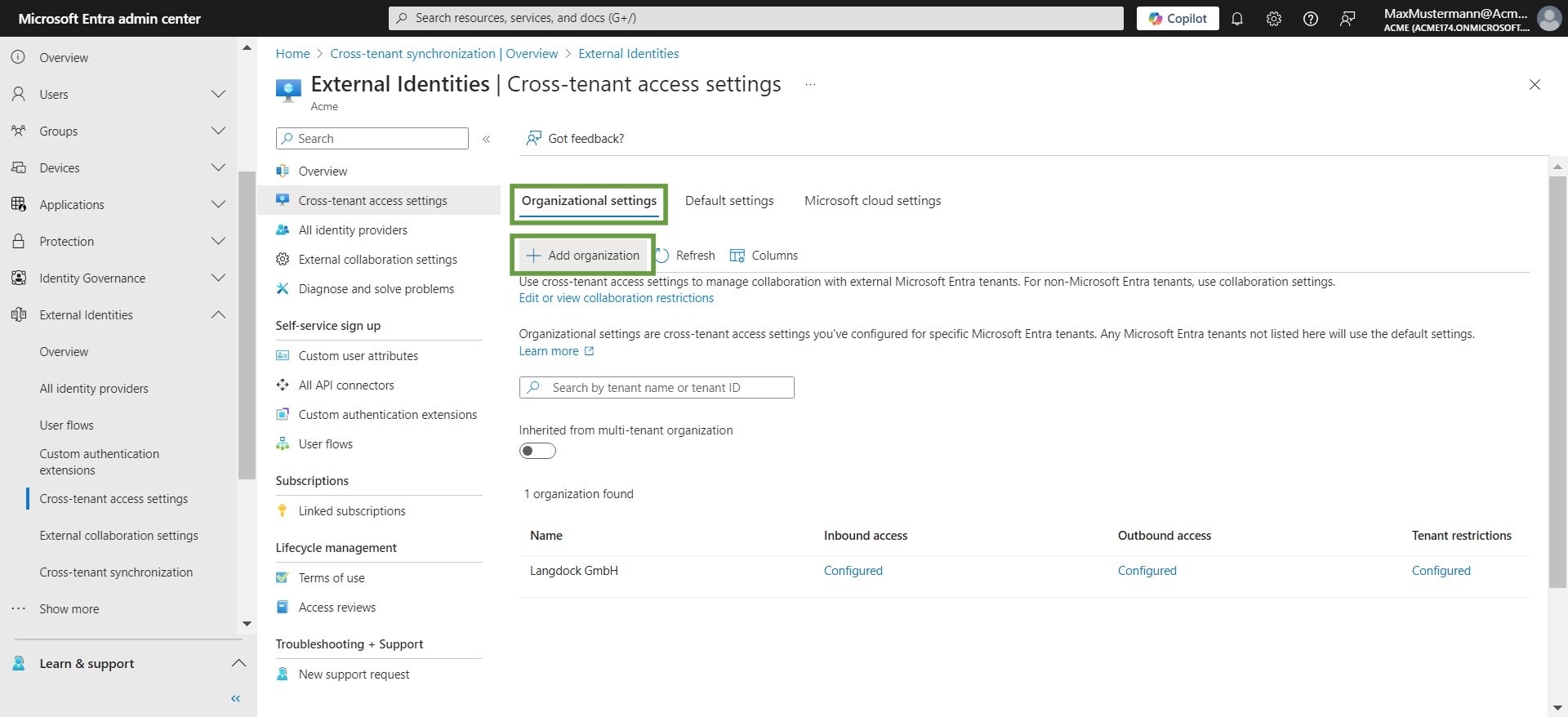
-
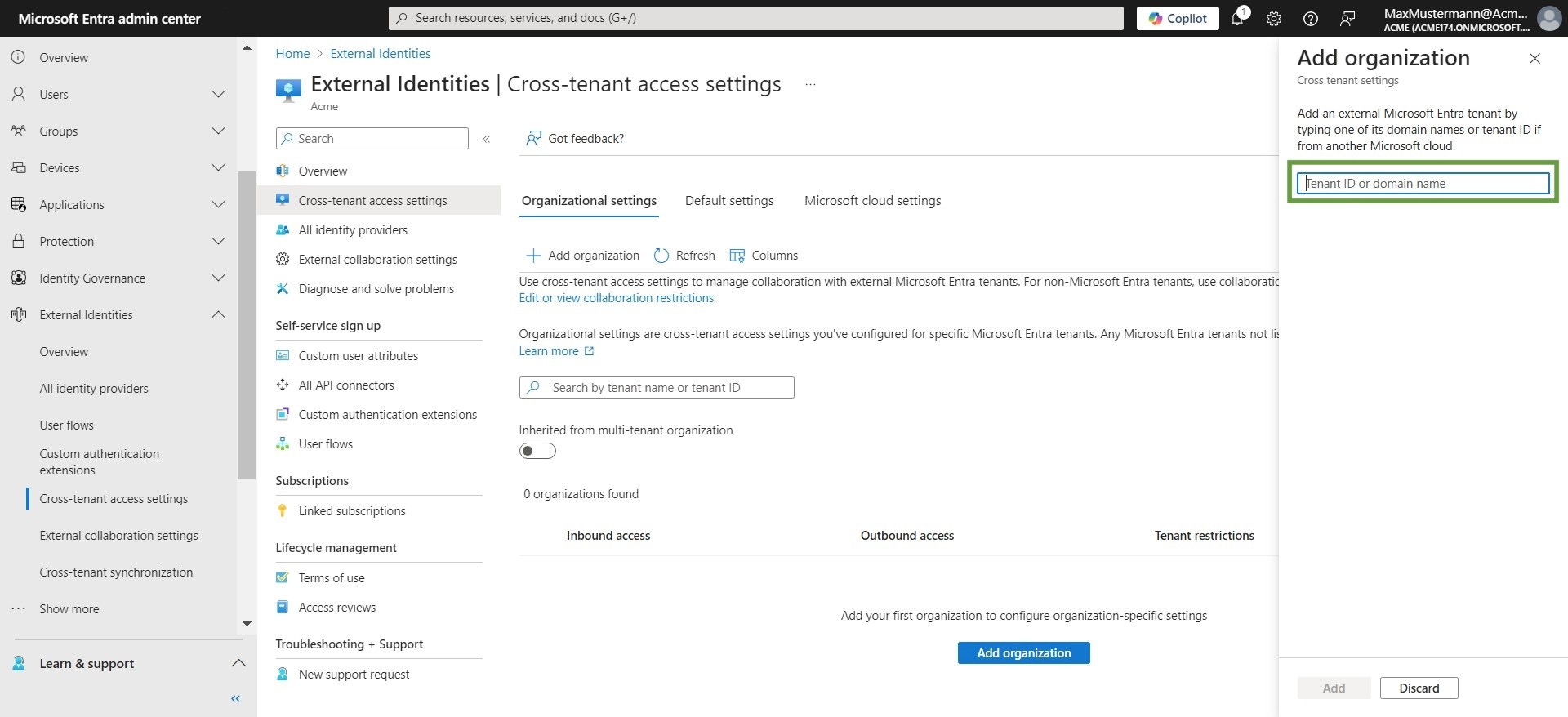
Click the Tenant ID or domain name field and enter langdock.com
-
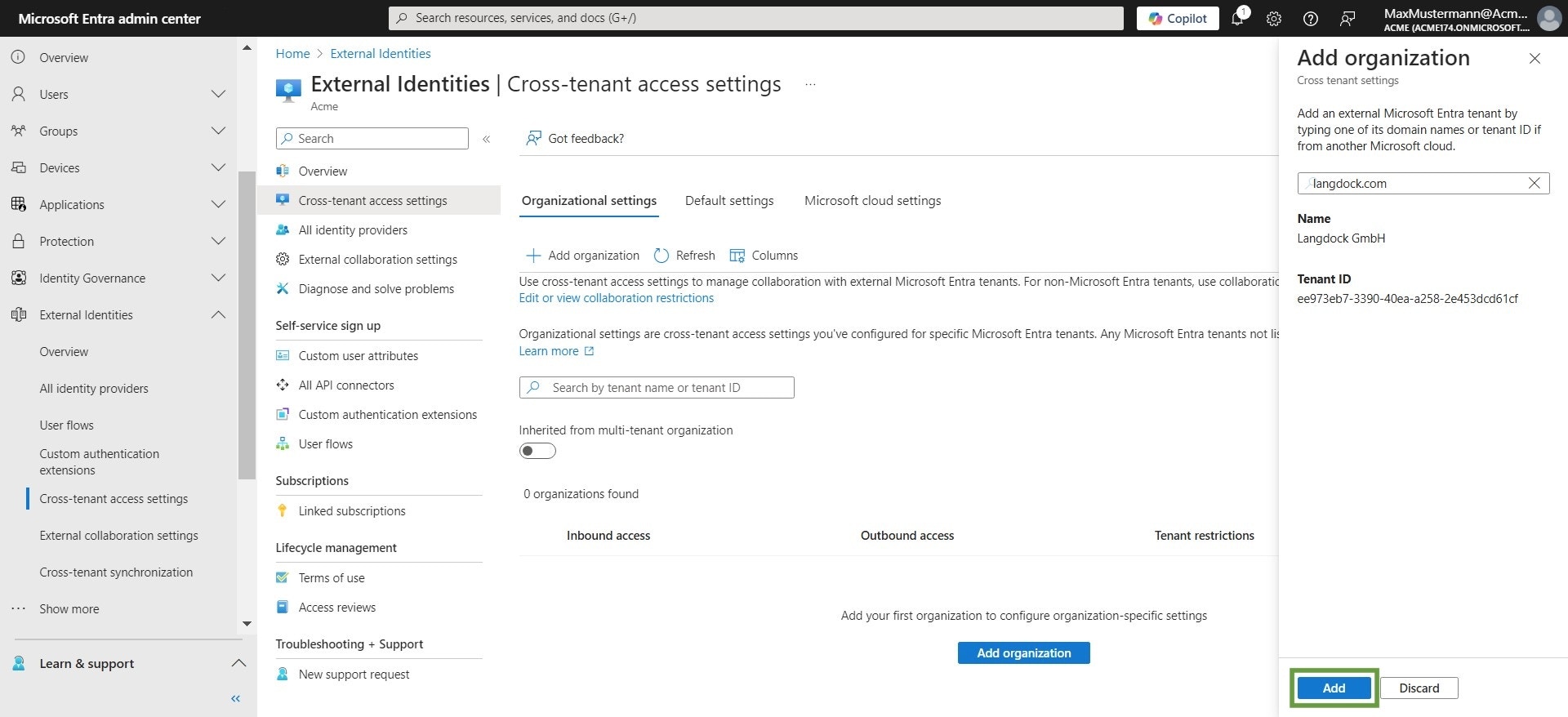
Select Langdock GmbH and click Add
-
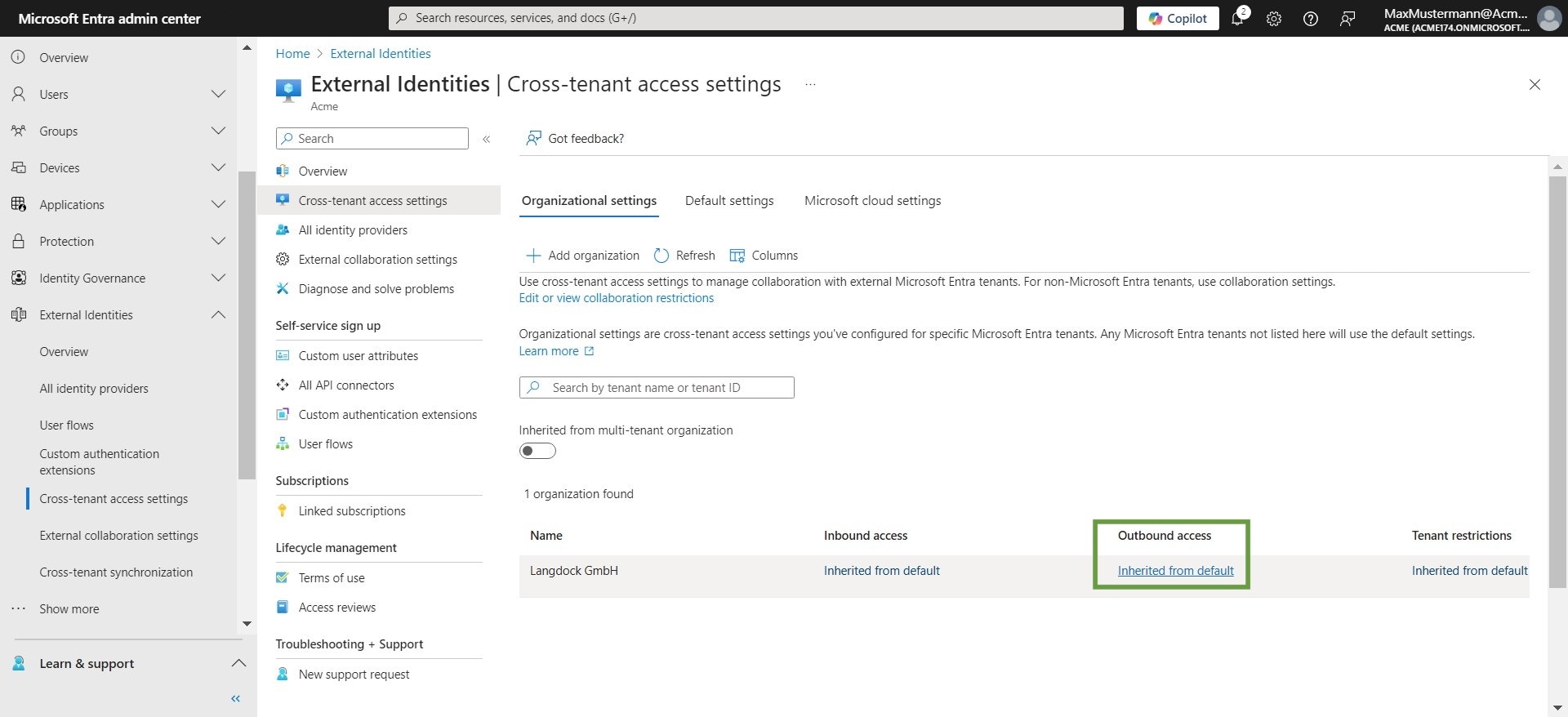
Click Inherited from default in the Outbound access category for the Langdock organization
-
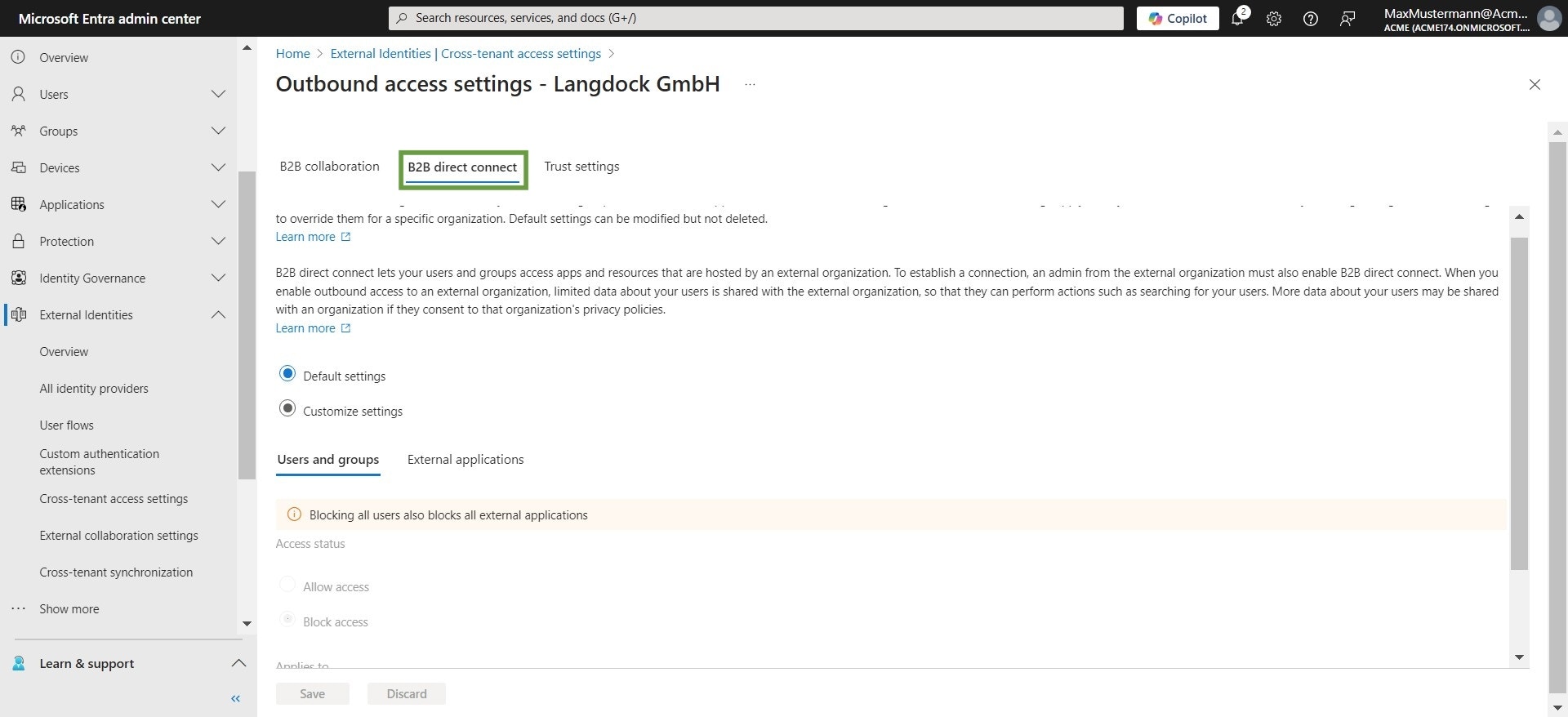
Go to the B2B direct connect tab
-
Click Customize settings
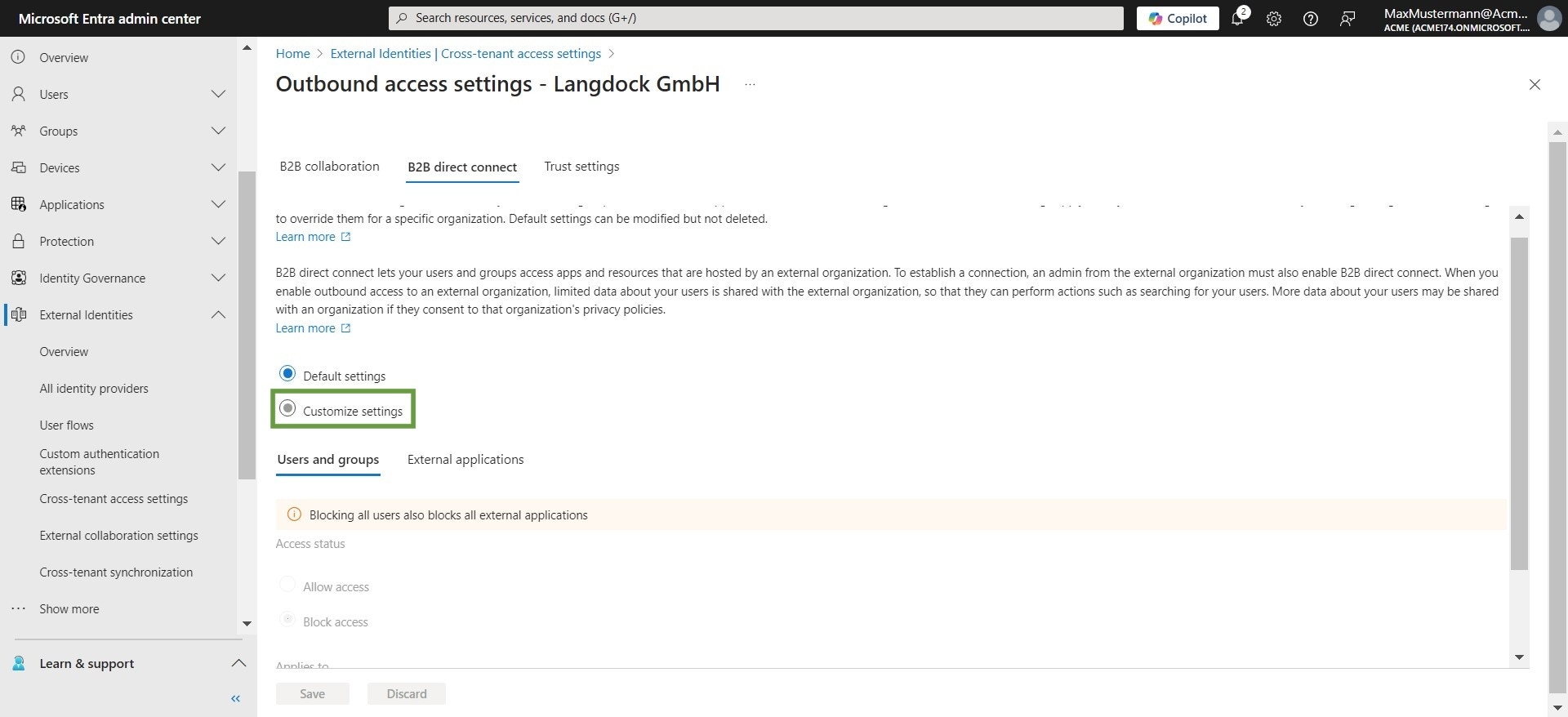
-
For users and groups, click Allow access for the access status
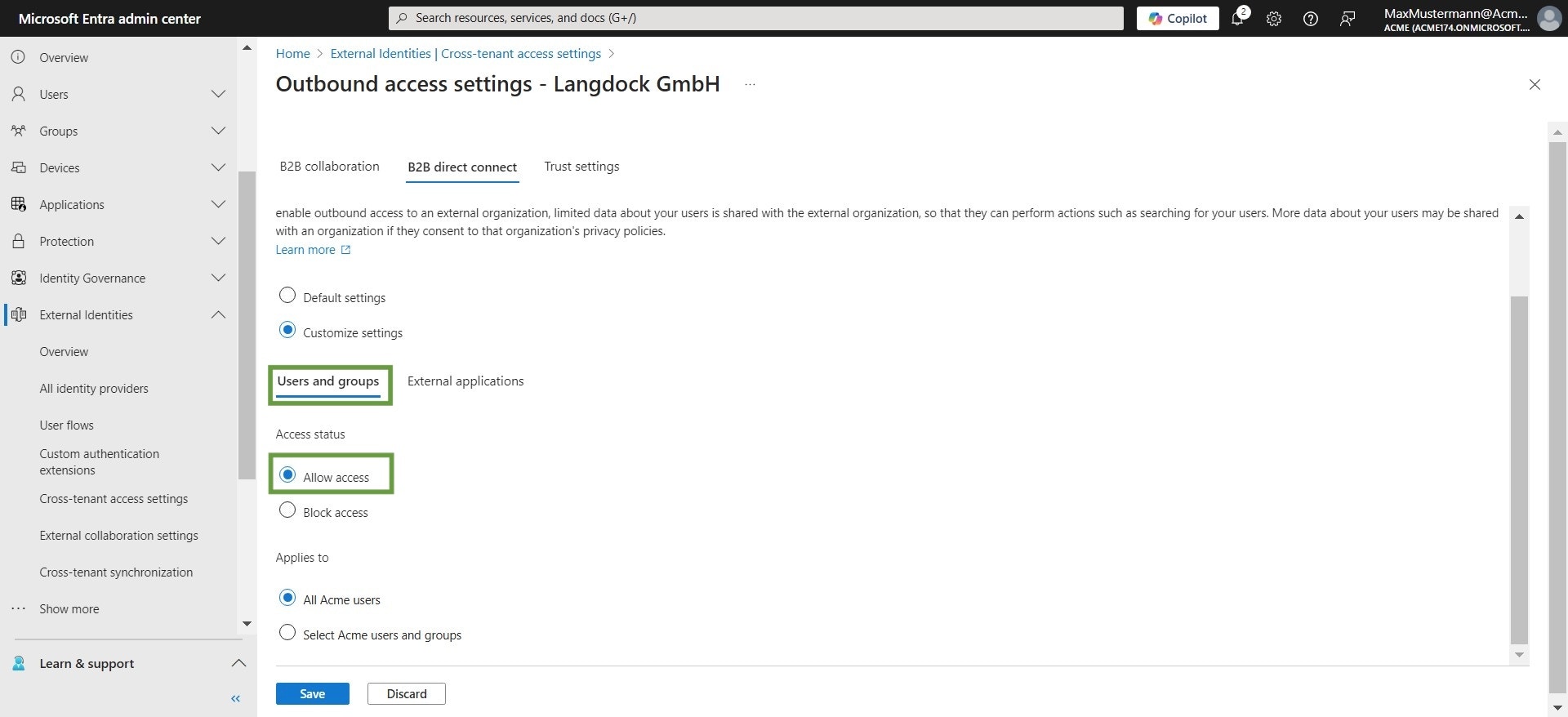
- Go to the External applications tab and select Allow access for the access status
-
Click Select external applications
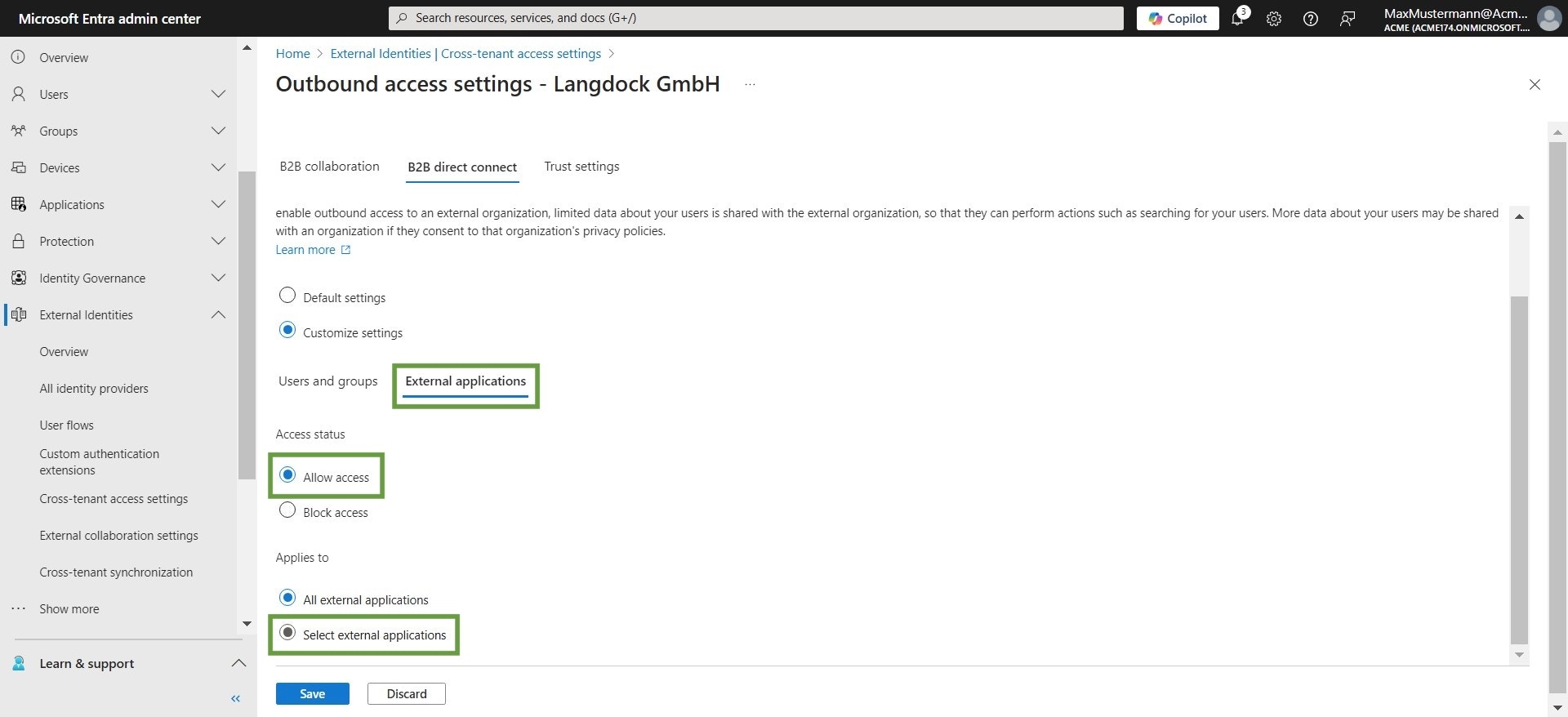
-
Click Add Microsoft applications
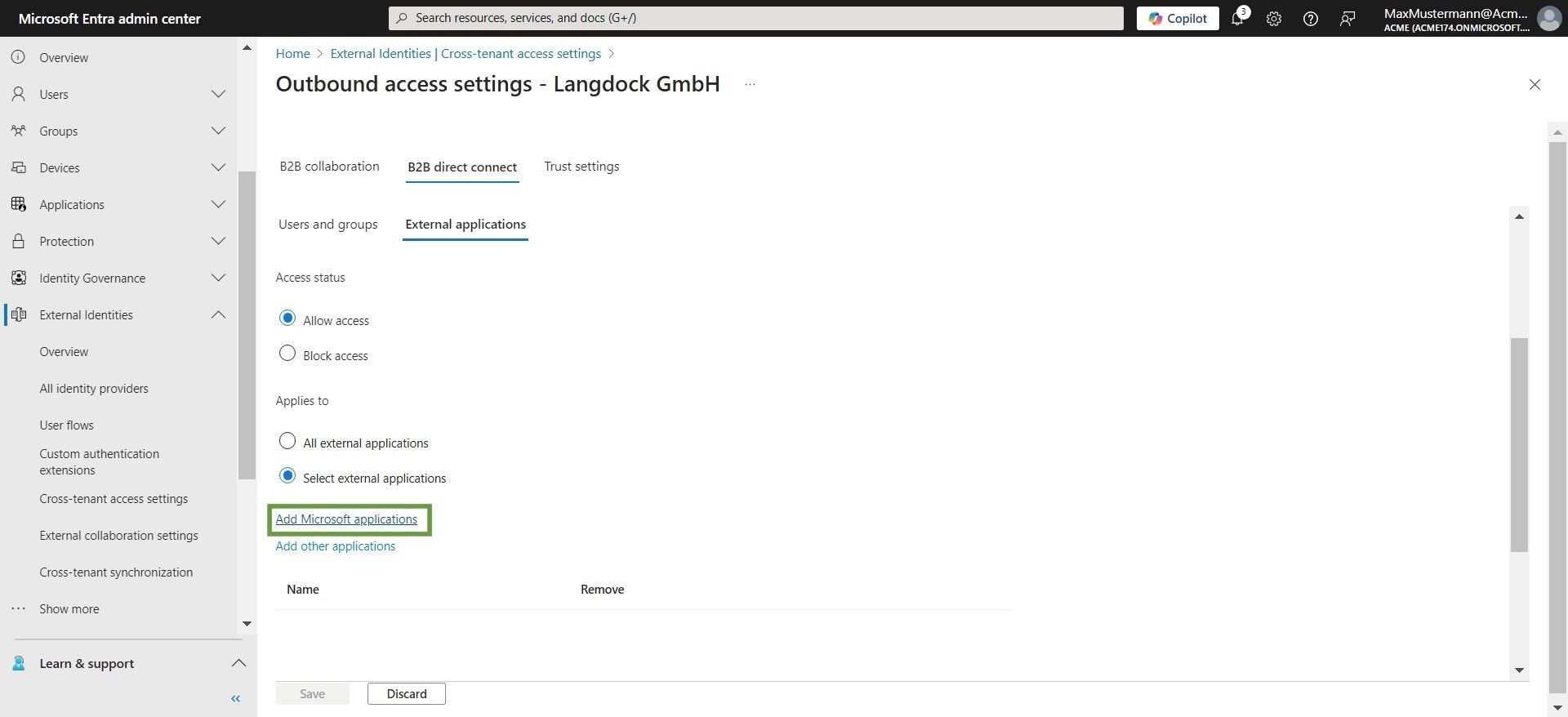
-
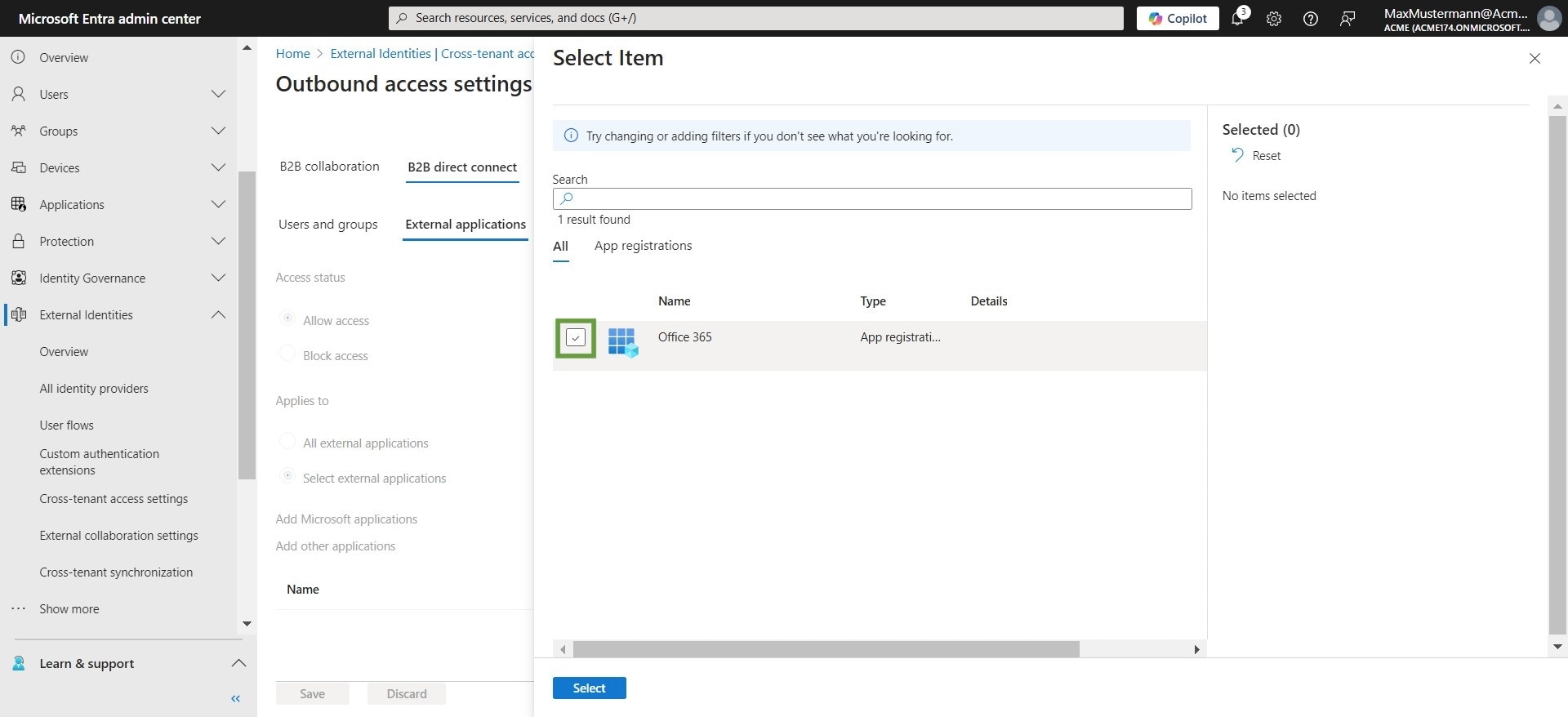
Check the box for the Office 365 app registration
-
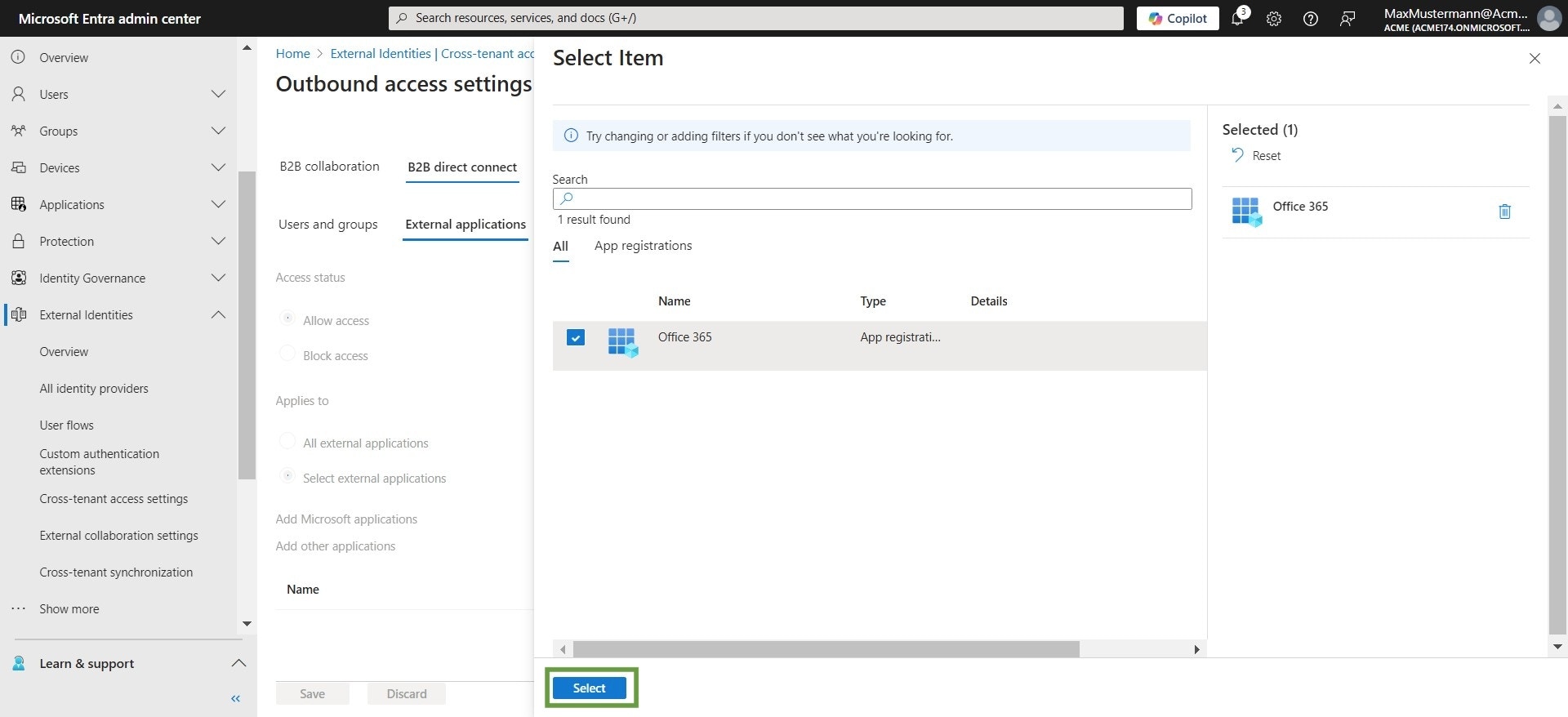
Click Select
-
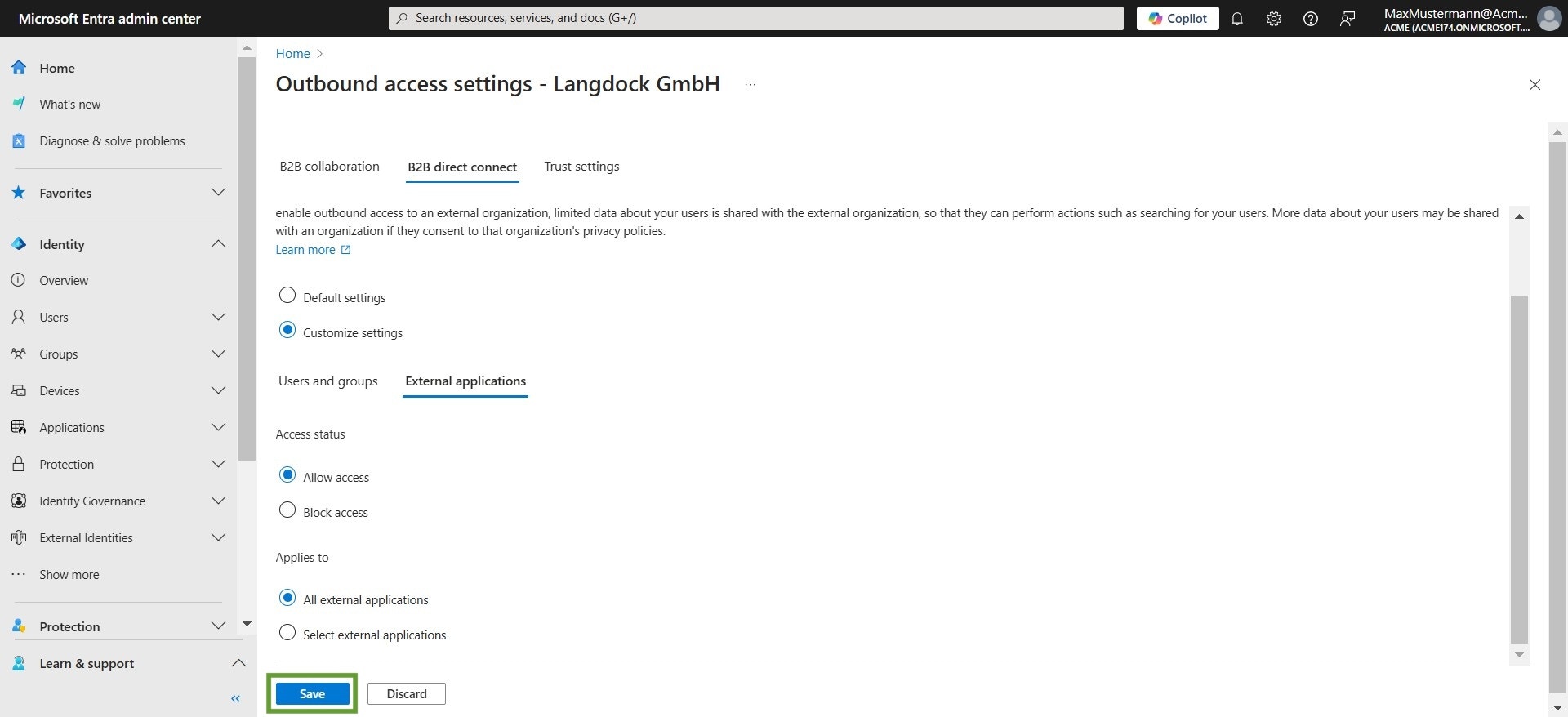
Click Save
-
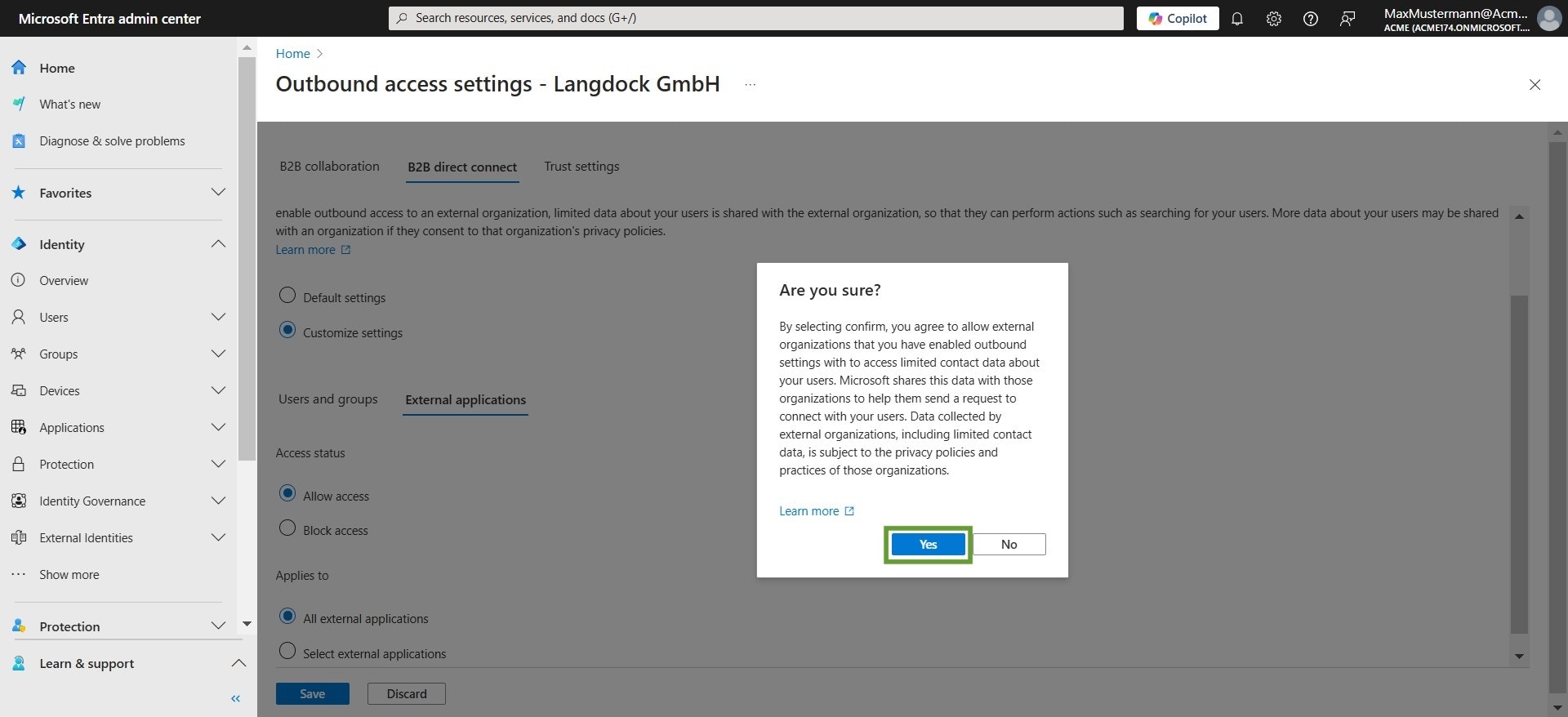
Confirm with Yes. You have now completed the B2B direct connect setup from your side.
Step 3: Share Your Tenant ID
Once you’ve completed the B2B direct connect setup:- Find your tenant ID on the Microsoft Entra Admin Center homepage
- Share the tenant ID with your Langdock contact
- The Langdock team will send channel invitations to you and your users via email