

To use Langdock in Teams, the Langdock app must be installed in your Teams
workspace. This can only be done by a workspace admin following the steps
detailed on the Teams Bot setup page.
Two Ways to Use the Teams Bot
You can interact with the Langdock Teams Bot in two places:- Private Chat: Direct one-on-one conversations with Langdock
- Team Channels: Collaborative conversations via @Langdock mention where your team can see and participate
In channels, you must tag @Langdock to interact with the bot. The Teams Bot uses your default model from Account Settings > Preferences, or your workspace default if none is configured.
Available Commands
The Langdock Teams Bot provides three commands to help you get started:
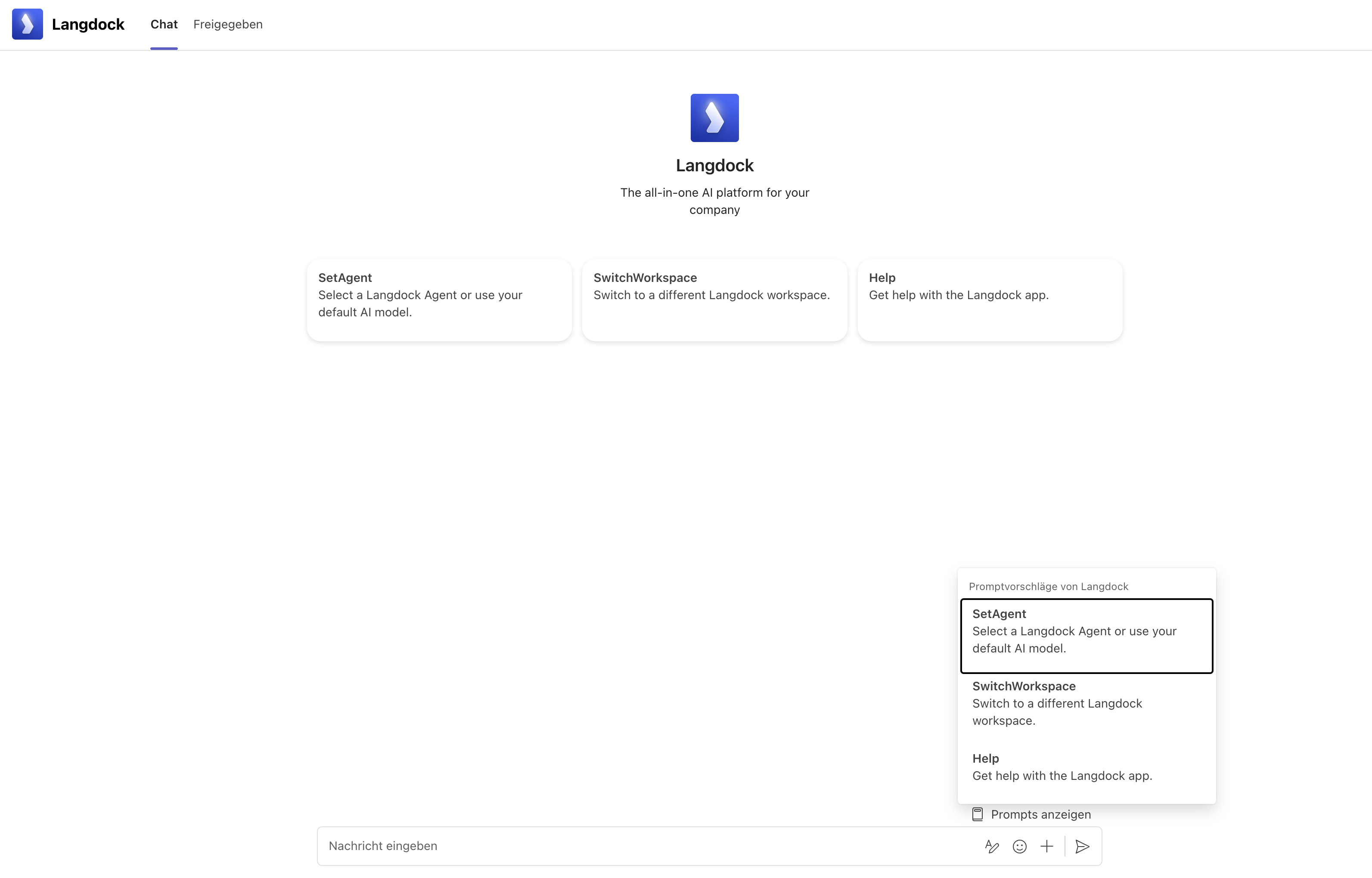
In private chat, these commands appear directly above the message input field in the prompt library. In channels, they appear after you @Langdock.
SetAgent
Use the SetAgent command to select which agent handles your conversation. A dropdown appears with all available agents from your workspace. Use the search field to find the one you need, then click Set.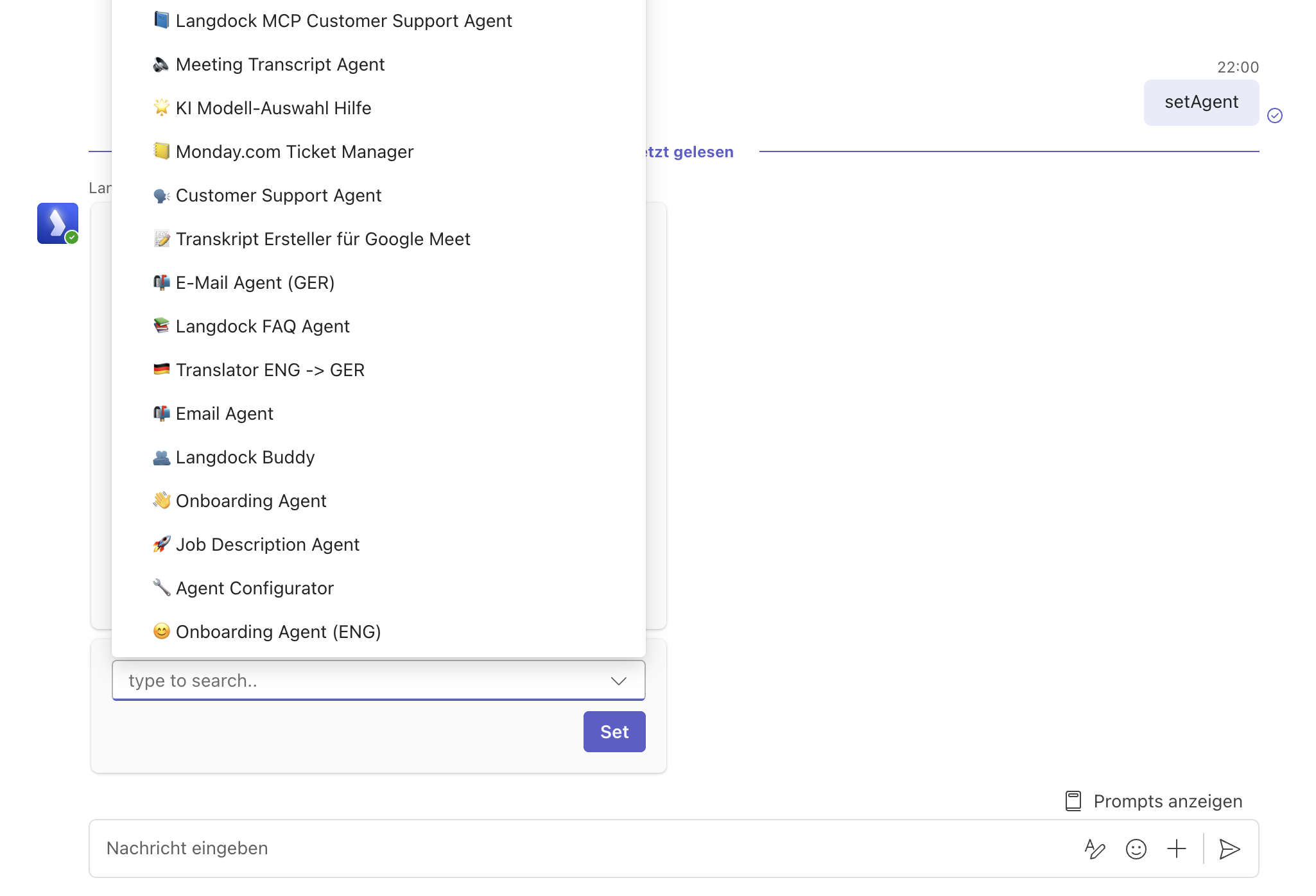
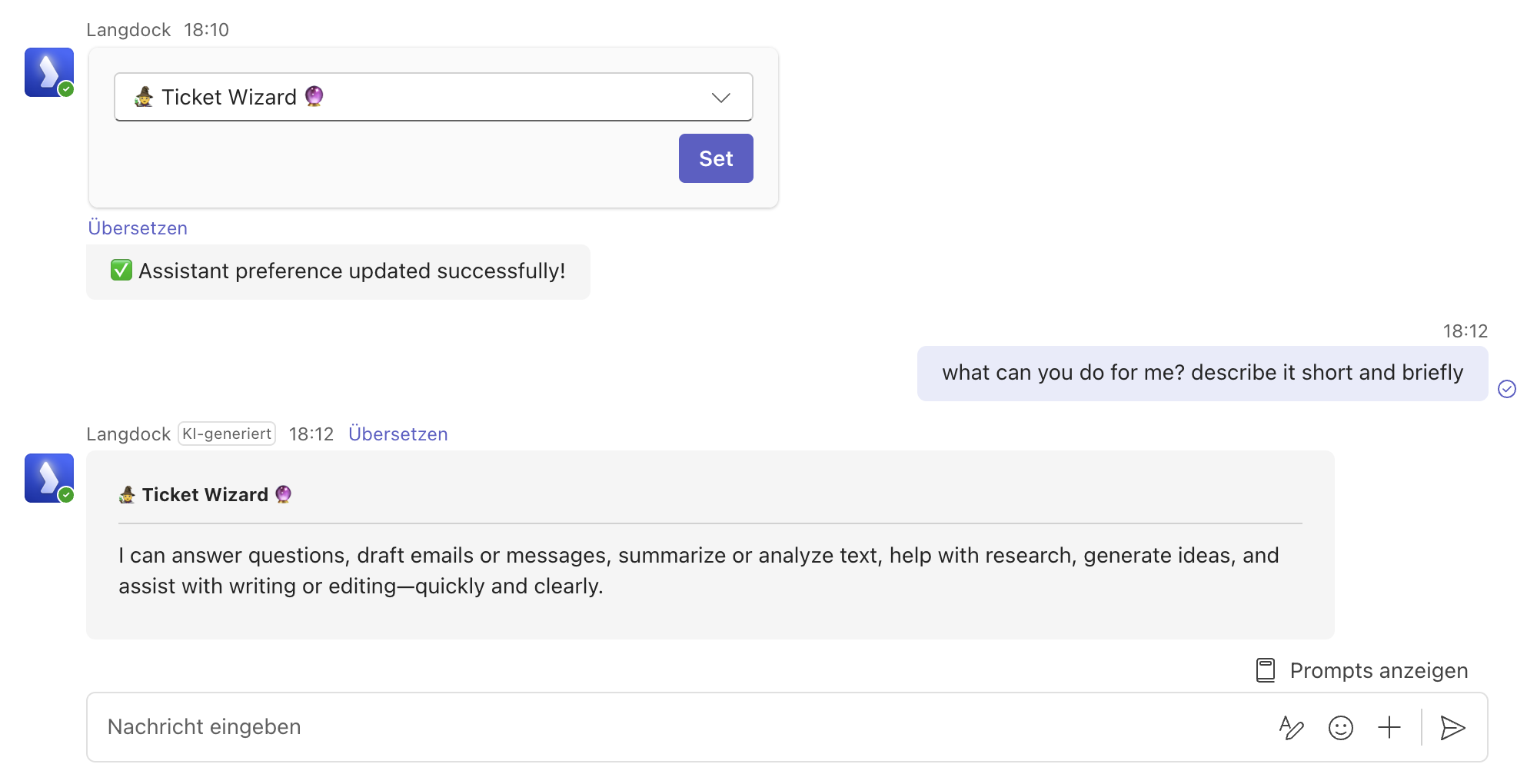
SwitchWorkspace
If you have access to multiple Langdock workspaces, use SwitchWorkspace to change which workspace you’re connected to. Select the workspace you want and click Switch Workspace.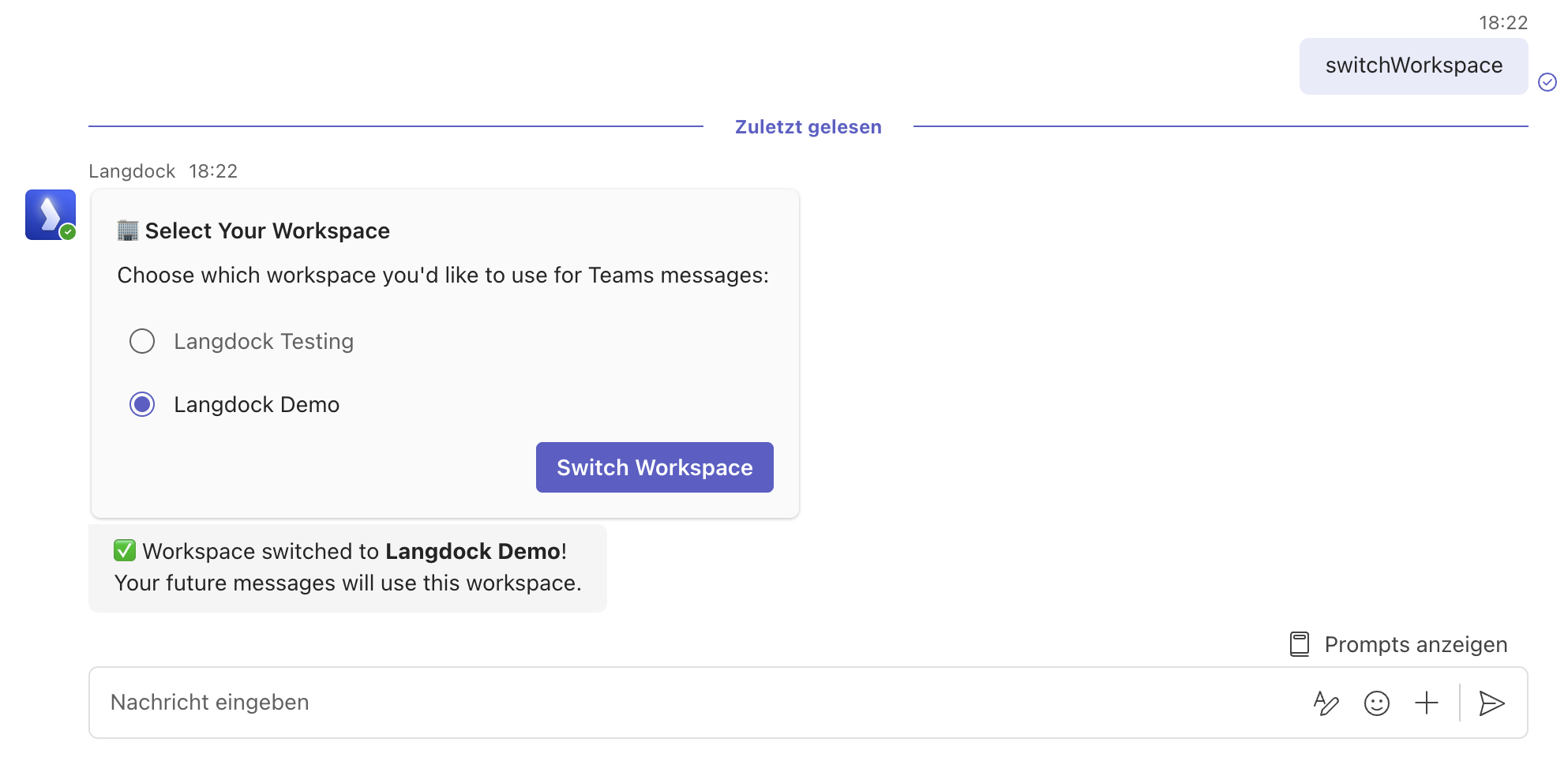
Private Chat
Private chat gives you a direct one-on-one conversation with Langdock. Your conversation context is maintained across messages.Getting Started
- Find Langdock in your Teams app list
- Open a chat with Langdock
- You’ll see the prompt library above the message input
Clearing Chat History
To start fresh with a clean conversation, go to the chat tab, click the three dots menu, and select “Remove chat history”. This resets the conversation context.Using Langdock in Channels
Channels let your team collaborate with Langdock together. Each thread becomes its own conversation.Getting Started
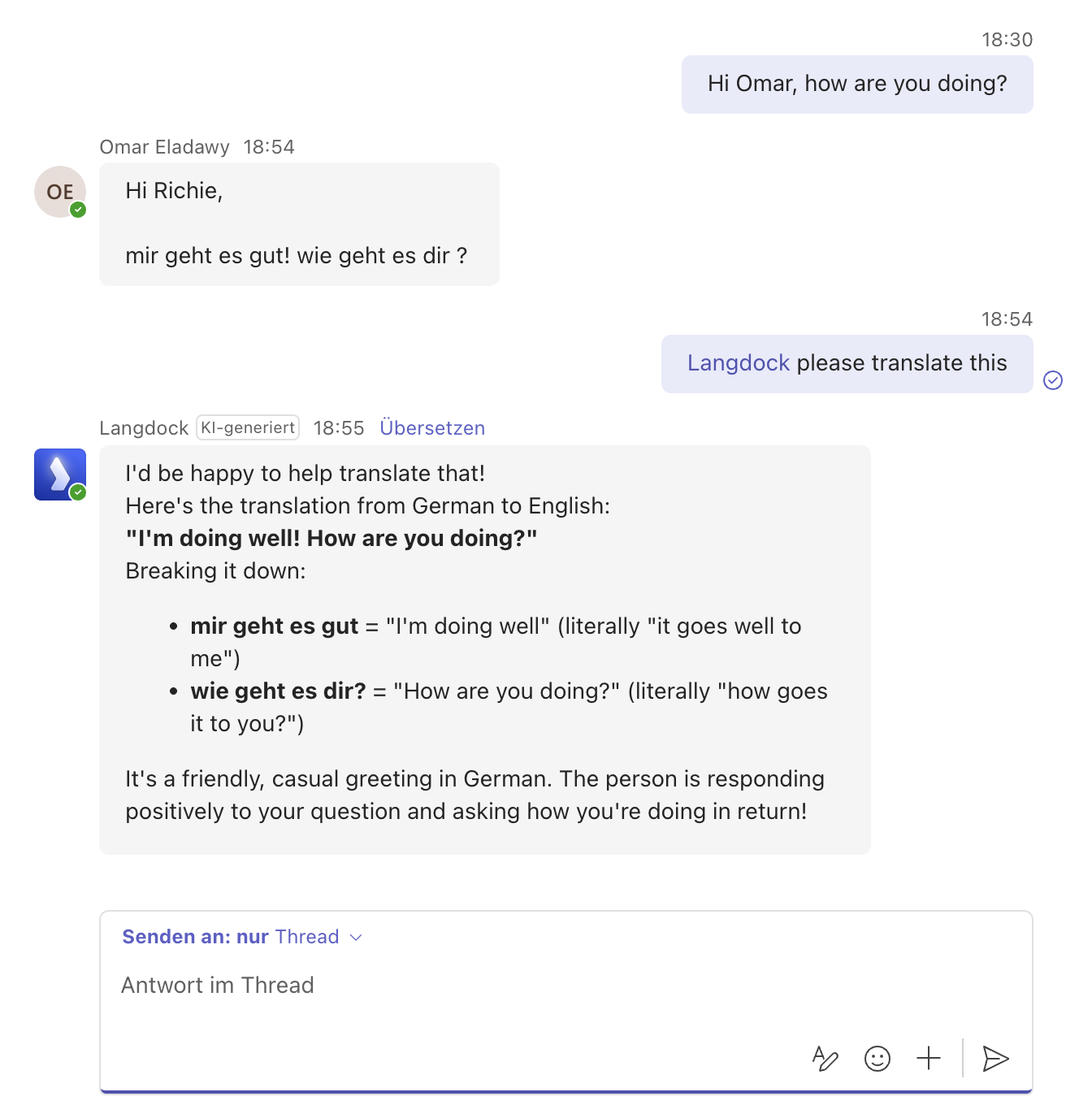
To interact with Langdock in a channel, tag @Langdock in your message. This routes your message to the Langdock API and brings up the command suggestions.Thread Context
Each thread in Teams is treated as a separate conversation. Here’s what makes channels powerful:- Langdock can see all messages in a thread once you tag it, even messages sent before it was tagged
- You can discuss something with colleagues first, then pull in @Langdock later with full context
- For follow-up questions, tag @Langdock again to ensure your message gets routed to the bot
Setting an Agent for a Channel
You can create a dedicated channel for a specific agent. This is great when your team needs easy access to a specialized AI helper. Recommended workflow:- Create a new channel in Teams (e.g., “FAQ-Agent” or “Content Writer”)
- When starting a conversation, select the relevant agent
- All questions in that channel can then be directed to that agent
- Team members know exactly which agent handles questions in that channel
- Each thread maintains its own conversation context
- Multiple team members can start separate threads with the same agent
Keep in mind that any team member can select a different agent when starting a new thread in the channel. If you want consistent agent usage, establish team guidelines for your channel.
Channel Privacy
When using Langdock in a channel, only members of that channel can see the conversations. Teams offers different channel privacy settings:- Standard channels: Visible to all team members
- Private channels: Only visible to invited members
Additional Features
Web Search and Data Analysis
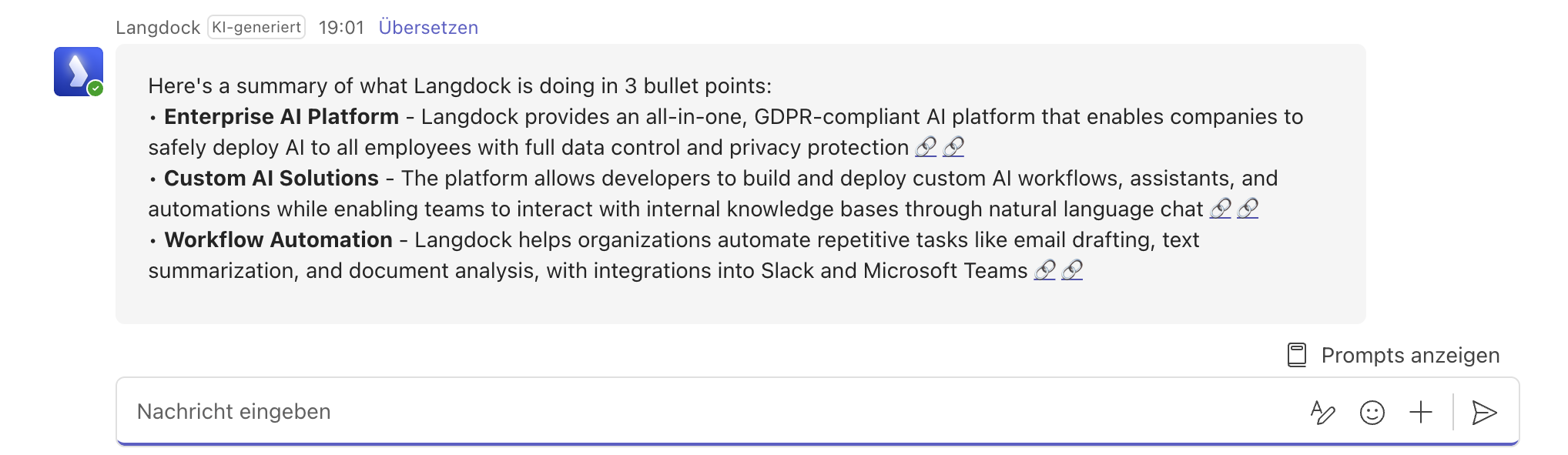
The Teams Bot has the same capabilities as the Langdock web app.- Web search for current information
- Data analysis on uploaded files

Images and Documents
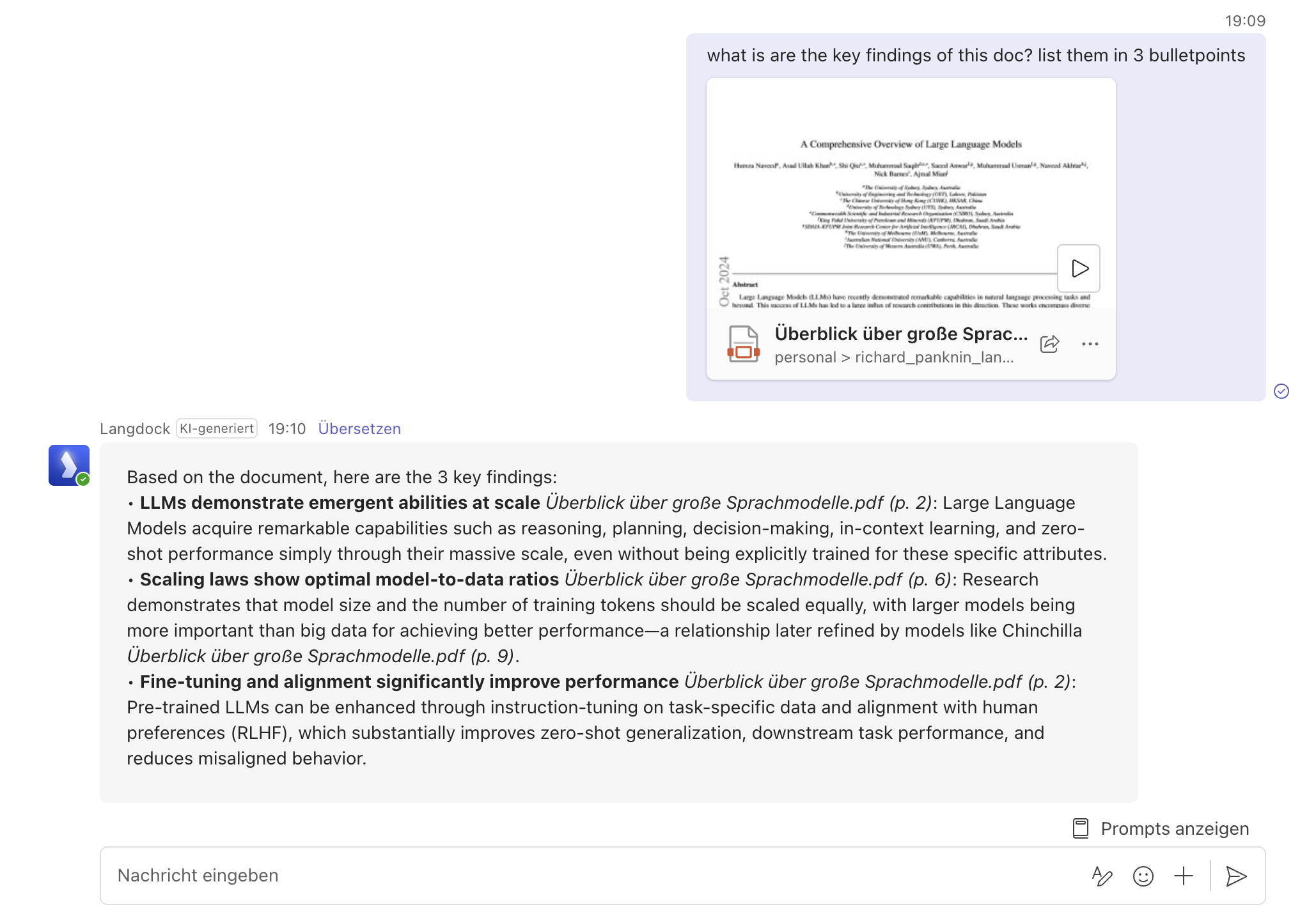
Share images and documents directly in your Teams messages:- Upload files and images as attachments
- The bot can read and analyze them just like in the web app
Skills
Skills you have access to are automatically available in the Teams Bot, the same way they are in the web app. This includes your personal skills, workspace skills, and any skills attached to the agent you select with SetAgent.- Personal and workspace skills run in private chat and in channel threads
- Selecting an agent with SetAgent activates the skills attached to that agent
- Skills are applied automatically based on your message, no extra command is needed
Limitations
- Only members of a Langdock workspace can chat with the Teams Bot
- In channels, the bot only responds when tagged, but it can see all previous messages in the thread
- Cannot be used in direct messages with other users, only in channels or private chat with the bot itself
- Teams Bot conversations do not appear in the Langdock web app chat history
FAQ
When should I use the Teams Bot?
When should I use the Teams Bot?
Use the Teams Bot when users should access Langdock models or agents directly from Microsoft Teams. It is useful for lightweight chat, team workflows, and quick access without switching back to the Langdock app.
What should I check if the Teams Bot does not work as expected?
What should I check if the Teams Bot does not work as expected?
Check that the bot is installed, the user has access to Langdock, the relevant agent or model is available, and Microsoft permissions or admin approval are configured correctly. If the issue affects only one user or team, compare their Teams and Langdock permissions.