> ## Documentation Index
> Fetch the complete documentation index at: https://docs.langdock.com/llms.txt
> Use this file to discover all available pages before exploring further.
# Webhook Trigger
> Receive HTTP POST requests to trigger workflows and integrate with external systems.
 ## Overview
The Webhook Trigger provides a unique HTTP endpoint that external systems can call to start your workflow. It's the bridge between Langdock Workflows and any external service or application that can send HTTP requests.
**Best for**: Real-time integrations, external system events, API-driven
workflows, and connecting services without native integrations.
## When to Use Webhook Trigger
**Perfect for:**
* Receiving events from external services (GitHub, Stripe, custom apps)
* Real-time data processing from external systems
* Building custom integrations
* Connecting services that support webhooks (including other workflows)
* API-driven workflows initiated by other systems
**Not ideal for:**
* User-facing data collection (use Form Trigger)
* Scheduled recurring tasks (use Scheduled Trigger)
* Native integration events (use Integration Trigger)
## Configuration
### Basic Setup
## Overview
The Webhook Trigger provides a unique HTTP endpoint that external systems can call to start your workflow. It's the bridge between Langdock Workflows and any external service or application that can send HTTP requests.
**Best for**: Real-time integrations, external system events, API-driven
workflows, and connecting services without native integrations.
## When to Use Webhook Trigger
**Perfect for:**
* Receiving events from external services (GitHub, Stripe, custom apps)
* Real-time data processing from external systems
* Building custom integrations
* Connecting services that support webhooks (including other workflows)
* API-driven workflows initiated by other systems
**Not ideal for:**
* User-facing data collection (use Form Trigger)
* Scheduled recurring tasks (use Scheduled Trigger)
* Native integration events (use Integration Trigger)
## Configuration
### Basic Setup
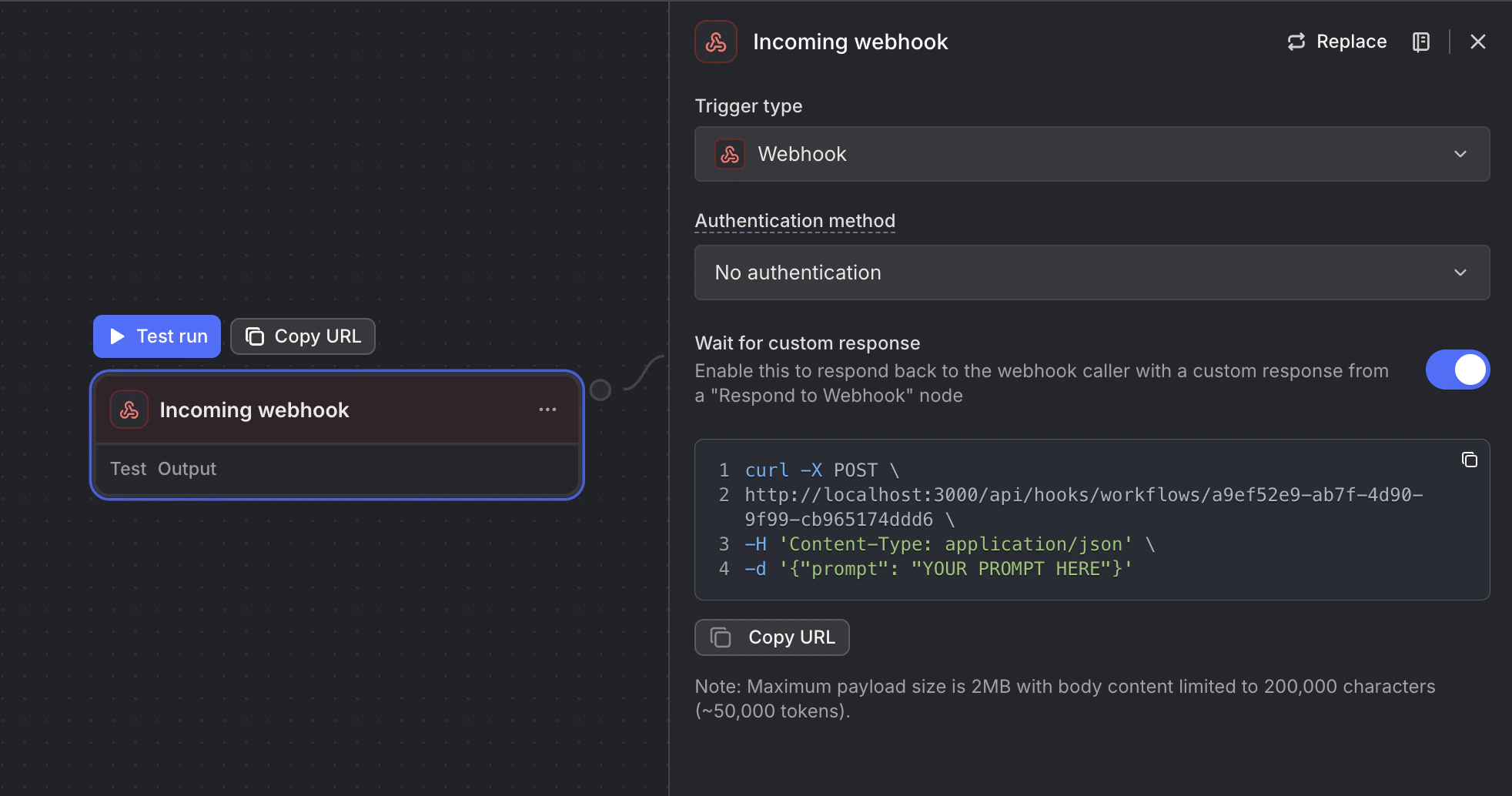 When you add a Webhook Trigger, you automatically get:
* **Unique Webhook URL**: A secure endpoint for receiving requests
* **Webhook ID**: Identifier for your webhook
### Security Options
Use the **Authentication method** setting to control how your webhook is secured. When you select an auth method, a secret is auto-generated for you. The secret is preserved when you switch between methods, so you won't accidentally lose your configured key.
| Method | How it works |
| --------------------- | ------------------------------------------------------------------------------------------------------------------------------------------ |
| **No authentication** | Webhook is publicly accessible — anyone with the URL can trigger it. Good for testing and low-security use cases. |
| **Header** | Send the secret via the `X-Webhook-Secret` HTTP header. The webhook URL stays clean; the UI shows a curl snippet with the header included. |
| **Query parameter** | Send the secret as `?secret=...` appended to the URL. This is the legacy behavior and remains fully supported. |
A secret is required whenever an auth method is selected. Leaving the secret field empty while an auth method is active will show a validation warning.
**Best Practice:** Always use a secret for production webhooks to prevent unauthorized access. Header-based auth is preferred as it keeps secrets out of server logs and browser history.
Existing webhooks that use a query parameter secret continue to work without any changes. The authentication method field is optional — if unset, the old behavior is preserved automatically.
## How It Works
1. External system sends HTTP POST request to webhook URL
2. Webhook validates secret (if configured, via `X-Webhook-Secret` header or `?secret=` query parameter)
3. Request payload is parsed (JSON body and query parameters)
4. Workflow is queued for execution
5. Webhook responds immediately with 202 Accepted
6. Workflow processes asynchronously in the background
Webhooks always process asynchronously. The webhook responds immediately with 202 Accepted while the workflow runs in the background.
## Making Requests to Your Webhook
### Basic Request
```bash theme={null}
# No authentication
curl -X POST https://app.langdock.com/api/hooks/workflows/YOUR_WORKFLOW_ID \
-H "Content-Type: application/json" \
-d '{"key": "value"}'
# Header authentication (recommended)
curl -X POST https://app.langdock.com/api/hooks/workflows/YOUR_WORKFLOW_ID \
-H "Content-Type: application/json" \
-H "X-Webhook-Secret: YOUR_SECRET" \
-d '{"key": "value"}'
# Query parameter authentication (legacy)
curl -X POST "https://app.langdock.com/api/hooks/workflows/YOUR_WORKFLOW_ID?secret=YOUR_SECRET" \
-H "Content-Type: application/json" \
-d '{"key": "value"}'
```
## Example Use Cases
### GitHub Webhook Integration
```text theme={null}
Webhook Trigger (GitHub push events)
→ Agent: Analyze commit messages
→ Condition: Check if documentation updated
→ Yes: Regenerate docs
→ No: Continue
→ Notification: Send deployment status
```
**GitHub Webhook Configuration:**
* URL: Your webhook URL
* Events: Push, Pull Request
* Content type: application/json
### Stripe Payment Webhook
```text theme={null}
Webhook Trigger (Stripe events)
→ Code: Validate Stripe signature
→ Condition: Check event type
→ payment_succeeded: Update user account
→ payment_failed: Send retry notification
→ subscription_canceled: Deactivate access
```
### Custom Application Integration
```text theme={null}
Webhook Trigger
→ Code: Validate and transform data
→ HTTP Request: Enrich data from external API
→ Agent: Analyze and categorize
→ Action: Create record in CRM
```
### Slack Command Integration
```text theme={null}
Webhook Trigger (from Slack slash command)
→ Agent: Process natural language command
→ HTTP Request: Execute action in external system
→ HTTP Response: Send result back to Slack
```
## Accessing Webhook Data
Webhook data is separated into `body` (JSON payload) and `query` (URL parameters):
### Request Body
Access JSON payload fields:
```handlebars theme={null}
{{trigger.output.body.user_id}}
{{trigger.output.body.event_type}}
{{trigger.output.body.data.amount}}
```
### Query Parameters
Access URL query parameters:
```handlebars theme={null}
{{trigger.output.query.param_name}}
```
### Example
For a request like:
```
POST /api/hooks/workflows/abc123?source=github
Body: {"event": "push", "repo": "my-repo"}
```
Access the data:
```handlebars theme={null}
Source: {{trigger.output.query.source}}
Event: {{trigger.output.body.event}}
Repo: {{trigger.output.body.repo}}
```
## Response Codes
| Code | Meaning | When It Happens |
| ---- | ----------------- | -------------------------------------- |
| 202 | Accepted | Workflow queued successfully |
| 400 | Bad Request | Invalid workflow ID, format, or secret |
| 404 | Not Found | Workflow not found |
| 429 | Too Many Requests | Rate limit or spending cap reached |
| 500 | Server Error | Internal error processing webhook |
## Next Steps
Use native integration events
Make requests to external APIs
Validate and transform webhook data
Build your first workflow
When you add a Webhook Trigger, you automatically get:
* **Unique Webhook URL**: A secure endpoint for receiving requests
* **Webhook ID**: Identifier for your webhook
### Security Options
Use the **Authentication method** setting to control how your webhook is secured. When you select an auth method, a secret is auto-generated for you. The secret is preserved when you switch between methods, so you won't accidentally lose your configured key.
| Method | How it works |
| --------------------- | ------------------------------------------------------------------------------------------------------------------------------------------ |
| **No authentication** | Webhook is publicly accessible — anyone with the URL can trigger it. Good for testing and low-security use cases. |
| **Header** | Send the secret via the `X-Webhook-Secret` HTTP header. The webhook URL stays clean; the UI shows a curl snippet with the header included. |
| **Query parameter** | Send the secret as `?secret=...` appended to the URL. This is the legacy behavior and remains fully supported. |
A secret is required whenever an auth method is selected. Leaving the secret field empty while an auth method is active will show a validation warning.
**Best Practice:** Always use a secret for production webhooks to prevent unauthorized access. Header-based auth is preferred as it keeps secrets out of server logs and browser history.
Existing webhooks that use a query parameter secret continue to work without any changes. The authentication method field is optional — if unset, the old behavior is preserved automatically.
## How It Works
1. External system sends HTTP POST request to webhook URL
2. Webhook validates secret (if configured, via `X-Webhook-Secret` header or `?secret=` query parameter)
3. Request payload is parsed (JSON body and query parameters)
4. Workflow is queued for execution
5. Webhook responds immediately with 202 Accepted
6. Workflow processes asynchronously in the background
Webhooks always process asynchronously. The webhook responds immediately with 202 Accepted while the workflow runs in the background.
## Making Requests to Your Webhook
### Basic Request
```bash theme={null}
# No authentication
curl -X POST https://app.langdock.com/api/hooks/workflows/YOUR_WORKFLOW_ID \
-H "Content-Type: application/json" \
-d '{"key": "value"}'
# Header authentication (recommended)
curl -X POST https://app.langdock.com/api/hooks/workflows/YOUR_WORKFLOW_ID \
-H "Content-Type: application/json" \
-H "X-Webhook-Secret: YOUR_SECRET" \
-d '{"key": "value"}'
# Query parameter authentication (legacy)
curl -X POST "https://app.langdock.com/api/hooks/workflows/YOUR_WORKFLOW_ID?secret=YOUR_SECRET" \
-H "Content-Type: application/json" \
-d '{"key": "value"}'
```
## Example Use Cases
### GitHub Webhook Integration
```text theme={null}
Webhook Trigger (GitHub push events)
→ Agent: Analyze commit messages
→ Condition: Check if documentation updated
→ Yes: Regenerate docs
→ No: Continue
→ Notification: Send deployment status
```
**GitHub Webhook Configuration:**
* URL: Your webhook URL
* Events: Push, Pull Request
* Content type: application/json
### Stripe Payment Webhook
```text theme={null}
Webhook Trigger (Stripe events)
→ Code: Validate Stripe signature
→ Condition: Check event type
→ payment_succeeded: Update user account
→ payment_failed: Send retry notification
→ subscription_canceled: Deactivate access
```
### Custom Application Integration
```text theme={null}
Webhook Trigger
→ Code: Validate and transform data
→ HTTP Request: Enrich data from external API
→ Agent: Analyze and categorize
→ Action: Create record in CRM
```
### Slack Command Integration
```text theme={null}
Webhook Trigger (from Slack slash command)
→ Agent: Process natural language command
→ HTTP Request: Execute action in external system
→ HTTP Response: Send result back to Slack
```
## Accessing Webhook Data
Webhook data is separated into `body` (JSON payload) and `query` (URL parameters):
### Request Body
Access JSON payload fields:
```handlebars theme={null}
{{trigger.output.body.user_id}}
{{trigger.output.body.event_type}}
{{trigger.output.body.data.amount}}
```
### Query Parameters
Access URL query parameters:
```handlebars theme={null}
{{trigger.output.query.param_name}}
```
### Example
For a request like:
```
POST /api/hooks/workflows/abc123?source=github
Body: {"event": "push", "repo": "my-repo"}
```
Access the data:
```handlebars theme={null}
Source: {{trigger.output.query.source}}
Event: {{trigger.output.body.event}}
Repo: {{trigger.output.body.repo}}
```
## Response Codes
| Code | Meaning | When It Happens |
| ---- | ----------------- | -------------------------------------- |
| 202 | Accepted | Workflow queued successfully |
| 400 | Bad Request | Invalid workflow ID, format, or secret |
| 404 | Not Found | Workflow not found |
| 429 | Too Many Requests | Rate limit or spending cap reached |
| 500 | Server Error | Internal error processing webhook |
## Next Steps
Use native integration events
Make requests to external APIs
Validate and transform webhook data
Build your first workflow