> ## Documentation Index
> Fetch the complete documentation index at: https://docs.langdock.com/llms.txt
> Use this file to discover all available pages before exploring further.
# Scheduled Trigger
> Run workflows automatically on a recurring schedule with flexible timing options.
 ## Overview
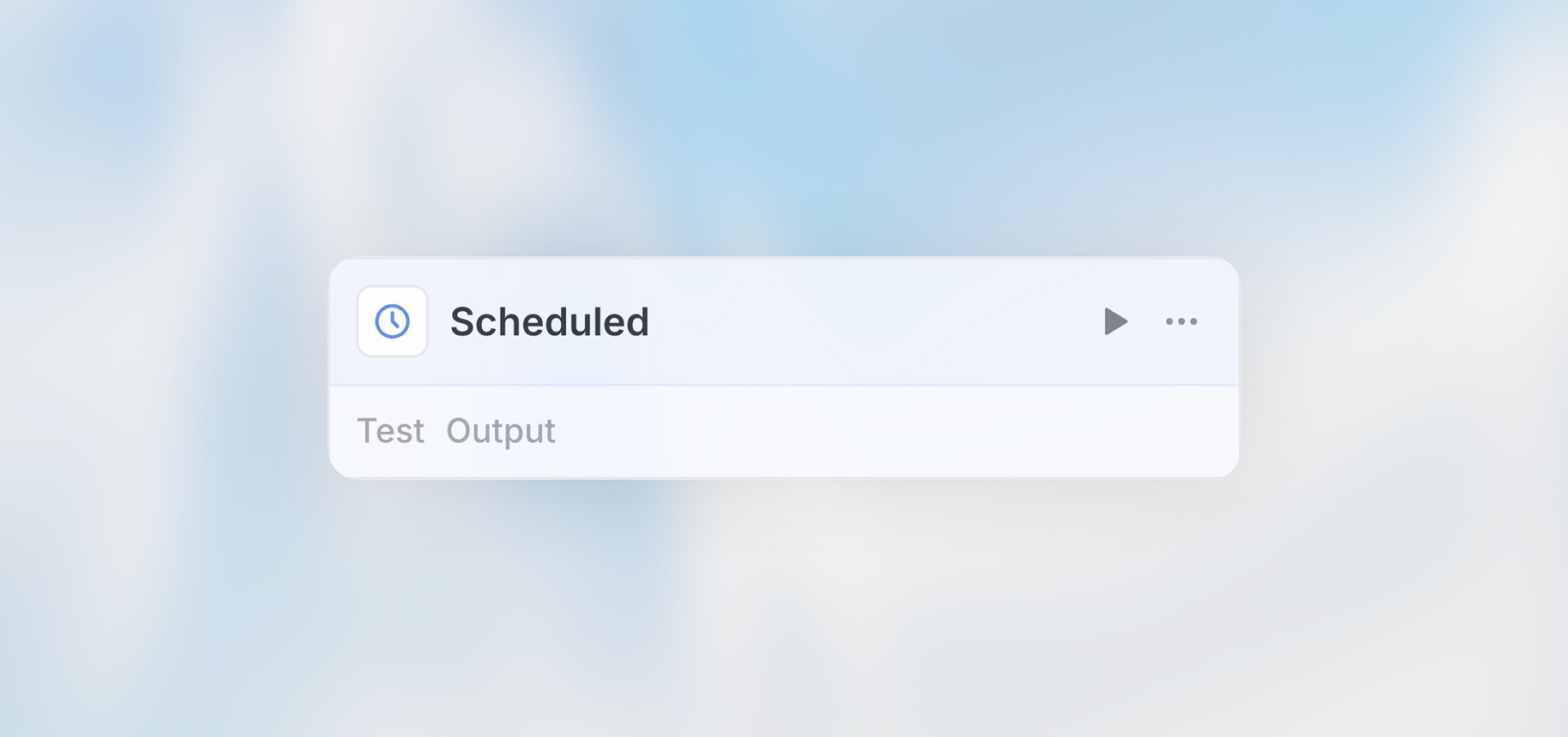
The Scheduled Trigger runs your workflow automatically at specified times or intervals. Whether you need daily reports, hourly data syncs, or monthly cleanup tasks, scheduled workflows handle recurring automations reliably.
**Best for**: Daily reports, periodic data syncs, recurring maintenance tasks,
scheduled analysis, and time-based automations.
## When to Use Scheduled Trigger
**Perfect for:**
* Daily, weekly, or monthly reports
* Periodic data synchronization between systems
* Scheduled data analysis and insights
* Recurring maintenance or cleanup tasks
* Time-based monitoring and alerts
**Not ideal for:**
* Event-driven workflows (use Webhook or Integration Trigger)
* User-initiated processes (use Manual or Form Trigger)
* Real-time data processing
## Configuration
### Schedule Options
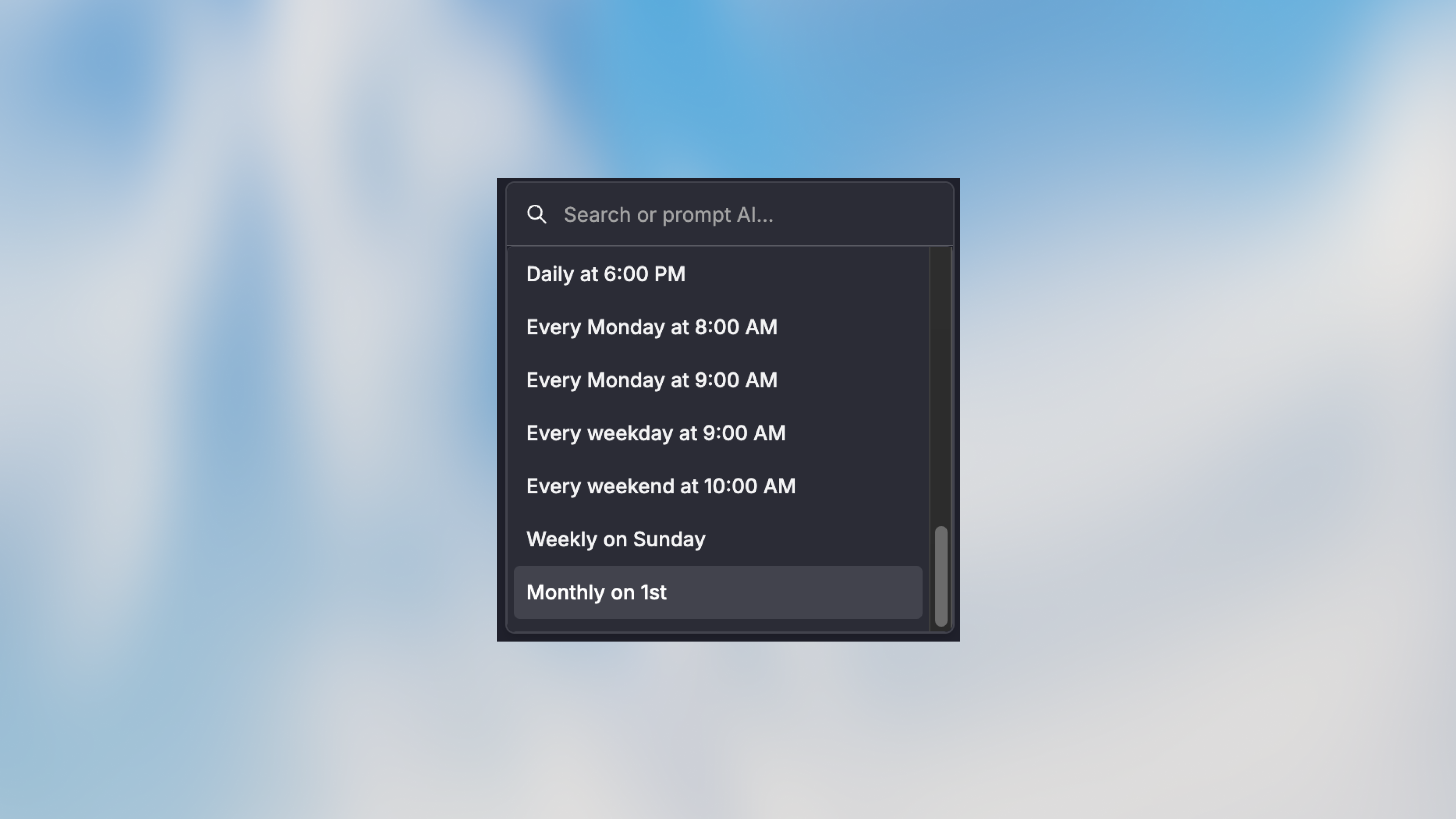
**Quick Schedules** (Visual Builder)
* Every few minutes
* Every hour
* Every day at specific time
* Every week on specific days
* Every month on specific date
* Prompt custom time interval
## Overview
The Scheduled Trigger runs your workflow automatically at specified times or intervals. Whether you need daily reports, hourly data syncs, or monthly cleanup tasks, scheduled workflows handle recurring automations reliably.
**Best for**: Daily reports, periodic data syncs, recurring maintenance tasks,
scheduled analysis, and time-based automations.
## When to Use Scheduled Trigger
**Perfect for:**
* Daily, weekly, or monthly reports
* Periodic data synchronization between systems
* Scheduled data analysis and insights
* Recurring maintenance or cleanup tasks
* Time-based monitoring and alerts
**Not ideal for:**
* Event-driven workflows (use Webhook or Integration Trigger)
* User-initiated processes (use Manual or Form Trigger)
* Real-time data processing
## Configuration
### Schedule Options
**Quick Schedules** (Visual Builder)
* Every few minutes
* Every hour
* Every day at specific time
* Every week on specific days
* Every month on specific date
* Prompt custom time interval
 ### Cron Expression
Under the hood, all schedules are stored as **cron expressions** - a standard format for defining recurring schedules. The UI provides quick schedule options for convenience, but the underlying data is a 5-field cron string.
**Cron format:** `minute hour day-of-month month day-of-week`
| Field | Allowed Values |
| ------------ | ---------------- |
| Minute | 0-59 |
| Hour | 0-23 |
| Day of month | 1-31 |
| Month | 1-12 |
| Day of week | 0-6 (Sunday = 0) |
**Example cron expressions:**
| Schedule | Cron Expression |
| -------------------------------- | --------------- |
| Every day at 9 AM | `0 9 * * *` |
| Every hour | `0 * * * *` |
| Every Monday at 8 AM | `0 8 * * 1` |
| First of every month at midnight | `0 0 1 * *` |
| Every 15 minutes | `*/15 * * * *` |
You don't need to write cron expressions manually - the visual builder handles this for you. But understanding the format can help when troubleshooting schedule issues.
### Timezone
Set the timezone for your schedule:
* Defaults to your account timezone
* Supports all standard timezones
* Critical for globally distributed teams
## Example Use Cases
### Daily Sales Report
```text theme={null}
Scheduled Trigger (Daily at 9 AM)
→ HTTP Request: Fetch yesterday's sales data
→ Code: Calculate metrics (total, growth, top products)
→ Agent: Generate executive summary
→ Notification: Email report to sales team
```
### Hourly Data Sync
```text theme={null}
Scheduled Trigger (Every hour)
→ HTTP Request: Fetch new records from API
→ Loop: For each record
→ Code: Transform data format
→ HTTP Request: POST to destination system
→ Notification: Summary of records synced
```
### Weekly Cleanup Task
```text theme={null}
Scheduled Trigger (Weekly on sunday)
→ HTTP Request: Fetch records older than 90 days
→ Loop: For each old record
→ HTTP Request: Archive to cold storage
→ HTTP Request: Delete from active database
→ Notification: Cleanup summary
```
### Monthly Billing
```text theme={null}
Scheduled Trigger (1st of the month)
→ HTTP Request: Get all active subscriptions
→ Loop: For each subscription
→ Code: Calculate billing amount
→ HTTP Request: Create invoice
→ Action: Send invoice email
→ Notification: Billing run complete
```
## Testing Scheduled Workflows
### Manual Test Runs
1. Click on the Scheduled Trigger node
2. Click "Test" to trigger a one-time run
3. Review execution with current timestamp
4. Verify time-based logic works correctly
## Best Practices
Schedule resource-intensive workflows during off-peak hours (nights,
weekends) to minimize impact on systems.
Always include error notifications for scheduled workflows. You won't be
watching when they run.
If your system is down during a scheduled run, decide if you need to catch
up or skip the missed execution.
Test your workflow with different timestamps to ensure time-based logic
works correctly (e.g., end of month, leap years).
Don't schedule more frequently than needed. Every 5 minutes might be
excessive - consider if hourly would work.
Track how long your scheduled workflows take. If execution time is close to
the interval, you risk overlaps.
## Troubleshooting
**Check:**
* Workflow is deployed (not draft)
* Workflow is active
* Schedule is correctly configured
* Monthly limit has not been reached
**Check:**
* Timezone setting matches expectation
* Cron expression is correct
* Daylight saving time changes (use UTC to avoid)
**Solutions:**
* Break into smaller workflows
* Increase schedule interval
* Optimize slow nodes (batch AI calls, parallel requests)
## Next Steps
Trigger from native integration events
Calculate time-based logic and date ranges
Control and optimize workflow costs
Build your first workflow
### Cron Expression
Under the hood, all schedules are stored as **cron expressions** - a standard format for defining recurring schedules. The UI provides quick schedule options for convenience, but the underlying data is a 5-field cron string.
**Cron format:** `minute hour day-of-month month day-of-week`
| Field | Allowed Values |
| ------------ | ---------------- |
| Minute | 0-59 |
| Hour | 0-23 |
| Day of month | 1-31 |
| Month | 1-12 |
| Day of week | 0-6 (Sunday = 0) |
**Example cron expressions:**
| Schedule | Cron Expression |
| -------------------------------- | --------------- |
| Every day at 9 AM | `0 9 * * *` |
| Every hour | `0 * * * *` |
| Every Monday at 8 AM | `0 8 * * 1` |
| First of every month at midnight | `0 0 1 * *` |
| Every 15 minutes | `*/15 * * * *` |
You don't need to write cron expressions manually - the visual builder handles this for you. But understanding the format can help when troubleshooting schedule issues.
### Timezone
Set the timezone for your schedule:
* Defaults to your account timezone
* Supports all standard timezones
* Critical for globally distributed teams
## Example Use Cases
### Daily Sales Report
```text theme={null}
Scheduled Trigger (Daily at 9 AM)
→ HTTP Request: Fetch yesterday's sales data
→ Code: Calculate metrics (total, growth, top products)
→ Agent: Generate executive summary
→ Notification: Email report to sales team
```
### Hourly Data Sync
```text theme={null}
Scheduled Trigger (Every hour)
→ HTTP Request: Fetch new records from API
→ Loop: For each record
→ Code: Transform data format
→ HTTP Request: POST to destination system
→ Notification: Summary of records synced
```
### Weekly Cleanup Task
```text theme={null}
Scheduled Trigger (Weekly on sunday)
→ HTTP Request: Fetch records older than 90 days
→ Loop: For each old record
→ HTTP Request: Archive to cold storage
→ HTTP Request: Delete from active database
→ Notification: Cleanup summary
```
### Monthly Billing
```text theme={null}
Scheduled Trigger (1st of the month)
→ HTTP Request: Get all active subscriptions
→ Loop: For each subscription
→ Code: Calculate billing amount
→ HTTP Request: Create invoice
→ Action: Send invoice email
→ Notification: Billing run complete
```
## Testing Scheduled Workflows
### Manual Test Runs
1. Click on the Scheduled Trigger node
2. Click "Test" to trigger a one-time run
3. Review execution with current timestamp
4. Verify time-based logic works correctly
## Best Practices
Schedule resource-intensive workflows during off-peak hours (nights,
weekends) to minimize impact on systems.
Always include error notifications for scheduled workflows. You won't be
watching when they run.
If your system is down during a scheduled run, decide if you need to catch
up or skip the missed execution.
Test your workflow with different timestamps to ensure time-based logic
works correctly (e.g., end of month, leap years).
Don't schedule more frequently than needed. Every 5 minutes might be
excessive - consider if hourly would work.
Track how long your scheduled workflows take. If execution time is close to
the interval, you risk overlaps.
## Troubleshooting
**Check:**
* Workflow is deployed (not draft)
* Workflow is active
* Schedule is correctly configured
* Monthly limit has not been reached
**Check:**
* Timezone setting matches expectation
* Cron expression is correct
* Daylight saving time changes (use UTC to avoid)
**Solutions:**
* Break into smaller workflows
* Increase schedule interval
* Optimize slow nodes (batch AI calls, parallel requests)
## Next Steps
Trigger from native integration events
Calculate time-based logic and date ranges
Control and optimize workflow costs
Build your first workflow