> ## Documentation Index
> Fetch the complete documentation index at: https://docs.langdock.com/llms.txt
> Use this file to discover all available pages before exploring further.
# Integration Trigger
> Start workflows automatically when events occur in your connected applications.
 ## Overview
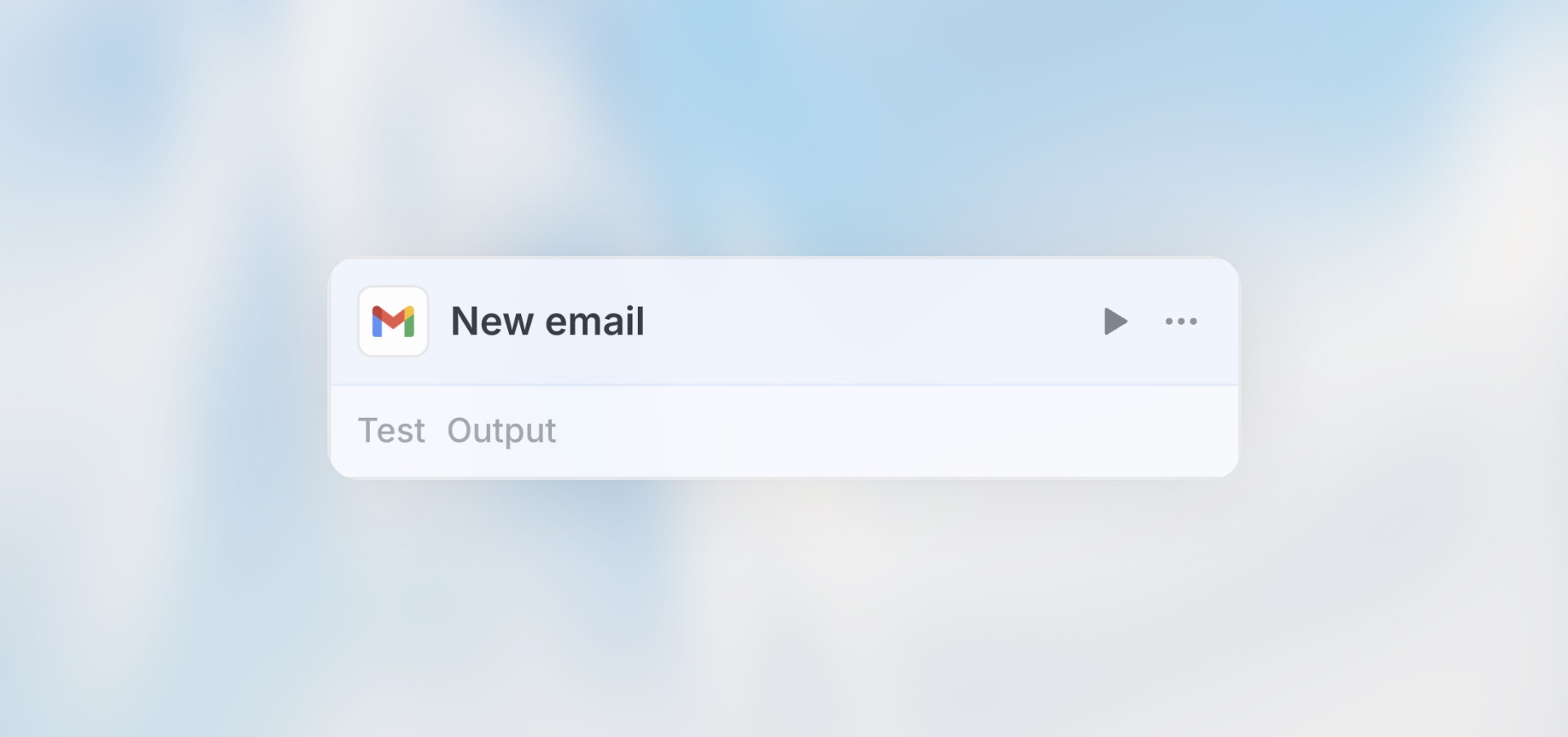
The Integration Trigger connects your workflows to real-time events from your connected applications. When something happens in Slack, your CRM, your inbox, or any other integrated service, your workflow springs into action automatically.
**Best for**: Responding to events in connected apps, real-time automation,
cross-platform workflows, and event-driven processes.
## When to Use Integration Trigger
**Perfect for:**
* New Slack or Microsoft Teams messages in specific channels
* Emails received in Gmail or Outlook
* Calendar events created or starting soon
* New files or folders added in Google Drive
* CRM record changes (new leads, deals, contacts)
* Project management updates (new Jira issues, Planner tasks)
**Not ideal for:**
* Custom API integrations (use Webhook Trigger)
* Scheduled recurring tasks (use Scheduled Trigger)
* User-submitted forms (use Form Trigger)
## Configuration
### Step 1: Select Integration
## Overview
The Integration Trigger connects your workflows to real-time events from your connected applications. When something happens in Slack, your CRM, your inbox, or any other integrated service, your workflow springs into action automatically.
**Best for**: Responding to events in connected apps, real-time automation,
cross-platform workflows, and event-driven processes.
## When to Use Integration Trigger
**Perfect for:**
* New Slack or Microsoft Teams messages in specific channels
* Emails received in Gmail or Outlook
* Calendar events created or starting soon
* New files or folders added in Google Drive
* CRM record changes (new leads, deals, contacts)
* Project management updates (new Jira issues, Planner tasks)
**Not ideal for:**
* Custom API integrations (use Webhook Trigger)
* Scheduled recurring tasks (use Scheduled Trigger)
* User-submitted forms (use Form Trigger)
## Configuration
### Step 1: Select Integration
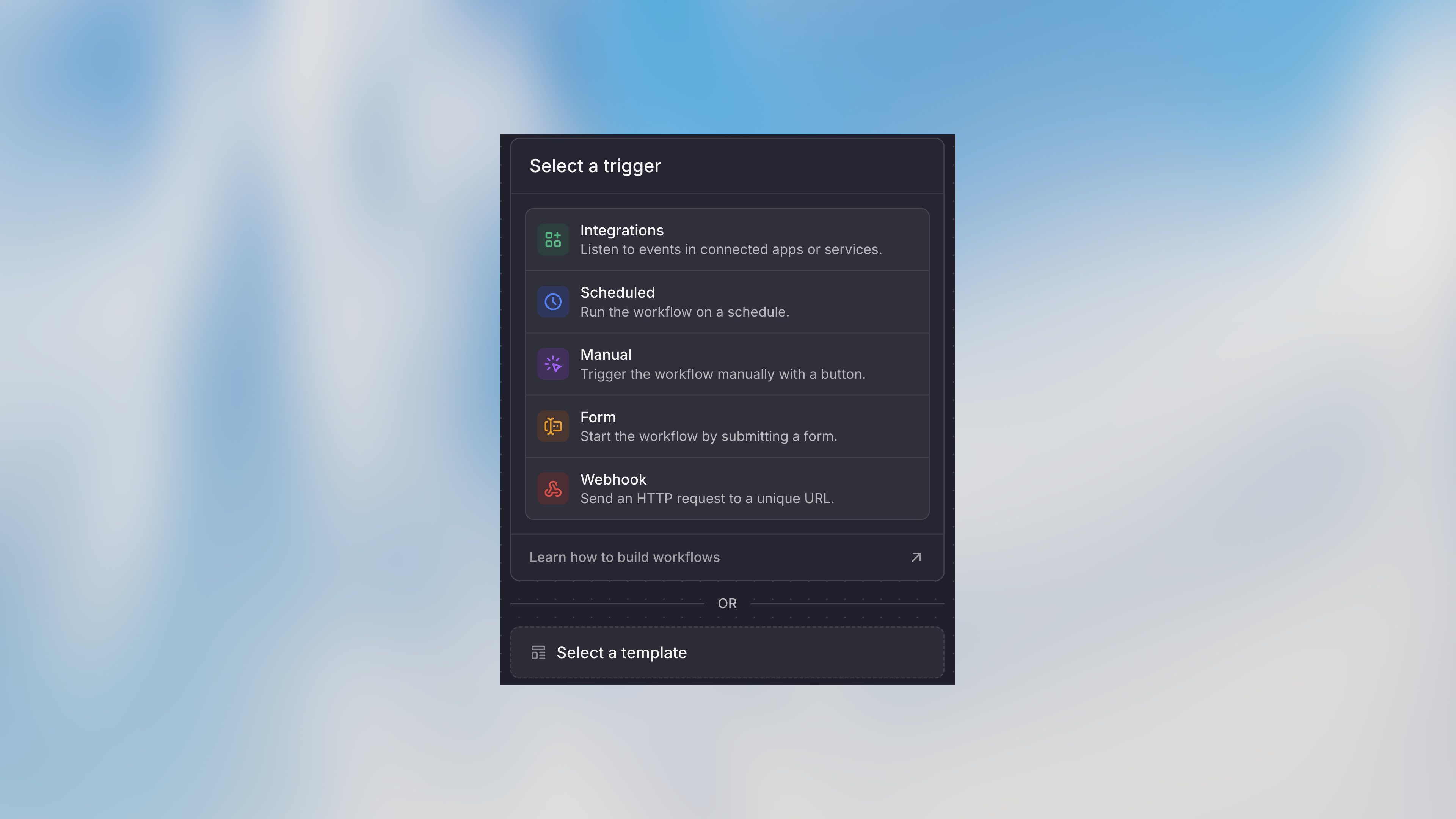 Choose from your workspace's connected integrations. The following integrations support event-based triggers:
* **Communication**: Slack, Microsoft Teams, Gmail, Outlook Email
* **Productivity**: Notion, Jira, Confluence, Microsoft Planner
* **Storage**: Google Drive
* **CRM**: Salesforce, HubSpot
* **Calendar**: Google Calendar, Outlook Calendar, Calendly
* **Developer**: GitHub
* **Other**: Stripe, Ashby, Microsoft Power BI
Other integrations (such as Google Sheets, Asana, Airtable, Linear, Monday.com) are available as **actions** inside a workflow but cannot be used as a trigger. Use a [Scheduled Trigger](/en/using-langdock/workflows/nodes/triggers/scheduled-trigger) to poll them on a recurring basis instead.
### Step 2: Choose Event Type
Each integration offers specific trigger events:
**Slack**
* New message in channel
* New message in conversations (DMs and group chats)
* New message matching a search
* New reaction in channel
**Microsoft Teams**
* New channel message
* New chat message
* New channel mention
* New meeting transcript
**Gmail**
* New email
* New email matching search
* Label changed on email
**Outlook Email**
* New email
* New email matching search
* New email in specific folder
* New email in shared inbox
* New email in shared mailbox folder
**Google Calendar / Outlook Calendar**
* New event
* New event matching search
* Event start (Google Calendar only)
**Google Drive**
* New file
* Updated file
* New folder
**Salesforce**
* New lead
* New contact
* New account
* New opportunity
**HubSpot**
* New deal
* New form submission
* New note
* Contact added to list
**Jira**
* New issue
* Updated issue
**GitHub**
* New pull request
* Pull request merged
* New issue
* New commit
* New release
* Changes in path
**Stripe**
* Payment succeeded
* Payment failed
* New subscription
* Subscription canceled
* New invoice
### Step 3: Configure Event Filters
Choose from your workspace's connected integrations. The following integrations support event-based triggers:
* **Communication**: Slack, Microsoft Teams, Gmail, Outlook Email
* **Productivity**: Notion, Jira, Confluence, Microsoft Planner
* **Storage**: Google Drive
* **CRM**: Salesforce, HubSpot
* **Calendar**: Google Calendar, Outlook Calendar, Calendly
* **Developer**: GitHub
* **Other**: Stripe, Ashby, Microsoft Power BI
Other integrations (such as Google Sheets, Asana, Airtable, Linear, Monday.com) are available as **actions** inside a workflow but cannot be used as a trigger. Use a [Scheduled Trigger](/en/using-langdock/workflows/nodes/triggers/scheduled-trigger) to poll them on a recurring basis instead.
### Step 2: Choose Event Type
Each integration offers specific trigger events:
**Slack**
* New message in channel
* New message in conversations (DMs and group chats)
* New message matching a search
* New reaction in channel
**Microsoft Teams**
* New channel message
* New chat message
* New channel mention
* New meeting transcript
**Gmail**
* New email
* New email matching search
* Label changed on email
**Outlook Email**
* New email
* New email matching search
* New email in specific folder
* New email in shared inbox
* New email in shared mailbox folder
**Google Calendar / Outlook Calendar**
* New event
* New event matching search
* Event start (Google Calendar only)
**Google Drive**
* New file
* Updated file
* New folder
**Salesforce**
* New lead
* New contact
* New account
* New opportunity
**HubSpot**
* New deal
* New form submission
* New note
* Contact added to list
**Jira**
* New issue
* Updated issue
**GitHub**
* New pull request
* Pull request merged
* New issue
* New commit
* New release
* Changes in path
**Stripe**
* Payment succeeded
* Payment failed
* New subscription
* Subscription canceled
* New invoice
### Step 3: Configure Event Filters
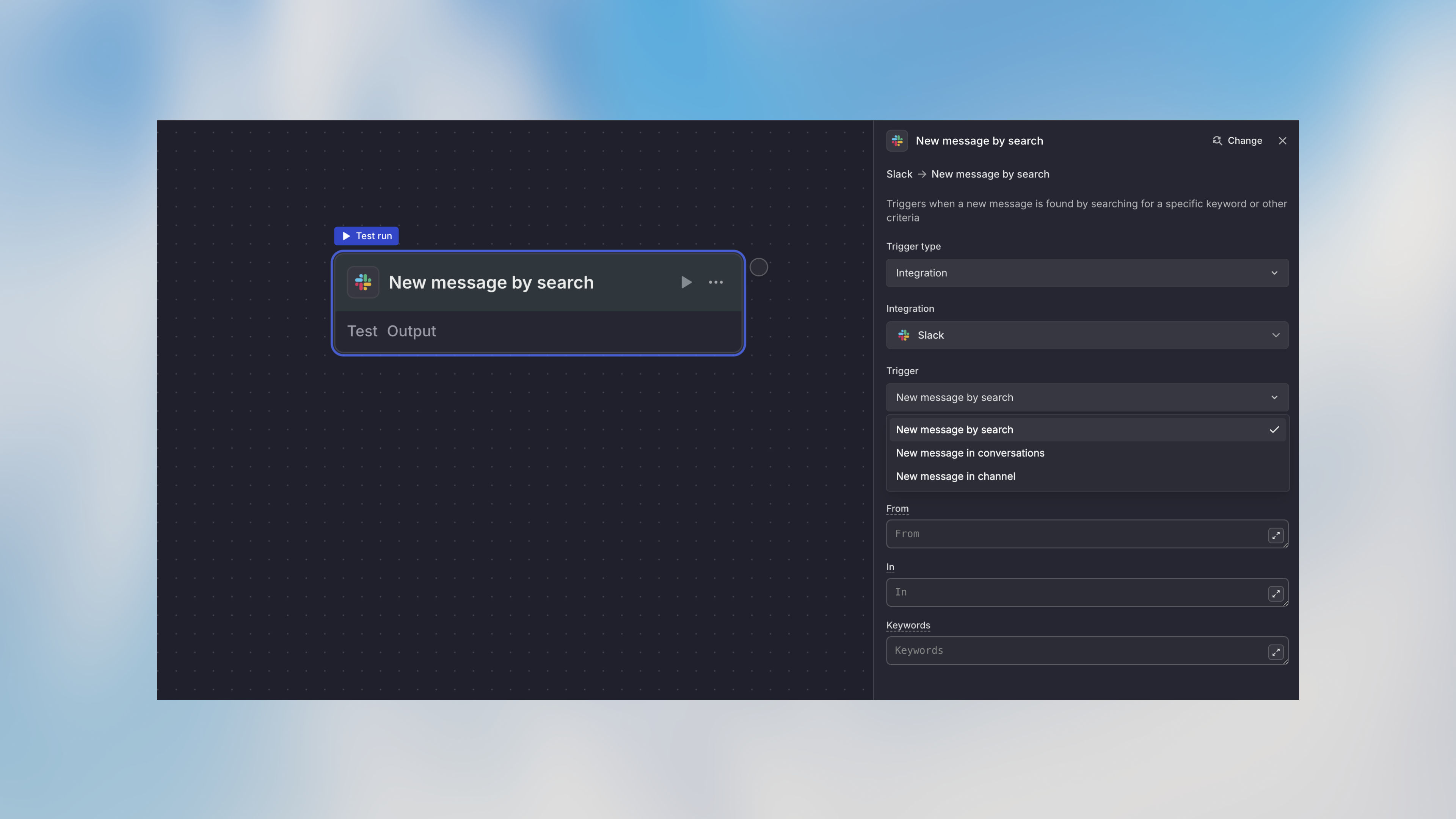 Narrow down which events trigger your workflow:
**For Slack:**
* Specific channels or conversations
* Messages matching a search query
* Specific reaction emoji
**For Email (Gmail / Outlook):**
* Search criteria (sender, subject, content)
* Specific labels (Gmail) or folders (Outlook)
**For Calendar:**
* Specific calendar
* Events matching a search
**For Drive:**
* Specific parent folder
* File type filters
### Step 4: Configure Trigger Parameters
Some triggers require additional parameters to function correctly. These parameters vary depending on the specific trigger you've selected.
**Common parameter types:**
* **Channel/folder selection**: Specify which channel, folder, or container to monitor
* **Filter criteria**: Keywords, labels, or categories to filter events
* **Polling intervals**: How frequently to check for new events (for polling-based triggers)
The required parameters are displayed in the trigger configuration panel after you select an event type.
### Step 5: Connect Account
Some integrations require an authenticated connection to access your data. When an integration requires a connection, you'll need to:
1. Click "Connect Account"
2. Authorize Langdock to access the integration
3. Select the specific account (if multiple)
4. Grant necessary permissions
## Example Use Cases
### Slack → Ticket Creation
```text theme={null}
Integration Trigger (New message in #support channel)
→ Agent: Extract issue details from message
→ Action: Create JIRA ticket
→ Action: Reply in Slack thread with ticket number
```
### CRM → Lead Processing
```text theme={null}
Integration Trigger (New lead in Salesforce)
→ HTTP Request: Enrich lead data from external API
→ Agent: Score lead quality
→ Condition: Check score
→ High: Notify sales team
→ Low: Add to nurture campaign
→ Action: Update lead with score and status
```
### Gmail → Document Processing
```text theme={null}
Integration Trigger (New email with attachment)
→ Agent: Extract and summarize document content
→ Action: Save summary to Google Drive
→ Action: Create task in project management tool
→ Action: Reply to email confirming receipt
```
### Calendar → Meeting Prep
```text theme={null}
Integration Trigger (Event starting in 1 hour)
→ HTTP Request: Fetch meeting context from CRM
→ Agent: Generate meeting brief
→ Action: Send Slack message to attendees
→ Action: Create Google Doc with meeting notes template
```
### Drive → Content Approval
```text theme={null}
Integration Trigger (New file in "Pending Approval" folder)
→ Agent: Review content against guidelines
→ Condition: Check approval recommendation
→ Approved: Move to "Published" folder
→ Needs Changes: Send feedback to creator
→ Notification: Alert stakeholders of decision
```
## Accessing Integration Data
Use the `trigger` variable to access event data:
### Example: Gmail Event Data
```handlebars theme={null}
Subject: {{trigger.output.subject}}
From: {{trigger.output.from}}
Body: {{trigger.output.body}}
Has Attachments: {{trigger.output.has_attachments}}
Labels: {{trigger.output.labels}}
```
## Testing Integration Triggers
### Test Panel
1. Click on the Integration Trigger node
2. Click "Test" in the toolbar
3. View recent events from the integration
4. Select an event to test with
5. Run the workflow with that event's data
### Trigger Real Events
The best way to test:
1. Manually create the event in the integration
* Send a Slack message
* Send yourself an email
* Create a calendar event
2. Wait for the event to trigger (usually within seconds)
3. Check the Runs tab for execution
4. Review the workflow results
## Common Integration Patterns
### Bidirectional Sync
```text theme={null}
Integration Trigger (HubSpot deal updated)
→ Code: Transform data
→ HTTP Request: Update external system
→ Condition: Check if update successful
→ Success: Update note on the deal
→ Failure: Notify admin
```
## Best Practices
Use integration filters to only trigger on relevant events. Processing every
Slack message is expensive and slow.
Some integrations may send duplicate events. Add logic to detect and skip
duplicates using unique IDs.
Integration permissions can expire. Set up alerts for authentication
failures.
Don't just use test data - trigger real events in the integration and verify
your workflow handles them correctly.
If an integration event happens frequently (e.g., many Slack messages),
consider adding conditions to prevent overwhelming your workflow.
Store original event data early in the workflow in case you need to
reference it later.
## Next Steps
Perform actions in integrated apps
Route based on integration data
Process integration data with AI
Trigger workflows with custom webhooks
Narrow down which events trigger your workflow:
**For Slack:**
* Specific channels or conversations
* Messages matching a search query
* Specific reaction emoji
**For Email (Gmail / Outlook):**
* Search criteria (sender, subject, content)
* Specific labels (Gmail) or folders (Outlook)
**For Calendar:**
* Specific calendar
* Events matching a search
**For Drive:**
* Specific parent folder
* File type filters
### Step 4: Configure Trigger Parameters
Some triggers require additional parameters to function correctly. These parameters vary depending on the specific trigger you've selected.
**Common parameter types:**
* **Channel/folder selection**: Specify which channel, folder, or container to monitor
* **Filter criteria**: Keywords, labels, or categories to filter events
* **Polling intervals**: How frequently to check for new events (for polling-based triggers)
The required parameters are displayed in the trigger configuration panel after you select an event type.
### Step 5: Connect Account
Some integrations require an authenticated connection to access your data. When an integration requires a connection, you'll need to:
1. Click "Connect Account"
2. Authorize Langdock to access the integration
3. Select the specific account (if multiple)
4. Grant necessary permissions
## Example Use Cases
### Slack → Ticket Creation
```text theme={null}
Integration Trigger (New message in #support channel)
→ Agent: Extract issue details from message
→ Action: Create JIRA ticket
→ Action: Reply in Slack thread with ticket number
```
### CRM → Lead Processing
```text theme={null}
Integration Trigger (New lead in Salesforce)
→ HTTP Request: Enrich lead data from external API
→ Agent: Score lead quality
→ Condition: Check score
→ High: Notify sales team
→ Low: Add to nurture campaign
→ Action: Update lead with score and status
```
### Gmail → Document Processing
```text theme={null}
Integration Trigger (New email with attachment)
→ Agent: Extract and summarize document content
→ Action: Save summary to Google Drive
→ Action: Create task in project management tool
→ Action: Reply to email confirming receipt
```
### Calendar → Meeting Prep
```text theme={null}
Integration Trigger (Event starting in 1 hour)
→ HTTP Request: Fetch meeting context from CRM
→ Agent: Generate meeting brief
→ Action: Send Slack message to attendees
→ Action: Create Google Doc with meeting notes template
```
### Drive → Content Approval
```text theme={null}
Integration Trigger (New file in "Pending Approval" folder)
→ Agent: Review content against guidelines
→ Condition: Check approval recommendation
→ Approved: Move to "Published" folder
→ Needs Changes: Send feedback to creator
→ Notification: Alert stakeholders of decision
```
## Accessing Integration Data
Use the `trigger` variable to access event data:
### Example: Gmail Event Data
```handlebars theme={null}
Subject: {{trigger.output.subject}}
From: {{trigger.output.from}}
Body: {{trigger.output.body}}
Has Attachments: {{trigger.output.has_attachments}}
Labels: {{trigger.output.labels}}
```
## Testing Integration Triggers
### Test Panel
1. Click on the Integration Trigger node
2. Click "Test" in the toolbar
3. View recent events from the integration
4. Select an event to test with
5. Run the workflow with that event's data
### Trigger Real Events
The best way to test:
1. Manually create the event in the integration
* Send a Slack message
* Send yourself an email
* Create a calendar event
2. Wait for the event to trigger (usually within seconds)
3. Check the Runs tab for execution
4. Review the workflow results
## Common Integration Patterns
### Bidirectional Sync
```text theme={null}
Integration Trigger (HubSpot deal updated)
→ Code: Transform data
→ HTTP Request: Update external system
→ Condition: Check if update successful
→ Success: Update note on the deal
→ Failure: Notify admin
```
## Best Practices
Use integration filters to only trigger on relevant events. Processing every
Slack message is expensive and slow.
Some integrations may send duplicate events. Add logic to detect and skip
duplicates using unique IDs.
Integration permissions can expire. Set up alerts for authentication
failures.
Don't just use test data - trigger real events in the integration and verify
your workflow handles them correctly.
If an integration event happens frequently (e.g., many Slack messages),
consider adding conditions to prevent overwhelming your workflow.
Store original event data early in the workflow in case you need to
reference it later.
## Next Steps
Perform actions in integrated apps
Route based on integration data
Process integration data with AI
Trigger workflows with custom webhooks