> ## Documentation Index
> Fetch the complete documentation index at: https://docs.langdock.com/llms.txt
> Use this file to discover all available pages before exploring further.
# Form Trigger
> Start workflows from custom form submissions with built-in validation and public access options.
 ## Overview
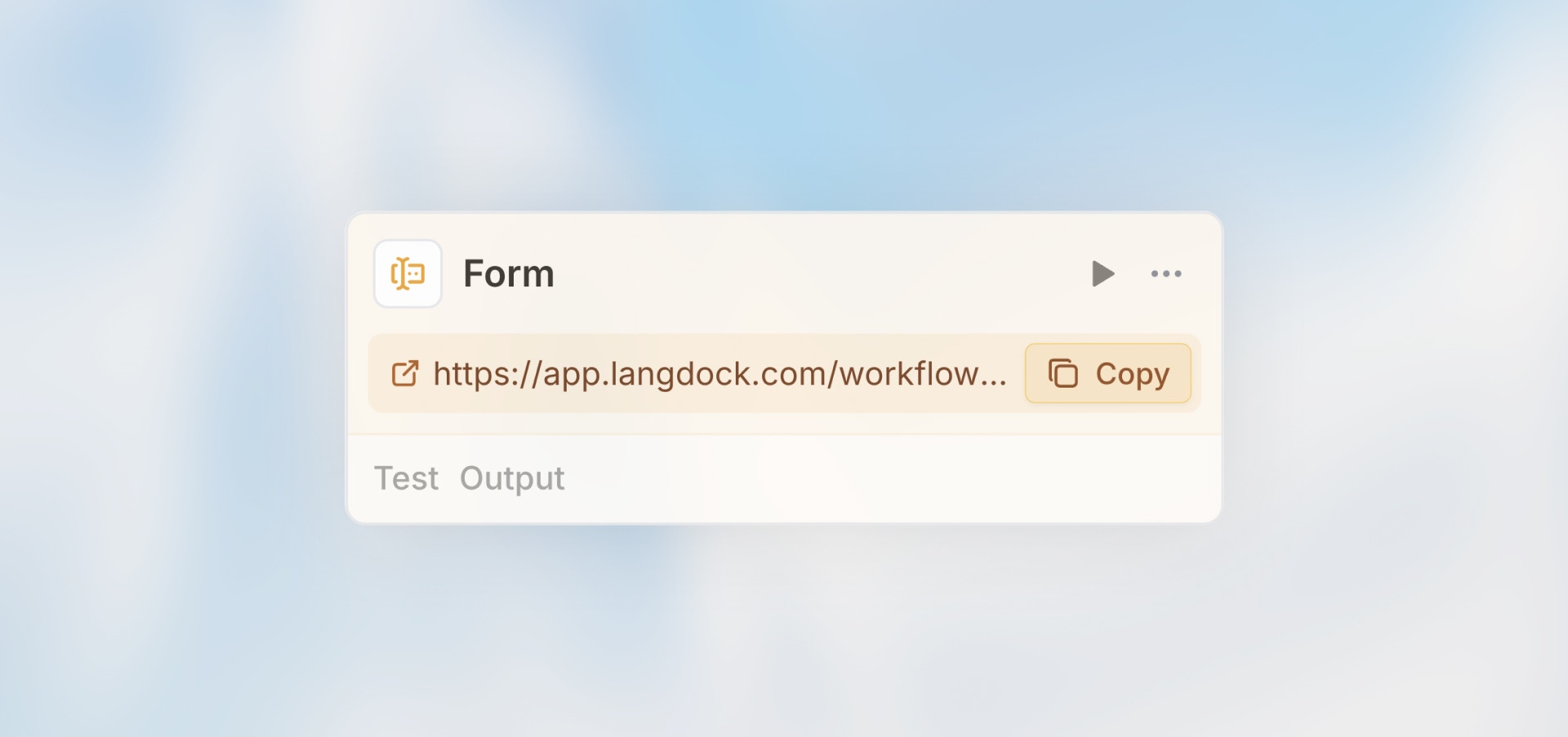
The Form Trigger creates a custom web form that starts your workflow when submitted. It's perfect for collecting information from users - whether they're internal team members or external customers - and automatically processing that data.
**Best for**: Intake forms, data collection, customer requests, feedback
gathering, and application submissions.
## When to Use Form Trigger
**Perfect for:**
* Customer feedback or support request forms
* Internal request forms (IT tickets, access requests)
* Application or registration forms
* Survey responses that need processing
* Data collection from non-technical users
**Not ideal for:**
* System-to-system integrations (use Webhook Trigger)
* Scheduled recurring tasks (use Scheduled Trigger)
* Processing existing data (use Manual Trigger)
## Configuration
### Basic Setup
## Overview
The Form Trigger creates a custom web form that starts your workflow when submitted. It's perfect for collecting information from users - whether they're internal team members or external customers - and automatically processing that data.
**Best for**: Intake forms, data collection, customer requests, feedback
gathering, and application submissions.
## When to Use Form Trigger
**Perfect for:**
* Customer feedback or support request forms
* Internal request forms (IT tickets, access requests)
* Application or registration forms
* Survey responses that need processing
* Data collection from non-technical users
**Not ideal for:**
* System-to-system integrations (use Webhook Trigger)
* Scheduled recurring tasks (use Scheduled Trigger)
* Processing existing data (use Manual Trigger)
## Configuration
### Basic Setup
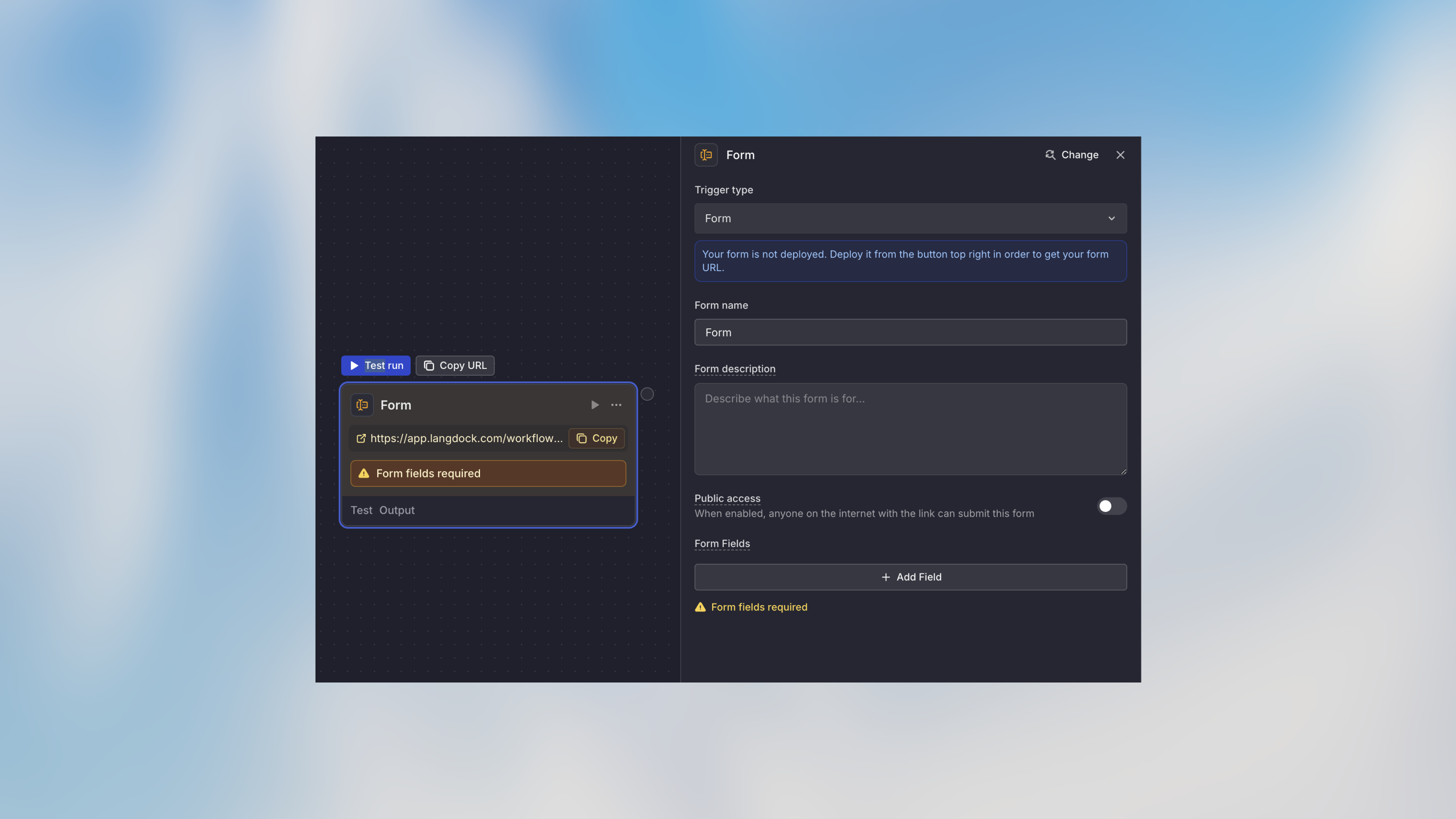 1. **Form Title**: Give your form a descriptive name
2. **Description**: Optional subtitle or instructions
3. **Thank You Message**: Message shown after successful submission
### Field Types
Add fields to collect specific data:
| Field Type | Description | Use Case |
| --------------- | ----------------------------------- | -------------------------------- |
| **Text** | Single-line text input | Name, title |
| **Long Text** | Multi-line text area | Feedback, descriptions, comments |
| **Number** | Numeric input | Quantity, amount, rating |
| **Email** | Email address input with validation | Contact email, work email |
| **Date** | Date picker | Due dates, event dates |
| **Dropdown** | Select from predefined options | Category, priority, department |
| **Checkbox** | True/false selection | Agreements, preferences |
| **File Upload** | Attachment upload | Documents, images, PDFs |
### Field Configuration
1. **Form Title**: Give your form a descriptive name
2. **Description**: Optional subtitle or instructions
3. **Thank You Message**: Message shown after successful submission
### Field Types
Add fields to collect specific data:
| Field Type | Description | Use Case |
| --------------- | ----------------------------------- | -------------------------------- |
| **Text** | Single-line text input | Name, title |
| **Long Text** | Multi-line text area | Feedback, descriptions, comments |
| **Number** | Numeric input | Quantity, amount, rating |
| **Email** | Email address input with validation | Contact email, work email |
| **Date** | Date picker | Due dates, event dates |
| **Dropdown** | Select from predefined options | Category, priority, department |
| **Checkbox** | True/false selection | Agreements, preferences |
| **File Upload** | Attachment upload | Documents, images, PDFs |
### Field Configuration
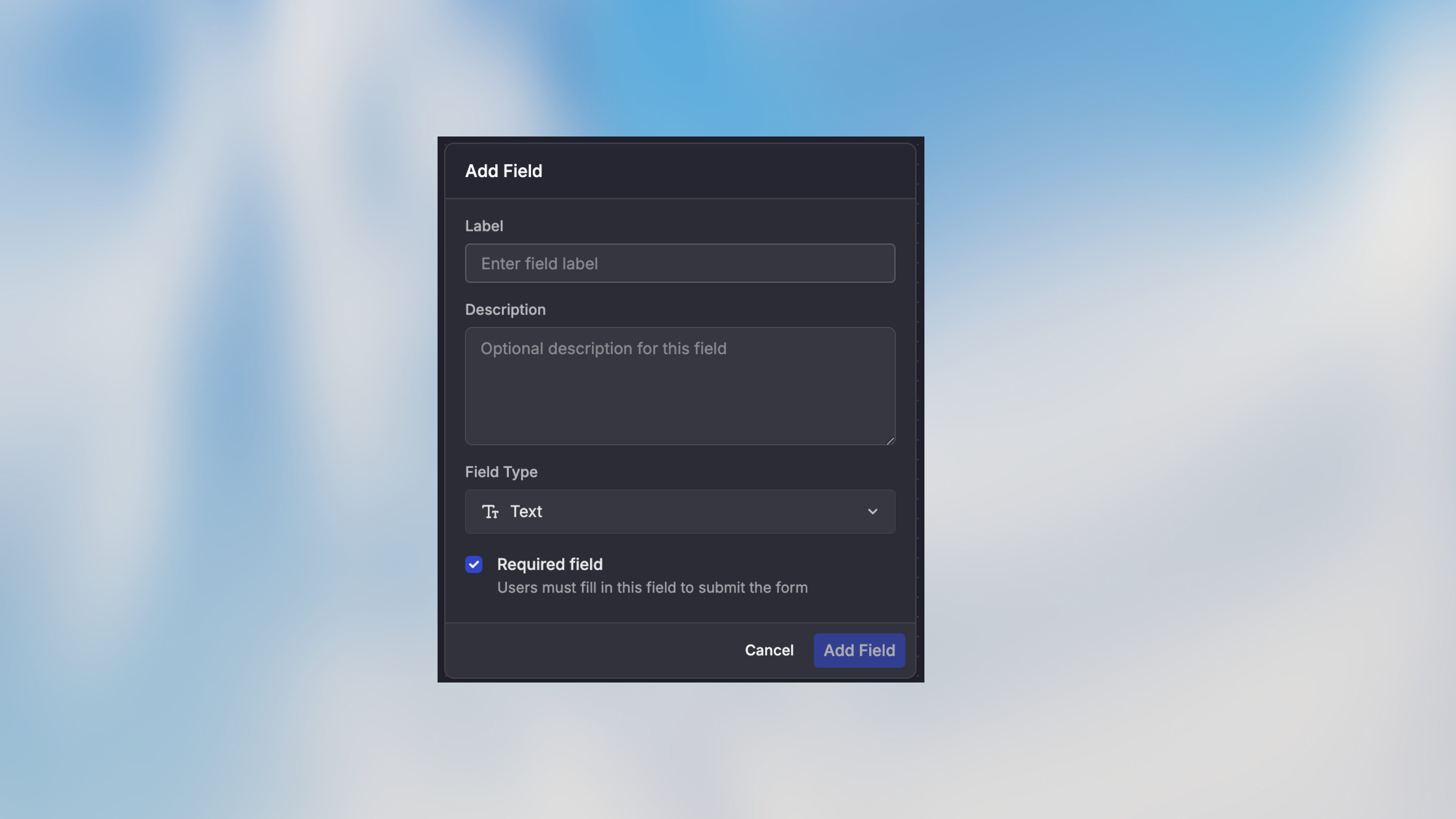 For each field, configure:
* **Field Name**: Internal identifier (use snake\_case: `customer_name`)
* **Label**: Display text shown to users
* **Description**: Optional help text
* **Required**: Whether the field must be filled
* **Allowed email domains**: For Email fields, restrict submissions to one or more email domains (comma-separated)
## How It Works
1. Form URL is generated automatically
2. User fills out the form fields
3. Form validates all required fields and formats
4. On submission, workflow starts with form data
5. User sees the thank you message
6. Form data is available in the workflow via `{{trigger.output.field_name}}`
## Example Use Cases
### Customer Feedback Form
```text theme={null}
Form Trigger
- name (text, required)
- email (email, required)
- feedback (long text, required)
- product (dropdown: App, Web, API)
→ Agent: Analyze sentiment and categorize
→ Condition: Check priority
→ High: Notify product team
→ Low: Store in database
→ Action: Create ticket in support system
```
### IT Support Request
```text theme={null}
Form Trigger
- requester_name (text, required)
- department (dropdown)
- issue_type (dropdown: Hardware, Software, Access)
- description (long text, required)
- urgency (dropdown: Low, Medium, High)
→ Agent: Classify issue and suggest solution
→ Action: Create JIRA ticket
→ Notification: Alert IT team
```
### Job Application
```text theme={null}
Form Trigger
- applicant_name (text, required)
- email (email, required)
- position (dropdown)
- resume (file upload, required)
- cover_letter (long text)
→ Agent: Extract candidate info from resume
→ Agent: Screen against job requirements
→ Condition: Check fit score
→ Strong: Schedule interview
→ Moderate: Add to review queue
→ Weak: Send polite rejection
```
## Accessing Form Data
For each field, configure:
* **Field Name**: Internal identifier (use snake\_case: `customer_name`)
* **Label**: Display text shown to users
* **Description**: Optional help text
* **Required**: Whether the field must be filled
* **Allowed email domains**: For Email fields, restrict submissions to one or more email domains (comma-separated)
## How It Works
1. Form URL is generated automatically
2. User fills out the form fields
3. Form validates all required fields and formats
4. On submission, workflow starts with form data
5. User sees the thank you message
6. Form data is available in the workflow via `{{trigger.output.field_name}}`
## Example Use Cases
### Customer Feedback Form
```text theme={null}
Form Trigger
- name (text, required)
- email (email, required)
- feedback (long text, required)
- product (dropdown: App, Web, API)
→ Agent: Analyze sentiment and categorize
→ Condition: Check priority
→ High: Notify product team
→ Low: Store in database
→ Action: Create ticket in support system
```
### IT Support Request
```text theme={null}
Form Trigger
- requester_name (text, required)
- department (dropdown)
- issue_type (dropdown: Hardware, Software, Access)
- description (long text, required)
- urgency (dropdown: Low, Medium, High)
→ Agent: Classify issue and suggest solution
→ Action: Create JIRA ticket
→ Notification: Alert IT team
```
### Job Application
```text theme={null}
Form Trigger
- applicant_name (text, required)
- email (email, required)
- position (dropdown)
- resume (file upload, required)
- cover_letter (long text)
→ Agent: Extract candidate info from resume
→ Agent: Screen against job requirements
→ Condition: Check fit score
→ Strong: Schedule interview
→ Moderate: Add to review queue
→ Weak: Send polite rejection
```
## Accessing Form Data
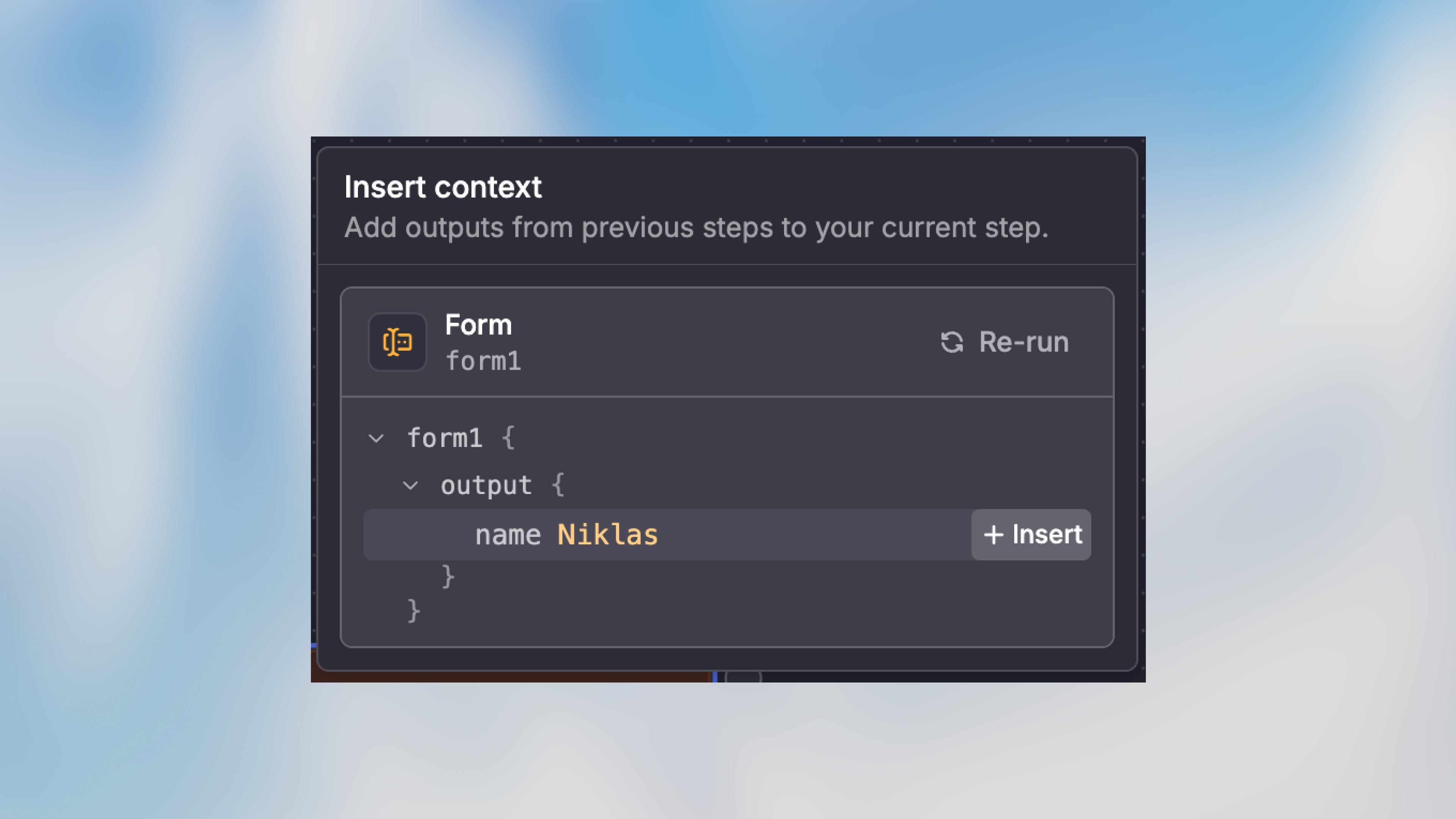 Use the `trigger` variable to access submitted data:
```handlebars theme={null}
Customer Name: {{trigger.output.name}}
Email: {{trigger.output.email}}
Feedback: {{trigger.output.feedback}}
Selected Product: {{trigger.output.product}}
```
### File Uploads
File upload fields contain a list of file objects. Access the file metadata:
```handlebars theme={null}
File name: {{trigger.output.resume[0]._metadata.name}}
Mime type: {{trigger.output.resume[0]._metadata.mimeType}}
File size (KB): {{trigger.output.resume[0]._metadata.sizeInKb}}
```
Replace `resume` with your file field name.
To read the contents of uploaded files, use a Python Code node. See [Read Files from Previous Nodes](/en/using-langdock/workflows/nodes/code-node#read-files-from-previous-nodes).
## Sharing Your Form
### Copy Form URL
1. Click on the Form Trigger node
2. Click "Copy URL" in the node toolbar
3. Share the URL via email, chat, or embed on your website
4. The URL is publicly available when it was configured like that
### Embedding Options
**Direct Link**
```html theme={null}
Submit Feedback
```
**iFrame Embed**
```html theme={null}
```
## Best Practices
Only ask for essential information. Long forms have higher abandonment rates. You can always collect additional details later in the workflow.
Field labels should clearly indicate what information is needed. Add description text for fields that might be confusing.
Pre-fill fields with sensible defaults when possible to reduce user effort.
Submit test forms yourself to ensure the experience is smooth and instructions are clear.
## Next Steps
Receive HTTP POST requests from external systems
Process form submissions with AI
Step-by-step tutorial with form example
Learn about configuring form fields
Use the `trigger` variable to access submitted data:
```handlebars theme={null}
Customer Name: {{trigger.output.name}}
Email: {{trigger.output.email}}
Feedback: {{trigger.output.feedback}}
Selected Product: {{trigger.output.product}}
```
### File Uploads
File upload fields contain a list of file objects. Access the file metadata:
```handlebars theme={null}
File name: {{trigger.output.resume[0]._metadata.name}}
Mime type: {{trigger.output.resume[0]._metadata.mimeType}}
File size (KB): {{trigger.output.resume[0]._metadata.sizeInKb}}
```
Replace `resume` with your file field name.
To read the contents of uploaded files, use a Python Code node. See [Read Files from Previous Nodes](/en/using-langdock/workflows/nodes/code-node#read-files-from-previous-nodes).
## Sharing Your Form
### Copy Form URL
1. Click on the Form Trigger node
2. Click "Copy URL" in the node toolbar
3. Share the URL via email, chat, or embed on your website
4. The URL is publicly available when it was configured like that
### Embedding Options
**Direct Link**
```html theme={null}
Submit Feedback
```
**iFrame Embed**
```html theme={null}
```
## Best Practices
Only ask for essential information. Long forms have higher abandonment rates. You can always collect additional details later in the workflow.
Field labels should clearly indicate what information is needed. Add description text for fields that might be confusing.
Pre-fill fields with sensible defaults when possible to reduce user effort.
Submit test forms yourself to ensure the experience is smooth and instructions are clear.
## Next Steps
Receive HTTP POST requests from external systems
Process form submissions with AI
Step-by-step tutorial with form example
Learn about configuring form fields