> ## Documentation Index
> Fetch the complete documentation index at: https://docs.langdock.com/llms.txt
> Use this file to discover all available pages before exploring further.
# HTTP Request
> Make HTTP requests to external APIs for custom integrations and data fetching.
 ## Overview
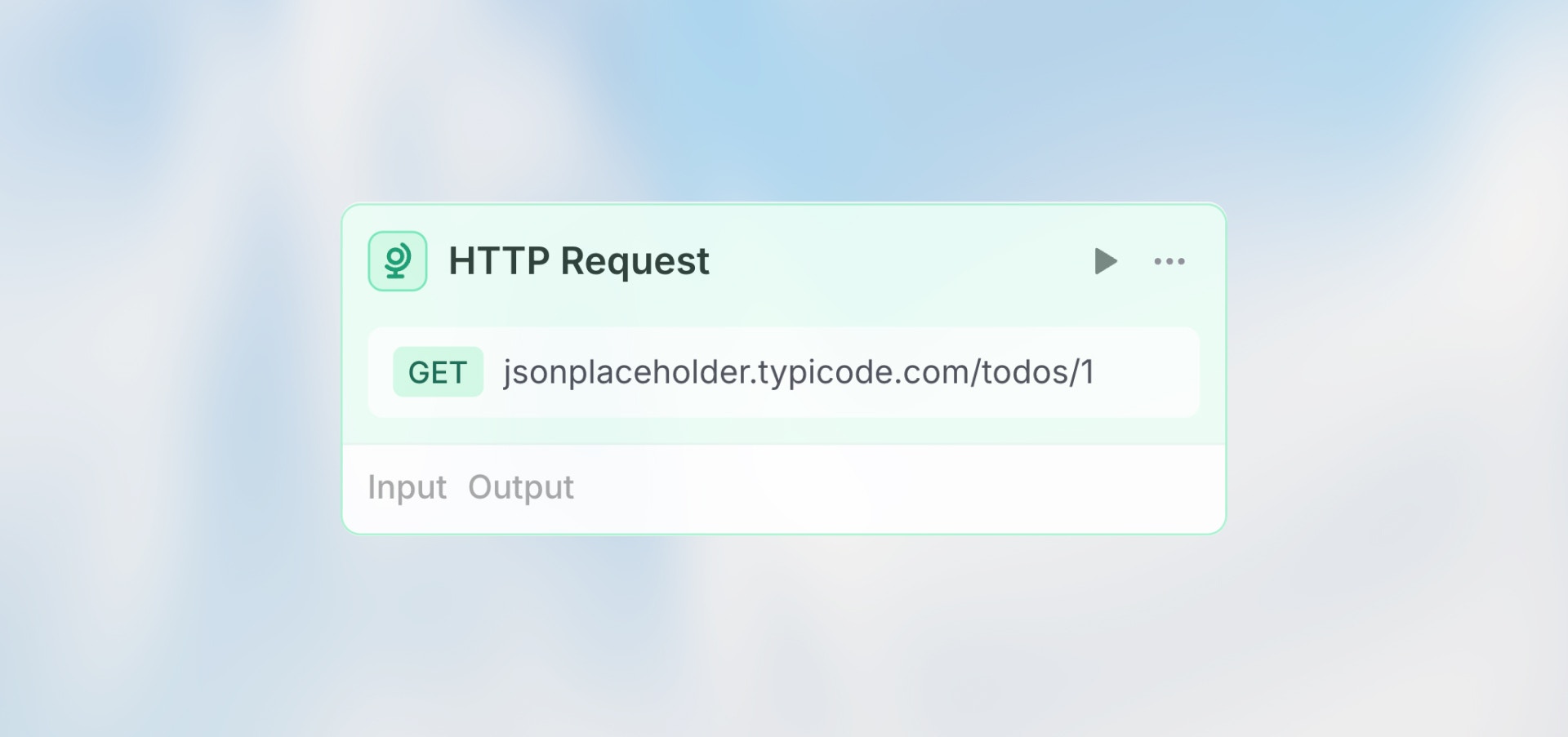
The HTTP Request node lets you call any external API - fetch data, send updates, trigger actions, or integrate with services that don't have native integrations.
**Best for**: Custom API integrations, fetching external data, sending
webhooks, and connecting to any HTTP-based service.
## Configuration
### Import from cURL
Click "Import from cURL" to paste a cURL command and automatically populate all fields (URL, method, headers, parameters). Great for quickly setting up requests from API documentation.
### URL (Required)
The API endpoint to call. Supports three input modes:
**Manual mode**: Enter the URL directly with optional variables
```handlebars theme={null}
https://api.example.com/users/{{trigger.output.user_id}}/orders
```
**Auto mode**: AI automatically determines the URL based on workflow context
**Prompt AI mode**: Provide instructions for the AI to generate the URL
```text theme={null}
Construct the API URL for fetching user {{trigger.output.user_id}} from our CRM system
```
### Method
Select the HTTP method:
* **GET**: Fetch data
* **POST**: Create new resources
* **PUT**: Replace existing resources
* **PATCH**: Update existing resources
* **DELETE**: Remove resources
### Headers
Add custom headers as key-value pairs. Common headers:
**Authentication:**
```text theme={null}
Key: Authorization
Value: Bearer {{trigger.output.api_token}}
```
**Content Type:**
```text theme={null}
Key: Content-Type
Value: application/json
```
Click "Add header" to include multiple headers.
### Query Parameters
Add URL query parameters as key-value pairs instead of including them in the URL.
**Example:**
```text theme={null}
URL: https://api.example.com/search
Parameters:
- Key: query, Value: {{trigger.output.search_term}}
- Key: limit, Value: 10
Results in: https://api.example.com/search?query=laptops&limit=10
```
### Body (POST/PUT/PATCH only)
The request payload, typically JSON format. Supports variables from previous nodes.
```json theme={null}
{
"name": "{{trigger.output.name}}",
"email": "{{trigger.output.email}}",
"status": "{{agent.output.structured.category}}",
"metadata": {
"source": "workflow",
"processed_at": "{{trigger.output.timestamp}}"
}
}
```
## Example Use Cases
### Fetch User Data (GET)
```text theme={null}
Method: GET
URL: https://api.crm.com/users/{{trigger.output.user_id}}
Headers:
- Authorization: Bearer YOUR_TOKEN
```
### Create Record (POST)
```text theme={null}
Method: POST
URL: https://api.system.com/records
Headers:
- Content-Type: application/json
Body:
{
"title": "{{trigger.output.title}}",
"category": "{{agent.output.structured.category}}",
"priority": "{{agent.output.structured.priority}}"
}
```
### Search with Parameters (GET)
```text theme={null}
Method: GET
URL: https://api.example.com/search
Query Parameters:
- q: {{trigger.output.search_term}}
- limit: 20
- format: json
```
### Update Status (PATCH)
```text theme={null}
Method: PATCH
URL: https://api.app.com/items/{{trigger.output.id}}
Headers:
- Content-Type: application/json
Body:
{
"status": "completed",
"updated_by": "workflow"
}
```
## Accessing Response Data
After the HTTP Request executes, access the response in subsequent nodes:
```handlebars theme={null}
{{http_node.output.status}} → Status code (200, 404, etc.)
{{http_node.output.data}} → Response body
{{http_node.output.data.user.name}} → Nested response data
{{http_node.output.data.items[0].id}} → Array items
{{http_node.output.headers}} → Response headers
```
### Response Status Codes
Use the status code to check if the request succeeded:
```handlebars theme={null}
{{ http_node.output.status === 200 }} → Success
{{ http_node.output.status >= 400 }} → Error occurred
```
## Best Practices
If you have a working cURL command from API docs, use "Import from cURL" to automatically set up all fields correctly.
Always add error handling. Use a Condition node after the HTTP Request to check `{{ http_node.output.status === 200 }}`.
Add query parameters in the Parameters section instead of hardcoding them in
the URL. This makes them easier to manage.
Use the node's test button to verify the request works before building the rest of your workflow.
## Next Steps
Receive HTTP requests
Transform API responses
## Overview
The HTTP Request node lets you call any external API - fetch data, send updates, trigger actions, or integrate with services that don't have native integrations.
**Best for**: Custom API integrations, fetching external data, sending
webhooks, and connecting to any HTTP-based service.
## Configuration
### Import from cURL
Click "Import from cURL" to paste a cURL command and automatically populate all fields (URL, method, headers, parameters). Great for quickly setting up requests from API documentation.
### URL (Required)
The API endpoint to call. Supports three input modes:
**Manual mode**: Enter the URL directly with optional variables
```handlebars theme={null}
https://api.example.com/users/{{trigger.output.user_id}}/orders
```
**Auto mode**: AI automatically determines the URL based on workflow context
**Prompt AI mode**: Provide instructions for the AI to generate the URL
```text theme={null}
Construct the API URL for fetching user {{trigger.output.user_id}} from our CRM system
```
### Method
Select the HTTP method:
* **GET**: Fetch data
* **POST**: Create new resources
* **PUT**: Replace existing resources
* **PATCH**: Update existing resources
* **DELETE**: Remove resources
### Headers
Add custom headers as key-value pairs. Common headers:
**Authentication:**
```text theme={null}
Key: Authorization
Value: Bearer {{trigger.output.api_token}}
```
**Content Type:**
```text theme={null}
Key: Content-Type
Value: application/json
```
Click "Add header" to include multiple headers.
### Query Parameters
Add URL query parameters as key-value pairs instead of including them in the URL.
**Example:**
```text theme={null}
URL: https://api.example.com/search
Parameters:
- Key: query, Value: {{trigger.output.search_term}}
- Key: limit, Value: 10
Results in: https://api.example.com/search?query=laptops&limit=10
```
### Body (POST/PUT/PATCH only)
The request payload, typically JSON format. Supports variables from previous nodes.
```json theme={null}
{
"name": "{{trigger.output.name}}",
"email": "{{trigger.output.email}}",
"status": "{{agent.output.structured.category}}",
"metadata": {
"source": "workflow",
"processed_at": "{{trigger.output.timestamp}}"
}
}
```
## Example Use Cases
### Fetch User Data (GET)
```text theme={null}
Method: GET
URL: https://api.crm.com/users/{{trigger.output.user_id}}
Headers:
- Authorization: Bearer YOUR_TOKEN
```
### Create Record (POST)
```text theme={null}
Method: POST
URL: https://api.system.com/records
Headers:
- Content-Type: application/json
Body:
{
"title": "{{trigger.output.title}}",
"category": "{{agent.output.structured.category}}",
"priority": "{{agent.output.structured.priority}}"
}
```
### Search with Parameters (GET)
```text theme={null}
Method: GET
URL: https://api.example.com/search
Query Parameters:
- q: {{trigger.output.search_term}}
- limit: 20
- format: json
```
### Update Status (PATCH)
```text theme={null}
Method: PATCH
URL: https://api.app.com/items/{{trigger.output.id}}
Headers:
- Content-Type: application/json
Body:
{
"status": "completed",
"updated_by": "workflow"
}
```
## Accessing Response Data
After the HTTP Request executes, access the response in subsequent nodes:
```handlebars theme={null}
{{http_node.output.status}} → Status code (200, 404, etc.)
{{http_node.output.data}} → Response body
{{http_node.output.data.user.name}} → Nested response data
{{http_node.output.data.items[0].id}} → Array items
{{http_node.output.headers}} → Response headers
```
### Response Status Codes
Use the status code to check if the request succeeded:
```handlebars theme={null}
{{ http_node.output.status === 200 }} → Success
{{ http_node.output.status >= 400 }} → Error occurred
```
## Best Practices
If you have a working cURL command from API docs, use "Import from cURL" to automatically set up all fields correctly.
Always add error handling. Use a Condition node after the HTTP Request to check `{{ http_node.output.status === 200 }}`.
Add query parameters in the Parameters section instead of hardcoding them in
the URL. This makes them easier to manage.
Use the node's test button to verify the request works before building the rest of your workflow.
## Next Steps
Receive HTTP requests
Transform API responses