> ## Documentation Index
> Fetch the complete documentation index at: https://docs.langdock.com/llms.txt
> Use this file to discover all available pages before exploring further.
# File Search
> Search and retrieve information from Knowledge bases to enrich workflows with organizational knowledge.
 ## Overview
The File Search node queries Knowledge bases to retrieve relevant information and context. Connect your workflow to your organization's knowledge base and search through uploaded documents to enrich AI responses, validate information, or provide context for decisions.
**Best for**: Knowledge retrieval, document search, context enrichment, RAG
(Retrieval Augmented Generation), and accessing organizational knowledge.
## When to Use File Search
**Perfect for:**
* Searching company documentation and knowledge bases
* Retrieving relevant context for AI agent responses
* Finding specific information across multiple documents
* Implementing RAG (Retrieval Augmented Generation) patterns
* Validating information against internal knowledge
* Enriching workflows with organizational data
**Not ideal for:**
* Real-time web search (use Web Search node)
* Fetching data from external APIs (use HTTP Request node)
* Processing individual files (use direct file attachments)
## Configuration
## Overview
The File Search node queries Knowledge bases to retrieve relevant information and context. Connect your workflow to your organization's knowledge base and search through uploaded documents to enrich AI responses, validate information, or provide context for decisions.
**Best for**: Knowledge retrieval, document search, context enrichment, RAG
(Retrieval Augmented Generation), and accessing organizational knowledge.
## When to Use File Search
**Perfect for:**
* Searching company documentation and knowledge bases
* Retrieving relevant context for AI agent responses
* Finding specific information across multiple documents
* Implementing RAG (Retrieval Augmented Generation) patterns
* Validating information against internal knowledge
* Enriching workflows with organizational data
**Not ideal for:**
* Real-time web search (use Web Search node)
* Fetching data from external APIs (use HTTP Request node)
* Processing individual files (use direct file attachments)
## Configuration
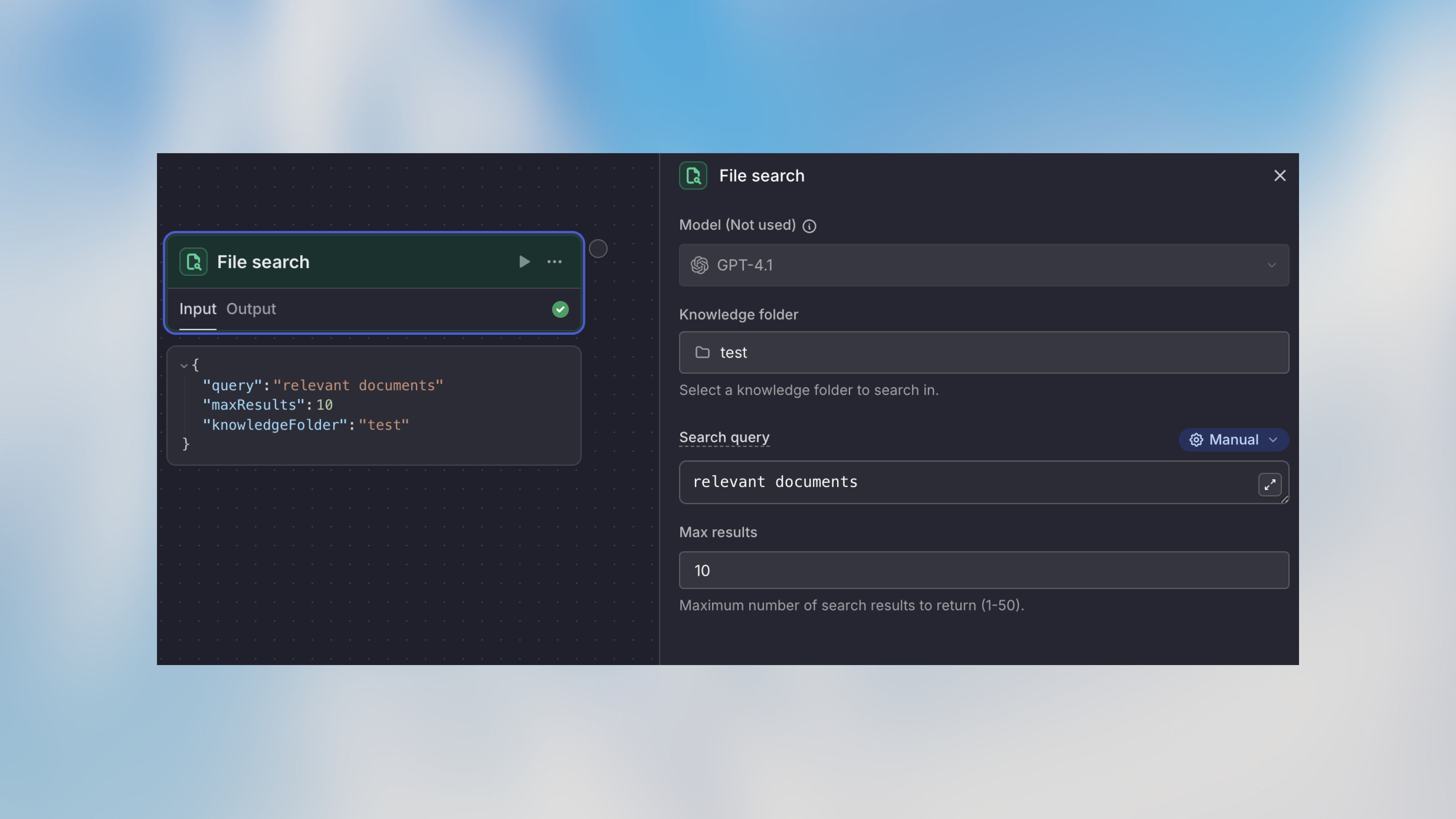 ### Knowledge base
Select the Knowledge base to search from your workspace's available Knowledge bases.
**Options:**
* Choose from connected Knowledge bases
* Each Knowledge base contains uploaded documents
* Knowledge bases accept supported text based formats such as PDFs, Word docs, Markdown, and presentations. They do not accept tabular files, images, or audio.
### Search Query
The search query to find relevant information. Supports Manual, Auto, and Prompt AI modes.
**Manual mode examples:**
```handlebars theme={null}
{{trigger.output.customer_question}}
```
```handlebars theme={null}
Find information about {{trigger.output.product_name}} pricing and features
```
**Prompt mode:**
```text theme={null}
Generate a search query to find relevant information about the customer's question: {{trigger.output.question}}
```
### Max Results
The maximum number of relevant results to return (default: 10)
**Recommendations:**
* **1-3 results**: Focused, specific queries
* **5-10 results**: Broader context needed
* **10+ results**: Comprehensive searches (may impact performance)
## How It Works
1. Query is processed against the selected Knowledge base
2. Semantic search finds the most relevant document chunks
3. Results are ranked by relevance
4. Top N results are returned based on max results setting
5. Retrieved information is available to subsequent nodes
## Example Use Cases
### Customer Support with Knowledge Base
```text theme={null}
Form Trigger (Customer question)
→ File Search: Query Knowledge base with {{trigger.output.question}}
Knowledge base: "Support Documentation"
Max Results: 5
→ Agent: Answer question using search results
Context: {{file_search.output.results}}
Question: {{trigger.output.question}}
→ Notification: Send answer to customer
```
### Product Information Lookup
```text theme={null}
Integration Trigger (Slack question about product)
→ File Search: Search product knowledge
Knowledge base: "Product Information"
Query: {{trigger.output.message}}
Max Results: 3
→ Agent: Summarize relevant product details
→ Action: Reply in Slack thread
```
### Document Validation
```text theme={null}
Form Trigger (User claim submission)
→ File Search: Find relevant policies
Knowledge base: "Company Policies"
Query: "{{trigger.output.claim_type}} policy requirements"
Max Results: 5
→ Agent: Validate claim against policies
Policies: {{file_search.output.results}}
Claim: {{trigger.output.claim_details}}
→ Condition: Approved or requires review?
```
## Accessing Search Results
Access the retrieved information in subsequent nodes:
```handlebars theme={null}
{{file_search.output.results}}
{{file_search.output.results[0].text}}
{{file_search.output.results[0].fileName}}
```
### Result Structure
Each result contains:
* **text**: The relevant text chunk from the document
* **fileName**: Name of the source file
* **fileUrl**: URL to access the source file
* **mimeType**: MIME type of the source file
* **subsource**: Additional source reference
* **subname**: Additional name reference
* **fileId**: Unique identifier for the source file
* **externalId**: External reference ID from the connected source system
* **fileSize**: Size of the file in bytes
* **connectionId**: ID of the integration connection that provided the file
* **syncParams**: Sync parameters from the source integration
* **pageCount**: Number of pages in the file
**Using in Agent prompts:**
```handlebars theme={null}
Context from knowledge base:
{{file_search.output.results}}
Based on the above context, answer this question:
{{trigger.output.question}}
```
## Limitations
* **Knowledge base scope**: Only searches within the selected Knowledge base
* **Result quality**: Depends on quality and completeness of uploaded documents
* **Chunk size**: Large documents are split into chunks; relevant information might span multiple results
* **Real-time updates**: Document changes require reprocessing before they appear in search results
**Important**: Ensure your Knowledge bases are regularly updated with current information for accurate search results.
## Best Practices
More specific queries return more relevant results. Include key terms, product names, or topics rather than generic searches.
Start with 5 results and adjust based on response quality. Too few might miss important context, too many can dilute relevance.
Organize Knowledge bases by topic or domain for more targeted searches. Separate technical docs from marketing content.
File Search is most powerful when combined with Agent nodes. The agent can synthesize and interpret the retrieved information.
Test your file search with actual questions users might ask to ensure Knowledge base content is sufficient and queries return relevant results.
Add a condition after file search to handle cases where no relevant results are found. Provide fallback responses or escalation paths.
## Next Steps
Process and synthesize search results with AI
Learn how to set up and manage Knowledge bases
Search the internet for current information
Route based on search result quality
### Knowledge base
Select the Knowledge base to search from your workspace's available Knowledge bases.
**Options:**
* Choose from connected Knowledge bases
* Each Knowledge base contains uploaded documents
* Knowledge bases accept supported text based formats such as PDFs, Word docs, Markdown, and presentations. They do not accept tabular files, images, or audio.
### Search Query
The search query to find relevant information. Supports Manual, Auto, and Prompt AI modes.
**Manual mode examples:**
```handlebars theme={null}
{{trigger.output.customer_question}}
```
```handlebars theme={null}
Find information about {{trigger.output.product_name}} pricing and features
```
**Prompt mode:**
```text theme={null}
Generate a search query to find relevant information about the customer's question: {{trigger.output.question}}
```
### Max Results
The maximum number of relevant results to return (default: 10)
**Recommendations:**
* **1-3 results**: Focused, specific queries
* **5-10 results**: Broader context needed
* **10+ results**: Comprehensive searches (may impact performance)
## How It Works
1. Query is processed against the selected Knowledge base
2. Semantic search finds the most relevant document chunks
3. Results are ranked by relevance
4. Top N results are returned based on max results setting
5. Retrieved information is available to subsequent nodes
## Example Use Cases
### Customer Support with Knowledge Base
```text theme={null}
Form Trigger (Customer question)
→ File Search: Query Knowledge base with {{trigger.output.question}}
Knowledge base: "Support Documentation"
Max Results: 5
→ Agent: Answer question using search results
Context: {{file_search.output.results}}
Question: {{trigger.output.question}}
→ Notification: Send answer to customer
```
### Product Information Lookup
```text theme={null}
Integration Trigger (Slack question about product)
→ File Search: Search product knowledge
Knowledge base: "Product Information"
Query: {{trigger.output.message}}
Max Results: 3
→ Agent: Summarize relevant product details
→ Action: Reply in Slack thread
```
### Document Validation
```text theme={null}
Form Trigger (User claim submission)
→ File Search: Find relevant policies
Knowledge base: "Company Policies"
Query: "{{trigger.output.claim_type}} policy requirements"
Max Results: 5
→ Agent: Validate claim against policies
Policies: {{file_search.output.results}}
Claim: {{trigger.output.claim_details}}
→ Condition: Approved or requires review?
```
## Accessing Search Results
Access the retrieved information in subsequent nodes:
```handlebars theme={null}
{{file_search.output.results}}
{{file_search.output.results[0].text}}
{{file_search.output.results[0].fileName}}
```
### Result Structure
Each result contains:
* **text**: The relevant text chunk from the document
* **fileName**: Name of the source file
* **fileUrl**: URL to access the source file
* **mimeType**: MIME type of the source file
* **subsource**: Additional source reference
* **subname**: Additional name reference
* **fileId**: Unique identifier for the source file
* **externalId**: External reference ID from the connected source system
* **fileSize**: Size of the file in bytes
* **connectionId**: ID of the integration connection that provided the file
* **syncParams**: Sync parameters from the source integration
* **pageCount**: Number of pages in the file
**Using in Agent prompts:**
```handlebars theme={null}
Context from knowledge base:
{{file_search.output.results}}
Based on the above context, answer this question:
{{trigger.output.question}}
```
## Limitations
* **Knowledge base scope**: Only searches within the selected Knowledge base
* **Result quality**: Depends on quality and completeness of uploaded documents
* **Chunk size**: Large documents are split into chunks; relevant information might span multiple results
* **Real-time updates**: Document changes require reprocessing before they appear in search results
**Important**: Ensure your Knowledge bases are regularly updated with current information for accurate search results.
## Best Practices
More specific queries return more relevant results. Include key terms, product names, or topics rather than generic searches.
Start with 5 results and adjust based on response quality. Too few might miss important context, too many can dilute relevance.
Organize Knowledge bases by topic or domain for more targeted searches. Separate technical docs from marketing content.
File Search is most powerful when combined with Agent nodes. The agent can synthesize and interpret the retrieved information.
Test your file search with actual questions users might ask to ensure Knowledge base content is sufficient and queries return relevant results.
Add a condition after file search to handle cases where no relevant results are found. Provide fallback responses or escalation paths.
## Next Steps
Process and synthesize search results with AI
Learn how to set up and manage Knowledge bases
Search the internet for current information
Route based on search result quality