> ## Documentation Index
> Fetch the complete documentation index at: https://docs.langdock.com/llms.txt
> Use this file to discover all available pages before exploring further.
# Agent
> Use AI to analyze data, make decisions, generate content, and extract structured information.
 ## Overview
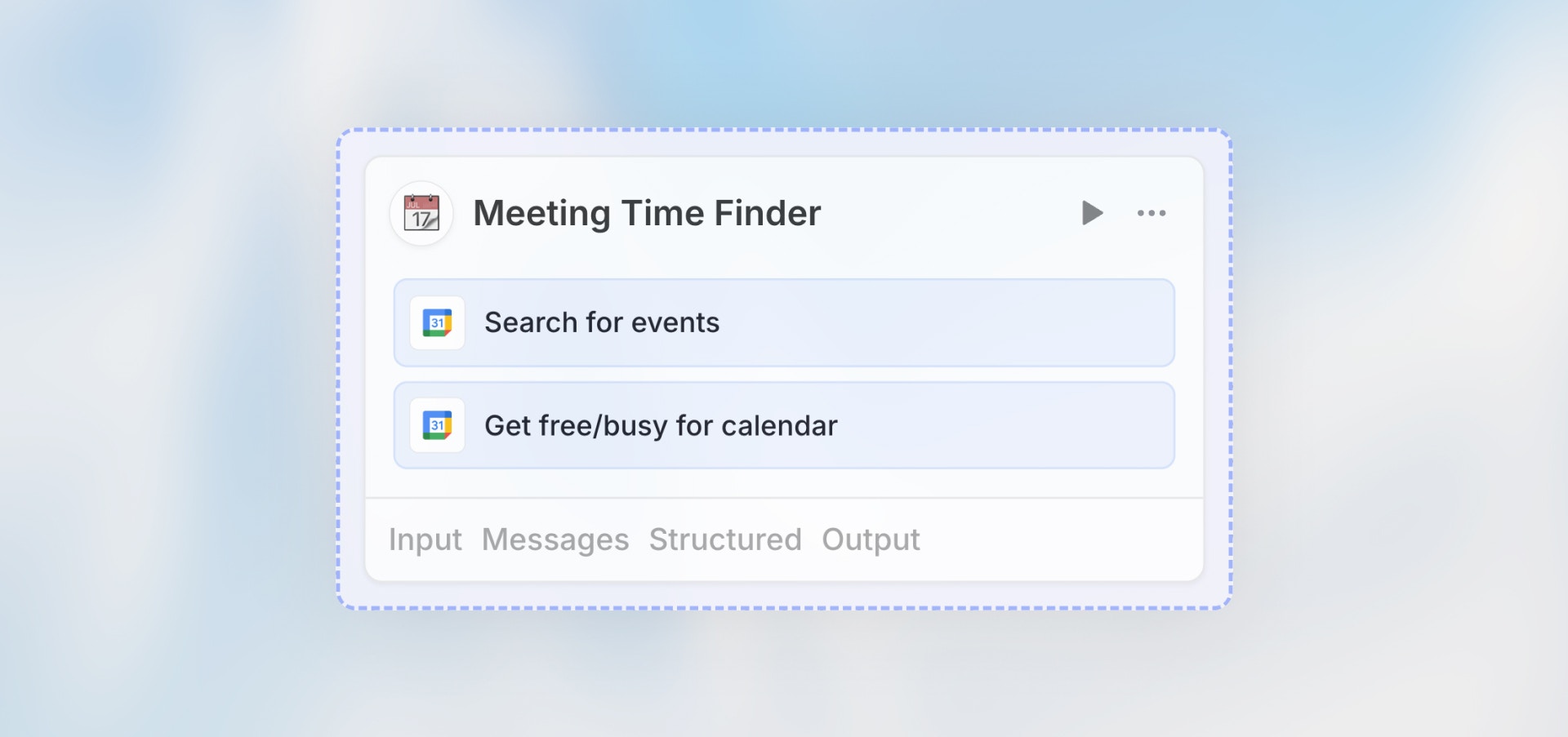
The Agent node is where AI comes into your workflow. It can analyze text, make intelligent decisions, extract structured data, generate content, answer questions, and much more - all using natural language instructions.
**Best for**: Content analysis, categorization, data extraction,
decision-making, summarization, and any task requiring intelligence.
## When to Use Agent Node
**Perfect for:**
* Analyzing and categorizing content
* Extracting structured data from unstructured text
* Making decisions based on criteria
* Generating summaries or reports
* Sentiment analysis
* Answering questions about data
* Content generation
* Translation and language tasks
**Not ideal for:**
* Simple data transformations (use Code Node)
* Mathematical calculations (use Code Node)
* Direct API calls (use HTTP Request Node)
## Configuration
### Select or Create Agent
**Use Existing Agent**
* Choose from your workspace agents
* Inherits agent's configuration and knowledge
* Consistent behavior across chat and workflows
**Create New Agent**
* Define agent specifically for this workflow
* Configure independently
* Optimized for automation
### Agent Instructions
Provide clear instructions for what the agent should do:
**Good Instructions:**
```text theme={null}
Analyze the customer feedback and determine:
1. Sentiment (positive, neutral, negative)
2. Main topic category (product, service, pricing, support)
3. Urgency level (low, medium, high)
4. Key issues mentioned
Feedback: {{trigger.output.feedback_text}}
```
**Poor Instructions:**
```text theme={null}
Analyze this feedback: {{trigger.output.feedback_text}}
```
### Input Variables
Pass data from previous nodes to the agent:
```handlebars theme={null}
Customer: {{trigger.output.customer_name}}
Order ID: {{trigger.output.order_id}}
Issue: {{trigger.output.description}}
Please analyze this support ticket and categorize it.
```
### Structured Output (Recommended)
Define the exact structure you want from the agent:
**Why Use Structured Output:**
* Guaranteed format (always valid JSON)
* No parsing errors
* Reliable for downstream nodes
* Easier to debug
**Example:**
```json theme={null}
{
"sentiment": "positive",
"category": "product_feedback",
"priority": "medium",
"summary": "Customer loves the new feature",
"action_needed": false
}
```
**Configure:**
1. Enable "Structured Output"
2. Define output fields:
* Field name
* Type (string, number, boolean, array)
* Description
### Max Steps
The maximum number of tool call steps the agent can take during execution. This prevents runaway agents from consuming excessive resources.
**Default:** 25 steps
**Minimum:** 1
**When to adjust:**
* **Lower (5-10)**: Simple tasks with predictable tool usage
* **Default (25)**: Most use cases
* **Higher (50-100)**: Complex research or multi-step analysis tasks
### Tools & Capabilities
Enable additional capabilities for the agent. Tools are configured as an array with four types:
**Built-in Capabilities**
* **Web Search**: Agent can search the internet for fact-checking and current information
**Integration Actions**
* Add specific actions from your connected integrations
* Each action can optionally require confirmation before execution (human-in-the-loop)
* Specify which connection to use if you have multiple
**Folders**
* Attach folders so the agent can search your documents
* Agent automatically searches relevant content when answering questions
**Other Agents**
* Call other agents as tools for specialized sub-tasks
* Useful for complex workflows with multiple areas of expertise
### Error Handling
Configure how the workflow handles errors from this node:
| Strategy | Behavior |
| ------------------ | -------------------------------------------------------- |
| **Stop** (default) | Workflow execution stops immediately on error |
| **Callback** | Route to an error handling branch to process the failure |
| **Continue** | Continue execution using error output data |
### Connection Overrides
When using integration actions, you can override which connection the agent uses for specific tools. This is useful when:
* You have multiple connections to the same integration (e.g., different Slack workspaces)
* You want the workflow to use a specific service account
### Attachments
Attach files directly to the agent node that will be available for processing. These can be:
* Files uploaded to the workflow
* Files from previous node outputs
* Static reference documents
## Example Use Cases
### Content Categorization
```text theme={null}
Agent Configuration:
- Instructions: "Categorize this article by topic and suggest tags"
- Input: {{trigger.output.article_text}}
- Model: GPT-3.5 Turbo
- Structured Output:
{
"category": "string",
"tags": ["string"],
"confidence": "number"
}
```
### Lead Qualification
```text theme={null}
Agent Configuration:
- Instructions: "Score this lead based on company size, role, and use case"
- Input:
Company: {{trigger.output.company}}
Role: {{trigger.output.role}}
Use case: {{trigger.output.use_case}}
- Model: GPT-4
- Structured Output:
{
"score": "number (0-100)",
"qualification": "hot|warm|cold",
"reasoning": "string"
}
```
### Document Summarization
```text theme={null}
Agent Configuration:
- Instructions: "Summarize this document in 3-5 bullet points"
- Input: {{trigger.output.document_text}}
- Model: Claude Sonnet
- Structured Output:
{
"summary_points": ["string"],
"key_topics": ["string"],
"word_count": "number"
}
```
### Sentiment Analysis
```text theme={null}
Agent Configuration:
- Instructions: "Analyze sentiment and emotional tone"
- Input: {{trigger.output.customer_message}}
- Model: GPT-3.5 Turbo
- Structured Output:
{
"sentiment": "positive|neutral|negative",
"emotion": "string",
"confidence": "number"
}
```
## Accessing Agent Output
**Without Structured Output:**
```handlebars theme={null}
{{agent_node_name.output.messages}}
```
**With Structured Output:**
```handlebars theme={null}
{{agent_node_name.output.structured.sentiment}}
{{agent_node_name.output.structured.category}}
{{agent_node_name.output.structured.summary}}
{{agent_node_name.output.structured.tags[0]}}
```
## Prompt Engineering Tips
**Be Explicit**
```text theme={null}
❌ "Analyze this text"
✅ "Analyze this customer feedback and categorize as bug, feature request, or question"
```
**Provide Context**
```text theme={null}
You are analyzing customer support tickets for a SaaS company.
Categorize by urgency based on:
- Urgent: System down, data loss, security issue
- High: Blocking user's work
- Medium: Inconvenience but has workaround
- Low: Feature request or question
```
**Use Examples**
```text theme={null}
Categorize these issues:
Example 1: "Can't log in, getting 500 error" → Urgent
Example 2: "How do I export data?" → Low
Now categorize: {{trigger.output.issue}}
```
**Constrain Output**
```text theme={null}
Respond with ONLY one of these categories: bug, feature, question
Do not explain your reasoning.
```
## Best Practices
For workflows, structured output is almost always better. It prevents parsing errors and makes data easier to use in subsequent nodes.
Clear, detailed instructions lead to better results. Include examples if the task is complex.
Agents work best with focused inputs. If processing long documents, consider extracting relevant sections first.
Agent performance can vary. Test with actual data examples to ensure consistent results.
Add validation after the agent node to handle unexpected outputs or errors.
## Next Steps
Transform data before/after agent processing
Route based on agent decisions
Optimize agent costs
Learn about using agents in workflows
## Overview
The Agent node is where AI comes into your workflow. It can analyze text, make intelligent decisions, extract structured data, generate content, answer questions, and much more - all using natural language instructions.
**Best for**: Content analysis, categorization, data extraction,
decision-making, summarization, and any task requiring intelligence.
## When to Use Agent Node
**Perfect for:**
* Analyzing and categorizing content
* Extracting structured data from unstructured text
* Making decisions based on criteria
* Generating summaries or reports
* Sentiment analysis
* Answering questions about data
* Content generation
* Translation and language tasks
**Not ideal for:**
* Simple data transformations (use Code Node)
* Mathematical calculations (use Code Node)
* Direct API calls (use HTTP Request Node)
## Configuration
### Select or Create Agent
**Use Existing Agent**
* Choose from your workspace agents
* Inherits agent's configuration and knowledge
* Consistent behavior across chat and workflows
**Create New Agent**
* Define agent specifically for this workflow
* Configure independently
* Optimized for automation
### Agent Instructions
Provide clear instructions for what the agent should do:
**Good Instructions:**
```text theme={null}
Analyze the customer feedback and determine:
1. Sentiment (positive, neutral, negative)
2. Main topic category (product, service, pricing, support)
3. Urgency level (low, medium, high)
4. Key issues mentioned
Feedback: {{trigger.output.feedback_text}}
```
**Poor Instructions:**
```text theme={null}
Analyze this feedback: {{trigger.output.feedback_text}}
```
### Input Variables
Pass data from previous nodes to the agent:
```handlebars theme={null}
Customer: {{trigger.output.customer_name}}
Order ID: {{trigger.output.order_id}}
Issue: {{trigger.output.description}}
Please analyze this support ticket and categorize it.
```
### Structured Output (Recommended)
Define the exact structure you want from the agent:
**Why Use Structured Output:**
* Guaranteed format (always valid JSON)
* No parsing errors
* Reliable for downstream nodes
* Easier to debug
**Example:**
```json theme={null}
{
"sentiment": "positive",
"category": "product_feedback",
"priority": "medium",
"summary": "Customer loves the new feature",
"action_needed": false
}
```
**Configure:**
1. Enable "Structured Output"
2. Define output fields:
* Field name
* Type (string, number, boolean, array)
* Description
### Max Steps
The maximum number of tool call steps the agent can take during execution. This prevents runaway agents from consuming excessive resources.
**Default:** 25 steps
**Minimum:** 1
**When to adjust:**
* **Lower (5-10)**: Simple tasks with predictable tool usage
* **Default (25)**: Most use cases
* **Higher (50-100)**: Complex research or multi-step analysis tasks
### Tools & Capabilities
Enable additional capabilities for the agent. Tools are configured as an array with four types:
**Built-in Capabilities**
* **Web Search**: Agent can search the internet for fact-checking and current information
**Integration Actions**
* Add specific actions from your connected integrations
* Each action can optionally require confirmation before execution (human-in-the-loop)
* Specify which connection to use if you have multiple
**Folders**
* Attach folders so the agent can search your documents
* Agent automatically searches relevant content when answering questions
**Other Agents**
* Call other agents as tools for specialized sub-tasks
* Useful for complex workflows with multiple areas of expertise
### Error Handling
Configure how the workflow handles errors from this node:
| Strategy | Behavior |
| ------------------ | -------------------------------------------------------- |
| **Stop** (default) | Workflow execution stops immediately on error |
| **Callback** | Route to an error handling branch to process the failure |
| **Continue** | Continue execution using error output data |
### Connection Overrides
When using integration actions, you can override which connection the agent uses for specific tools. This is useful when:
* You have multiple connections to the same integration (e.g., different Slack workspaces)
* You want the workflow to use a specific service account
### Attachments
Attach files directly to the agent node that will be available for processing. These can be:
* Files uploaded to the workflow
* Files from previous node outputs
* Static reference documents
## Example Use Cases
### Content Categorization
```text theme={null}
Agent Configuration:
- Instructions: "Categorize this article by topic and suggest tags"
- Input: {{trigger.output.article_text}}
- Model: GPT-3.5 Turbo
- Structured Output:
{
"category": "string",
"tags": ["string"],
"confidence": "number"
}
```
### Lead Qualification
```text theme={null}
Agent Configuration:
- Instructions: "Score this lead based on company size, role, and use case"
- Input:
Company: {{trigger.output.company}}
Role: {{trigger.output.role}}
Use case: {{trigger.output.use_case}}
- Model: GPT-4
- Structured Output:
{
"score": "number (0-100)",
"qualification": "hot|warm|cold",
"reasoning": "string"
}
```
### Document Summarization
```text theme={null}
Agent Configuration:
- Instructions: "Summarize this document in 3-5 bullet points"
- Input: {{trigger.output.document_text}}
- Model: Claude Sonnet
- Structured Output:
{
"summary_points": ["string"],
"key_topics": ["string"],
"word_count": "number"
}
```
### Sentiment Analysis
```text theme={null}
Agent Configuration:
- Instructions: "Analyze sentiment and emotional tone"
- Input: {{trigger.output.customer_message}}
- Model: GPT-3.5 Turbo
- Structured Output:
{
"sentiment": "positive|neutral|negative",
"emotion": "string",
"confidence": "number"
}
```
## Accessing Agent Output
**Without Structured Output:**
```handlebars theme={null}
{{agent_node_name.output.messages}}
```
**With Structured Output:**
```handlebars theme={null}
{{agent_node_name.output.structured.sentiment}}
{{agent_node_name.output.structured.category}}
{{agent_node_name.output.structured.summary}}
{{agent_node_name.output.structured.tags[0]}}
```
## Prompt Engineering Tips
**Be Explicit**
```text theme={null}
❌ "Analyze this text"
✅ "Analyze this customer feedback and categorize as bug, feature request, or question"
```
**Provide Context**
```text theme={null}
You are analyzing customer support tickets for a SaaS company.
Categorize by urgency based on:
- Urgent: System down, data loss, security issue
- High: Blocking user's work
- Medium: Inconvenience but has workaround
- Low: Feature request or question
```
**Use Examples**
```text theme={null}
Categorize these issues:
Example 1: "Can't log in, getting 500 error" → Urgent
Example 2: "How do I export data?" → Low
Now categorize: {{trigger.output.issue}}
```
**Constrain Output**
```text theme={null}
Respond with ONLY one of these categories: bug, feature, question
Do not explain your reasoning.
```
## Best Practices
For workflows, structured output is almost always better. It prevents parsing errors and makes data easier to use in subsequent nodes.
Clear, detailed instructions lead to better results. Include examples if the task is complex.
Agents work best with focused inputs. If processing long documents, consider extracting relevant sections first.
Agent performance can vary. Test with actual data examples to ensure consistent results.
Add validation after the agent node to handle unexpected outputs or errors.
## Next Steps
Transform data before/after agent processing
Route based on agent decisions
Optimize agent costs
Learn about using agents in workflows