> ## Documentation Index
> Fetch the complete documentation index at: https://docs.langdock.com/llms.txt
> Use this file to discover all available pages before exploring further.
# Action
> Perform actions in connected applications like creating tasks, sending messages, or updating records.
 ## Overview
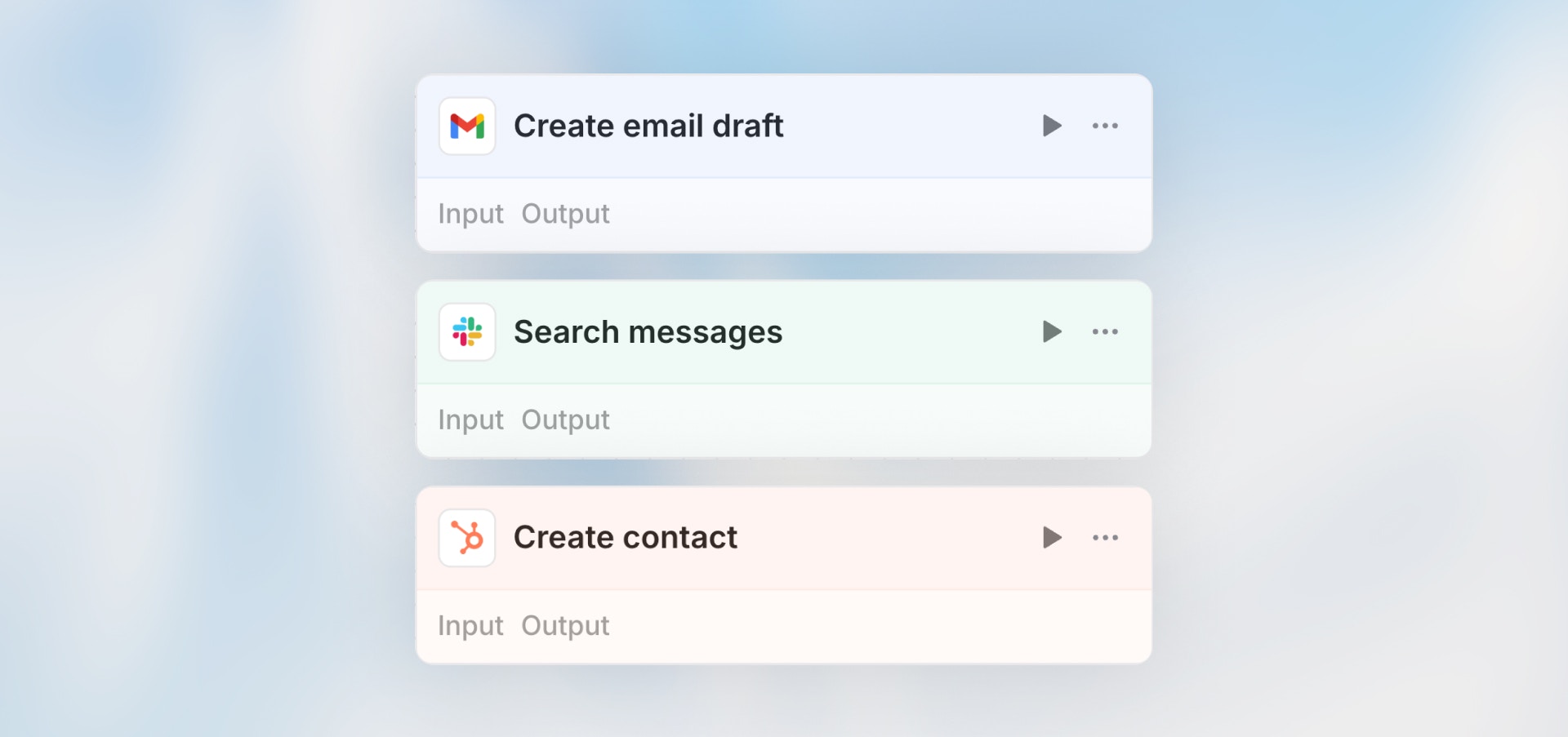
The Action node executes operations in your connected integrations - send Slack messages, create CRM records, add rows to spreadsheets, update project tasks, and more.
**Best for**: Creating/updating records, sending messages, triggering actions
in connected apps, and integrating with external services.
## Configuration
1. **Select Integration**: Choose from connected apps (Slack, Google Sheets, Notion, etc.)
2. **Choose Action**: Select specific action (Send message, Create record, etc.)
3. **Select Connection**: If you have multiple connections, choose which one to use
4. **Map Fields**: Provide data from previous nodes using variables
5. **Configure Settings**: Action-specific options
### Field Configuration Modes
Each field in an action can be configured independently with one of these modes:
| Mode | Description | When to Use |
| ---------- | ----------------------------------------------------------- | -------------------------------------------- |
| **Manual** | Enter a static value or use variables from previous nodes | When you know exactly what value to use |
| **Auto** | AI automatically determines the best value based on context | When the value depends on workflow context |
| **Prompt** | Provide instructions for AI to generate the value | When you need custom AI logic for this field |
**Manual Mode Example:**
```handlebars theme={null}
{{trigger.output.customer_email}}
```
**Prompt Mode Example:**
```text theme={null}
Based on the sentiment analysis result {{agent.output.structured.sentiment}},
write an appropriate subject line for the follow-up email.
```
### Connection Selection
If you have multiple connections to the same integration (e.g., multiple Slack workspaces or Gmail accounts), select which connection this action should use. This is configured at the action level.
### Requires Confirmation
When enabled, the workflow will pause before executing this action and request user confirmation. This is useful for:
* Actions with significant external impact (sending emails, creating records)
* Review steps before data is pushed to external systems
* Compliance workflows requiring human approval
**Default:** Disabled (action executes automatically)
### Error Handling
Configure how errors are handled:
| Strategy | Behavior |
| ------------------ | ----------------------------------- |
| **Stop** (default) | Workflow stops immediately on error |
| **Callback** | Route to an error handling branch |
| **Continue** | Continue with error data available |
## Common Actions
**Slack**
* Send message to channel
* Send direct message
* Create channel
* Add reaction
**Google Sheets**
* Add row
* Update row
* Delete row
* Update cell
**Gmail**
* Send email
* Create draft
* Add label
**Notion**
* Create page
* Update database record
**CRM (Salesforce, HubSpot)**
* Create/update contact
* Create/update deal
* Add activity log
## Example
```handlebars theme={null}
Slack: Send Message
Channel: #support
Message: New ticket #{{trigger.output.ticket_id}}
Priority: {{agent.output.structured.priority}}
Assigned to: {{condition.output.assignee}}
```
## Next Steps
Trigger workflows from integration events
Build your first workflow
## Overview
The Action node executes operations in your connected integrations - send Slack messages, create CRM records, add rows to spreadsheets, update project tasks, and more.
**Best for**: Creating/updating records, sending messages, triggering actions
in connected apps, and integrating with external services.
## Configuration
1. **Select Integration**: Choose from connected apps (Slack, Google Sheets, Notion, etc.)
2. **Choose Action**: Select specific action (Send message, Create record, etc.)
3. **Select Connection**: If you have multiple connections, choose which one to use
4. **Map Fields**: Provide data from previous nodes using variables
5. **Configure Settings**: Action-specific options
### Field Configuration Modes
Each field in an action can be configured independently with one of these modes:
| Mode | Description | When to Use |
| ---------- | ----------------------------------------------------------- | -------------------------------------------- |
| **Manual** | Enter a static value or use variables from previous nodes | When you know exactly what value to use |
| **Auto** | AI automatically determines the best value based on context | When the value depends on workflow context |
| **Prompt** | Provide instructions for AI to generate the value | When you need custom AI logic for this field |
**Manual Mode Example:**
```handlebars theme={null}
{{trigger.output.customer_email}}
```
**Prompt Mode Example:**
```text theme={null}
Based on the sentiment analysis result {{agent.output.structured.sentiment}},
write an appropriate subject line for the follow-up email.
```
### Connection Selection
If you have multiple connections to the same integration (e.g., multiple Slack workspaces or Gmail accounts), select which connection this action should use. This is configured at the action level.
### Requires Confirmation
When enabled, the workflow will pause before executing this action and request user confirmation. This is useful for:
* Actions with significant external impact (sending emails, creating records)
* Review steps before data is pushed to external systems
* Compliance workflows requiring human approval
**Default:** Disabled (action executes automatically)
### Error Handling
Configure how errors are handled:
| Strategy | Behavior |
| ------------------ | ----------------------------------- |
| **Stop** (default) | Workflow stops immediately on error |
| **Callback** | Route to an error handling branch |
| **Continue** | Continue with error data available |
## Common Actions
**Slack**
* Send message to channel
* Send direct message
* Create channel
* Add reaction
**Google Sheets**
* Add row
* Update row
* Delete row
* Update cell
**Gmail**
* Send email
* Create draft
* Add label
**Notion**
* Create page
* Update database record
**CRM (Salesforce, HubSpot)**
* Create/update contact
* Create/update deal
* Add activity log
## Example
```handlebars theme={null}
Slack: Send Message
Channel: #support
Message: New ticket #{{trigger.output.ticket_id}}
Priority: {{agent.output.structured.priority}}
Assigned to: {{condition.output.assignee}}
```
## Next Steps
Trigger workflows from integration events
Build your first workflow