> ## Documentation Index
> Fetch the complete documentation index at: https://docs.langdock.com/llms.txt
> Use this file to discover all available pages before exploring further.
# Cost Management
> Understand workflow costs and learn strategies to optimize spending while maintaining performance.
## Understanding Workflow Costs
Workflows consume AI credits based on what they do. The main cost drivers are:
### AI Agent Nodes
The biggest expense in most workflows. Costs depend on:
* **Model used**: Larger models cost more than smaller ones
* **Input length**: How much data you send to the agent
* **Output length**: How much the agent generates
* **Tool usage**: Web searches, code execution, and integrations add costs
### Other Nodes
* **Web Search nodes**: Small fee per search
* **Action nodes**: Usually free (no AI involved)
* **Code/Condition/Loop nodes**: Free (just logic)
* **HTTP requests and notifications**: Free
Messages sent in the Workflow Builder chat count against your personal [usage limits](/en/using-langdock/models-and-limits/fair-usage-policy), not against workflow spend limits.
## Monitoring Costs
### Per-Node Costs
After a workflow run, each node shows a **cost badge** in its footer. Hover over it to see:
* Total cost for that node
* Per-model breakdown with input/output tokens
* Cost per model used
### Per-Run Costs
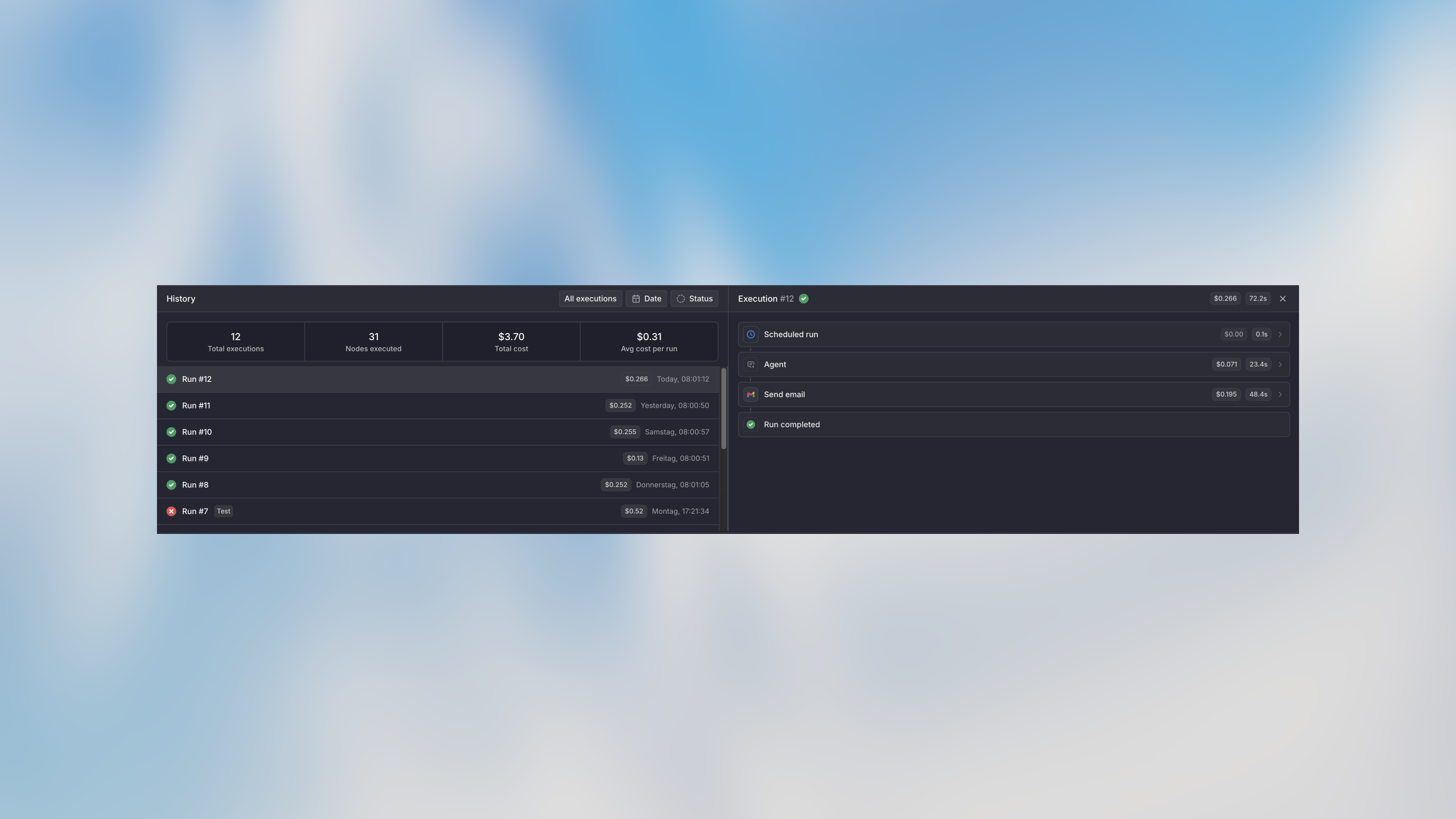 View run costs in the **Runs** tab:
1. Click on any run in the history
2. See total execution cost
3. Click individual nodes to see their cost breakdown
### Workflow-Level Costs
The history panel shows aggregate stats:
* Total runs
* Nodes executed
* Total cost (all-time)
* Average cost per run
## Setting Cost Limits
View run costs in the **Runs** tab:
1. Click on any run in the history
2. See total execution cost
3. Click individual nodes to see their cost breakdown
### Workflow-Level Costs
The history panel shows aggregate stats:
* Total runs
* Nodes executed
* Total cost (all-time)
* Average cost per run
## Setting Cost Limits
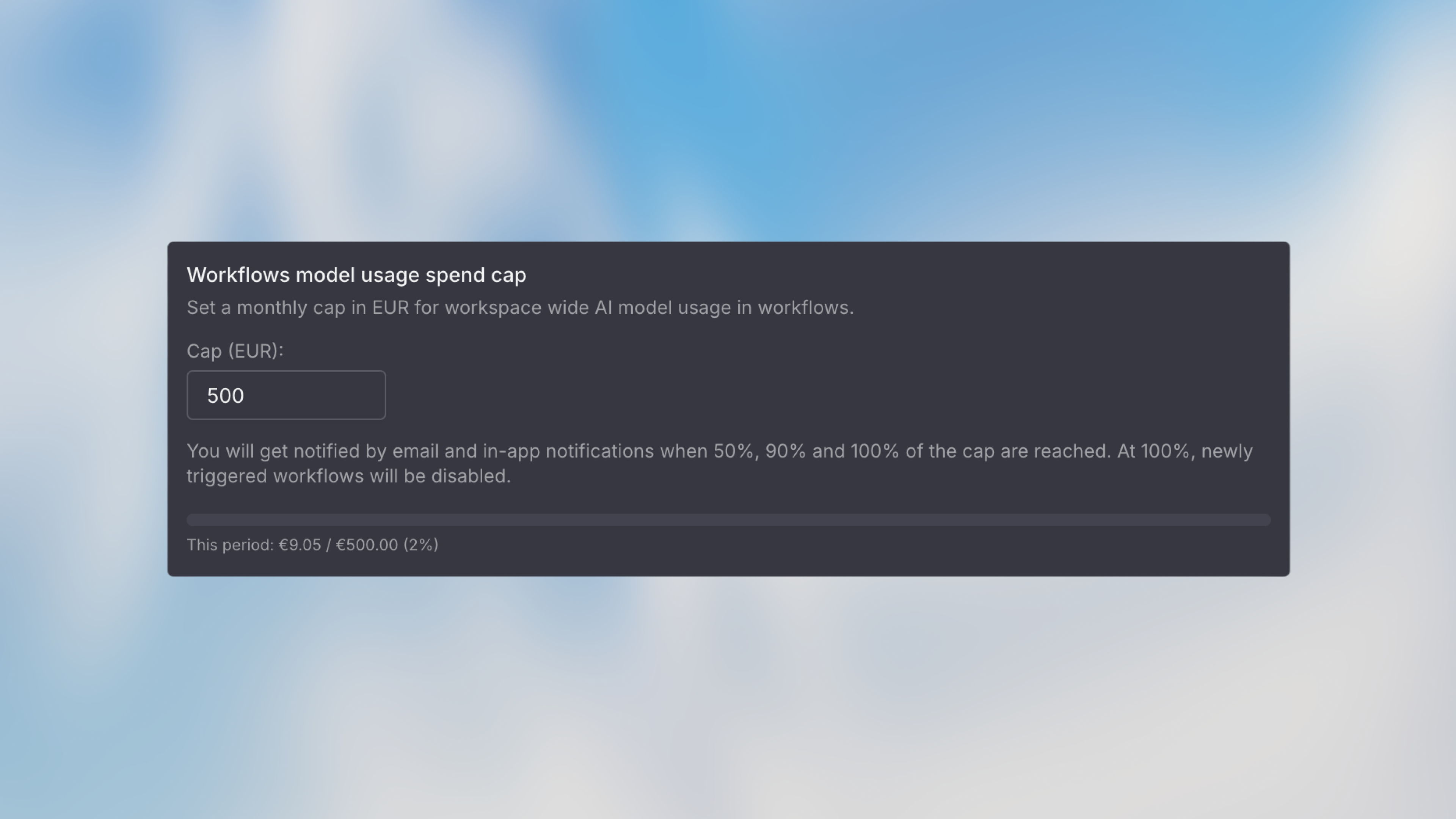 Protect yourself from unexpected charges in the workflow **Settings** panel:
### Monthly Limit
Set a maximum spending cap for the workflow per month:
1. Go to workflow settings
2. Set **Monthly Limit** (e.g., \$100)
3. New runs are blocked when the limit is reached
4. Progress bar shows current spend vs limit
### Per-Execution Limit
Prevent runaway costs from a single run:
1. Set **Execution Limit** (e.g., \$5 per run)
2. Run stops if it exceeds this amount
3. Useful for catching issues with loops or large data
### Hourly Rate Limit
Control how often the workflow can run:
1. Set **Max Executions Per Hour**
2. Prevents trigger floods from overwhelming your budget
3. Useful for webhook-triggered workflows
### Alert Thresholds
Get notified before hitting limits:
1. Add custom alert amounts (e.g., $25, $50)
2. Receive email notifications when crossing each threshold
3. Built-in alerts at 50% and 90% of monthly limit
When a workflow reaches its monthly limit, new runs cannot start. Scheduled and polling workflows are deactivated when they try to run after reaching this limit.
## Cost Limits Hierarchy
Cost limits are enforced at multiple levels. Higher-level limits take precedence:
### Workspace-Level Limits (Admin)
Admins can set workspace-wide limits in **Settings → Products → Workflows**:
| Setting | Description |
| ---------------------------------- | -------------------------------------------------------------------------- |
| **Workspace Spend Cap** | Maximum total spend across all workflows per billing month (default: €500) |
| **Max Monthly Limit Per Workflow** | Caps what users can set as their workflow's monthly limit |
| **Monthly Run Limit** | Maximum workflow executions per month (based on plan) |
When a workspace-level limit is reached, workflow executions stop regardless of their individual settings.
### Workflow-Level Limits (User)
Users can set limits per workflow (within admin constraints):
| Setting | Description |
| ----------------------- | ---------------------------------------------------------- |
| **Monthly Limit** | Capped by admin's "Max Monthly Limit Per Workflow" setting |
| **Per-Execution Limit** | Stops a single run if it exceeds this amount |
| **Hourly Rate Limit** | Maximum executions per hour |
The workflow monthly limit cannot exceed the admin-configured maximum. If an admin sets the max at $50, users cannot set their workflow limit higher than $50.
## Optimization Strategies
### Choose the Right Model
Don't use premium models for simple tasks:
| Task | Model Choice |
| ----------------------- | ---------------------- |
| Extract email from text | Smaller/faster model ✅ |
| Complex reasoning | Larger model ✅ |
| Date formatting | Code node (free) ✅ |
### Optimize Agent Prompts
Shorter, clearer prompts cost less and work better:
```text theme={null}
Analyze this feedback. Return:
- Sentiment: positive/neutral/negative
- Urgency: low/medium/high
- Key issue (1 sentence)
Feedback: {{trigger.output.message}}
```
Use structured outputs. They're more reliable and prevent the model from generating unnecessary explanatory text.
### Use Code for Simple Transformations
Don't use AI for tasks that code can handle:
**Free with Code Node:**
```javascript theme={null}
const date = new Date(trigger.output.date);
return {
formatted: date.toISOString().split('T')[0] // YYYY-MM-DD
};
```
**When to use code instead of AI:**
* Date/time formatting
* Mathematical calculations
* Data filtering and sorting
* String manipulation
* JSON parsing/formatting
## Cost-Effective Patterns
### Smart Filtering
Filter data before sending to AI:
```text theme={null}
Trigger (100 items) → Code: Filter relevant items (20 items)
→ Agent: Process 20 items (not 100)
```
### Progressive Enhancement
Start cheap, escalate only if needed:
```text theme={null}
Data → Quick check (code) → [SIMPLE] → Done
→ [COMPLEX] → AI analysis
```
## Estimating Costs Before Launch
### 1. Count Expected Runs
* Forms: Expected submissions per month
* Scheduled: Runs per day × 30
* Webhooks: Events per month from integration
### 2. Test with Real Data
Run 5-10 tests and check the cost badges:
```text theme={null}
Average cost per run: $0.13
Expected monthly runs: 1,000
Estimated monthly cost: $130
Add 20% buffer: $156
```
### 3. Set Appropriate Limits
```text theme={null}
Monthly limit: $200 (includes buffer)
Per-run limit: $1.00 (catches anomalies)
Hourly rate: Based on expected trigger frequency
```
## Next Steps
Understand agent node costs and optimization
Use code for free transformations
## FAQ
Workflow cost depends on model usage, number of runs, selected models, input size, output length, and any AI-heavy nodes. Long prompts, repeated loops, and large retrieved files can increase cost.
Use the smallest model that works, keep prompts focused, avoid unnecessary loops, limit large file or knowledge retrieval, and test workflows with sample data before running them at scale.
Protect yourself from unexpected charges in the workflow **Settings** panel:
### Monthly Limit
Set a maximum spending cap for the workflow per month:
1. Go to workflow settings
2. Set **Monthly Limit** (e.g., \$100)
3. New runs are blocked when the limit is reached
4. Progress bar shows current spend vs limit
### Per-Execution Limit
Prevent runaway costs from a single run:
1. Set **Execution Limit** (e.g., \$5 per run)
2. Run stops if it exceeds this amount
3. Useful for catching issues with loops or large data
### Hourly Rate Limit
Control how often the workflow can run:
1. Set **Max Executions Per Hour**
2. Prevents trigger floods from overwhelming your budget
3. Useful for webhook-triggered workflows
### Alert Thresholds
Get notified before hitting limits:
1. Add custom alert amounts (e.g., $25, $50)
2. Receive email notifications when crossing each threshold
3. Built-in alerts at 50% and 90% of monthly limit
When a workflow reaches its monthly limit, new runs cannot start. Scheduled and polling workflows are deactivated when they try to run after reaching this limit.
## Cost Limits Hierarchy
Cost limits are enforced at multiple levels. Higher-level limits take precedence:
### Workspace-Level Limits (Admin)
Admins can set workspace-wide limits in **Settings → Products → Workflows**:
| Setting | Description |
| ---------------------------------- | -------------------------------------------------------------------------- |
| **Workspace Spend Cap** | Maximum total spend across all workflows per billing month (default: €500) |
| **Max Monthly Limit Per Workflow** | Caps what users can set as their workflow's monthly limit |
| **Monthly Run Limit** | Maximum workflow executions per month (based on plan) |
When a workspace-level limit is reached, workflow executions stop regardless of their individual settings.
### Workflow-Level Limits (User)
Users can set limits per workflow (within admin constraints):
| Setting | Description |
| ----------------------- | ---------------------------------------------------------- |
| **Monthly Limit** | Capped by admin's "Max Monthly Limit Per Workflow" setting |
| **Per-Execution Limit** | Stops a single run if it exceeds this amount |
| **Hourly Rate Limit** | Maximum executions per hour |
The workflow monthly limit cannot exceed the admin-configured maximum. If an admin sets the max at $50, users cannot set their workflow limit higher than $50.
## Optimization Strategies
### Choose the Right Model
Don't use premium models for simple tasks:
| Task | Model Choice |
| ----------------------- | ---------------------- |
| Extract email from text | Smaller/faster model ✅ |
| Complex reasoning | Larger model ✅ |
| Date formatting | Code node (free) ✅ |
### Optimize Agent Prompts
Shorter, clearer prompts cost less and work better:
```text theme={null}
Analyze this feedback. Return:
- Sentiment: positive/neutral/negative
- Urgency: low/medium/high
- Key issue (1 sentence)
Feedback: {{trigger.output.message}}
```
Use structured outputs. They're more reliable and prevent the model from generating unnecessary explanatory text.
### Use Code for Simple Transformations
Don't use AI for tasks that code can handle:
**Free with Code Node:**
```javascript theme={null}
const date = new Date(trigger.output.date);
return {
formatted: date.toISOString().split('T')[0] // YYYY-MM-DD
};
```
**When to use code instead of AI:**
* Date/time formatting
* Mathematical calculations
* Data filtering and sorting
* String manipulation
* JSON parsing/formatting
## Cost-Effective Patterns
### Smart Filtering
Filter data before sending to AI:
```text theme={null}
Trigger (100 items) → Code: Filter relevant items (20 items)
→ Agent: Process 20 items (not 100)
```
### Progressive Enhancement
Start cheap, escalate only if needed:
```text theme={null}
Data → Quick check (code) → [SIMPLE] → Done
→ [COMPLEX] → AI analysis
```
## Estimating Costs Before Launch
### 1. Count Expected Runs
* Forms: Expected submissions per month
* Scheduled: Runs per day × 30
* Webhooks: Events per month from integration
### 2. Test with Real Data
Run 5-10 tests and check the cost badges:
```text theme={null}
Average cost per run: $0.13
Expected monthly runs: 1,000
Estimated monthly cost: $130
Add 20% buffer: $156
```
### 3. Set Appropriate Limits
```text theme={null}
Monthly limit: $200 (includes buffer)
Per-run limit: $1.00 (catches anomalies)
Hourly rate: Based on expected trigger frequency
```
## Next Steps
Understand agent node costs and optimization
Use code for free transformations
## FAQ
Workflow cost depends on model usage, number of runs, selected models, input size, output length, and any AI-heavy nodes. Long prompts, repeated loops, and large retrieved files can increase cost.
Use the smallest model that works, keep prompts focused, avoid unnecessary loops, limit large file or knowledge retrieval, and test workflows with sample data before running them at scale.